Windows Mail

How to Reinstate Windows Mail in Windows 7

   Warning
Microsoft no longer supports Windows Mail, aka WinMail. It's recommended you use another well known supported email client. This Tutorial is for Advanced users who importantly have the Technical Ability to make the changes, have backups of everything including your OS, and to be your own tech support for WinMail going forward. If you decide to complete this tutorial you accept the fact that you are using WinMail as-is. It might be necessary to uninstall other email clients to resolve any WinMail conflicts in some environments. Understand it's likely that new OS updates from Microsoft will break WinMail's operation, and to fix make it necessary to rerun the tutorial again to reinstate it. With those things in mind, this tutorial was written so that you can rerun it without affecting WinMail user data.
Please see this Errata (Bug List) post before you install, to be aware of the current information about known issues using WinMail within Windows 7, these issues are programmatic and in most cases cannot be resolved by this tutorial, and will never be fixed.

Having said all of that disclaimer, if you have the technical ability, and can put up with the annoying minor byproduct bugs, then like so many of us still enjoy using WinMail on Windows 7 ...ymmv!


   Tip
As of January, 2025, the instructions given here supersede all other instructions given in forthcoming older posts. Realize some of the posts that follow are over 16 years old, and many of the link pointers within have become mislinked over time, many of the files or information within them is outdated, incomplete, or superseded with more accurate information - and so be careful. However you can always be sure that the latest info from all research is incorporated into this tutorial post, and its downloads are the latest available. This post is continuously kept up-to-date, and so..
...Always refer to this Tutorial post for the very latest updated information

This is the 4th iteration of the Windows 7, WinMail tutorial.

The process of this tutorial Will Not work to reinstate WinMail on Windows 8/10 !
Windows 8/10 users please go Here


Start here
  1. Download tutorial package TutReWinMail.zip

    Download

  2. Extract the TutReWinMail.zip into your user Downloads folder
    • Note: Be sure once extracted this is the address of the ''TutReWinMail'' folder:
    • C:\Users\username\Downloads\TutReWinMail... ... (if it's not there please put it there)
  3. Navigate to your user Downloads\TutReWinMail folder to be sure the above is correct.
    • (..if you need more verbose install instructions to follow, download this WinMail Local Tutorial.zip)
    • Advanced Users can proceed below:
      (..log in for Full Access, being able to get support, remove ads, like, and even to post, etc..)
Advanced Users: ..use this easy excellent overview of the steps in the local tutorial:
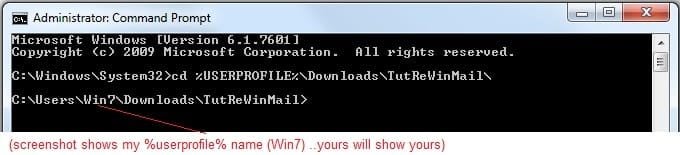
  • Open an Administrator Command Prompt. (screenshot showing in Administrator mode)
  • copy/paste this line into the command prompt: cd %USERPROFILE%\Downloads\TutReWinMail\
  • Your command prompt must now be showing you are at That Same Folder Address ..which contains the tutorial files that the batch file in the next step executes programs and copies files specifically from that folder address - if it's not there the batch file will fail since it cannot find what it needs!
  • Next type in either winmail32 or win64mail <matching OS bit, to interactively process These Next Steps
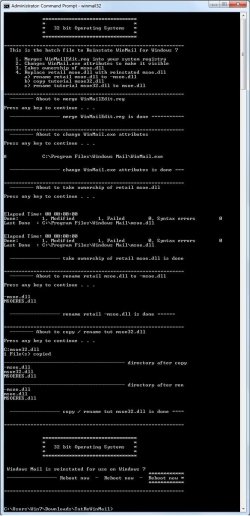
  • If you've finished to the bottom as shown in last screenshot, restart your machine (sets registry)
  • Create a shortcut from WinMail.exe to your Desktop
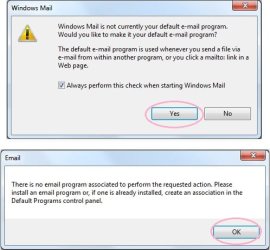
  • Open WinMail - it may prompt you one (or both) of These Two Notices ..click yes, and okay.
  • They now should be already set, but you can manually check/set at any time These Default Settings
  • That's pretty much all there is to it, and from here you setup the rest of the Windows Mail client (aka: WinMail) as normal within its various tab menus for Accounts, Options, Layout, etc, etc, to suit your individual needs.
  • Lastly, but should be the First thing you do, is to Create A WinMail Backup (new version) ..Go to this next link and when you get there scroll down to the heading: Backup/Restore Procedures for further instructions.
   Information
See How to open an elevated Administrator Command Prompt
Important: The exact text provided by the tutorial must be entered into the Administrator Command Prompt.
Hint: to avoid typos, copy/paste the entire line containing the command into the Command Prompt window.
Also see: How to Enable Copy to Clipboard from the Windows 7 Command Prompt

Every effort has been made to make this a step-by-step process, however, it is beyond the scope of a single tutorial to provide information on every command or concept. Search the Main Tutorial Section if you need greater detail on a concept or command presented in this tutorial.


Good luck, and long live WinMail :thumbsup:


   Note
Made possible by members:
Mark (aka Mr GRiM) - provided the original tutorial
Poppa Bear - continued Mark's work within the 2nd version
endeavor - provided continuous feedback, changes, invaluable testing instrumental to tutorial operations
EKManitis - propose the batch code that made operations easier
Slartybart - updated, tested, and consolidated all of the above into the 3rd version
endeavor - reviewed, updated, tested, and incorporated all of the above into this 4th version
...and also a special thanks to All the other members who presented discovery for this project


Attachments

  • TutReWinMail.zip
    TutReWinMail.zip
    1.8 MB · Views: 4,994
  • msoe_64.zip
    msoe_64.zip
    404 bytes · Views: 1,531
  • WinMailEdit.zip
    WinMailEdit.zip
    404 bytes · Views: 6
  • Win74umsZip.zip
    Win74umsZip.zip
    404 bytes · Views: 106
  • msoe_32.zip
    msoe_32.zip
    404 bytes · Views: 1,052
  • ACP.jpg
    ACP.jpg
    11.5 KB · Views: 1,083
  • DefaultClickYes-OkayAssociation.jpg
    DefaultClickYes-OkayAssociation.jpg
    31.1 KB · Views: 899
  • ProcessingBatch.jpg
    ProcessingBatch.jpg
    109 KB · Views: 1,147
  • PasteCDCommand.jpg
    PasteCDCommand.jpg
    18.5 KB · Views: 696
  • WinMail_Local_Tutorial.zip
    WinMail_Local_Tutorial.zip
    6.1 KB · Views: 1,202
  • FolderOptionsSet.jpg
    FolderOptionsSet.jpg
    37.9 KB · Views: 695
  • WinMailAdvanceOptionsBlank.jpg
    WinMailAdvanceOptionsBlank.jpg
    138.1 KB · Views: 93
  • Win7x64AdvancedTab+FileVersions.jpg
    Win7x64AdvancedTab+FileVersions.jpg
    184.7 KB · Views: 112
  • AdvancedTabBefore&After_fixed.jpg
    AdvancedTabBefore&After_fixed.jpg
    79.1 KB · Views: 50
  • CheckManually.jpg
    CheckManually.jpg
    131.8 KB · Views: 136
  • Win10_SetDefault.jpg
    Win10_SetDefault.jpg
    31.8 KB · Views: 33
Last edited by a moderator:
@Slartybart: Thank you for reading the file.
From my previous research I have concluded that their is little that can be done to any of the MS-OSs (Server and Client) after Vista without compromising some other features of the OS when applying a Registry edit and/or uninstalling WM from Windows 7, to resolve the issue caused by the way the Alternate Data Stream (ADS) is handled since Vista and which is already discussed in depth at:
http://answers.microsoft.com/en-us/windows/forum/windows_7-files/why-do-eml-files-modified-date-change-on-mouseover/d6b92680-9200-4731-932f-b45c0c8187dd
http://www.sevenforums.com/browsers-mail/35334-eml-files-timestamps-updated-constantly.html
http://social.technet.microsoft.com/Forums/en-US/itprovistasp/thread/8dc21ddc-9c87-40f6-a43e-96325ea14f96
http://forums.techguy.org/windows-vista/704204-old-file-dates-change-today.html
O by the way, the manor in which ADS is handled since Vista also got rid of some very useful Meta Data Tabs, like "Summary". Reading some of the MS design team blogs and forums showed me that they were very much aware of what they were doing but more or less opted for the easy way out although I am sure they would disagree with me strongly. After this post their really is no need for a new thread.

The TechNet link dose touch a related issue.

As to the "versions and names of Servers and Clients matching" I omitted to mention "JUGASVR" in my previous post when I listed the machines mentioned in my notes, as I had overlooked it when I re-read them. Also, remember that the notes were written for my own use not for uploading and a machine name is all I needed for identification.
To clear this up I do run W08R2SVR-SP1; W08SBS; W7Pro(64bit)-SP1; WXP-Pro-SP3; W2kSVR-SP4+; W2k-Pro-SP4+; W98SE and DOS6.22 on different physical machines or VMs (VMware and MS-VPC04).

Thanks for your time, effort and interest
 

My Computer

Computer Manufacturer/Model Number
Hewlett-Packard ProBook 4520s LapTop (Notebook)
OS
Win7Pro(HP)(x64)
CPU
Intel(R) Core(TM) i5 CPU M 460 @ 2534Mhz, 2Core(s), 4Logic
Motherboard
HP 1413 KBC Ver. 57.31; BIOS: HP 68AZZ Ver. F.0B 09/16/2010
Memory
3888MB
Graphics Card(s)
Intel(R) HD Graphics [Display adapter]
Sound Card
IDT High Definition Audio
Monitor(s) Displays
Generic PnP Monitor (15.7"vis,)
Hard Drives
319.96GB C:120GB D:(Data)180GB
ST9320423AS [Hard drive] (320.07 GB) -- drive 0, s/n 5VH6NG5Z, rev 0006HPM1, SMART Status: Healthy
Case
Enclosure Type: Notebook
Here is a screenshot of the effects of ADS on the "modified date". The DIR (Folder) shown on the right was browsed and some of the dates where changed to the current date. The compare was done with a live back up using Beyond Compare ver3.2.4bld13298, an excellent peace of software if you are as freaky and geeky about back ups as I am and with many more features, some of which I have no idea on how to use.
 

Attachments

  • Classic example of Win7 'modified timestamp'_Compare a JUGASVR(DIR) with a DUNE1(DIR) using Beyo.jpg
    Classic example of Win7 'modified timestamp'_Compare a JUGASVR(DIR) with a DUNE1(DIR) using Beyo.jpg
    73.8 KB · Views: 202

My Computer

Computer Manufacturer/Model Number
Hewlett-Packard ProBook 4520s LapTop (Notebook)
OS
Win7Pro(HP)(x64)
CPU
Intel(R) Core(TM) i5 CPU M 460 @ 2534Mhz, 2Core(s), 4Logic
Motherboard
HP 1413 KBC Ver. 57.31; BIOS: HP 68AZZ Ver. F.0B 09/16/2010
Memory
3888MB
Graphics Card(s)
Intel(R) HD Graphics [Display adapter]
Sound Card
IDT High Definition Audio
Monitor(s) Displays
Generic PnP Monitor (15.7"vis,)
Hard Drives
319.96GB C:120GB D:(Data)180GB
ST9320423AS [Hard drive] (320.07 GB) -- drive 0, s/n 5VH6NG5Z, rev 0006HPM1, SMART Status: Healthy
Case
Enclosure Type: Notebook
Hi, I have been through over 50 pages of all very good info here, however none of the links for 64bit versions of WinMail or it's associated WinMail Calendar work.

I Have WinMail on a Vista 32 bit desktop now, and I need the 64 bit files to make it work on my newer 64 bit Win7 laptop.

If anyone would have links to 64 bit WinMail and it's Calendar, or could send the files to me, I would be tremendously appreciative!

THANK You!
 

My Computer

Computer type
PC/Desktop
OS
Win7 64 bit, Win Vista Ultimate 32 bit, Win XP Pro
Hi, I have been through over 50 pages of all very good info here, however none of the links for 64bit versions of WinMail or it's associated WinMail Calendar work.

I Have WinMail on a Vista 32 bit desktop now, and I need the 64 bit files to make it work on my newer 64 bit Win7 laptop.

If anyone would have links to 64 bit WinMail and it's Calendar, or could send the files to me, I would be tremendously appreciative!

THANK You!

I think the links that are shown in post 1 of both this and the Windows Calendar tutorials still work though don't they?
Here you go fresh from my own Vista, see attached,
 
Last edited by a moderator:

My Computer

Computer type
PC/Desktop
Computer Manufacturer/Model Number
Alienware® ALX X58
OS
Win 7 Ult SP1/Win 10 Pro (all x64)
CPU
Intel® Core™ i7-975 Extreme O/C to 4.02 GHz, 8MB Cache
Motherboard
Asus® P6T Deluxe V2 X58 LGA1366
Memory
24GB Corsair Vengeance DDR3 SDRAM at 1600MHz - 6 x 4096MB
Graphics Card(s)
1792 MB NVIDIA® GeForce® GTX 295 Dual Core
Sound Card
Onboard Soundmax® High-Definition 7.1 Performance Audio
Monitor(s) Displays
Samsung XL2370 LED backlit 23" W/S 2ms response time
Screen Resolution
1920 X 1080
Hard Drives
2 x 500gb SATA II
1 x 1TB SATA II
1 external eSATA LaCie 3TB
(Non-RAID)
PSU
Alienware® 1200 Watt Multi-GPU
Case
Alienware® P2 ALX Chassis with AlienIce™ 3.0 Video Cooling
Cooling
Alienware® High-Perf. Liquid Cooling + Acoustic Dampening
Keyboard
Microsoft® Wireless Entertainment 8000 + Logitech® G15 Wired
Mouse
Microsoft® Wireless Laser 8000 + Logitech® G9 Wired
Internet Speed
1Gb/s
Antivirus
McAfee LiveSafe
Browser
Firefox - latest
Other Info
Using non-RAID on purpose as I find RAID to be too temperamental.
Now set to AHCI
THANK YOU Peter (Ex_Brit)!!
Pg 1 link here works, but doesn't have Calx64. I didn't see it in the Calendar Thread - sorry. I won't get to try installing Calendar til probably Fri - Hopefully it'll work!!

Thanks a BUNCH!
 

My Computer

Computer type
PC/Desktop
OS
Win7 64 bit, Win Vista Ultimate 32 bit, Win XP Pro
Yes install Calendar after Mail. Good luck.
 

My Computer

Computer type
PC/Desktop
Computer Manufacturer/Model Number
Alienware® ALX X58
OS
Win 7 Ult SP1/Win 10 Pro (all x64)
CPU
Intel® Core™ i7-975 Extreme O/C to 4.02 GHz, 8MB Cache
Motherboard
Asus® P6T Deluxe V2 X58 LGA1366
Memory
24GB Corsair Vengeance DDR3 SDRAM at 1600MHz - 6 x 4096MB
Graphics Card(s)
1792 MB NVIDIA® GeForce® GTX 295 Dual Core
Sound Card
Onboard Soundmax® High-Definition 7.1 Performance Audio
Monitor(s) Displays
Samsung XL2370 LED backlit 23" W/S 2ms response time
Screen Resolution
1920 X 1080
Hard Drives
2 x 500gb SATA II
1 x 1TB SATA II
1 external eSATA LaCie 3TB
(Non-RAID)
PSU
Alienware® 1200 Watt Multi-GPU
Case
Alienware® P2 ALX Chassis with AlienIce™ 3.0 Video Cooling
Cooling
Alienware® High-Perf. Liquid Cooling + Acoustic Dampening
Keyboard
Microsoft® Wireless Entertainment 8000 + Logitech® G15 Wired
Mouse
Microsoft® Wireless Laser 8000 + Logitech® G9 Wired
Internet Speed
1Gb/s
Antivirus
McAfee LiveSafe
Browser
Firefox - latest
Other Info
Using non-RAID on purpose as I find RAID to be too temperamental.
Now set to AHCI
Win Mail problems

Hi Guys,

Once again, I want to thank you for the newer, simpler way to get Windows Mail back in Windows 7.
However, sometimes some weird things happen, that I can't figure out. I use a window at the top to hold the 4 newest e-mails, so I have about the largest real estate to view the current e-mail. But sometimes the window resets itself to hold 5, or 6, or 7 e-mails. Also, the files column at the left expands to the right by itself, and takes up more of the screen. Then also, sometimes the font size is HUGE on the screen, which means I have to use a horizontal scroll bar to see all the content. Is there something that could be done to fix these problems, or do I have to just live with them? These things happen about half the time. Also, the vertical scroll bar is the only way to scroll down, the scroll wheel doesn't work.

Thanks sincerely for any help,

Barry
 

My Computer

Computer Manufacturer/Model Number
Alienware
OS
Windows 7 Ultimate
CPU
Intel Duo core 2.66Mz
Motherboard
EVGA
Memory
4 GB
Graphics Card(s)
Nvidia GeForce
Sound Card
SoundBlaster
Monitor(s) Displays
Sony E540 21" CRT
Hard Drives
Seagate 500GB SATA
PSU
Alienware 750 Watt
Case
Alienware
Cooling
4 Fans, Heatsink
Hi Barry,

Could you post a screenshot of what you mean.
I'm trying to understand what 'View' you are using, and picture in my head what you are seeing; I've never had any problems with what you are describing though, and so a screenshot of it would help.
I'm looking through my WinMail Options now to see if there is something you have, like perhaps:
Tools> Options> Read> Automatically Expand Group Messages ..uncheck that, but I'm reaching though here until I can see what you are seeing.
Also in your last sentence, do you mean the scroll wheel on your mouse? ...anyway all scrolling ways work fine on this end and always have.
 

My Computer

Computer type
PC/Desktop
Computer Manufacturer/Model Number
..all towers built from scratch
OS
Vista/Win7/8/10/11 (x86/x64)
CPU
i7
Hi endeavor & Slartybart. Long time since my last post. I had a moment of panic yesterday when I kinda lost my WM after running sfc scannow. Still had it listed in Start menu but nothing happened when I clicked on it. Then I remembered that sfc was discussed last year when I almost lived here ;) so calmed down & was gonna come back to find that info. But had a couple other small glitches to work on 1st so did System Restore for them & by golly, got my mail back. :D

grits
 

My Computer

Computer type
PC/Desktop
Computer Manufacturer/Model Number
emachines
OS
Microsoft Windows 7 Home Premium 64-bit 7601 Multiprocessor Free Service Pack 1
CPU
AMD Athlon(tm) II X2 220 Processor
Motherboard
eMachines EL1358G
Memory
3.00 GB
Graphics Card(s)
NVIDIA GeForce 6150SE nForce 430
Sound Card
Realtek High Definition Audio
Screen Resolution
1280 x 1024 x 32 bits (4294967296 colors) @ 60 Hz
Hard Drives
(1) WDC WD10 EADX-22TDHB0 SCSI Disk Device (2) Generic- Multi-Card USB Device
Keyboard
came with PC
Mouse
came with PC
Antivirus
Avast
Browser
IE 9
Other Info
don't know how to get info for the other 5 areas
Will exported messages from Vista WM import into WM on 7?

thx

bob
 

My Computer

OS
windows 7 64bit

My Computer

Computer type
PC/Desktop
Computer Manufacturer/Model Number
Self built custom
OS
64-bit Windows 11 Pro for Workstations
CPU
Intel i7-8700K OC'd to 5 GHz
Motherboard
ASUS ROG Maximus XI Formula Z390
Memory
64 GB (4x16GB) G.SKILL TridentZ RGB DDR4 3600 MHz
Graphics Card(s)
ASUS ROG-STRIX-GTX1080TI-O11G-GAMING
Sound Card
Integrated
Monitor(s) Displays
2 x Samsung Odyssey G7 27"
Screen Resolution
2560x1440
Hard Drives
1TB Samsung 990 PRO M.2,
4TB Samsung 990 PRO PRO M.2,
TerraMaster F8 SSD Plus NAS
PSU
Seasonic Prime Titanium 850W
Case
Thermaltake Core P3
Cooling
Corsair Hydro H115i
Keyboard
Logitech wireless K800
Mouse
Logitech MX Master 4
Internet Speed
2 Gb/s Download and 100 Mb/s Upload
Antivirus
Malwarebyte Anti-Malware Premium
Browser
Google Chrome
Other Info
Logitech Z625 speaker system,
Logitech BRIO 4K Pro webcam,
HP Color LaserJet Pro MFP M477fdn,
APC SMART-UPS RT 1000 XL - SURT1000XLI,
Galaxy S23 Plus phone
Hi endeavor & Slartybart. Long time since my last post. I had a moment of panic yesterday when I kinda lost my WM after running sfc scannow. Still had it listed in Start menu but nothing happened when I clicked on it. Then I remembered that sfc was discussed last year when I almost lived here ;) so calmed down & was gonna come back to find that info. But had a couple other small glitches to work on 1st so did System Restore for them & by golly, got my mail back. :D

grits

Hi grits,

After running the Tutorial, running SFC should not affect WM since that problem was fixed already as you & I spoke of previously in this thread Here

To fix the problem after the fact, you could run the whole Tutorial again to fix it.
or
Just merging the WinMailEdit.reg of the itself from the procedure will fix the problem by also removing the registry entry that's affecting it. I don't think running the complete WinMailEdit.reg will affect any of your personal settings at all.
...or
if you want to be sure it doesn't then if you wanted to create your own reg file to just remove the keys that are responsible for this SFC issue then these are the entries below.
Code:
Windows Registry Editor Version 5.00
[-HKEY_LOCAL_MACHINE\SOFTWARE\Microsoft\Windows\CurrentVersion\SideBySide\Winners\x86_microsoft-windows-mail-core-dll_31bf3856ad364e35_none_67a2bdecbd5f60de]
@="6.1"
[-HKEY_LOCAL_MACHINE\SOFTWARE\Microsoft\Windows\CurrentVersion\SideBySide\Winners\x86_microsoft-windows-mail-core-dll_31bf3856ad364e35_none_67a2bdecbd5f60de\6.1]
"6.1.7600.16385"=hex:01
@="6.1.7600.16385"

or,
..since it's working after your restore then leave it alone; however, as is, since somehow those registry keys have been re-entered (most likely from some updates you've done) but if you run SFC again it will again break WM again until you remove them, and so if you ever want to run SFC then you will have to do one of the above - any of the above will fix it and they will all accomplish the same thing, choose the ones that's simplest and right for you.
 

My Computer

Computer type
PC/Desktop
Computer Manufacturer/Model Number
..all towers built from scratch
OS
Vista/Win7/8/10/11 (x86/x64)
CPU
i7

My Computer

Computer type
PC/Desktop
Computer Manufacturer/Model Number
Self built custom
OS
64-bit Windows 11 Pro for Workstations
CPU
Intel i7-8700K OC'd to 5 GHz
Motherboard
ASUS ROG Maximus XI Formula Z390
Memory
64 GB (4x16GB) G.SKILL TridentZ RGB DDR4 3600 MHz
Graphics Card(s)
ASUS ROG-STRIX-GTX1080TI-O11G-GAMING
Sound Card
Integrated
Monitor(s) Displays
2 x Samsung Odyssey G7 27"
Screen Resolution
2560x1440
Hard Drives
1TB Samsung 990 PRO M.2,
4TB Samsung 990 PRO PRO M.2,
TerraMaster F8 SSD Plus NAS
PSU
Seasonic Prime Titanium 850W
Case
Thermaltake Core P3
Cooling
Corsair Hydro H115i
Keyboard
Logitech wireless K800
Mouse
Logitech MX Master 4
Internet Speed
2 Gb/s Download and 100 Mb/s Upload
Antivirus
Malwarebyte Anti-Malware Premium
Browser
Google Chrome
Other Info
Logitech Z625 speaker system,
Logitech BRIO 4K Pro webcam,
HP Color LaserJet Pro MFP M477fdn,
APC SMART-UPS RT 1000 XL - SURT1000XLI,
Galaxy S23 Plus phone


Thanks and one more thing: Will WM under 7 now be seen as the default mail client for sending links, etc? I know it would not early on.


bob


After properly running the tutorial to reinstate WM, then yes it will be seen as default.

The only thing that can change that is installing other email clients along with WM then they can take over.
 

My Computer

Computer type
PC/Desktop
Computer Manufacturer/Model Number
..all towers built from scratch
OS
Vista/Win7/8/10/11 (x86/x64)
CPU
i7
Please can anyone tell me why i can't get past (after 4 hours) the administrator command prompt window where I copy and paste the exact thing and it just says "the system cannot find the path specified". I remember when i got a new computer six months ago I had a problem with the same thing then suddenly it worked but i cannot recall what i was doing wrong. The dell repair man had to do a fresh install of Windows, so except for reinstall of adobe acrobat no other programs reinstalled. Is it obvious to anyone please!! Sorry if this is not how you post but i have never done it before. Thanks in advance.

I would assume janmor it's because as the instructions say on page 1 you need to be sure that your Win74umsZip.zip was downloaded to your Downloads folder, and that's where you need to unzip it so that when you run those commands it can find what it needs in the right place. Follow the directions to the T of which should only take a few minutes to complete.
 

My Computer

Computer type
PC/Desktop
Computer Manufacturer/Model Number
..all towers built from scratch
OS
Vista/Win7/8/10/11 (x86/x64)
CPU
i7
Just followed your instructions and I now have outlook express back on windows 7 64 bit.
Works great

I was going to post on this subject when I saw your post. First, Do I understand that you were able to use Outlook Express on Windows 7?

My need, as upgrading from XP to 7, is to utilize Outlook Express to grab Excel attachments in a Control System as Outlook could not do so. I heard that Outlook Express would not work with Windows 7.

Thank you.
 

My Computer

Computer type
PC/Desktop
OS
Windows 7 Pro 64 bit
No, that's an impossible feat. That user was mistaken. Outlook Express became obsolete with the introduction of Vista. What the user means is they now have what OE became: Windows Mail.
Or they decided to install Windows Live Mail which is the easiest solution.
 

My Computer

Computer type
PC/Desktop
Computer Manufacturer/Model Number
Alienware® ALX X58
OS
Win 7 Ult SP1/Win 10 Pro (all x64)
CPU
Intel® Core™ i7-975 Extreme O/C to 4.02 GHz, 8MB Cache
Motherboard
Asus® P6T Deluxe V2 X58 LGA1366
Memory
24GB Corsair Vengeance DDR3 SDRAM at 1600MHz - 6 x 4096MB
Graphics Card(s)
1792 MB NVIDIA® GeForce® GTX 295 Dual Core
Sound Card
Onboard Soundmax® High-Definition 7.1 Performance Audio
Monitor(s) Displays
Samsung XL2370 LED backlit 23" W/S 2ms response time
Screen Resolution
1920 X 1080
Hard Drives
2 x 500gb SATA II
1 x 1TB SATA II
1 external eSATA LaCie 3TB
(Non-RAID)
PSU
Alienware® 1200 Watt Multi-GPU
Case
Alienware® P2 ALX Chassis with AlienIce™ 3.0 Video Cooling
Cooling
Alienware® High-Perf. Liquid Cooling + Acoustic Dampening
Keyboard
Microsoft® Wireless Entertainment 8000 + Logitech® G15 Wired
Mouse
Microsoft® Wireless Laser 8000 + Logitech® G9 Wired
Internet Speed
1Gb/s
Antivirus
McAfee LiveSafe
Browser
Firefox - latest
Other Info
Using non-RAID on purpose as I find RAID to be too temperamental.
Now set to AHCI
Just followed your instructions and I now have outlook express back on windows 7 64 bit.
Works great

I was going to post on this subject when I saw your post. First, Do I understand that you were able to use Outlook Express on Windows 7?

My need, as upgrading from XP to 7, is to utilize Outlook Express to grab Excel attachments in a Control System as Outlook could not do so. I heard that Outlook Express would not work with Windows 7.

Thank you.

Yes, and many people refer to Windows Mail as Outlook Express since WM is actually just an updated version of WXP's OE. If you were able to do it on WXP's OE then most likely yes Windows Mail will do the same thing.
Ex_Brit was eluding to that fact also.

Please explain what you mean by Control System?
"grab Excel attachments in a Control System"
...and I will try it since I have both OE <g> & Excel installed.
 

My Computer

Computer type
PC/Desktop
Computer Manufacturer/Model Number
..all towers built from scratch
OS
Vista/Win7/8/10/11 (x86/x64)
CPU
i7
You guys have been AWESOME with your various hacks & snippets of Registry code here to get my WinMail & Calendar working!

The ONLY thing that doesn't work now is the WinMail Spam Filter for some reason. The Junk Mail Folder is there & the OESpamFilter.dat & OESpamFilter.dll are in the Windows Mail program folder - but it won't filter out any spam at all. I've tried using different level settings from high to low, but none work.

Any ideas to get Spam filter working? THANKS!!
 

My Computer

Computer type
PC/Desktop
OS
Win7 64 bit, Win Vista Ultimate 32 bit, Win XP Pro
Back
Top