Windows Mail

How to Reinstate Windows Mail in Windows 7

   Warning
Microsoft no longer supports Windows Mail, aka WinMail. It's recommended you use another well known supported email client. This Tutorial is for Advanced users who importantly have the Technical Ability to make the changes, have backups of everything including your OS, and to be your own tech support for WinMail going forward. If you decide to complete this tutorial you accept the fact that you are using WinMail as-is. It might be necessary to uninstall other email clients to resolve any WinMail conflicts in some environments. Understand it's likely that new OS updates from Microsoft will break WinMail's operation, and to fix make it necessary to rerun the tutorial again to reinstate it. With those things in mind, this tutorial was written so that you can rerun it without affecting WinMail user data.
Please see this Errata (Bug List) post before you install, to be aware of the current information about known issues using WinMail within Windows 7, these issues are programmatic and in most cases cannot be resolved by this tutorial, and will never be fixed.

Having said all of that disclaimer, if you have the technical ability, and can put up with the annoying minor byproduct bugs, then like so many of us still enjoy using WinMail on Windows 7 ...ymmv!


   Tip
As of January, 2025, the instructions given here supersede all other instructions given in forthcoming older posts. Realize some of the posts that follow are over 16 years old, and many of the link pointers within have become mislinked over time, many of the files or information within them is outdated, incomplete, or superseded with more accurate information - and so be careful. However you can always be sure that the latest info from all research is incorporated into this tutorial post, and its downloads are the latest available. This post is continuously kept up-to-date, and so..
...Always refer to this Tutorial post for the very latest updated information

This is the 4th iteration of the Windows 7, WinMail tutorial.

The process of this tutorial Will Not work to reinstate WinMail on Windows 8/10 !
Windows 8/10 users please go Here


Start here
  1. Download tutorial package TutReWinMail.zip

    Download

  2. Extract the TutReWinMail.zip into your user Downloads folder
    • Note: Be sure once extracted this is the address of the ''TutReWinMail'' folder:
    • C:\Users\username\Downloads\TutReWinMail... ... (if it's not there please put it there)
  3. Navigate to your user Downloads\TutReWinMail folder to be sure the above is correct.
    • (..if you need more verbose install instructions to follow, download this WinMail Local Tutorial.zip)
    • Advanced Users can proceed below:
      (..log in for Full Access, being able to get support, remove ads, like, and even to post, etc..)
Advanced Users: ..use this easy excellent overview of the steps in the local tutorial:
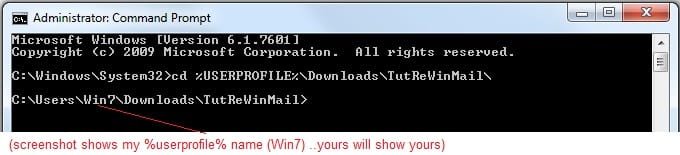
  • Open an Administrator Command Prompt. (screenshot showing in Administrator mode)
  • copy/paste this line into the command prompt: cd %USERPROFILE%\Downloads\TutReWinMail\
  • Your command prompt must now be showing you are at That Same Folder Address ..which contains the tutorial files that the batch file in the next step executes programs and copies files specifically from that folder address - if it's not there the batch file will fail since it cannot find what it needs!
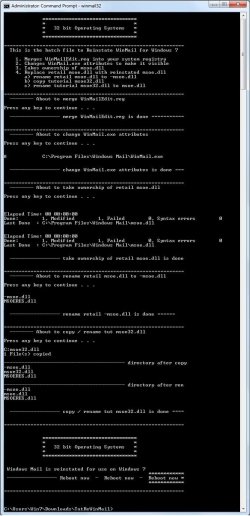
  • Next type in either winmail32 or win64mail <matching OS bit, to interactively process These Next Steps
  • If you've finished to the bottom as shown in last screenshot, restart your machine (sets registry)
  • Create a shortcut from WinMail.exe to your Desktop
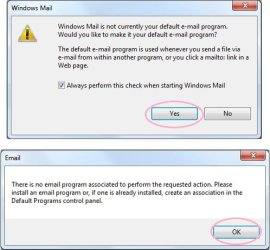
  • Open WinMail - it may prompt you one (or both) of These Two Notices ..click yes, and okay.
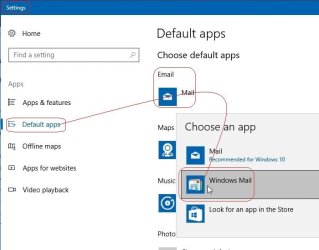
  • They now should be already set, but you can manually check/set at any time These Default Settings
  • That's pretty much all there is to it, and from here you setup the rest of the Windows Mail client (aka: WinMail) as normal within its various tab menus for Accounts, Options, Layout, etc, etc, to suit your individual needs.
  • Lastly, but should be the First thing you do, is to Create A WinMail Backup (new version) ..Go to this next link and when you get there scroll down to the heading: Backup/Restore Procedures for further instructions.
   Information
See How to open an elevated Administrator Command Prompt
Important: The exact text provided by the tutorial must be entered into the Administrator Command Prompt.
Hint: to avoid typos, copy/paste the entire line containing the command into the Command Prompt window.
Also see: How to Enable Copy to Clipboard from the Windows 7 Command Prompt

Every effort has been made to make this a step-by-step process, however, it is beyond the scope of a single tutorial to provide information on every command or concept. Search the Main Tutorial Section if you need greater detail on a concept or command presented in this tutorial.


Good luck, and long live WinMail :thumbsup:


   Note
Made possible by members:
Mark (aka Mr GRiM) - provided the original tutorial
Poppa Bear - continued Mark's work within the 2nd version
endeavor - provided continuous feedback, changes, invaluable testing instrumental to tutorial operations
EKManitis - propose the batch code that made operations easier
Slartybart - updated, tested, and consolidated all of the above into the 3rd version
endeavor - reviewed, updated, tested, and incorporated all of the above into this 4th version
...and also a special thanks to All the other members who presented discovery for this project


Attachments

  • TutReWinMail.zip
    TutReWinMail.zip
    1.8 MB · Views: 4,994
  • msoe_32.zip
    msoe_32.zip
    404 bytes · Views: 1,052
  • Win74umsZip.zip
    Win74umsZip.zip
    404 bytes · Views: 106
  • WinMailEdit.zip
    WinMailEdit.zip
    404 bytes · Views: 6
  • msoe_64.zip
    msoe_64.zip
    404 bytes · Views: 1,531
  • ProcessingBatch.jpg
    ProcessingBatch.jpg
    194.2 KB · Views: 1,147
  • DefaultClickYes-OkayAssociation.jpg
    DefaultClickYes-OkayAssociation.jpg
    52.8 KB · Views: 899
  • ACP.jpg
    ACP.jpg
    19.6 KB · Views: 1,083
  • PasteCDCommand.jpg
    PasteCDCommand.jpg
    33.1 KB · Views: 696
  • WinMail_Local_Tutorial.zip
    WinMail_Local_Tutorial.zip
    6.1 KB · Views: 1,202
  • FolderOptionsSet.jpg
    FolderOptionsSet.jpg
    61.5 KB · Views: 695
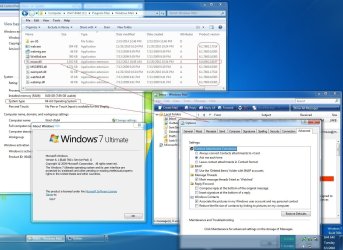
  • WinMailAdvanceOptionsBlank.jpg
    WinMailAdvanceOptionsBlank.jpg
    276.4 KB · Views: 93
  • Win7x64AdvancedTab+FileVersions.jpg
    Win7x64AdvancedTab+FileVersions.jpg
    298.9 KB · Views: 112
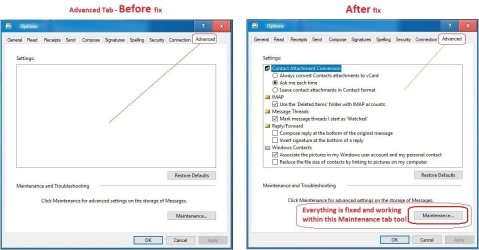
  • AdvancedTabBefore&After_fixed.jpg
    AdvancedTabBefore&After_fixed.jpg
    106.9 KB · Views: 50
  • CheckManually.jpg
    CheckManually.jpg
    209.5 KB · Views: 136
  • Win10_SetDefault.jpg
    Win10_SetDefault.jpg
    66.2 KB · Views: 33
Last edited by a moderator:
Primal Go here: *** LINK REMOVED ***

I have windows 7 64 version 6.1 build 7600 on a new pc and win vista 32 bit on a laptop. I tried to follow the tutorial and take ownership worked fine. I copied my winmail from my 32 bit laptop to the win 7 machine. I got a bit confused about what folder to paste the 32 bit win mail into so I tried both

But when I click on the shortcut on the desktop it does not open.

What happens is that I get multi copies of winmail.exe*32 in task manager. I have to log off to get rid of them. When I click on the mailto link in IE8 I get a message "could not perform this operation because the default mail client is not properly installed."

I was not able to download the 64 files referred to as they had been removed. Found them now I think. I put the 64 bit msoe.dll in the ordinary program files but still it will not open. Just get multi copies of winmail.exe*32 in task manager


Thanks

I found post 317 at http://www.sevenforums.com/tutorials/5481-windows-mail-32.html#post533107 which says

1. Download and run the attachment: WinMailEdit.zip.

*Warning: It is critical to do this before carrying out steps (4) & (5). This auto exe file edits the registry to allow .eml files to be opened on the desktop; removes the WinMail splash screen at start-up; and resolves various conflicts.

But I have already done 4 and 5?
Unfortunately since you have imported a 32bit Vista copy of Windows Mail into the normal 64bit Windows Mail folder of Windows 7, WinMail.exe will not work, and essential 64bit Windows Mail files will have been deleted/corrupted.

As you discovered, there are two Windows Mail folders in Windows 7. What you will need to do is completely delete the contents of both and restore the original Windows 7 files into these folders. Then carefully read and carry out the steps in Post No 317 found here.

It said at the beginning of this tutorial to backup your existing files in Windows Mail folder, so I hope you have done this, as they must be restored. The Vista 32bit Windows Mail files are not used at all, as all the changes are made in 64bit Windows Mail in the normal Windows 7 64bit program files... See Step 4 and Footnote 3 of the post.

Hope this helps. PB

I did not copy my 64 bit win mail folder. Does anyone have the files for this?
There were links in this thread but they have been removed when i clicked them
Does anyone have 64 bit winmail exe
 
Last edited by a moderator:

My Computer

Computer type
PC/Desktop
Computer Manufacturer/Model Number
Alienware® ALX X58
OS
Win 7 Ult SP1/Win 10 Pro (all x64)
CPU
Intel® Core™ i7-975 Extreme O/C to 4.02 GHz, 8MB Cache
Motherboard
Asus® P6T Deluxe V2 X58 LGA1366
Memory
24GB Corsair Vengeance DDR3 SDRAM at 1600MHz - 6 x 4096MB
Graphics Card(s)
1792 MB NVIDIA® GeForce® GTX 295 Dual Core
Sound Card
Onboard Soundmax® High-Definition 7.1 Performance Audio
Monitor(s) Displays
Samsung XL2370 LED backlit 23" W/S 2ms response time
Screen Resolution
1920 X 1080
Hard Drives
2 x 500gb SATA II
1 x 1TB SATA II
1 external eSATA LaCie 3TB
(Non-RAID)
PSU
Alienware® 1200 Watt Multi-GPU
Case
Alienware® P2 ALX Chassis with AlienIce™ 3.0 Video Cooling
Cooling
Alienware® High-Perf. Liquid Cooling + Acoustic Dampening
Keyboard
Microsoft® Wireless Entertainment 8000 + Logitech® G15 Wired
Mouse
Microsoft® Wireless Laser 8000 + Logitech® G9 Wired
Internet Speed
1Gb/s
Antivirus
McAfee LiveSafe
Browser
Firefox - latest
Other Info
Using non-RAID on purpose as I find RAID to be too temperamental.
Now set to AHCI
Primal Go here: *** LINK REMOVED ***

Unfortunately since you have imported a 32bit Vista copy of Windows Mail into the normal 64bit Windows Mail folder of Windows 7, WinMail.exe will not work, and essential 64bit Windows Mail files will have been deleted/corrupted.

As you discovered, there are two Windows Mail folders in Windows 7. What you will need to do is completely delete the contents of both and restore the original Windows 7 files into these folders. Then carefully read and carry out the steps in Post No 317 found here.

It said at the beginning of this tutorial to backup your existing files in Windows Mail folder, so I hope you have done this, as they must be restored. The Vista 32bit Windows Mail files are not used at all, as all the changes are made in 64bit Windows Mail in the normal Windows 7 64bit program files... See Step 4 and Footnote 3 of the post.

Hope this helps. PB

I did not copy my 64 bit win mail folder. Does anyone have the files for this?
There were links in this thread but they have been removed when i clicked them
Does anyone have 64 bit winmail exe

Ex Brit Thanks for the offer. I had managed to get a copy in the meantime. Thanks to my benefactor! I did everything in post 317 but it does not work. Nothing happens when clicked on desktop but winmail.exe is in task manager. Not even right click run as administrator helps

Click on mailto in IE8 still gives message could not perform operation default mail client not properly installed

Should there be a visible wimail.exe in the program files? The one there is hidden and re hidden at the end
 
Last edited by a moderator:

My Computer

OS
Win 7 Home Premium 64 bit Version 6.1 Build 7600
[/QUOTE]
I did not copy my 64 bit win mail folder. Does anyone have the files for this?
There were links in this thread but they have been removed when i clicked them
Does anyone have 64 bit winmail exe[/QUOTE]

Here what i can find for you and others...attached zips.

I've installed it and does work pretty fine here.


EDIT:

OOPS!:o
I've remove zips as it looks violation policy...sorry!
 

My Computer

Computer type
PC/Desktop
Computer Manufacturer/Model Number
Custom Build
OS
Windows 7 Professional SP1 - x64 [Non-UEFI Boot]
CPU
Ivy Bridge Core i5 3570K (Delidded)
Motherboard
Asus P8Z77-V LE PLUS
Memory
G.Skill "Ares" DDR3 PC3-12800 - 1600MHz (16Gb)
Graphics Card(s)
Asus Dual-RX480-O4G
Sound Card
Creative Sound Blaster Z w/5.1 sound system
Monitor(s) Displays
Asus IPS 23"
Screen Resolution
16/9
Hard Drives
Internal:
500Go Sata 6Gb/s (x2)
500Go Sata 3Gb/s (x2)
SSD 60Go Sata 6Gb/s
PSU
In Win C 900W Series 80+ Platinum
Case
Thermaltake Chaser A71
Cooling
Custom Water Cooling Loop
Keyboard
Cooler Master QuickFire XTi
Mouse
Razer Imperator 2012 (4G)
Antivirus
MSE
Browser
IE 11.0.xxx Rtm
Other Info
"Raid0" with Intel Smart Response Technology (HDD/SSD)
I did not copy my 64 bit win mail folder. Does anyone have the files for this?
There were links in this thread but they have been removed when i clicked them
Does anyone have 64 bit winmail exe[/QUOTE]

Here what i can find for you and others...attached zips.

I've installed it and does work pretty fine here.


EDIT:

OOPS!:o
I've remove zips as it looks violation policy...sorry![/QUOTE]Hi As you can see from my last post i managed to get the files but thanks anyway, still not working for me tho
 

My Computer

OS
Win 7 Home Premium 64 bit Version 6.1 Build 7600
I did not copy my 64 bit win mail folder. Does anyone have the files for this?
There were links in this thread but they have been removed when i clicked them
Does anyone have 64 bit winmail exe

Here what i can find for you and others...attached zips.

I've installed it and does work pretty fine here.


EDIT:

OOPS!:o
I've remove zips as it looks violation policy...sorry!

[/QUOTE]
Hi As you can see from my last post i managed to get the files but thanks anyway, still not working for me tho[/QUOTE]
==================================================================

That's a shame it does not work...

Backup before x86 & x64 "Windows Mail" folder in a safe place.

-Create a new folder inside both "Windows mail" folder.

-Copy the New files inside this new folder.

SAFE MODE: (F8 on boot)

-GO and Install all in "safe mode"

- Go Control Panel=>In Option Folders, uncheck hidden files of the system and point show hidden files

-INSTALL the .reg to allow Windows Mail openning .eml on desktop.http://www.sevenforums.com/attachments/tutorials/50466d1264615927-windows-mail-winmailedit.zip

- NOW replace files one by one:

Taking Ownership and modifying security in Propreties of each files for Total Control of the Windows 7 => Windows Mail folder files

-Then rename them All (.-old)...

-NOW move the new files in to x86 and x64 windows Mail folder.

-Do the same the x86 & x64, US-us folders (or your native language)

(don't paste any of them).

After having moving the New Files

ONE BY ONE, OPEN THE NEW FILES FRESHLY MOVED AND UNLOCK THE FILES.

Reboot, enter your session and then...do it!
==================================================================

It's pretty long, but worth a try.
 

My Computer

Computer type
PC/Desktop
Computer Manufacturer/Model Number
Custom Build
OS
Windows 7 Professional SP1 - x64 [Non-UEFI Boot]
CPU
Ivy Bridge Core i5 3570K (Delidded)
Motherboard
Asus P8Z77-V LE PLUS
Memory
G.Skill "Ares" DDR3 PC3-12800 - 1600MHz (16Gb)
Graphics Card(s)
Asus Dual-RX480-O4G
Sound Card
Creative Sound Blaster Z w/5.1 sound system
Monitor(s) Displays
Asus IPS 23"
Screen Resolution
16/9
Hard Drives
Internal:
500Go Sata 6Gb/s (x2)
500Go Sata 3Gb/s (x2)
SSD 60Go Sata 6Gb/s
PSU
In Win C 900W Series 80+ Platinum
Case
Thermaltake Chaser A71
Cooling
Custom Water Cooling Loop
Keyboard
Cooler Master QuickFire XTi
Mouse
Razer Imperator 2012 (4G)
Antivirus
MSE
Browser
IE 11.0.xxx Rtm
Other Info
"Raid0" with Intel Smart Response Technology (HDD/SSD)
WinMail not working

Hi Primal,

Sorry to hear post 317 didn't work for you. The method there has been thoroughly tested for importing WinMail from 32 and 64bit Vista to 32 and 64bit Windows 7 installations; and has worked on bare bones installations of Windows 7 as well as fully loaded installations. So the method itself is safe and reliable.

It seems that somewhere in your system you've got residual files that are corrupted or conflicting, and these need to be completely removed before reinstalling clean copies of Windows 7 original Windows Mail folders into the 32bit and 64bit program files.

You probably should also do a registry clean with something like ToniArts Easycleaner, or Glary Utilites, both freeware programs. And just to be safe, also remove all files in Local Folders found here: Start orb --> User Name --> AppData --> Local --> Microsoft --> Windows Mail --> Local Folders

Then follow the steps in strict order as shown in post 317. Please note however, only the 64bit Windows Mail folder msoe.dll file is replaced with the Vista 64bit equivalent msoe.dll. You do not modify the Windows Mail folder in Program files (x86). Do you remember if you used a 64 or 32bit msoe.dll from Vista? The 64bit Vista msoe.dll file is available as an attachment in Step 4 of Post 317.

As you correctly stated, invisible files, extensions and hidden operating system files all need to be visible when carrying out the procedure. Once WinMail.exe in 64bit Program files has been sent to desktop as a shortcut, then the hidden files etc can be hidden again.

Also note, if you click on WinMail.exe to try and open it before you have completed all the steps, it can bork the process.

Good luck PB
 

My Computer

Computer Manufacturer/Model Number
Self-assembled
OS
Win7 Ultimate 64bit Retail
CPU
Intel i7 960 quad core
Motherboard
Intel DX58SO2 Extreme
Memory
12 GB Kingston DDR 3 1300
Graphics Card(s)
PCI Express Gigabyte GTX 550 Ti
Sound Card
Gigabyte GTX 550 Ti Graphics/5 Sound card
Monitor(s) Displays
Samsung WS Syncmaster S23A350H
Screen Resolution
1920 x 1080
Hard Drives
OS on 128 GB Corsair SSD SATA 3 + Storage on 1 TB Western Digital Black SATA 2
Case
Cooler Master CM690 II Advanced Mid Tower
Cooling
CPU, top, front and rear extractor fans
Keyboard
Microsoft Intellitype Wireless Multimedia
Mouse
Microsoft Intellipoint2 Wireless
Internet Speed
100 MB/sec Theoretical max. Actual average 0.5MB/sec
Other Info
Back-up PC with Vista Ultimate OEM 32bit. Intel i5 2400 Quad Core CPU, DH67CL mobo, 8 GB Kingston DDR3 1300 RAM,
Hi Primal,

Sorry to hear post 317 didn't work for you. The method there has been thoroughly tested for importing WinMail from 32 and 64bit Vista to 32 and 64bit Windows 7 installations; and has worked on bare bones installations of Windows 7 as well as fully loaded installations. So the method itself is safe and reliable.

It seems that somewhere in your system you've got residual files that are corrupted or conflicting, and these need to be completely removed before reinstalling clean copies of Windows 7 original Windows Mail folders into the 32bit and 64bit program files.

You probably should also do a registry clean with something like ToniArts Easycleaner, or Glary Utilites, both freeware programs. And just to be safe, also remove all files in Local Folders found here: Start orb --> User Name --> AppData --> Local --> Microsoft --> Windows Mail --> Local Folders

Then follow the steps in strict order as shown in post 317. Please note however, only the 64bit Windows Mail folder msoe.dll file is replaced with the Vista 64bit equivalent msoe.dll. You do not modify the Windows Mail folder in Program files (x86). Do you remember if you used a 64 or 32bit msoe.dll from Vista? The 64bit Vista msoe.dll file is available as an attachment in Step 4 of Post 317.

As you correctly stated, invisible files, extensions and hidden operating system files all need to be visible when carrying out the procedure. Once WinMail.exe in 64bit Program files has been sent to desktop as a shortcut, then the hidden files etc can be hidden again.

Also note, if you click on WinMail.exe to try and open it before you have completed all the steps, it can bork the process.

Good luck PB

Then follow the steps in strict order as shown in post 317. Please note however, only the 64bit Windows Mail folder msoe.dll file is replaced with the Vista 64bit equivalent msoe.dll. You do not modify the Windows Mail folder in Program files (x86). Do you remember if you used a 64 or 32bit msoe.dll from Vista? The 64bit Vista msoe.dll file is available as an attachment in Step 4 of Post 317.
Thanks PB Yes I used the 64 bit msoe.dll OK I understand the files can be hidden again. I did not click on WinMAil.exe before doing all steps
 

My Computer

OS
Win 7 Home Premium 64 bit Version 6.1 Build 7600
@primal,

Sorry to have explain the most complicated way but I was as you before and did have hard time to replace files in the Windows Mail folder.

Denied over Denied when was trying move files...even taking ownership!

What i ommit to say is that i had re-replace the original Win 7 files after, and have let only the needed file msoe.dll.
That's why i did kept/saved originals in a safe folder.

Hope Poppa Bear's help (the original solution) will work for you. It should as it works for me.

Cheers.
 
Last edited:

My Computer

Computer type
PC/Desktop
Computer Manufacturer/Model Number
Custom Build
OS
Windows 7 Professional SP1 - x64 [Non-UEFI Boot]
CPU
Ivy Bridge Core i5 3570K (Delidded)
Motherboard
Asus P8Z77-V LE PLUS
Memory
G.Skill "Ares" DDR3 PC3-12800 - 1600MHz (16Gb)
Graphics Card(s)
Asus Dual-RX480-O4G
Sound Card
Creative Sound Blaster Z w/5.1 sound system
Monitor(s) Displays
Asus IPS 23"
Screen Resolution
16/9
Hard Drives
Internal:
500Go Sata 6Gb/s (x2)
500Go Sata 3Gb/s (x2)
SSD 60Go Sata 6Gb/s
PSU
In Win C 900W Series 80+ Platinum
Case
Thermaltake Chaser A71
Cooling
Custom Water Cooling Loop
Keyboard
Cooler Master QuickFire XTi
Mouse
Razer Imperator 2012 (4G)
Antivirus
MSE
Browser
IE 11.0.xxx Rtm
Other Info
"Raid0" with Intel Smart Response Technology (HDD/SSD)
Hi Primal, re:
Thanks PB Yes I used the 64 bit msoe.dll OK I understand the files can be hidden again. I did not click on WinMAil.exe before doing all steps
I'm assuming that after doing everything suggested, it is still not working?

OK it seems fairly certain that the problem is corrupted files. I assume you have still got copies of the original Windows 7 folders for Windows Mail 32 & 64 bit, as comes with a clean instal of Windoows 7? If this is the case, delete all Windows Mail folders totally, not just the files inside the folders, from both sets of program files. Click the attached pic to enlarge to show location.

Program Files(x86).PNG

Now open: Start Orb --> All Programs --> Accessories --> Run

In the Run box type: sfc /scannow --> Click: OK. Let the scan complete.

This should replace any corrupted or missing original system files.

Once the scan is finished, check your program files to see if there are any Windows Mail folders. If they are present and complete, (compare them to your saved original Windows Mail folders that came installed in Windows 7), do the steps in Post 317.

If they are not present, open:

Start Orb --> Computer --> C Drive --> Program Files --> Copy the original 64bit Wndows Mail folder into normal Program Files. This folder must be named as it originally appeared, that is: Windows Mail.

Now open: Start Orb --> Computer --> C Drive --> Program Files --> Copy the original 32bit Wndows Mail folder into Program Files(x86), and make sure name is also Windows Mail.

Now open: Start Orb --> Computer --> Right click: C Drive --> In drop down menu choose: Properties --> Tools Tab --> Click: Check Now --> Start --> Schedule Disk Check --> Re-boot PC.

On re-start it will do a quick system scan. Once re-booted, now apply the steps in Post 317.

Good luck. PB
 
Last edited:

My Computer

Computer Manufacturer/Model Number
Self-assembled
OS
Win7 Ultimate 64bit Retail
CPU
Intel i7 960 quad core
Motherboard
Intel DX58SO2 Extreme
Memory
12 GB Kingston DDR 3 1300
Graphics Card(s)
PCI Express Gigabyte GTX 550 Ti
Sound Card
Gigabyte GTX 550 Ti Graphics/5 Sound card
Monitor(s) Displays
Samsung WS Syncmaster S23A350H
Screen Resolution
1920 x 1080
Hard Drives
OS on 128 GB Corsair SSD SATA 3 + Storage on 1 TB Western Digital Black SATA 2
Case
Cooler Master CM690 II Advanced Mid Tower
Cooling
CPU, top, front and rear extractor fans
Keyboard
Microsoft Intellitype Wireless Multimedia
Mouse
Microsoft Intellipoint2 Wireless
Internet Speed
100 MB/sec Theoretical max. Actual average 0.5MB/sec
Other Info
Back-up PC with Vista Ultimate OEM 32bit. Intel i5 2400 Quad Core CPU, DH67CL mobo, 8 GB Kingston DDR3 1300 RAM,
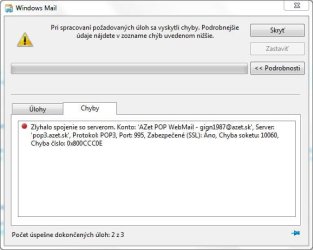
hi there, i have new small problem, i have azet mail on Azet.sk - portál, kde je v?dy najviac ?udí (i know its slovak page but im from slovakia) and problem is that the windows mail do not download messages from the server it say error on the picture. For example this webmail works on outlook express 6.0 on windows XP so now i have the notebook ASUS N71VG with windows 7 and windows mail enabled with the method described in post 317. Thank you for any advices for solve this problem

Best regards GIGN1987
 

Attachments

  • 6.JPG
    6.JPG
    34.9 KB · Views: 243

My Computer

OS
Windows 7 Professional 64 bit
CPU
Intel Core 2 Quad Q8300
Motherboard
GIGABYTE P43-ES3G
Memory
Patriot Gaming 2 x 2 GB
Graphics Card(s)
ASUS ENGTX285
Sound Card
Realtek ALC888
Monitor(s) Displays
iiyama ProLite E2473HDS
Screen Resolution
1920 x 1080
Hard Drives
WDC WD6400AAKS
WDC WD6400AAKS
PSU
Corsair TX650V2
Case
CoolerMaster CM690 Advanced Dominator II
Cooling
Standard Colling
Keyboard
Trust eLight illumunated keyboard
Mouse
Labtec Laser Mouse
Internet Speed
Download 2.30 MB/s Upload 0.31 MB/s
hi there, i have new small problem, i have azet mail on Azet.sk - portál, kde je v?dy najviac ?udí (i know its slovak page but im from slovakia) and problem is that the windows mail do not download messages from the server it say error on the picture. For example this webmail works on outlook express 6.0 on windows XP so now i have the notebook ASUS N71VG with windows 7 and windows mail enabled with the method described in post 317. Thank you for any advices for solve this problem

Best regards GIGN1987
There are two possible answers to this problem.

1. The Incoming Mail (POP3): configuration is incorrect. You would need to check what this should be with your Internet Service Provider.

2. More likely Windows Mail is incompatible with the Azet.sk mail server.

Sorry can't be more helpful without English translation of error message.
 

My Computer

Computer Manufacturer/Model Number
Self-assembled
OS
Win7 Ultimate 64bit Retail
CPU
Intel i7 960 quad core
Motherboard
Intel DX58SO2 Extreme
Memory
12 GB Kingston DDR 3 1300
Graphics Card(s)
PCI Express Gigabyte GTX 550 Ti
Sound Card
Gigabyte GTX 550 Ti Graphics/5 Sound card
Monitor(s) Displays
Samsung WS Syncmaster S23A350H
Screen Resolution
1920 x 1080
Hard Drives
OS on 128 GB Corsair SSD SATA 3 + Storage on 1 TB Western Digital Black SATA 2
Case
Cooler Master CM690 II Advanced Mid Tower
Cooling
CPU, top, front and rear extractor fans
Keyboard
Microsoft Intellitype Wireless Multimedia
Mouse
Microsoft Intellipoint2 Wireless
Internet Speed
100 MB/sec Theoretical max. Actual average 0.5MB/sec
Other Info
Back-up PC with Vista Ultimate OEM 32bit. Intel i5 2400 Quad Core CPU, DH67CL mobo, 8 GB Kingston DDR3 1300 RAM,
I write to the technical support of the server and there was problem on their server, They remove the problem and now its working properly.
 

My Computer

OS
Windows 7 Professional 64 bit
CPU
Intel Core 2 Quad Q8300
Motherboard
GIGABYTE P43-ES3G
Memory
Patriot Gaming 2 x 2 GB
Graphics Card(s)
ASUS ENGTX285
Sound Card
Realtek ALC888
Monitor(s) Displays
iiyama ProLite E2473HDS
Screen Resolution
1920 x 1080
Hard Drives
WDC WD6400AAKS
WDC WD6400AAKS
PSU
Corsair TX650V2
Case
CoolerMaster CM690 Advanced Dominator II
Cooling
Standard Colling
Keyboard
Trust eLight illumunated keyboard
Mouse
Labtec Laser Mouse
Internet Speed
Download 2.30 MB/s Upload 0.31 MB/s
I write to the technical support of the server and there was problem on their server, They remove the problem and now its working properly.
That's great news Gign1987. Really pleased for you it's been sorted.

Cheers PB :D
 

My Computer

Computer Manufacturer/Model Number
Self-assembled
OS
Win7 Ultimate 64bit Retail
CPU
Intel i7 960 quad core
Motherboard
Intel DX58SO2 Extreme
Memory
12 GB Kingston DDR 3 1300
Graphics Card(s)
PCI Express Gigabyte GTX 550 Ti
Sound Card
Gigabyte GTX 550 Ti Graphics/5 Sound card
Monitor(s) Displays
Samsung WS Syncmaster S23A350H
Screen Resolution
1920 x 1080
Hard Drives
OS on 128 GB Corsair SSD SATA 3 + Storage on 1 TB Western Digital Black SATA 2
Case
Cooler Master CM690 II Advanced Mid Tower
Cooling
CPU, top, front and rear extractor fans
Keyboard
Microsoft Intellitype Wireless Multimedia
Mouse
Microsoft Intellipoint2 Wireless
Internet Speed
100 MB/sec Theoretical max. Actual average 0.5MB/sec
Other Info
Back-up PC with Vista Ultimate OEM 32bit. Intel i5 2400 Quad Core CPU, DH67CL mobo, 8 GB Kingston DDR3 1300 RAM,
Hi there,

every one knows that hotmail is no longer supported by windows mail program. But there is a little trick how we can be able to use hotmail with windows mail. Here is how:

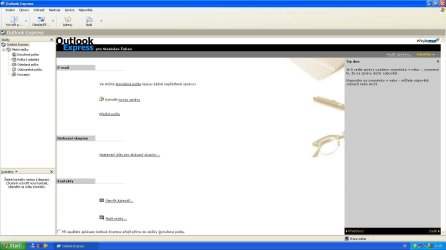
- At first open up a windows xp mode and launch the outlook expres in picture 1. Use a google to find the pop3 settings for hotmail, i use this page: Hotmail Free POP3 and SMTP Access and Server Configuration Settings My Digital Life
and setup account in outlook express.

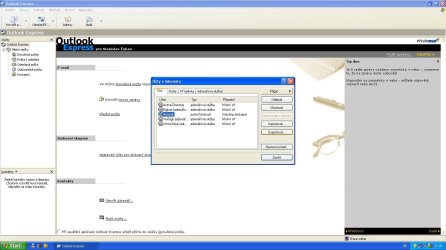
- Then in main account windows select hotmail and the click export as in picture 2.

- Click save where you want for example on your desktop and you will have this file showed on on picure 3.

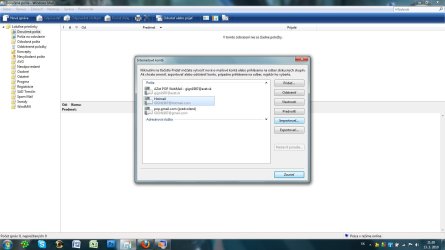
- Then return to the windows seven or windows vista and open windows mail. Click tools then accounts a then click import a select the file you ceated in step 1 and 2.

Close the account windows and click send / request messages and you would be prompted for username and password. Enter it and it should download mesages from server.
 

Attachments

  • 4.jpg
    4.jpg
    94 KB · Views: 156
  • 3.JPG
    3.JPG
    1.8 KB · Views: 482
  • 2.JPG
    2.JPG
    108.8 KB · Views: 176
  • 1.JPG
    1.JPG
    83.2 KB · Views: 178

My Computer

OS
Windows 7 Professional 64 bit
CPU
Intel Core 2 Quad Q8300
Motherboard
GIGABYTE P43-ES3G
Memory
Patriot Gaming 2 x 2 GB
Graphics Card(s)
ASUS ENGTX285
Sound Card
Realtek ALC888
Monitor(s) Displays
iiyama ProLite E2473HDS
Screen Resolution
1920 x 1080
Hard Drives
WDC WD6400AAKS
WDC WD6400AAKS
PSU
Corsair TX650V2
Case
CoolerMaster CM690 Advanced Dominator II
Cooling
Standard Colling
Keyboard
Trust eLight illumunated keyboard
Mouse
Labtec Laser Mouse
Internet Speed
Download 2.30 MB/s Upload 0.31 MB/s
Hi there,

every one knows that hotmail is no longer supported by windows mail program. But there is a little trick how we can be able to use hotmail with windows mail. Here is how:

- At first open up a windows xp mode and launch the outlook expres in picture 1. Use a google to find the pop3 settings for hotmail, i use this page: Hotmail Free POP3 and SMTP Access and Server Configuration Settings My Digital Life
and setup account in outlook express.

- Then in main account windows select hotmail and the click export as in picture 2.

- Click save where you want for example on your desktop and you will have this file showed on on picure 3.

- Then return to the windows seven or windows vista and open windows mail. Click tools then accounts a then click import a select the file you ceated in step 1 and 2.

Close the account windows and click send / request messages and you would be prompted for username and password. Enter it and it should download mesages from server.
Hey GIGN1987, that's brilliant.

I'll refer anyone who needs Hotmail in Windows Mail to your post.

Cheers PB
 

My Computer

Computer Manufacturer/Model Number
Self-assembled
OS
Win7 Ultimate 64bit Retail
CPU
Intel i7 960 quad core
Motherboard
Intel DX58SO2 Extreme
Memory
12 GB Kingston DDR 3 1300
Graphics Card(s)
PCI Express Gigabyte GTX 550 Ti
Sound Card
Gigabyte GTX 550 Ti Graphics/5 Sound card
Monitor(s) Displays
Samsung WS Syncmaster S23A350H
Screen Resolution
1920 x 1080
Hard Drives
OS on 128 GB Corsair SSD SATA 3 + Storage on 1 TB Western Digital Black SATA 2
Case
Cooler Master CM690 II Advanced Mid Tower
Cooling
CPU, top, front and rear extractor fans
Keyboard
Microsoft Intellitype Wireless Multimedia
Mouse
Microsoft Intellipoint2 Wireless
Internet Speed
100 MB/sec Theoretical max. Actual average 0.5MB/sec
Other Info
Back-up PC with Vista Ultimate OEM 32bit. Intel i5 2400 Quad Core CPU, DH67CL mobo, 8 GB Kingston DDR3 1300 RAM,
thank you, i hope this will work generaly, but for me its working now perfectly and i hope that this tutorial is clear to do. I discover this trick when try to make azet webmail useable.

Best regards GIGN1987
 

My Computer

OS
Windows 7 Professional 64 bit
CPU
Intel Core 2 Quad Q8300
Motherboard
GIGABYTE P43-ES3G
Memory
Patriot Gaming 2 x 2 GB
Graphics Card(s)
ASUS ENGTX285
Sound Card
Realtek ALC888
Monitor(s) Displays
iiyama ProLite E2473HDS
Screen Resolution
1920 x 1080
Hard Drives
WDC WD6400AAKS
WDC WD6400AAKS
PSU
Corsair TX650V2
Case
CoolerMaster CM690 Advanced Dominator II
Cooling
Standard Colling
Keyboard
Trust eLight illumunated keyboard
Mouse
Labtec Laser Mouse
Internet Speed
Download 2.30 MB/s Upload 0.31 MB/s
I don't see Windows Mail on my program list after step 2. I see there are 2 Windows Mail folders each having the msoe.dll file but none have winmail.exe. So when I go to footnote 3 I don't know what to save.
 

My Computer

Computer type
PC/Desktop
OS
Win 7 Ultimate
CPU
Intel Core i5 3570K @ 3.40GHz
Motherboard
ASRock Z77 Extreme4 (CPUSocket)
Memory
2 X 4.0GB RAM (KHX1600C9D3/4GX)
Graphics Card(s)
Intel HD Graphics 4000
Monitor(s) Displays
DELL M770 on Intel HD Graphics 4000
Screen Resolution
1600x1200
Case
AMD
Keyboard
Logitech S510
Internet Speed
Verizon FiOS
I don't see Windows Mail on my program list after step 2. I see there are 2 Windows Mail folders each having the msoe.dll file but none have winmail.exe. So when I go to footnote 3 I don't know what to save.
You didn't follow the tutorial exactly as it's listed or when you ran "attrib -s -h WinMail.exe" from the run box it didn't work because the Program Files folder with WinMail.exe is not listed in the Enviroment Variables. In my opinion, the tutorial is wrong concerning this part. You should open an elevated command prompt in the Windows Mail folder or add the Windows Mail folder path to the attrib command when you run it from the run dialog box. Can someone more knowledgeable than me confrim or deny this?

Lol, I'll answer my own question, yes the tutorial is wrong. The full path has to be entered in the run box along with quotes around the path as in
attrib -s -h "C:\Program Files\Windows Mail\WinMail.exe"
of course change the drive letter to whatever drive it's on

The same goes for running it from cmd prompt. Just now when I opended a command prompt it defaults to the system32 folder. Instead of changing to Program Files Directory, I pasted the above command with quotes and it worked from the default path system32. Without the path and quotes it will not work in the console or run dialog box. In other words, just entering attrib -s -h WinMail.exe in the console or run dialog box will not work.
 
Last edited:

My Computer

Computer Manufacturer/Model Number
Averatec 6130HS-20
OS
Windows 7 Professional 32-bit (6.1, Build 7600)
CPU
Intel(R) Pentium(R) 4 3.00 GHz HT
Memory
2.0 GB
Graphics Card(s)
ATI Mobility Radeon 9600 64MB
Sound Card
Realtek AC'97 Audio
Screen Resolution
1280 x 800
Hard Drives
Seagate 96023A 60GB 7200RPM -
Seagate FreeAgentDesktop 250GB
Cooling
20 Inch Box Fan
Mouse
Targus PAWM10 Wireless Optical Laptop Mouse
I don't see Windows Mail on my program list after step 2. I see there are 2 Windows Mail folders each having the msoe.dll file but none have winmail.exe. So when I go to footnote 3 I don't know what to save.
WinMail.exe is a hidden folder. If you apply part B) of Step 3 it will be visible. So this is what you do:

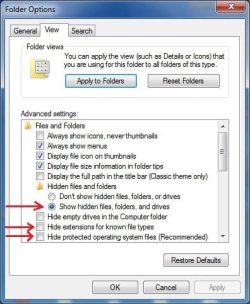
B) In Windows 7 Program Files, {NOT Program Files(x86)} open: Windows Mail ==> Tools ==> Folder Options ==> View Tab:
  • Dot: "Show Hidden Files"
  • Untick: "Hide protected operating files" & "Hide extensions for known file types"
  • Click: Apply ==> OK
If you do this, you will then be able to see Win.Mail.exe in the Windows Mail folder, and send it to desktop as a shortcut by right clicking and choosing the appropriate option.

What it asks you to save in Step 3 is a back-up copy of the msoe.dll file from your original Windows Mail folder in the normal 64bit Program Files. You don't need to touch the other Windows Mail folder in the 32bit Program Files(x86). This back-up copy is only done as a precaution, if you ever want to restore the original msoe.dll for any reason. You normally won't use it again.

Hope this helps. PB
 

My Computer

Computer Manufacturer/Model Number
Self-assembled
OS
Win7 Ultimate 64bit Retail
CPU
Intel i7 960 quad core
Motherboard
Intel DX58SO2 Extreme
Memory
12 GB Kingston DDR 3 1300
Graphics Card(s)
PCI Express Gigabyte GTX 550 Ti
Sound Card
Gigabyte GTX 550 Ti Graphics/5 Sound card
Monitor(s) Displays
Samsung WS Syncmaster S23A350H
Screen Resolution
1920 x 1080
Hard Drives
OS on 128 GB Corsair SSD SATA 3 + Storage on 1 TB Western Digital Black SATA 2
Case
Cooler Master CM690 II Advanced Mid Tower
Cooling
CPU, top, front and rear extractor fans
Keyboard
Microsoft Intellitype Wireless Multimedia
Mouse
Microsoft Intellipoint2 Wireless
Internet Speed
100 MB/sec Theoretical max. Actual average 0.5MB/sec
Other Info
Back-up PC with Vista Ultimate OEM 32bit. Intel i5 2400 Quad Core CPU, DH67CL mobo, 8 GB Kingston DDR3 1300 RAM,
After step 2, I ran the take ownership reg but in the windows mail folder I only see WinMail.exe.mui in the en-US folder. I don't get Windows Mail on the program list.
 

My Computer

Computer type
PC/Desktop
OS
Win 7 Ultimate
CPU
Intel Core i5 3570K @ 3.40GHz
Motherboard
ASRock Z77 Extreme4 (CPUSocket)
Memory
2 X 4.0GB RAM (KHX1600C9D3/4GX)
Graphics Card(s)
Intel HD Graphics 4000
Monitor(s) Displays
DELL M770 on Intel HD Graphics 4000
Screen Resolution
1600x1200
Case
AMD
Keyboard
Logitech S510
Internet Speed
Verizon FiOS
Back
Top