Windows Mail

How to Reinstate Windows Mail in Windows 7

   Warning
Microsoft no longer supports Windows Mail, aka WinMail. It's recommended you use another well known supported email client. This Tutorial is for Advanced users who importantly have the Technical Ability to make the changes, have backups of everything including your OS, and to be your own tech support for WinMail going forward. If you decide to complete this tutorial you accept the fact that you are using WinMail as-is. It might be necessary to uninstall other email clients to resolve any WinMail conflicts in some environments. Understand it's likely that new OS updates from Microsoft will break WinMail's operation, and to fix make it necessary to rerun the tutorial again to reinstate it. With those things in mind, this tutorial was written so that you can rerun it without affecting WinMail user data.
Please see this Errata (Bug List) post before you install, to be aware of the current information about known issues using WinMail within Windows 7, these issues are programmatic and in most cases cannot be resolved by this tutorial, and will never be fixed.

Having said all of that disclaimer, if you have the technical ability, and can put up with the annoying minor byproduct bugs, then like so many of us still enjoy using WinMail on Windows 7 ...ymmv!


   Tip
As of January, 2025, the instructions given here supersede all other instructions given in forthcoming older posts. Realize some of the posts that follow are over 16 years old, and many of the link pointers within have become mislinked over time, many of the files or information within them is outdated, incomplete, or superseded with more accurate information - and so be careful. However you can always be sure that the latest info from all research is incorporated into this tutorial post, and its downloads are the latest available. This post is continuously kept up-to-date, and so..
...Always refer to this Tutorial post for the very latest updated information

This is the 4th iteration of the Windows 7, WinMail tutorial.

The process of this tutorial Will Not work to reinstate WinMail on Windows 8/10 !
Windows 8/10 users please go Here


Start here
  1. Download tutorial package TutReWinMail.zip

    Download

  2. Extract the TutReWinMail.zip into your user Downloads folder
    • Note: Be sure once extracted this is the address of the ''TutReWinMail'' folder:
    • C:\Users\username\Downloads\TutReWinMail... ... (if it's not there please put it there)
  3. Navigate to your user Downloads\TutReWinMail folder to be sure the above is correct.
    • (..if you need more verbose install instructions to follow, download this WinMail Local Tutorial.zip)
    • Advanced Users can proceed below:
      (..log in for Full Access, being able to get support, remove ads, like, and even to post, etc..)
Advanced Users: ..use this easy excellent overview of the steps in the local tutorial:
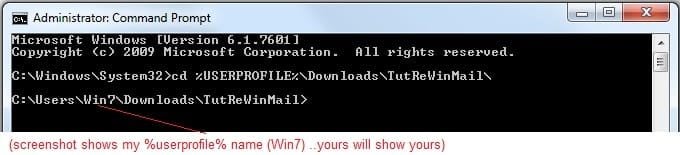
  • Open an Administrator Command Prompt. (screenshot showing in Administrator mode)
  • copy/paste this line into the command prompt: cd %USERPROFILE%\Downloads\TutReWinMail\
  • Your command prompt must now be showing you are at That Same Folder Address ..which contains the tutorial files that the batch file in the next step executes programs and copies files specifically from that folder address - if it's not there the batch file will fail since it cannot find what it needs!
  • Next type in either winmail32 or win64mail <matching OS bit, to interactively process These Next Steps
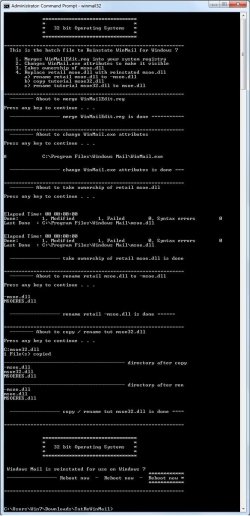
  • If you've finished to the bottom as shown in last screenshot, restart your machine (sets registry)
  • Create a shortcut from WinMail.exe to your Desktop
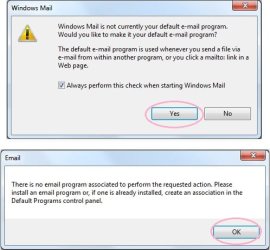
  • Open WinMail - it may prompt you one (or both) of These Two Notices ..click yes, and okay.
  • They now should be already set, but you can manually check/set at any time These Default Settings
  • That's pretty much all there is to it, and from here you setup the rest of the Windows Mail client (aka: WinMail) as normal within its various tab menus for Accounts, Options, Layout, etc, etc, to suit your individual needs.
  • Lastly, but should be the First thing you do, is to Create A WinMail Backup (new version) ..Go to this next link and when you get there scroll down to the heading: Backup/Restore Procedures for further instructions.
   Information
See How to open an elevated Administrator Command Prompt
Important: The exact text provided by the tutorial must be entered into the Administrator Command Prompt.
Hint: to avoid typos, copy/paste the entire line containing the command into the Command Prompt window.
Also see: How to Enable Copy to Clipboard from the Windows 7 Command Prompt

Every effort has been made to make this a step-by-step process, however, it is beyond the scope of a single tutorial to provide information on every command or concept. Search the Main Tutorial Section if you need greater detail on a concept or command presented in this tutorial.


Good luck, and long live WinMail :thumbsup:


   Note
Made possible by members:
Mark (aka Mr GRiM) - provided the original tutorial
Poppa Bear - continued Mark's work within the 2nd version
endeavor - provided continuous feedback, changes, invaluable testing instrumental to tutorial operations
EKManitis - propose the batch code that made operations easier
Slartybart - updated, tested, and consolidated all of the above into the 3rd version
endeavor - reviewed, updated, tested, and incorporated all of the above into this 4th version
...and also a special thanks to All the other members who presented discovery for this project


Attachments

  • TutReWinMail.zip
    TutReWinMail.zip
    1.8 MB · Views: 4,994
  • msoe_32.zip
    msoe_32.zip
    404 bytes · Views: 1,052
  • msoe_64.zip
    msoe_64.zip
    404 bytes · Views: 1,531
  • WinMailEdit.zip
    WinMailEdit.zip
    404 bytes · Views: 6
  • Win74umsZip.zip
    Win74umsZip.zip
    404 bytes · Views: 106
  • ACP.jpg
    ACP.jpg
    11.5 KB · Views: 1,083
  • DefaultClickYes-OkayAssociation.jpg
    DefaultClickYes-OkayAssociation.jpg
    31.1 KB · Views: 899
  • ProcessingBatch.jpg
    ProcessingBatch.jpg
    109 KB · Views: 1,147
  • PasteCDCommand.jpg
    PasteCDCommand.jpg
    18.5 KB · Views: 696
  • WinMail_Local_Tutorial.zip
    WinMail_Local_Tutorial.zip
    6.1 KB · Views: 1,202
  • FolderOptionsSet.jpg
    FolderOptionsSet.jpg
    37.9 KB · Views: 695
  • WinMailAdvanceOptionsBlank.jpg
    WinMailAdvanceOptionsBlank.jpg
    138.1 KB · Views: 93
  • Win7x64AdvancedTab+FileVersions.jpg
    Win7x64AdvancedTab+FileVersions.jpg
    184.7 KB · Views: 112
  • AdvancedTabBefore&After_fixed.jpg
    AdvancedTabBefore&After_fixed.jpg
    79.1 KB · Views: 50
  • CheckManually.jpg
    CheckManually.jpg
    131.8 KB · Views: 136
  • Win10_SetDefault.jpg
    Win10_SetDefault.jpg
    31.8 KB · Views: 33
Last edited by a moderator:
Modified Method to Enable Windows Mail in Windows 7

Hope this helps. Cheers PB

Came here since there are no Windows 7 newsgroups and am trying to revert back to Windows Mail. Tried WLM but the IMAP folder display sucks (esp. the "download" button). Contacts suck even more with the 3 locations: web, contacts folder, and WLM local contacts folder. Also the constant reminder to "sigh in" to hotmail to see my contacts that are on line but not the local ones.

One thing that wories me is the start of your procedure calls for running an extensive registry edit file. But what if I have to stop using it due to M$ sabotage or something else unforseen. There is no "undo" registry file. Will that matter if I need to revert back to doing a clean install of WLM or some other emal program?:confused:
Basically that registry edit allows .eml files to be opened on the desktop; removes the WinMail splash screen at start-up; and resolves various conflicts.

It relates only to the registry issues specific to the import of the Vista msoe.dll file, except for the removal of the WinMail.exe splash screen which is irrevelant to WinLiveMail. It will not affect the installation of Windows Live Mail as a revert back as all the other original Windows 7 files in the Windows Mail folder have remained unchanged.

I have run the registry edit as part of installing Windows Mail in both 32 & 64bit Windows 7 OSs when Windows Live Mail was already installed. And also installed Windows Live Mail when Windows Mail was already installed; which meant the regedit had already been run. Both systems ran concurrently without any problems, although in some environments it may be necessary to remove Windows Live Mail before Windows Mail will run, but not the other way round.

Also the modified method of installing WinMail means the system is not affected by running System File Check to restore corrupted Windows files; nor by Microsoft updates.

Cheers pB
 

My Computer My Computer

Computer Manufacturer/Model Number
Self-assembled
OS
Win7 Ultimate 64bit Retail
CPU
Intel i7 960 quad core
Motherboard
Intel DX58SO2 Extreme
Memory
12 GB Kingston DDR 3 1300
Graphics Card(s)
PCI Express Gigabyte GTX 550 Ti
Sound Card
Gigabyte GTX 550 Ti Graphics/5 Sound card
Monitor(s) Displays
Samsung WS Syncmaster S23A350H
Screen Resolution
1920 x 1080
Hard Drives
OS on 128 GB Corsair SSD SATA 3 + Storage on 1 TB Western Digital Black SATA 2
Case
Cooler Master CM690 II Advanced Mid Tower
Cooling
CPU, top, front and rear extractor fans
Keyboard
Microsoft Intellitype Wireless Multimedia
Mouse
Microsoft Intellipoint2 Wireless
Internet Speed
100 MB/sec Theoretical max. Actual average 0.5MB/sec
Other Info
Back-up PC with Vista Ultimate OEM 32bit. Intel i5 2400 Quad Core CPU, DH67CL mobo, 8 GB Kingston DDR3 1300 RAM,
Just updated my Dell Inspiron 1525 from Vista to Windows 7. I already had the Windows Mail on my Win7 netbook via the tutorial here. A simple copy and paste of the Windows Mail folder from the netbook to the new install and then running the WinMailEdit.zip from the first page of the tutorial was all that was needed. I was checking my mail in less than 5 minutes. Thanks to all for the hard work.
 

My Computer My Computer

OS
Win 7 Professional and Windows 8 Professional
I had all of the issues described in the postings on my original install. Security, ownership, default mail, the works. I kept following this board and continued applying the fixes until it was completely debugged except for the help files and the junk mail filter issues that we all know about. The question popped into my head as to why the simple copy and paste and then applying the WinMailEdit.zip is all that I needed to get a fully functioning install on another machine. Is it possible that because it was a copy and paste of the entire windows mail folder that had already been debugged made for a clean install on the 2nd machine with only the WinMailEdit.zip having to be applied or did I just get lucky??? Seems to me it would make life much easier if a .zip file could be created that contained the entire Windows Mail folder, the WinMailEdit.zip and the Winmail.exe shortcut so people could use a drag and drop to their desktop. I don't want to complicate the issue but have I stumbled upon an easier way to do the install? I will be more than happy to forward my Windows Mail folder to anyone who might want to test my theory.
 

My Computer My Computer

OS
Win 7 Professional and Windows 8 Professional
The question popped into my head as to why the simple copy and paste and then applying the WinMailEdit.zip is all that I needed to get a fully functioning install on another machine. Is it possible that because it was a copy and paste of the entire windows mail folder that had already been debugged made for a clean install on the 2nd machine with only the WinMailEdit.zip having to be applied or did I just get lucky??? .

If the folder you copied from already had the Vista msoe.dll, the answer/fix would be WinMailEdit.zip. In other words, you've done nothing more or less to the new pc than you did to the one you're copying from.
 

My Computer My Computer

Computer Manufacturer/Model Number
Averatec 6130HS-20
OS
Windows 7 Professional 32-bit (6.1, Build 7600)
CPU
Intel(R) Pentium(R) 4 3.00 GHz HT
Memory
2.0 GB
Graphics Card(s)
ATI Mobility Radeon 9600 64MB
Sound Card
Realtek AC'97 Audio
Screen Resolution
1280 x 800
Hard Drives
Seagate 96023A 60GB 7200RPM -
Seagate FreeAgentDesktop 250GB
Cooling
20 Inch Box Fan
Mouse
Targus PAWM10 Wireless Optical Laptop Mouse
Greg,

I understand. If I can copy and paste a fully functioning Windows Mail folder from one PC and copy to another PC and have it function properly by only applying the WinMailEdit.zip why couldn't somebody seeking to install the Windows Mail program do a copy and paste of my fully functioning Windows Mail Folder, apply the WinMailEdit.zip and be on their way? No ownership issues to deal with, no registry edits, no attribute changes, etc. Procedure would be:

Download and copy entire Windows mail folder from this site(i.e. WindowsMailFolder.zip)
Apply WinMailEdit.zip
Done.

Seems a lot easier to me, especially for people who might get intimidated with the regedits, attributes, and take ownership required now. The only thing I can think of might be legal issues of posting the actual Windows Mail files on the site. One of the site owners would have to make the call on that issue.
 

My Computer My Computer

OS
Win 7 Professional and Windows 8 Professional
Greg,
...No ownership issues to deal with, no registry edits, no attribute changes, etc...

...Download and copy entire Windows mail folder from this site(i.e. WindowsMailFolder.zip)
Apply WinMailEdit.zip...

...legal issues...
Before I discovered post #317 (Poppa Bear) I tried to move the original Win7 folder somewhere else for safe keeping before copying Vista's folder. That's where I had to "take ownership", although I did it the the manual way (not with a .reg file). Are you saying the copy/paste method just works without taking ownership of the Win7 folder that is being replaced?
 

My Computer My Computer

Computer type
PC/Desktop
Computer Manufacturer/Model Number
OQO 2+
OS
Windows 8 Pro w/MC 32-bit
CPU
Intel Atom 1.86 GHz
Motherboard
OQO 2+
Memory
2 GB
Graphics Card(s)
Intel GMA 500
Sound Card
IDT
Monitor(s) Displays
LCD
Screen Resolution
800 x 480 (portable) 1280 x 1024 (docked)
Hard Drives
64 GB SSD
PSU
9 Ah Battery (portable) or OQO Brick (docked)
Case
Shirt Pocket Sized
Cooling
Tiny Fan
Keyboard
Slide out (portable) DiNovo Edge (docked)
Mouse
Eraser head (portable) Logitech Bluetooth (docked)
Internet Speed
WWAN or 802.11G (portable) T1 (docked)
Browser
IE 10
Other Info
DVD-RW OQO Docking Station
Post #317 Instructions from Poppa Bear

The instructions say to do the Winmailedit.reg first, even before the Takeownership.reg. Before I discovered this post #317, I had already taken ownership manually (w/o regedit). Is it ok to run Winmailedit second (after the manual take ownership)? If not, do I need to give ownership back temporarily? If so, would that be to SYSTEM?
 

My Computer My Computer

Computer type
PC/Desktop
Computer Manufacturer/Model Number
OQO 2+
OS
Windows 8 Pro w/MC 32-bit
CPU
Intel Atom 1.86 GHz
Motherboard
OQO 2+
Memory
2 GB
Graphics Card(s)
Intel GMA 500
Sound Card
IDT
Monitor(s) Displays
LCD
Screen Resolution
800 x 480 (portable) 1280 x 1024 (docked)
Hard Drives
64 GB SSD
PSU
9 Ah Battery (portable) or OQO Brick (docked)
Case
Shirt Pocket Sized
Cooling
Tiny Fan
Keyboard
Slide out (portable) DiNovo Edge (docked)
Mouse
Eraser head (portable) Logitech Bluetooth (docked)
Internet Speed
WWAN or 802.11G (portable) T1 (docked)
Browser
IE 10
Other Info
DVD-RW OQO Docking Station
Roncerr,

I am not sure why the install worked without having to do anything with ownership, attributes, etc. I copied from a Gateway Mini with Win7 HE to a Dell 1525 laptop upgraded from Vista to Win7 HE via a full install (wipe partition. re-format, new install). I will describe the sequence I used.

1. Downloaded and saved to desktop WinMailEdit.zip from this site.
2. Renamed the original C:\Program Files\Windows Mail Folder to Windows Mail.old
3. Copied and pasted the already modified Windows Mail Folder from the Mini to the Dell (C:\Program Files\ Windows Mail).
4. Ran the WinMailEdit.zip file.

I was able to rename the original Windows Mail Folder to Windows Mail.old without taking ownership. Same with the Copy and Paste of the modified folder. I don't have enough savvy to manually navigate through a manual ownership and the Take Ownership regedit posted here was not even present on the hard drive of the new install. My original Windows Mail install was done with a lot of trial and error help from this site and before the instructions were so precise. Is there something unique about my Windows Mail install that bypasses the ownership issues or is this something that anybody could repeat from their own install to a second PC following the procedure I just described? More questions than answers from me.
 
Last edited:

My Computer My Computer

OS
Win 7 Professional and Windows 8 Professional
...Is there something unique about my Windows Mail install that bypasses the ownership issues or is this something that anybody could repeat from their own install to a second PC following the procedure I just described?
Good question. As you can see from my previous post I'm in the same situation in that I have already taken ownership so I won't be able to test it unless someone tells me how to restore Win7 to its original ownership status manually (w/o running the .reg file or using regit). The "Remove Take Ownership" file only undoes what the "Take Ownership" did (and which we did not use) so it may not help either one of us start over in order to test your theory.
 

My Computer My Computer

Computer type
PC/Desktop
Computer Manufacturer/Model Number
OQO 2+
OS
Windows 8 Pro w/MC 32-bit
CPU
Intel Atom 1.86 GHz
Motherboard
OQO 2+
Memory
2 GB
Graphics Card(s)
Intel GMA 500
Sound Card
IDT
Monitor(s) Displays
LCD
Screen Resolution
800 x 480 (portable) 1280 x 1024 (docked)
Hard Drives
64 GB SSD
PSU
9 Ah Battery (portable) or OQO Brick (docked)
Case
Shirt Pocket Sized
Cooling
Tiny Fan
Keyboard
Slide out (portable) DiNovo Edge (docked)
Mouse
Eraser head (portable) Logitech Bluetooth (docked)
Internet Speed
WWAN or 802.11G (portable) T1 (docked)
Browser
IE 10
Other Info
DVD-RW OQO Docking Station
Didn't work for me!

I tried to follow Poppa Bears' directions, but somewhere in that "do-this", "but wait, not yet" rather convoluted algorithm I must have gone astray or my old eyes missed something. When got to the end and tried RUNNING the WinMail Shortcut, my system locked up BIG TIME (constant hour glass and NOTHING would close). I had to do a hard shut down using the power switch - Even the xKill and CNTRL+ALT+Delete would not work and the taskmaster would not close (a frequent problem seen in a lot of apps with this new Win7!). I couldn't even get the damn thing into safe mode. It'd just load the drivers and then sit on "please wait" forever!

After a half dozen attempts I finally got in to Task manager and found morethan 40 "winmail.exe" files running in PROCESSES. I managed to back out and get both the reg and X86 WINMAIL folders from the PROGRAM FILES folders-quarantined on to another drive and I'm back to Windows Live Mail --- so far. At this point I have no idea which msoe.dll file is old, or new, or 32X or 64X; it's all a big mess now.

I REALLY hate Windows LIVE mail because I have 7 mail accounts and dealing with over 42 mail boxes is a real PAIN. And having to go hunt thru all 7 junk folders to see what it might have mislabeled is a chore for my old eyes and then some.

Can Poppa Bear, or anyone, help me out of this mess? BTW, there was NO registry entry as described in directions. No such registry entry exist on my machine so that thru me off the track right there. What do I do?

This is a HP DV9500 laptop running (two weeks ago) Vista SP2 64X and I "upgraded" to Windows 7. I am beginning to think that the upgrade (versus a clean wipe and a fresh new OS) was a bad idea. I've had nothing but slow responses, whiteout screens, lock ups and blue screen crashes ever since I did the "upgrade". Definitely NOT an improvement! Suggestions? Help?

The software history on this machine may help: it originally came with XP home basic, then I went yo Vista 43 home premium, then to Ultimate Vista 32, then upgraded to Vista SP2 X64 and just last week I upgraded again to Windows 7 Ultimate X64. I think that instead of solving problems, I just compounded them and brought them along with me.

I would appreciate any help on the immediate problem of the WinMail versus WinLiveMail and any ideas or suggestion on the over all poor performance of the OS.

I have an Intel T7500 chip set @ 2.2 Ghz and 4 GB RAM with 1.5 TB drive space.

Thank you,

Bob
 

My Computer My Computer

Computer Manufacturer/Model Number
HP DV7.4190us
OS
Win7 X64
CPU
Intel i720QM 1.60 GHtz with TurboBoost & 8 logical cores
Memory
6 GB
Graphics Card(s)
GeForce 8600
Sound Card
RealTek
Monitor(s) Displays
Laptop 1200x800
Hard Drives
Two internal 500 GB, one USB 1 TB and one USB 2 TB, both WD
Internet Speed
12 to 20 Mbps down and about 4 Mbps up (t1 or t2 equiv)
To: Bob M W.

I can't offer any definite explanation as to why this problem has occurred. However, there is one possible solution you could try.

Re:
BTW, there was NO registry entry as described in directions. No such registry entry exist on my machine so that thru me off the track right there. What do I do?
I assume you're referring to the registry entry mentioned in Footnote 2. If this registry key does not exist, simply ignore this footnote. It will not make any difference to the import process.

Re:
After a half dozen attempts I finally got in to Task manager and found morethan 40 "winmail.exe" files running in PROCESSES.
There are two Windows Mail folders in 64bit Windows 7.

  • One in the normal 64bit Program files
  • One in the 32bit Program files(x86) --> See Footnote 3 of the tutorial.
The problem of multiple WinMail.exe files shown running in processes could be caused by repeatedly trying to:

1. Open WinMail.exe file in Windows Mail folder in 32bit Program files(x86).

2. Open WinMail.exe file in Windows Mail folder in 64bit Program files when the wrong msoe.dll file has
been imported.

- WinMail.exe in 32bit Program Files(x86) will never work under any circumstances in 64bit Windows 7.

- WinMail.exe in 64bit Program files also won't work with the wrong msoe.dll file.

Repeatedly clicking WinMail.exe would be like trying to run 40 applications simultaneously. This would freeze your sytem by overloading your RAM. And it will stay this way until these processes are stopped; which can be done by simply logging off and back on, or by killing it in Task Manager.


At this point I have no idea which msoe.dll file is old, or new, or 32X or 64X; it's all a big mess now.
Even if you have put the wrong msoe.dll file in the Windows Mail folder, all you need to do to fix it is:
  • download the 64bit msoe.dll file from the second link at the beginning of step 4.
  • Use this downloaded msoe.dll file to replace the existing msoe.dll file in the Windows Mail folder in the normal 64bit Program Files.
  • Do not touch the Windows Mail folder in the 32bit Program files(x86).
  • Now run the WinMail.exe in the Windows Mail folder in the 64bit Program files.
If this doesn't work, the only other suggestion would be to replace both the 32 & 64bit Windows Mail folders with the original Windows Mail folders that came with Windows 7, and start the import process from scratch.

Hope this helps. Let me know how you get on.

Cheers PB
 
Last edited:

My Computer My Computer

Computer Manufacturer/Model Number
Self-assembled
OS
Win7 Ultimate 64bit Retail
CPU
Intel i7 960 quad core
Motherboard
Intel DX58SO2 Extreme
Memory
12 GB Kingston DDR 3 1300
Graphics Card(s)
PCI Express Gigabyte GTX 550 Ti
Sound Card
Gigabyte GTX 550 Ti Graphics/5 Sound card
Monitor(s) Displays
Samsung WS Syncmaster S23A350H
Screen Resolution
1920 x 1080
Hard Drives
OS on 128 GB Corsair SSD SATA 3 + Storage on 1 TB Western Digital Black SATA 2
Case
Cooler Master CM690 II Advanced Mid Tower
Cooling
CPU, top, front and rear extractor fans
Keyboard
Microsoft Intellitype Wireless Multimedia
Mouse
Microsoft Intellipoint2 Wireless
Internet Speed
100 MB/sec Theoretical max. Actual average 0.5MB/sec
Other Info
Back-up PC with Vista Ultimate OEM 32bit. Intel i5 2400 Quad Core CPU, DH67CL mobo, 8 GB Kingston DDR3 1300 RAM,
I am beginning to think that the upgrade (versus a clean wipe and a fresh new OS) was a bad idea.
Yes. You want to do a clean install (Microsoft calls it a "custom" install.) You should be able to do that with "upgrade" media. Note that if you do that you won't have to download WLM in the first place since the "Windows Mail" folder is provided by Windows 7; it just needs the fixes our guru (PA Bear) suggested.
 

My Computer My Computer

Computer type
PC/Desktop
Computer Manufacturer/Model Number
OQO 2+
OS
Windows 8 Pro w/MC 32-bit
CPU
Intel Atom 1.86 GHz
Motherboard
OQO 2+
Memory
2 GB
Graphics Card(s)
Intel GMA 500
Sound Card
IDT
Monitor(s) Displays
LCD
Screen Resolution
800 x 480 (portable) 1280 x 1024 (docked)
Hard Drives
64 GB SSD
PSU
9 Ah Battery (portable) or OQO Brick (docked)
Case
Shirt Pocket Sized
Cooling
Tiny Fan
Keyboard
Slide out (portable) DiNovo Edge (docked)
Mouse
Eraser head (portable) Logitech Bluetooth (docked)
Internet Speed
WWAN or 802.11G (portable) T1 (docked)
Browser
IE 10
Other Info
DVD-RW OQO Docking Station
To: Bob M W.

I can't offer any definite explanation as to why this problem has occurred. However, there is one possible solution you could try.

Re:
BTW, there was NO registry entry as described in directions. No such registry entry exist on my machine so that thru me off the track right there. What do I do?
I assume you're referring to the registry entry mentioned in Footnote 2. If this registry key does not exist, simply ignore this footnote. It will not make any difference to the import process.

Re:
After a half dozen attempts I finally got in to Task manager and found morethan 40 "winmail.exe" files running in PROCESSES.
There are two Windows Mail folders in 64bit Windows 7.

  • One in the normal 64bit Program files

  • One in the 32bit Program files(x86) --> See Footnote 3 of the tutorial.
The problem of multiple WinMail.exe files shown running in processes could be caused by repeatedly trying to:

1. Open WinMail.exe file in Windows Mail folder in 32bit Program files(x86).

2. Open WinMail.exe file in Windows Mail folder in 64bit Program files when the wrong msoe.dll file has
been imported.

- WinMail.exe in 32bit Program Files(x86) will never work under any circumstances in 64bit Windows 7.

- WinMail.exe in 64bit Program files also won't work with the wrong msoe.dll file.

Repeatedly clicking WinMail.exe would be like trying to run 40 applications simultaneously. This would freeze your sytem by overloading your RAM. And it will stay this way until these processes are stopped; which can be done by simply logging off and back on, or by killing it in Task Manager.


At this point I have no idea which msoe.dll file is old, or new, or 32X or 64X; it's all a big mess now.
Even if you have put the wrong msoe.dll file in the Windows Mail folder, all you need to do to fix it is:
  • download the 64bit msoe.dll file from the second link at the beginning of step 4.

  • Use this downloaded msoe.dll file to replace the existing msoe.dll file in the Windows Mail folder in the normal 64bit Program Files.

  • Do not touch the Windows Mail folder in the 32bit Program files(x86).

  • Now run the WinMail.exe in the Windows Mail folder in the 64bit Program files.
If this doesn't work, the only other suggestion would be to replace both the 32 & 64bit Windows Mail folders with the original Windows Mail folders that came with Windows 7, and start the import process from scratch.

Hope this helps. Let me know how you get on.

Cheers PB
..................:cry:................first of all reformat hard drive to new OS Windows 7 .....................
1) install Take ownership.zip
2) delete MSOE.dll file from Windows 7 in folder Win mail 64
3) install MSOE.dll file 64 bit to document and copy to Windows 7 Win Mail folder you can use USB Flash Driver
4)

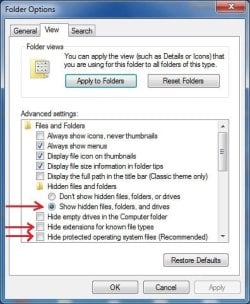
  • Go to: Start Orb ==> Computer ==> C: Drive ==> Program Files ==> Open: Windows Mail ==> Top Task Bar ==> Tools ==> Drop down menu ==> Folder Options ==> View Tab
  • Dot: Show hidden files, folders...
  • Untick: Hide empty drives... Hide extensions... Hide protected operating...
  • In response to the warning click: Yes ==> Apply ==> OK.
5)Don't go to Registry you won't find the file !!!!!!!!!!!
6) Very importante is taking control over folders and files !!!!!!!!!!!!!!!!!!...........Call Parental Control in Windows 7.....because you have take care of this file WinMail.dll.mui.............when you have folders and files under control as user copy file WinMail.exe to desktop as Icon and Enjoy WinMail in Windows 7................:party::party::party::party::party::party: it's working and I hate Windows Live Mail..................good luck
 

My Computer My Computer

OS
Windows 7 - 64 bit Home Premium
..................:cry:................first of all reformat hard drive to new OS Windows 7 .....................
1) install Take ownership.zip
2) delete MSOE.dll file from Windows 7 in folder Win mail 64
3) install MSOE.dll file 64 bit to document and copy to Windows 7 Win Mail folder you can use USB Flash Driver


4)
  • Go to: Start Orb ==> Computer ==> C: Drive ==> Program Files ==> Open: Windows Mail ==> Top Task Bar ==> Tools ==> Drop down menu ==> Folder Options ==> View Tab
  • Dot: Show hidden files, folders...
  • Untick: Hide empty drives... Hide extensions... Hide protected operating...
  • In response to the warning click: Yes ==> Apply ==> OK.
What about the first step in the original instructions? (Shouldn't this first step be done right after the reformat/WindowsUpate/driver stuff and just before the take ownership process):

"1. Download and run the attachment: WinMailEdit.zip.

*Warning: It is critical to do this before carrying out steps (3) & (4). This auto exe file edits the registry to allow .eml files to be opened on the desktop; removes the WinMail splash screen at start-up; and resolves various conflicts."
 
Last edited:

My Computer My Computer

Computer type
PC/Desktop
Computer Manufacturer/Model Number
OQO 2+
OS
Windows 8 Pro w/MC 32-bit
CPU
Intel Atom 1.86 GHz
Motherboard
OQO 2+
Memory
2 GB
Graphics Card(s)
Intel GMA 500
Sound Card
IDT
Monitor(s) Displays
LCD
Screen Resolution
800 x 480 (portable) 1280 x 1024 (docked)
Hard Drives
64 GB SSD
PSU
9 Ah Battery (portable) or OQO Brick (docked)
Case
Shirt Pocket Sized
Cooling
Tiny Fan
Keyboard
Slide out (portable) DiNovo Edge (docked)
Mouse
Eraser head (portable) Logitech Bluetooth (docked)
Internet Speed
WWAN or 802.11G (portable) T1 (docked)
Browser
IE 10
Other Info
DVD-RW OQO Docking Station
To Maximus Commodus re:
  • Go to: Start Orb ==> Computer ==> C: Drive ==> Program Files ==> Open: Windows Mail ==> Top Task Bar ==> Tools ==> Drop down menu ==> Folder Options ==> View Tab
    [*]Dot: Show hidden files, folders...
    [*]Untick: Hide empty drives... Hide extensions... Hide protected operating...
    [*]In response to the warning click: Yes ==> Apply ==> OK.
You don't need to do the above commands if you carry out Step 2 of the main tutorial post and use the Run command to remove attributes. This is purely to make the WinMail.exe file visible in the Windows Mail folder.

Manually making files visible is only necessary if removing attributes doesn't work, which happens in some environments - See Footnote 4 of main tutorial post on the first page of this thread.

Re roncerr:
What about the first step in the original instructions? (Shouldn't this first step be done right after the reformat/WindowsUpate/driver stuff and just before the take ownership process):

"1. Download and run the attachment: WinMailEdit.zip.
You're aboslutely right roncerr. In some environments if the WinMailEdit.zip is not run first, running it later may bork the procedure.

It appears that Maximus Commodus has copied parts of a post made during the evolvement stages of the final modified tutorial.

The modified tutorial shown at the very beginning of this thread is the final version which has removed all the bugs and streamlined the process. This method has been tested and proven to work in 32 & 64bit Windows 7 installations. If it ain't broke, don't fix it!

Cheers PB
 

My Computer My Computer

Computer Manufacturer/Model Number
Self-assembled
OS
Win7 Ultimate 64bit Retail
CPU
Intel i7 960 quad core
Motherboard
Intel DX58SO2 Extreme
Memory
12 GB Kingston DDR 3 1300
Graphics Card(s)
PCI Express Gigabyte GTX 550 Ti
Sound Card
Gigabyte GTX 550 Ti Graphics/5 Sound card
Monitor(s) Displays
Samsung WS Syncmaster S23A350H
Screen Resolution
1920 x 1080
Hard Drives
OS on 128 GB Corsair SSD SATA 3 + Storage on 1 TB Western Digital Black SATA 2
Case
Cooler Master CM690 II Advanced Mid Tower
Cooling
CPU, top, front and rear extractor fans
Keyboard
Microsoft Intellitype Wireless Multimedia
Mouse
Microsoft Intellipoint2 Wireless
Internet Speed
100 MB/sec Theoretical max. Actual average 0.5MB/sec
Other Info
Back-up PC with Vista Ultimate OEM 32bit. Intel i5 2400 Quad Core CPU, DH67CL mobo, 8 GB Kingston DDR3 1300 RAM,

My Computer My Computer

Computer type
PC/Desktop
Computer Manufacturer/Model Number
Custom Build
OS
Windows 7 Professional SP1 - x64 [Non-UEFI Boot]
CPU
Ivy Bridge Core i5 3570K (Delidded)
Motherboard
Asus P8Z77-V LE PLUS
Memory
G.Skill "Ares" DDR3 PC3-12800 - 1600MHz (16Gb)
Graphics Card(s)
Asus Dual-RX480-O4G
Sound Card
Creative Sound Blaster Z w/5.1 sound system
Monitor(s) Displays
Asus IPS 23"
Screen Resolution
16/9
Hard Drives
Internal:
500Go Sata 6Gb/s (x2)
500Go Sata 3Gb/s (x2)
SSD 60Go Sata 6Gb/s
PSU
In Win C 900W Series 80+ Platinum
Case
Thermaltake Chaser A71
Cooling
Custom Water Cooling Loop
Keyboard
Cooler Master QuickFire XTi
Mouse
Razer Imperator 2012 (4G)
Antivirus
MSE
Browser
IE 11.0.xxx Rtm
Other Info
"Raid0" with Intel Smart Response Technology (HDD/SSD)
It appears that the update today broke Windows Mail. I don't have time to start fiddling with it right now but can someone officially say what the fix would be?
 

My Computer My Computer

Computer type
PC/Desktop
Computer Manufacturer/Model Number
Alienware® ALX X58
OS
Win 7 Ult SP1/Win 10 Pro (all x64)
CPU
Intel® Core™ i7-975 Extreme O/C to 4.02 GHz, 8MB Cache
Motherboard
Asus® P6T Deluxe V2 X58 LGA1366
Memory
24GB Corsair Vengeance DDR3 SDRAM at 1600MHz - 6 x 4096MB
Graphics Card(s)
1792 MB NVIDIA® GeForce® GTX 295 Dual Core
Sound Card
Onboard Soundmax® High-Definition 7.1 Performance Audio
Monitor(s) Displays
Samsung XL2370 LED backlit 23" W/S 2ms response time
Screen Resolution
1920 X 1080
Hard Drives
2 x 500gb SATA II
1 x 1TB SATA II
1 external eSATA LaCie 3TB
(Non-RAID)
PSU
Alienware® 1200 Watt Multi-GPU
Case
Alienware® P2 ALX Chassis with AlienIce™ 3.0 Video Cooling
Cooling
Alienware® High-Perf. Liquid Cooling + Acoustic Dampening
Keyboard
Microsoft® Wireless Entertainment 8000 + Logitech® G15 Wired
Mouse
Microsoft® Wireless Laser 8000 + Logitech® G9 Wired
Internet Speed
1Gb/s
Antivirus
McAfee LiveSafe
Browser
Firefox - latest
Other Info
Using non-RAID on purpose as I find RAID to be too temperamental.
Now set to AHCI
It appears that the update today broke Windows Mail. I don't have time to start fiddling with it right now but can someone officially say what the fix would be?

You'll have to reinstate the msoe.dll again...I've done it in "safe mode" and it's working by now!
 

My Computer My Computer

Computer type
PC/Desktop
Computer Manufacturer/Model Number
Custom Build
OS
Windows 7 Professional SP1 - x64 [Non-UEFI Boot]
CPU
Ivy Bridge Core i5 3570K (Delidded)
Motherboard
Asus P8Z77-V LE PLUS
Memory
G.Skill "Ares" DDR3 PC3-12800 - 1600MHz (16Gb)
Graphics Card(s)
Asus Dual-RX480-O4G
Sound Card
Creative Sound Blaster Z w/5.1 sound system
Monitor(s) Displays
Asus IPS 23"
Screen Resolution
16/9
Hard Drives
Internal:
500Go Sata 6Gb/s (x2)
500Go Sata 3Gb/s (x2)
SSD 60Go Sata 6Gb/s
PSU
In Win C 900W Series 80+ Platinum
Case
Thermaltake Chaser A71
Cooling
Custom Water Cooling Loop
Keyboard
Cooler Master QuickFire XTi
Mouse
Razer Imperator 2012 (4G)
Antivirus
MSE
Browser
IE 11.0.xxx Rtm
Other Info
"Raid0" with Intel Smart Response Technology (HDD/SSD)
It appears that the update today broke Windows Mail. I don't have time to start fiddling with it right now but can someone officially say what the fix would be?

You'll have to reinstate the msoe.dll again...I've done it in "safe mode" and it's working by now!

I just updated and restarted. No problems here. WinMail working as it did before the update.
 

My Computer My Computer

Computer Manufacturer/Model Number
Averatec 6130HS-20
OS
Windows 7 Professional 32-bit (6.1, Build 7600)
CPU
Intel(R) Pentium(R) 4 3.00 GHz HT
Memory
2.0 GB
Graphics Card(s)
ATI Mobility Radeon 9600 64MB
Sound Card
Realtek AC'97 Audio
Screen Resolution
1280 x 800
Hard Drives
Seagate 96023A 60GB 7200RPM -
Seagate FreeAgentDesktop 250GB
Cooling
20 Inch Box Fan
Mouse
Targus PAWM10 Wireless Optical Laptop Mouse
How can I get Windows Mail working again?
 

My Computer My Computer

Computer Manufacturer/Model Number
Self-Built
OS
Windows 7 Ultimate x64
CPU
Intel Core 2 Extreme QX9650 @ 3.00GHz 1333FSB 12
Motherboard
Asus Striker II Formula nForce 780i SLI Mainboard
Memory
8G Corsair Dominator DDR2
Graphics Card(s)
None LoL
Sound Card
Creative Labs X-FI XtremeGamer 24-Bit PCI Sound Card
Monitor(s) Displays
None LoL
Screen Resolution
None LoL
Hard Drives
2 Western Digital Raid-0 10,000 RPM Velociraptor's
PSU
Corsair AX850
Case
Corsair Graphite 600T
Cooling
Corsair H70
Keyboard
None LoL
Mouse
None LoL
Internet Speed
Download: 14.95 MB/s Upload: 2.88 MB/s
Other Info
32" LG LCD TV
Astro A40 Audio System
Logitech Z-2300 Speakers
Microsoft Xbox 360 Slim
Rosewill External Enclosure
Back
Top