Windows Mail

How to Reinstate Windows Mail in Windows 7

   Warning
Microsoft no longer supports Windows Mail, aka WinMail. It's recommended you use another well known supported email client. This Tutorial is for Advanced users who importantly have the Technical Ability to make the changes, have backups of everything including your OS, and to be your own tech support for WinMail going forward. If you decide to complete this tutorial you accept the fact that you are using WinMail as-is. It might be necessary to uninstall other email clients to resolve any WinMail conflicts in some environments. Understand it's likely that new OS updates from Microsoft will break WinMail's operation, and to fix make it necessary to rerun the tutorial again to reinstate it. With those things in mind, this tutorial was written so that you can rerun it without affecting WinMail user data.
Please see this Errata (Bug List) post before you install, to be aware of the current information about known issues using WinMail within Windows 7, these issues are programmatic and in most cases cannot be resolved by this tutorial, and will never be fixed.

Having said all of that disclaimer, if you have the technical ability, and can put up with the annoying minor byproduct bugs, then like so many of us still enjoy using WinMail on Windows 7 ...ymmv!


   Tip
As of January, 2025, the instructions given here supersede all other instructions given in forthcoming older posts. Realize some of the posts that follow are over 16 years old, and many of the link pointers within have become mislinked over time, many of the files or information within them is outdated, incomplete, or superseded with more accurate information - and so be careful. However you can always be sure that the latest info from all research is incorporated into this tutorial post, and its downloads are the latest available. This post is continuously kept up-to-date, and so..
...Always refer to this Tutorial post for the very latest updated information

This is the 4th iteration of the Windows 7, WinMail tutorial.

The process of this tutorial Will Not work to reinstate WinMail on Windows 8/10 !
Windows 8/10 users please go Here


Start here
  1. Download tutorial package TutReWinMail.zip

    Download

  2. Extract the TutReWinMail.zip into your user Downloads folder
    • Note: Be sure once extracted this is the address of the ''TutReWinMail'' folder:
    • C:\Users\username\Downloads\TutReWinMail... ... (if it's not there please put it there)
  3. Navigate to your user Downloads\TutReWinMail folder to be sure the above is correct.
    • (..if you need more verbose install instructions to follow, download this WinMail Local Tutorial.zip)
    • Advanced Users can proceed below:
      (..log in for Full Access, being able to get support, remove ads, like, and even to post, etc..)
Advanced Users: ..use this easy excellent overview of the steps in the local tutorial:
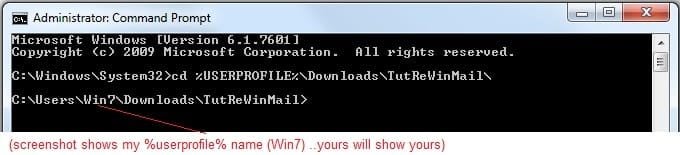
  • Open an Administrator Command Prompt. (screenshot showing in Administrator mode)
  • copy/paste this line into the command prompt: cd %USERPROFILE%\Downloads\TutReWinMail\
  • Your command prompt must now be showing you are at That Same Folder Address ..which contains the tutorial files that the batch file in the next step executes programs and copies files specifically from that folder address - if it's not there the batch file will fail since it cannot find what it needs!
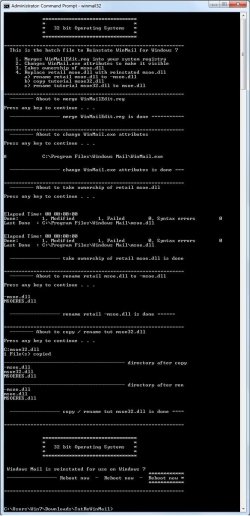
  • Next type in either winmail32 or win64mail <matching OS bit, to interactively process These Next Steps
  • If you've finished to the bottom as shown in last screenshot, restart your machine (sets registry)
  • Create a shortcut from WinMail.exe to your Desktop
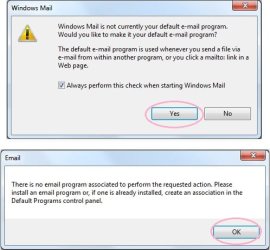
  • Open WinMail - it may prompt you one (or both) of These Two Notices ..click yes, and okay.
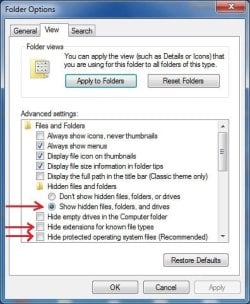
  • They now should be already set, but you can manually check/set at any time These Default Settings
  • That's pretty much all there is to it, and from here you setup the rest of the Windows Mail client (aka: WinMail) as normal within its various tab menus for Accounts, Options, Layout, etc, etc, to suit your individual needs.
  • Lastly, but should be the First thing you do, is to Create A WinMail Backup (new version) ..Go to this next link and when you get there scroll down to the heading: Backup/Restore Procedures for further instructions.
   Information
See How to open an elevated Administrator Command Prompt
Important: The exact text provided by the tutorial must be entered into the Administrator Command Prompt.
Hint: to avoid typos, copy/paste the entire line containing the command into the Command Prompt window.
Also see: How to Enable Copy to Clipboard from the Windows 7 Command Prompt

Every effort has been made to make this a step-by-step process, however, it is beyond the scope of a single tutorial to provide information on every command or concept. Search the Main Tutorial Section if you need greater detail on a concept or command presented in this tutorial.


Good luck, and long live WinMail :thumbsup:


   Note
Made possible by members:
Mark (aka Mr GRiM) - provided the original tutorial
Poppa Bear - continued Mark's work within the 2nd version
endeavor - provided continuous feedback, changes, invaluable testing instrumental to tutorial operations
EKManitis - propose the batch code that made operations easier
Slartybart - updated, tested, and consolidated all of the above into the 3rd version
endeavor - reviewed, updated, tested, and incorporated all of the above into this 4th version
...and also a special thanks to All the other members who presented discovery for this project


Attachments

  • TutReWinMail.zip
    TutReWinMail.zip
    1.8 MB · Views: 4,994
  • msoe_32.zip
    msoe_32.zip
    404 bytes · Views: 1,052
  • msoe_64.zip
    msoe_64.zip
    404 bytes · Views: 1,531
  • WinMailEdit.zip
    WinMailEdit.zip
    404 bytes · Views: 6
  • Win74umsZip.zip
    Win74umsZip.zip
    404 bytes · Views: 106
  • DefaultClickYes-OkayAssociation.jpg
    DefaultClickYes-OkayAssociation.jpg
    31.1 KB · Views: 899
  • ProcessingBatch.jpg
    ProcessingBatch.jpg
    109 KB · Views: 1,147
  • ACP.jpg
    ACP.jpg
    11.5 KB · Views: 1,083
  • PasteCDCommand.jpg
    PasteCDCommand.jpg
    18.5 KB · Views: 696
  • WinMail_Local_Tutorial.zip
    WinMail_Local_Tutorial.zip
    6.1 KB · Views: 1,202
  • FolderOptionsSet.jpg
    FolderOptionsSet.jpg
    37.9 KB · Views: 695
  • WinMailAdvanceOptionsBlank.jpg
    WinMailAdvanceOptionsBlank.jpg
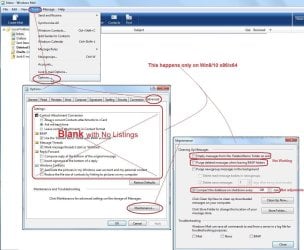
    138.1 KB · Views: 93
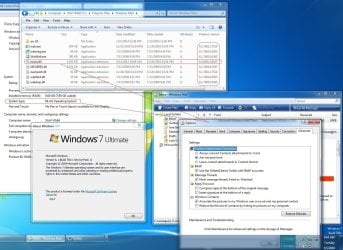
  • Win7x64AdvancedTab+FileVersions.jpg
    Win7x64AdvancedTab+FileVersions.jpg
    184.7 KB · Views: 112
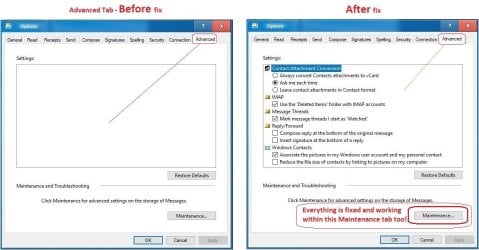
  • AdvancedTabBefore&After_fixed.jpg
    AdvancedTabBefore&After_fixed.jpg
    79.1 KB · Views: 50
  • CheckManually.jpg
    CheckManually.jpg
    131.8 KB · Views: 136
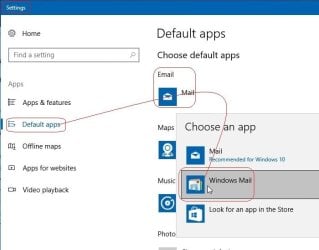
  • Win10_SetDefault.jpg
    Win10_SetDefault.jpg
    31.8 KB · Views: 33
Last edited by a moderator:
My questions are i have never unlike others in this thread been offered Windows mail updates via Windows Update i would assume this would be because i don't have Outlook or Live Mail or am i missing something?

And i assume it is OK not to have the update installed so long as i have changed to the current msoe.dll
The only Windows 7 file changed in the Windows Mail folder using the tutorial steps is the msoe.dll. All the other original Windows 7 files remain intact. Consequently any updates applicable to those other files will be covered by normal Windows Updates. So as long as you run the Windows Updater periodically you will be OK.

Re your second question it is best to have update KB978542 installed in case it also affects any other files to protect them from security breaches. So if you haven't got it installed this is what you need to do.

Run Windows Update to get KB978542. Installing it will bork the msoe.dll as this is a Vista file. So you will then need to replace the msoe.dll again using Step 4 of the tutorial. Don't forget to reboot to activate it.

Note that the msoe.dll in Step 4 of the tutorial comes from a Vista system in which the msoe.dll has been modified by KB978542, and hence is not vulnerable to the potential security breach. Also once the update is installed, Windows Update machine will not try to download it again in the future, which would bork msoe.dll again.

Hope this answers your question. Cheers PB
 

My Computer

Computer Manufacturer/Model Number
Self-assembled
OS
Win7 Ultimate 64bit Retail
CPU
Intel i7 960 quad core
Motherboard
Intel DX58SO2 Extreme
Memory
12 GB Kingston DDR 3 1300
Graphics Card(s)
PCI Express Gigabyte GTX 550 Ti
Sound Card
Gigabyte GTX 550 Ti Graphics/5 Sound card
Monitor(s) Displays
Samsung WS Syncmaster S23A350H
Screen Resolution
1920 x 1080
Hard Drives
OS on 128 GB Corsair SSD SATA 3 + Storage on 1 TB Western Digital Black SATA 2
Case
Cooler Master CM690 II Advanced Mid Tower
Cooling
CPU, top, front and rear extractor fans
Keyboard
Microsoft Intellitype Wireless Multimedia
Mouse
Microsoft Intellipoint2 Wireless
Internet Speed
100 MB/sec Theoretical max. Actual average 0.5MB/sec
Other Info
Back-up PC with Vista Ultimate OEM 32bit. Intel i5 2400 Quad Core CPU, DH67CL mobo, 8 GB Kingston DDR3 1300 RAM,
My questions are i have never unlike others in this thread been offered Windows mail updates via Windows Update i would assume this would be because i don't have Outlook or Live Mail or am i missing something?

And i assume it is OK not to have the update installed so long as i have changed to the current msoe.dll
The only Windows 7 file changed in the Windows Mail folder using the tutorial steps is the msoe.dll. All the other original Windows 7 files remain intact. Consequently any updates applicable to those other files will be covered by normal Windows Updates. So as long as you run the Windows Updater periodically you will be OK.

Re your second question it is best to have update KB978542 installed in case it also affects any other files to protect them from security breaches. So if you haven't got it installed this is what you need to do.

Run Windows Update to get KB978542. Installing it will bork the msoe.dll as this is a Vista file. So you will then need to replace the msoe.dll again using Step 4 of the tutorial. Don't forget to reboot to activate it.

Note that the msoe.dll in Step 4 of the tutorial comes from a Vista system in which the msoe.dll has been modified by KB978542, and hence is not vulnerable to the potential security breach. Also once the update is installed, Windows Update machine will not try to download it again in the future, which would bork msoe.dll again.

Hope this answers your question. Cheers PB

Thank you for your response i have got KB978542 installed

Everything is working ok, thanks again
 

My Computer

Computer Manufacturer/Model Number
Hewlett Packard Compaq Presario CQ60-305au
OS
Windows Seven Home Premium 32bit SP1
CPU
AMD Athlon QI46 2.1Ghz
Motherboard
Wistron 303c
Memory
2048 Mb DDR2 SD RAM
Graphics Card(s)
NVidea GE GoForce 8200M G/256mb dedicated graphics memory
Sound Card
MCP78S NVidea high definition
Monitor(s) Displays
15.6" High definition Brightview Widescreen
Screen Resolution
1336x768
Hard Drives
Toshiba MK2555GSX ATA
Test on WinLiveMail

Experiment to combine all accounts into one folder in left panel of WinLiveMail

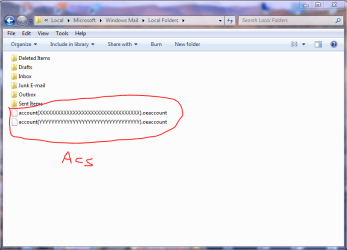
In Windows Mail all Accounts, Emails, and folders for Inbox, Outbox, Sent Items etc, are stored in a folder named Local Folders found via the following pathway.

Start orb --> User Name --> AppData --> Local --> Microsoft --> Windows Mail --> Local Folders

This is a picture of Local Folders, containing two accounts.


Capture 1.PNG


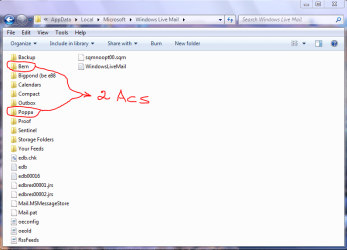
In Windows Live Mail, there is no Local Folders folder. Instead there is an individual folder for each account with a complete set of Inbox, Outbox, Sent Items, etc, in each folder. Each account is found via the following pathway, where in this example Bern and Poppa are the account names.​

Start orb --> User Name --> AppData --> Local --> Microsoft --> Windows Live Mail --> Poppa or Bern

This is a picture of Windows Live Mail folder containing the two accounts, Poppa & Bern.


Capture.PNG


As an experiment to see if it is possible to combine all accounts into one master account, starting with zero accounts, I created a new folder in Windows Live Mail, and named it Local Folders. I then copied and pasted two account files from Windows Mail Local Folders into the Local Folders folder, in Windows Live Mail.

When Windows Live Mail was opened, these still showed up as two separate accounts in the left panel.

Upon re-opening the Local Folders folder, it was empty. Two new account folders had been created in Windows Live Mail, named Bern and Poppa, with a complete set of Inbox, Outbox folders, etc, in each account folder. And the individual account files had been moved out of the newly created Local Folders into the corresponding individual account folders it had created. Also mail sent to either account went to the correct folder.

So obviously it's programmed to auto revert to multiple account folders.

Anyone else got any other ideas how it can be hacked to only show one set of Local Folders with all accounts in that folder?
 
Last edited:

My Computer

Computer Manufacturer/Model Number
Self-assembled
OS
Win7 Ultimate 64bit Retail
CPU
Intel i7 960 quad core
Motherboard
Intel DX58SO2 Extreme
Memory
12 GB Kingston DDR 3 1300
Graphics Card(s)
PCI Express Gigabyte GTX 550 Ti
Sound Card
Gigabyte GTX 550 Ti Graphics/5 Sound card
Monitor(s) Displays
Samsung WS Syncmaster S23A350H
Screen Resolution
1920 x 1080
Hard Drives
OS on 128 GB Corsair SSD SATA 3 + Storage on 1 TB Western Digital Black SATA 2
Case
Cooler Master CM690 II Advanced Mid Tower
Cooling
CPU, top, front and rear extractor fans
Keyboard
Microsoft Intellitype Wireless Multimedia
Mouse
Microsoft Intellipoint2 Wireless
Internet Speed
100 MB/sec Theoretical max. Actual average 0.5MB/sec
Other Info
Back-up PC with Vista Ultimate OEM 32bit. Intel i5 2400 Quad Core CPU, DH67CL mobo, 8 GB Kingston DDR3 1300 RAM,
Windows Live Mail amended accounts view

Amending Accounts View in main window of Windows Live Mail.

The main objection I have come across against Windows Live Mail as an alternative to Windows Mail is the compulsory inclusion of all Accounts in the left panel of the main window. Microsoft never told me, and being a bit slow on the uptake, I have only just discovered it is possible to alter the view of the accounts in the left panel to come fairly close to simulating Windows Mail. The following picture shows how I have my main window set up.


WLM  Window 1.PNG

1. Expand/Contract Entries in Left Panel.

Although it does not show in this snipped image, on the left side of the name of each entry in the left panel is a button which expands/contracts the entry view to display or hide sub-folders.

In this view of my main window I have hidden all sub-folders of Inbox, Sent Items, etc, for the accounts Poppa and Bern, and also in Storage Folders.

2. Customise viewing options for "Quick Views" folder.

By choosing suitable view options for the "Quick Views" folder, it can be used as a master folder to see all emails in all accounts, similar to the "Local Folders" folder in Windows Mail.

To set up viewing options for "Quick views" folder: Right click "Quick views" name --> Select Quick views --> Tick options as desired.

This allows all emails from all accounts, news and feeds to be viewed in one folder. In my personal set-up in the above pic have opted not to include News or Feeds.

3. Amend position of each entry in left panel.

To move entries in the left panel up or down, simply right click the name and choose Move up/down.

This makes Windows Live Mail fairly close to a viable alternative to Windows Mail. Once you become accustomed to the new positions of various command buttons and folders, etc, it does have several advanages over WinMail. It is more flexible, and has a lot more options not available in WinMail.

Hope this may help those who can't/don't want to use WinMail anymore.

Cheers PB
 
Last edited:

My Computer

Computer Manufacturer/Model Number
Self-assembled
OS
Win7 Ultimate 64bit Retail
CPU
Intel i7 960 quad core
Motherboard
Intel DX58SO2 Extreme
Memory
12 GB Kingston DDR 3 1300
Graphics Card(s)
PCI Express Gigabyte GTX 550 Ti
Sound Card
Gigabyte GTX 550 Ti Graphics/5 Sound card
Monitor(s) Displays
Samsung WS Syncmaster S23A350H
Screen Resolution
1920 x 1080
Hard Drives
OS on 128 GB Corsair SSD SATA 3 + Storage on 1 TB Western Digital Black SATA 2
Case
Cooler Master CM690 II Advanced Mid Tower
Cooling
CPU, top, front and rear extractor fans
Keyboard
Microsoft Intellitype Wireless Multimedia
Mouse
Microsoft Intellipoint2 Wireless
Internet Speed
100 MB/sec Theoretical max. Actual average 0.5MB/sec
Other Info
Back-up PC with Vista Ultimate OEM 32bit. Intel i5 2400 Quad Core CPU, DH67CL mobo, 8 GB Kingston DDR3 1300 RAM,
Why use Windows Mail instead of the client ver of Windows Live Mail?

My primary machine is Vista (where I use Windows Mail), but I will eventually migrate to Win 7 -- and have set up Win-7 machines for several people and, whether they had been using Outlook, Outlook Express, or Windows Mail, had to address the issue that Win 7 had no built in mail client. I don't remember each situation (in at least two we gave up on a local mail client and just migrated the user to Windows Live Mail web-base mail. In at least one case I downloaded and installed the optional Win7 local email CLIENT version also called "Windows Live Mail." (Thank you Microsoft for this unbelievable naming confusion of having two totally different tools with the same name out there.)

Having for decades used Outlook express, then with only slight annoyance/dislocation migrated to Windows Mail when I got Vista, I was flumoxed and annoyed whenLike others I was annoyed that Win7 not only had ditched the perfectly good Windows Mail but didn't come with any mail client installed.

But once I jumped through a few hoops and got (on my friend's Win7 system) the Windows Live Mail client installed it looked OK and functionally seemed to be about the equivalent of Windows Mail from Vista.

So here, finally, is are my questions:
Why are folks here jumping though what appears to me to be extra hoops to get Windows Mail running in Win7?
Why not just download the Win7 client version of Windows Live Mail?
What am I missing here?
Is it too difficult to migrate Windows Mail data into the Windows Live Mail client?
Is Win Live Mail client missing some beloved feature of Windows Mail?

I'm going to have to decide when I finally migrate to Win7 whether to try the routine suggested here to get Windows Mail running under Win7 or some other route. (I have over 30,000 stored emails in Windows Mail on my Vista)
So all answers appreciated BEFORE I start down what one way or other is a more convoluted path than I appreciate ;-( .

Alex
 

My Computer

Computer Manufacturer/Model Number
various - two home built from MB up. One ancient Toshiba laptop
OS
Win 7 Premium, Vista Ultimate, XP Pro
CPU
Two AMDs. Don't have access to specs at the moment
Motherboard
MSI
Memory
2GB on all systems
...Is Win Live Mail client missing some beloved feature of Windows Mail?
Yes. It adds "features" and complexity that some don't want (calendar, contacts on server, rss)

It creates by a complete set of sub-folders for each and every email account which can't be removed and adds a "quick view" set and another storage set as well.

You can't see the Windows Explorer Contacts folder but must import it if you want to use it at all. If you're not logged in to live.com you can't see your contacts. There is a 3rd set of WLM local contacts but you only see them when "working offline".

It constantly asks if you want to put your email pictures on their server or not calling it "photo mail" instead of "server photo mail". If you choose one or the other and say "don't ask again" you've given up a feature that may be useful sometimes.

Basically, they have destroyed the concept of an email client and created a monster that is both local and web based. Good luck trying to back that up to a local hard drive.

Having said that, since I have a working Vista system as my main computer I have been playing with WLM on my Win 7 portable and reading the forums to learn more about it. Since Microsoft is not supporting WM any longer, I'd like to see if I can live with "live". But if you're in a hurry to resume your familiar local email client (WM) but on 7, the tutorial will help you do that.
 

My Computer

Computer type
PC/Desktop
Computer Manufacturer/Model Number
OQO 2+
OS
Windows 8 Pro w/MC 32-bit
CPU
Intel Atom 1.86 GHz
Motherboard
OQO 2+
Memory
2 GB
Graphics Card(s)
Intel GMA 500
Sound Card
IDT
Monitor(s) Displays
LCD
Screen Resolution
800 x 480 (portable) 1280 x 1024 (docked)
Hard Drives
64 GB SSD
PSU
9 Ah Battery (portable) or OQO Brick (docked)
Case
Shirt Pocket Sized
Cooling
Tiny Fan
Keyboard
Slide out (portable) DiNovo Edge (docked)
Mouse
Eraser head (portable) Logitech Bluetooth (docked)
Internet Speed
WWAN or 802.11G (portable) T1 (docked)
Browser
IE 10
Other Info
DVD-RW OQO Docking Station
Amending Accounts View in main window of Windows Live Mail.

The main objection I have come across against Windows Live Mail as an alternative to Windows Mail is the compulsory inclusion of all Accounts in the left panel of the main window. Microsoft never told me, and being a bit slow on the uptake, I have only just discovered it is possible to alter the view of the accounts in the left panel to come fairly close to simulating Windows Mail. The following picture shows how I have my main window set up.


1. Expand/Contract Entries in Left Panel.

Although it does not show in this snipped image, on the left side of the name of each entry in the left panel is a button which expands/contracts the entry view to display or hide sub-folders.

In this view of my main window I have hidden all sub-folders of Inbox, Sent Items, etc, for the accounts Poppa and Bern, and also in Storage Folders.

2. Customise viewing options for "Quick Views" folder.

By choosing suitable view options for the "Quick Views" folder, it can be used as a master folder to see all emails in all accounts, similar to the "Local Folders" folder in Windows Mail.

To set up viewing options for "Quick views" folder: Right click "Quick views" name --> Select Quick views --> Tick options as desired.

This allows all emails from all accounts, news and feeds to be viewed in one folder. In my personal set-up in the above pic have opted not to include News or Feeds.

3. Amend position of each entry in left panel.

To move entries in the left panel up or down, simply right click the name and choose Move up/down.

This makes Windows Live Mail fairly close to a viable alternative to Windows Mail. Once you become accustomed to the new positions of various command buttons and folders, etc, it does have several advanages over WinMail. It is more flexible, and has a lot more options not available in WinMail.

Hope this may help those who can't/don't want to use WinMail anymore.

Cheers PB
Thanks for that PB, might use it. All the folder were my main objection
 

My Computer

OS
Win 7 Home Premium 64 bit Version 6.1 Build 7600
..in part....
So here, finally, is are my questions:
Why are folks here jumping though what appears to me to be extra hoops to get Windows Mail running in Win7?
Why not just download the Win7 client version of Windows Live Mail?
What am I missing here?
Is it too difficult to migrate Windows Mail data into the Windows Live Mail client?
Is Win Live Mail client missing some beloved feature of Windows Mail?

Alex

For reasons already stated, not all of us have only 1 or 2 mail accounts and for me, with 10 mail accounts, WLM is messy, cumbersoms and, quite honestly, a pain in the you-know-what to use.

It was badly thought out.

I don't want to have to keep scrolling up and down trying to find incoming mail.

In WLM when I go to delete something I have to delete it at least twice before it actually goes into the deleted folder, becuase it appears in at least 2 places.

I would gladly use WLM if it was simply a gussied-up WM with the kinks ironed out but it isn't.
 

My Computer

Computer type
PC/Desktop
Computer Manufacturer/Model Number
Alienware® ALX X58
OS
Win 7 Ult SP1/Win 10 Pro (all x64)
CPU
Intel® Core™ i7-975 Extreme O/C to 4.02 GHz, 8MB Cache
Motherboard
Asus® P6T Deluxe V2 X58 LGA1366
Memory
24GB Corsair Vengeance DDR3 SDRAM at 1600MHz - 6 x 4096MB
Graphics Card(s)
1792 MB NVIDIA® GeForce® GTX 295 Dual Core
Sound Card
Onboard Soundmax® High-Definition 7.1 Performance Audio
Monitor(s) Displays
Samsung XL2370 LED backlit 23" W/S 2ms response time
Screen Resolution
1920 X 1080
Hard Drives
2 x 500gb SATA II
1 x 1TB SATA II
1 external eSATA LaCie 3TB
(Non-RAID)
PSU
Alienware® 1200 Watt Multi-GPU
Case
Alienware® P2 ALX Chassis with AlienIce™ 3.0 Video Cooling
Cooling
Alienware® High-Perf. Liquid Cooling + Acoustic Dampening
Keyboard
Microsoft® Wireless Entertainment 8000 + Logitech® G15 Wired
Mouse
Microsoft® Wireless Laser 8000 + Logitech® G9 Wired
Internet Speed
1Gb/s
Antivirus
McAfee LiveSafe
Browser
Firefox - latest
Other Info
Using non-RAID on purpose as I find RAID to be too temperamental.
Now set to AHCI
The current version of Live Mail is known as "wave 3". There is a "wave 4" beta version currently being tested that is has a "ribbon" meny bar. Lots of fancy buttons but not much difference in function. The current version has plain vanilla menu buttons with limited options available. The most obvious is the missing delete button in the junk folder in the quick view option. With the new ribbon interface the buttons are fixed permanently so WYSIWYG applies. None of the objectional functions of the program has changed. If you were unhappy with the way the contacts were stored before with some online and some local the wave 4 version has solved that problem but it may not be to your liking. All contacts are stored online and if you are not online and logged in your contact folder is empty. A big step backwards IMO. Ribbon picture attached.
 

Attachments

  • wave 4 ribbon.jpg
    wave 4 ribbon.jpg
    9.2 KB · Views: 165

My Computer

OS
Win 7 Professional and Windows 8 Professional
For reasons already stated, not all of us have only 1 or 2 mail accounts and for me, with 10 mail accounts, WLM is messy, cumbersoms and, quite honestly, a pain in the you-know-what to use.

It was badly thought out.

I don't want to have to keep scrolling up and down trying to find incoming mail.

In WLM when I go to delete something I have to delete it at least twice before it actually goes into the deleted folder, becuase it appears in at least 2 places.

I would gladly use WLM if it was simply a gussied-up WM with the kinks ironed out but it isn't.
Hi Ex_Brit, at the risk of being a traitor to the WinMail cause, I have been running WinLiveMail as default email client for several weeks to try to find work arounds to the common problems.

In a previous post here I have found a work around that might be acceptable to you for using muliple accounts. By right clicking the "Quick View" folder name in the left pane, and selecting "Quick Views", it has options that can be set so it acts as a master folder similar to Local Folders in WinMail. It allows you to see "All Emails" and when they are deleted from Quick Views, they're gone from all other locations.

Re the messy view of all accounts and sub-folders for these accounts, on the left side of each account name is a small button which hides all the sub-folders, so you only see the names of the accounts. And most times I've not needed to open them but can almost do everything from Quick Views.

roncerr mentioned various problems, such as:
It constantly asks if you want to put your email pictures on their server or not calling it "photo mail" instead of "server photo mail".
For whatever reason I haven't experienced this problem.

Contacts are still stored in the normal location: Start Orb --> User Name --> Contacts. I didn't need to import them to WinLiveMail. It auto picked them up and put them in Contacts accessible via the Contacts button at the bottom left of the main window.

Emails and accounts are still stored on the hard drive in AppData. In contrast to WinMail which has one storage folder named Local Folders for all accounts and emails, WinLiveMail has individual Account Folders. Each individual account folder has one account file, and a complete set of Inbox, Outbox, etc.

This makes importing emails from WinMail a little more complicated. Using a straight export/import approach they are all stored in a set of folders for Inbox, Outbox, etc, which is located in Storage Folders. By using a slight variation on my post for importing emails to WinMail from Vista, found here, it is possible to import them all in one fell swoop into any account folder of your choice. And that folder will be set up with exactly the same folders as was in WinMail.

The variation consists in selecting any account in WLM that you want to use as the destination account in AppData. Delete all the yellow folders, (Inbox, Sent Items, etc.) from the destination folder in WinLiveMail, but NOT the account file.

Now import all the yellow sub-folders, (Inbox, Sent Items, etc.) from Local Folders in the AppData folder in WinMail by copying/pasting them to the empty Account Folder in WinLiveMail in AppData. Do not import the white account file. The account you have chosen will now be set up exactly like the Local Folders in WinMail when you open it in the main window of WinLiveMail.

One other feature is that when setting up accounts all you normally need to put in is the ISP user name and password and it auto fills in the POP3, SMTP data.

Hope this might help. Cheers PB :D
 

My Computer

Computer Manufacturer/Model Number
Self-assembled
OS
Win7 Ultimate 64bit Retail
CPU
Intel i7 960 quad core
Motherboard
Intel DX58SO2 Extreme
Memory
12 GB Kingston DDR 3 1300
Graphics Card(s)
PCI Express Gigabyte GTX 550 Ti
Sound Card
Gigabyte GTX 550 Ti Graphics/5 Sound card
Monitor(s) Displays
Samsung WS Syncmaster S23A350H
Screen Resolution
1920 x 1080
Hard Drives
OS on 128 GB Corsair SSD SATA 3 + Storage on 1 TB Western Digital Black SATA 2
Case
Cooler Master CM690 II Advanced Mid Tower
Cooling
CPU, top, front and rear extractor fans
Keyboard
Microsoft Intellitype Wireless Multimedia
Mouse
Microsoft Intellipoint2 Wireless
Internet Speed
100 MB/sec Theoretical max. Actual average 0.5MB/sec
Other Info
Back-up PC with Vista Ultimate OEM 32bit. Intel i5 2400 Quad Core CPU, DH67CL mobo, 8 GB Kingston DDR3 1300 RAM,
roncerr mentioned various problems, such as:
It constantly asks if you want to put your email pictures on their server or not calling it "photo mail" instead of "server photo mail".
For whatever reason I haven't experienced this problem.

Contacts are still stored in the normal location: Start Orb --> User Name --> Contacts. I didn't need to import them to WinLiveMail. It auto picked them up and put them in Contacts accessible via the Contacts button at the bottom left of the main window.

By "constantly" I meant that when you decide to email a picture you are by default given the option each and every time to choose between "photo (=server) mail" or not. You can turn off the photo mail option in the registry but then you can never use it without going back to the registry.

In order to test the contacts situation, you need to unplug your network connection or "go offline"; in addition try to set the option to never sign in. You will see different contact lists. I did the testing by going to the website directly to set up contacts, then to the "Contacts folder" in Explorer and finally to the normal contacts when you login through WLM. The 3 lists never sync completely. I'll do the test again but let me know if you tried this test for yourself. Ideally, when you are logged in via WLM and "synced" to the online contacts, you would like the local contact lists (in User/Contacts and the complicated Explorer path to WLM contacts) to be updated to agree but they don't. So the question becomes what do you back up locally and can you really choose contacts when "woring offline".
 

My Computer

Computer type
PC/Desktop
Computer Manufacturer/Model Number
OQO 2+
OS
Windows 8 Pro w/MC 32-bit
CPU
Intel Atom 1.86 GHz
Motherboard
OQO 2+
Memory
2 GB
Graphics Card(s)
Intel GMA 500
Sound Card
IDT
Monitor(s) Displays
LCD
Screen Resolution
800 x 480 (portable) 1280 x 1024 (docked)
Hard Drives
64 GB SSD
PSU
9 Ah Battery (portable) or OQO Brick (docked)
Case
Shirt Pocket Sized
Cooling
Tiny Fan
Keyboard
Slide out (portable) DiNovo Edge (docked)
Mouse
Eraser head (portable) Logitech Bluetooth (docked)
Internet Speed
WWAN or 802.11G (portable) T1 (docked)
Browser
IE 10
Other Info
DVD-RW OQO Docking Station
By "constantly" I meant that when you decide to email a picture you are by default given the option each and every time to choose between "photo (=server) mail" or not. You can turn off the photo mail option in the registry but then you can never use it without going back to the registry.

In order to test the contacts situation, you need to unplug your network connection or "go offline"; in addition try to set the option to never sign in. You will see different contact lists. I did the testing by going to the website directly to set up contacts, then to the "Contacts folder" in Explorer and finally to the normal contacts when you login through WLM. The 3 lists never sync completely. I'll do the test again but let me know if you tried this test for yourself. Ideally, when you are logged in via WLM and "synced" to the online contacts, you would like the local contact lists (in User/Contacts and the complicated Explorer path to WLM contacts) to be updated to agree but they don't. So the question becomes what do you back up locally and can you really choose contacts when "woring offline".
Hi roncerr, thanks for feedback. I think you're doing stuff on WinLiveMail that I don't. I use it purely as an email client for sending/receving emails. I don't use it to contact any online pals as in WinMessenger, and so don't use online contacts; nor do I log in to WinLive. I use SKYPE, PalTalk or FaceBook for online chatting with a webcam or typed messages. When I am off-line I can still create new emails and access my contacts on my hard drive to address the new emails. However, I'm not sure that's what you meant?

With regard to sending images or photos, there are two options given in the Menu bar under Insert for including an image or photo into the body of the main text. I go to Menu Bar > Insert > Image then choose either Photo E-Mail OR Inline. Photo can also be chosen from a Photo button just above the main text. If Inline is chosen it just inserts the image you choose. If Photo E-Mail is chosen, it includes a photo and then two new buttons appear just above the main text. They are Format and Layout. These allow the photo in the main body of text to be edited in size, type of border, indent, text box in the photo, etc.

In addition, either a single photo, or a folder of WinZipped photos can be sent as an attachment. However, once again I not sure if we're talking about the same thing? Maybe talking at crossed purposes?

When carrying out any of the above functions I never receive any request, except to choose one of the options of inserting an image/photo in the text or adding an attachment. I do miss having a shortcut button on the task bar, which is in WinMail, to click and add an image inline. The drop down menu from Insert is a longer process.

Cheers PB
 

My Computer

Computer Manufacturer/Model Number
Self-assembled
OS
Win7 Ultimate 64bit Retail
CPU
Intel i7 960 quad core
Motherboard
Intel DX58SO2 Extreme
Memory
12 GB Kingston DDR 3 1300
Graphics Card(s)
PCI Express Gigabyte GTX 550 Ti
Sound Card
Gigabyte GTX 550 Ti Graphics/5 Sound card
Monitor(s) Displays
Samsung WS Syncmaster S23A350H
Screen Resolution
1920 x 1080
Hard Drives
OS on 128 GB Corsair SSD SATA 3 + Storage on 1 TB Western Digital Black SATA 2
Case
Cooler Master CM690 II Advanced Mid Tower
Cooling
CPU, top, front and rear extractor fans
Keyboard
Microsoft Intellitype Wireless Multimedia
Mouse
Microsoft Intellipoint2 Wireless
Internet Speed
100 MB/sec Theoretical max. Actual average 0.5MB/sec
Other Info
Back-up PC with Vista Ultimate OEM 32bit. Intel i5 2400 Quad Core CPU, DH67CL mobo, 8 GB Kingston DDR3 1300 RAM,
Will I be happy with plain vanilla use of WLM client?

Hi BP,
You wrote " I use it purely as an email client for sending/receving emails."

Sounds like me. I do create a robust collection of local email folders and store many old emails there for reference. And of course occassionally mail out attachments, recieve attachments, do a "save as" on some attachments.
And I do use the search function to retrieve that email I sent to someone back a few years ago that had the phrase "Napoleon Bonapart" in it <g>.

As long as WLM client will let me talk to my non-microsoft POP email account and do the usual configuration (such as in Account settings, advanced, tell the client to leave 30 days of downloaded email out there on the POP server) I should be happy.

But I never do chat, and if I want to access my email via the web I'll do it though my email account service (fastmail.fm) own webmail interface, not MS's Live, thank you.

So based on my blathering above and your experience would you imagine I can live with WLM client? (As I'm a little reluctant to jump through all the hoops needed to get WM to run on Win7 unless there's a COMPELLING reason for ME to do so?

Your opinion?

Alex
 

My Computer

Computer Manufacturer/Model Number
various - two home built from MB up. One ancient Toshiba laptop
OS
Win 7 Premium, Vista Ultimate, XP Pro
CPU
Two AMDs. Don't have access to specs at the moment
Motherboard
MSI
Memory
2GB on all systems
...I think you're doing stuff on WinLiveMail that I don't. I use it purely as an email client for sending/receving emails...

With regard to sending images or photos, there are two options given in the Menu bar...

Regarding the contact situation, I do use it ONLY for email. That doesn't change the fact that now there are 3 separate contact lists whereas in Windows Mail there was only one.

The Photo mail situation is discussed in this thread: http://www.sevenforums.com/browsers-mail/90395-wlm-photo-mail.html . I failed to mention that it comes up when right clicking on a photo (.jpg file) and choosing "send to email recipient". That's when by default it always asks you to choose unless you make the choice permanent and then can't easily revert back to having the option.
 

My Computer

Computer type
PC/Desktop
Computer Manufacturer/Model Number
OQO 2+
OS
Windows 8 Pro w/MC 32-bit
CPU
Intel Atom 1.86 GHz
Motherboard
OQO 2+
Memory
2 GB
Graphics Card(s)
Intel GMA 500
Sound Card
IDT
Monitor(s) Displays
LCD
Screen Resolution
800 x 480 (portable) 1280 x 1024 (docked)
Hard Drives
64 GB SSD
PSU
9 Ah Battery (portable) or OQO Brick (docked)
Case
Shirt Pocket Sized
Cooling
Tiny Fan
Keyboard
Slide out (portable) DiNovo Edge (docked)
Mouse
Eraser head (portable) Logitech Bluetooth (docked)
Internet Speed
WWAN or 802.11G (portable) T1 (docked)
Browser
IE 10
Other Info
DVD-RW OQO Docking Station
Regarding the contact situation, I do use it ONLY for email. That doesn't change the fact that now there are 3 separate contact lists whereas in Windows Mail there was only one.

The Photo mail situation is discussed in this thread: http://www.sevenforums.com/browsers-mail/90395-wlm-photo-mail.html . I failed to mention that it comes up when right clicking on a photo (.jpg file) and choosing "send to email recipient". That's when by default it always asks you to choose unless you make the choice permanent and then can't easily revert back to having the option.
Point taken re the 3 separate contact lists. This is not an issue for me personally since as I've already mentioned I don't use Windows Live anything except WinLiveMail and then purely as a vehicle for sending/receiving emails.

As to being web based all my emails are stored at either YahooMail web site, or my ISP web site, so that's not an issue.

Re photos, I have just sent 3 jpeg photos using the method described by yourself. These are the steps:

1. Right click photo --> Send --> Mail recipient -->

2. Click: Attach -->​

All I need to add is the contact recipient address and a message if desired.​

I have not changed any settings re this function in WinLiveMail.​

The version of WinLiveMail I'm using is: 14.0.8117.0416​

Cheers PB​
 
Last edited:

My Computer

Computer Manufacturer/Model Number
Self-assembled
OS
Win7 Ultimate 64bit Retail
CPU
Intel i7 960 quad core
Motherboard
Intel DX58SO2 Extreme
Memory
12 GB Kingston DDR 3 1300
Graphics Card(s)
PCI Express Gigabyte GTX 550 Ti
Sound Card
Gigabyte GTX 550 Ti Graphics/5 Sound card
Monitor(s) Displays
Samsung WS Syncmaster S23A350H
Screen Resolution
1920 x 1080
Hard Drives
OS on 128 GB Corsair SSD SATA 3 + Storage on 1 TB Western Digital Black SATA 2
Case
Cooler Master CM690 II Advanced Mid Tower
Cooling
CPU, top, front and rear extractor fans
Keyboard
Microsoft Intellitype Wireless Multimedia
Mouse
Microsoft Intellipoint2 Wireless
Internet Speed
100 MB/sec Theoretical max. Actual average 0.5MB/sec
Other Info
Back-up PC with Vista Ultimate OEM 32bit. Intel i5 2400 Quad Core CPU, DH67CL mobo, 8 GB Kingston DDR3 1300 RAM,
Hi BP,
You wrote " I use it purely as an email client for sending/receving emails."

Sounds like me. I do create a robust collection of local email folders and store many old emails there for reference. And of course occassionally mail out attachments, recieve attachments, do a "save as" on some attachments.
And I do use the search function to retrieve that email I sent to someone back a few years ago that had the phrase "Napoleon Bonapart" in it <g>.

As long as WLM client will let me talk to my non-microsoft POP email account and do the usual configuration (such as in Account settings, advanced, tell the client to leave 30 days of downloaded email out there on the POP server) I should be happy.

But I never do chat, and if I want to access my email via the web I'll do it though my email account service (fastmail.fm) own webmail interface, not MS's Live, thank you.

So based on my blathering above and your experience would you imagine I can live with WLM client? (As I'm a little reluctant to jump through all the hoops needed to get WM to run on Win7 unless there's a COMPELLING reason for ME to do so?

Your opinion?

Alex
Hi Alex,

Yes, I believe you could live quite comforably with WinLiveMail, after making a few adjustments to settings; and being patient and taking the time to become familiarized with the new window face of emails, and different locations of command buttons, etc. While still retaining WinMail as a dormant but active application, I have been using WLM as the default email client now for nearly 3 weeks and after the initial panic attacks because I couldn't find certain things, I now use it with very few problems.

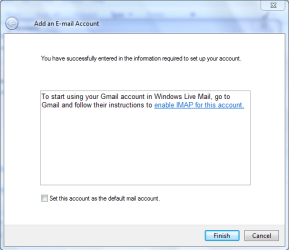
And in quite a few areas I actually find it better than WinMail. For instance, when setting up your email accounts, normally all you need put in is your ISP user name and password, and it auto fills, (or you can do it manually), POP3 & SMTP data; or will refer you via links to web sites to show how to set up alternatives to the above if needed. An example of this is when setting up a GMail account where IMAP settings are required. After putting in user name and password, it comes up with the following message and link:


Capture 2.PNG


It's obvious the program is still in a stage of evolution, as there are a few minor glitches, but hopefully these will be straightened out with time, and hopefully mega users sending feedback to Microsoft. To send feedback right click the Help button, (right hand side of top task bar). To the immediate left of the Help button there is a button with the following options: Layout, Options, Safety Options, Customize Toolbar, Show/Hide Menu Bar. The SPAM filter/Junk Mail filter is now under Safety Options. For me I find it essential to show the Menu Bar.

I have done two posts here and here on WinLiveMail. The first post was in response to Microsoft asking me to review WLM, (WinLiveMail), Wave 4, and was a general comparison of pros and cons between WinMail and WLM. The second showed various modifications that can be made to the view settings of the multiple accounts in the left panel of the main window of WLM.

The main objection most people come up with is the enforced view of every account in the left panel, with sub-folders of Inbox, Sent Items etc, for each account. However, as mentioned in the 2nd link above, the Accounts view can be contracted so only the account name is seen. And also, "Quick Views" folder in the left panel can be configured by right clicking the folder name, and setting view options, so it functions as a master folder showing all emails, much like Local Folders in WinMail.

Importing emails is fairly simple as long as you still have WinMail active in Windows 7. In menu bar go to File --> Import --> Messages --> Highlight: Windows Mail --> Next --> Next --> Finish. All your WinMail folders and messages will be stored in Storage Folders under the sub-folder Imported Folders --> Local Folders. Using a small modification to the import process, the WinMail folders can be imported to any given account you choose, and set up exactly the same as you have them in WinMail. For details of this modification see post here to Ex_Brit, or here for more background on this import method.

As mentioned in the post above to roncerr it is irrelevant to me whether WLM is web based or not. The point is it's not for for my purposes. My mail is web based at YahooMail or my ISP, and I can go there to get my emails any time. However, these servers are set up to auto flow through to WLM on my hard drive. Before Yahoo will allow this you need to be willing to receive email ads from time to time.

Hope this helps. Cheers PB
 
Last edited:

My Computer

Computer Manufacturer/Model Number
Self-assembled
OS
Win7 Ultimate 64bit Retail
CPU
Intel i7 960 quad core
Motherboard
Intel DX58SO2 Extreme
Memory
12 GB Kingston DDR 3 1300
Graphics Card(s)
PCI Express Gigabyte GTX 550 Ti
Sound Card
Gigabyte GTX 550 Ti Graphics/5 Sound card
Monitor(s) Displays
Samsung WS Syncmaster S23A350H
Screen Resolution
1920 x 1080
Hard Drives
OS on 128 GB Corsair SSD SATA 3 + Storage on 1 TB Western Digital Black SATA 2
Case
Cooler Master CM690 II Advanced Mid Tower
Cooling
CPU, top, front and rear extractor fans
Keyboard
Microsoft Intellitype Wireless Multimedia
Mouse
Microsoft Intellipoint2 Wireless
Internet Speed
100 MB/sec Theoretical max. Actual average 0.5MB/sec
Other Info
Back-up PC with Vista Ultimate OEM 32bit. Intel i5 2400 Quad Core CPU, DH67CL mobo, 8 GB Kingston DDR3 1300 RAM,
...I don't use Windows Live anything except WinLiveMail and then purely as a vehicle for sending/receiving emails...

...As to being web based all my emails are stored at either YahooMail web site, or my ISP web site, so that's not an issue...

Re photos, I have just sent 3 jpeg photos using the method described by yourself.The version of WinLiveMail I'm using is: 14.0.8117.0416

I also use it only for email but I do one more thing with it. I save certain emails and of course my contacts on my computer so that I will always have them even when there is no internet access. I've been saving emails since 2001. My brother, for his law practice, left all his emails on yahoo.com email. One day they were all gone and replaced with spam. Yahoo told him "sorry you must have been hijacked by somone who guessed your password...use a better password". That can't happen to me if I keep my emails and contacts on my computer and make backups. It doesn't matter if Microsoft looses them or I loose internet connectivity since I have them. So I send, receive, and SAVE with my email client.

As for the Photo email, I can get my version of WLM to behave like yours by setting the "Publish Photos" registry setting to "0". If you want to use the "Photo Mail (=server)" option, try setting yours to "1" and you will get the option to use it each time. My version is slightly behind yours (change 8117 to 8089) but I can't say whether that explains the difference. Can you send a "Photo (=on server) Mail"? If you can, how did you do it?
 

My Computer

Computer type
PC/Desktop
Computer Manufacturer/Model Number
OQO 2+
OS
Windows 8 Pro w/MC 32-bit
CPU
Intel Atom 1.86 GHz
Motherboard
OQO 2+
Memory
2 GB
Graphics Card(s)
Intel GMA 500
Sound Card
IDT
Monitor(s) Displays
LCD
Screen Resolution
800 x 480 (portable) 1280 x 1024 (docked)
Hard Drives
64 GB SSD
PSU
9 Ah Battery (portable) or OQO Brick (docked)
Case
Shirt Pocket Sized
Cooling
Tiny Fan
Keyboard
Slide out (portable) DiNovo Edge (docked)
Mouse
Eraser head (portable) Logitech Bluetooth (docked)
Internet Speed
WWAN or 802.11G (portable) T1 (docked)
Browser
IE 10
Other Info
DVD-RW OQO Docking Station
I also use it only for email but I do one more thing with it. I save certain emails and of course my contacts on my computer so that I will always have them even when there is no internet access. I've been saving emails since 2001. My brother, for his law practice, left all his emails on yahoo.com email. One day they were all gone and replaced with spam. Yahoo told him "sorry you must have been hijacked by somone who guessed your password...use a better password". That can't happen to me if I keep my emails and contacts on my computer and make backups. It doesn't matter if Microsoft looses them or I loose internet connectivity since I have them. So I send, receive, and SAVE with my email client.

As for the Photo email, I can get my version of WLM to behave like yours by setting the "Publish Photos" registry setting to "0". If you want to use the "Photo Mail (=server)" option, try setting yours to "1" and you will get the option to use it each time. My version is slightly behind yours (change 8117 to 8089) but I can't say whether that explains the difference. Can you send a "Photo (=on server) Mail"? If you can, how did you do it?
Hi Roncerr,

Basically my approach is very similar to yours. I never leave anything on either Yahoo or my ISP web mail sites, or in an email client. Both web sites are set to auto download to my WLM evey time I open the program, which is whenever I log onto my PC. As soon as they're downloaded I drag/drop them from WLM onto desktop, delete them from WLM, and after reading, file them into various files on my desktop such as Edit, Sending, Pending, etc. At the same time I also file them into various folders in my storage partition. And just for good measure, onto an InCD formatted disc. The beauty of the storage partition & the InCD is that the files can be drag/dropped from the interface of Win7, while still retaining the originals on the desktop, and is very quick to do. Then about once every two weeks I burn them all onto a master Data DVD with Nero. Probably a bit over the top, but works very well for me.


Pardon my ignorance but I don't really understand what you mean by:
"Can you send a "Photo (=on server) Mail"? If you can, how did you do it?"
If you mean go to the web site of my ISP or Yahoo and send the email from there with a photo, then the answer is no, I've never needed or attempted to do that. I've only ever sent emails from my desktop interface using an email client application... except on very rare occasions from a mobile phone used as a modem connected to a PC via BlueTooth and through SKYPE.

These are the only methods I've ever used to send photos or embody images in text:
  • As attachments, singly or in bulk as a zipped file, using the following command in an email Menu Bar --> Insert file as attachment --> Browsed to find the phot/zip file --> Highlighted the photo --> Clicked: Open and it was added.
  • Embodied in the text by going to Menu Bar --> Insert --> Image --> Photo E-Mail --> Browsed to photos or images stored on hard drive --> Highlighted the photo --> Clicked Add --> Done.
Embodied in the text by going to Menu Bar --> Insert --> Image --> Inline --> Browsed to photos or images --> Highlighted the photo --> Clicked the image and it was in the body of the text. The appearance is the same as the above picture.

Notice the three buttons just above the image. This image shows the Photo option being used from the three buttons, with the editing tools.​


  • Opened storage folder with photos --> Right click Photo/Zip file of photos --> Send to Mail recipient. As explained in the previous post, the photo is added as an addachment to a new email.
Cheers PB​
 
Last edited:

My Computer

Computer Manufacturer/Model Number
Self-assembled
OS
Win7 Ultimate 64bit Retail
CPU
Intel i7 960 quad core
Motherboard
Intel DX58SO2 Extreme
Memory
12 GB Kingston DDR 3 1300
Graphics Card(s)
PCI Express Gigabyte GTX 550 Ti
Sound Card
Gigabyte GTX 550 Ti Graphics/5 Sound card
Monitor(s) Displays
Samsung WS Syncmaster S23A350H
Screen Resolution
1920 x 1080
Hard Drives
OS on 128 GB Corsair SSD SATA 3 + Storage on 1 TB Western Digital Black SATA 2
Case
Cooler Master CM690 II Advanced Mid Tower
Cooling
CPU, top, front and rear extractor fans
Keyboard
Microsoft Intellitype Wireless Multimedia
Mouse
Microsoft Intellipoint2 Wireless
Internet Speed
100 MB/sec Theoretical max. Actual average 0.5MB/sec
Other Info
Back-up PC with Vista Ultimate OEM 32bit. Intel i5 2400 Quad Core CPU, DH67CL mobo, 8 GB Kingston DDR3 1300 RAM,
I save somewhat differently. All emails and contacts ever received/used are in the email client (OE, WM, or WLM). I just back up the folders created by the client for the purpose of storage. If if need to recover or search for anything after say reinstalling the OS, I just "import" using the saved folders into the newly installed email client (OE, WM or WLM). I need to feel comfortable that it's all always on my PC (whether also in the cloud or not) without saving it outside the email client's built-in file system.

If you want to know what Microsoft means by "Photo Email" use the help link in WLM. Apparently it involves storing the full sized photo(s) on their server and attaching a "thumbnail link" to the email. If the recipient wants to have the full sized version they save it by going to Microsoft's servers using the thumbnail link and downloading it.
 

My Computer

Computer type
PC/Desktop
Computer Manufacturer/Model Number
OQO 2+
OS
Windows 8 Pro w/MC 32-bit
CPU
Intel Atom 1.86 GHz
Motherboard
OQO 2+
Memory
2 GB
Graphics Card(s)
Intel GMA 500
Sound Card
IDT
Monitor(s) Displays
LCD
Screen Resolution
800 x 480 (portable) 1280 x 1024 (docked)
Hard Drives
64 GB SSD
PSU
9 Ah Battery (portable) or OQO Brick (docked)
Case
Shirt Pocket Sized
Cooling
Tiny Fan
Keyboard
Slide out (portable) DiNovo Edge (docked)
Mouse
Eraser head (portable) Logitech Bluetooth (docked)
Internet Speed
WWAN or 802.11G (portable) T1 (docked)
Browser
IE 10
Other Info
DVD-RW OQO Docking Station
I really think that as this thread is entitled: How to Reinstate Windows Mail on Windows 7, shouldn't we be sticking to that rather than discussing the merits and foibles of another mail client. Maybe they should be split off into a new thread for that purpose?
 

My Computer

Computer type
PC/Desktop
Computer Manufacturer/Model Number
Alienware® ALX X58
OS
Win 7 Ult SP1/Win 10 Pro (all x64)
CPU
Intel® Core™ i7-975 Extreme O/C to 4.02 GHz, 8MB Cache
Motherboard
Asus® P6T Deluxe V2 X58 LGA1366
Memory
24GB Corsair Vengeance DDR3 SDRAM at 1600MHz - 6 x 4096MB
Graphics Card(s)
1792 MB NVIDIA® GeForce® GTX 295 Dual Core
Sound Card
Onboard Soundmax® High-Definition 7.1 Performance Audio
Monitor(s) Displays
Samsung XL2370 LED backlit 23" W/S 2ms response time
Screen Resolution
1920 X 1080
Hard Drives
2 x 500gb SATA II
1 x 1TB SATA II
1 external eSATA LaCie 3TB
(Non-RAID)
PSU
Alienware® 1200 Watt Multi-GPU
Case
Alienware® P2 ALX Chassis with AlienIce™ 3.0 Video Cooling
Cooling
Alienware® High-Perf. Liquid Cooling + Acoustic Dampening
Keyboard
Microsoft® Wireless Entertainment 8000 + Logitech® G15 Wired
Mouse
Microsoft® Wireless Laser 8000 + Logitech® G9 Wired
Internet Speed
1Gb/s
Antivirus
McAfee LiveSafe
Browser
Firefox - latest
Other Info
Using non-RAID on purpose as I find RAID to be too temperamental.
Now set to AHCI
Back
Top