Windows Mail

How to Reinstate Windows Mail in Windows 7

   Warning
Microsoft no longer supports Windows Mail, aka WinMail. It's recommended you use another well known supported email client. This Tutorial is for Advanced users who importantly have the Technical Ability to make the changes, have backups of everything including your OS, and to be your own tech support for WinMail going forward. If you decide to complete this tutorial you accept the fact that you are using WinMail as-is. It might be necessary to uninstall other email clients to resolve any WinMail conflicts in some environments. Understand it's likely that new OS updates from Microsoft will break WinMail's operation, and to fix make it necessary to rerun the tutorial again to reinstate it. With those things in mind, this tutorial was written so that you can rerun it without affecting WinMail user data.
Please see this Errata (Bug List) post before you install, to be aware of the current information about known issues using WinMail within Windows 7, these issues are programmatic and in most cases cannot be resolved by this tutorial, and will never be fixed.

Having said all of that disclaimer, if you have the technical ability, and can put up with the annoying minor byproduct bugs, then like so many of us still enjoy using WinMail on Windows 7 ...ymmv!


   Tip
As of January, 2025, the instructions given here supersede all other instructions given in forthcoming older posts. Realize some of the posts that follow are over 16 years old, and many of the link pointers within have become mislinked over time, many of the files or information within them is outdated, incomplete, or superseded with more accurate information - and so be careful. However you can always be sure that the latest info from all research is incorporated into this tutorial post, and its downloads are the latest available. This post is continuously kept up-to-date, and so..
...Always refer to this Tutorial post for the very latest updated information

This is the 4th iteration of the Windows 7, WinMail tutorial.

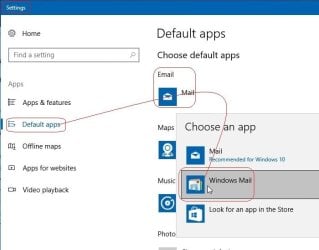
The process of this tutorial Will Not work to reinstate WinMail on Windows 8/10 !
Windows 8/10 users please go Here


Start here
  1. Download tutorial package TutReWinMail.zip

    Download

  2. Extract the TutReWinMail.zip into your user Downloads folder
    • Note: Be sure once extracted this is the address of the ''TutReWinMail'' folder:
    • C:\Users\username\Downloads\TutReWinMail... ... (if it's not there please put it there)
  3. Navigate to your user Downloads\TutReWinMail folder to be sure the above is correct.
    • (..if you need more verbose install instructions to follow, download this WinMail Local Tutorial.zip)
    • Advanced Users can proceed below:
      (..log in for Full Access, being able to get support, remove ads, like, and even to post, etc..)
Advanced Users: ..use this easy excellent overview of the steps in the local tutorial:
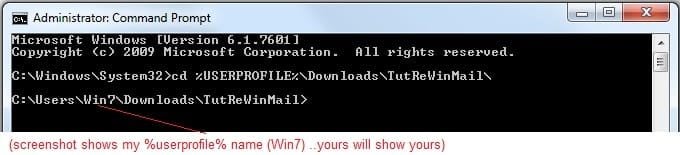
  • Open an Administrator Command Prompt. (screenshot showing in Administrator mode)
  • copy/paste this line into the command prompt: cd %USERPROFILE%\Downloads\TutReWinMail\
  • Your command prompt must now be showing you are at That Same Folder Address ..which contains the tutorial files that the batch file in the next step executes programs and copies files specifically from that folder address - if it's not there the batch file will fail since it cannot find what it needs!
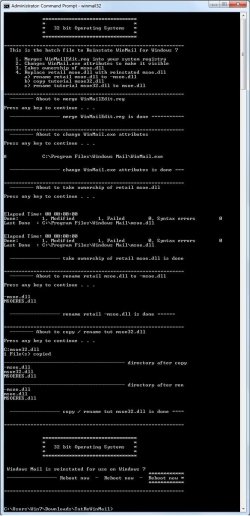
  • Next type in either winmail32 or win64mail <matching OS bit, to interactively process These Next Steps
  • If you've finished to the bottom as shown in last screenshot, restart your machine (sets registry)
  • Create a shortcut from WinMail.exe to your Desktop
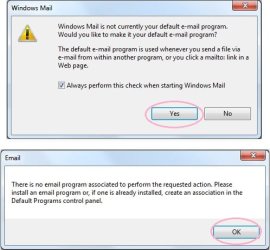
  • Open WinMail - it may prompt you one (or both) of These Two Notices ..click yes, and okay.
  • They now should be already set, but you can manually check/set at any time These Default Settings
  • That's pretty much all there is to it, and from here you setup the rest of the Windows Mail client (aka: WinMail) as normal within its various tab menus for Accounts, Options, Layout, etc, etc, to suit your individual needs.
  • Lastly, but should be the First thing you do, is to Create A WinMail Backup (new version) ..Go to this next link and when you get there scroll down to the heading: Backup/Restore Procedures for further instructions.
   Information
See How to open an elevated Administrator Command Prompt
Important: The exact text provided by the tutorial must be entered into the Administrator Command Prompt.
Hint: to avoid typos, copy/paste the entire line containing the command into the Command Prompt window.
Also see: How to Enable Copy to Clipboard from the Windows 7 Command Prompt

Every effort has been made to make this a step-by-step process, however, it is beyond the scope of a single tutorial to provide information on every command or concept. Search the Main Tutorial Section if you need greater detail on a concept or command presented in this tutorial.


Good luck, and long live WinMail :thumbsup:


   Note
Made possible by members:
Mark (aka Mr GRiM) - provided the original tutorial
Poppa Bear - continued Mark's work within the 2nd version
endeavor - provided continuous feedback, changes, invaluable testing instrumental to tutorial operations
EKManitis - propose the batch code that made operations easier
Slartybart - updated, tested, and consolidated all of the above into the 3rd version
endeavor - reviewed, updated, tested, and incorporated all of the above into this 4th version
...and also a special thanks to All the other members who presented discovery for this project


Attachments

  • TutReWinMail.zip
    TutReWinMail.zip
    1.8 MB · Views: 4,994
  • msoe_32.zip
    msoe_32.zip
    404 bytes · Views: 1,052
  • msoe_64.zip
    msoe_64.zip
    404 bytes · Views: 1,531
  • WinMailEdit.zip
    WinMailEdit.zip
    404 bytes · Views: 6
  • Win74umsZip.zip
    Win74umsZip.zip
    404 bytes · Views: 106
  • ACP.jpg
    ACP.jpg
    11.5 KB · Views: 1,083
  • DefaultClickYes-OkayAssociation.jpg
    DefaultClickYes-OkayAssociation.jpg
    31.1 KB · Views: 899
  • ProcessingBatch.jpg
    ProcessingBatch.jpg
    109 KB · Views: 1,147
  • PasteCDCommand.jpg
    PasteCDCommand.jpg
    18.5 KB · Views: 696
  • WinMail_Local_Tutorial.zip
    WinMail_Local_Tutorial.zip
    6.1 KB · Views: 1,202
  • FolderOptionsSet.jpg
    FolderOptionsSet.jpg
    37.9 KB · Views: 695
  • WinMailAdvanceOptionsBlank.jpg
    WinMailAdvanceOptionsBlank.jpg
    138.1 KB · Views: 93
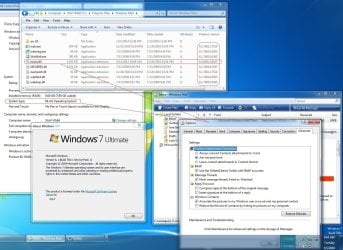
  • Win7x64AdvancedTab+FileVersions.jpg
    Win7x64AdvancedTab+FileVersions.jpg
    184.7 KB · Views: 112
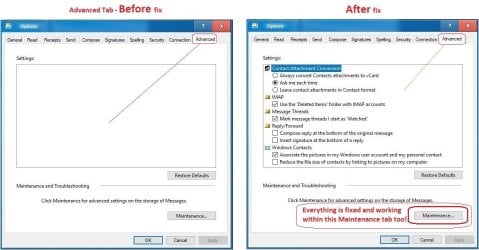
  • AdvancedTabBefore&After_fixed.jpg
    AdvancedTabBefore&After_fixed.jpg
    79.1 KB · Views: 50
  • CheckManually.jpg
    CheckManually.jpg
    131.8 KB · Views: 136
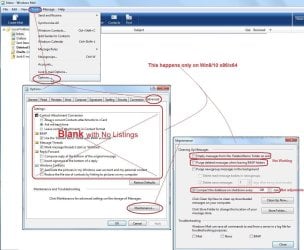
  • Win10_SetDefault.jpg
    Win10_SetDefault.jpg
    31.8 KB · Views: 33
Last edited by a moderator:

My Computer

Computer Manufacturer/Model Number
Averatec 6130HS-20
OS
Windows 7 Professional 32-bit (6.1, Build 7600)
CPU
Intel(R) Pentium(R) 4 3.00 GHz HT
Memory
2.0 GB
Graphics Card(s)
ATI Mobility Radeon 9600 64MB
Sound Card
Realtek AC'97 Audio
Screen Resolution
1280 x 800
Hard Drives
Seagate 96023A 60GB 7200RPM -
Seagate FreeAgentDesktop 250GB
Cooling
20 Inch Box Fan
Mouse
Targus PAWM10 Wireless Optical Laptop Mouse
I wish to use gmail as my default email program, is this possible?
Yes it is, I do/did. Try this Windows Mail - Gmail Help
That's a confusing question. Gmail is not a program so it can't be a default program. However, as Greg S suggests you can use the gmail "service" as the default IMAP account in any email program that includes IMAP (like OE, WM, or WLM). But when you set up your default program it will be the email program (WLM in the case of Windows 7) that is the "default".
 

My Computer

Computer type
PC/Desktop
Computer Manufacturer/Model Number
OQO 2+
OS
Windows 8 Pro w/MC 32-bit
CPU
Intel Atom 1.86 GHz
Motherboard
OQO 2+
Memory
2 GB
Graphics Card(s)
Intel GMA 500
Sound Card
IDT
Monitor(s) Displays
LCD
Screen Resolution
800 x 480 (portable) 1280 x 1024 (docked)
Hard Drives
64 GB SSD
PSU
9 Ah Battery (portable) or OQO Brick (docked)
Case
Shirt Pocket Sized
Cooling
Tiny Fan
Keyboard
Slide out (portable) DiNovo Edge (docked)
Mouse
Eraser head (portable) Logitech Bluetooth (docked)
Internet Speed
WWAN or 802.11G (portable) T1 (docked)
Browser
IE 10
Other Info
DVD-RW OQO Docking Station
Error message help

Got a problem. Did the procedure to enable WM, works perfectly with one exception - when I click on a link within an email, an error message pops up, "There was a problem sending the command to the program". Can anyone guide me as to how to correct this?

Thanks,
Gryphon
 

My Computer

Computer Manufacturer/Model Number
HP Pavilion DV7
OS
Win 7 Premium 64 bit
CPU
i5 M450
Memory
4G
Screen Resolution
1440X900
Hard Drives
500G
I'm not sure specifically about WM, but in general default program issues can often be fixed by going to the last item in Default Programs (set computer defaults) and under "Custom", choose the program you want for email and browser (WM and IE8) rather than "my current program". Hopefull WM will be listed there. Also, if you are using IE8 as your browser it may help to reset it (Tools/Internet Options/Advanced/Reset...).
 

My Computer

Computer type
PC/Desktop
Computer Manufacturer/Model Number
OQO 2+
OS
Windows 8 Pro w/MC 32-bit
CPU
Intel Atom 1.86 GHz
Motherboard
OQO 2+
Memory
2 GB
Graphics Card(s)
Intel GMA 500
Sound Card
IDT
Monitor(s) Displays
LCD
Screen Resolution
800 x 480 (portable) 1280 x 1024 (docked)
Hard Drives
64 GB SSD
PSU
9 Ah Battery (portable) or OQO Brick (docked)
Case
Shirt Pocket Sized
Cooling
Tiny Fan
Keyboard
Slide out (portable) DiNovo Edge (docked)
Mouse
Eraser head (portable) Logitech Bluetooth (docked)
Internet Speed
WWAN or 802.11G (portable) T1 (docked)
Browser
IE 10
Other Info
DVD-RW OQO Docking Station
Nope

Thanks for the suggestion, I'd already done that, and am still getting the can't send to program error.

Gryph
 

My Computer

Computer Manufacturer/Model Number
HP Pavilion DV7
OS
Win 7 Premium 64 bit
CPU
i5 M450
Memory
4G
Screen Resolution
1440X900
Hard Drives
500G
Gryphon, The problem you described is a recent event using the Windows mail program. It just started happening to me last week after using WM for more than a year. I suspect that the problem is related to security updates in Internet Explorer. I first noticed the issue after installing security update for windows KB2183461 which is an IE8 update. You could try uninstalling the update to see if it fixes the problem. I deleted the email message that was causing the problem so I am not able to test. You can always reinstall the update if it turns out that the update is not the problem. Just a hunch but at least it is a start.
 

My Computer

OS
Win 7 Professional and Windows 8 Professional
Thanks

Thanks for the info Mick. I got the links to be clickable by installing the updated version of WLM, then going thru the steps again. works perfectly now.

Gryph
 

My Computer

Computer Manufacturer/Model Number
HP Pavilion DV7
OS
Win 7 Premium 64 bit
CPU
i5 M450
Memory
4G
Screen Resolution
1440X900
Hard Drives
500G
...I got the links to be clickable by installing the updated version of WLM, then going thru the steps again...
I thought you were using WM not WLM. Perhaps you mean WM and you followed the steps in the Tutorial which now contains an updated version of msoe.dll. Correct?
 

My Computer

Computer type
PC/Desktop
Computer Manufacturer/Model Number
OQO 2+
OS
Windows 8 Pro w/MC 32-bit
CPU
Intel Atom 1.86 GHz
Motherboard
OQO 2+
Memory
2 GB
Graphics Card(s)
Intel GMA 500
Sound Card
IDT
Monitor(s) Displays
LCD
Screen Resolution
800 x 480 (portable) 1280 x 1024 (docked)
Hard Drives
64 GB SSD
PSU
9 Ah Battery (portable) or OQO Brick (docked)
Case
Shirt Pocket Sized
Cooling
Tiny Fan
Keyboard
Slide out (portable) DiNovo Edge (docked)
Mouse
Eraser head (portable) Logitech Bluetooth (docked)
Internet Speed
WWAN or 802.11G (portable) T1 (docked)
Browser
IE 10
Other Info
DVD-RW OQO Docking Station
WM vs. WLM

I am using Windows mail, but when my wife tried to click a link in her WLM and had the same error, I figured it might be an OS problem opposed to an error in my following the tutorial. Updated WLM, went thru the tutorial again, problem fixed. So you may be correct in stating it was an updated msoe.dll, as I downloaded the file again.

Gryph
 

My Computer

Computer Manufacturer/Model Number
HP Pavilion DV7
OS
Win 7 Premium 64 bit
CPU
i5 M450
Memory
4G
Screen Resolution
1440X900
Hard Drives
500G
I am using Windows mail, but when my wife tried to click a link in her WLM and had the same error, I figured it might be an OS problem opposed to an error in my following the tutorial. Updated WLM, went thru the tutorial again, problem fixed. So you may be correct in stating it was an updated msoe.dll, as I downloaded the file again.

Gryph
The problem was not with the msoe.dll file because if this file is affected Windows Mail will not run period, but your WinMail did run. It was only one function in WinMail that was kaput. Since all the other files in the WinMail folder in program files are used by WinLiveMail it is reasonable to assume that one of these files had been affected which in turn affected one of the functions of WinMail. Once the culprit file was fixed in WinLiveMail update it was also auto fixed for WinMail operations. Furthermore, you would never get that update running WinMail by itself, as it doesn't get updates because it's a hybrid application and not recognized for the purposes of updates. Have to say that was a clever work around.
 

My Computer

Computer Manufacturer/Model Number
Self-assembled
OS
Win7 Ultimate 64bit Retail
CPU
Intel i7 960 quad core
Motherboard
Intel DX58SO2 Extreme
Memory
12 GB Kingston DDR 3 1300
Graphics Card(s)
PCI Express Gigabyte GTX 550 Ti
Sound Card
Gigabyte GTX 550 Ti Graphics/5 Sound card
Monitor(s) Displays
Samsung WS Syncmaster S23A350H
Screen Resolution
1920 x 1080
Hard Drives
OS on 128 GB Corsair SSD SATA 3 + Storage on 1 TB Western Digital Black SATA 2
Case
Cooler Master CM690 II Advanced Mid Tower
Cooling
CPU, top, front and rear extractor fans
Keyboard
Microsoft Intellitype Wireless Multimedia
Mouse
Microsoft Intellipoint2 Wireless
Internet Speed
100 MB/sec Theoretical max. Actual average 0.5MB/sec
Other Info
Back-up PC with Vista Ultimate OEM 32bit. Intel i5 2400 Quad Core CPU, DH67CL mobo, 8 GB Kingston DDR3 1300 RAM,
Last edited:

My Computer

Computer type
PC/Desktop
Computer Manufacturer/Model Number
OQO 2+
OS
Windows 8 Pro w/MC 32-bit
CPU
Intel Atom 1.86 GHz
Motherboard
OQO 2+
Memory
2 GB
Graphics Card(s)
Intel GMA 500
Sound Card
IDT
Monitor(s) Displays
LCD
Screen Resolution
800 x 480 (portable) 1280 x 1024 (docked)
Hard Drives
64 GB SSD
PSU
9 Ah Battery (portable) or OQO Brick (docked)
Case
Shirt Pocket Sized
Cooling
Tiny Fan
Keyboard
Slide out (portable) DiNovo Edge (docked)
Mouse
Eraser head (portable) Logitech Bluetooth (docked)
Internet Speed
WWAN or 802.11G (portable) T1 (docked)
Browser
IE 10
Other Info
DVD-RW OQO Docking Station
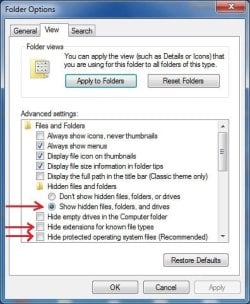
Manually show hidden files
  • Go to: Start Orb ==> Computer ==> C: Drive ==> Program Files ==> Open: Windows Mail ==> Top Task Bar ==> Tools ==> Drop down menu ==> Folder Options ==> View Tab
  • Dot: Show hidden files, folders...
  • Untick: Hide empty drives... Hide extensions... Hide protected operating...
  • In response to the warning click: Yes ==> Apply ==> OK.
  • After all the steps are done, restore default view settings.
Can someone tell me why the last line?
wont that remove all MY old view settings?
thanks all
 

My Computer

OS
7 64
Manually show hidden files ...
The path to show hidden files has nothing to do with the Windows Mail program itself, but is needed to be set temporarily to "show hidden files" in Windows Explorer so that some Windows files can be manipulated. The "View" section of "Folder Options" is found through Control Panel>>Folder Options or in any Windows Explorer window with the menu bar turned on (File Edit View Tools Help) under Tools>>Folder Options... If you want you can always show hidden files but if you also show "Protected Operating System Files" it may clutter your desktop and folders with stuff you don't want to see.

Edit: After reading your question again, I realize you're asking about "restore default view settings". You are right that would wipe out all you're customizations, which you don't have to do. The instructions are merely saying you can undo the view changes you made for the purpose of installing Windows Mail.
 
Last edited:

My Computer

Computer type
PC/Desktop
Computer Manufacturer/Model Number
OQO 2+
OS
Windows 8 Pro w/MC 32-bit
CPU
Intel Atom 1.86 GHz
Motherboard
OQO 2+
Memory
2 GB
Graphics Card(s)
Intel GMA 500
Sound Card
IDT
Monitor(s) Displays
LCD
Screen Resolution
800 x 480 (portable) 1280 x 1024 (docked)
Hard Drives
64 GB SSD
PSU
9 Ah Battery (portable) or OQO Brick (docked)
Case
Shirt Pocket Sized
Cooling
Tiny Fan
Keyboard
Slide out (portable) DiNovo Edge (docked)
Mouse
Eraser head (portable) Logitech Bluetooth (docked)
Internet Speed
WWAN or 802.11G (portable) T1 (docked)
Browser
IE 10
Other Info
DVD-RW OQO Docking Station
I installed windows mail in my windows 7 following your explanations here... It was working perfect but after some month, now it does not connect to the server. I do not know if I have to re install it or if it was disable by a recent update from microsoft. I will appreciated your answer. Thanks a lot again.
Raymond
 

My Computer

OS
Windows 7 Professional
A friend of mine has recently began having the same problem with Windows mail that I installed on his Windows 7 Professional system.
It turned out, that with his system at least, it was the VPN that he had recently paid for and made a new network connection for that was stopping Mail connecting, once that was disconnected everything worked fine. I've not been able to find out why the VPN is stopping it though, I would appreciate any suggestions anyone might have in addressing this. :confused:
 

My Computer

Computer type
PC/Desktop
Computer Manufacturer/Model Number
Custom Built
OS
Windows 7 Professional 64 bit
CPU
Intel Core i7 3820 @ 3.60GHz
Motherboard
ASUSTeK Computer INC. SABERTOOTH X79 (LGA2011)
Memory
32GB Kingston (KHX1600C9D3/4GB x 4) DDR3-1600 CL9 SDRAM
Graphics Card(s)
G247HYL (1920x1080@60Hz) 3071MB NVIDIA GeForce GTX 780 (NVID
Sound Card
Sound Blaster X-Fi Xtreme
Monitor(s) Displays
ACER S236HL LED
Screen Resolution
1920x1080@60Hz
Hard Drives
C Drive (OS) - 120GB Samsung SSD 850 EVO 120GB (SATA SSD)
D Drive (Internal Storage) - 2GB Western Digital WDC WD20EARX-00PASB0 (SATA )
E Drive (Internal Media) - 6GB Seagate ST6000DM003 (SATA )
Z Drive (External Backup/sync & Media) - 6GB Seagate
PSU
Corsair GS700 (80+ Bronze)
Case
Fractal Design Focus -G
Cooling
Corsair Hydro Series H80
Keyboard
Mocrosoft Soft Touch Standard
Mouse
Technet Basic 3-button
Internet Speed
52.2MB/s Down (no superfast in this area)
Antivirus
ESET Internet Security
Browser
Chrome/Waterfox
I installed windows mail in my windows 7 following your explanations here... It was working perfect but after some month, now it does not connect to the server. I do not know if I have to re install it or if it was disable by a recent update from microsoft. I will appreciated your answer. Thanks a lot again.
Raymond
There was a Microsoft update several months back that stopped WinMail working. Do not uninstall this update.

If this is the cause of the problem, to fix it simply replace the msoe.dll file in Windows Mail folder as per Step 4 of the tutorial on page one of this thread. The download buttons will give you an updated msoe.dll file. If that doesn't help, unfortunately I can't offer any other solution, except maybe to run the whole tutorial.

Cheers PB
 
Last edited:

My Computer

Computer Manufacturer/Model Number
Self-assembled
OS
Win7 Ultimate 64bit Retail
CPU
Intel i7 960 quad core
Motherboard
Intel DX58SO2 Extreme
Memory
12 GB Kingston DDR 3 1300
Graphics Card(s)
PCI Express Gigabyte GTX 550 Ti
Sound Card
Gigabyte GTX 550 Ti Graphics/5 Sound card
Monitor(s) Displays
Samsung WS Syncmaster S23A350H
Screen Resolution
1920 x 1080
Hard Drives
OS on 128 GB Corsair SSD SATA 3 + Storage on 1 TB Western Digital Black SATA 2
Case
Cooler Master CM690 II Advanced Mid Tower
Cooling
CPU, top, front and rear extractor fans
Keyboard
Microsoft Intellitype Wireless Multimedia
Mouse
Microsoft Intellipoint2 Wireless
Internet Speed
100 MB/sec Theoretical max. Actual average 0.5MB/sec
Other Info
Back-up PC with Vista Ultimate OEM 32bit. Intel i5 2400 Quad Core CPU, DH67CL mobo, 8 GB Kingston DDR3 1300 RAM,
That's odd. I was not effected on my laptop or desktop. Everything is still fine here. There are however two "optional " updates I have not downloaded both for "Windows Live Essentials". Could they be the ones? One has the number kb2434419 and the other has no number.
 

My Computer

Computer type
PC/Desktop
Computer Manufacturer/Model Number
Blackbird 002 (rebuilt-upgraded)
OS
Win 7 Ultimate SP1 64 bit
CPU
Core i7 950 3.06 GHz
Motherboard
GigaByte
Memory
24 gigs Corsair XMS3
Graphics Card(s)
NVIDIA GeForce GTX 460
Monitor(s) Displays
2 X Dell flat screen E228 WFP
Screen Resolution
1680 x 1050
Hard Drives
Raptor RAID 0 array & 3 other internal and several external drives. Just added 1TB Samsung SSD
Case
Blackbird 002
Cooling
liquid
Keyboard
Logitech wireless
Mouse
Logitech wireless
Internet Speed
14.63 / 2.11 Mbps
Antivirus
Fsecure
Browser
Firefox
That's odd. I was not effected on my laptop or desktop. Everything is still fine here. There are however two "optional " updates I have not downloaded both for "Windows Live Essentials". Could they be the ones? One has the number kb2434419 and the other has no number.
The update is KB 978542 and is a security update which modifies the msoe.dll file in Windows Mail folder in program files.

For reasons unknown, this update did not affect WinMail in my 32bit version of Windows 7, but completely stopped WinMail working in 64bit version. Are you using 32bit Windows 7?

After the KB978542 update had become available, the tutorial was edited to provide a new modified msoe.dll file. These latest msoe.dll files came from Vista 32 and 64bit installations that had the KB update installed, which meant the msoe.dll files were modified in these versions of Vista.

Once the KB update is installed on your PC, and you have subsequently fixed WinMail with the current updated msoe.dll file from the tutorial, you should not uninstall the KB update. If you do, the next time you get Windows updates, it will download this update again, and it will once again modify the msoe.dll so it stops WinMail working.

However, if the KB update is left in the system, and the modified msoe.dll done afterwards, when Windows updates are next installed, the update engine will see the installed KB update, but not recognize the actual msoe.dll file as a Vista file, and hence will not see any need to reinstall the update again.
 
Last edited:

My Computer

Computer Manufacturer/Model Number
Self-assembled
OS
Win7 Ultimate 64bit Retail
CPU
Intel i7 960 quad core
Motherboard
Intel DX58SO2 Extreme
Memory
12 GB Kingston DDR 3 1300
Graphics Card(s)
PCI Express Gigabyte GTX 550 Ti
Sound Card
Gigabyte GTX 550 Ti Graphics/5 Sound card
Monitor(s) Displays
Samsung WS Syncmaster S23A350H
Screen Resolution
1920 x 1080
Hard Drives
OS on 128 GB Corsair SSD SATA 3 + Storage on 1 TB Western Digital Black SATA 2
Case
Cooler Master CM690 II Advanced Mid Tower
Cooling
CPU, top, front and rear extractor fans
Keyboard
Microsoft Intellitype Wireless Multimedia
Mouse
Microsoft Intellipoint2 Wireless
Internet Speed
100 MB/sec Theoretical max. Actual average 0.5MB/sec
Other Info
Back-up PC with Vista Ultimate OEM 32bit. Intel i5 2400 Quad Core CPU, DH67CL mobo, 8 GB Kingston DDR3 1300 RAM,
Back
Top