
How to Enable or Disable Windows Media Center
Information
This will show you how to enable or disable Windows Media Center from being able to run by specific or all users in Windows 7.
Note
Windows Media Center is not available in the Windows 7 Starter and Windows 7 Home Basic editions.
The N and KN editions of Windows 7 have all the features that normally come with each individual Windows 7 edition, except for Windows Media Player 12 and related programs, such as Windows Media Center or Windows DVD Maker.
The N editions of Windows 7 allow you to choose your own media player and software required to manage and play CDs, DVDs, and other digital media files. If you choose to use Windows Media Player 12, downloading it, along with related software, is free.
Download Media Feature Pack for Windows 7 N with Service Pack 1 and Windows 7 KN with Service Pack 1 (KB968211) from Official Microsoft Download Center
The N and KN editions of Windows 7 have all the features that normally come with each individual Windows 7 edition, except for Windows Media Player 12 and related programs, such as Windows Media Center or Windows DVD Maker.
The N editions of Windows 7 allow you to choose your own media player and software required to manage and play CDs, DVDs, and other digital media files. If you choose to use Windows Media Player 12, downloading it, along with related software, is free.
Download Media Feature Pack for Windows 7 N with Service Pack 1 and Windows 7 KN with Service Pack 1 (KB968211) from Official Microsoft Download Center
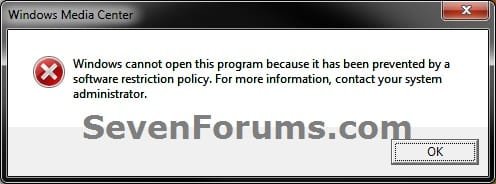
EXAMPLE: Windows Media Center Disabled Message
NOTE: This is the error message that will be displayed when a user tries to open Windows Media Center when it is disabled.
OPTION ONE
Using a REG File Download
1. To Enable Windows Media Center for Only Current User
A) Click on the Download button below to download the file below.
Enable_Windows_Media_Center.reg
Download
B) Go to step 3.
2. To Disable Windows Media Center for Only Current User
A) Click on the Download button below to download the file below.
Disable_Windows_Media_Center.reg
Download
3. Click on Save, and save the .reg file to the desktop.
4. Right click on the downloaded .reg file and click on Merge.
5. Click on Run, Yes, Yes, and OK when prompted.
6. Log off and log on, or restart the computer to apply.
7. When done, you can delete the downloaded .reg file if you like.
OPTION TWO
Through the Local Group Policy Editor
1. Open the all users, specific users or groups, or all users except administrators Local Group Policy Editor for how you want this policy applied.
2. In the left pane, click on the arrow to expand User Configuration, Administrative Templates, Windows Components, then click on Windows Media Center. (see screenshot below)
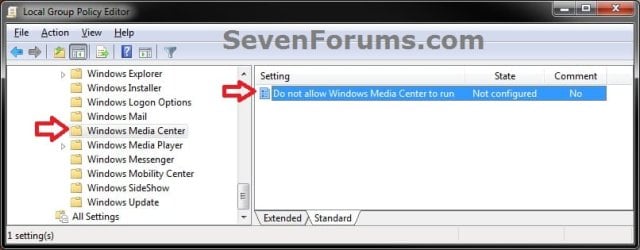
3. In the right pane, right click on Do not allow Windows Media Center to run and click on Edit. (see screenshot above)
4. To Enable Windows Media Center
A) Select (dot) Not Configured or Disabled. (see screenshot below step 6)
B) Go to step 6.
5. To Disable Windows Media Center
A) Select (dot) Enabled. (see screenshot below step 6)
6. Click on OK. (see screenshot below)

7. Close the Local Group Policy Editor.
OPTION THREE
Through "Set Program Access and Computer Defaults"
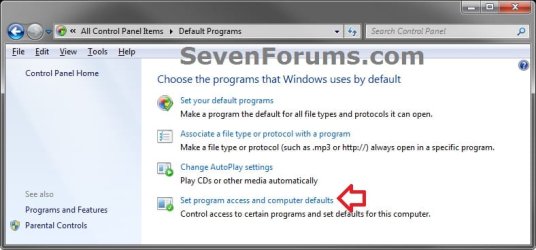
1. Open the Control Panel (icons view), and click on the Default Programs icon.
2. Click on the Set program access and computer defaults link. (see screenshot below)
3. If prompted by UAC, then click on Yes.
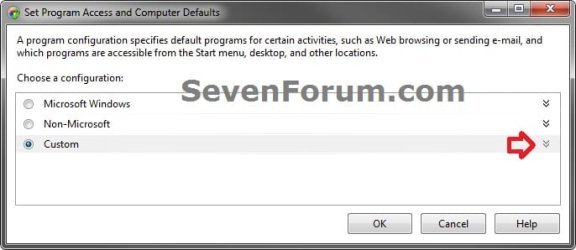
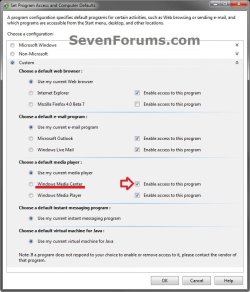
4. Click on the Custom gray bar or arrow to expand it. (see screenshot below)
5. To Enable Windows Media Center
A) Under the Choose a default media player section, check the Enable access to this program box to the right of Windows Media Center, then click on OK. (see screenshot below)
B) Go to step 7.
6. To Disable Windows Media Center
A) Under the Choose a default media player section, uncheck the Enable access to this program box to the right of Windows Media Center, then click on OK. (see screenshot above)
7. Close the Default Programs window. (see screenshot below step 2)
That's it,
Shawn
Attachments
Last edited:


