windows start up

andrewm1

New member
Member
Local time
12:21 AM
Messages
84
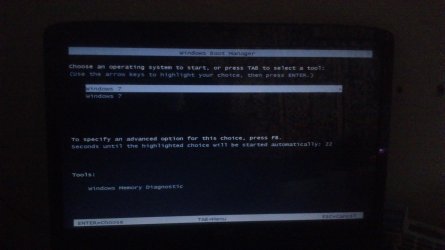
Hi i need help again when i start windows i get this :huh:
I reloaded windows and ever since then this happens everything works ok and has been updated.But its really annoying that this happens ,Any help guys
 

Attachments

  • DSC_0003.jpg
    DSC_0003.jpg
    177.6 KB · Views: 10

My Computer

Computer type
Laptop
Computer Manufacturer/Model Number
Acer Aspire 6930G
OS
windows 7 ultimate x 64bit
CPU
T9600 @ 2.80GHz
Memory
4Gig
Graphics Card(s)
Nvidia GeForce 9600M GT
Hard Drives
1 X 250 Gig
1 x 750 Gig
Other Info
Cd/Blue-ray drive
Hello Andrew,

Did you clean install Windows, or did you mistakenly setup a dual boot?

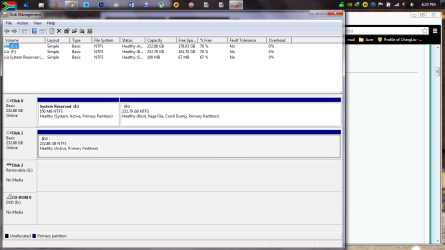
Could you post a screenshot showing the full layout of your Disk Management (diskmgmt.msc) screen to help see what's going on?


For now, you could use the tutorial below to set the top Windows 7 as the default OS to run automatically at startup to not see the Boot Manager screen anymore.
Hope this helps for now, :)
Shawn
 

My Computer

Computer type
PC/Desktop
Computer Manufacturer/Model Number
Self built custom
OS
64-bit Windows 11 Pro for Workstations
CPU
Intel i7-8700K OC'd to 5 GHz
Motherboard
ASUS ROG Maximus XI Formula Z390
Memory
64 GB (4x16GB) G.SKILL TridentZ RGB DDR4 3600 MHz
Graphics Card(s)
ASUS ROG-STRIX-GTX1080TI-O11G-GAMING
Sound Card
Integrated
Monitor(s) Displays
2 x Samsung Odyssey G7 27"
Screen Resolution
2560x1440
Hard Drives
1TB Samsung 990 PRO M.2,
4TB Samsung 990 PRO PRO M.2,
TerraMaster F8 SSD Plus NAS
PSU
Seasonic Prime Titanium 850W
Case
Thermaltake Core P3
Cooling
Corsair Hydro H115i
Keyboard
Logitech wireless K800
Mouse
Logitech MX Master 4
Internet Speed
2 Gb/s Download and 100 Mb/s Upload
Antivirus
Malwarebyte Anti-Malware Premium
Browser
Google Chrome
Other Info
Logitech Z625 speaker system,
Logitech BRIO 4K Pro webcam,
HP Color LaserJet Pro MFP M477fdn,
APC SMART-UPS RT 1000 XL - SURT1000XLI,
Galaxy S23 Plus phone
I had a bit to much to drink that night so i have no idea how or why i reinstalled windows all i know is i managed to somehow reinstall on both of my drives :cry:.The one drive boots up fine and no issues at all
 

Attachments

  • Untitled.png
    Untitled.png
    51.2 KB · Views: 7

My Computer

Computer type
Laptop
Computer Manufacturer/Model Number
Acer Aspire 6930G
OS
windows 7 ultimate x 64bit
CPU
T9600 @ 2.80GHz
Memory
4Gig
Graphics Card(s)
Nvidia GeForce 9600M GT
Hard Drives
1 X 250 Gig
1 x 750 Gig
Other Info
Cd/Blue-ray drive
It looks like you reinstalled Win7 to F from C since that's the only way the booted OS on partition F (signified by the Boot label) would not appear as C itself: When you ran the installer from C it locked out that letter so it incorrectly boots as F.

This is not desirable so you should do it over after you read carefully the steps to correctly Clean Reinstall - Factory OEM Windows 7 - these steps are the same for retail.

Back up all files on the target HD, power down to unplug the HD which you don't want to install Win7 upon, boot the installer to delete all partitions and create New to Format as shown in Steps 6/7 of Clean Install Windows 7.

After install, you can plug back in the other HD, back up its data, then correctly delete the unwanted OS by Deleting it's partition(s), repartition as desired. Partition or Volume - Delete
Partition or Volume - Create New
 
:what: Please tell me you are joking :banghead:
 

My Computer

Computer type
Laptop
Computer Manufacturer/Model Number
Acer Aspire 6930G
OS
windows 7 ultimate x 64bit
CPU
T9600 @ 2.80GHz
Memory
4Gig
Graphics Card(s)
Nvidia GeForce 9600M GT
Hard Drives
1 X 250 Gig
1 x 750 Gig
Other Info
Cd/Blue-ray drive
Right lets get this straight do i take out my drive in HDD1 Bay as that used to be C Drive now its F.......
And fit HDD2 (Now called C used to be F ) in Hdd1 Bay then go through the process of clean install :( I think i did fit hd2 into hdd1 and installed w7 as i failed halfway through installing when it was in hdd2
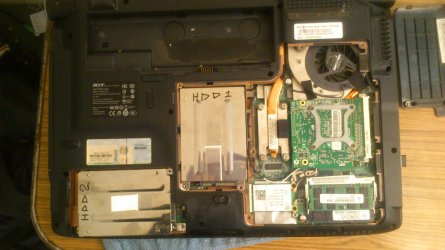
*Make note to myself Dont play around on laptop when (d)* :banghead::banghead:
 

Attachments

  • DSC_0002.jpg
    DSC_0002.jpg
    306.3 KB · Views: 2

My Computer

Computer type
Laptop
Computer Manufacturer/Model Number
Acer Aspire 6930G
OS
windows 7 ultimate x 64bit
CPU
T9600 @ 2.80GHz
Memory
4Gig
Graphics Card(s)
Nvidia GeForce 9600M GT
Hard Drives
1 X 250 Gig
1 x 750 Gig
Other Info
Cd/Blue-ray drive
If there is still an OS on C and you want to keep it then you can unplug the other HD, swap its data cable to C making sure C is set first HD to boot in BIOS setup, boot Win7 DVD to run Startup Repair - Run up to 3 Separate Times until Win7 starts and C holds the System flag.

If that fails to work then reinstall, which I would do anyway if you didnt' follow the steps to get a perfect Clean Reinstall - Factory OEM Windows 7
 
Thanks i will do a clean install to now called c drive As its the F drive giving a problem the F hdd as you can see is my prime1 as i use that all the time and it sits in HDD1 Bay if i look at the pic it looks like the drives have swapped around but in actual fact they are in the same bays as they always where.... so now what bay do i fit the affected drive in for a clean install ?????
 

Attachments

  • Untitled.png
    Untitled.png
    55.6 KB · Views: 3

My Computer

Computer type
Laptop
Computer Manufacturer/Model Number
Acer Aspire 6930G
OS
windows 7 ultimate x 64bit
CPU
T9600 @ 2.80GHz
Memory
4Gig
Graphics Card(s)
Nvidia GeForce 9600M GT
Hard Drives
1 X 250 Gig
1 x 750 Gig
Other Info
Cd/Blue-ray drive
You want it plugged in alone as Disk0, so whatever bay F is in now, since it's currently Disk0 as shown in Disk Mgmt..

Make sure C remains listed as first HD to boot (after DVD drive) in BIOS setup during install and when you plug back in F. If you want to boot F use the one-time BIOS Boot Menu key given on first screen. When ready to delete the old Win7, I would back up my data and wipe the F drive with Diskpart Clean Command to get rid of old boot code, then repartition it in Disk Mgmt to use as data/storage, keep a Win7 backup image of a perfect install you've set up on C so that you never have to reinstall again.
 
Last edited:
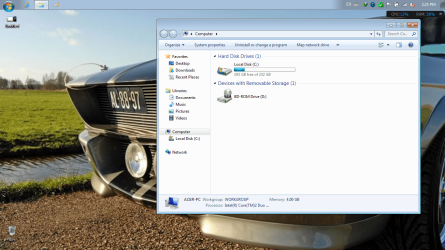
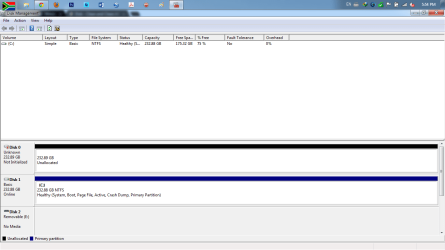
Did a clean install and after i fitted the 2nd disc in it gave me this pics untitled 1-4-2 are with the new install and both discs in :confused: then i swapped the discs around and booted up in the right order and i got this it shows two discs now. I have ordered a WD 750G 7200rpm HDD and i will use that as my primery disc is there a way to use the 2nd one as a back up disc also can i store folders and files on it??
 

Attachments

  • Untitled1.png
    Untitled1.png
    267.3 KB · Views: 2
  • Untitled4.png
    Untitled4.png
    25.3 KB · Views: 3
  • Untitled (2).png
    Untitled (2).png
    250.1 KB · Views: 1
  • Untitled5.png
    Untitled5.png
    44 KB · Views: 2
  • Untitled6.png
    Untitled6.png
    43.7 KB · Views: 2

My Computer

Computer type
Laptop
Computer Manufacturer/Model Number
Acer Aspire 6930G
OS
windows 7 ultimate x 64bit
CPU
T9600 @ 2.80GHz
Memory
4Gig
Graphics Card(s)
Nvidia GeForce 9600M GT
Hard Drives
1 X 250 Gig
1 x 750 Gig
Other Info
Cd/Blue-ray drive
Please explain which screenshots show your new install. I only see a mess with no labels which looks like your previous mess.

Is there some reason you couldn't plug the disk where you wanted to reinstall Win7 into Disk0 as suggested and then install Win7 on it? No screenshot shows this.

A Clean Install Windows 7 after wiping the HD first as suggested, or instead deleting all partitions to create New ones, Format and Reinstall as shown in Steps 6/7 would not have resulted in any of that mess.
 
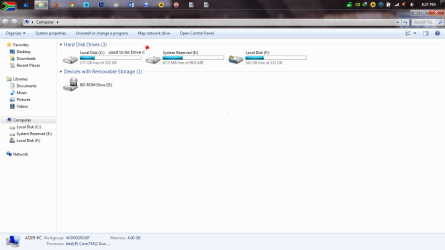
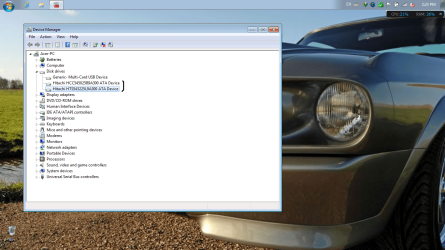
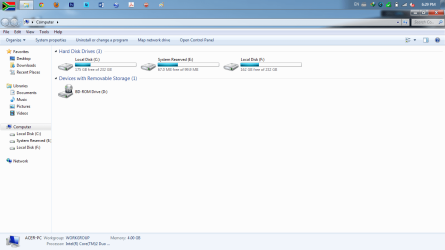
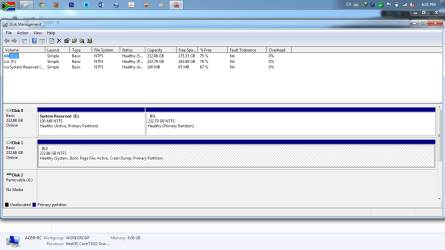
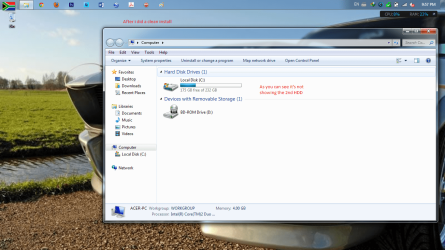
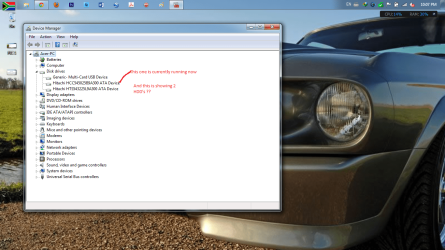
The 1st /2nd and 3rd pics are after i did a clean install and i had just fitted the 2nd HDD into its correct bay

Pics 4/ 5 and 6 are showing after i swapped the drives around (at least they are now showing the 2 Hdd's)
And yes i know i cocked it up again :o
 

Attachments

  • PIC 1.png
    PIC 1.png
    218.9 KB · Views: 2
  • Pic 2.png
    Pic 2.png
    99 KB · Views: 2
  • pic 3.png
    pic 3.png
    264.9 KB · Views: 1
  • Pic 4.png
    Pic 4.png
    96.6 KB · Views: 2
  • Pic 5.png
    Pic 5.png
    68 KB · Views: 2
  • Pic6.png
    Pic6.png
    42.2 KB · Views: 2

My Computer

Computer type
Laptop
Computer Manufacturer/Model Number
Acer Aspire 6930G
OS
windows 7 ultimate x 64bit
CPU
T9600 @ 2.80GHz
Memory
4Gig
Graphics Card(s)
Nvidia GeForce 9600M GT
Hard Drives
1 X 250 Gig
1 x 750 Gig
Other Info
Cd/Blue-ray drive
If this is the image of Disk Mgmt after the reinstall to F then you did not unplug the other HD as instructed because it again wrote the System boot files to C on the other HD, as signified by the System flag. C is also the OS which is booted.

Why can't you follow simple steps which we confirmed over and over for you? You were to unplug the other HD, wipe the target HD with Diskpart Clean Command, or else boot into the installer and during Custom Install delete all partitions to create New as you please as shown in Steps 6/7 of Clean Install Windows 7.

If you had any questions you should ask back, or if you did something else please tell us what it was because you have the same mess you had before.
 
Last edited:
I did remove the HDD and i then re installed windows on the target hdd i however did not do this (wipe the target HD with Diskpart Clean Command,) tomorrow i will redo it all over again and will follow the steps this time
:rolleyes:
 

My Computer

Computer type
Laptop
Computer Manufacturer/Model Number
Acer Aspire 6930G
OS
windows 7 ultimate x 64bit
CPU
T9600 @ 2.80GHz
Memory
4Gig
Graphics Card(s)
Nvidia GeForce 9600M GT
Hard Drives
1 X 250 Gig
1 x 750 Gig
Other Info
Cd/Blue-ray drive
The Win7 you are booted into in the screenshot is on C. I thought you were reinstalling to the drive with F. If you reinstalled C and you are happy with the install which does have the System boot files onboard and looks correct then you can keep it.

If you've decided now that you want to use the drive with F for Storage you can wipe it from C with Diskpart Clean Command and then repartition it in Disk Mgmt as you need for data storage.
 
Back
Top