
Solved Windows Update History Empty After WindowsImageBackup Restored

writhziden

Closed by request.
Local time
10:33 AM
Messages
11,269
Location
Colorado
Has anyone else noticed that the Windows update history is a blank page and says the user has not installed any updates once a WindowsImageBackup is restored?

I have switched to Macrium Reflect and tested it. It does not delete the update history. I like knowing what I have installed in case down the line I have issues with an update. I also found that Macrium Reflect resulted in less system stability issues after I restore the image, whereas WindowsImageBackup caused my system to lock up more and caused me to be unable to run a chkdsk /f or /r of the system drive without using a Windows 7 DVD or Windows 7 repair disc (Recently installed software prevented the chkdsk from running blah blah blah).
 

My Computer My Computer

Computer Manufacturer/Model Number
HP Pavilion e9110t
OS
Windows 7 Home Premium 64 Bit
CPU
Intel(R) Core(TM)2 Quad CPU Q9550 @ 2.83GHz
Motherboard
Pegatron IPIEL-LA3
Memory
6.00 GB Hundai HMT125U6BFR8C-H9
Graphics Card(s)
ATI Radeon HD 4850
Sound Card
Realtek High Definition Audio/ATI High Definition Audio
Monitor(s) Displays
Acer AL2216W
Screen Resolution
1680x1050
Hard Drives
Hitachi HDP725050GLA360 ATA Device 500 GB
PSU
Unknown/installed by HP
Case
HP generic case
Cooling
Intel Stock Cooling
Keyboard
HP Keyboard
Mouse
HP Mouse
Internet Speed
Download: 19.15 Mbps Upload: 1.67 Mbps
Other Info
Network Adapter Realtek RTL8168D/8111D Family PCI-E Gigabit Ethernet NIC (NDIS 6.20)
Network Adapter 802.11n Wireless PCI Express Card LAN Adapter
If you click on what I marked #1 and the new window is empty then click on #2 and all the updates will show.
 

Attachments

  • InstalledUpdates.PNG
    InstalledUpdates.PNG
    37.3 KB · Views: 162

My Computer My Computer

Computer Manufacturer/Model Number
Hopalong/ Godzilla
OS
Windows7 Pro 64bit SP-1; Windows XP Pro 32bit
CPU
Intel Core i7-870 Lynnfield 2.93GHz LGA 1156 95W Quad-Core
Motherboard
ASUS P7P55D-E PRO
Memory
8GB@1400MHz Crucial Ballistix DDR3-1600 4x2GB
Graphics Card(s)
ASUS ENGTX460 DirectCU/2DI/1GD5 1GB 256-bit GDDR5
Sound Card
VIA Onboard
Monitor(s) Displays
Asus VS248H-P 24"; Samsung SyncMaster 941BW 19"ws
Screen Resolution
1920x1080; 1440x900
Hard Drives
Samsung 830 120GB SSD
Intel 320 120GB SSD
Western Digital Caviar Black WD7501AALS 750GB 7200 RPM SATA 3.0Gb/s
Western Digital Caviar Black WD6401AALS 640GB 7200 RPM SATA 3.0Gb/s
PSU
COOLER MASTER Silent Pro RS850-AMBAJ3-US 850W Modular
Case
COOLER MASTER HAF 932 RC-932-KKN5-GP Black
Cooling
Scythe "Mugen-2 Rev.B" (2 ScytheKaze-Jyuni PWM fans)
Keyboard
Logitech K-320
Mouse
Kensington
Antivirus
Avast Inernet Suite
Browser
IE 9 ; Chrome
If you click on what I marked #1 and the new window is empty then click on #2 and all the updates will show.

Yes, 2 still worked, but why was 1 blank after a restore? It was not blank when I created the WindowsImageBackup.
 

My Computer My Computer

Computer Manufacturer/Model Number
HP Pavilion e9110t
OS
Windows 7 Home Premium 64 Bit
CPU
Intel(R) Core(TM)2 Quad CPU Q9550 @ 2.83GHz
Motherboard
Pegatron IPIEL-LA3
Memory
6.00 GB Hundai HMT125U6BFR8C-H9
Graphics Card(s)
ATI Radeon HD 4850
Sound Card
Realtek High Definition Audio/ATI High Definition Audio
Monitor(s) Displays
Acer AL2216W
Screen Resolution
1680x1050
Hard Drives
Hitachi HDP725050GLA360 ATA Device 500 GB
PSU
Unknown/installed by HP
Case
HP generic case
Cooling
Intel Stock Cooling
Keyboard
HP Keyboard
Mouse
HP Mouse
Internet Speed
Download: 19.15 Mbps Upload: 1.67 Mbps
Other Info
Network Adapter Realtek RTL8168D/8111D Family PCI-E Gigabit Ethernet NIC (NDIS 6.20)
Network Adapter 802.11n Wireless PCI Express Card LAN Adapter
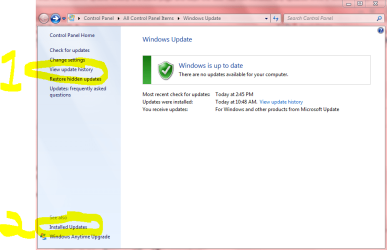
Possibly Windows update reset. It is just a history page. Maybe just a glitch that did the reset of the history page.
To delete an update you have to go to the one I marked #2.

When I did a reset of Win update on mine all the updates disappeared as did yours from the history list/window.
As I installed new updates all the new ones are listed on both pages.

That is the best I can describe it for you.
Niemiro could explain it with more detail.

So it isn't a problem all the updates are still there.

It is possible that Win Back up does not include that history page in the back-up. So it would be blank when reimaged.

Macrium makes an exact copy of everything so the history page is included.

My best guess at this point. ;)
Mike
 

My Computer My Computer

Computer Manufacturer/Model Number
Hopalong/ Godzilla
OS
Windows7 Pro 64bit SP-1; Windows XP Pro 32bit
CPU
Intel Core i7-870 Lynnfield 2.93GHz LGA 1156 95W Quad-Core
Motherboard
ASUS P7P55D-E PRO
Memory
8GB@1400MHz Crucial Ballistix DDR3-1600 4x2GB
Graphics Card(s)
ASUS ENGTX460 DirectCU/2DI/1GD5 1GB 256-bit GDDR5
Sound Card
VIA Onboard
Monitor(s) Displays
Asus VS248H-P 24"; Samsung SyncMaster 941BW 19"ws
Screen Resolution
1920x1080; 1440x900
Hard Drives
Samsung 830 120GB SSD
Intel 320 120GB SSD
Western Digital Caviar Black WD7501AALS 750GB 7200 RPM SATA 3.0Gb/s
Western Digital Caviar Black WD6401AALS 640GB 7200 RPM SATA 3.0Gb/s
PSU
COOLER MASTER Silent Pro RS850-AMBAJ3-US 850W Modular
Case
COOLER MASTER HAF 932 RC-932-KKN5-GP Black
Cooling
Scythe "Mugen-2 Rev.B" (2 ScytheKaze-Jyuni PWM fans)
Keyboard
Logitech K-320
Mouse
Kensington
Antivirus
Avast Inernet Suite
Browser
IE 9 ; Chrome
Possibly Windows update reset. It is just a history page. Maybe just a glitch that did the reset of the history page.
To delete an update you have to go to the one I marked #2.

When I did a reset of Win update on mine all the updates disappeared as did yours from the history list/window.
As I installed new updates all the new ones are listed on both pages.

That is the best I can describe it for you.
Niemiro could explain it with more detail.

So it isn't a problem all the updates are still there.
Mike

It is possible that Win Back up does not include that history page in the back-up. So it would be blank when reimaged.

Macrium makes an exact copy of everything so the history page is included.

Macrium does not seem to make an exact copy. The restore points, hibernation file, and pagefile are left out on purpose. There is an option to include them by imaging the whole drive, but I am fine with losing restore points if my backup preserves a stable system state.

WindowsImageBackup also deletes restore points and such. I was just surprised that it clears the update history page. I am pretty sure it does clear it because I have used it on two separate machines with the same results.

Curious: How did you reset the windows update?

Edit: Instead of saying that the backup clears the history, I should say that it does not back it up.
 

My Computer My Computer

Computer Manufacturer/Model Number
HP Pavilion e9110t
OS
Windows 7 Home Premium 64 Bit
CPU
Intel(R) Core(TM)2 Quad CPU Q9550 @ 2.83GHz
Motherboard
Pegatron IPIEL-LA3
Memory
6.00 GB Hundai HMT125U6BFR8C-H9
Graphics Card(s)
ATI Radeon HD 4850
Sound Card
Realtek High Definition Audio/ATI High Definition Audio
Monitor(s) Displays
Acer AL2216W
Screen Resolution
1680x1050
Hard Drives
Hitachi HDP725050GLA360 ATA Device 500 GB
PSU
Unknown/installed by HP
Case
HP generic case
Cooling
Intel Stock Cooling
Keyboard
HP Keyboard
Mouse
HP Mouse
Internet Speed
Download: 19.15 Mbps Upload: 1.67 Mbps
Other Info
Network Adapter Realtek RTL8168D/8111D Family PCI-E Gigabit Ethernet NIC (NDIS 6.20)
Network Adapter 802.11n Wireless PCI Express Card LAN Adapter
I ran the Trouble shooter. Click the "Troubleshoot problems installing updates".
A new pop up appears and you click Troubleshoot.
This reset the history page while using the troubleshooter.
It may not reset it eveytime I don't know but it has reset when others have run the troubleshooter.


Also this is Brinks tutorial.> http://www.sevenforums.com/tutorials/91738-windows-update-reset.html

It uses a .bat file.
 

My Computer My Computer

Computer Manufacturer/Model Number
Hopalong/ Godzilla
OS
Windows7 Pro 64bit SP-1; Windows XP Pro 32bit
CPU
Intel Core i7-870 Lynnfield 2.93GHz LGA 1156 95W Quad-Core
Motherboard
ASUS P7P55D-E PRO
Memory
8GB@1400MHz Crucial Ballistix DDR3-1600 4x2GB
Graphics Card(s)
ASUS ENGTX460 DirectCU/2DI/1GD5 1GB 256-bit GDDR5
Sound Card
VIA Onboard
Monitor(s) Displays
Asus VS248H-P 24"; Samsung SyncMaster 941BW 19"ws
Screen Resolution
1920x1080; 1440x900
Hard Drives
Samsung 830 120GB SSD
Intel 320 120GB SSD
Western Digital Caviar Black WD7501AALS 750GB 7200 RPM SATA 3.0Gb/s
Western Digital Caviar Black WD6401AALS 640GB 7200 RPM SATA 3.0Gb/s
PSU
COOLER MASTER Silent Pro RS850-AMBAJ3-US 850W Modular
Case
COOLER MASTER HAF 932 RC-932-KKN5-GP Black
Cooling
Scythe "Mugen-2 Rev.B" (2 ScytheKaze-Jyuni PWM fans)
Keyboard
Logitech K-320
Mouse
Kensington
Antivirus
Avast Inernet Suite
Browser
IE 9 ; Chrome

My Computer My Computer

Computer Manufacturer/Model Number
HP Pavilion e9110t
OS
Windows 7 Home Premium 64 Bit
CPU
Intel(R) Core(TM)2 Quad CPU Q9550 @ 2.83GHz
Motherboard
Pegatron IPIEL-LA3
Memory
6.00 GB Hundai HMT125U6BFR8C-H9
Graphics Card(s)
ATI Radeon HD 4850
Sound Card
Realtek High Definition Audio/ATI High Definition Audio
Monitor(s) Displays
Acer AL2216W
Screen Resolution
1680x1050
Hard Drives
Hitachi HDP725050GLA360 ATA Device 500 GB
PSU
Unknown/installed by HP
Case
HP generic case
Cooling
Intel Stock Cooling
Keyboard
HP Keyboard
Mouse
HP Mouse
Internet Speed
Download: 19.15 Mbps Upload: 1.67 Mbps
Other Info
Network Adapter Realtek RTL8168D/8111D Family PCI-E Gigabit Ethernet NIC (NDIS 6.20)
Network Adapter 802.11n Wireless PCI Express Card LAN Adapter
Losing the history is important and it is not just a glitch. Whenever a restore does not completely and perfectly reset the image then one has to ask serious question about using such a product.

When you use Windows Backup/Restore to restore the system, it leaves out two registry keys, namely:

HKLM\Software\Microsoft\Windows\CurrentVersion\WindowsUpdate\Auto Update\UAS
HKLM\Software\Microsoft\Windows\CurrentVersion\WindowsUpdate\Reporting\RebootWatch

The UAS key also should have a value REG_DWORD: UpdateCount

The following procedure works on my system. However, it involves modifying the system registry and only experienced users should attempt this since incorrect registry changes can permanently damage a system. If this does not work on your system then that is your problem not mine.

Prior to doing a backup delete the registry key values:

HKLM\SYSTEM\CurrentControlSet\Control\BackupRestore\FilesNotToBackup: WUA
HKLM\SYSTEM\CurrentControlSet\Control\BackupRestore\FilesNotToSnapshot: WUA

Perform the backup and restore.

If, after the restore and, BEFORE THE REBOOT you replace the HKLM\Software keys listed at the start of this post by using regedit load hive, add keys and unload hive from another system then after you reboot the Windows Update history will still be there.
 

My Computer My Computer

OS
Windows 2008 R2 SP1, Windows 2000 Server SP4
CPU
Intel E8500
Memory
6Gb
Graphics Card(s)
NVIDIA GeForce 7600 GS
Monitor(s) Displays
HP 2211x
Screen Resolution
1920 x 1024
Hard Drives
Hitachi HDP725025GLA380 ATA
Hitachi HDP725050GLA380 ATA

My Computer My Computer

Computer Manufacturer/Model Number
HP Pavilion e9110t
OS
Windows 7 Home Premium 64 Bit
CPU
Intel(R) Core(TM)2 Quad CPU Q9550 @ 2.83GHz
Motherboard
Pegatron IPIEL-LA3
Memory
6.00 GB Hundai HMT125U6BFR8C-H9
Graphics Card(s)
ATI Radeon HD 4850
Sound Card
Realtek High Definition Audio/ATI High Definition Audio
Monitor(s) Displays
Acer AL2216W
Screen Resolution
1680x1050
Hard Drives
Hitachi HDP725050GLA360 ATA Device 500 GB
PSU
Unknown/installed by HP
Case
HP generic case
Cooling
Intel Stock Cooling
Keyboard
HP Keyboard
Mouse
HP Mouse
Internet Speed
Download: 19.15 Mbps Upload: 1.67 Mbps
Other Info
Network Adapter Realtek RTL8168D/8111D Family PCI-E Gigabit Ethernet NIC (NDIS 6.20)
Network Adapter 802.11n Wireless PCI Express Card LAN Adapter
From what I've read, the problem of the disappearing Windows History update has to do with VSS itself. (VSS is a Windows service that enables active Windows files that historically have not been able to be grabbed by traditional copying/backup programs to be included in system image backups.) VSS, however, has one definite limitation: it does not bother to copy what it calls "non essential" Windows system files. One of the "victims" of that limitation is the Windows Update history. Macrium has figured out a way to compensate for the VSS limitation, and therefore does not have this problem. Also, using the Paragon WinPE disk or the Linux disk to make system image backups, which both operate at a sub-Windows level, produce complete backups, since they run before Windows boots up, so there are no active files to have to worry about. (Currently, when making system image backups using Paragon's IN WINDOWS backup program, which uses VSS without the compensation found in Macrium, the problem of the disappearing Windows Update history arises as well, at least in Win 7. In XP, Paragon IN WINDOWS system image backup gives the option of using either VSS or Paragon Hot Processing -- an algorithm similar to VSS. But Paragon Hot Processing does not appear to work in Win 7, and is not even included when installing the program.)

And while "Installed Updates" continues to show, it's not as complete as Windows History update. For example, Installed Updates only shows the updates that SUCCESSFULLY installed; Windows Update history shows the exact record of what installed, what failed to install, etc. It's not something that would keep your system from properly functioning, but it is a PITA, IMO.
 

My Computer My Computer

OS
Windows 7 Pro 32-bit
CPU
Intel I-7 2nd gen
Memory
8GB
I ran the Trouble shooter. Click the "Troubleshoot problems installing updates".
A new pop up appears and you click Troubleshoot.
This reset the history page while using the troubleshooter.
It may not reset it eveytime I don't know but it has reset when others have run the troubleshooter.


Also this is Brinks tutorial.> http://www.sevenforums.com/tutorials/91738-windows-update-reset.html

It uses a .bat file.
I could be mistaken, but this appears to reset the Windows Update history to zero rather than restoring the previous update history, which appears to be totally lost after doing a VSS-based IN WINDOWS backup. So for those of us wishing to restore the full Windows Update history, this does not appear to be the solution. (Similarly, the .bat process mentioned above also does not appear to restore the previous full history lost after a VSS-based IN WINDOWS backup.) At present, the only way to avoid losing the update history is to use a a VSS-based utility (Macrium) that has a built-in compensation for the VSS limitation, or a WinPE or Linux disk to do the backup, because it operates sub-Windows, and therefore grabs ALL system files with no exceptions the way VSS IN WINDOWS does.)
 

My Computer My Computer

OS
Windows 7 Pro 32-bit
CPU
Intel I-7 2nd gen
Memory
8GB
Possibly Windows update reset. It is just a history page. Maybe just a glitch that did the reset of the history page.
To delete an update you have to go to the one I marked #2.

When I did a reset of Win update on mine all the updates disappeared as did yours from the history list/window.
As I installed new updates all the new ones are listed on both pages.

That is the best I can describe it for you.
Niemiro could explain it with more detail.

So it isn't a problem all the updates are still there.
Mike

It is possible that Win Back up does not include that history page in the back-up. So it would be blank when reimaged.

Macrium makes an exact copy of everything so the history page is included.

Macrium does not seem to make an exact copy. The restore points, hibernation file, and pagefile are left out on purpose. There is an option to include them by imaging the whole drive, but I am fine with losing restore points if my backup preserves a stable system state.

WindowsImageBackup also deletes restore points and such. I was just surprised that it clears the update history page. I am pretty sure it does clear it because I have used it on two separate machines with the same results.

Curious: How did you reset the windows update?

Edit: Instead of saying that the backup clears the history, I should say that it does not back it up.
I'm not sure about Macrium specifics, because I use Paragon. But in Paragon, and I think in Macrium as well, there's an option to either include ALL windows files, like hibernation and pagefile, or not include them. The advantage of not including them means that the backups are smaller, since pagefile and hibernation are basically useless empty space as far as backups go. OTHER Windows files, however, are another matter. And that's where the problems come in with any system image backup program, run in Windows, that don't compensate for the "other" missing files. This is currently a problem with Paragon, but it's being looked into by tech support.
 

My Computer My Computer

OS
Windows 7 Pro 32-bit
CPU
Intel I-7 2nd gen
Memory
8GB
Firstly, thanks to writhziden for reply and rep. I tried to send you a PM but the system wouldn't let me.

Secondly, in response to skbaltimore - I am sorry but I must disagree with you. If you reread my previous post you will see that I can successfully do a Windows Server backup using VSS followed by a Windows Server Restore and then, after adding one registry key, boot up and the full Windows Update history will still be there. I do mean the full history, not just the installed fixes.

This proves that VSS has copied the files to the backup correctly.

The reason that the history is lost on a simple backup/restore is that Windows Update itself detects that a backup has been done (through the RebootWatch registry key) and it then deletes the history. Don't ask me why Microsoft choose to do this because I have no idea - it seems stupid to me. I don't yet know if the RebootWatch registry key is dropped during the backup or the restore or why it should be dropped at all but it does appear to be by design. However VSS does copy the Windows Update history.

VSS does drop some filesbut I believe that they are only the files listed in the registry keys "FilesNotToBackup" and "FilesNotToSnapshot". Removing the filenames from these keys does ensure that VSS backs up these files also.
 

My Computer My Computer

OS
Windows 2008 R2 SP1, Windows 2000 Server SP4
CPU
Intel E8500
Memory
6Gb
Graphics Card(s)
NVIDIA GeForce 7600 GS
Monitor(s) Displays
HP 2211x
Screen Resolution
1920 x 1024
Hard Drives
Hitachi HDP725025GLA380 ATA
Hitachi HDP725050GLA380 ATA
Looks like win8 behaves the same.

Thanks for posting that.
 

My Computers My Computers

System One System Two

  • Computer type
    PC/Desktop
    OS
    7 X64
    CPU
    i5 8400
    Motherboard
    gigabyte b365m ds3h
    Memory
    2x8gb 3200mhz
    Hard Drives
    various
    PSU
    pure power 11 400w cm
    Case
    Coolermaster
    Cooling
    cryorig m9i
  • Computer type
    PC/Desktop
    OS
    7x64
    CPU
    g5400
    Motherboard
    ga b365m ds3h
    Memory
    8gb ddr4 2400
    PSU
    xfx pro 450w
Firstly, thanks to writhziden for reply and rep. I tried to send you a PM but the system wouldn't let me.

Secondly, in response to skbaltimore - I am sorry but I must disagree with you. If you reread my previous post you will see that I can successfully do a Windows Server backup using VSS followed by a Windows Server Restore and then, after adding one registry key, boot up and the full Windows Update history will still be there. I do mean the full history, not just the installed fixes.

This proves that VSS has copied the files to the backup correctly.

The reason that the history is lost on a simple backup/restore is that Windows Update itself detects that a backup has been done (through the RebootWatch registry key) and it then deletes the history. Don't ask me why Microsoft choose to do this because I have no idea - it seems stupid to me. I don't yet know if the RebootWatch registry key is dropped during the backup or the restore or why it should be dropped at all but it does appear to be by design. However VSS does copy the Windows Update history.

VSS does drop some filesbut I believe that they are only the files listed in the registry keys "FilesNotToBackup" and "FilesNotToSnapshot". Removing the filenames from these keys does ensure that VSS backs up these files also.
I'm not really sure what you're disagreeing with. The fact that you mentioned a fix really has nothing to do with the fact that the problem exists. It's been discussed and documented extensively on the Paragon forum. Paragon uses VSS to do its hot processing imaging. There's also an option to use Paragon Hot Processing instead of VSS. When Paragon Hot Processing is used, the problem does not present itself; only when the VSS option is selected. That was my point. Also, when a cold image is made, sub-Windows with a disk, either Linux or WinPE, the problem does not exist either.
 

My Computer My Computer

OS
Windows 7 Pro 32-bit
CPU
Intel I-7 2nd gen
Memory
8GB
What I am disagreeing with is your statement that

VSS, however, has one definite limitation: it does not bother to copy what it calls "non essential" Windows system files. One of the "victims" of that limitation is the Windows Update history.​

This is not true. VSS does copy the Windows history (full history not just installed updates) as I demonstrated in my first post.

It is true that if you simply do a Windows backup/restore and reboot then the Windows Update history is deleted and that this is an apparently stupid bit of design by Microsoft. It is true that all of the other backup/restore programs do not have the same issue. That is because they retain the RebootWatch registry key which Microsoft is deliberately deleting.

I am not trying to say that Windows Update history is never deleted, nor that other backup/restore programs may or may not be better. I am only attempting to correct one factual error in your original submission.
 

My Computer My Computer

OS
Windows 2008 R2 SP1, Windows 2000 Server SP4
CPU
Intel E8500
Memory
6Gb
Graphics Card(s)
NVIDIA GeForce 7600 GS
Monitor(s) Displays
HP 2211x
Screen Resolution
1920 x 1024
Hard Drives
Hitachi HDP725025GLA380 ATA
Hitachi HDP725050GLA380 ATA
Back
Top