How to Reset Windows Update in Vista, Windows 7, and Windows 8
Information
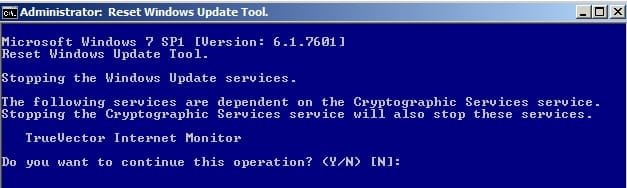
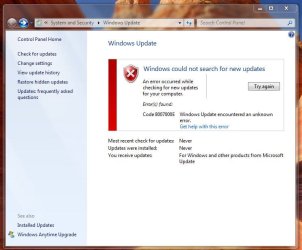
This will show you how to reset Windows Update view update history, and how to reset and re-register Windows Update Components if you are having a problem updating with Windows Update.
OPTION ONE
To Only Reset Windows Update History
Note
Resetting Windows Update using this option will clear the view update history details list (cache).
This will not actually uninstall any of your currently installed Windows Update. They will just not be listed anymore. Any new Windows Update installed after the reset will show up in the view update history list as normal though.
This will not actually uninstall any of your currently installed Windows Update. They will just not be listed anymore. Any new Windows Update installed after the reset will show up in the view update history list as normal though.
1. Click/tap on the Download button below to download this file below.
Reset_Windows_Update_History.bat
Download
2. Save the .bat file to your Desktop.
3. Right click or press and hold on the downloaded .bat file, and click/tap on Run as administrator.
4. If prompted by UAC click/tap on Run, then Yes/Continue (if administrator) or type in administrator's password (if standard user).
5. You will now see an elevated command prompt open and run. When it's finished, it will close automatically.
6. If opened, close and reopen Windows Update to verify that it has been reset.
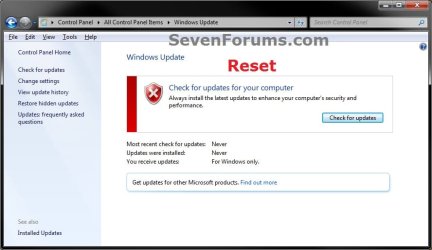

7. Resetting the Windows Update history will also restore the default language packs being listed in Windows Upate again in the Windows 7 Ultimate and Enterprise editions after you check for updates next.

OPTION TWO
To Reset and Re-register Windows Update Components
NOTE: This option is the Windows version of: How do I reset Windows Update components?. It will reset Windows Update Components and re-register the BITS files and the Windows Update files to help fix Windows Update errors. This option will not clear the view update history details list as it does in OPTION ONE above.
1. Click/tap on the Download button below to download this file below.
Reset_Reregister_Windows_Update_Components.bat
Download
2. Save the .bat file to your Desktop.
3. Right click or press and hold on the downloaded .bat file, and click/tap on Run as administrator.
4. If prompted by UAC click on Run, then Yes/Continue (if administrator) or type in administrator's password (if standard user).
5. You will now see an elevated command prompt open and run. When it's finished, it will close automatically.
6. Restart the computer afterwards to apply.
7. If this still does not help, then run the Microsoft Fix it tool here:
How do I reset Windows Update components?
See also: Unable to install updates in Windows Vista, Windows 7, Windows Server 2008 and Windows Server 2008 R2
OPTION THREE
To Reset and Re-register Windows Update Components AND Reset Update History in One Easy Click
Note
This option combines OPTION ONE and OPTION TWO above in one .bat file.
1. Click/tap on the Download button below to download this file below.
Reset_Windows_Update_Full.bat
Download
2. Save the .bat file to your Desktop.
3. Right click or press and hold on the downloaded .bat file, and click/tap on Run as administrator.
4. If prompted by UAC click/tap on Run, then Yes/Continue (if administrator) or type in administrator's password (if standard user).
5. You will now see an elevated command prompt open and run. When it's finished, it will close automatically.
6. Restart the computer afterwards to apply.
7. If this still does not help, then run the Microsoft Fix it tool here:
Download
How do I reset Windows Update components?
See also: Unable to install updates in Windows Vista, Windows 7, Windows Server 2008 and Windows Server 2008 R2
That's it,
Shawn
Related Tutorials
- Windows Update Error 80246008 in Windows 7 - Fix
- How to Create a "Windows Update" Shortcut in Windows 7
- How to Change the Windows Update Settings in Windows 7
- How to Enable or Disable Windows Updates from Automatically Restarting the Computer
- How to Uninstall a Windows Update in Windows 7
- How to Hide or Restore Hidden Windows Updates in Windows 7 and Windows 8
- How to Create a Installed Windows Updates Shortcut in Windows 7
- How to Create a Windows Update Troubleshoot Shortcut in Windows 7
- How to Enable or Disable Uninstalling Windows Updates in Windows 7
- How to Enable or Disable Access to Windows Updates in Windows 7
- How to View Windows Update History Details in Windows 7 and Windows 8
- How to Reset the Common Log File System (CLFS) Logs
- How to Enable or Disable the Windows Update "Who can install updates" Setting
- How to Download the Standalone MSU Installer File of a Windows Update
- How to Restore Default Services in Windows 7
- How to Trace what Windows Update a Manifest File Originated From
- How to Use DISM to Fix Component Store Corruption in Windows 8 and Windows Server 2012
Attachments
Last edited: