How to Change Windows Update Settings in Windows 7
Information
This will show you how to change the automatic updating, important updates, recommended updates, who can install, featured update notifications, and Microsoft products Windows Update settings in Windows 7.
Note
To learn more about the types of updates that Microsoft publishes, go to this Knowledge Base article on the Microsoft Help and Support website.
Here's How: 1. Open the Control Panel (icons view), and click on the Windows Update icon.
2. In the left blue pane, click on the Change settings link. (see screenshot below)

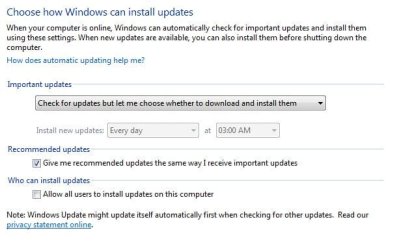
3. You can now set your Windows Update settings. (see screenshots below)
NOTE: See steps 4 to 8 below for each setting, then step 9 when finished.
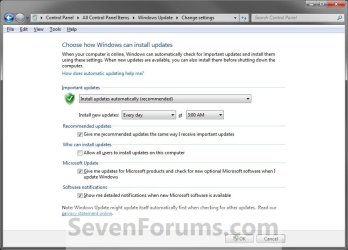
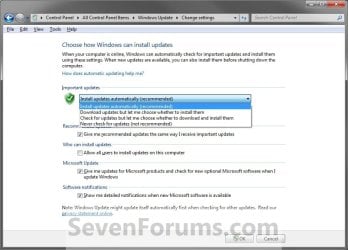
4. "Important Updates" Settings
NOTE: This is to turn automatic updating on or off to have Windows 7 install important updates automatically (on), download updates but let you choose which ones to install, check for updates but let you choose to download and install them, or never check for updates (off). A) Click on the drop down menu and select how you want Windows 7 to check for and have important Windows Updates be installed. (See screenshots above)
NOTE: If you select Install updates automatically, then you will need to also select how often and when you would like to schedule Windows 7 to automatically install available important updates. Optional updates will never automatically be installed, and will have to be manually installed when available.
5. "Recommended Updates" Settings
NOTE: You can turn this on off to set Windows 7 to automatically install important and recommended updates, which can address non-critical problems and help enhance your computing experience. Optional updates are not downloaded or installed automatically when automatic updates is turned on in step 3 above. A) Check the box to turn on Recommended Updates. (see screenshots below step 3)
NOTE: You will also need to turn on automatic updates in step 3 to also have important and recommended updates installed automatically.
B) Uncheck the box to turn off Recommended Updates. (see screenshots below step 3)
NOTE: If you turn this off, then you can choose to install the important and recommended updates manually by reviewing available updates when you check for updates in Windows Update.
6. "Who Can Install Updates"
NOTE: This will let you allow or deny standard user accounts to also be able to install Windows Updates. A) Check (allow) or uncheck (deny) the box. (see screenshots below step 3)
7. Get a "Microsoft Update" for other Microsoft Products
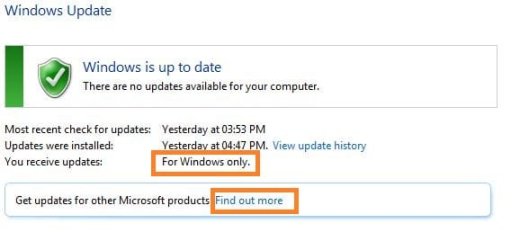
NOTE: This will let you turn on or off to also receive updates for other products from Microsoft Update that you have installed on your computer in Windows Update. A) If you see this instead of the screenshots under step 3, then:
WARNING: This requires that you have Internet Explorer, and it not turned off in Windows Features.
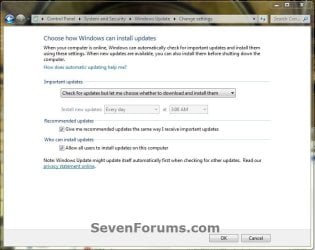
- Go back to Windows Update.
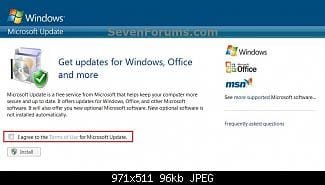
- Click on the Find out more link to the right of "Get updates for other Microsoft products".
- Check the I ageee box, and click on Install.
- If prompted by UAC, then click on Yes.
- You should now be able to do step 7B below.
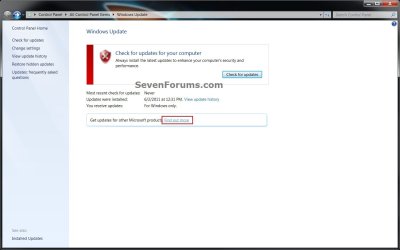
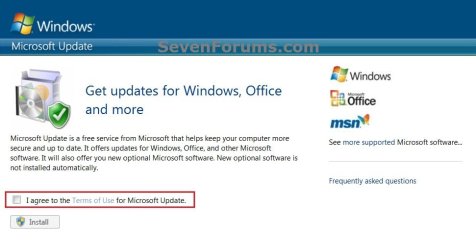
B) Check (on) or uncheck (off) the Give me updates for Microsoft products and check for optional Microsoft Software when I update Windows box. (see screenshots below step 3)
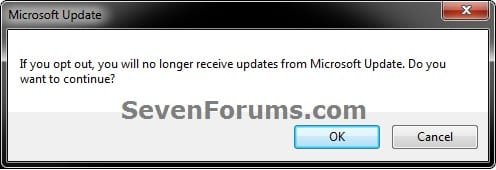
C) If you unchecked this option, then click on OK. (see screenshot below)
8. "Software Notifications"
NOTE: This will let you turn on or off getting a notice in the taskbar notification area when new Microoft software (featured updates) are available for download in Windows Update. A) If you see this instead of the screenshots under step 3, then:
WARNING: This requires that you have Internet Explorer, and it not turned off in Windows Features.
- Go back to Windows Update.
- Click on the Find out more link to the right of "Get updates for other Microsoft products".
- Check the I ageee box, and click on Install.
- If prompted by UAC, then click on Yes.
- You should now be able to do step 7B below.
B) You must have the option Give me updates for Microsoft products and check for optional Microsoft Software when I update Windows in step 7B above checked.
C) Check (on) or uncheck (off) the Show me detailed notifications when new Microsoft software is available box. (see screenshots below step 3)
9. When done, click on the OK button at the bottom to apply. (see screenshots below step 3)
10. If prompted by UAC, then click on Yes.
That's it,
Shawn
Related Tutorials
- How to Change the Device Driver and Information Installation Settings in Windows 7
- How to Create a "Windows Update" Shortcut in Windows 7
- How to View Windows Update History Details in Windows 7
- How to Uninstall a Windows Update in Windows 7
- How to Hide or Restore Hidden Windows Updates in Windows 7
- How to Enable or Disable Windows Updates from Automatically Restarting the Computer
- How to Create a Installed Windows Updates Shortcut in Windows 7
- How to Create a Windows Update Troubleshoot Shortcut in Windows 7
- How to Enable or Disable Access to Windows Updates in Windows 7
- How to Reset Windows Update in Windows 7
- How to Enable or Disable the Windows Update "Who can install updates" Setting
- How to Download the Standalone MSU Installer File of a Windows Update
- How to Enable or Disable "Install Updates and Shut Down" Option in Windows 7
Last edited: