How to Remove Outdated Windows Updates Using Disk Cleanup in Windows 7
Information
Microsoft released an update on October 8, 2013 that allows you to remove outdated Windows Updates using Disk Cleanup in Windows 7.
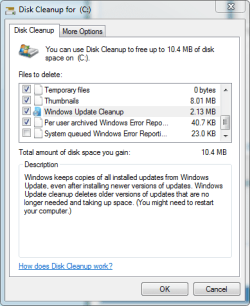
This update adds a new plugin to the Disk Cleanup wizard. After you install this update, you can use the Windows Update Cleanup option to delete Windows updates that you no longer need.
Notes
Source: Update is available that enables you to delete outdated Windows updates by using a new option in the Disk Cleanup wizard in Windows 7 SP1
This update adds a new plugin to the Disk Cleanup wizard. After you install this update, you can use the Windows Update Cleanup option to delete Windows updates that you no longer need.
Notes
- The Windows Update Cleanup option is available only when the Disk Cleanup wizard detects Windows updates that you do not need on the computer.
- To enable you to roll back to previous updates, updates are stored in the WinSxS store even after they are superseded by later updates. Therefore, after you run the Disk Cleanup wizard, you may be unable to roll back to a superseded update. If you want to roll back to a superseded update that the Disk Cleanup wizard deletes, you can manually install the update.
Source: Update is available that enables you to delete outdated Windows updates by using a new option in the Disk Cleanup wizard in Windows 7 SP1
Note
Be sure you are running Windows 7 Service Pack 1.
Instructions:
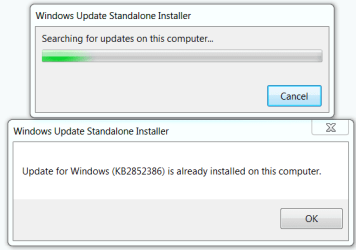
1. If you have not already, you will need to download and install the update from Windows Update or from the Microsoft Download Center links below.
32 Bit:
Download
64 Bit:
Download
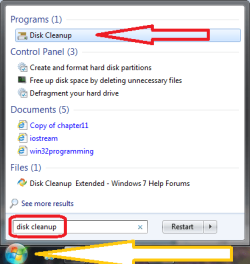
2. Open Disk Cleanup.
Note
You need to run Disk Cleanup as Administrator or select "Clean up system files" in Disk Cleanup.
3. Tick the "Windows Update Cleanup" box.

4. Select OK.
5. Reboot your computer, so the changes will be applied.
That's it! You can run this every time you need to clean up old Windows Update files. Post down below if you have any questions or comments!
Related Tutorials
Last edited by a moderator: