Windows Virtual PC - Create Virtual Machine

How to Create a Virtual Machine in Windows Virtual PC

   Information
This will show you how to create a new virtual machine in Windows Virtual PC, and install the 32-bit guest operating system that you want to run in the virtual machine on your 32-bit or 64-bit Windows 7 as the host.


   Note
Windows Virtual PC is the latest Microsoft virtualization technology for Windows 7. It is the runtime engine for Windows XP Mode to provide a virtual Windows environment for Windows 7. With Windows Virtual PC, Windows XP mode applications can be seen and accessed from a Windows 7-based PC.

You will need to download and install the 32-bit (x86) or 64-bit (x64) version of Windows Virtual PC for your 32-bit or 64-bit Windows 7.


   Warning
Windows Virtual PC: Minimum Requirements
  • 1 GHz 32-bit / 64-bit processor that supports Intel® Virtualization Technology or AMD Virtualization.
  • Memory (RAM)
    • 1.25 GB required, 2 GB memory recommended
  • Recommended 15 GB hard disk space per virtual Windows environment
  • Supported host (your computer) operating systems:
    • Windows 7 Home Premium (32-bit or 64-bit)
    • Windows 7 Professional (32-bit or 64-bit)
    • Windows 7 Ultimate (32-bit or 64-bit)
    • Windows 7 Enterprise (32-bit or 64-bit)
      NOTE: Windows XP Mode can only be installed on Windows 7 Professional, Windows 7 Ultimate, and Windows 7 Enterprise.
  • Supported "guest" (virtual machine) 32-bit only operating systems:
    • Windows XP 32-bit only
      • Virtual Applications feature is supported only on Windows XP Service Pack 3 (SP3) Professional
    • Windows Vista 32-bit only
      • Virtual Applications feature is supported only on Windows Vista Enterprise and Windows Vista Ultimate
    • Windows 7 32-bit only
      • Virtual Applications feature is supported only on Windows 7 Enterprise and Windows 7 Ultimate


EXAMPLE: Create Virtual Machine
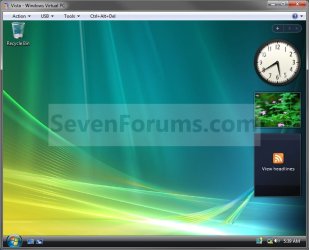
NOTE: For example, create a Vista virtual machine.Example.jpg
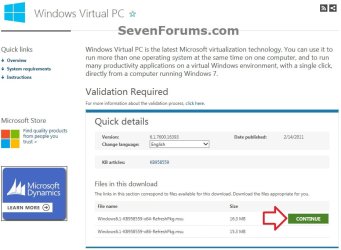
Here's How:1. If you have not already, then you will need to first download and install Windows Virtual PC. If you did, then go to step 2 below.A) At the Windows Virtual PC webpage, select your language, and click on the Continue button. (see screenshot below)Windows_Virtual-PC-1.jpg
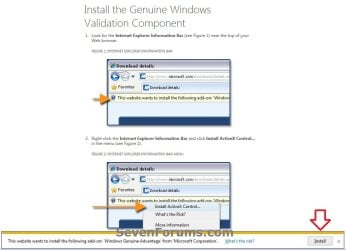
B) If you have not already, you will need to validate your Windows 7 first. Click on Install to install the Genuine Windows Validation Component, or follow on screen instructions. (see screenshot below)
NOTE: You will need to have Windows 7 activated and cookies enabled to be able to do this.Validate-1.jpg
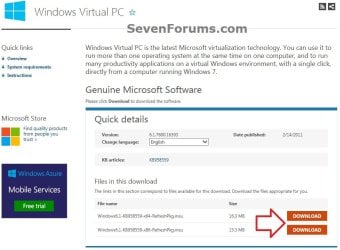
C) Select your language, and click on the Download button for either the Windows6.1-KB958559-x86-RefreshPkg.msu (32-bit) or Windows6.1-KB958559-x64-RefreshPkg.msu (64-bit) file for your same 32-bit or 64-bit Windows 7 version you have installed.Windows_Virtual-PC-2.jpg
D) Save the Windows6.1-KB958559-x86-RefreshPkg.msu or Windows6.1-KB958559-x64-RefreshPkg.msu file to your desktop.

E) Double click on the downloaded Windows6.1-KB958559-x86-RefreshPkg.msu or Windows6.1-KB958559-x64-RefreshPkg.msu file to start installing it.

F) If prompted by UAC, click on Yes.

G) Click on Yes.

H) Click on the I Accept button.

I) When it is finished, click on the Restart Now button.
WARNING: This will restart your computer immediately. Be sure to save and close anything that you have open first.

J) When the computer is finished restarting, continue on to step 2 below.
2. Do step 3 or 4 below for what you would like to do.

3. Open the Start Menu, type vpcwizard.exe in the search box, press Enter, and go to step 5 below.
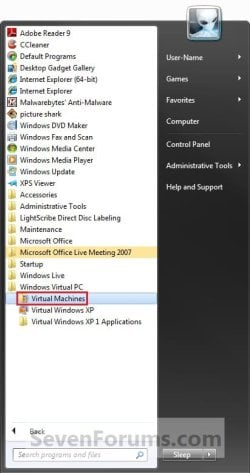
4. Open the Start Menu. Click on All Programs, expand Windows Virtual PC folder, double click on the Virtual Machines shortcut, and go to step 5 below. (See screenshot below)
NOTE: You can also open the Virtual Machines folder at C:\Users\(User Name)\Virtual Machines.Step1.jpg
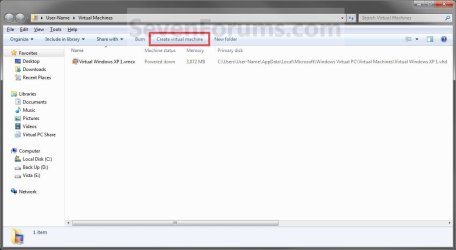
5. Click on the Create Virtual Machine button on the toolbar. (See screenshot below)Step2.jpg
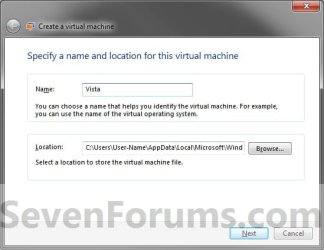
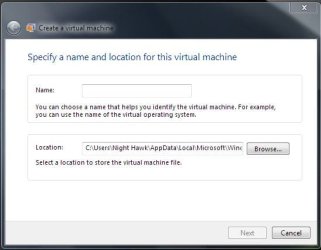
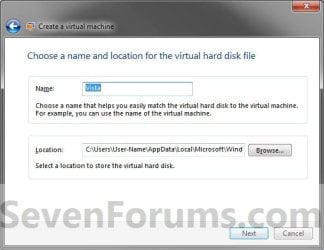
6. Type in a name (ex: Vista) you want for the new virtual machine, then select a location where you want the .vmcx and .vhd files saved at. Click on the Next button. (See screenshot below)
NOTE: You can save them anywhere you like, but the default location is the hidden
C:\Users\(user name)\AppData\Local\Microsoft\Windows Virtual PC\Virtual Machines
folder or the C:\Users\(user name)\Virtual Machines folder
.Step3.jpg
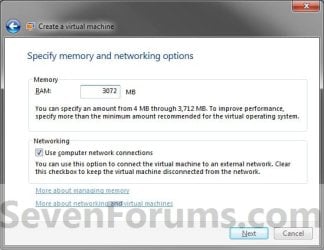
7. Enter how much of your RAM (1 GB = 1024 MB) you want to be used by the virtual machine. (See screenshot below)Step4.jpg
8. Check the Use computer on network connections box if you would like the virtual machine to have network or internet access, then click on the Next button. (See screenshot above)
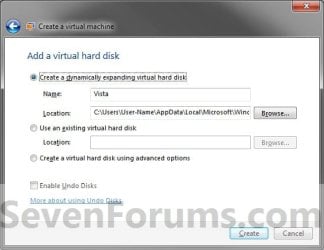
9. To Create a Dynamically Expanding VHD
NOTE: This is the usual default option.A) Select (dot) Create a dynamically expanding virtual hard disk. (See screenshot below)Step5.jpg
B) Verify that the name and location is correct (from step 5), then click on the Create button. (See screenshot above)

C) Go to step 12.
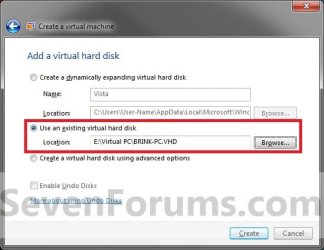
10. To Use an Existing VHD FileA) Select (dot) Use an existing virtual hard disk. (See screenshot below)VHD.jpg
B) Click on the Browse button and navigate to and select the VHD file that you want to use to create a virtual machine (VM) with, then click on the Create button. (See screenshot above)
WARNING: Windows Virtual PC only supports using a VHD up to 127 GB (130,048 MB) for a dynamic VHD, and up to 41 GB (42,023) for a fixed VHD. Any larger and you will not be able access the VM from within Windows Virtual PC.

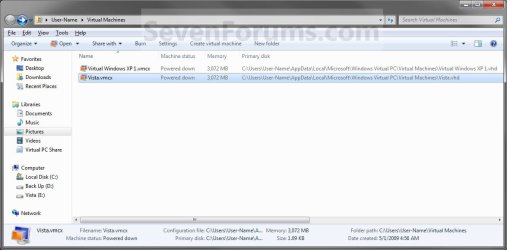
C) Right click on this new virtual machine (Ex: Vista.vmcx file), and click on Open. (See screenshot below)Step7.jpg
D) Go to step 17.
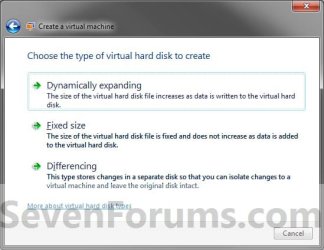
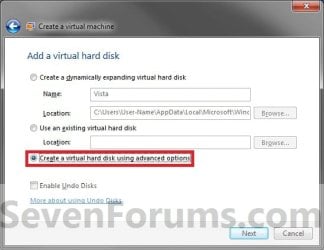
11. To Create a VHD with Advanced OptionsA) Select (dot) Create a virtual hard disk using advanced options, then click on the Next button. (See screenshot below)Step5A.jpg
B) Select the type of VHD to create. (See screenshot below)Step6.jpg
C) Verify that the name and location is correct (from step 5), then click on the Next button. (See screenshot above)Step6A.jpg
12. Right click on this new virtual machine (Ex: Vista.vmcx file), and click on Settings.Step7.jpg
13. To Use a ISO File to Create the Virtual Machine FromA) In the left pane select DVD Drive, then select (dot) Open an ISO image in the right pane. (See screenshot below)Step8.jpg
B) Click on the Browse button and navigate to the location of the .ISO file of the operating system (ex: Vista) that you want to install in the VM, then select the ISO file and double click on it. Click on OK. (See screenshot above)
NOTE: If you do not have a ISO file of the operating system, then you can use a free program like ImgBurn to create a ISO file from the operating system's installation DVD.

C) Go to step 15.
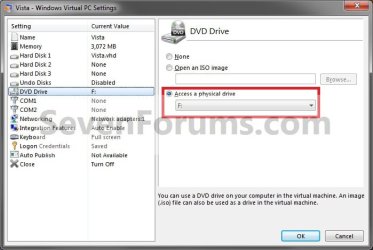
14. To Use a DVD or Bootable USB to Create the Virtual Machine FromA) In the left pane select DVD Drive, select (dot) Access a physical drive in the right pane, then select the drive letter of the installation DVD or bootable USB. (See screenshot below step 13A)
15. Right click on this new virtual machine (Ex: Vista.vmcx file), and click on Open.Step7.jpg
16. Install the OS (Ex: Vista) in the virtual machine.
WARNING: Be sure to give the user account a password. Blank passwords are not supported, and can cause you to have problems with logging on to the VM. If you did leave the password field blank, then you should get a option after trying to log on without a password to continue to login without the password for now. You can then create a password for the user account in the VM.

17. To Install Integration ComponentsA) For how, see: http://www.sevenforums.com/tutorial...egration-features-install-enable-disable.html
18. Close or shutdown the new virtual machine.
NOTE: See yellow TIP box below for how to close the virtual machine.

19. Open the Windows 7 Start Menu in your computer (host).

20. Click on All Programs, expand Windows Virtual PC folder, then right click on this new virtual machine (Ex: Vista.vmcx file), and click on Settings.Step7.jpg
21. In the left pane select DVD Drive, then select (dot) Access a physical drive in the right pane. Select the DVD drive letter from the drop down menu that you would like to use in the virtual machine, and click on OK. (See screenshot below)
NOTE: If you do not want to use a DVD drive in the virtual machine, then select (dot) None instead.Drive.jpg
22. You now have a newly created virtual machine.


   Tip

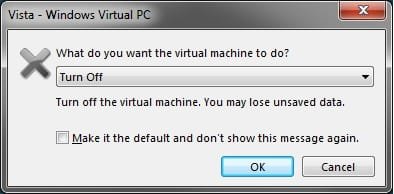
  • You can close the virtual machine by shutting down the virtual machine from the Start menu inside the virtual machine, or by clicking on the close X at the top right corner of the virtual machine window. Afterwards, select the Turn Off option and click on OK. (See screenshot beow)
Close.jpg

  • You can open the virtual maching by opening the Start Menu, click on All Programs, expand Windows Virtual PC folder, and double click on the virtual maching shortcut.

That's it,
Shawn


Last edited:
Will the RTM version support 64-bit guests? Or does Windows Virtual PC not support this? (Like VPC 2007)

Hello the KingNL, and welcome to Seven Forums. :)

Windows Virtual PC does not support 64-bit guests, only 32-bit ones for now. I would not expect the RTM to either. Maybe in the future, but time will tell I suppose. :(

This is what I get when I attempt to create a virtual machine with any 64-bit OS.

NO_64-bit_Support.jpg
 

My Computer

Computer type
PC/Desktop
Computer Manufacturer/Model Number
Self built custom
OS
64-bit Windows 11 Pro for Workstations
CPU
Intel i7-8700K OC'd to 5 GHz
Motherboard
ASUS ROG Maximus XI Formula Z390
Memory
64 GB (4x16GB) G.SKILL TridentZ RGB DDR4 3600 MHz
Graphics Card(s)
ASUS ROG-STRIX-GTX1080TI-O11G-GAMING
Sound Card
Integrated
Monitor(s) Displays
2 x Samsung Odyssey G7 27"
Screen Resolution
2560x1440
Hard Drives
1TB Samsung 990 PRO M.2,
4TB Samsung 990 PRO PRO M.2,
TerraMaster F8 SSD Plus NAS
PSU
Seasonic Prime Titanium 850W
Case
Thermaltake Core P3
Cooling
Corsair Hydro H115i
Keyboard
Logitech wireless K800
Mouse
Logitech MX Master 4
Internet Speed
2 Gb/s Download and 100 Mb/s Upload
Antivirus
Malwarebyte Anti-Malware Premium
Browser
Google Chrome
Other Info
Logitech Z625 speaker system,
Logitech BRIO 4K Pro webcam,
HP Color LaserJet Pro MFP M477fdn,
APC SMART-UPS RT 1000 XL - SURT1000XLI,
Galaxy S23 Plus phone
One other question: when I resize the Virtual PC window with the VM it seems to login again. It prompts me for the credentials again. This is somewhat anoying.. :-)

So, when I go to full screen or when I just increase the size of the window a little bit. I have only tested this with XPM, it might not be the case with another OS in Virtual PC Beta.

Have you guys got the same?
 

My Computer

OS
Windows 7 - 7100 - x64
See if restarting the computer may help with that. After I had restarted, my Vista VM had changed the way it shutdown to what is in the tutorial now.
 

My Computer

Computer type
PC/Desktop
Computer Manufacturer/Model Number
Self built custom
OS
64-bit Windows 11 Pro for Workstations
CPU
Intel i7-8700K OC'd to 5 GHz
Motherboard
ASUS ROG Maximus XI Formula Z390
Memory
64 GB (4x16GB) G.SKILL TridentZ RGB DDR4 3600 MHz
Graphics Card(s)
ASUS ROG-STRIX-GTX1080TI-O11G-GAMING
Sound Card
Integrated
Monitor(s) Displays
2 x Samsung Odyssey G7 27"
Screen Resolution
2560x1440
Hard Drives
1TB Samsung 990 PRO M.2,
4TB Samsung 990 PRO PRO M.2,
TerraMaster F8 SSD Plus NAS
PSU
Seasonic Prime Titanium 850W
Case
Thermaltake Core P3
Cooling
Corsair Hydro H115i
Keyboard
Logitech wireless K800
Mouse
Logitech MX Master 4
Internet Speed
2 Gb/s Download and 100 Mb/s Upload
Antivirus
Malwarebyte Anti-Malware Premium
Browser
Google Chrome
Other Info
Logitech Z625 speaker system,
Logitech BRIO 4K Pro webcam,
HP Color LaserJet Pro MFP M477fdn,
APC SMART-UPS RT 1000 XL - SURT1000XLI,
Galaxy S23 Plus phone
See if restarting the computer may help with that. After I had restarted, my Vista VM had changed the way it shutdown to what is in the tutorial now.

I have rebooted the XPM more then once and it does not seem to change this behaviour. I will create another VM from scratch and see what happens. Maybe it's only tied to this XPM version of Windows XP.

It's also annoying that there's no shutdown option in the start menu of the VM.
 

My Computer

OS
Windows 7 - 7100 - x64
Is it possible to run a virtual machine created with VPC 2007 in this new beta? The vmc file extension is not associated with the new version and I can't find any other way to try to open it aside from changing the file extension to vmcx. When I do that and double-click the file, it says:

"Could not register the virtual machine. The virtual machine could not be registered because the configuration file does not exist. You should create a new configuration file for the virtual machine."

The new VPC beta forced me to uninstall VPC 2007 so why would it take away the ability to open VMs created with VPC 2007?
 

My Computer

OS
Windows 7 RC
Hello Throwman, and welcome to Seven Forums.

I have not tested it yet, but you should be able to use any VHD file. When you get to step 6 of this tutorial, select (dot) Use an existing virtual hard disk instead and browse to and select the VHD file.

Hope this helps,
Shawn
 

My Computer

Computer type
PC/Desktop
Computer Manufacturer/Model Number
Self built custom
OS
64-bit Windows 11 Pro for Workstations
CPU
Intel i7-8700K OC'd to 5 GHz
Motherboard
ASUS ROG Maximus XI Formula Z390
Memory
64 GB (4x16GB) G.SKILL TridentZ RGB DDR4 3600 MHz
Graphics Card(s)
ASUS ROG-STRIX-GTX1080TI-O11G-GAMING
Sound Card
Integrated
Monitor(s) Displays
2 x Samsung Odyssey G7 27"
Screen Resolution
2560x1440
Hard Drives
1TB Samsung 990 PRO M.2,
4TB Samsung 990 PRO PRO M.2,
TerraMaster F8 SSD Plus NAS
PSU
Seasonic Prime Titanium 850W
Case
Thermaltake Core P3
Cooling
Corsair Hydro H115i
Keyboard
Logitech wireless K800
Mouse
Logitech MX Master 4
Internet Speed
2 Gb/s Download and 100 Mb/s Upload
Antivirus
Malwarebyte Anti-Malware Premium
Browser
Google Chrome
Other Info
Logitech Z625 speaker system,
Logitech BRIO 4K Pro webcam,
HP Color LaserJet Pro MFP M477fdn,
APC SMART-UPS RT 1000 XL - SURT1000XLI,
Galaxy S23 Plus phone
Thanks Brink, that did the trick. Much appreciated!
 

My Computer

OS
Windows 7 RC
You're welcome Throwman. :)
 

My Computer

Computer type
PC/Desktop
Computer Manufacturer/Model Number
Self built custom
OS
64-bit Windows 11 Pro for Workstations
CPU
Intel i7-8700K OC'd to 5 GHz
Motherboard
ASUS ROG Maximus XI Formula Z390
Memory
64 GB (4x16GB) G.SKILL TridentZ RGB DDR4 3600 MHz
Graphics Card(s)
ASUS ROG-STRIX-GTX1080TI-O11G-GAMING
Sound Card
Integrated
Monitor(s) Displays
2 x Samsung Odyssey G7 27"
Screen Resolution
2560x1440
Hard Drives
1TB Samsung 990 PRO M.2,
4TB Samsung 990 PRO PRO M.2,
TerraMaster F8 SSD Plus NAS
PSU
Seasonic Prime Titanium 850W
Case
Thermaltake Core P3
Cooling
Corsair Hydro H115i
Keyboard
Logitech wireless K800
Mouse
Logitech MX Master 4
Internet Speed
2 Gb/s Download and 100 Mb/s Upload
Antivirus
Malwarebyte Anti-Malware Premium
Browser
Google Chrome
Other Info
Logitech Z625 speaker system,
Logitech BRIO 4K Pro webcam,
HP Color LaserJet Pro MFP M477fdn,
APC SMART-UPS RT 1000 XL - SURT1000XLI,
Galaxy S23 Plus phone
i cant find the vpcwizard :/ idk what build im running i disabled the water mark and cant remember how to check
 

My Computer

OS
Ubuntu 9.10 and Seven Ultimate OEM 32 bit
CPU
AMD Athlon 64 x2 Mobile
Memory
2gb (2x1024) DDR2
Graphics Card(s)
HD Radeon 1270 integrated.
Sound Card
integrated.
Monitor(s) Displays
15" laptop display and 15" external monitor
Screen Resolution
1280x768
Hard Drives
120gb WD 2.5 internal
1tb WD external.
Cooling
Fan
i cant find the vpcwizard :/ idk what build im running i disabled the water mark and cant remember how to check
that usually means that the update wasnt succefull...
if you check here
%windir%\system32\vpcwizard.exe
if you type this in the the start menu and still dont see anything, try to install the VPC beta again...
 

My Computer

Computer Manufacturer/Model Number
Tx2500z Tablet Pc/Homemade Server
OS
Windows 7 Ult x64(x2), HomePrem x32(x4), Server 08 (+VM), 08 R2 (VM) , SuSe 11.2 (VM), XP 32 (VM)
CPU
Turion X2 ultra (oh well came with laptop)/P4 @3.2 (yes P4)
Motherboard
IDK HP Motherboard / Intel DG965SS
Memory
OCZ Dual Channel 4GB kit/ 1gb Dual Channel
Graphics Card(s)
HD 3200 graphics /GMA x3100 (yay for intergrated!!)
Sound Card
Realtek HD Audio(mic working, well sort of)/Siig IC-70012
Monitor(s) Displays
built-in Hp 12" laptop screen/ Acer 19"
Screen Resolution
1280x800 /1440x900
Cooling
All Air Cooled
Mouse
Logi MX Rev. /MS Wheel Optical 1.1A /Logitech Optical Mouse
Internet Speed
College baby but its still routed through vpn to 1536k...
Other Info
love my wacom pen and pressure sensitivity...
wished it worked in 7, SUSE for that matter though
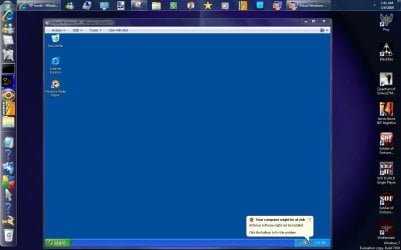
When you type in the command darkassain points out there you should immediately see the initial prompt appear like this. Once the XP mode is up and running you then see the second image shown here.
 

Attachments

  • VPC PROMPT.jpg
    VPC PROMPT.jpg
    32 KB · Views: 574
  • V PC READY.jpg
    V PC READY.jpg
    84 KB · Views: 389

My Computers

System One System Two

  • Computer type
    PC/Desktop
    Computer Manufacturer/Model Number
    Custom builds = 2
    OS
    W7 Ultimate x64/W10 Pro x64/W11 Pro Triple Boot - Main PC W7 Remote PC Micro ATX W7 Pro x64/W11 Pro
    CPU
    AMD Phenom II X4 975 Deneb 3.6ghz - 965 2nd remote pc
    Motherboard
    Gigabyte GA-790XTA-UD4-Gigabyte GA-880GM-D2H remote pc
    Memory
    Kingston Hyper X DDR3 1600 1.5v 16gb - Hyper X Fury 8gb 2nd
    Graphics Card(s)
    MSI HD Radeon 5750 1gb - MSI HD Radeon 6450 on mini tower
    Sound Card
    Creative Labs X-Fi Xtreme Audio P - Realtek onooard 2nd case
    Monitor(s) Displays
    ASUS VW199T-P 19" HP 2082a Main-HP 2082a 20" remote pc
    Screen Resolution
    Asus 1440x900 - HP 1600x900
    Hard Drives
    WD Black 1TB HD per OS W7, W10, and pending W11 presently on 500gb OS Drive - Pending Triple 1TB HDs for Spanned Storage/backup volume
    Single 2TB external USB enclosure, single 1TB System 7 Host/Boot drive, Pending 8TB external HD for system image b
    PSU
    Corsair 750TX - primary / Corsair CX600 - second
    Case
    Antec 900-2 - SSD compatible / NZXT Vulcan mini tower
    Cooling
    Zalman CNPS9900A
    Keyboard
    AZIO L70 Backlit Letters Gaming - ONN Cordless/USB
    Mouse
    MSI DS200 Programmable, Logitech Cordless
    Internet Speed
    30mbps upgrade - primary hard wired - mini tower usb WiFi
    Antivirus
    GFI VIPRE Internet Security 2014 on W7 2016 beta on W10,
    Browser
    Cyberfox, WaterFox 64bit FF variants, FireFox x64, Pale Moon
    Other Info
    Accomdata fan cooled usb 2.0 PIDE/Sata II, III external enclosure.
    Sambient usb/eSata PATA/Sata II, III external enclosure.
  • Computer type
    PC/Desktop
    System Manufacturer/Model Number
    CUSTOM ASSEMBLY
    OS
    W7 Pro x64/W11 Pro
    CPU
    AMD Deneb 3.6ghz - 965
    Motherboard
    Gigabyte GA-880GM-D2H remote pc
    Memory
    Kingston Hyper X Fury 8gb
    Graphics Card(s)
    MSI HD Radeon 6450 DVI Output
    Sound Card
    Realtek onooard Creative or Other separate PENDING
    Monitor(s) Displays
    VIZIO 32" LCD TV Separate LCD Pending
    Screen Resolution
    1600x1080
    Hard Drives
    WD 500GB OS Host/Boot WD Green 1TB Storage/Backup
    PSU
    Corsair 600W - THERMALTAKE 600W spare case
    Case
    NZXT Vulcan mini tower
    Cooling
    Twin 120mm Top Fans - 240mm Side Cover
    Keyboard
    ONN Cordless/USB Logitech Cordless
    Mouse
    ONN USB/Cordless - Logitech Cordless
    Internet Speed
    DSL 5G
    Browser
    MS Edge, FireFox, WaterFox x64, FireFox Nightly
    Other Info
    OS Testing-Remote Access to Main TeamViewer
i cant find the vpcwizard :/ idk what build im running i disabled the water mark and cant remember how to check

Hello Riley,

Have you already installed Windows Virtual PC and descibed in the NOTE box at the top of the tutorial?
 

My Computer

Computer type
PC/Desktop
Computer Manufacturer/Model Number
Self built custom
OS
64-bit Windows 11 Pro for Workstations
CPU
Intel i7-8700K OC'd to 5 GHz
Motherboard
ASUS ROG Maximus XI Formula Z390
Memory
64 GB (4x16GB) G.SKILL TridentZ RGB DDR4 3600 MHz
Graphics Card(s)
ASUS ROG-STRIX-GTX1080TI-O11G-GAMING
Sound Card
Integrated
Monitor(s) Displays
2 x Samsung Odyssey G7 27"
Screen Resolution
2560x1440
Hard Drives
1TB Samsung 990 PRO M.2,
4TB Samsung 990 PRO PRO M.2,
TerraMaster F8 SSD Plus NAS
PSU
Seasonic Prime Titanium 850W
Case
Thermaltake Core P3
Cooling
Corsair Hydro H115i
Keyboard
Logitech wireless K800
Mouse
Logitech MX Master 4
Internet Speed
2 Gb/s Download and 100 Mb/s Upload
Antivirus
Malwarebyte Anti-Malware Premium
Browser
Google Chrome
Other Info
Logitech Z625 speaker system,
Logitech BRIO 4K Pro webcam,
HP Color LaserJet Pro MFP M477fdn,
APC SMART-UPS RT 1000 XL - SURT1000XLI,
Galaxy S23 Plus phone
Is it possible to use my vintage xp install disc as it is when using VPC 2007?
 
Last edited:

My Computer

Computer Manufacturer/Model Number
hp pavillion e9180f
OS
vista home premium sp1
Hello Brian, and welcome to Seven Forums.

Yes, but you will be best to create a ISO file of the XP install disc using a program like Ultra ISO first, then you can can use that ISO to create a VM in VPC.

Hope this helps,
Shawn
 
Last edited:

My Computer

Computer type
PC/Desktop
Computer Manufacturer/Model Number
Self built custom
OS
64-bit Windows 11 Pro for Workstations
CPU
Intel i7-8700K OC'd to 5 GHz
Motherboard
ASUS ROG Maximus XI Formula Z390
Memory
64 GB (4x16GB) G.SKILL TridentZ RGB DDR4 3600 MHz
Graphics Card(s)
ASUS ROG-STRIX-GTX1080TI-O11G-GAMING
Sound Card
Integrated
Monitor(s) Displays
2 x Samsung Odyssey G7 27"
Screen Resolution
2560x1440
Hard Drives
1TB Samsung 990 PRO M.2,
4TB Samsung 990 PRO PRO M.2,
TerraMaster F8 SSD Plus NAS
PSU
Seasonic Prime Titanium 850W
Case
Thermaltake Core P3
Cooling
Corsair Hydro H115i
Keyboard
Logitech wireless K800
Mouse
Logitech MX Master 4
Internet Speed
2 Gb/s Download and 100 Mb/s Upload
Antivirus
Malwarebyte Anti-Malware Premium
Browser
Google Chrome
Other Info
Logitech Z625 speaker system,
Logitech BRIO 4K Pro webcam,
HP Color LaserJet Pro MFP M477fdn,
APC SMART-UPS RT 1000 XL - SURT1000XLI,
Galaxy S23 Plus phone
It's a fair while since I used VPC2007, but, if I remember correctly, I installed Win98SE on there straight from the installation disk.
 

My Computer

Computer type
PC/Desktop
Computer Manufacturer/Model Number
Dwarf Dwf/11/2012 r09/2013
OS
Windows 8.1 Pro RTM x64
CPU
Intel Core-i5-3570K 4-core @ 3.4GHz (Ivy Bridge) (OC 4.4GHz)
Motherboard
ASRock Z77 Extreme4-M
Memory
4 x 4GB DDR3-1600 Corsair Vengeance CMZ8GX3M2A1600C9B (16GB)
Graphics Card(s)
MSI GeForce GTX770 Gaming OC 2GB
Sound Card
Realtek High Definition on board solution (ALC 898)
Monitor(s) Displays
ViewSonic VA1912w Widescreen (VGA)
Screen Resolution
1440x900
Hard Drives
OCZ Agility 3 SSD 120GB SATA III x2 (RAID 0)
Samsung HD501LJ 500GB SATA II x2
Hitachi HDS721010CLA332 1TB SATA II
Iomega 1.5TB Ext USB 2.0
WD 2.0TB Ext USB 3.0
PSU
XFX Pro Series 850W Semi-Modular
Case
Gigabyte IF233
Cooling
1 x 120mm Front Inlet 1 x 120mm Rear Exhaust
Keyboard
Microsoft Comfort Curve Keyboard 3000 (USB)
Mouse
Microsoft Comfort Mouse 3000 for Business (USB)
Internet Speed
NetGear DG834Gv3 ADSL Modem/Router (Ethernet) ~4.0 Mb/s (O2)
Antivirus
Avast! 8.0.1497
Browser
IE 11
Other Info
Optical Drive: HL-DT-ST BD-RE BH10LS30 SATA Bluray
Lexmark S305 Printer/Scanner/Copier (USB)
WEI Score: 8.1/8.1/8.5/8.5/8.25
Asus Eee PC 1011PX Netbook (Windows 7 x86 Starter)
Vista and later the 7 upgrade by custom install on the vhd was from dvd. When already having the vhd created for a custom installation like this you start the VPC with the intended bootable disk in the drive to see that start loading instead of the XP mode if on.

Live cds for GParted as well as live distros will boot this way just as if you were booting from the optical drive while still being in Windows. 98 would be a bit touchy there however due to the 512mb memory limitation for seeing a direct install. For that an iso might work better.
 

My Computers

System One System Two

  • Computer type
    PC/Desktop
    Computer Manufacturer/Model Number
    Custom builds = 2
    OS
    W7 Ultimate x64/W10 Pro x64/W11 Pro Triple Boot - Main PC W7 Remote PC Micro ATX W7 Pro x64/W11 Pro
    CPU
    AMD Phenom II X4 975 Deneb 3.6ghz - 965 2nd remote pc
    Motherboard
    Gigabyte GA-790XTA-UD4-Gigabyte GA-880GM-D2H remote pc
    Memory
    Kingston Hyper X DDR3 1600 1.5v 16gb - Hyper X Fury 8gb 2nd
    Graphics Card(s)
    MSI HD Radeon 5750 1gb - MSI HD Radeon 6450 on mini tower
    Sound Card
    Creative Labs X-Fi Xtreme Audio P - Realtek onooard 2nd case
    Monitor(s) Displays
    ASUS VW199T-P 19" HP 2082a Main-HP 2082a 20" remote pc
    Screen Resolution
    Asus 1440x900 - HP 1600x900
    Hard Drives
    WD Black 1TB HD per OS W7, W10, and pending W11 presently on 500gb OS Drive - Pending Triple 1TB HDs for Spanned Storage/backup volume
    Single 2TB external USB enclosure, single 1TB System 7 Host/Boot drive, Pending 8TB external HD for system image b
    PSU
    Corsair 750TX - primary / Corsair CX600 - second
    Case
    Antec 900-2 - SSD compatible / NZXT Vulcan mini tower
    Cooling
    Zalman CNPS9900A
    Keyboard
    AZIO L70 Backlit Letters Gaming - ONN Cordless/USB
    Mouse
    MSI DS200 Programmable, Logitech Cordless
    Internet Speed
    30mbps upgrade - primary hard wired - mini tower usb WiFi
    Antivirus
    GFI VIPRE Internet Security 2014 on W7 2016 beta on W10,
    Browser
    Cyberfox, WaterFox 64bit FF variants, FireFox x64, Pale Moon
    Other Info
    Accomdata fan cooled usb 2.0 PIDE/Sata II, III external enclosure.
    Sambient usb/eSata PATA/Sata II, III external enclosure.
  • Computer type
    PC/Desktop
    System Manufacturer/Model Number
    CUSTOM ASSEMBLY
    OS
    W7 Pro x64/W11 Pro
    CPU
    AMD Deneb 3.6ghz - 965
    Motherboard
    Gigabyte GA-880GM-D2H remote pc
    Memory
    Kingston Hyper X Fury 8gb
    Graphics Card(s)
    MSI HD Radeon 6450 DVI Output
    Sound Card
    Realtek onooard Creative or Other separate PENDING
    Monitor(s) Displays
    VIZIO 32" LCD TV Separate LCD Pending
    Screen Resolution
    1600x1080
    Hard Drives
    WD 500GB OS Host/Boot WD Green 1TB Storage/Backup
    PSU
    Corsair 600W - THERMALTAKE 600W spare case
    Case
    NZXT Vulcan mini tower
    Cooling
    Twin 120mm Top Fans - 240mm Side Cover
    Keyboard
    ONN Cordless/USB Logitech Cordless
    Mouse
    ONN USB/Cordless - Logitech Cordless
    Internet Speed
    DSL 5G
    Browser
    MS Edge, FireFox, WaterFox x64, FireFox Nightly
    Other Info
    OS Testing-Remote Access to Main TeamViewer
XP Mode

hi, I've installed XP Mode, now I'm wondering what to do if I would like to install another VM, lets say with windows 2003 standard. Can't do it? Have to use Vmware client?
 

My Computer

OS
windows 7
Hello Alan, and welcome to Seven Forums.

Sorry, but yes you would have to use another VM program like Vmware if it supports Windows 2003 Standard (Server??). Windows Virtual PC only supports the guest (virtual machines) in the warning box at the of the tutorial. :(
 

My Computer

Computer type
PC/Desktop
Computer Manufacturer/Model Number
Self built custom
OS
64-bit Windows 11 Pro for Workstations
CPU
Intel i7-8700K OC'd to 5 GHz
Motherboard
ASUS ROG Maximus XI Formula Z390
Memory
64 GB (4x16GB) G.SKILL TridentZ RGB DDR4 3600 MHz
Graphics Card(s)
ASUS ROG-STRIX-GTX1080TI-O11G-GAMING
Sound Card
Integrated
Monitor(s) Displays
2 x Samsung Odyssey G7 27"
Screen Resolution
2560x1440
Hard Drives
1TB Samsung 990 PRO M.2,
4TB Samsung 990 PRO PRO M.2,
TerraMaster F8 SSD Plus NAS
PSU
Seasonic Prime Titanium 850W
Case
Thermaltake Core P3
Cooling
Corsair Hydro H115i
Keyboard
Logitech wireless K800
Mouse
Logitech MX Master 4
Internet Speed
2 Gb/s Download and 100 Mb/s Upload
Antivirus
Malwarebyte Anti-Malware Premium
Browser
Google Chrome
Other Info
Logitech Z625 speaker system,
Logitech BRIO 4K Pro webcam,
HP Color LaserJet Pro MFP M477fdn,
APC SMART-UPS RT 1000 XL - SURT1000XLI,
Galaxy S23 Plus phone
Hello alanmara Welcome to SF!

I have to agree with the caution there having been able to get the 32bit Vista and 32bit 7 Release Candidate running on the Virtual PC with a custom option of creating a new separate VHD(virtual hard disk) in order to custom install Windows on those. For previous versions VM ware and other programs can be run even at the same time the XP Mode is up provided you have the hardware resources like memory available.

VM ware, VM Player, and even the SUN Virtual Box are alternate wares for the older versions there.
 

My Computers

System One System Two

  • Computer type
    PC/Desktop
    Computer Manufacturer/Model Number
    Custom builds = 2
    OS
    W7 Ultimate x64/W10 Pro x64/W11 Pro Triple Boot - Main PC W7 Remote PC Micro ATX W7 Pro x64/W11 Pro
    CPU
    AMD Phenom II X4 975 Deneb 3.6ghz - 965 2nd remote pc
    Motherboard
    Gigabyte GA-790XTA-UD4-Gigabyte GA-880GM-D2H remote pc
    Memory
    Kingston Hyper X DDR3 1600 1.5v 16gb - Hyper X Fury 8gb 2nd
    Graphics Card(s)
    MSI HD Radeon 5750 1gb - MSI HD Radeon 6450 on mini tower
    Sound Card
    Creative Labs X-Fi Xtreme Audio P - Realtek onooard 2nd case
    Monitor(s) Displays
    ASUS VW199T-P 19" HP 2082a Main-HP 2082a 20" remote pc
    Screen Resolution
    Asus 1440x900 - HP 1600x900
    Hard Drives
    WD Black 1TB HD per OS W7, W10, and pending W11 presently on 500gb OS Drive - Pending Triple 1TB HDs for Spanned Storage/backup volume
    Single 2TB external USB enclosure, single 1TB System 7 Host/Boot drive, Pending 8TB external HD for system image b
    PSU
    Corsair 750TX - primary / Corsair CX600 - second
    Case
    Antec 900-2 - SSD compatible / NZXT Vulcan mini tower
    Cooling
    Zalman CNPS9900A
    Keyboard
    AZIO L70 Backlit Letters Gaming - ONN Cordless/USB
    Mouse
    MSI DS200 Programmable, Logitech Cordless
    Internet Speed
    30mbps upgrade - primary hard wired - mini tower usb WiFi
    Antivirus
    GFI VIPRE Internet Security 2014 on W7 2016 beta on W10,
    Browser
    Cyberfox, WaterFox 64bit FF variants, FireFox x64, Pale Moon
    Other Info
    Accomdata fan cooled usb 2.0 PIDE/Sata II, III external enclosure.
    Sambient usb/eSata PATA/Sata II, III external enclosure.
  • Computer type
    PC/Desktop
    System Manufacturer/Model Number
    CUSTOM ASSEMBLY
    OS
    W7 Pro x64/W11 Pro
    CPU
    AMD Deneb 3.6ghz - 965
    Motherboard
    Gigabyte GA-880GM-D2H remote pc
    Memory
    Kingston Hyper X Fury 8gb
    Graphics Card(s)
    MSI HD Radeon 6450 DVI Output
    Sound Card
    Realtek onooard Creative or Other separate PENDING
    Monitor(s) Displays
    VIZIO 32" LCD TV Separate LCD Pending
    Screen Resolution
    1600x1080
    Hard Drives
    WD 500GB OS Host/Boot WD Green 1TB Storage/Backup
    PSU
    Corsair 600W - THERMALTAKE 600W spare case
    Case
    NZXT Vulcan mini tower
    Cooling
    Twin 120mm Top Fans - 240mm Side Cover
    Keyboard
    ONN Cordless/USB Logitech Cordless
    Mouse
    ONN USB/Cordless - Logitech Cordless
    Internet Speed
    DSL 5G
    Browser
    MS Edge, FireFox, WaterFox x64, FireFox Nightly
    Other Info
    OS Testing-Remote Access to Main TeamViewer
Hey, nice tutorial,

I have a problem, right when I click on Create Virtual Machine,

wvpc.png


Any way to fix this?

It's a Toshiba A305 Laptop
Core2Duo 1.83GHz
4GB RAM
320GB HDD
Mobile Intel(R) 965 Express Chipset Family - VGA
Windows 7 Ultimate 64bit
 

My Computer

Computer Manufacturer/Model Number
Toshiba Satellite
OS
Windows 7 Ultimate 64bit
CPU
Intel(R) Core(TM)2 Duo - 1.83 GHz - 2MB Cach
Memory
4 GB DDR2-RAM
Graphics Card(s)
Mobile Intel(R) 965 Express Family Chipset
Screen Resolution
1280x800
Back
Top