Windows Virtual PC - Create Virtual Machine

How to Create a Virtual Machine in Windows Virtual PC

   Information
This will show you how to create a new virtual machine in Windows Virtual PC, and install the 32-bit guest operating system that you want to run in the virtual machine on your 32-bit or 64-bit Windows 7 as the host.


   Note
Windows Virtual PC is the latest Microsoft virtualization technology for Windows 7. It is the runtime engine for Windows XP Mode to provide a virtual Windows environment for Windows 7. With Windows Virtual PC, Windows XP mode applications can be seen and accessed from a Windows 7-based PC.

You will need to download and install the 32-bit (x86) or 64-bit (x64) version of Windows Virtual PC for your 32-bit or 64-bit Windows 7.


   Warning
Windows Virtual PC: Minimum Requirements
  • 1 GHz 32-bit / 64-bit processor that supports Intel® Virtualization Technology or AMD Virtualization.
  • Memory (RAM)
    • 1.25 GB required, 2 GB memory recommended
  • Recommended 15 GB hard disk space per virtual Windows environment
  • Supported host (your computer) operating systems:
    • Windows 7 Home Premium (32-bit or 64-bit)
    • Windows 7 Professional (32-bit or 64-bit)
    • Windows 7 Ultimate (32-bit or 64-bit)
    • Windows 7 Enterprise (32-bit or 64-bit)
      NOTE: Windows XP Mode can only be installed on Windows 7 Professional, Windows 7 Ultimate, and Windows 7 Enterprise.
  • Supported "guest" (virtual machine) 32-bit only operating systems:
    • Windows XP 32-bit only
      • Virtual Applications feature is supported only on Windows XP Service Pack 3 (SP3) Professional
    • Windows Vista 32-bit only
      • Virtual Applications feature is supported only on Windows Vista Enterprise and Windows Vista Ultimate
    • Windows 7 32-bit only
      • Virtual Applications feature is supported only on Windows 7 Enterprise and Windows 7 Ultimate


EXAMPLE: Create Virtual Machine
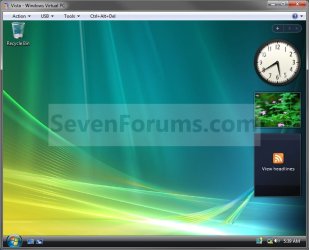
NOTE: For example, create a Vista virtual machine.Example.jpg
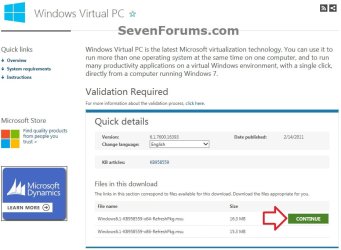
Here's How:1. If you have not already, then you will need to first download and install Windows Virtual PC. If you did, then go to step 2 below.A) At the Windows Virtual PC webpage, select your language, and click on the Continue button. (see screenshot below)Windows_Virtual-PC-1.jpg
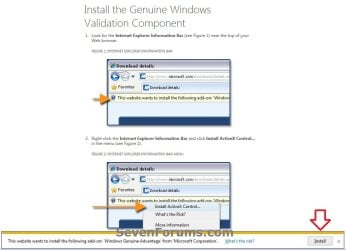
B) If you have not already, you will need to validate your Windows 7 first. Click on Install to install the Genuine Windows Validation Component, or follow on screen instructions. (see screenshot below)
NOTE: You will need to have Windows 7 activated and cookies enabled to be able to do this.Validate-1.jpg
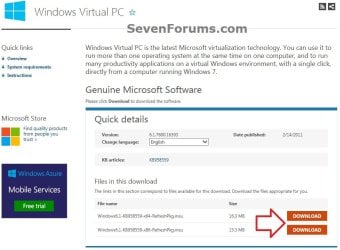
C) Select your language, and click on the Download button for either the Windows6.1-KB958559-x86-RefreshPkg.msu (32-bit) or Windows6.1-KB958559-x64-RefreshPkg.msu (64-bit) file for your same 32-bit or 64-bit Windows 7 version you have installed.Windows_Virtual-PC-2.jpg
D) Save the Windows6.1-KB958559-x86-RefreshPkg.msu or Windows6.1-KB958559-x64-RefreshPkg.msu file to your desktop.

E) Double click on the downloaded Windows6.1-KB958559-x86-RefreshPkg.msu or Windows6.1-KB958559-x64-RefreshPkg.msu file to start installing it.

F) If prompted by UAC, click on Yes.

G) Click on Yes.

H) Click on the I Accept button.

I) When it is finished, click on the Restart Now button.
WARNING: This will restart your computer immediately. Be sure to save and close anything that you have open first.

J) When the computer is finished restarting, continue on to step 2 below.
2. Do step 3 or 4 below for what you would like to do.

3. Open the Start Menu, type vpcwizard.exe in the search box, press Enter, and go to step 5 below.
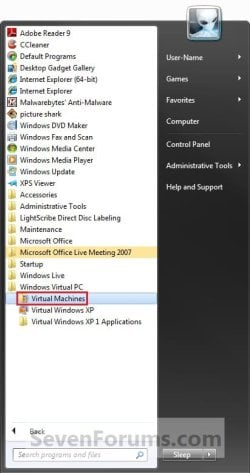
4. Open the Start Menu. Click on All Programs, expand Windows Virtual PC folder, double click on the Virtual Machines shortcut, and go to step 5 below. (See screenshot below)
NOTE: You can also open the Virtual Machines folder at C:\Users\(User Name)\Virtual Machines.Step1.jpg
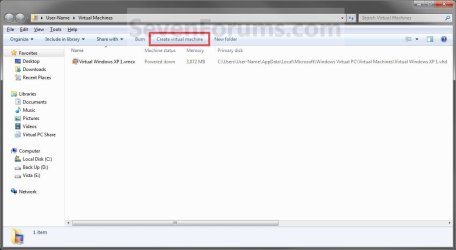
5. Click on the Create Virtual Machine button on the toolbar. (See screenshot below)Step2.jpg
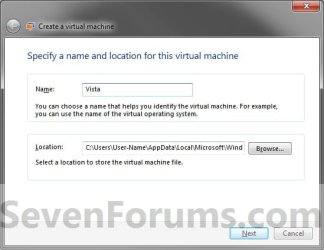
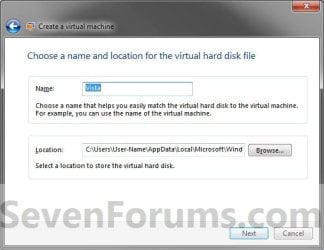
6. Type in a name (ex: Vista) you want for the new virtual machine, then select a location where you want the .vmcx and .vhd files saved at. Click on the Next button. (See screenshot below)
NOTE: You can save them anywhere you like, but the default location is the hidden
C:\Users\(user name)\AppData\Local\Microsoft\Windows Virtual PC\Virtual Machines
folder or the C:\Users\(user name)\Virtual Machines folder
.Step3.jpg
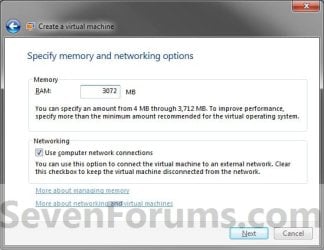
7. Enter how much of your RAM (1 GB = 1024 MB) you want to be used by the virtual machine. (See screenshot below)Step4.jpg
8. Check the Use computer on network connections box if you would like the virtual machine to have network or internet access, then click on the Next button. (See screenshot above)
9. To Create a Dynamically Expanding VHD
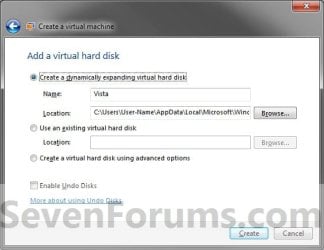
NOTE: This is the usual default option.A) Select (dot) Create a dynamically expanding virtual hard disk. (See screenshot below)Step5.jpg
B) Verify that the name and location is correct (from step 5), then click on the Create button. (See screenshot above)

C) Go to step 12.
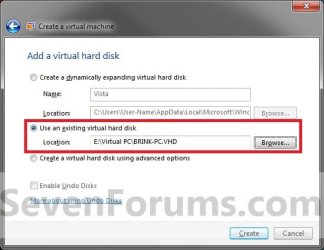
10. To Use an Existing VHD FileA) Select (dot) Use an existing virtual hard disk. (See screenshot below)VHD.jpg
B) Click on the Browse button and navigate to and select the VHD file that you want to use to create a virtual machine (VM) with, then click on the Create button. (See screenshot above)
WARNING: Windows Virtual PC only supports using a VHD up to 127 GB (130,048 MB) for a dynamic VHD, and up to 41 GB (42,023) for a fixed VHD. Any larger and you will not be able access the VM from within Windows Virtual PC.

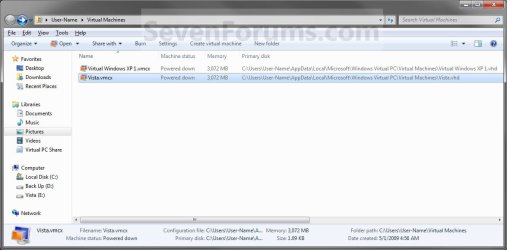
C) Right click on this new virtual machine (Ex: Vista.vmcx file), and click on Open. (See screenshot below)Step7.jpg
D) Go to step 17.
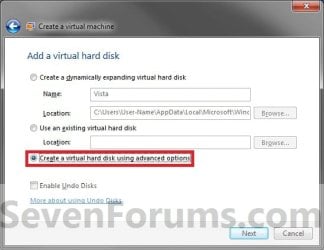
11. To Create a VHD with Advanced OptionsA) Select (dot) Create a virtual hard disk using advanced options, then click on the Next button. (See screenshot below)Step5A.jpg
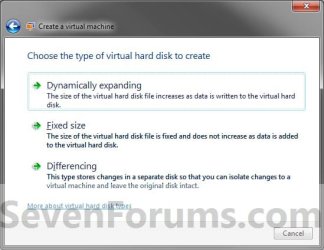
B) Select the type of VHD to create. (See screenshot below)Step6.jpg
C) Verify that the name and location is correct (from step 5), then click on the Next button. (See screenshot above)Step6A.jpg
12. Right click on this new virtual machine (Ex: Vista.vmcx file), and click on Settings.Step7.jpg
13. To Use a ISO File to Create the Virtual Machine FromA) In the left pane select DVD Drive, then select (dot) Open an ISO image in the right pane. (See screenshot below)Step8.jpg
B) Click on the Browse button and navigate to the location of the .ISO file of the operating system (ex: Vista) that you want to install in the VM, then select the ISO file and double click on it. Click on OK. (See screenshot above)
NOTE: If you do not have a ISO file of the operating system, then you can use a free program like ImgBurn to create a ISO file from the operating system's installation DVD.

C) Go to step 15.
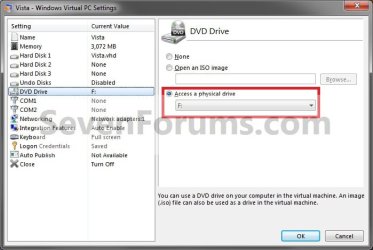
14. To Use a DVD or Bootable USB to Create the Virtual Machine FromA) In the left pane select DVD Drive, select (dot) Access a physical drive in the right pane, then select the drive letter of the installation DVD or bootable USB. (See screenshot below step 13A)
15. Right click on this new virtual machine (Ex: Vista.vmcx file), and click on Open.Step7.jpg
16. Install the OS (Ex: Vista) in the virtual machine.
WARNING: Be sure to give the user account a password. Blank passwords are not supported, and can cause you to have problems with logging on to the VM. If you did leave the password field blank, then you should get a option after trying to log on without a password to continue to login without the password for now. You can then create a password for the user account in the VM.

17. To Install Integration ComponentsA) For how, see: http://www.sevenforums.com/tutorial...egration-features-install-enable-disable.html
18. Close or shutdown the new virtual machine.
NOTE: See yellow TIP box below for how to close the virtual machine.

19. Open the Windows 7 Start Menu in your computer (host).

20. Click on All Programs, expand Windows Virtual PC folder, then right click on this new virtual machine (Ex: Vista.vmcx file), and click on Settings.Step7.jpg
21. In the left pane select DVD Drive, then select (dot) Access a physical drive in the right pane. Select the DVD drive letter from the drop down menu that you would like to use in the virtual machine, and click on OK. (See screenshot below)
NOTE: If you do not want to use a DVD drive in the virtual machine, then select (dot) None instead.Drive.jpg
22. You now have a newly created virtual machine.


   Tip

  • You can close the virtual machine by shutting down the virtual machine from the Start menu inside the virtual machine, or by clicking on the close X at the top right corner of the virtual machine window. Afterwards, select the Turn Off option and click on OK. (See screenshot beow)
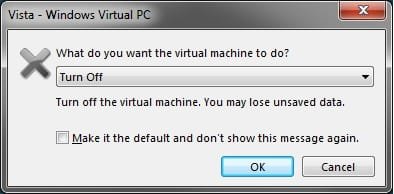
Close.jpg

  • You can open the virtual maching by opening the Start Menu, click on All Programs, expand Windows Virtual PC folder, and double click on the virtual maching shortcut.

That's it,
Shawn


Last edited:
I used both FF 23.01 and Chrome as admin. to download Windows Virtual PC and attempt the 1B step. The Virtual PC program has you download, install, and run GenuineCheck.exe. That produces the error:
Windows Genuine Advantage error This version of the Windows Genuine Advantage validation tool is no longer supported. Please download the newest version and ensure that your system clock is accurate
piracy technology....
If you then go to Google Search Results

1. Validate windows - Microsoft

Microsoft Home Page | Devices and Servicesgenuine/validate/
Genuine Microsoft Software
my windows 7 pro x64 is validated.
Finally, I checked and passed the special validation instructions for FF: save and then open.
Active X also is up-to-date and operational.
Has/Will MS update/correct the validation step 1B???
 

My Computer

Computer type
Laptop
Computer Manufacturer/Model Number
Hewlett-Packard HP Pavilion dv7 Notebook PC
OS
Windows 7 Professional (x64) Service Pack 1 (build 7601)
CPU
Intel Core i7-2670QM
Motherboard
Hewlett-Packard 1800 10.5A
Memory
8140 Megabytes
Graphics Card(s)
Intel(R) HD Graphics Family RadeonHD 7470M
Hard Drives
TOSHIBA MK1059GSMP [Hard drive] (1000.20 GB)
Antivirus
Kaspersky Pure 3
Browser
FF 22.01, Chrome, IE 9
Louis,

That's great news. The steps were designed for usage with Internet Explorer. Updates to the other browser may sometime not work properly with this until the validation tool is updated as well.
 

My Computer

Computer type
PC/Desktop
Computer Manufacturer/Model Number
Self built custom
OS
64-bit Windows 11 Pro for Workstations
CPU
Intel i7-8700K OC'd to 5 GHz
Motherboard
ASUS ROG Maximus XI Formula Z390
Memory
64 GB (4x16GB) G.SKILL TridentZ RGB DDR4 3600 MHz
Graphics Card(s)
ASUS ROG-STRIX-GTX1080TI-O11G-GAMING
Sound Card
Integrated
Monitor(s) Displays
2 x Samsung Odyssey G7 27"
Screen Resolution
2560x1440
Hard Drives
1TB Samsung 990 PRO M.2,
4TB Samsung 990 PRO PRO M.2,
TerraMaster F8 SSD Plus NAS
PSU
Seasonic Prime Titanium 850W
Case
Thermaltake Core P3
Cooling
Corsair Hydro H115i
Keyboard
Logitech wireless K800
Mouse
Logitech MX Master 4
Internet Speed
2 Gb/s Download and 100 Mb/s Upload
Antivirus
Malwarebyte Anti-Malware Premium
Browser
Google Chrome
Other Info
Logitech Z625 speaker system,
Logitech BRIO 4K Pro webcam,
HP Color LaserJet Pro MFP M477fdn,
APC SMART-UPS RT 1000 XL - SURT1000XLI,
Galaxy S23 Plus phone
Using IE, Genuine Advanyage worked and got download. Thanks!!
 

My Computer

Computer type
Laptop
Computer Manufacturer/Model Number
Hewlett-Packard HP Pavilion dv7 Notebook PC
OS
Windows 7 Professional (x64) Service Pack 1 (build 7601)
CPU
Intel Core i7-2670QM
Motherboard
Hewlett-Packard 1800 10.5A
Memory
8140 Megabytes
Graphics Card(s)
Intel(R) HD Graphics Family RadeonHD 7470M
Hard Drives
TOSHIBA MK1059GSMP [Hard drive] (1000.20 GB)
Antivirus
Kaspersky Pure 3
Browser
FF 22.01, Chrome, IE 9
Perfect. :)
 

My Computer

Computer type
PC/Desktop
Computer Manufacturer/Model Number
Self built custom
OS
64-bit Windows 11 Pro for Workstations
CPU
Intel i7-8700K OC'd to 5 GHz
Motherboard
ASUS ROG Maximus XI Formula Z390
Memory
64 GB (4x16GB) G.SKILL TridentZ RGB DDR4 3600 MHz
Graphics Card(s)
ASUS ROG-STRIX-GTX1080TI-O11G-GAMING
Sound Card
Integrated
Monitor(s) Displays
2 x Samsung Odyssey G7 27"
Screen Resolution
2560x1440
Hard Drives
1TB Samsung 990 PRO M.2,
4TB Samsung 990 PRO PRO M.2,
TerraMaster F8 SSD Plus NAS
PSU
Seasonic Prime Titanium 850W
Case
Thermaltake Core P3
Cooling
Corsair Hydro H115i
Keyboard
Logitech wireless K800
Mouse
Logitech MX Master 4
Internet Speed
2 Gb/s Download and 100 Mb/s Upload
Antivirus
Malwarebyte Anti-Malware Premium
Browser
Google Chrome
Other Info
Logitech Z625 speaker system,
Logitech BRIO 4K Pro webcam,
HP Color LaserJet Pro MFP M477fdn,
APC SMART-UPS RT 1000 XL - SURT1000XLI,
Galaxy S23 Plus phone
Once I set up my VM and have network connections enabled, will I need to treat it in the same manner as my main system in the sense that I need to install my security software on the VM or is the VM self contained much like a sandbox?
 

My Computer

Computer type
PC/Desktop
OS
Microsoft Windows 7 Professional 64-bit SP1
CPU
Intel(R) Core(TM) i5 CPU M 520 @ 2.40GHz
Motherboard
Dell Inc. 0K42JR
Memory
8.00 GB
Graphics Card(s)
NVIDIA NVS 3100M
Sound Card
(1) NVIDIA High Definition Audio (2) IDT High Definition A
Monitor(s) Displays
1
Screen Resolution
1440 x 900 x 32 bits (4294967296 colors) @ 59 Hz
Hard Drives
Samsung SSD 840 PRO Series ATA Device
Hey Berkey,

Yep, security would need to be treated like any other installed Windows. :)
 

My Computer

Computer type
PC/Desktop
Computer Manufacturer/Model Number
Self built custom
OS
64-bit Windows 11 Pro for Workstations
CPU
Intel i7-8700K OC'd to 5 GHz
Motherboard
ASUS ROG Maximus XI Formula Z390
Memory
64 GB (4x16GB) G.SKILL TridentZ RGB DDR4 3600 MHz
Graphics Card(s)
ASUS ROG-STRIX-GTX1080TI-O11G-GAMING
Sound Card
Integrated
Monitor(s) Displays
2 x Samsung Odyssey G7 27"
Screen Resolution
2560x1440
Hard Drives
1TB Samsung 990 PRO M.2,
4TB Samsung 990 PRO PRO M.2,
TerraMaster F8 SSD Plus NAS
PSU
Seasonic Prime Titanium 850W
Case
Thermaltake Core P3
Cooling
Corsair Hydro H115i
Keyboard
Logitech wireless K800
Mouse
Logitech MX Master 4
Internet Speed
2 Gb/s Download and 100 Mb/s Upload
Antivirus
Malwarebyte Anti-Malware Premium
Browser
Google Chrome
Other Info
Logitech Z625 speaker system,
Logitech BRIO 4K Pro webcam,
HP Color LaserJet Pro MFP M477fdn,
APC SMART-UPS RT 1000 XL - SURT1000XLI,
Galaxy S23 Plus phone
Hey Berkey,

Yep, security would need to be treated like any other installed Windows. :)

Cool beans will add them in the mix, thanks Shawn
 

My Computer

Computer type
PC/Desktop
OS
Microsoft Windows 7 Professional 64-bit SP1
CPU
Intel(R) Core(TM) i5 CPU M 520 @ 2.40GHz
Motherboard
Dell Inc. 0K42JR
Memory
8.00 GB
Graphics Card(s)
NVIDIA NVS 3100M
Sound Card
(1) NVIDIA High Definition Audio (2) IDT High Definition A
Monitor(s) Displays
1
Screen Resolution
1440 x 900 x 32 bits (4294967296 colors) @ 59 Hz
Hard Drives
Samsung SSD 840 PRO Series ATA Device
Anytime. :)
 

My Computer

Computer type
PC/Desktop
Computer Manufacturer/Model Number
Self built custom
OS
64-bit Windows 11 Pro for Workstations
CPU
Intel i7-8700K OC'd to 5 GHz
Motherboard
ASUS ROG Maximus XI Formula Z390
Memory
64 GB (4x16GB) G.SKILL TridentZ RGB DDR4 3600 MHz
Graphics Card(s)
ASUS ROG-STRIX-GTX1080TI-O11G-GAMING
Sound Card
Integrated
Monitor(s) Displays
2 x Samsung Odyssey G7 27"
Screen Resolution
2560x1440
Hard Drives
1TB Samsung 990 PRO M.2,
4TB Samsung 990 PRO PRO M.2,
TerraMaster F8 SSD Plus NAS
PSU
Seasonic Prime Titanium 850W
Case
Thermaltake Core P3
Cooling
Corsair Hydro H115i
Keyboard
Logitech wireless K800
Mouse
Logitech MX Master 4
Internet Speed
2 Gb/s Download and 100 Mb/s Upload
Antivirus
Malwarebyte Anti-Malware Premium
Browser
Google Chrome
Other Info
Logitech Z625 speaker system,
Logitech BRIO 4K Pro webcam,
HP Color LaserJet Pro MFP M477fdn,
APC SMART-UPS RT 1000 XL - SURT1000XLI,
Galaxy S23 Plus phone
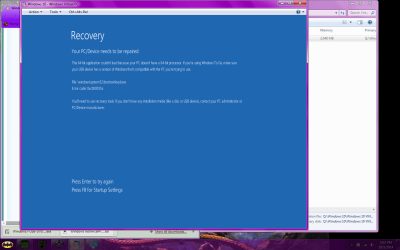
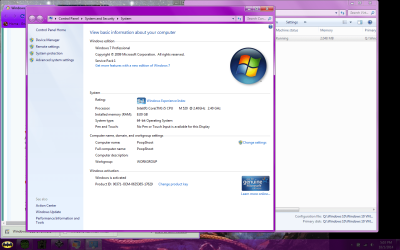
So I'm running into this problem you see in the attachment as I've been following the tutorial to make sure I set up the VM correctly and I'm not sure what the deal is, I clearly have a 64 bit processor as per the second pic. Any suggestions? I have not installed the tech preview update from the windows updater would that cause this as well?
 

Attachments

  • recover.png
    recover.png
    218.7 KB · Views: 178
  • specs.png
    specs.png
    338.8 KB · Views: 186

My Computer

Computer type
PC/Desktop
OS
Microsoft Windows 7 Professional 64-bit SP1
CPU
Intel(R) Core(TM) i5 CPU M 520 @ 2.40GHz
Motherboard
Dell Inc. 0K42JR
Memory
8.00 GB
Graphics Card(s)
NVIDIA NVS 3100M
Sound Card
(1) NVIDIA High Definition Audio (2) IDT High Definition A
Monitor(s) Displays
1
Screen Resolution
1440 x 900 x 32 bits (4294967296 colors) @ 59 Hz
Hard Drives
Samsung SSD 840 PRO Series ATA Device
Since it's a VM that's complaining about it not being 64-bit, you might see how installing a 32-bit Windows goes.
 

My Computer

Computer type
PC/Desktop
Computer Manufacturer/Model Number
Self built custom
OS
64-bit Windows 11 Pro for Workstations
CPU
Intel i7-8700K OC'd to 5 GHz
Motherboard
ASUS ROG Maximus XI Formula Z390
Memory
64 GB (4x16GB) G.SKILL TridentZ RGB DDR4 3600 MHz
Graphics Card(s)
ASUS ROG-STRIX-GTX1080TI-O11G-GAMING
Sound Card
Integrated
Monitor(s) Displays
2 x Samsung Odyssey G7 27"
Screen Resolution
2560x1440
Hard Drives
1TB Samsung 990 PRO M.2,
4TB Samsung 990 PRO PRO M.2,
TerraMaster F8 SSD Plus NAS
PSU
Seasonic Prime Titanium 850W
Case
Thermaltake Core P3
Cooling
Corsair Hydro H115i
Keyboard
Logitech wireless K800
Mouse
Logitech MX Master 4
Internet Speed
2 Gb/s Download and 100 Mb/s Upload
Antivirus
Malwarebyte Anti-Malware Premium
Browser
Google Chrome
Other Info
Logitech Z625 speaker system,
Logitech BRIO 4K Pro webcam,
HP Color LaserJet Pro MFP M477fdn,
APC SMART-UPS RT 1000 XL - SURT1000XLI,
Galaxy S23 Plus phone
Since it's a VM that's complaining about it not being 64-bit, you might see how installing a 32-bit Windows goes.

Was thinking that as well. I'l give it a run tomorrow and let you know how it turned out, weird though :confused:
 

My Computer

Computer type
PC/Desktop
OS
Microsoft Windows 7 Professional 64-bit SP1
CPU
Intel(R) Core(TM) i5 CPU M 520 @ 2.40GHz
Motherboard
Dell Inc. 0K42JR
Memory
8.00 GB
Graphics Card(s)
NVIDIA NVS 3100M
Sound Card
(1) NVIDIA High Definition Audio (2) IDT High Definition A
Monitor(s) Displays
1
Screen Resolution
1440 x 900 x 32 bits (4294967296 colors) @ 59 Hz
Hard Drives
Samsung SSD 840 PRO Series ATA Device
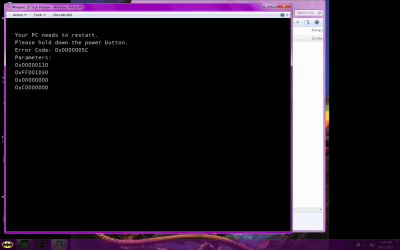
Of course:cry: 32 bit is a nay as well

Oh well I was hoping this would be something nice after an awful September, but the universe keeps kicking when your down
 

Attachments

  • 32.png
    32.png
    245.3 KB · Views: 304

My Computer

Computer type
PC/Desktop
OS
Microsoft Windows 7 Professional 64-bit SP1
CPU
Intel(R) Core(TM) i5 CPU M 520 @ 2.40GHz
Motherboard
Dell Inc. 0K42JR
Memory
8.00 GB
Graphics Card(s)
NVIDIA NVS 3100M
Sound Card
(1) NVIDIA High Definition Audio (2) IDT High Definition A
Monitor(s) Displays
1
Screen Resolution
1440 x 900 x 32 bits (4294967296 colors) @ 59 Hz
Hard Drives
Samsung SSD 840 PRO Series ATA Device
I thought my CPU could handle VM, perhaps not?
 

Attachments

  • cpu.png
    cpu.png
    107.7 KB · Views: 253

My Computer

Computer type
PC/Desktop
OS
Microsoft Windows 7 Professional 64-bit SP1
CPU
Intel(R) Core(TM) i5 CPU M 520 @ 2.40GHz
Motherboard
Dell Inc. 0K42JR
Memory
8.00 GB
Graphics Card(s)
NVIDIA NVS 3100M
Sound Card
(1) NVIDIA High Definition Audio (2) IDT High Definition A
Monitor(s) Displays
1
Screen Resolution
1440 x 900 x 32 bits (4294967296 colors) @ 59 Hz
Hard Drives
Samsung SSD 840 PRO Series ATA Device
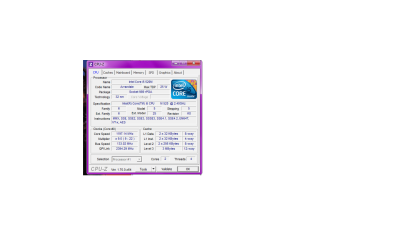
Your CPU specs below shows that it does support virtualization. Double check your BIOS settings to make sure that you have virtualization enabled. Usually it's often not by default.

ARK | Intel® Core? i5-520M Processor (3M Cache, 2.40 GHz)

If everything checks out in your BIOS, then you might try another VM program (ex: VirtualBox, VMWare Player, etc..) to see if you have the same issue in them.
 

My Computer

Computer type
PC/Desktop
Computer Manufacturer/Model Number
Self built custom
OS
64-bit Windows 11 Pro for Workstations
CPU
Intel i7-8700K OC'd to 5 GHz
Motherboard
ASUS ROG Maximus XI Formula Z390
Memory
64 GB (4x16GB) G.SKILL TridentZ RGB DDR4 3600 MHz
Graphics Card(s)
ASUS ROG-STRIX-GTX1080TI-O11G-GAMING
Sound Card
Integrated
Monitor(s) Displays
2 x Samsung Odyssey G7 27"
Screen Resolution
2560x1440
Hard Drives
1TB Samsung 990 PRO M.2,
4TB Samsung 990 PRO PRO M.2,
TerraMaster F8 SSD Plus NAS
PSU
Seasonic Prime Titanium 850W
Case
Thermaltake Core P3
Cooling
Corsair Hydro H115i
Keyboard
Logitech wireless K800
Mouse
Logitech MX Master 4
Internet Speed
2 Gb/s Download and 100 Mb/s Upload
Antivirus
Malwarebyte Anti-Malware Premium
Browser
Google Chrome
Other Info
Logitech Z625 speaker system,
Logitech BRIO 4K Pro webcam,
HP Color LaserJet Pro MFP M477fdn,
APC SMART-UPS RT 1000 XL - SURT1000XLI,
Galaxy S23 Plus phone
Your CPU specs below shows that it does support virtualization. Double check your BIOS settings to make sure that you have virtualization enabled. Usually it's often not by default.

ARK | Intel® Core? i5-520M Processor (3M Cache, 2.40 GHz)

If everything checks out in your BIOS, then you might try another VM program (ex: VirtualBox, VMWare Player, etc..) to see if you have the same issue in them.

Hi Shawn,

I guess I should have clarified that I have had success with oracles VM so I am running 10 preview, but I was trying to get to the bottom of the MS Vm situation. I have checked the BIOS and all is well there, but I'm not going to beat myself up any longer at this point. In the end I'm happy with Oracles VM. Thank you again for taking the time to check back, I appreciate it very much.
 

My Computer

Computer type
PC/Desktop
OS
Microsoft Windows 7 Professional 64-bit SP1
CPU
Intel(R) Core(TM) i5 CPU M 520 @ 2.40GHz
Motherboard
Dell Inc. 0K42JR
Memory
8.00 GB
Graphics Card(s)
NVIDIA NVS 3100M
Sound Card
(1) NVIDIA High Definition Audio (2) IDT High Definition A
Monitor(s) Displays
1
Screen Resolution
1440 x 900 x 32 bits (4294967296 colors) @ 59 Hz
Hard Drives
Samsung SSD 840 PRO Series ATA Device
So I had great success using a VM with the windows 10 preview, which was my first VM, but I was looking into experiment with a little software and wanted to create a windows 7 VM so my question would be; can I use the same installation disc and activation code as the one i have for my main rig?
 

My Computer

Computer type
PC/Desktop
OS
Microsoft Windows 7 Professional 64-bit SP1
CPU
Intel(R) Core(TM) i5 CPU M 520 @ 2.40GHz
Motherboard
Dell Inc. 0K42JR
Memory
8.00 GB
Graphics Card(s)
NVIDIA NVS 3100M
Sound Card
(1) NVIDIA High Definition Audio (2) IDT High Definition A
Monitor(s) Displays
1
Screen Resolution
1440 x 900 x 32 bits (4294967296 colors) @ 59 Hz
Hard Drives
Samsung SSD 840 PRO Series ATA Device
Hello Berkey,

Great news about your Windows 10 VM.

You will not be able to activate the Windows 7 VM with the same product key since it is being used to activate your current Windows 7 installation. A retail product key can only be activated on one computer with it removed from any other computer first.

If you like, you could install a retail copy of Windows 7 unactivated, and still be able to use it with a 30 day grace period before needing to purchase a product key to activate with, or uninstall the unactivated Windows..
 

My Computer

Computer type
PC/Desktop
Computer Manufacturer/Model Number
Self built custom
OS
64-bit Windows 11 Pro for Workstations
CPU
Intel i7-8700K OC'd to 5 GHz
Motherboard
ASUS ROG Maximus XI Formula Z390
Memory
64 GB (4x16GB) G.SKILL TridentZ RGB DDR4 3600 MHz
Graphics Card(s)
ASUS ROG-STRIX-GTX1080TI-O11G-GAMING
Sound Card
Integrated
Monitor(s) Displays
2 x Samsung Odyssey G7 27"
Screen Resolution
2560x1440
Hard Drives
1TB Samsung 990 PRO M.2,
4TB Samsung 990 PRO PRO M.2,
TerraMaster F8 SSD Plus NAS
PSU
Seasonic Prime Titanium 850W
Case
Thermaltake Core P3
Cooling
Corsair Hydro H115i
Keyboard
Logitech wireless K800
Mouse
Logitech MX Master 4
Internet Speed
2 Gb/s Download and 100 Mb/s Upload
Antivirus
Malwarebyte Anti-Malware Premium
Browser
Google Chrome
Other Info
Logitech Z625 speaker system,
Logitech BRIO 4K Pro webcam,
HP Color LaserJet Pro MFP M477fdn,
APC SMART-UPS RT 1000 XL - SURT1000XLI,
Galaxy S23 Plus phone
Interestingly enough though if you activate a Windows OS under VMware Player, you can run that OS on any PC that has VMware Player installed. VMware Player becomes the host for that OS.

You just have to copy the VMware Player folder to the other PC or run it from an external disk or USB stick. Best is a USB3 or eSata attached SSD.
 

My Computer

Computer Manufacturer/Model Number
HP, Dell, Gateway, Toshiba - 4 laptops and 2 desktops
OS
Vista, Windows7, Mint Mate, Zorin, Windows 8
CPU
from 1.6GHz Duo to i7
Monitor(s) Displays
2x HP w2207
Hard Drives
5x HDD, 7x SSD, 12x Externals
Keyboard
with trackball - no mices
Mouse
Trackball mice
Internet Speed
DSL 6000
Thank you for the explanation Brink, I'll pull out one of my other licensees and go from there
 

My Computer

Computer type
PC/Desktop
OS
Microsoft Windows 7 Professional 64-bit SP1
CPU
Intel(R) Core(TM) i5 CPU M 520 @ 2.40GHz
Motherboard
Dell Inc. 0K42JR
Memory
8.00 GB
Graphics Card(s)
NVIDIA NVS 3100M
Sound Card
(1) NVIDIA High Definition Audio (2) IDT High Definition A
Monitor(s) Displays
1
Screen Resolution
1440 x 900 x 32 bits (4294967296 colors) @ 59 Hz
Hard Drives
Samsung SSD 840 PRO Series ATA Device
PROBLEMS INSTALLING VIRTUAL MACHINE

Good Morning and many thanks for providing what looks like such an informative and helpful forum.
I know pretty much nothing about computers, so please forgive any failures to observe forum etiquette or stupidities in my question and please let me know if there is any other information which might be needed.
I want to install VM so that I can run some 32bit Russian language teaching materials which I would like to use with my students.
I have followed to the letter the instructions, both on the Microsoft website, and in the very helpful tutorial to which this is a reply. The result is always the same.
After installing the Windows6.1-KB958559-x64-RefreshPkg, shutdown/restart begins, as it should.
At 30% of configuring updates, the PC restarts.
After restart the 'Configuring Windows Updates' process reaches 99% and then displays a warning:
"Failure to configure Windows Updates. Reverting changes" (or words to that effect!)
As I said, I've tried this multiple times and, before retrying, have undone all changes and started from an earlier restore point.
If anyone has any advice or solutions, I would be really grateful. In any case, thank you to all of you who has taken the time to read thus far.
 

My Computer

Computer type
PC/Desktop
Computer Manufacturer/Model Number
Chillblast (UK)
OS
Windows 7 Professional (x64) Service Pack 1 (build 7601) Install Language: English (United States) S
CPU
3.60 gigahertz Intel Core i7-4790
Motherboard
Board: Gigabyte Technology Co., Ltd. B85M-DS3H
Memory
16284 Megabytes Usable Installed Memory
Graphics Card(s)
Intel(R) HD Graphics 4600 [Display adapter]
Hard Drives
ST1000DX001-1CM162 [Hard drive] (1000.20 GB) -- drive 0, s/n Z1DDCCWD, rev CC43,
Antivirus
Kaspersky Total Protection
Browser
Google Chrome
Back
Top