Wipe, Reformat then reinstall Windows 7

NewToit

New member
VIP
Local time
9:12 AM
Messages
50
(Skip this if you want and just go down to the "=========")
I want to delete all data from an old hard drive. I want to be sure I get every last nook and cranny. If you check my posts you will see for months I have been having issue with one of my hard drives.

My new one came in the mail yesterday and is installed and working now.

Before I throw away my hard drive I want to give it one last chance. Possibly it is broken. But, I want to erase everything. Any location corrupted data, viruses, broken software or just incorrect bits might exist.

Is a standard reformat enough to do this? If the hard drive still gives me issues after this it is going in the trash. So, I want to be sure all personal information is gone if I do toss it. I have heard a format might not do this. While there is nothing illegal. . . There might be a CC # on it. It is extraordinarly unlikely anyone will ever trash pick it, repair it then attempt to extract my personal data from it if I do toss it. But... So, if you are absolutely sure 1 format is enough I will take your word.
=====================================

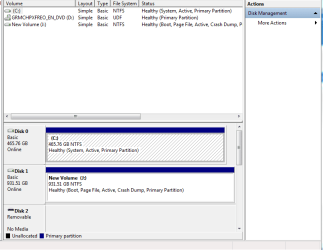
This HD I want to wipe, reformat then reinstall is my current C: drive. When I goto computer management>Disk management select drive C them right click>format a dialogue box pops up and tells me:

Windows can not format the partition on this disk. I do not want to touch any data on Drive J. I want a complete 'destruction' of all data on C then I want to reinstall windows. I want to keep drive J as my primary boot drive.

What do I need to do?

** IMpoRtaNT!!!****Take note when I installed drive J last night I did so with help of someone here. Drive J does not have my system files on it, looking at this screen shot. The person gave me simple and easy to follow instructions which I did to make my CPU boot off Drive J.
----------------
All I want to do. Delete all data on drive C:(my old hd) and reinstall Win 7 on to drive C. I want drive J to be the only "boot" disk. I do not want to dual boot Win7.
 

Attachments

  • Capture2.PNG
    Capture2.PNG
    13.3 KB · Views: 87

My Computer My Computer

OS
Win 7
CPU
Phen 965 AMD
Motherboard
Asus m3n72-d
Memory
4gig ddr kingston
Graphics Card(s)
Nvidia 9800 something or other - good card
Sound Card
On MoBo
Monitor(s) Displays
Acer standard 19 ' / Sony Bravia 42'
Screen Resolution
I change it sometimes
Hard Drives
500gb
500gb

Western Digital
Msconfig Boot

Picture attached

Again... I want to boot off of drive J. I want my system files, I guess to be on it not drive C> Someone gave me instructions to fix this. I followed them perfectly. I dunno AHHHHHHH!!!!! :)
 

Attachments

  • Capture3.PNG
    Capture3.PNG
    13.1 KB · Views: 44

My Computer My Computer

OS
Win 7
CPU
Phen 965 AMD
Motherboard
Asus m3n72-d
Memory
4gig ddr kingston
Graphics Card(s)
Nvidia 9800 something or other - good card
Sound Card
On MoBo
Monitor(s) Displays
Acer standard 19 ' / Sony Bravia 42'
Screen Resolution
I change it sometimes
Hard Drives
500gb
500gb

Western Digital
Easy.

Make yourself a System Repair Disk.
Boot from the system repair disk
choose Command Prompt

Now you will use the DiskPart program to wipe that disk clean as a whistle.

type DiskPart and hit enter.

Now I want you to be very careful.

type LIST DISK and hit enter

from the disks listed select one of them,
let's say you want to select disk 0

type SELECT DISK 0 and hit enter

type DETAIL DISK and hit enter.
this will help you make sure you have the correct disk.

type CLEAN ALL and hit enter.
this will write zeroes to each and every byte on that disk.
this will take up to a day if you have a 2 tb disk but for normal size disk, you are looking at 2 hours.

Be patient. Just wait, wait, and wait for the writing of zeroes to each and every byte of your hard disk to complete.

when the clean operation finishes, then
type EXIT and hit enter.
that gets you out of the DISKPART program

type EXIT and hit enter.
that gets you out of the command prompt.

Now let's see what I can cut and paste:
[FONT=&quot]CREATE A SYSTEM REPAIR DISK[/FONT]
START | type System Repair | Enter key | Create Disk button


[FONT=&quot]WIPE A DISK CLEAN[/FONT]

· type DiskPart, Enter key
· type List disk, Enter key
note the numeral of the disk you want to clean
for example purposes, I’ll be using the numeral 0
· type Select disk 0, Enter key
· type Detail disk, Enter key
this info will let you know if you selected correctly
· type Clean ALL, Enter key
your entire disk is being overwritten with zeros.
This can take a considerable amount of time
· type EXIT, Enter key (only after Clean is finished)
· type EXIT, Enter key (this gets you back where you were)
 

My Computer My Computer

Computer Manufacturer/Model Number
Toshiba Satellite S875D-S7239 laptop
OS
MS Windows 7 Ultimate SP1 64-bit
CPU
AMD A10-4600M
Motherboard
AMD Pumori (Socket FT1)
Memory
6.00 GB Dual-Channel DDR3 @ 798MHz (11-11-12-28)
Graphics Card(s)
AMD Radeon HD 7660G
Sound Card
High Definition Audio Device
Monitor(s) Displays
Generic PnP Monitor (1600x900@60Hz)
Screen Resolution
1600x900@60Hz
Hard Drives
SSD 119GB Corsair CSSD-V128GB2 ATA Device
Keyboard
Standard PS/2 Keyboard
Mouse
HP Wireless Optical Mobile Mouse Model FHA-3410
Internet Speed
What the local pub, local coffee shop offers.
Other Info
Optical Drive:MATSHITA BD-CMB UJ160B ATA Device


Also have an Asus ha1002xp netbook with Win 7 Ultimate installed.
Then I will just install windows 7 like I typically would? Ok, sounds easy. It will be done. I do have a question. Right now if you look at the two pictures I supplied my J disk(the new 1tb hard drive) does not have any system files on it. They are on my C: drive. Do I some how need to get the system files onto my J drive? Or do I not worry about this. I do not 'understand' any of your directions. However, I follow complex instructions well - 93% of the time. So, possibly this has been addressed. Just being sure before I push forward as I know this will make all data on drive C vanish.

Thanks!
 

My Computer My Computer

OS
Win 7
CPU
Phen 965 AMD
Motherboard
Asus m3n72-d
Memory
4gig ddr kingston
Graphics Card(s)
Nvidia 9800 something or other - good card
Sound Card
On MoBo
Monitor(s) Displays
Acer standard 19 ' / Sony Bravia 42'
Screen Resolution
I change it sometimes
Hard Drives
500gb
500gb

Western Digital

My Computer My Computer

OS
Win 7
CPU
Phen 965 AMD
Motherboard
Asus m3n72-d
Memory
4gig ddr kingston
Graphics Card(s)
Nvidia 9800 something or other - good card
Sound Card
On MoBo
Monitor(s) Displays
Acer standard 19 ' / Sony Bravia 42'
Screen Resolution
I change it sometimes
Hard Drives
500gb
500gb

Western Digital
If you want to use the 1 TB as your "c" drive, in other words, where windows is installed, then simply temporarily disconnect your present "c" drive.

After you've completed the windows install and rebooted at least once, then connect your old "c" drive.

Myself, I'd use that monster 1 TB disk for data, movies, videos, pictures or whatever you have that needs that much hard disk.

On the laptop I'm using at this moment, I have Win 7, Office 2010, numerous documents, and applications installed. I'm only using 36 GB of a 120 GB ssd.
 

My Computer My Computer

Computer Manufacturer/Model Number
Toshiba Satellite S875D-S7239 laptop
OS
MS Windows 7 Ultimate SP1 64-bit
CPU
AMD A10-4600M
Motherboard
AMD Pumori (Socket FT1)
Memory
6.00 GB Dual-Channel DDR3 @ 798MHz (11-11-12-28)
Graphics Card(s)
AMD Radeon HD 7660G
Sound Card
High Definition Audio Device
Monitor(s) Displays
Generic PnP Monitor (1600x900@60Hz)
Screen Resolution
1600x900@60Hz
Hard Drives
SSD 119GB Corsair CSSD-V128GB2 ATA Device
Keyboard
Standard PS/2 Keyboard
Mouse
HP Wireless Optical Mobile Mouse Model FHA-3410
Internet Speed
What the local pub, local coffee shop offers.
Other Info
Optical Drive:MATSHITA BD-CMB UJ160B ATA Device


Also have an Asus ha1002xp netbook with Win 7 Ultimate installed.
If you want to use the 1 TB as your "c" drive, in other words, where windows is installed, then simply temporarily disconnect your present "c" drive.

After you've completed the windows install and rebooted at least once, then connect your old "c" drive.

Myself, I'd use that monster 1 TB disk for data, movies, videos, pictures or whatever you have that needs that much hard disk.

On the laptop I'm using at this moment, I have Win 7, Office 2010, numerous documents, and applications installed. I'm only using 36 GB of a 120 GB ssd.
I am lost here. The drive 'label'/letter was of no consequence I thought?

Right not the 1 tb drive is "J". I do not care what letter it is and from what I understand about computers the drive letter should not matter. I just want the J disk to be the primary and only boot disk. As you can see drive J does not have system files. System files are only on the old drive (Drive C).

"After you've completed the windows install and rebooted at least once, then connect your old "c" drive."

Windows is installed on both drives at the moment. So, I am not following that. I have not wiped my present C drive not yet. I was hoping to get a little help first.

Right now my C(old drive) and my J(new drive) have windows 7 and both are functional. When I attempt to reformat C: I am told I can not do so because C: has system files on it. If you look at J it does not have system files(the pictures 1-2 posts ago). I am concerned if I do not get these system files onto J..... Then when I delete all of the data on drive C: the computer will not function.
=========================================================

So, all you want me to do is disconnect the current c drive. Run a repair then reboot and the system files will bo on J? Then I can safly wipe and reinstall win7 on C(the old drive).

I guess what is really throwing me off... Although I understand it is "standard" to call the drive with the boot and system files drive "C" this is not necessary, correct? I can call it any open letter I choose? Or is is this of consequence. I guess though when describing future issues it might just be easier to relable/rename the current J drive to "C:"?

One last time:
So, all you want me to do is disconnect the current c drive. Run a repair then reboot and the system files will bo on J? Then I can safly wipe and reinstall win7 on C(the old drive).
 

My Computer My Computer

OS
Win 7
CPU
Phen 965 AMD
Motherboard
Asus m3n72-d
Memory
4gig ddr kingston
Graphics Card(s)
Nvidia 9800 something or other - good card
Sound Card
On MoBo
Monitor(s) Displays
Acer standard 19 ' / Sony Bravia 42'
Screen Resolution
I change it sometimes
Hard Drives
500gb
500gb

Western Digital
Hi -

Assuming you have full retail version Windows 7 x64, I would wipe both drives completely with KillDisk. Then disconnect the one you don't want involved in reinstall, reinstall Windows 7 on the sole remaining drive.

After Windows 7 x64 installed along with Windows Updates, driver updates, system is activated and validated, connect the 2nd drive and format NTFS via Disk Management.

Format HDD jcgriff2.com

Windows Updates --> www.update.microsoft.com

Validate OS at WGA --> www.microsoft.com/genuine

Regards. . .

jcgriff2

.
 

My Computer My Computer

OS
Windows 7 - Vista
NewToit,

Let's go at this another way.

Follow JCGriff's procedure.

Probably easier to understand.

Just be sure to backup any data dear to your heart to a USB memory stick or to an external usb drive.
 

My Computer My Computer

Computer Manufacturer/Model Number
Toshiba Satellite S875D-S7239 laptop
OS
MS Windows 7 Ultimate SP1 64-bit
CPU
AMD A10-4600M
Motherboard
AMD Pumori (Socket FT1)
Memory
6.00 GB Dual-Channel DDR3 @ 798MHz (11-11-12-28)
Graphics Card(s)
AMD Radeon HD 7660G
Sound Card
High Definition Audio Device
Monitor(s) Displays
Generic PnP Monitor (1600x900@60Hz)
Screen Resolution
1600x900@60Hz
Hard Drives
SSD 119GB Corsair CSSD-V128GB2 ATA Device
Keyboard
Standard PS/2 Keyboard
Mouse
HP Wireless Optical Mobile Mouse Model FHA-3410
Internet Speed
What the local pub, local coffee shop offers.
Other Info
Optical Drive:MATSHITA BD-CMB UJ160B ATA Device


Also have an Asus ha1002xp netbook with Win 7 Ultimate installed.
NewToit,

I have noticed that you did not follow my directions precisely.

I'm quoting from the first post I sent:

Make yourself a System Repair Disk.
Boot from the system repair disk
choose command prompt
 

My Computer My Computer

Computer Manufacturer/Model Number
Toshiba Satellite S875D-S7239 laptop
OS
MS Windows 7 Ultimate SP1 64-bit
CPU
AMD A10-4600M
Motherboard
AMD Pumori (Socket FT1)
Memory
6.00 GB Dual-Channel DDR3 @ 798MHz (11-11-12-28)
Graphics Card(s)
AMD Radeon HD 7660G
Sound Card
High Definition Audio Device
Monitor(s) Displays
Generic PnP Monitor (1600x900@60Hz)
Screen Resolution
1600x900@60Hz
Hard Drives
SSD 119GB Corsair CSSD-V128GB2 ATA Device
Keyboard
Standard PS/2 Keyboard
Mouse
HP Wireless Optical Mobile Mouse Model FHA-3410
Internet Speed
What the local pub, local coffee shop offers.
Other Info
Optical Drive:MATSHITA BD-CMB UJ160B ATA Device


Also have an Asus ha1002xp netbook with Win 7 Ultimate installed.
Hello again NewToit.


After you marked J: active the other day did you not run the 3 startup repairs with system re-starts after each startup repair, I told you to, this is why I suggested you do it that way.


Now just do as they say and disconect the C: HDD and then run a startup repair on J: and then J: will have the boot files on it.

Then you can plug C: back in and retrieve any data you need to, then have a look at the tutorial at the link below to see a way to write " 0s (zeroes) " to the C: HDD so anything left on it will be virtually un-recoverable.

How to Clean or Clean All a Disk with the Diskpart Command
 

My Computer My Computer

Computer Manufacturer/Model Number
* BFK Customs *
OS
W 7 64-bit Ultimate
CPU
Intel Q9550 Yorkfield
Motherboard
ASUS P5Q Pro
Memory
8GB Dominator 8500C5D
Graphics Card(s)
ATI : XFX 5870
Sound Card
Realtek HD Audio 7-1
Monitor(s) Displays
1x 47" LCD HDMI & 3x 26" LCD HDMI
Screen Resolution
1920x1080P & 1920x1200
Hard Drives
1x 80GB Intel X25-M G2 SSD : 1x 500GB & 1x 640GB WD Caviar Black(s)
PSU
Corsair 620HX
Case
Cooler Master RC-690
Cooling
Tuniq Tower 120, 2x 140mm and 3x 120mm case fans
Keyboard
Microsoft 500
Mouse
Razer Diamondback 3G
Internet Speed
14 Mb/s
Other Info
1x Koutech 3Gb/s SATA HDD Hot Swap Rack
Hello again NewToit.


After you marked J: active the other day did you not run the 3 startup repairs with system re-starts after each startup repair, I told you to, this is why I suggested you do it that way.


Now just do as they say and disconect the C: HDD and then run a startup repair on J: and then J: will have the boot files on it.

Then you can plug C: back in and retrieve any data you need to, then have a look at the tutorial at the link below to see a way to write " 0s (zeroes) " to the C: HDD so anything left on it will be virtually un-recoverable.

How to Clean or Clean All a Disk with the Diskpart Command
HELLO! HELLO SIR! HELLO!!

Please do not see this as blasphemy. But, I swear to god I did. I did just what you told me. I am not a complete idiot either. But I did something a little wrong it seems. But I did I did! lol?

I understand what it is I must do and I will do it - TY! Possibly when I choose which disk to repair, when I ran the repair 3 times I choose the wrong disk. So, I like the idea of unplugging my C: .

How silly of me to over look such obvious and simple solutions. Good thing you folks are so smart. But, I bet that is what I must have done wrong? When prompted which disk I wanted to repair I bet $10.25 USD that I clicked the wrong one.
 

My Computer My Computer

OS
Win 7
CPU
Phen 965 AMD
Motherboard
Asus m3n72-d
Memory
4gig ddr kingston
Graphics Card(s)
Nvidia 9800 something or other - good card
Sound Card
On MoBo
Monitor(s) Displays
Acer standard 19 ' / Sony Bravia 42'
Screen Resolution
I change it sometimes
Hard Drives
500gb
500gb

Western Digital
Hello again mate. :)


That's ok, you can do it right this time! ;)
 

My Computer My Computer

Computer Manufacturer/Model Number
* BFK Customs *
OS
W 7 64-bit Ultimate
CPU
Intel Q9550 Yorkfield
Motherboard
ASUS P5Q Pro
Memory
8GB Dominator 8500C5D
Graphics Card(s)
ATI : XFX 5870
Sound Card
Realtek HD Audio 7-1
Monitor(s) Displays
1x 47" LCD HDMI & 3x 26" LCD HDMI
Screen Resolution
1920x1080P & 1920x1200
Hard Drives
1x 80GB Intel X25-M G2 SSD : 1x 500GB & 1x 640GB WD Caviar Black(s)
PSU
Corsair 620HX
Case
Cooler Master RC-690
Cooling
Tuniq Tower 120, 2x 140mm and 3x 120mm case fans
Keyboard
Microsoft 500
Mouse
Razer Diamondback 3G
Internet Speed
14 Mb/s
Other Info
1x Koutech 3Gb/s SATA HDD Hot Swap Rack
Once your new Win7 HD boots on its own, make sure it is set to as the first HD to boot in BIOS setup, then plug back in the other HD and follow these exact steps to delete it:

type CMD in start search box, rightclick on result given at top, Run as Administrator,

Type into CMD box these exact commands - you can cut and paste each, then hit return after you verify:

DISKPART
LIST DISK
SELECT DISK # (replace # with disk # from list you know to be your old Win7 HD which you want to delete)
CLEAN
create partition logical
select partition 1
assign letter=d: (or whatever letter you want it to be)
format
exit

Now you have a logical data partition which cannot be marked active to interfere.

If you don't want to use the HD then just clean it.
 
I think i can! I think i can!
 

My Computer My Computer

OS
Win 7
CPU
Phen 965 AMD
Motherboard
Asus m3n72-d
Memory
4gig ddr kingston
Graphics Card(s)
Nvidia 9800 something or other - good card
Sound Card
On MoBo
Monitor(s) Displays
Acer standard 19 ' / Sony Bravia 42'
Screen Resolution
I change it sometimes
Hard Drives
500gb
500gb

Western Digital
I know you can! I know you can! ;)
 

My Computer My Computer

Computer Manufacturer/Model Number
* BFK Customs *
OS
W 7 64-bit Ultimate
CPU
Intel Q9550 Yorkfield
Motherboard
ASUS P5Q Pro
Memory
8GB Dominator 8500C5D
Graphics Card(s)
ATI : XFX 5870
Sound Card
Realtek HD Audio 7-1
Monitor(s) Displays
1x 47" LCD HDMI & 3x 26" LCD HDMI
Screen Resolution
1920x1080P & 1920x1200
Hard Drives
1x 80GB Intel X25-M G2 SSD : 1x 500GB & 1x 640GB WD Caviar Black(s)
PSU
Corsair 620HX
Case
Cooler Master RC-690
Cooling
Tuniq Tower 120, 2x 140mm and 3x 120mm case fans
Keyboard
Microsoft 500
Mouse
Razer Diamondback 3G
Internet Speed
14 Mb/s
Other Info
1x Koutech 3Gb/s SATA HDD Hot Swap Rack
Back
Top