How to Add "Show/Hide Hidden Files" to Context Menu in Vista, Windows 7, and Windows 8
Information
This will show you how to add or remove Show/Hide Hidden Files to the desktop, library, and folder window context menu for all users to be able to toggle "Show" or "Don't show" hidden files, folders, drives, and protected operating system files in Vista, Windows 7, and Windows 8.
While you must be logged in as an administrator to be able to add or remove the context menu, all users will be able to use the context menu.
While you must be logged in as an administrator to be able to add or remove the context menu, all users will be able to use the context menu.
Note
When you right click on the Desktop and click on Show/Hide Hidden Files, the hidden files (faded files) will instantly show or hide. You will need to refresh (F5) any other opened inactive window to see the hidden files show or hide in them.
When you right click on a blank area in the main window of a library or folder and click on Show/Hide Hidden Files, the hidden files (faded files) will instantly show or hide in that window. You may need to refresh (F5) with any other opened inactive window to see the hidden files show or hide in them.
When you right click on a blank area in the main window of a library or folder and click on Show/Hide Hidden Files, the hidden files (faded files) will instantly show or hide in that window. You may need to refresh (F5) with any other opened inactive window to see the hidden files show or hide in them.
EXAMPLE: "Show/Hide Hidden Files" and/or "Show/Hide All Hidden Files" Added to Context Menu
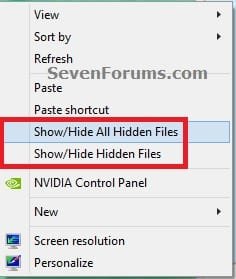
OPTION ONE
To Add "Show/Hide Hidden Files" to Context Menu
1. Do either step 2 or 3, and/or step 4 or 5 for what you would like.
2. To Toggle Show or Hide ALL Hidden Files with Notify Sound Played
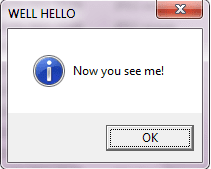
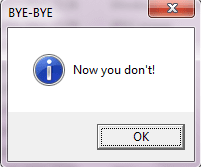
NOTE: When you click/tap on the Show/Hide Hidden Files context menu item using this option, you will hear the notify.wav file play only if Window Media Player is set as the default program for .wav files. If you do not have Window Media Player turned on in Windows Features, then you will get an error instead of the sound playing.
A) Click/tap on the Download button below to download the file below, and go to step 6 below.
NOTE: This includes all "hidden files, folders, or drives" and "hidden protected operating system files".
Add_Show_Hide_ALL_Hidden_Files_to_Context_Menu_with_SOUND.zip
Download
3. To Toggle Show or Hide ALL Hidden Files without any Sound
NOTE: This option is if you did not want to have the Notify.wav play when you use the Show/Hide Hidden Files context menu item, or if you get an error from using step 2 since you have Windows Media Player turned off in Windows Features.
A) Click/tap on the Download button below to download the file below, and go to step 6 below.
NOTE: This includes all "hidden files, folders, or drives" and "hidden protected operating system files".
Add_Show_Hide_ALL_Hidden_Files_to_Context_Menu.zip
Download
AND/OR
4. To Toggle Show or Hide Hidden Files with Notify Sound Played
NOTE: When you click/tap on the Show/Hide Hidden Files context menu item using this option, you will hear the notify.wav file play only if Window Media Player is set as the default program for .wav files. If you do not have Window Media Player turned on in Windows Features, then you will get an error instead of the sound playing.
A) Click/tap on the Download button below to download the file below, and go to step 6 below.
NOTE: This includes only all "hidden files, folders, or drives" and not "hidden protected operating system files".
Add_Show_Hide_Hidden_Files_to_Context_Menu_with_SOUND.zip
Download
5. To Toggle Show or Hide Hidden Files without any Sound
NOTE: This option is if you did not want to have the Notify.wav play when you use the Show/Hide Hidden Files context menu item, or if you get an error from using step 4 since you have Windows Media Player turned off in Windows Features.
A) Click/tap on the Download button below to download the file below, and go to step 6 below.
NOTE: This includes only all "hidden files, folders, or drives" and not "hidden protected operating system files".
Add_Show_Hide_Hidden_Files_to_Context_Menu.zip
Download
6. Save the .zip file to your desktop.
7. Open the downloaded ZIP file, and extract (drag and drop) both the .reg and .vbs files to your desktop.
8. Unblock the extracted .vbs file, click/tap on Properties.
9. Right click or press and hold on the extracted and unblocked .vbs file, and click/tap on Copy.
10. In Windows Explorer, navigate to and open the C:\Windows folder. Right click or press and hold on an empty area in the C:\Window folder, click/tap on Paste, then click/tap on Continue and Yes (UAC) if prompted. Close the Windows Explorer window.
11. Double click/tap on the extracted .reg file to merge it.
12. If prompter, click/tap on Run, Yes (UAC-Windows 7/8) or Continue (UAC-Vista), Yes, and OK to approve the merge.
13. You can now delete the downloaded files left on your desktop if you like.
OPTION TWO
To Remove "Show/Hide Hidden Files" from Context Menu
NOTE: This is the default setting.
1. Do step 2 and/or 3 below for what you would like to do.
2. To Remove "Show/Hide Hidden Files" from Context Menu
A) Click/tap on the Download button below to download the file below, and go to step 4 below.
Remove_Show_Hide_Hidden_Files_from_Context_Menu.reg
Download
3. To Remove "Show/Hide All Hidden Files" from Context Menu
A) Click/tap on the Download button below to download the file below, and go to step 4 below.
Remove_Show_Hide_All_Hidden_Files_from_Context_Menu.reg
Download
4. Save the .zip file to your desktop.
5. Double click/tap on the downloaded .reg file to merge it.
6. If prompted, click/tap on Run, Yes (UAC-Windows 7/8) or Continue (UAC-Vista), Yes, and OK to approve the merge.
7. In Windows Explorer, navigate to and open the C:\Windows folder, right click or press and hold on the file below, click/tap on Delete, and Yes (if prompted).
Toggle_Show_Hidden_Files_On_Off.vbs
OR
Toggle_Show_Hidden_Files_On_Off_with_SOUND.vbs
AND/OR
Toggle_Show_All_Hidden_Files_On_Off.vbs
OR
Toggle_Show_All_Hidden_Files_On_Off_with_SOUND.vbs
8. You can now delete the download reg file if you would like to.
That's it,
Shawn
Related Tutorials
- How to Show or Hide All Hidden Files, Folders, and Drives in Vista, Windows 7, and Windows 8
- How to Hide or Unhide a File or Folder in Vista, Windows 7, and Windows 8
- How to Add or Remove "Hidden Files and Folders" from Folder Options in Vista, Windows 7, and Windows 87
- How to Add "Show/Hide Known File Extensions" to Context Menu in Vista, Windows 7, and Windows 8
- How to Add "Hide" and "Unhide" to File and Folder Context Menu in Vista, Windows 7, and Windows 8
- How to Add "List Hidden Files" to Context Menu in Vista, Windows 7, and Windows 8
Attachments
-
Remove_Show_Hide_Hidden_Files_from_Context_Menu.reg390 bytes · Views: 5,029
-
Remove_Show_Hide_All_Hidden_Files_from_Context_Menu.reg406 bytes · Views: 2,957
-
Add_Show_Hide_ALL_Hidden_Files_to_Context_Menu_with_SOUND.zip1.2 KB · Views: 3,865
-
Add_Show_Hide_ALL_Hidden_Files_to_Context_Menu.zip1 KB · Views: 8,437
-
Add_Show_Hide_Hidden_Files_to_Context_Menu_with_SOUND.zip937 bytes · Views: 793
-
Add_Show_Hide_Hidden_Files_to_Context_Menu.zip803 bytes · Views: 2,844
Last edited:

 - i prefer it this way, so it's not really a problem.