
How to Create a Shortcut to Search the Web for a File/Folder Name from Windows Explorer
Information
This tutorial will show you how to search folder and file names in a number of search engines by simply right clicking on it. For example, if right clicking the 'My Music' folder and then clicking 'Search in GOOGLE', the default browser will pop up and search the folder name in Google.
Tip
Decide on which search engine you would like to use before you make change the .bat file because
1. Having too many search options looks messy and;
2. Deleting them is a hassle.
1. Having too many search options looks messy and;
2. Deleting them is a hassle.
Warning
After downloading and moving the two files, DO NOT move them again. Ever. If you do, you have to edit the .reg file to match the file location and then open the file again. If you don't, it will cause the search option to malfunction which will in turn cause a whole new problem.
Here's How:
Create/Download the Files
1. Download the following files.
- google.bat
Download
- google.reg
Download
3. Right click the downloaded .reg file (google.reg) and in the menu that drops down, select Edit.
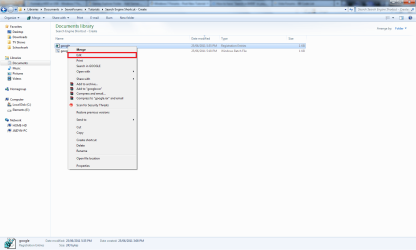
4. In the Notepad windows that pops up, change the:
C:\\Users\\Jaidyn\\Documents\\SevenForums\\Tutorials\\Search Engine Shortcut - Create\\google.bat\
to the location of the .bat file. Make sure that there are two backward slashes between each folder rather than one. Also make sure that there is a backward slash at the end of the .bat file.
For example:
C:\\Folder\\Folder\\google.bat\
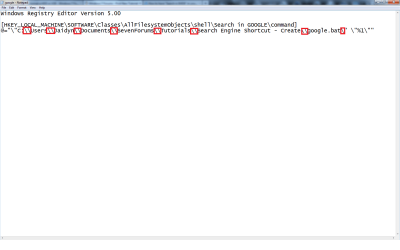
You should also change the 'Search in GOOGLE' text to whatever search engine you are planning to use. For example: 'Search in BING' or 'Search in IMDb'.
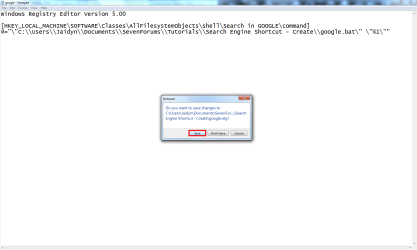
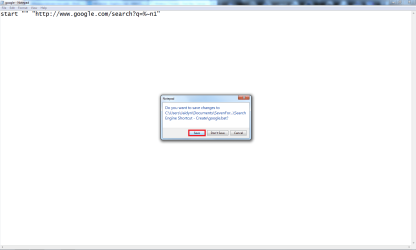
5. Click the X in the top right corner to exit Notepad. When prompted, click Save.
6. Right click the .bat file (google.bat) and in the menu that drops down, select Edit.
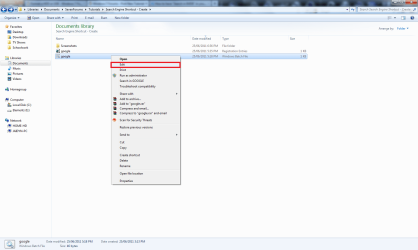
7. The .bat file should open in Notepad. To change the search engine that is used when a file/folder name is searched, change the text to:
start "" "http://www.google.com/search?q=%~n1"
Yahoo
start "" "http://au.search.yahoo.com/search?p=%~n1"
IMDb
start "" "http://www.imdb.com/find?q=%~n1"
Bing
start "" "http://www.bing.com/search?q=%~n1"
Wikipedia
start "" "http://en.wikipedia.org/w/index.php?title=%~n1"

8. Click the X in the top right corner to exit Notepad. When prompted, click Save.
9. Open google.reg.

10. When the warning message pops up, click Yes.

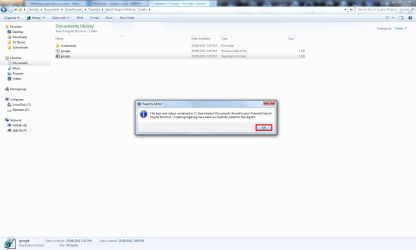
11. The file will edit the Registry. Another window should pop up. Click OK.
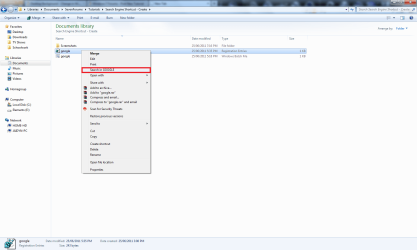
12. Right click any file or folder name and from the menu that drops down, click Search in GOOGLE.
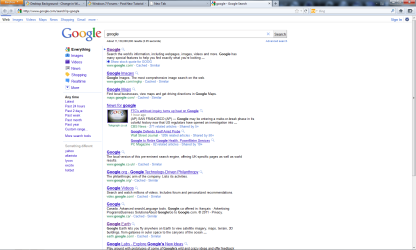
13. The filename should now search in Google.
Delete Search Option
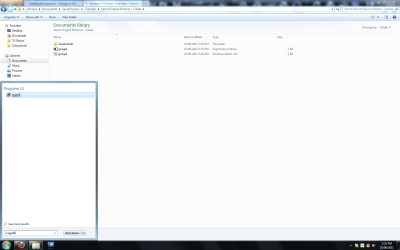
1. Type in regedit in the Start Menu search bar and press Enter on your keyboard.
2. Navigate to:
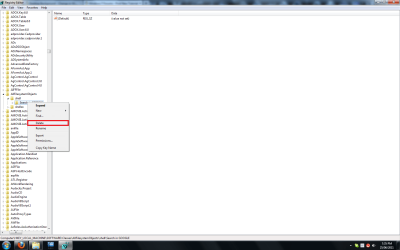
HKEY_LOCAL_MACHINE\SOFTWARE\Classes\AllFilesystemObjects\shell\

3. Right click the 'Search in GOOGLE' folder and click Delete.
Congratulations! You can now search any file or folder name from Windows Explorer!
That's it,
Jaidyn

Attachments
Last edited by a moderator:


 I wasn't going to put the deletion instructions in at first but decided to after finding out that having the search option can be slightly annoying.


