How to Extract Files and Folders from System Restore Points in Windows 7 and Vista
Information
This will show you how to use a free program System Restore Explorer to be able to mount specific restore points to be able to browse and copy individual files and folders from a mounted restore point back into Windows 7 and Vista without having to use Previous Versions or to do a full System Restore. When finished copying and restoring what you like from the mounted restore point, you could unmount the restore point.
You must be logged in as an administrator to be able run System Restore Explorer.
You must be logged in as an administrator to be able run System Restore Explorer.
Note
You could also use the System Restore Explorer program to delete specific restore points. See OPTION FOUR here for more on this feature.
Here's How:
1. If you have not already, download and install the free program System Restore Explorer and run it.
Download
2. To Mount a Restore Point
Note
Mounting a restore point will create a shortcut to that particular restore point on the root directory of the Windows C: drive which will allow you to be able to browse and copy files and folders from the mounted restore point.
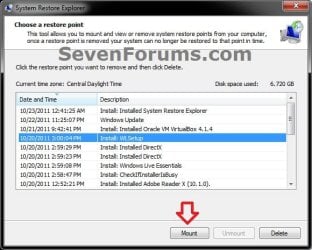
B) This will now open the mounted restore point in a Windows Explorer window where you can now browse and copy any file and folder you like. (see screenshot below)
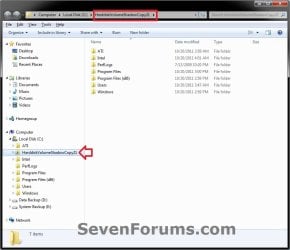
C) The shortcut of the mounted restore point will stay in the root directory of the Windows C: drive until you unmount it in step 3 below. If you like, you could leave the restore point mounted for as long as you like though for easy access. (see screenshot below)
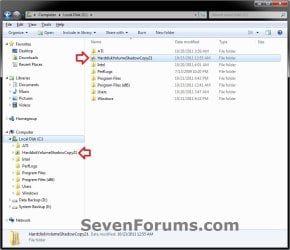
3. To Unmount a Mounted Restore Point
Note
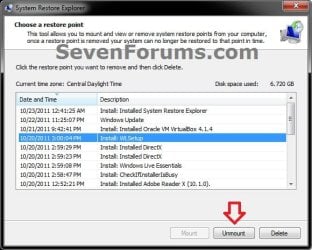
Unmounting a selected mounted restore point will remove the shortcut of the mounted restore point from the root directory of the Windows C: drive.
Unmounting a mounted restore point will not delete the restore point.
Unmounting a mounted restore point will not delete the restore point.
B) In System Restore Explorer, select a specific mounted restore point that you would like to unmount, and click on the Unmount button. (see screenshot below)
OR
C) In the root directory of the Windows C: drive, right click on the shortcut of a specific mounted restore point that you would like to unmount, and click on Delete. (see screenshot below)
4. When finished, you can close System Restore Explorer.
That's it,
Shawn
Related Tutorials
- How to Change the System Protection Disk Space Usage in Window 7
- How to Turn System Protection On or Off in Windows 7
- How to Make a "Create System Restore Point" Shortcut in XP, Vista, Windows 7, and Windows 8
- How to Add "Create Restore Point" to Context Menu in XP, Vista, Windows 7, and Windows 8
- How to Create a System Restore Point in Windows 7
- How to Do a System Restore in Windows 7
- How to Automatically Create A System Restore Point at Startup
- How to Enable or Disable System Restore Configuration in Windows 7 and Windows 8
- How to Enable or Disable System Restore in Windows 7 and Windows 8
- How to Delete Shadow Copies in Vista and Windows 7
- How to Restore Files and Folders in Windows 7 with "Previous Versions"
- How to Extract Files from Windows 7 System Image using Virtual PC
- How to Extract Windows 7 System Image Files Using Disk Management
- How to Manually Extract Files from a Backup in Vista and Windows 7
- How to Extract Files from the Windows 7 Installation DVD
Attachments
Last edited: