
How to Change the Windows 7 Pinned Windows Explorer Taskbar Icon Open To Target
Information
This will show you how to change the Windows 7 pinned Windows Explorer taskbar icon from the default Open To the Libraries window target to Open To the Computer window target or other possible locations that are available to choose from instead when you click on the Windows Explorer icon on the taskbar.
Note
Warning
By design in Windows, these shortcuts will open a new window in a new process (explorer.exe) each time you use the shortcut. When you close the opened window from the shortcut, the extra explorer.exe process will close with it as well a few moments afterwards.
EXAMPLE: Windows Explorer icon pinned to the taskbar

EXAMPLE: Opens to Libraries (default) or Computer
NOTE: You can also select from the other available options below.
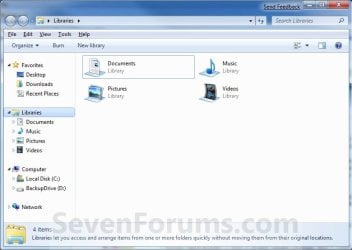
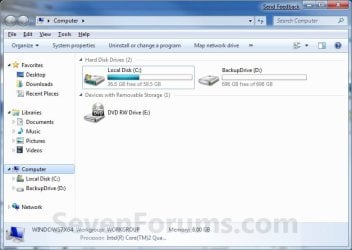
Here's How:
1. Right click on the pinned Windows Explorer taskbar icon, then right click on Windows Explorer in the Jump List and click on Properties. (see screenshot below)
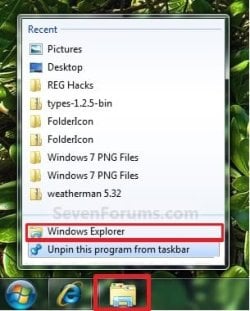
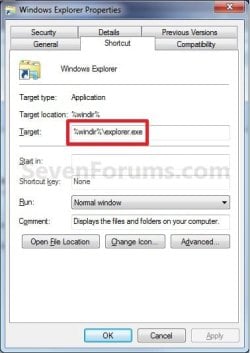
2. In the Shortcut tab, make sure that the field box to the right of Start in is empty.
3. In the Shortcut tab and to the right of Target, type or copy the path (code) for the location below that you want the Windows Explorer icon to open to instead, then click on OK. (see screenshot below)
NOTE: You can do this for any item that you know it's {CLSID} registry entry for. You can also specify a specific folder e.g. :
%windir%\explorer.exe /n, /e, /select, C:\somefolder
Note
Using the Explorer.exe Command Line Syntax/:
%windir%\explorer.exe [/n][/e][,/root],X,[[/Select],Y]
The command above will explore the C:\Windows\System32 folder and put the focus on the calc.exe (calculator) program.
%windir%\explorer.exe [/n][/e][,/root],X,[[/Select],Y]
- X - Secifies the object, and optionally with sub-object Y.
- /e - Uses Windows Explorer view. Shows the left Windows Explorer tree view in the navigation pane together with the right pane in list view.
- /n - Opens in a new window.
- /root - Will have Explorer.exe explore the root object X and objects belonging to X. On the other hand, when the /root switch is not present, Explorer.exe explores the object X, its children, and other Explorer objects as well.
- /Select - Puts the focus on a file or folder. The parent folder is opened and the specified object is selected.
- /Separate - Opens in a separate process.
Code:
%windir%\explorer.exe /N,/Select,%WinDir%\system32\calc.exe
Tip
If you want the navigation pane to exand open to the item in Windows 8, then you will need to turn on "Expand to Current Folder" in the navigation pane.
- Windows Explorer (default) (opens to Libraries)
Code:
%windir%\explorer.exe
Code:
%AppData%\Microsoft\Windows\Start Menu\Programs\System Tools\File Explorer.lnk- Computer
Code:
%windir%\explorer.exe /n /Separate,::{20D04FE0-3AEA-1069-A2D8-08002B30309D}OR
Code:
%windir%\explorer.exe shell:MyComputerFolder- My Documents
Code:
%windir%\explorer.exe /n /Separate,::{450D8FBA-AD25-11D0-98A8-0800361B1103}- Documents Library
Code:
%UserProfile%\AppData\Roaming\Microsoft\Windows\Libraries\Documents.library-ms- Downloads
Code:
%UserProfile%\Downloads- Recycle Bin
Code:
%windir%\explorer.exe /n /Separate,::{645FF040-5081-101B-9F08-00AA002F954E- Network Neighborhood
Code:
%windir%\explorer.exe /n /Separate,::{208D2C60-3AEA-1069-A2D7-08002B30309D}- Default Web Browser (ex: Internet Explorer)
Code:
%windir%\explorer.exe /n /Separate,::{871C5380-42A0-1069-A2EA-08002B30309D}- Computer Search Results Folder
Code:
%windir%\explorer.exe /n /Separate,::{1F4DE370-D627-11D1-BA4F-00A0C91EEDBA}- Network Search Results Folder
Code:
%windir%\explorer.exe /n /Separate,::{E17D4FC0-5564-11D1-83F2-00A0C90DC849}- Web Folders
Code:
%windir%\explorer.exe /n /Separate,::{20D04FE0-3AEA-1069-A2D8-08002B30309D}\::{BDEADF00-C265-11D0-BCED-00A0C90AB50F}- Control Panel
Code:
%windir%\explorer.exe /n /Separate,::{20D04FE0-3AEA-1069-A2D8-08002B30309D}\::{21EC2020-3AEA-1069-A2DD-08002B30309D}- Printers and Faxes
Code:
%windir%\explorer.exe /n /Separate,::{20D04FE0-3AEA-1069-A2D8-08002B30309D}\::{21EC2020-3AEA-1069-A2DD-08002B30309D}\::{2227A280-3AEA-1069-A2DE-08002B30309D}- Scanners and Cameras
Code:
%windir%\explorer.exe /n /Separate,::{20D04FE0-3AEA-1069-A2D8-08002B30309D}\::{21EC2020-3AEA-1069-A2DD-08002B30309D}\::{E211B736-43FD-11D1-9EFB-0000F8757FCD}- Fonts
Code:
%windir%\explorer.exe /n /Separate,::{20D04FE0-3AEA-1069-A2D8-08002B30309D}\::{21EC2020-3AEA-1069-A2DD-08002B30309D}\::{D20EA4E1-3957-11d2-A40B-0C5020524152}- Network Connections or My Network Place
Code:
%windir%\explorer.exe /n /Separate,::{20D04FE0-3AEA-1069-A2D8-08002B30309D}\::{21EC2020-3AEA-1069-A2DD-08002B30309D}\::{7007ACC7-3202-11D1-AAD2-00805FC1270E}- Administrative Tools
Code:
%windir%\explorer.exe /n /Separate,::{20D04FE0-3AEA-1069-A2D8-08002B30309D}\::{21EC2020-3AEA-1069-A2DD-08002B30309D}\::{D20EA4E1-3957-11d2-A40B-0C5020524153}- Tasks Scheduler
Code:
%windir%\explorer.exe /n /Separate,::{20D04FE0-3AEA-1069-A2D8-08002B30309D}\::{21EC2020-3AEA-1069-A2DD-08002B30309D}\::{D6277990-4C6A-11CF-8D87-00AA0060F5BF}- User Profile (personal) Folder
Code:
%windir%\explorer.exe shell:ProfileThat's it,
Shawn
Related Tutorials
- How to Change Default Open To Target of File Explorer Pinned to Taskbar in Windows 8.1
- How to Pin or Unpin a Program to the Windows 7 Taskbar
- How to Restore the Default Libraries in Windows 7
- How to Pin Your User Files Folder to the Windows 7 Taskbar
- How to Pin the Recycle Bin to the Windows 7 Taskbar
- How to Pin the Control Panel to the Windows 7 Taskbar
- How to Pin Computer to the Windows 7 Taskbar
- CLSID Key (GUID) List for Windows 7
- How to Use and See All Windows 7 Shell Commands
Attachments

Last edited:


