

How to Create a "Shut Down Windows" Shortcut in Windows 7
InformationThis will show you how to create a Shut Down Windows shortcut to use to select to either Switch user, Log off, Restart, Sleep, Hibernate, or Shutdown in Windows 7.
TipNormally you can press Alt+F4 while the desktop is in focus to also open the Shut Down Windows dialog box.
EXAMPLE: Shut Down Windows
OPTION ONETo Download the "Shut Down Windows" Shortcut
1. Click on the download button below to download the file below.
Shut_Down_Windows.zip2. Click on Save and save the .zip file to the Desktop.
3. Right click on the .zip file (on desktop) and click on Open.
4. Select and extract the Shut Down Windows shortcut to the desktop.
5. Right click on the Shut Down Windows shortcut and click on Properties, General tab, and the Unblock button. (See screenshot below)
NOTE: If the Unblock button is not there, then the shortcut is already unblocked. Continue on to step 8.
6. You can now move the Shut Down Windows shortcut to any location that you want for easy use.
7. You can now delete the downloaded .zip file (on desktop) if you would like to.
OPTION TWOTo Manually Create the "Shut Down Windows" Shortcut
1. Right click on a empty space on your desktop, and click on New and Shortcut.That's it,
2. Type taskkill /im explorer.exe for the location, then click on the Next button. (See screenshot below)
3. Type Shut Down Windows for the name, then click on the Finish button. (See screenshot below)
4. Right click on the Shut Down Windows shortcut on the desktop, then click on Properties, Shortcut tab, and on the Change Icon button. (See screenshot below)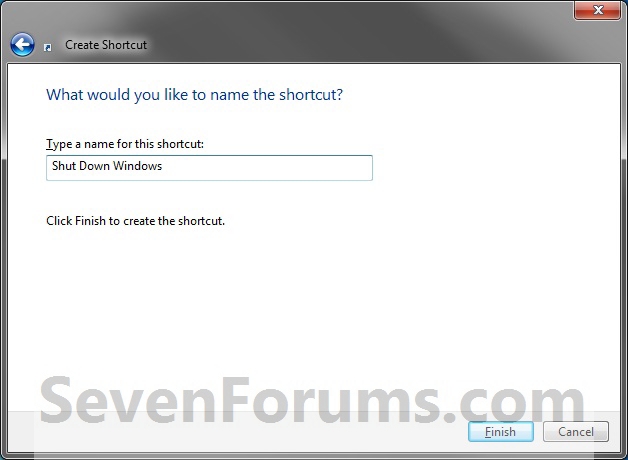
NOTE: You can use whatever name you would like for the shortcut though.
5. Click on OK. (See screenshot below)
6. Copy and paste the location in bold below into the Browse line, then press enter. (See screenshot below)
NOTE: If you have a icon of your own that you would prefer to use, then click on the Browse button, navigate to it instead.
C:\Windows\System32\imageres.dll7. Select the icon you want (ex: Computer) and click on OK. (See screenshot above)
8. To the right in Run, select Minimized from the drop doen menu and click on OK. (See screenshots below)
NOTE: Selecting Minimized will get rid of the quick flash of the command prompt when you use this shortcut.
9. You can now move the Shut Down Windows shortcut to any location that you want for easy use.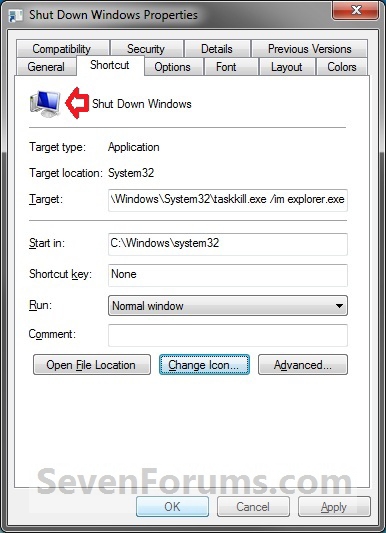
Shawn
Related Tutorials
- How to Create a Shut Down Computer Shortcut in Windows
- How to Change the Default Action of the Windows 7 Alt+F4 Shut Down Window
- How to Enable or Disable "Install Updates and Shut Down" Option in Windows 7
- How to Change "Install Updates and Shut Down" as Default Choice in Shut Down Windows Dialog
- How to Speed Up the Shut Down Time in Windows 7
- How to Create a Lock Computer Shortcut on Your Windows 7 Desktop
- How to Create a Log Off Shortcut in Windows
- How to Create a Restart Computer Shortcut in Windows
- How to Create a Abort Shortcut in Windows
- How to Create a Switch User Shortcut in Windows 7
- How to Create a Hibernate Shortcut in Windows
- How to Create a Sleep Shortcut in Windows
- How to Enable or Disable Shut Down without Having to Log On
- How to Change the "Logging off..." Text Message at Shut Down in Windows 7 and Vista
- How to Change the "Shutting down..." Text Message at Shut Down in Windows 7 and Vista
- How to Allow or Prevent Users and Groups to Shut Down the Computer
- How to Add or Remove the Shut Down, Restart, Sleep, and Hibernate Commands in Windows 7
- How to See the Last Shutdown Time of Your Windows PC
- How to Create a "Remote Shutdown Dialog" Shortcut
- How to Add "Shut Down" Computer to the Desktop Context Menu in Windows 7
- How to Add a "Power" Cascading Desktop Context Menu in Windows 7
Shut Down Windows Shortcut
-
-
-
-
-
-
New #6
Great, but is there any way to get rid of the cmd window that flashes up before it?
-
-
-
New #9
Yes, it works the manual way, but I don't think the download changed....(for me anyway.
Thanks

Shut Down Windows Shortcut
How to Create a "Shut Down Windows" Shortcut in Windows 7Published by Brink


 Quote
Quote
Related Discussions