

How to Create a Shortcut to Change Power Plans in Windows 7 and Windows 8
InformationThis tutorial will show you how to create or download shortcuts that will allow you to change or switch to the High Performance, Balanced, Power Saver, or a custom power plan instantly without having to go through Power Options in the Control Panel in Windows 7 and Windows 8.
EXAMPLE: Power Plans
NOTE: These shortcuts will allow you to toggle between your power plans here automatically.
OPTION ONETo Download Shortcuts to Change Default Power Plan
NOTE: If you would like to have a shortcut to change to a custom power plan, then you will need to manually create one for it in OPTION TWO below.
1. Shortcut to Change to the High Performance Power Plan
A) Click/tap on the download button below to download the file below, and go to step 4 below.2. Shortcut to Change to the Balanced Power Plan
High_Performance_Power_Plan.zip
A) Click/tap on the download button below to download the file below, and go to step 4 below.3. Shortcut to Change to the Power Saver Power Plan
Balanced_Power_Plan.zip
A) Click/tap on the download button below to download the file below, and go to step 4 below.4. Save the downloaded .zip file to your desktop.
Power_Saver_Power_Plan.zip
5. Open the .zip file and extract (drag and drop) the power plan shortcut to your desktop.
6. Right click or press and hold on the power plan shortcut, and click/tap on Properties, General tab, and on the Unblock button. (See screenshot below)
NOTE: If you do not have a Unblock button under the General tab, then the shortcut is already unblocked and you can continue on to step 7.
7. In Windows 7, you can now Pin to Taskbar or Pin to Start Menu, add to Quick Launch, assign a keyboard shortcut to it, or move this shortcut to where you like for easy use.
8. In Windows 8, you can Pin to Taskbar on desktop, Pin to Start screen, add to Quick Launch, assign a keyboard shortcut to it, or move this shortcut to where you like for easy use.
9. When finished, you can delete the downloaded .zip file if you like, or save it to use again.
OPTION TWOTo Manually Create the Shortcuts to Change Default Power Plan
1. Open a command prompt, type powercfg -list at the prompt, and press enter. (See screenshots below)That's it,
2. Make note of the GUID number for the power plan (name at far right) that you want to create a shortcut for. (See screenshots above)
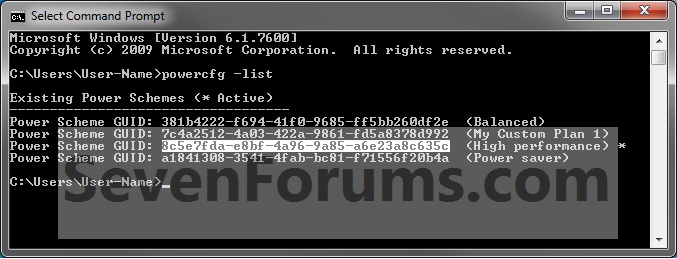
NOTE: You will need to enter this GUID number in step 4 below. You can Copy to Clipboard the GUID number from within the command prompt for step 4 to make this easier for a custom power plan.
3. Right click or press and hold on an empty area on your desktop, and click/tap on New and Shortcut.
4. Type powercfg.exe /setactive GUID number into the location area, and click/tap on the Next button. (See screenshot below)
NOTE: For a custom power plan, substitute GUID number in the command with the actual GUID number displayed from step 2 above instead. You can copy the complete command in bold below for the default power plans to make this easy.
- High Performance
Code:powercfg.exe /setactive 8c5e7fda-e8bf-4a96-9a85-a6e23a8c635c- Balanced
Code:powercfg.exe /setactive 381b4222-f694-41f0-9685-ff5bb260df2e- Power Saver
Code:powercfg.exe /setactive a1841308-3541-4fab-bc81-f71556f20b4a
5. Type the power plan name (ex: High Performance), and click/tap on the Finish button. (See screenshot below)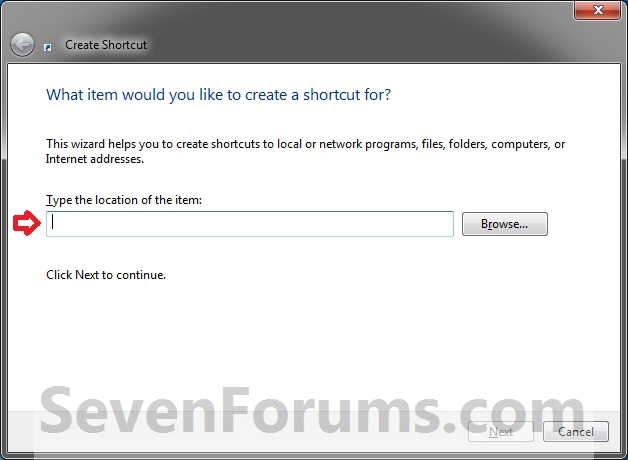
NOTE: You can name this shortcut anything you would like though.
6. Right click or press and hold on the new power plan shortcut, and click/tap on Properties.
7. Click/tap on the Shortcut tab, and click/tap on the Change Icon button. (See screenshot below)
8. Click/tap on OK. (See screenshot below)
9. In the line under "Look for icons in this file", type in the location below, and press Enter. (See screenshot below)
%SystemRoot%\System32\powercpl.dll10. Select the Power Options icon highlighted in blue above, and click/tap on OK. (See screenshot above)
11. Click/tap on Apply, then to the right of Run, click/tap on the drop down menu, select Minimized, and click/tap on OK. (See screenshot below)
NOTE: This is so the command window will not be seen flashing quickly open and closed when you use the power plan shortcut to change power plans. If you would like to see the command prompt flash to help see that the shortcut was used, then you can leave this set to Normal window.
12. In Windows 7, you can now Pin to Taskbar or Pin to Start Menu, add to Quick Launch, assign a keyboard shortcut to it, or move this shortcut to where you like for easy use.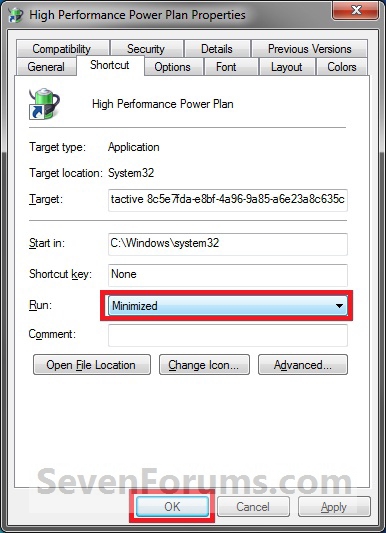
13. In Windows 8, you can Pin to Taskbar on desktop, Pin to Start screen, add to Quick Launch, assign a keyboard shortcut to it, or move this shortcut to where you like for easy use.
Shawn
Related Tutorials
- How to Add "Choose Power Plan" to Desktop Context Menu in Windows 7 and Windows 8
- How to Select a Power Plan Scheme in Windows 7 and Windows 8
- How to Change the Power Plan Settings in Windows 7
- How to Change Power Plan Settings in Windows 8
- How to Create or Delete a Custom Power Plan in Windows 7
- How to Restore Default Power Plan Settings in Windows 7 and Windows 8
- How to Run a Windows 7 Power Efficiency Diagnostics Report
- How to Change the Return to Sleep Timeout for a Unattended Wake Up in Windows 7
- How to Create a Power Options Shortcut in Windows 7
- How to Create a "Advanced Power Options" Shortcut in Windows 7
- How to Create a Power Troubleshoot Shortcut in Windows 7
- How to Export and Import Power Plans in Windows 7
- How to Rename a Power Plan Name in Windows 7
- How to Specify Default Power Plan for All Users in Vista, Windows 7, and Windows 8
Power Plan - Create Shortcut to Change Power Plan
-
Posts : 8,375 W7 Ultimate x64/W10 Pro x64/W11 Pro Triple Boot - Main PC W7 Remote PC Micro ATX W7 Pro x64/W11 ProNew #1
Another good one threre! Shawn That's far more direct then simply creating a shortcut to the power options by itself!
-
New #2
Hello Night Hawk,
Yeah, I was noticing a few posts out there for people wanting to be able to easily toggle between their power plans. :)
-
Posts : 8,375 W7 Ultimate x64/W10 Pro x64/W11 Pro Triple Boot - Main PC W7 Remote PC Micro ATX W7 Pro x64/W11 ProNew #3
That will be a help here since each system restart seems to reset the settings for the plan selected even when that's a custom plan. Having the display set to never it ends up being reset to 20 minutes even for a quick restart.
Note the only place this is seen is on the 64bit RC not the 32bit. Each time I startup for the first time or reboot the system these will be a large help for this rather then going through the settings over and over!
I certainly have room for them on the second taskbar here where they will come in handy!
Last edited by Night Hawk; 23 Aug 2009 at 18:43. Reason: screenshot added
-
New #4
That's awesome! I have 2 power plans which I switch very often, and this is definitely a solution! I'd rep ya, but it says I gotta spread around some rep before giving it to you! LOL!
-
New #5
Yeah, cool. Athough there exists an alternative solution. Yesterday I found a small program which shows all powerplans in list and also changes the tray icon color like R-G-B on changing to power saver - balanced - high performance. I got it at http://www.techspot.com/downloads/48...windows-7.html
But what I like most of all: this Power Plan Assistant puts my laptop to high performance on plugging in and lets me to standby the monitor with a mouse click. Overall neat, although I'd like it as well to put my lappie back to balanced on plugging out.
-
-
-
New #8
I wrote an application that works with Windows 7 that lets you schedule when particular power plans should be used. I have a fairly regular schedule it automatically sets my computer so it can fall asleep during evening hours, but will always remain awake during the day.
If interested check it out at http://www.setpowersoftware.com/Free.aspx
Even better it doesn't consume any system resources except for when the plans are actually being switched.
-
Posts : 8,375 W7 Ultimate x64/W10 Pro x64/W11 Pro Triple Boot - Main PC W7 Remote PC Micro ATX W7 Pro x64/W11 ProNew #9
Welcome to the sevenforums! bbalmer I'll be giving this one a good lookover while still running the 7 RCs for the time being until 7 is out.
Upon each first startup of the day or when simply rebooting the system the settings for never turn off the display are always reset to the default 20 minutes for some unknown reason on the 64bit RC. We'll have to see if this is a solution for that one!
Power Plan - Create Shortcut to Change Power Plan
How to Create a Shortcut to Change Power Plans in Windows 7 and Windows 8Published by Brink


 Quote
Quote
Related Discussions