Windows 7 Forums Search
Welcome to Windows 7 Forums. Our forum is dedicated to helping you find solutions with any problems, errors or issues you are experiencing with Windows 7. The Windows 7 forum also covers news and updates and has an extensive Windows 7 tutorial section that covers a wide range of tips and tricks.


Windows 7 - Windows Update - Enable or Disable Automatic Restart


Windows Update - Enable or Disable Automatic Restart

How to Enable or Disable Windows Updates from Automatically Restarting the Computer
Published by Brink
03-28-2009
Default Windows Update - Enable or Disable Automatic Restart

How to Enable or Disable Windows Updates from Automatically Restarting the Computer

information   Information
This will show you how to enable or disable Windows 7 and Vista from automatically restarting the computer after 5 minutes of installing a Windows Update that requires a restart to finish installing.

By default, Windows Update automatic restart is enabled in Windows 7 and Vista.
warning   Warning
Even though if you disable automatic restart for Windows Update, you will still be required to restart the computer to finish installing the Windows Update. However, you will be able to do this when you are able to instead of it doing it automatically while you were working on something and losing it.

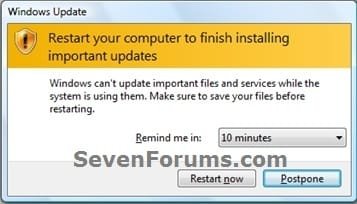
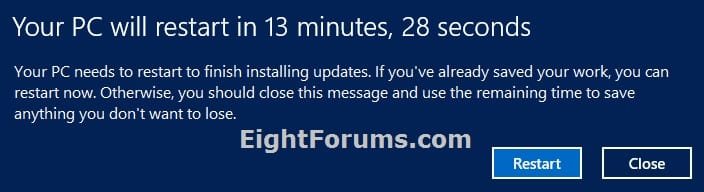
EXAMPLE: Windows Update Restart Prompt
NOTE: Enabled (left screenshot) and disabled (right screenshot)
Windows Update - Enable or Disable Automatic Restart-auto_restart.jpgWindows Update - Enable or Disable Automatic Restart-remind_restart.jpg


OPTION ONE

Using a REG File Download
1. To Enable Windows Update Automatic Restart
A) Click on the Download button below to download the file below.
Enable_Windows_Update_Auto_Restart.reg
download
B) Go to step 3.
2. To Disable Windows Update Automatic Restart
A) Click on the Download button below to download the file below.
Disable_Windows_Update_Auto_Restart.reg
download
3. Click on Save, and save the .reg file to the desktop.

4. Right click on the downloaded .reg file and click on Merge.

5. Click on Run, Yes, Yes, and OK when prompted.

6. Log off and log on, or restart the computer to apply.

7. When done, you can delete the downloaded .reg file if you like.


OPTION TWO

Through the Local Group Policy Editor
1. Open the Local Group Policy Editor.

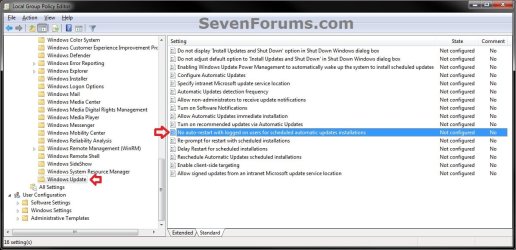
2. In the left pane, click on the arrow to expand Computer Configuration, Administrative Templates, Windows Components, then click on Windows Update. (see screenshot below)
Windows Update - Enable or Disable Automatic Restart-gpedit-1.jpg
3. In the right pane, right click on No auto-restart with logged on users for scheduled automatic updates installations and click on Edit. (see screenshot above)

4. To Enable Windows Update Automatic Restart
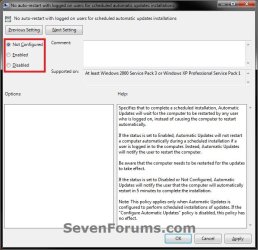
A) Select (dot) Not Configured or Disabled. (see screenshot below step 6)

B) Go to step 6.
5. To Disable Windows Update Automatic Restart
A) Select (dot) Enabled. (see screenshot below step 6)
6. Click on OK. (see screenshot below)
Windows Update - Enable or Disable Automatic Restart-gpedit-2.jpg
7. Close the Local Group Policy Editor.
That's it,
Shawn


Related Tutorials

Published by
Brink's Avatar
Administrator

Join Date: Oct 2008
Location: Texas
Posts: 37,303

Tutorial Tools
06-16-2011   #1
luckycharms


Windows 7 Professional x64


my computer restarted when my screen was locked, but i was logged in, and i had automatic restarts turned off. does locking the screen have any effect on these restarts?

My System SpecsSystem Spec
06-16-2011   #2
Brink


Windows 7 Ultimate x64 SP1


Hello Luckcharms,

Are you sure that it restarted due to a Windows Update?

Using both steps 5 and 6 in the tutorial below, and double check your Event Viewer logs to help verify what was the cause of the shutdown or restart.

Shut Down - View Details of Last Shutdown of Computer

Last edited by Brink; 06-29-2011 at 11:35 AM.. Reason: typo
My System SpecsSystem Spec
06-29-2011   #3
luckycharms


Windows 7 Professional x64


The restart was definitely due to windows update - when I turned it back on, it had the little bubble saying something like, "windows was updated and restarted your computer". And, it just happened to me again! argh. I'm going to unset and reset the group policy for this, but don't know if that will work.
My System SpecsSystem Spec
.


06-30-2011   #4
n13l5


Windows 7 pro 64bit


It has just happened to me the 3rd time this year.

On any version of windows, I always make sure that:

1) its set to ask me first if I feel like installing updates at the moment
2) that it will never automatically reboot the system after installing updates.


Each time I check after the unwanted update/reboot, I find that my settings have been reset to automatic updates with automatic reboot. (the way MS would prefer)


My only rational explanation for this happening is, that the previous to the last update has somehow reset my preferences to automatic, since I never touch those settings once they're set to the way I want.

This being my private and only computer, I use no profiles that could conflict with my update settings.

Is there any other genie in my system capable of changing things behind my back in Windows 7...?

more details:
I have a dual boot on the system, but if that was the culprit, I'd have to find my settings changed every day, rather than just 3 times in ~5 months.

Since I do keep my system updated, (I usually just finish my work before hitting the update) WindowsUpdate never asked me to install SP1, I presume cause I got it all in small patches over time.

Last edited by n13l5; 06-30-2011 at 09:07 AM.. Reason: clarification
My System SpecsSystem Spec
06-30-2011   #5
Brink


Windows 7 Ultimate x64 SP1


Hello n1315, and welcome to Seven Forums.

It would not be unusual for a Windows Update to possibly reset the settings back to default when updated.
My System SpecsSystem Spec
06-30-2011   #6
n13l5


Windows 7 pro 64bit


Quote   Quote: Originally Posted by Brink View Post
Hello n1315, and welcome to Seven Forums.

It would not be unusual for a Windows Update to possibly reset the settings back to default when updated.
It has not done this for me in the years past.

And I think it would be wrong to start that practice now, as it defeats the point of giving users a choice how to get updates.

More importantly, Microsoft should not take ANY chances in accidentally interfering with my ability to do my work on my machine.

Given that there have frequently been updates that caused problems with a certain percentage of systems, this setting should never bee changed by any entity besides the owner of the machine.

The very least we can expect is a modal warning dialog if Microsoft makes such a change.

Don't you agree?

I could fail deadlines or loose an order resulting in a loss of money I could have earned if my system develops a problem due to Microsoft remotely making changes to my system which I did not permit them to make and which they have not even asked my permission to make.

Maybe someone from Microsoft will see my post and take my point back to the windows update team...

But I had an idea... would it be possible to encapsulate the "check with me before downloading updates" setting into another .reg file, that I could somehow run everytime windows starts?
My System SpecsSystem Spec
06-30-2011   #7
Brink


Windows 7 Ultimate x64 SP1


I didn't say that was what happened, but only possibility since you say nothing else had been changed.

Do these settings reset when you restart the computer other than after updates?
My System SpecsSystem Spec
06-30-2011   #8
n13l5


Windows 7 pro 64bit


Quote   Quote: Originally Posted by Brink View Post
Do these settings reset when you restart the computer other than after updates?
Thank you very much for your fast answers!

About the restart, its a reasonable assumption to make, but I'd say not:

While I must admit that I don't check those settings every time i reboot the computer, this settings change would have had to occur - in a noticeable way - more than 3 times in ~5 months, as there were many more updates published by Microsoft in that time frame.

Hence, if this got reset every time i reboot my system, pretty much every one of Microsoft's updates would have had to get installed in the fully automatic manner, which they did not.

I did not count the updates, but I think there were at least 30-40 individual updates from Microsoft in 2011, ignoring that some updates contain multiple patches. Counting every patch individually would probably raise the count beyond 50 or more, but a multiple patch release wouldn't increase the count of reboots.

Out of all those updates, only 3 got installed in automatic mode. All others I did manually as per my settings.

Based on this, I'm still thinking that each time, the previous to last update was responsible for the changed settings, but I'm only guessing.


I just checked on updates that I had hidden (one update had a bad rep about causing problems, windows life and silverlight installs which looked like disk space hogs, 2 others were for media center which I don't even have (I think?), and the last one about browser choice on 64bit systems, which I can't remember why I refused that one, I'll install that one now) So the good news is, that updates/programs I had declined to install were not auto-installed.


Do you know off the top of your head, a filter I could use in the windows event viewer that would let me filter out that update settings change?
My System SpecsSystem Spec
06-30-2011   #9
Brink


Windows 7 Ultimate x64 SP1


I'm sorry, but I don't know of a specific event ID thay may apply to this, but you could look through the C:\Windows\WindowsUpdate.log to see if it may be able to show what you are looking for.

How to read the Windowsupdate.log file
My System SpecsSystem Spec
Comment

 Windows Update - Enable or Disable Automatic Restart problems?


Tutorial Tools


Similar Threads for: Windows Update - Enable or Disable Automatic Restart
Windows 7 Tutorial Category
Games Explorer - Automatic Game Updates - Enable or Disable Tutorials
Windows Update - Enable or Disable "Who can install updates" Setting Tutorials
Windows 7 automatic restart Installation & Setup
Windows Update - Enable or Disable Access Tutorials
Auto restart even if uncheck automatic restart Crashes and Debugging


All times are GMT -5. The time now is 02:46 AM.


Windows 7 Forums is an independent web site and has not been authorized,
sponsored, or otherwise approved by Microsoft Corporation.
"Windows 7" and related materials are trademarks of Microsoft Corp.
© Designer Media Ltd
  

1 2 3 4 5 6 7 8 9 10 11 12 13 14 15 16 17 18 19 20 21 22 23 24 25 26 27 28 29 30