SSD / HDD : Optimize for Windows Reinstallation

How to Optimize an SSD / HDD When You're Ready to Reinstall the Operating System

This will show how to remove / over-write all existing data from a Solid State Drive (SSD) or a Hard Disk Drive (HDD), it'll work for both, then how to create a partition and then format that partition before install begins so you have a clean drive to start the installation with.

   Note

Before you start this, in the Windows start menu search box type diskmgmt.msc right click the entry and click "Run as Administrator" if you get a User Account Control (UAC) prompt enter your user credentials and click Yes; make very sure you know the correct drive number of the drive you want to do this to if you have more than one SSD / HDD in the machine, you don't want to do the wrong one.
   Warning

Do not do this to any SSD or HDD that has data on it you don't want to lose, the first thing this does is to mark the drive as "Unallocated Space" and then writes zeroes ( 0's ) to the entire drive, it's known as a "Secure Erase" and it will make data un-recoverable, it cannot be done to just a single partition on a drive, it will do the whole drive.
You have been warned!
   Information

It may be a help to over-write the HDD Master Boot Record (MBR) before you start any other procedure using the diskpart clean command, rather than the clean all; it takes just seconds to complete so you will have "unallocated" space to use either the Windows installer to create and format the partition(s) or use diskpart for that, however you choose.

Let's get started!


Step One

Boot To DISKPART


If need be, view this tutorial at the link below for an out-line of the process.
How to Boot to DISKPART at PC Startup

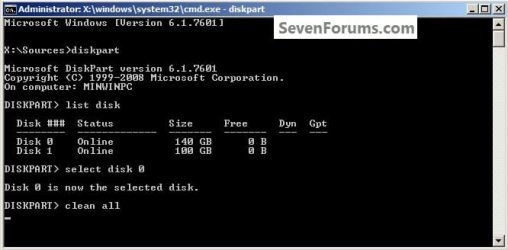
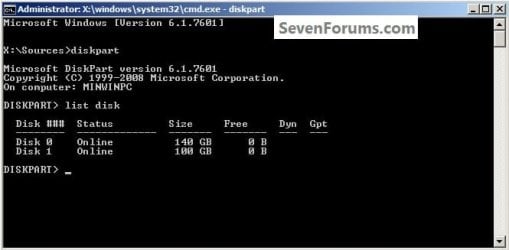
1) In the command window that opens type diskpart then hit the <enter> key then type list disk <enter> if you have more than one SSD / HDD in the machine it'll list them all.

Have a look here to view additional important information on this entire process.
click any image to enlarge
One_1.jpg
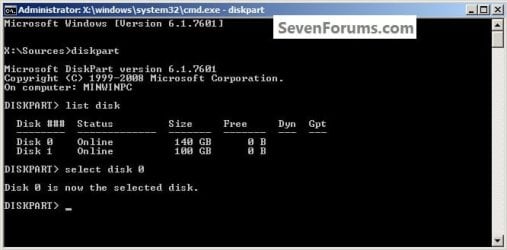
2) Now in the command window type select disk # (# = target disk number) then <enter>, you will get "Disk # is now the selected disk".
One_2.jpg
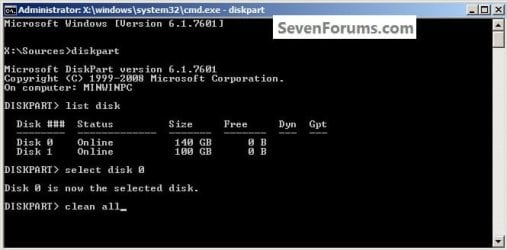
3) Now type clean <enter> you will get a blinking cursor telling you that clean all is working like in the second snip down, just relax and let it work.
One_3.1.jpg
One_3.2.jpg
4) When it finishes you'll get "DiskPart succeeded in cleaning the disk" in the command window.
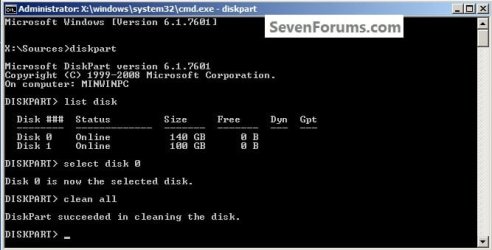
One_4.1.jpg
To leave diskpart at any time and return to the Windows 7 installer type exit two (2) separate times and hit <enter> after each and you will be returned to the installer to continue the installation process.
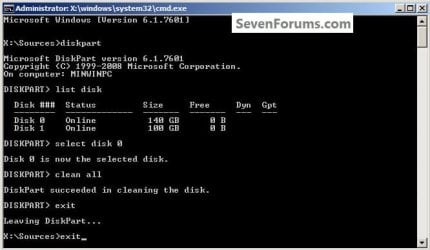
One_4.2.jpg


Step Two

Create a Partition


1) Create a single partition of the entire HDD / SSD

Still in the same command window, to create a partition of the entire HDD / SSD, it is suggested if you are using one of the larger, 1 - 2TB HDDs that you use the outline in #2 below to create a single 100GB partition to do the installation to or #3 below if you would like to include the new Windows 7 System Reserved partition, as we're now seeing serious issues with some trying to install to such large partitions.

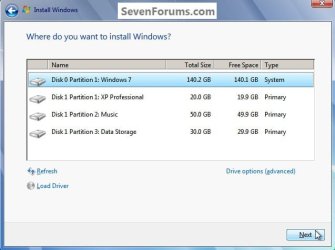
Do not format the created partition(s) with the installer if you create them using this process as the installer will delete all this info, the second snip shows how to select "where to install" during the installation process, click to highlight/select the "Windows 7" partition and click next.

Now skip down to #5 below to start the installation.
click any image to enlarge
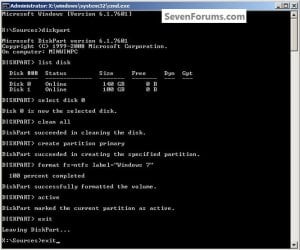
Two_1.1.jpg
Two_1.2.jpg
2) Create a specific size partition

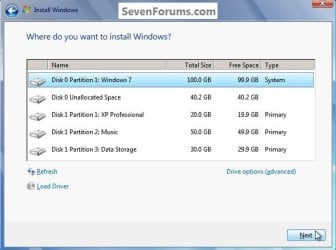
If you wanted to create a specific size partition, say 100GB you would add the size you want to create in MBs like in the command below.
create partition primary size=102400 <enter>
1024MB = 1GB - 1024x100 = 102400, you can use/create any size you like.

You can always extend the Windows partition to include the remaining unallocated space on the HDD / SSD or create additional Primary partitions or an Extended partition after the installation completes if you choose.

Do not format the created partition(s) with the installer if you create them using this process as the installer will delete all this info, the second snip shows how to select "where to install" during the installation process, click to highlight/select the "Windows 7" partition and click next.

Now skip down to #5 below to start the installation.
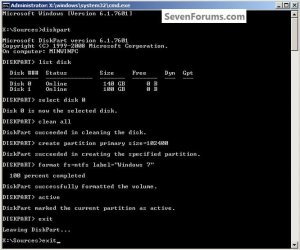
Two_2.1.jpg
Two_2.2.jpg
3) Create the System Reserved partition

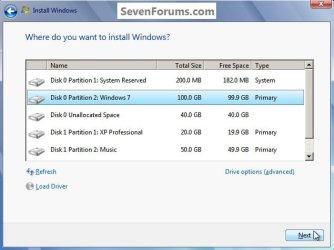
If you should want to add the "System Reserved" partition back after the clean all, see this snip; of course you would have to select to install Windows 7 to the partition labeled as "Windows 7" during the install and do not format either partition with the installer.

The reason for suggesting to create the System Reserved at 200MB instead of the new default of 100MB is an attempt to curb some of the issues we're now seeing with the partition being too small when dual/multi booting and it also being needed for use with the Windows 7 Backup and Restore and BitLocker programs.

You can always extend the Windows partition to include the remaining unallocated space on the HDD / SSD or create additional Primary partitions or an Extended partition after the installation completes if you choose.

The second snip shows how to select "where to install" during the installation process, click to highlight/select the "Windows 7" partition and click next.
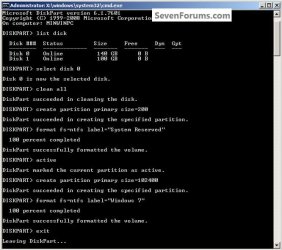
Two_3.1.jpg
Two_3.2.jpg
4) See this tutorial for the "align" argument

Align a Solid State Drive for Windows Installation
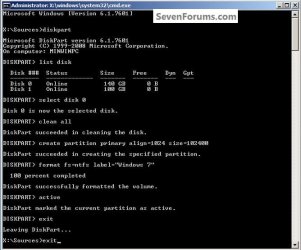
Two_4.1.jpg
5) That's it, you're now done with the command window, type exit <enter> to leave diskpart and exit <enter> again to close the command window; if you're using a Windows 7 full installer it will go to the "Select Language" screen to continue the installation process as usual.

For those using a created repair CD or a Vista installer type exit <enter> to leave diskpart and exit <enter> again to close the command window; at the System Recovery Options dialog box that's still open click Restart to finish the process.
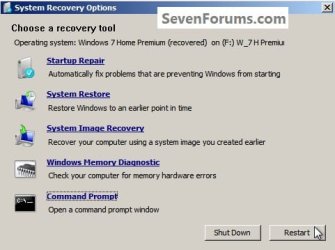
Restart.jpg
Enjoy! :)


Last edited by a moderator:
Hello again derp55.


I'm very pleased you got it sorted and thanks for the update.
 

My Computer My Computer

Computer Manufacturer/Model Number
* BFK Customs *
OS
W 7 64-bit Ultimate
CPU
Intel Q9550 Yorkfield
Motherboard
ASUS P5Q Pro
Memory
8GB Dominator 8500C5D
Graphics Card(s)
ATI : XFX 5870
Sound Card
Realtek HD Audio 7-1
Monitor(s) Displays
1x 47" LCD HDMI & 3x 26" LCD HDMI
Screen Resolution
1920x1080P & 1920x1200
Hard Drives
1x 80GB Intel X25-M G2 SSD : 1x 500GB & 1x 640GB WD Caviar Black(s)
PSU
Corsair 620HX
Case
Cooler Master RC-690
Cooling
Tuniq Tower 120, 2x 140mm and 3x 120mm case fans
Keyboard
Microsoft 500
Mouse
Razer Diamondback 3G
Internet Speed
14 Mb/s
Other Info
1x Koutech 3Gb/s SATA HDD Hot Swap Rack
Hello all.


I just totally reworked this tutorial, I think it flows much better and is easier to follow now.
 

My Computer My Computer

Computer Manufacturer/Model Number
* BFK Customs *
OS
W 7 64-bit Ultimate
CPU
Intel Q9550 Yorkfield
Motherboard
ASUS P5Q Pro
Memory
8GB Dominator 8500C5D
Graphics Card(s)
ATI : XFX 5870
Sound Card
Realtek HD Audio 7-1
Monitor(s) Displays
1x 47" LCD HDMI & 3x 26" LCD HDMI
Screen Resolution
1920x1080P & 1920x1200
Hard Drives
1x 80GB Intel X25-M G2 SSD : 1x 500GB & 1x 640GB WD Caviar Black(s)
PSU
Corsair 620HX
Case
Cooler Master RC-690
Cooling
Tuniq Tower 120, 2x 140mm and 3x 120mm case fans
Keyboard
Microsoft 500
Mouse
Razer Diamondback 3G
Internet Speed
14 Mb/s
Other Info
1x Koutech 3Gb/s SATA HDD Hot Swap Rack
Do you have to create a new partition or can you just install Windows 7 on to the unallocated space after cleaning the disk?
 

My Computer My Computer

Computer Manufacturer/Model Number
Dell Inspiron 14R N4110
OS
Windows 7 Home Premium x64
CPU
Intel Core i5-2410M Quad Core CPU @ 2.30 GHz
Memory
8 GB Shared Channel DDR3 Memory
Graphics Card(s)
Intel HD Graphics 3000, AMD Radeon HD 6470M
Sound Card
Intel Display Audio, Realtek High Definition Audio
Monitor(s) Displays
14" HD 720p LED Display
Screen Resolution
1366x768
Hard Drives
500 GB 5400 RPM SATA Hard Drive
Mouse
Microsoft USB IntelliMouse Explorer 3.0
Do you have to create a new partition or can you just install Windows 7 on to the unallocated space after cleaning the disk?


Hello Klaw117.


You do not have to create a partition after the clean all but you will get the 100MB "System, Reserved" boot partition that is created to an unallocated HDD/SSD during the install process.
 

My Computer My Computer

Computer Manufacturer/Model Number
* BFK Customs *
OS
W 7 64-bit Ultimate
CPU
Intel Q9550 Yorkfield
Motherboard
ASUS P5Q Pro
Memory
8GB Dominator 8500C5D
Graphics Card(s)
ATI : XFX 5870
Sound Card
Realtek HD Audio 7-1
Monitor(s) Displays
1x 47" LCD HDMI & 3x 26" LCD HDMI
Screen Resolution
1920x1080P & 1920x1200
Hard Drives
1x 80GB Intel X25-M G2 SSD : 1x 500GB & 1x 640GB WD Caviar Black(s)
PSU
Corsair 620HX
Case
Cooler Master RC-690
Cooling
Tuniq Tower 120, 2x 140mm and 3x 120mm case fans
Keyboard
Microsoft 500
Mouse
Razer Diamondback 3G
Internet Speed
14 Mb/s
Other Info
1x Koutech 3Gb/s SATA HDD Hot Swap Rack
Do you have to create a new partition or can you just install Windows 7 on to the unallocated space after cleaning the disk?


Hello Klaw117.


You do not have to create a partition after the clean all but you will get the 100MB "System, Reserved" boot partition that is created to an unallocated HDD/SSD during the install process.
Ok, thanks. I don't mind the 100 MB partition though. Excellent tutorial! I wish I had found this a few days ago when I reinstalled Windows. To get rid of all the old data, I kept pushing the Format button in the Custom Installer 30 times.

+1 rep :)
 

My Computer My Computer

Computer Manufacturer/Model Number
Dell Inspiron 14R N4110
OS
Windows 7 Home Premium x64
CPU
Intel Core i5-2410M Quad Core CPU @ 2.30 GHz
Memory
8 GB Shared Channel DDR3 Memory
Graphics Card(s)
Intel HD Graphics 3000, AMD Radeon HD 6470M
Sound Card
Intel Display Audio, Realtek High Definition Audio
Monitor(s) Displays
14" HD 720p LED Display
Screen Resolution
1366x768
Hard Drives
500 GB 5400 RPM SATA Hard Drive
Mouse
Microsoft USB IntelliMouse Explorer 3.0
For me the "clean all" command would not break down the partitions on the drive, I had to use the "clean" command for that part. I even tried the "clean all" twice to no avail but "clean" got rid of them in like two seconds. Not sure if this is normal but it was true in my case.
 

My Computer My Computer

Computer type
PC/Desktop
Computer Manufacturer/Model Number
Home built
OS
Windows 7 Ult, Windows 8.1 Pro,
CPU
Q9650-4.275GHz, E8600 4.5GHz, E6750-3.8GHz
Motherboard
Evga 780i FTW
Memory
G.Skill PC2 9600 1200Mhz 5 5 5 15 2T
Graphics Card(s)
GTX480
Sound Card
Asus Xonar D2
Monitor(s) Displays
HannsG
Screen Resolution
1680X1050
Hard Drives
GSkill Phoenix Pro 120GB SSD
PSU
ThermalTake Toughpower 1000Watt modular
Case
ThermalTake XaserV
Cooling
Xigmatek S1283
Keyboard
Logitech G15
Mouse
Logitech G9
Internet Speed
T1
Ok, thanks. I don't mind the 100 MB partition though. Excellent tutorial! I wish I had found this a few days ago when I reinstalled Windows. To get rid of all the old data, I kept pushing the Format button in the Custom Installer 30 times.

+1 rep :)
You're welcome and thank you!

Here's a quote I always find interesting, a format does not remove any data at all. ;)

   Note

Contrary to popular belief, formatting does not remove any data at all, it just checks for sector errors and marks the space to be over-written as needed, all the data is still there including all the code from previous/failed installation attempts.


My Computer My Computer

Computer Manufacturer/Model Number
* BFK Customs *
OS
W 7 64-bit Ultimate
CPU
Intel Q9550 Yorkfield
Motherboard
ASUS P5Q Pro
Memory
8GB Dominator 8500C5D
Graphics Card(s)
ATI : XFX 5870
Sound Card
Realtek HD Audio 7-1
Monitor(s) Displays
1x 47" LCD HDMI & 3x 26" LCD HDMI
Screen Resolution
1920x1080P & 1920x1200
Hard Drives
1x 80GB Intel X25-M G2 SSD : 1x 500GB & 1x 640GB WD Caviar Black(s)
PSU
Corsair 620HX
Case
Cooler Master RC-690
Cooling
Tuniq Tower 120, 2x 140mm and 3x 120mm case fans
Keyboard
Microsoft 500
Mouse
Razer Diamondback 3G
Internet Speed
14 Mb/s
Other Info
1x Koutech 3Gb/s SATA HDD Hot Swap Rack
How do I format the HD?
 

My Computer My Computer

Computer Manufacturer/Model Number
K & C computers
OS
Windows 7 Pro 32 bit
How do I format the HD?


Hello helyn, welcome to Seven Forums!


There are several responses to this the way it is asked.

Please explain what you want to do and be very specific and go into great detail and describe what it is you are trying to accomplish.
 

My Computer My Computer

Computer Manufacturer/Model Number
* BFK Customs *
OS
W 7 64-bit Ultimate
CPU
Intel Q9550 Yorkfield
Motherboard
ASUS P5Q Pro
Memory
8GB Dominator 8500C5D
Graphics Card(s)
ATI : XFX 5870
Sound Card
Realtek HD Audio 7-1
Monitor(s) Displays
1x 47" LCD HDMI & 3x 26" LCD HDMI
Screen Resolution
1920x1080P & 1920x1200
Hard Drives
1x 80GB Intel X25-M G2 SSD : 1x 500GB & 1x 640GB WD Caviar Black(s)
PSU
Corsair 620HX
Case
Cooler Master RC-690
Cooling
Tuniq Tower 120, 2x 140mm and 3x 120mm case fans
Keyboard
Microsoft 500
Mouse
Razer Diamondback 3G
Internet Speed
14 Mb/s
Other Info
1x Koutech 3Gb/s SATA HDD Hot Swap Rack
I was told by this forum to reformat my HD before reinstalling windows 7 pro 32 bit software. I don't know how this is done or how to get to the tutorials you mention. I am not much of a dolt but am new at this.
 

My Computer My Computer

Computer Manufacturer/Model Number
K & C computers
OS
Windows 7 Pro 32 bit
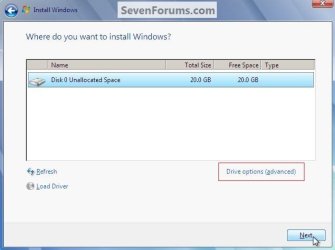
During the installation process you will be presented with this dialog box, click "drive options" and then the "format" button and when finished if it doesn't help with the issue you will need to use this tutorial to do a wipe (secure erase) of the entire Hard Disk Drive (HDD) but before you do that try these suggestions first for a format.

click to enlarge
New Partition.jpg
 

My Computer My Computer

Computer Manufacturer/Model Number
* BFK Customs *
OS
W 7 64-bit Ultimate
CPU
Intel Q9550 Yorkfield
Motherboard
ASUS P5Q Pro
Memory
8GB Dominator 8500C5D
Graphics Card(s)
ATI : XFX 5870
Sound Card
Realtek HD Audio 7-1
Monitor(s) Displays
1x 47" LCD HDMI & 3x 26" LCD HDMI
Screen Resolution
1920x1080P & 1920x1200
Hard Drives
1x 80GB Intel X25-M G2 SSD : 1x 500GB & 1x 640GB WD Caviar Black(s)
PSU
Corsair 620HX
Case
Cooler Master RC-690
Cooling
Tuniq Tower 120, 2x 140mm and 3x 120mm case fans
Keyboard
Microsoft 500
Mouse
Razer Diamondback 3G
Internet Speed
14 Mb/s
Other Info
1x Koutech 3Gb/s SATA HDD Hot Swap Rack
@BFK
Can it be used to do the 0's secure wipe with only one partition instead of the entire HDD?
 

My Computer My Computer

Computer Manufacturer/Model Number
HCL
OS
Winbdows 7 ultimate x64 | Ubuntu 12.04 x64 LTS
CPU
Core 2 Duo e7400 @ 2.90GHz
Motherboard
Gigabyte G31M-ES2L
Memory
3GB DDR2
Graphics Card(s)
Asus Nvidia GTX 560Ti 1GB
Sound Card
On-board
Monitor(s) Displays
HCL eZeeBee 18.5" LCD
Screen Resolution
1366x768 @ 60Hz
Hard Drives
Western Digital 320GB
PSU
Corsair CX500 V2 500W
Cooling
Stock
Keyboard
Stock
Mouse
Stock
Internet Speed
15-25kBps D/L | 10kBps U/L | Hey Don't laugh
Thanks for your interest, but somehow I got the virtual machine to work and even was able to install my printer by getting the driver from Canon. Now it has to hold...that is the challenge!
 

My Computer My Computer

Computer Manufacturer/Model Number
K & C computers
OS
Windows 7 Pro 32 bit
@BFK
Can it be used to do the 0's secure wipe with only one partition instead of the entire HDD?
No, it will do the entire Hard Disk Drive (HDD) it will not do a single partition.

But you can have a look at Option Three in this tutorial at the link below for an out-line of how to do a partition specific wipe; just be sure to have backups just in case.

Partition Wizard : Use the Bootable CD


Thanks for your interest, but somehow I got the virtual machine to work and even was able to install my printer by getting the driver from Canon. Now it has to hold...that is the challenge!
I'm glad it was a help to you and thanks for the update.
 

My Computer My Computer

Computer Manufacturer/Model Number
* BFK Customs *
OS
W 7 64-bit Ultimate
CPU
Intel Q9550 Yorkfield
Motherboard
ASUS P5Q Pro
Memory
8GB Dominator 8500C5D
Graphics Card(s)
ATI : XFX 5870
Sound Card
Realtek HD Audio 7-1
Monitor(s) Displays
1x 47" LCD HDMI & 3x 26" LCD HDMI
Screen Resolution
1920x1080P & 1920x1200
Hard Drives
1x 80GB Intel X25-M G2 SSD : 1x 500GB & 1x 640GB WD Caviar Black(s)
PSU
Corsair 620HX
Case
Cooler Master RC-690
Cooling
Tuniq Tower 120, 2x 140mm and 3x 120mm case fans
Keyboard
Microsoft 500
Mouse
Razer Diamondback 3G
Internet Speed
14 Mb/s
Other Info
1x Koutech 3Gb/s SATA HDD Hot Swap Rack
I have a llk' question about this... I'm about to format a HDD (is not an SDD) 250GB SataII, do I need to aplyi that align=64 command? or can I omit it.

See ya!!! :D
 

My Computer My Computer

Computer type
PC/Desktop
Computer Manufacturer/Model Number
Assembled Desktop PC
OS
Microsoft Windows 7 Home Premium SP1 64-bit Build 7600
CPU
AMD Athlon 64 X2 5200+ Dual Core CPU @ 2.7 Ghz (Brisbane)
Motherboard
PCChips A13G+ v3.0
Memory
2x2 GB DDR2 PC-5300 (667 Mhz) Kingston ValueRAM
Graphics Card(s)
XFX ATI Radeon HD 4350 GPU (512 MB + 512 MB HM)
Sound Card
Realtek High Definition Audio Driver ALC660 @ MCP61S
Monitor(s) Displays
HP S2031 20" LED HD Widescreen Display Monitor
Screen Resolution
1600 x 900 px
Hard Drives
Maxtor Diamond Max 10 (160 GB, 7200 RPM, SATA-II Hard Disk)
Western Digital Scorpion Blue (250 GB, 5400 RPM, SATA-II External Hard Disk - Personal Data)
Toshiba MQ01ABD050 (500 GB, 5400 RPM, SATA-II External Hard Disk - Software & ISOs)
PSU
Pixxo Transformer 850W 80+ Certification PSU
Case
Compaq 5BW353 Case
Cooling
Many solutions, see other info...
Keyboard
Green Leaf (Mitzu) Standard Keyboard
Mouse
Microsoft USB Lasser Pointing Device
Internet Speed
10 MB
Antivirus
Avast Antivirus Free
Browser
Firefox, Chrome, Internet Explorer
Other Info
Windows Experience Index Result: 3.8 of 7.9.

Cooling solutions:
- AVC @ 2000/5000 RPM Copper Heatpipes (For Athlon 64 X2 6000+ CPU used in an Athlon 64 X2 5200+)
- Rear Fan 80 mm @ 2700 RPM for heat extraction
- Manhatan Chipset Cooler @ 4700/7200 RPM (For nVidia Chipset in MoBo)
- Foxconn @ 2500 RPM (Old Pentium III heatsink fan) in XFX ATI Radeon HD 4350
I have a llk' question about this... I'm about to format a HDD (is not an SDD) 250GB SataII, do I need to aplyi that align=64 command? or can I omit it.

See ya!!! :D

Hello FerchogtX.


You can omit it if you like.
 

My Computer My Computer

Computer Manufacturer/Model Number
* BFK Customs *
OS
W 7 64-bit Ultimate
CPU
Intel Q9550 Yorkfield
Motherboard
ASUS P5Q Pro
Memory
8GB Dominator 8500C5D
Graphics Card(s)
ATI : XFX 5870
Sound Card
Realtek HD Audio 7-1
Monitor(s) Displays
1x 47" LCD HDMI & 3x 26" LCD HDMI
Screen Resolution
1920x1080P & 1920x1200
Hard Drives
1x 80GB Intel X25-M G2 SSD : 1x 500GB & 1x 640GB WD Caviar Black(s)
PSU
Corsair 620HX
Case
Cooler Master RC-690
Cooling
Tuniq Tower 120, 2x 140mm and 3x 120mm case fans
Keyboard
Microsoft 500
Mouse
Razer Diamondback 3G
Internet Speed
14 Mb/s
Other Info
1x Koutech 3Gb/s SATA HDD Hot Swap Rack
Thanks for the response... just a lil' one more: if I activate that, does any difference with normal sata II HD drives? BTW NICE tutorial, I recovered my laptop for a recursive fail with drivers and it even goes faster :P

See ya!!! :D
 

My Computer My Computer

Computer type
PC/Desktop
Computer Manufacturer/Model Number
Assembled Desktop PC
OS
Microsoft Windows 7 Home Premium SP1 64-bit Build 7600
CPU
AMD Athlon 64 X2 5200+ Dual Core CPU @ 2.7 Ghz (Brisbane)
Motherboard
PCChips A13G+ v3.0
Memory
2x2 GB DDR2 PC-5300 (667 Mhz) Kingston ValueRAM
Graphics Card(s)
XFX ATI Radeon HD 4350 GPU (512 MB + 512 MB HM)
Sound Card
Realtek High Definition Audio Driver ALC660 @ MCP61S
Monitor(s) Displays
HP S2031 20" LED HD Widescreen Display Monitor
Screen Resolution
1600 x 900 px
Hard Drives
Maxtor Diamond Max 10 (160 GB, 7200 RPM, SATA-II Hard Disk)
Western Digital Scorpion Blue (250 GB, 5400 RPM, SATA-II External Hard Disk - Personal Data)
Toshiba MQ01ABD050 (500 GB, 5400 RPM, SATA-II External Hard Disk - Software & ISOs)
PSU
Pixxo Transformer 850W 80+ Certification PSU
Case
Compaq 5BW353 Case
Cooling
Many solutions, see other info...
Keyboard
Green Leaf (Mitzu) Standard Keyboard
Mouse
Microsoft USB Lasser Pointing Device
Internet Speed
10 MB
Antivirus
Avast Antivirus Free
Browser
Firefox, Chrome, Internet Explorer
Other Info
Windows Experience Index Result: 3.8 of 7.9.

Cooling solutions:
- AVC @ 2000/5000 RPM Copper Heatpipes (For Athlon 64 X2 6000+ CPU used in an Athlon 64 X2 5200+)
- Rear Fan 80 mm @ 2700 RPM for heat extraction
- Manhatan Chipset Cooler @ 4700/7200 RPM (For nVidia Chipset in MoBo)
- Foxconn @ 2500 RPM (Old Pentium III heatsink fan) in XFX ATI Radeon HD 4350
Thanks for the response... just a lil' one more: if I activate that, does any difference with normal sata II HD drives? BTW NICE tutorial, I recovered my laptop for a recursive fail with drivers and it even goes faster :P

See ya!!! :D


I'm glad it was useful to you, thanks for the update; It'll work the same for any Hard Disk Drives.
 

My Computer My Computer

Computer Manufacturer/Model Number
* BFK Customs *
OS
W 7 64-bit Ultimate
CPU
Intel Q9550 Yorkfield
Motherboard
ASUS P5Q Pro
Memory
8GB Dominator 8500C5D
Graphics Card(s)
ATI : XFX 5870
Sound Card
Realtek HD Audio 7-1
Monitor(s) Displays
1x 47" LCD HDMI & 3x 26" LCD HDMI
Screen Resolution
1920x1080P & 1920x1200
Hard Drives
1x 80GB Intel X25-M G2 SSD : 1x 500GB & 1x 640GB WD Caviar Black(s)
PSU
Corsair 620HX
Case
Cooler Master RC-690
Cooling
Tuniq Tower 120, 2x 140mm and 3x 120mm case fans
Keyboard
Microsoft 500
Mouse
Razer Diamondback 3G
Internet Speed
14 Mb/s
Other Info
1x Koutech 3Gb/s SATA HDD Hot Swap Rack
Hi Bare Foot Kid,

I'm not experienced in this area too much so my question might seem a little bit weird; does the wipe clean does anything to MBR? I did have some problems before with two disks: one of them was being used for the OS and then I bought another one, tried to install fresh copy of OS and had problems with MBR - the new one was formated under the old one, hence problems with proper boot. Eventually I managed to get it work through EasyBCD but the question is: would I have problems like this again after this wipe clean?

Thanks.
 

My Computer My Computer

Computer Manufacturer/Model Number
Home Built
OS
Windows 7 Prof x64
CPU
Phenom II x4 955 BE
Motherboard
GA-790FXTA-UD5
Memory
8GB Corsair Dominator 1333
Graphics Card(s)
MSI N460 GTX Cyclone 768D5 OC
Sound Card
Realtek integrated
Monitor(s) Displays
Iiyama ProLite E2407HDS
Screen Resolution
1920 X 1080
Hard Drives
Samsung Spinpoint F3 HD502HJ
PSU
Cooler Master 700W
Case
Thermaltake Element S VK600 series
Cooling
CPU Noctua NH-U9B SE2
Keyboard
Logitech
Mouse
Razer Krait
Internet Speed
Mobile Broadband
Hi Bare Foot Kid,

I'm not experienced in this area too much so my question might seem a little bit weird; does the wipe clean does anything to MBR? I did have some problems before with two disks: one of them was being used for the OS and then I bought another one, tried to install fresh copy of OS and had problems with MBR - the new one was formated under the old one, hence problems with proper boot. Eventually I managed to get it work through EasyBCD but the question is: would I have problems like this again after this wipe clean?

Thanks.

Hello Ukiii.

The 'clean all' (secure erase) cannot be done to any Hard Disk Drive that has any data on it you want to keep, it will destroy, over-write any/all data on the HDD and cannot be done to a single partition on a HDD, it will do the whole drive and everything will be lost including the MBR for the HDD, see the warning from the tutorial I quoted below.


   Warning

Do not do this to any SSD or HDD that has data on it you don't want to lose, the first thing this does is to mark the drive as "Unallocated Space" and then writes zeroes ( 0's ) to the entire drive, it's known as a "Secure Erase" and it will make data un-recoverable, it cannot be done to just a single partition on a drive, it will do the whole drive.
You have been warned!
 

My Computer My Computer

Computer Manufacturer/Model Number
* BFK Customs *
OS
W 7 64-bit Ultimate
CPU
Intel Q9550 Yorkfield
Motherboard
ASUS P5Q Pro
Memory
8GB Dominator 8500C5D
Graphics Card(s)
ATI : XFX 5870
Sound Card
Realtek HD Audio 7-1
Monitor(s) Displays
1x 47" LCD HDMI & 3x 26" LCD HDMI
Screen Resolution
1920x1080P & 1920x1200
Hard Drives
1x 80GB Intel X25-M G2 SSD : 1x 500GB & 1x 640GB WD Caviar Black(s)
PSU
Corsair 620HX
Case
Cooler Master RC-690
Cooling
Tuniq Tower 120, 2x 140mm and 3x 120mm case fans
Keyboard
Microsoft 500
Mouse
Razer Diamondback 3G
Internet Speed
14 Mb/s
Other Info
1x Koutech 3Gb/s SATA HDD Hot Swap Rack
Back
Top