I am in the Effects tab. I can see only one place to play the sound and thats at the Speaker Configuration tab. How do I play sound at the SOund Effects tab?
You don't "play" sound in the Sound Effects tab. You only set your EQ sliders in the Sound Effects tab.
Presumably you have a second window open simultaneously, say with Winamp or Windows Media Player or some music/video player program that produces sound.
And as you adjust the sliders in the EQ of the Realtek HD Audio Manager, you can hear the difference occurring from whatever sound is being produced from your second video/music player window.
The idea is that you adjust the EQ sliders to produce the quality of sound you want, and then you SAVE that EQ with some custom name of your own choosing. That saved EQ can then be selected by its name, from the dropdown list of Equalizer setting... along with the pre-built special effect EQ names provided by Realtek.
Once you select an EQ, it's now in effect until you change to another EQ. So once you select an EQ (or, you can even just move the sliders from wherever they currently are to make a "temporary modification", and you don't even really need to save that modified EQ configuration as a name unless you really want to save it) you can close the whole Realtek HD Audio Manager window. The last selected/modified EQ slider settings will remain in effect.
You can have as many custom EQ's saved as you care to create. But you have to select them using this Sound Effects tab if you want to change the one currently in effect.
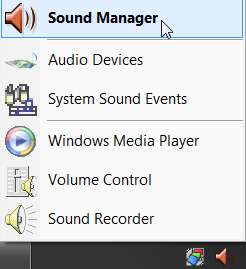
(1) So... you get started by opening Realtek HD Audio Manager by right-clicking on the orange speaker icon in the System Tray. Then you select the Sound Manager item at the top of the popup menu to open the main window.
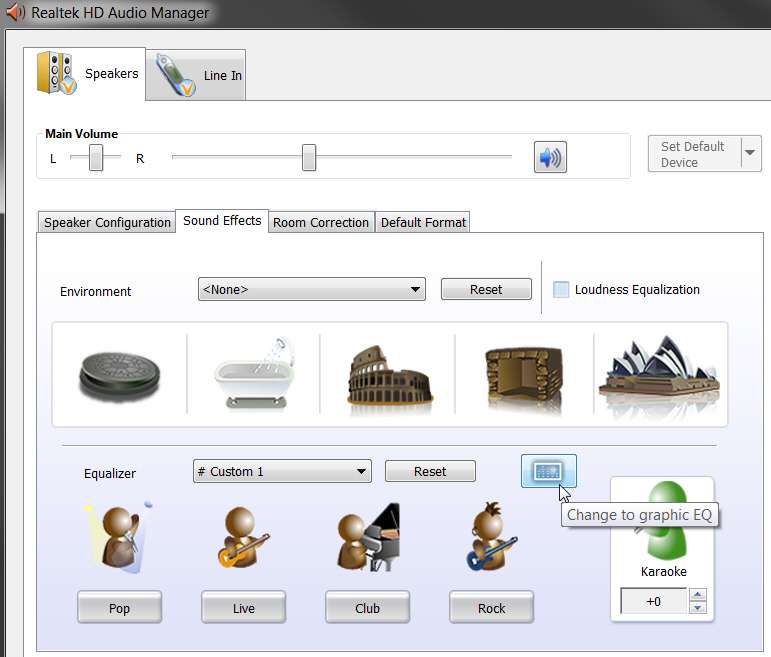
(2) Next, on the main window of HD Audio Manager you select the Sound Effects tab and you push the "equalizer" button.
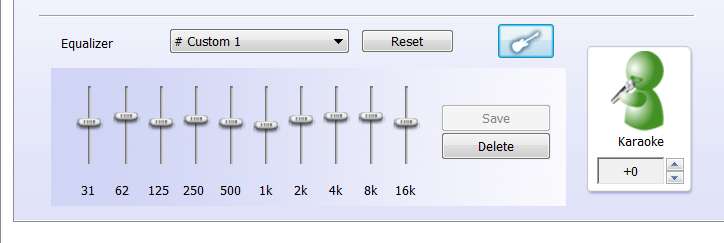
(3) You now have the 10-band EQ presentation, instead of the original initial default "Realtek-provided pre-built EQ presets" presentation. On this 10-band EQ slider presentation you can then customize as you want.
After you adjust the sliders to your liking, push the SAVE button and choose a name to save that EQ under (or, choose an existing name if you want to replace a previously saved setting with the newly modified version).
NOTE: you should take a screenshot of each of your custom EQ's slider settings, and save that JPG somewhere for future reference. Unfortunately there are no numerical flyout-Help values if you hover the mouse over a slider, so there's no way to precisely digitally duplicate this EQ again if you had to start over. Only your screenshot will give you an image for you to approximate a newly built EQ from the screenshot, if you have to rebuild.
And... you WILL have to rebuild your custom EQ's when you upgrade to a new version of the Realtek HD Audio Codec driver, if you do decide to upgrade again. Unfortunately, because the "upgrade" to a new Realtek driver is actually a 2-step process that (a) uninstalls the old driver, and then (b) installs the new driver, in that process all of your custom EQ's are LOST!!! Don't complain to me about that (I'm as angry as you are), complain to Realtek! That's just how they did it.
And, there is no way to actually save or preserve those custom EQ definitions, as the folder in which they reside is newly created with a new name each time the driver upgrade process occurs, and there's no way to copy an old EQ definition into the new folder. Again, Realtek is at fault here... but there doesn't seem to be a workaround, although many of us have tried.
Hence my own "solution", which is simply to take a JPG screenshot of each of my custom EQ's and just re-build them all over again (approximately, obviously) if I do upgrade to a new driver version.