Windows Explorer is hard (for me) to customize. I like to see files ordered by date created... always. I can't seem to make it "stick."
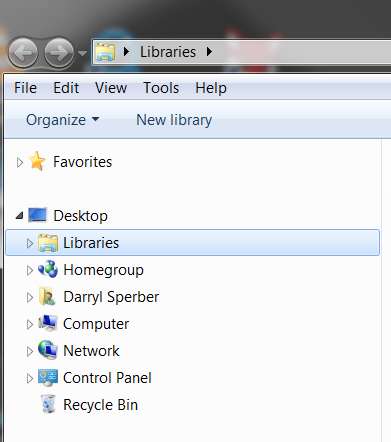
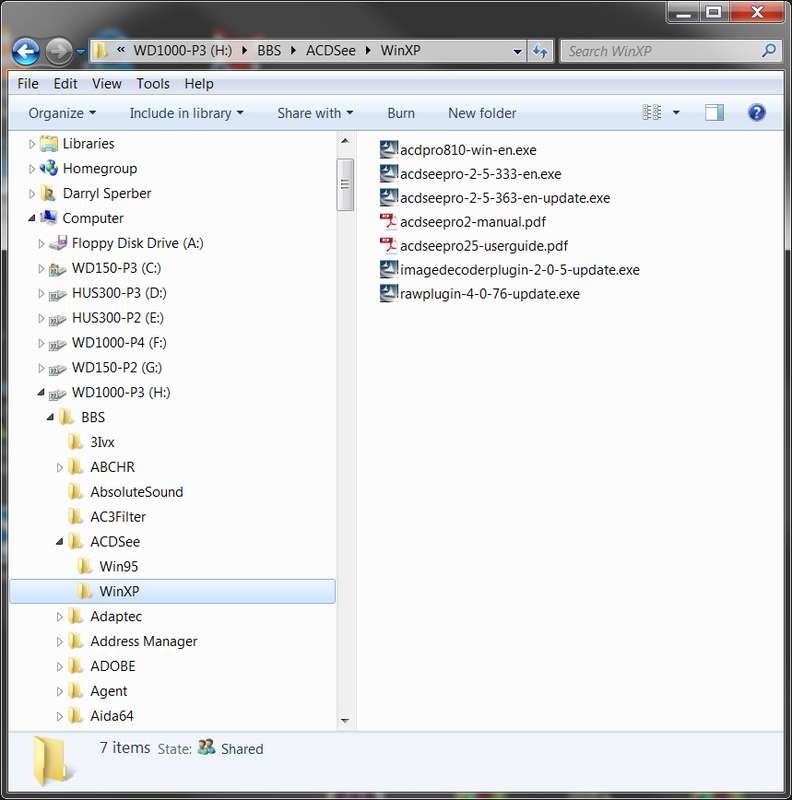
Just to try and help you get your bearings (as I, too, had a bit of a problem early on with the new look of Explorer when upgrading from XP to Win7), a picture's worth 1000 words, so I'll share a few screenshots to make my points.
As far as "libraries", this is purportedly a very convenient and user-friendly new feature of Win7... although I myself do not utilize it. Personal preference. I'm much more at home using "Computer" and all of the individual partitions I have, having placed things on my four hard drives over the years just as I wanted. And much of that is data, and I know exactly where it is, and I don't need to use "libraries" as a collection or shortcut for the assorted Windows or 3rd-party products I might use to access the data.
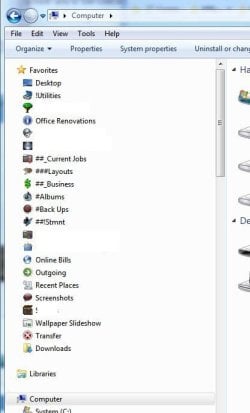
Anyway, you can simply "close up" all of the special purpose categories shown on the initial Explorer presentation.
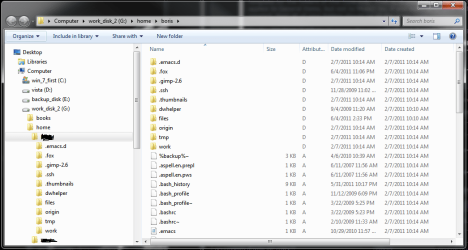
And then you can "expand" Computer (if that's what you want to do, as I do when using Explorer), and you're now in familiar territory. You can then expand particular drive letters and folders/sub-folders, just like you would with XP's Explorer.
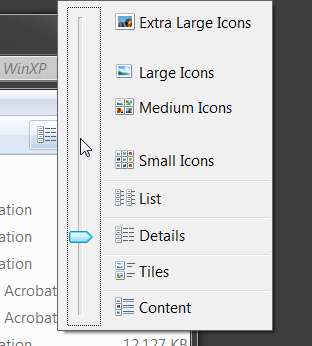
Now the key to Win7's Explorer enhancements is that the various alternative presentations (which DO stick, for THAT folder, for THAT application accessing that folder either in an OPEN or SAVE AS... dialog), is that special control toward the right side of the function bar (just below the menu bar). If you hover your mouse over the icon it will show "change your view". Hover the mouse over the down-arrow just to the right of the icon and it will show "more options".
If you repeatedly push the "change your view" icon you will cycle through the various presentation options, but you won't really know which one you're seeing or which one will appear next.
Instead, I recommend you push the "more options" down-arrow, and select exactly which option you want to have in effect for THAT folder, for THAT application accessing that folder, for either OPEN or SAVE AS dialogs. If you just play with this a bit, you'll soon see what the typical or most useful presentations are, depending on the particular folder you're working with in what application.
Myself, I usually use either "details" or "list" views. Details shows all of the various columns of information with column headings, and "list" shows only the external file names (WITH the extension, if you've set your Folder Options to not hide commonly used extensions as I have) in a multi-column arrangement.
If you are in "details" view with column headings, you can click on any of the column headings and the rows will re-sort themselves based on the values in the cells of that column. Click repeatedly on the column heading and you will sort and re-sort into ascending and descending sequence. Note that the currently selected column for sorting, as well as the ascending/descending sort sequence, well this is also remembered for that folder, etc.
Furthermore, if you are in "details" mode and you are say sorted by "date modified" (i.e. most recently modified in the first row), and then you change to "list" mode, the sort sequence is retained for the new presentation mode. So your new "list" view (with just the external file names in multiple columns) will be in the same "newest first" sequence, even though the "date modified" column does not appear in "list" mode.
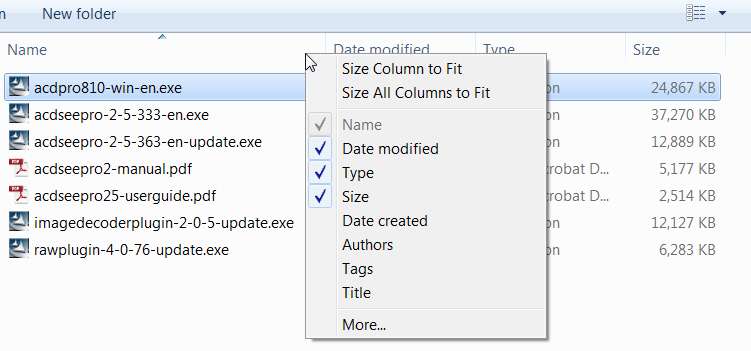
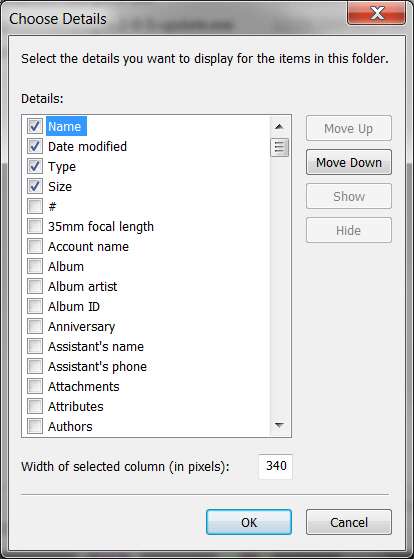
In addition, there are many many many columns of information available for display that are not shown by default, based on folder, type of file in that folder, etc.. But you can customize the columns shown (as well as the sequence of columns presented) by simply right-clicking on the column heading bar.
If you want to pick from some of the more exotic columns available, or you want to rearrange the order of the columns presented, select the "more..." item and follow the "choose details" dialog wizard (including using the UP/DOWN buttons to rearrange the checked column presentation sequence).
Hopefully, this should be enough get you a bit more comfortable with the new Explorer.
I can see a "back" arrow, but can't find a "move up" arrow that I used to use.
If you're referring to the two blue circles with the left/right white arrows in them, they are used just like BACK/FORWARD in your Internet Explorer or Firefox etc. browsers. They literally go back and forward to whatever was the last thing you had presented on the screen... just like web pages in a browser.
Notice however that at the very top of the Explore window there is an area which I call the "navigation bar" (or, just the "address bar"). It's like the URL address area for a browser. It shows you exactly the complete folder/sub-folder scheme you took to navigate down to wherever you are currently located through Explorer.
In fact, the old "up folder" button you used to use in XP to go back up one level at a time higher in folder structure from where you are? Well, in Win7 you don't have that limitation of going back up only one folder at at time... although you can do that too if you want to.
In Win7, you can simply click directly on ANY of the folder/sub-folder levels which appear in this "navigation bar", and you will instantly be taken DIRECTLY TO THAT LEVEL! So you can back up (a) one level at a time by clicking on the next higher item immediately to the left of the last item shown, which corresponds to your current navigation level, or (b) to any direct level by simply clicking ON THAT FOLDER!! Presto... you're right there.
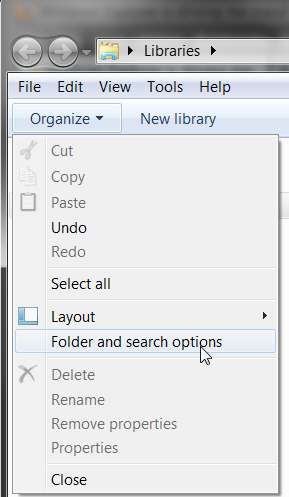
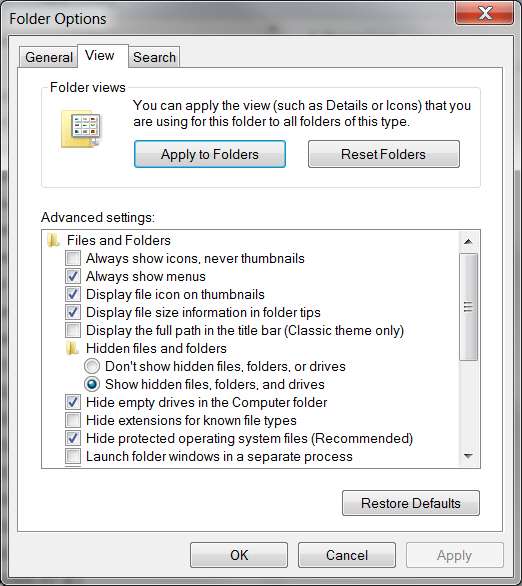
One more note. In Win7 you get to the "Folder Options" item to change what you see (e.g. to show hidden files, to not suppress extensions, apply this view to ALL folders, etc.) by selecting on the "Organize" item on the control bar, select "folder and search options":
Then you'll get the familiar "Folder Options" dialog window and you should select the familiar "View" tab.
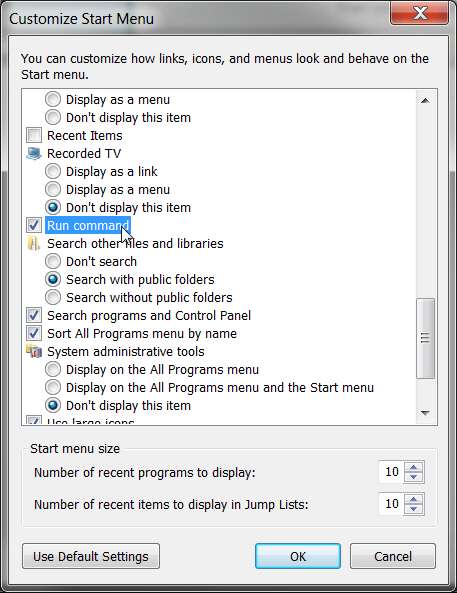
One more thing... you may have noticed that the RUN function (from Start -> Run) from WinXP is not shown by default in Win7. But you can make it re-appear on the Win7 Start menu.
Right-click on the taskbar, select Properties, select the Start Menu tab, and push the Customize button. The list of Start menu customization options are presented alphabetically. Scroll down to the "Run command" box and check it.
Now the "Run" item will appear on the Start menu.
I'd would like to see more common tasks (delete, copy, move) more readily available.
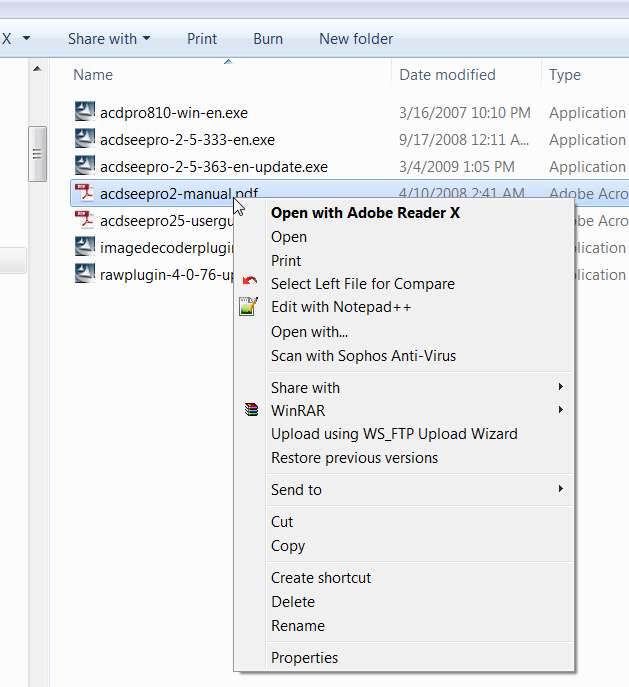
Once you're in your expanded view (e.g. from Computer), just right-click on a file and the expected context menu will appear with the familiar copy, delete, etc., functions.
There is no way to "customize" the button bar in Win7 as there was in XP, to show things such as "UNDO", "MAP NETWORK DRIVE", etc.
Now as one further recommendation, if you're interested in trying out a very highly recommended file manager replacement/substitute for Windows Explorer, you might look into
Free Commander.
It's a much more conventional GUI 1/2-pane file manager that IS highly customizable in its presentation (and buttons), and is extremely intuitive and familiar looking (probably). If you're looking for your expected and desired complete set of shortcuts (either as buttons for mouse clicks or from the keyboard and Fn keys, for example for RENAME (F2), COPY (F5) and MOVE (F6) from what's shown in one pane one pane to what's shown in the the other pane) then Free Commander is definitely for you.

 There are other problems that I'm having with Explorer. I need a good, concise, easily digestible explanantion of how to use the Windows 7 Explorer. Any suggestions would be appreciated. Thank you.