Solved How to configure SSD and HDD ?

shurzota

New member
Local time
10:19 AM
Messages
16
Hi everyone,

How should I configure my Intel SSD and Western Digital HDD for better protection and performance?


I have the Intel SSD as a primary, system drive that has Windows 7 Pro and all my applications.


All my data are stored on the WD hard drive.


I made the partition image of the SSD by the Acronis True Image Home, so I can restore my OS and applications in any time. I turned off System Restore function for SSD.


My data are stored on the WD HDD. How to configure it for better protection and performance?


How to turn on Scheduled defragmentation for the WD HDD and turned off defragmentation for the SSD at the same time?


If I disable defragmentation from ‘Services’ > ‘Disk Defragmenter’ defragmentation will be turned off for both drives. But if I enable defragmentation from ‘Services’ > ‘Disk Defragmenter’ I cannot turn on Scheduled defragmentation only for the WD HDD.


Are these setups good enough for the HDD:


1. 1. System Restore: (D:) On; (E:) On – Only restore previous versions of files ? or

Restore system settings and previous versions of files?
2. 2. Write cashing: Enabled - ?
3. 3. Drive Indexing: Enabled - ?
4. 4. Superfetch: Enabled - ?
5. 5. Prefetch: Enabled -?
6. 6. Defragmentation: Enabled-?
7. 7. What else?
If I create 2 partitions ( for example D: and E: ) can I set up defragmentation for this drive?

Thank you.
 

My Computer My Computer

At a glance

Windows 7
OS
Windows 7
Go here and get the intel ssd tolbox - it adjust all the settings for you . :)
 
Last edited:

My Computer My Computer

At a glance

Windows 10 Pro - 64 bitIntel i7 2600K8 Gig ddr3 1600 mhz - viper extreme (Patriot)EVGA 980 TI
Computer type
PC/Desktop
Computer Manufacturer/Model Number
Custom Build
OS
Windows 10 Pro - 64 bit
CPU
Intel i7 2600K
Motherboard
Asus P8P67
Memory
8 Gig ddr3 1600 mhz - viper extreme (Patriot)
Graphics Card(s)
EVGA 980 TI
Monitor(s) Displays
2 - Lg 21" LED , sony 48 " bravia LED
Hard Drives
one - samsung 840 series 465.76 GB SSD
two - wd 2 tB black
one - wd 1.5 tb black
one - wb 1 tb black
PSU
1000 Watt Coolmaster : Silent Pro Gold
Case
antec 1200
Cooling
watercooled
Mouse
logitech wireless
Antivirus
Norton Security 2015
Other Info
powerware 3.1 KVA FERRUPS with 4 - 1000 Amp Deep cycle batteries ...
Go here and get the intel ssd tolbox - it adjust all the settings for you . :)
If you used an Intel SSD Toolbox you should know that it enables monitoring and managing of Intel SSD ONLY.

I'm asking about HDD setup with the setup for the SDD already complete.

I turned Off defragmentation for SSD but I cannot turn On defragmentetion for HDD to keep it in healthy condition.

Please, read my question.
 

My Computer My Computer

At a glance

Windows 7
OS
Windows 7
Windows 7 automatically detects the SSD
- and doesn't apply the "usual" defrag procedures on it..

- it treats the HDD differently..

- as a general rule, I would consider moving certain library files off the SSD, and onto the HDD
- the MyMusic, Mydocs folders are good examples, as they tend to grow like crazy..
- you won't lose any performance and you'll save precious space on your SSD


PS: could you fill in some more detail on your system specs please, shurzota..
- it helps others to be more specific in offering appropriate advice,
- vis a vis, based on your system's hardware/software setup, etc..
 

My Computer My Computer

At a glance

Windows10 Pro - 64Bit vs.10547i7-965 Extreme Edition (8 Cores) at 3.3GHz (n...12G Corsair Dominator DDR3 - tripled2xAMD SapphireNITRO R9 380(4G) crossfire
Computer type
PC/Desktop
Computer Manufacturer/Model Number
benchtec, built to personal specs
OS
Windows10 Pro - 64Bit vs.10547
CPU
i7-965 Extreme Edition (8 Cores) at 3.3GHz (no OC)
Motherboard
BloodRageX58 (Socket1366)
Memory
12G Corsair Dominator DDR3 - tripled
Graphics Card(s)
2xAMD SapphireNITRO R9 380(4G) crossfire
Sound Card
Sonar(SB)X-Fi onboard
Monitor(s) Displays
SyncMaster P2050 20"
Screen Resolution
1600x900 (widescreen)
Hard Drives
480G\OCZSolid3SSD, 64G\OCZVertex3SSD,60G\OCZVertex2SSD, 1TB\spinpointF1SATAHDD
PSU
1200w Power Station Gold
Case
ANTEC 900/2 all blue lights, etc..
Cooling
Noctua SE1366 NH-U12P - a tight fit, but a monster cooler!!
Keyboard
Logitech G19 (wired)
Mouse
Logitech G9 Laser (wired)
Internet Speed
150mb unlimited
Browser
IE11(RP)
Other Info
Xbox One, Nokia735 Windows10 mobile, LG HD/DVD/Blu-Ray r/w, CyberlinkPowerDVD15, LogitechZ5500-SS(5.1), LogitechG35Phones-SS(7.1),MSOffice 2007,CorelDrawX7,Painter2016, Wacom Intuos Pro-SE
Why turn off system restore for the SSD? Set it to restore system settings and previous versions of files for the SSD only.

Defrag should be turned off automatically for the SSD during the install, but you can check it and set the defrag schedule for D and E by right clicking the drives in Explorer and going to the tools menu. Don't turn off defrag services.

Write caching should be enabled

Indexing probably should be left on for drives IF you use the Windows search tool

Most people have superfetch turned off. I think that is done automatically during the OS install ot the SSD?

There is not much to do for the HDD. Make sure it is backed up and that you have a good antivirus program. Let the Windows defrag automatically run once a week---that is the default.
 

My Computer My Computer

At a glance

Windows 7 Home Premium SP1, 64-bitIntel Skylake i5-6600K, not overclocked8 GB HyperX DDR4-2666 (2 x 4 GB)none; graphics are integrated on CPU
Computer type
PC/Desktop
Computer Manufacturer/Model Number
Ignatz Special; 4 speed manual gearbox; factory air conditioning; one of one
OS
Windows 7 Home Premium SP1, 64-bit
CPU
Intel Skylake i5-6600K, not overclocked
Motherboard
AsRock Z170M Extreme 4, micro ATX
Memory
8 GB HyperX DDR4-2666 (2 x 4 GB)
Graphics Card(s)
none; graphics are integrated on CPU
Sound Card
onboard: Realtek ALC1150; external: USB Behringer UF0-202
Monitor(s) Displays
Dell S2340M 23 inch IPS
Screen Resolution
1600 x 900
Hard Drives
System: Crucial MX100 series SSD, 128 GB;
Data: Samsung Spinpoint 103SJ, 1 TB;
Backup: WD Caviar Green WD30EZRX-00D8PB0, 3 TB
PSU
Rosewill SilentNight 500 watt fanless, semi-modular
Case
Antec Solo II
Cooling
Noctua NH-U12S; Noctua F12 intake, Noctua S12A exhaust
Keyboard
Microsoft 200 6JH-00001 USB
Mouse
Dell or Microsoft optical wired; USB
Antivirus
Microsoft Security Essentials and Malwarebytes Premium
Browser
Pale Moon
Other Info
All fans PWM; speeds at idle: CPU circa 500 rpm; intake circa 600 rpm; exhaust circa 600 rpm; CPU temps 27 idle and 47 C load in a warm room (27 C/81 F) when running Intel Extreme Tuning Utility stress test.
Why turn off system restore for the SSD? Set it to restore system settings and previous versions of files for the SSD only.

Defrag should be turned off automatically for the SSD during the install, but you can check it and set the defrag schedule for D and E by right clicking the drives in Explorer and going to the tools menu. Don't turn off defrag services.

Write caching should be enabled

Indexing probably should be left on for drives IF you use the Windows search tool

Most people have superfetch turned off. I think that is done automatically during the OS install ot the SSD?

There is not much to do for the HDD. Make sure it is backed up and that you have a good antivirus program. Let the Windows defrag automatically run once a week---that is the default.

Hi ignatzatsonic,

I turned off system restore for the SSD because every six months I reinstall my system totally with Acronis True Image Home 2010. During this period of time any OS becomes “dirty” (registry, bat files and so on…). It takes less than an hour to get absolutely fresh system that you cannot get with the Restore points. I made a clean installation of all my programs after assembling the PC.

Let’s go to my problem.
I. Option. Startup type: Manual
a. Start>Computer>Manage>Computer Management>Services and Applications>Services>Disk Defragmenter>Properties>General tab>Startup type: Manual
b. Local Disk C: [SSD]>Properties>Tools tab>Defragment now…>Schedule: Scheduled defragmentation is turned off
c. New Volume D: [HDD]>Properties>Tools tab>Defragment now…>Turn on schedule…>Run on a schedule-check>Schedule: Scheduled defragmentation is turned on.
Let’s check setups for C:.
If I go back in Local Disk C: [SSD]>…> …defragmentation is turned ON ??? – I didn’t change it to ON.
Changing the defragmentation for D: changes the defragmentation for C: [SSD]

[FONT=&quot]My question is how to make:[/FONT]
[FONT=&quot] “Local Disk C: [SSD]>…> …defragmentation is turned OFF” and[/FONT]
[FONT=&quot]“New Volume D: [HDD]>…> …defragmentation is turned ON ?[/FONT]

II. Option. Startup type: Disabled {If you used Intel SSD Toolbox or during the clean install of SSD}
Local Disk C: [SSD]>Properties>Tools tab>”Defragment now…” – button became inactive.
New Volume D: [HDD]>Properties>Tools tab>”Defragment now…” – button became inactive.
With “Startup type: Disabled” I don’t have permission to change the Defrag setup for any drive on the PC.


Thank you for the reply.
 
Last edited:

My Computer My Computer

At a glance

Windows 7
OS
Windows 7
Windows 7 automatically detects the SSD
- and doesn't apply the "usual" defrag procedures on it..

- it treats the HDD differently..

- as a general rule, I would consider moving certain library files off the SSD, and onto the HDD
- the MyMusic, Mydocs folders are good examples, as they tend to grow like crazy..
- you won't lose any performance and you'll save precious space on your SSD


PS: could you fill in some more detail on your system specs please, shurzota..
- it helps others to be more specific in offering appropriate advice,
- vis a vis, based on your system's hardware/software setup, etc..

Hi BugMeister,

I will move My Docs., Music,... folders. I found very useful tutorials regarding this matter on this forum.

my PC:

[FONT=&quot]OS: Windows 7 Pro x64[/FONT]
[FONT=&quot]Motherboard: [/FONT][FONT=&quot]ASUS P6X58D Premium[/FONT]
[FONT=&quot]CPU: i7-990X[/FONT]
[FONT=&quot]CPU Cooler: [/FONT][FONT=&quot]Noctua NH-D14[/FONT]
[FONT=&quot]RAM: [/FONT][FONT=&quot]Corsair Dominator 12Gb[/FONT]
[FONT=&quot]GPU: EVGA GeForce GTX 480[/FONT]
[FONT=&quot]Storage, HDD: [/FONT][FONT=&quot]WD Caviar Black [/FONT][FONT=&quot]SATA 3Gb/s, 1 TB,[/FONT][FONT=&quot] 32MB cash,7200 RPM, [/FONT][FONT=&quot](WD1001FALS)[/FONT]
[FONT=&quot]Storage, SSD: [/FONT][FONT=&quot]Intel X25-M Mainstream SSDSA2MH080G2R5 2.5" 80GB SATA II MLC (34nm)[/FONT]

[FONT=&quot]PSU: Corsair 1000HX[/FONT]

BIOS: SATA -> AHCI, SATA port1 -> Intel SSD [boot]
SATA port2 -> WD HDD

Thank you for the advice.
 

My Computer My Computer

At a glance

Windows 7
OS
Windows 7
What makes you think defragmentation is turned on for C when defragmentation service starts manually?

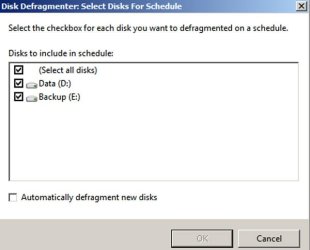
If you drill down into defrag schedule settings, do you see the C drive named specifically???? If I go to the modify schedule screen for defragmenation, I don't even have a choice for the C drive.
 

Attachments

  • Untitled-1.jpg
    Untitled-1.jpg
    39.2 KB · Views: 14

My Computer My Computer

At a glance

Windows 7 Home Premium SP1, 64-bitIntel Skylake i5-6600K, not overclocked8 GB HyperX DDR4-2666 (2 x 4 GB)none; graphics are integrated on CPU
Computer type
PC/Desktop
Computer Manufacturer/Model Number
Ignatz Special; 4 speed manual gearbox; factory air conditioning; one of one
OS
Windows 7 Home Premium SP1, 64-bit
CPU
Intel Skylake i5-6600K, not overclocked
Motherboard
AsRock Z170M Extreme 4, micro ATX
Memory
8 GB HyperX DDR4-2666 (2 x 4 GB)
Graphics Card(s)
none; graphics are integrated on CPU
Sound Card
onboard: Realtek ALC1150; external: USB Behringer UF0-202
Monitor(s) Displays
Dell S2340M 23 inch IPS
Screen Resolution
1600 x 900
Hard Drives
System: Crucial MX100 series SSD, 128 GB;
Data: Samsung Spinpoint 103SJ, 1 TB;
Backup: WD Caviar Green WD30EZRX-00D8PB0, 3 TB
PSU
Rosewill SilentNight 500 watt fanless, semi-modular
Case
Antec Solo II
Cooling
Noctua NH-U12S; Noctua F12 intake, Noctua S12A exhaust
Keyboard
Microsoft 200 6JH-00001 USB
Mouse
Dell or Microsoft optical wired; USB
Antivirus
Microsoft Security Essentials and Malwarebytes Premium
Browser
Pale Moon
Other Info
All fans PWM; speeds at idle: CPU circa 500 rpm; intake circa 600 rpm; exhaust circa 600 rpm; CPU temps 27 idle and 47 C load in a warm room (27 C/81 F) when running Intel Extreme Tuning Utility stress test.
What makes you think defragmentation is turned on for C when defragmentation service starts manually?

If you drill down into defrag schedule settings, do you see the C drive named specifically???? If I go to the modify schedule screen for defragmenation, I don't even have a choice for the C drive.

I'm sorry ignatzatsonic,

My wife asked me to pick up my daughter.

I'll be back tomorrow.
 

My Computer My Computer

At a glance

Windows 7
OS
Windows 7

My Computer My Computer

At a glance

Vista, Windows7, Mint Mate, Zorin, Windows 8from 1.6GHz Duo to i7
Computer Manufacturer/Model Number
HP, Dell, Gateway, Toshiba - 4 laptops and 2 desktops
OS
Vista, Windows7, Mint Mate, Zorin, Windows 8
CPU
from 1.6GHz Duo to i7
Monitor(s) Displays
2x HP w2207
Hard Drives
5x HDD, 7x SSD, 12x Externals
Keyboard
with trackball - no mices
Mouse
Trackball mice
Internet Speed
DSL 6000
What makes you think defragmentation is turned on for C when defragmentation service starts manually?

If you drill down into defrag schedule settings, do you see the C drive named specifically???? If I go to the modify schedule screen for defragmenation, I don't even have a choice for the C drive.

Hi ignatzatsonic,

Your picture helped me to "drill down into defrag schedule settings" and to see that
the D and E drives are scheduled On.

Thank you very much for your help.
 

My Computer My Computer

At a glance

Windows 7
OS
Windows 7
This is very strange. I have turned defrag on for several HDDs without effecting my SSD where it is off. Maybe you should make the settings the way MS recommends rather than thru Properties. Improve performance by defragmenting your hard disk

You are right whs,

It's strange that I didn't go further in the last Disk Defragmenter Schedule window.

Thank you for your reference.
 

My Computer My Computer

At a glance

Windows 7
OS
Windows 7
Back
Top