Elevated Program Shortcut without UAC Prompt - Create

How to Create an Elevated Program Shortcut without a UAC Prompt in Windows


   Information
This will show you how to create an elevated "Run as administrator" shortcut of any installed program using Task Scheduler so that it will not give you a UAC prompt for permission when you start it while still having UAC turned on in Vista, Windows 7, and Windows 8.

In the tutorial, you will first create a new task, then a new shortcut to run the task. Afterwards, how to change the icon of the shortcut.

   Note
Special thanks to OEM for pointing this out, and the previous Vista version by DMEX.

   Warning


  • This shortcut and task can only be created and work while logged in as an administrator account.
  • This shortcut will not work in a standard user account.


Here's How:
1. Press the Windows + R keys to open the Run dialog, type taskschd.msc, and press Enter.
NOTE: This will open Task Scheduler. This file is located at:
C:\Windows\system32\taskschd.msc.

2. While having Task Scheduler Library selected in the left pane, click/tap on Create task in the far right pane. (see screenshot below)
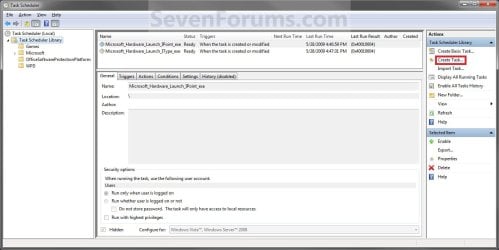
Step1.jpg
3. Under the General tab, type in the "Name" of the program you want to create this shortcut for. (see screenshot below)
NOTE: This will be the name of the task. As an example, I will use CCleaner for that program. Make note of this name, you will need it later in step 12 and 14 below.
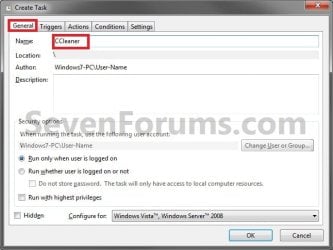
Step2.jpg
4. Check the Run with highest privileges box. (See screenshot below)
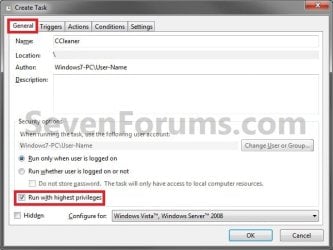
Step3.jpg
5. Click/tap on the Configure for drop down box to open it, and select Windows® 7, Windows Server™ 2008 R2 or the Windows you are currently in. (see screenshot above and below)
NOTE: This is like compatibility mode. If the program does not support running in Windows 7 normally, then you can select the OS that is does support running in instead to have it run in compatibility mode as if it was running in that OS instead of Windows 7.

Drop_Down_Box.jpg
6. Click/tap on the Actions tab, then on the New button. (see screenshot below)
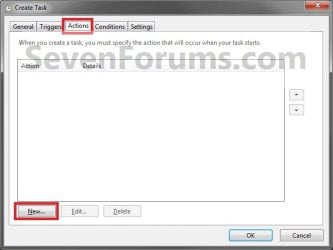
Step4.jpg
7. In the Program/script: box in the Actions tab, copy and paste the path below. (see screenshot below step 9)
NOTE: Thank you to chillz for the updated steps 7 and 8.
%windir%\System32\cmd.exe
8. In the Add arguments (optional): box in the Actions tab, type in the argument below. (see screenshot below step 9)

NOTE: Substitute Task Name in the argument below with the name you entered in step 3 (ex: CCleaner) within quotes, and substitute Full Path of Program in the argument below with the actual full path of the program's .exe file within quote.
/c start "Task Name" "Full Path of Program"


For example:

Code:
/c start "CCleaner" "C:\Program Files\CCleaner\CCleaner64.exe"
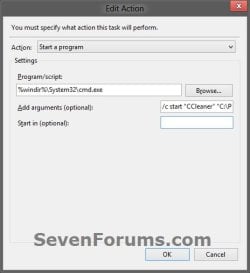
9. Click/tap on OK. (see screenshot below)
step7.jpg
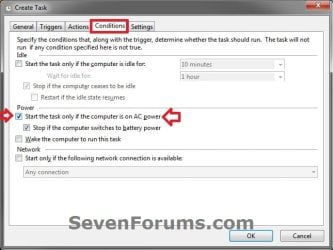
10. Click/tap on the Conditions tab, and uncheck the Stop if the computer switches to battery power box first, then uncheck the Start the task only if the computer is on AC power box. (see screenshots below)
NOTE: This step is mostly for laptops, so that you will be able to run the program when the laptop is running on battery power.
step8.jpg

Conditions.jpg

11. Click/tap on OK. (See screenshots above)

12. You will now see your new task created with the name (ex: CCleaner) you gave it in step 3. Close Task Scheduler. (see screenshot below)
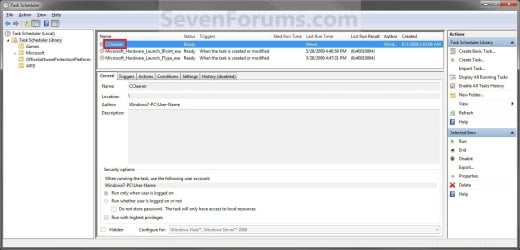
Step9.jpg
13. Right click or press and hold on an empty area of your desktop, then click/tap on New and Shortcut.

14. Type in the target below for the location field, then click/tap on the Next button. (see screenshot below)
NOTE: Subsitute task-name in the target with the name (ex: CCleaner) within quotes that you used in step 3.
schtasks /run /tn "task-name"

For example: For my task name CCleaner I used from step 3, I would type:
schtasks /run /tn "CCleaner"
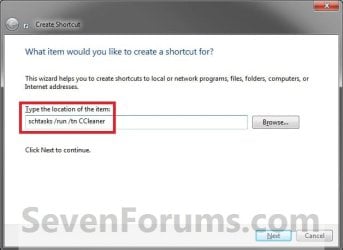
Step10.jpg
15. Type in a name you want for the shortcut (ex: CCleaner), then click/tap on the Finish button. (see screenshot below)
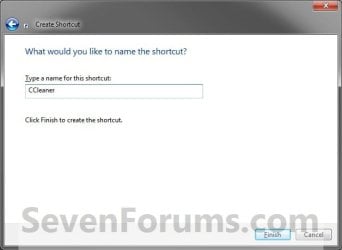
Step11.jpg
16. Right click on the new shortcut (ex: CCleaner) on the desktop, then click/tap on Properties.

17. Click/tap on the Shortcut tab, and on the Change Icon button. (see screenshot below)
Step12.jpg
18. Click/tap on OK. (see screenshot below)
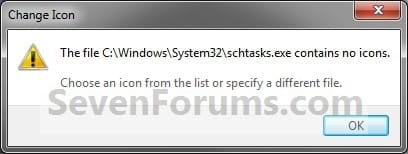
Step13.jpg
19. Click/tap on the Browse button. (see screenshot below)
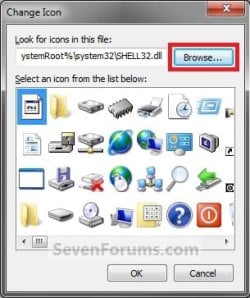
Step14.jpg
20. Navigate to the .exe file of the program that you have created this shortcut with, select it, and click/tap on Open. (see screenshot below)
NOTE: If you have a icon of your own that you would prefer to use instead, then navigate to where you have that icon saved at instead.
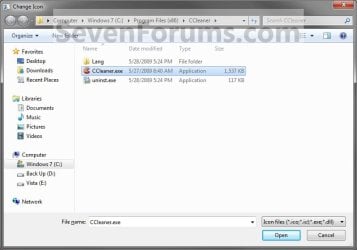
Step15.jpg
21. Select the icon you want for the shortcut, then click/tap on OK. (see screenshot below)
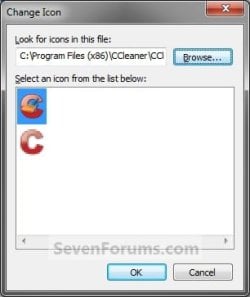
Step16.jpg
22. Click/tap on OK. (see screenshot below)
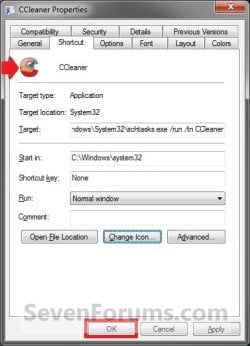
Step17.jpg
23. You can now use this elevated shortcut to run at startup in your "Startup" folder, run at startup as a task, Pin to Start Menu, Pin to Taskbar, assign a keyboard shortcut, or move to where you like for easy use.

24. When you run this new elevated shortcut, you will now no longer have to click/tap on YES to approve the UAC prompt to allow the program run as administrator.


   Tip
To Undo and Remove this Task:
  • While having Task Scheduler Library selected in the left pane, right click on the task in the right pane that you created in step 12, then click on Delete and Yes to approve.
  • Delete the shortcut.
That's it,
Shawn


Last edited:
Gerry,

Ah, yeah if you change the default name. I'm glad you got it sorted. :)

Brink,

So I did what you suggested with CCleaner64 and it still didn't work. The only thought that I have is that during the installation I am offered 5 choices. I have unclicked everything but "desktop shortcut". And then I had the desktop shortcut that went to the older version and didn't question me and the desktop shortcut that questioned me and then went to the newer version. I used properties to see which went where.

Thoughts? If I first uninstall the old version will that do the trick? One thing is for sure, there will always be a new version within a short period of time.

Gerry
 

My Computer

Computer Manufacturer/Model Number
Home Made
OS
Windows 7 Home Premium
CPU
Intel I5Core750
Motherboard
Gigabyte P55A-UD3
Memory
6 GB Corsair DDR3 1600
Graphics Card(s)
Zotac GeForce 9600 GT
Sound Card
7:1 on otherboard
Monitor(s) Displays
ViewSonic VG2030m (one of the last 4 by 3 monitors)
Screen Resolution
1400 by 1050 (Native Resolution)
Hard Drives
2 500 GB Western Digital SATA
PSU
Thermaltake TR2 500W
Case
Cooler Master Elite 332
Cooling
Thermaltake SpinQ
Keyboard
400 v1.0
Mouse
Logitech LX-8
Internet Speed
9.82 Mbs download speed 1.87 Mbs Upload speed
Other Info
Monochrome Laser Printer -HP 1020
Ink-Jet color all in one without fax - Canon Pixma MP 170
500GB external portable hard drive - Iomega
Gerry,

Just as a test, try creating the elevated task shortcut exactly how it was done in the tutorial since I used CCleaner as an example in it. This way you will not have to redo it everytime.
 

My Computer

Computer type
PC/Desktop
Computer Manufacturer/Model Number
Self built custom
OS
64-bit Windows 11 Pro for Workstations
CPU
Intel i7-8700K OC'd to 5 GHz
Motherboard
ASUS ROG Maximus XI Formula Z390
Memory
64 GB (4x16GB) G.SKILL TridentZ RGB DDR4 3600 MHz
Graphics Card(s)
ASUS ROG-STRIX-GTX1080TI-O11G-GAMING
Sound Card
Integrated
Monitor(s) Displays
2 x Samsung Odyssey G7 27"
Screen Resolution
2560x1440
Hard Drives
1TB Samsung 990 PRO M.2,
4TB Samsung 990 PRO PRO M.2,
TerraMaster F8 SSD Plus NAS
PSU
Seasonic Prime Titanium 850W
Case
Thermaltake Core P3
Cooling
Corsair Hydro H115i
Keyboard
Logitech wireless K800
Mouse
Logitech MX Master 4
Internet Speed
2 Gb/s Download and 100 Mb/s Upload
Antivirus
Malwarebyte Anti-Malware Premium
Browser
Google Chrome
Other Info
Logitech Z625 speaker system,
Logitech BRIO 4K Pro webcam,
HP Color LaserJet Pro MFP M477fdn,
APC SMART-UPS RT 1000 XL - SURT1000XLI,
Galaxy S23 Plus phone
The reason that I used CCleaner64 is that I'm using 64 bit Windows 7 Premium, a mistake that everybody recommended over Professional and virtual XP Pro. Now at $80 it isn't worth it. At $20 it would have been worth it. CCleaner is the 32 bit version. Do you want me to uninstall my (the latest) version of CCleaner64, install an old one, go through the process and then install the latest version?


Gerry,

Just as a test, try creating the elevated task shortcut exactly how it was done in the tutorial since I used CCleaner as an example in it. This way you will not have to redo it every time.
 

My Computer

Computer Manufacturer/Model Number
Home Made
OS
Windows 7 Home Premium
CPU
Intel I5Core750
Motherboard
Gigabyte P55A-UD3
Memory
6 GB Corsair DDR3 1600
Graphics Card(s)
Zotac GeForce 9600 GT
Sound Card
7:1 on otherboard
Monitor(s) Displays
ViewSonic VG2030m (one of the last 4 by 3 monitors)
Screen Resolution
1400 by 1050 (Native Resolution)
Hard Drives
2 500 GB Western Digital SATA
PSU
Thermaltake TR2 500W
Case
Cooler Master Elite 332
Cooling
Thermaltake SpinQ
Keyboard
400 v1.0
Mouse
Logitech LX-8
Internet Speed
9.82 Mbs download speed 1.87 Mbs Upload speed
Other Info
Monochrome Laser Printer -HP 1020
Ink-Jet color all in one without fax - Canon Pixma MP 170
500GB external portable hard drive - Iomega
NO, just to use CCleaner64 as the name instead of CCleaner, but exactly as outlined in the tutorial with the "CCleaner" example. ;)
 

My Computer

Computer type
PC/Desktop
Computer Manufacturer/Model Number
Self built custom
OS
64-bit Windows 11 Pro for Workstations
CPU
Intel i7-8700K OC'd to 5 GHz
Motherboard
ASUS ROG Maximus XI Formula Z390
Memory
64 GB (4x16GB) G.SKILL TridentZ RGB DDR4 3600 MHz
Graphics Card(s)
ASUS ROG-STRIX-GTX1080TI-O11G-GAMING
Sound Card
Integrated
Monitor(s) Displays
2 x Samsung Odyssey G7 27"
Screen Resolution
2560x1440
Hard Drives
1TB Samsung 990 PRO M.2,
4TB Samsung 990 PRO PRO M.2,
TerraMaster F8 SSD Plus NAS
PSU
Seasonic Prime Titanium 850W
Case
Thermaltake Core P3
Cooling
Corsair Hydro H115i
Keyboard
Logitech wireless K800
Mouse
Logitech MX Master 4
Internet Speed
2 Gb/s Download and 100 Mb/s Upload
Antivirus
Malwarebyte Anti-Malware Premium
Browser
Google Chrome
Other Info
Logitech Z625 speaker system,
Logitech BRIO 4K Pro webcam,
HP Color LaserJet Pro MFP M477fdn,
APC SMART-UPS RT 1000 XL - SURT1000XLI,
Galaxy S23 Plus phone
That's what I did. I'll try again. I have your instructions printed out although I have them memorized.
 

My Computer

Computer Manufacturer/Model Number
Home Made
OS
Windows 7 Home Premium
CPU
Intel I5Core750
Motherboard
Gigabyte P55A-UD3
Memory
6 GB Corsair DDR3 1600
Graphics Card(s)
Zotac GeForce 9600 GT
Sound Card
7:1 on otherboard
Monitor(s) Displays
ViewSonic VG2030m (one of the last 4 by 3 monitors)
Screen Resolution
1400 by 1050 (Native Resolution)
Hard Drives
2 500 GB Western Digital SATA
PSU
Thermaltake TR2 500W
Case
Cooler Master Elite 332
Cooling
Thermaltake SpinQ
Keyboard
400 v1.0
Mouse
Logitech LX-8
Internet Speed
9.82 Mbs download speed 1.87 Mbs Upload speed
Other Info
Monochrome Laser Printer -HP 1020
Ink-Jet color all in one without fax - Canon Pixma MP 170
500GB external portable hard drive - Iomega
Gerry,

Ok then. It should work just fine using CCleaner64.exe to run the task without needing to redo it after each new release of CCleaner since the EXE file will always be CCleaner64. The shortcut itself can be named and renamed to anything you like without affecting it.

The free version of CCleaner is perfectly fine. There's no need to pay for the Pro version unless it has a feature not included in the free versions that you can't live without. :)
 

My Computer

Computer type
PC/Desktop
Computer Manufacturer/Model Number
Self built custom
OS
64-bit Windows 11 Pro for Workstations
CPU
Intel i7-8700K OC'd to 5 GHz
Motherboard
ASUS ROG Maximus XI Formula Z390
Memory
64 GB (4x16GB) G.SKILL TridentZ RGB DDR4 3600 MHz
Graphics Card(s)
ASUS ROG-STRIX-GTX1080TI-O11G-GAMING
Sound Card
Integrated
Monitor(s) Displays
2 x Samsung Odyssey G7 27"
Screen Resolution
2560x1440
Hard Drives
1TB Samsung 990 PRO M.2,
4TB Samsung 990 PRO PRO M.2,
TerraMaster F8 SSD Plus NAS
PSU
Seasonic Prime Titanium 850W
Case
Thermaltake Core P3
Cooling
Corsair Hydro H115i
Keyboard
Logitech wireless K800
Mouse
Logitech MX Master 4
Internet Speed
2 Gb/s Download and 100 Mb/s Upload
Antivirus
Malwarebyte Anti-Malware Premium
Browser
Google Chrome
Other Info
Logitech Z625 speaker system,
Logitech BRIO 4K Pro webcam,
HP Color LaserJet Pro MFP M477fdn,
APC SMART-UPS RT 1000 XL - SURT1000XLI,
Galaxy S23 Plus phone
After making a few mistakes the first four times (missing steps & typing errors), I finally go this to work with CCleaner64, Windows 7 Ultimate 64bit. However, when I use this new shortcut, I see a Command window pop up on my screen for less than one second. It is not there long enough for me to see what in in the window. Is this a normal occurrence?

Now all I have to do is decide which is more annoying, having to click Yes every time or wondering what is in this window that flashes on my screen. :sarc:

I used Windows XP Pro for years (from the beginning) and never had security problems. My Anti-Virus/Firewall caught many viruses and Trojans, but I see no need for this extra "Security" level in Vista & 7. To me it's just one more level of agitation from Microsoft! I haven't decided yet whether to turn it off or not, but I'm leaning toward "OFF".:zip:

Anyway, thanks for your effort in making this possible. I found it very interesting.
biggrin.gif
 

My Computer

Computer Manufacturer/Model Number
Self
OS
Windows 7 Ultimate 64 bit
CPU
Intel Core i7
Motherboard
ASUS
Memory
8 gb
Graphics Card(s)
Junk, looking for better
Sound Card
On MB
Monitor(s) Displays
Two Samsung 22 inch
Hard Drives
Western Digital Black 2 TB; various others
PSU
Antec
Case
Junk, looking for better
Cooling
Standard
Hello DaMan, and welcome to Seven Forums.

You're most welcome.

Yes, the quick flash of a command prompt window is normal. It's just running the command in the task shortcut to bypass UAC and run the program elevated. :)
 

My Computer

Computer type
PC/Desktop
Computer Manufacturer/Model Number
Self built custom
OS
64-bit Windows 11 Pro for Workstations
CPU
Intel i7-8700K OC'd to 5 GHz
Motherboard
ASUS ROG Maximus XI Formula Z390
Memory
64 GB (4x16GB) G.SKILL TridentZ RGB DDR4 3600 MHz
Graphics Card(s)
ASUS ROG-STRIX-GTX1080TI-O11G-GAMING
Sound Card
Integrated
Monitor(s) Displays
2 x Samsung Odyssey G7 27"
Screen Resolution
2560x1440
Hard Drives
1TB Samsung 990 PRO M.2,
4TB Samsung 990 PRO PRO M.2,
TerraMaster F8 SSD Plus NAS
PSU
Seasonic Prime Titanium 850W
Case
Thermaltake Core P3
Cooling
Corsair Hydro H115i
Keyboard
Logitech wireless K800
Mouse
Logitech MX Master 4
Internet Speed
2 Gb/s Download and 100 Mb/s Upload
Antivirus
Malwarebyte Anti-Malware Premium
Browser
Google Chrome
Other Info
Logitech Z625 speaker system,
Logitech BRIO 4K Pro webcam,
HP Color LaserJet Pro MFP M477fdn,
APC SMART-UPS RT 1000 XL - SURT1000XLI,
Galaxy S23 Plus phone
Hello. Today I've been having a problem trying to open an application as administrator in a standard user account. Well, finally I achieved it and I really don't know why isn't this solution in your tutorial. I've created a shortcut access using this as adress:

runas /user/(pcname)\administratoraccount /savecred "Route to the program"
Obviously, substitute (pcname), administratoraccount and route to the program for the ones you require. Then, when you double click the icon, a wild console appears and you type the password to the administrator account. Thanks to /savecred command, the password is always remembered and the next time you want to open it, the application directly starts. I've checked it and no UAC pops-up, it works perfectly fine in the five or six laptops here in the office.

PS:Sorry, if there's something wrong with spelling, syntax or grammar. English is not my native language.
 

My Computer

OS
Windows 7 Home Premium 64bits
Hello. Today I've been having a problem trying to open an application as administrator in a standard user account. Well, finally I achieved it and I really don't know why isn't this solution in your tutorial. I've created a shortcut access using this as adress:

runas /user/(pcname)\administratoraccount /savecred "Route to the program"

Obviously, substitute (pcname), administratoraccount and route to the program for the ones you require. Then, when you double click the icon, a wild console appears and you type the password to the administrator account. Thanks to /savecred command, the password is always remembered and the next time you want to open it, the application directly starts. I've checked it and no UAC pops-up, it works perfectly fine in the five or six laptops here in the office.​


PS:Sorry, if there's something wrong with spelling, syntax or grammar. English is not my native language.​

Not working for me. Maybe you could give the exact syntax of an app that you used it for
 

My Computer

Computer Manufacturer/Model Number
Averatec 6130HS-20
OS
Windows 7 Professional 32-bit (6.1, Build 7600)
CPU
Intel(R) Pentium(R) 4 3.00 GHz HT
Memory
2.0 GB
Graphics Card(s)
ATI Mobility Radeon 9600 64MB
Sound Card
Realtek AC'97 Audio
Screen Resolution
1280 x 800
Hard Drives
Seagate 96023A 60GB 7200RPM -
Seagate FreeAgentDesktop 250GB
Cooling
20 Inch Box Fan
Mouse
Targus PAWM10 Wireless Optical Laptop Mouse
Hello. Today I've been having a problem trying to open an application as administrator in a standard user account. Well, finally I achieved it and I really don't know why isn't this solution in your tutorial. I've created a shortcut access using this as adress:

runas /user/(pcname)\administratoraccount /savecred "Route to the program"

Obviously, substitute (pcname), administratoraccount and route to the program for the ones you require. Then, when you double click the icon, a wild console appears and you type the password to the administrator account. Thanks to /savecred command, the password is always remembered and the next time you want to open it, the application directly starts. I've checked it and no UAC pops-up, it works perfectly fine in the five or six laptops here in the office.


PS:Sorry, if there's something wrong with spelling, syntax or grammar. English is not my native language.​

Not working for me. Maybe you could give the exact syntax of an app that you used it for


I forgot to say that you have to omit the brackets, I only put them because of the smilies. An example:

runas /user:laptop\admin /savecred "C:\Program Files\CCleaner\CCleaner.exe"


EDIT:Oops, I screwed it up on the route. After user it is a colon not a slash :S​
 

My Computer

OS
Windows 7 Home Premium 64bits
Hello Onikuro, and welcome to Seven Forums.

Thank you, this is a very nice shortcut that standard users could use to run elevated shortcuts with.

What do you have your UAC settings set to?

I have mine set to the "Always notify" level, and I (administrator or standard user) still gets a UAC prompt to click on Yes to run the shortcut after entering the administrator password the first time.
 

My Computer

Computer type
PC/Desktop
Computer Manufacturer/Model Number
Self built custom
OS
64-bit Windows 11 Pro for Workstations
CPU
Intel i7-8700K OC'd to 5 GHz
Motherboard
ASUS ROG Maximus XI Formula Z390
Memory
64 GB (4x16GB) G.SKILL TridentZ RGB DDR4 3600 MHz
Graphics Card(s)
ASUS ROG-STRIX-GTX1080TI-O11G-GAMING
Sound Card
Integrated
Monitor(s) Displays
2 x Samsung Odyssey G7 27"
Screen Resolution
2560x1440
Hard Drives
1TB Samsung 990 PRO M.2,
4TB Samsung 990 PRO PRO M.2,
TerraMaster F8 SSD Plus NAS
PSU
Seasonic Prime Titanium 850W
Case
Thermaltake Core P3
Cooling
Corsair Hydro H115i
Keyboard
Logitech wireless K800
Mouse
Logitech MX Master 4
Internet Speed
2 Gb/s Download and 100 Mb/s Upload
Antivirus
Malwarebyte Anti-Malware Premium
Browser
Google Chrome
Other Info
Logitech Z625 speaker system,
Logitech BRIO 4K Pro webcam,
HP Color LaserJet Pro MFP M477fdn,
APC SMART-UPS RT 1000 XL - SURT1000XLI,
Galaxy S23 Plus phone
I asked the system administrator of the office and he told me that in some of them it is set to the second with the less notifications and others with no notifications at all. In the laptops he used it, some of them gave notifications.

To be sure because I don't know if I understood properly, when you execute it the second time there aren't notifications, are they?
 

My Computer

OS
Windows 7 Home Premium 64bits
Onikuro,

After I entered the administrator's password in the command prompt for only the first time running it, I only get a UAC prompt to click on "Yes" to approve that time and each time the shortcut is used.

That's fine though since a standard use only has to click on Yes in the UAC prompt instead of normally having to enter the administrator's password to run the elevated shortcut.

I'm going to be creating a separate tutorial for this shortly, and will post back a link to it here when finished. :)
 

My Computer

Computer type
PC/Desktop
Computer Manufacturer/Model Number
Self built custom
OS
64-bit Windows 11 Pro for Workstations
CPU
Intel i7-8700K OC'd to 5 GHz
Motherboard
ASUS ROG Maximus XI Formula Z390
Memory
64 GB (4x16GB) G.SKILL TridentZ RGB DDR4 3600 MHz
Graphics Card(s)
ASUS ROG-STRIX-GTX1080TI-O11G-GAMING
Sound Card
Integrated
Monitor(s) Displays
2 x Samsung Odyssey G7 27"
Screen Resolution
2560x1440
Hard Drives
1TB Samsung 990 PRO M.2,
4TB Samsung 990 PRO PRO M.2,
TerraMaster F8 SSD Plus NAS
PSU
Seasonic Prime Titanium 850W
Case
Thermaltake Core P3
Cooling
Corsair Hydro H115i
Keyboard
Logitech wireless K800
Mouse
Logitech MX Master 4
Internet Speed
2 Gb/s Download and 100 Mb/s Upload
Antivirus
Malwarebyte Anti-Malware Premium
Browser
Google Chrome
Other Info
Logitech Z625 speaker system,
Logitech BRIO 4K Pro webcam,
HP Color LaserJet Pro MFP M477fdn,
APC SMART-UPS RT 1000 XL - SURT1000XLI,
Galaxy S23 Plus phone
Onikuro,

After I entered the administrator's password in the command prompt for only the first time running it, I only get a UAC prompt to click on "Yes" to approve that time and each time the shortcut is used.

That's fine though since a standard use only has to click on Yes in the UAC prompt instead of normally having to enter the administrator's password to run the elevated shortcut.

I'm going to be creating a separate tutorial for this shortly, and will post back a link to it here when finished. :)

Looking forward to this. Still not working for me. It asks for credentials each time.
 

My Computer

Computer Manufacturer/Model Number
Averatec 6130HS-20
OS
Windows 7 Professional 32-bit (6.1, Build 7600)
CPU
Intel(R) Pentium(R) 4 3.00 GHz HT
Memory
2.0 GB
Graphics Card(s)
ATI Mobility Radeon 9600 64MB
Sound Card
Realtek AC'97 Audio
Screen Resolution
1280 x 800
Hard Drives
Seagate 96023A 60GB 7200RPM -
Seagate FreeAgentDesktop 250GB
Cooling
20 Inch Box Fan
Mouse
Targus PAWM10 Wireless Optical Laptop Mouse

My Computer

Computer type
PC/Desktop
Computer Manufacturer/Model Number
Self built custom
OS
64-bit Windows 11 Pro for Workstations
CPU
Intel i7-8700K OC'd to 5 GHz
Motherboard
ASUS ROG Maximus XI Formula Z390
Memory
64 GB (4x16GB) G.SKILL TridentZ RGB DDR4 3600 MHz
Graphics Card(s)
ASUS ROG-STRIX-GTX1080TI-O11G-GAMING
Sound Card
Integrated
Monitor(s) Displays
2 x Samsung Odyssey G7 27"
Screen Resolution
2560x1440
Hard Drives
1TB Samsung 990 PRO M.2,
4TB Samsung 990 PRO PRO M.2,
TerraMaster F8 SSD Plus NAS
PSU
Seasonic Prime Titanium 850W
Case
Thermaltake Core P3
Cooling
Corsair Hydro H115i
Keyboard
Logitech wireless K800
Mouse
Logitech MX Master 4
Internet Speed
2 Gb/s Download and 100 Mb/s Upload
Antivirus
Malwarebyte Anti-Malware Premium
Browser
Google Chrome
Other Info
Logitech Z625 speaker system,
Logitech BRIO 4K Pro webcam,
HP Color LaserJet Pro MFP M477fdn,
APC SMART-UPS RT 1000 XL - SURT1000XLI,
Galaxy S23 Plus phone
I hope this is the right place to post this....sorry if its not im not much of a computer geek (brain)!!

For some reason im having trouble with step #8 and #20 -8. Navigate to the .exe file of the program that you want to create this shortcut for, then select it and click on Open.
#20 Navigate to the .exe file of the program that you have created this shortcut with. I cant find this so called exe file etc....help please!! I think the first time i tried this i did # 7 and 8 fine but always get stuck on #20....UGH. I even used CCleaner.exe like you did so it would be easy to see/remember!!
All i wanted to do in the first place is be able to use the stupid iTunes again!! For some weird random reason the icon for itunes on my desktop has this blue and yellow shield on it and when i click to open it (it use to open on its own when i plug my ipod touch in!!) but now it asks if i want to allow this program to make changes to my computer so i click yes and it worked (opened) but starting yesterday it won't even open when i click yes anymore!! Why do computers have to be so confuseing and complicated ahhhhhhhh!! (ok i just tried it again b4 i post this msg thing and now the blue and yellow shield thing is gone from the itunes icon but UAC still asks for me to allow the program to make changes to my computer etc) program apple - verified publisher apple inc - file origin hard drive on this computer.

I have windows 7. and iTunes version 10.5.1.42 (i guess thats what its called)?
 
Last edited:

My Computer

OS
windows 7
Hello Rhi,

The EXE file for iTunes would be in the C:\Program Files\iTunes folder.

The icon on your desktop for iTunes is most likely just a shortcut. You could right click on this shortcut, click on "Properties", click on the "Shortcut" tab, and look in the "Target" field to see the location of the EXE file.

As for why iTunes is not working properly now, that would be a question that's best to post in a new thread instead to get the best help with it.

Hope this helps,
Shawn
 

My Computer

Computer type
PC/Desktop
Computer Manufacturer/Model Number
Self built custom
OS
64-bit Windows 11 Pro for Workstations
CPU
Intel i7-8700K OC'd to 5 GHz
Motherboard
ASUS ROG Maximus XI Formula Z390
Memory
64 GB (4x16GB) G.SKILL TridentZ RGB DDR4 3600 MHz
Graphics Card(s)
ASUS ROG-STRIX-GTX1080TI-O11G-GAMING
Sound Card
Integrated
Monitor(s) Displays
2 x Samsung Odyssey G7 27"
Screen Resolution
2560x1440
Hard Drives
1TB Samsung 990 PRO M.2,
4TB Samsung 990 PRO PRO M.2,
TerraMaster F8 SSD Plus NAS
PSU
Seasonic Prime Titanium 850W
Case
Thermaltake Core P3
Cooling
Corsair Hydro H115i
Keyboard
Logitech wireless K800
Mouse
Logitech MX Master 4
Internet Speed
2 Gb/s Download and 100 Mb/s Upload
Antivirus
Malwarebyte Anti-Malware Premium
Browser
Google Chrome
Other Info
Logitech Z625 speaker system,
Logitech BRIO 4K Pro webcam,
HP Color LaserJet Pro MFP M477fdn,
APC SMART-UPS RT 1000 XL - SURT1000XLI,
Galaxy S23 Plus phone
Task icon not combining, window not opening when I "Elevated Program"

Hi,

I used Shawn's "Elevated Program Shortcut without UAC Prompt - Create" which worked great except 2 things.

When I click on the icon that I have pinned to the task bar, it opens another icon on the TB and the window for that task is in the background. I have to click on it to see it.

How do I fix these two issues?

Thanks

JJ
 

My Computer

Computer Manufacturer/Model Number
Gateway PC model GM5632E
OS
Windows 7 64 bit
CPU
Intel® Core™ 2 Q6600 quad core processor with VT
Motherboard
Intel (Schroeder Town) G33
Memory
8 GBs
Graphics Card(s)
NVIDIA® GeForce® 8500GT
Sound Card
Integrated 8-Channel (7.1) High Definition Audio
Monitor(s) Displays
Samsung SyncMater 912n; Analog Sony TV via S-Video/RCA conn
Hard Drives
Two WD 500 GB, One WD 1 TB, 7200 RPM, SATA II hard drives
PSU
400 watt
Case
Gateway - Side entrance
Cooling
1 case, 1 CPU
Back
Top