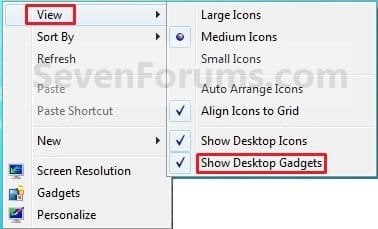
Desktop Icons - Hide or Show

How to Hide or Show Desktop Icons in Windows 7 and Windows 8

   Information
This will show you how to easily hide or show all icons (ex: files, folders, shortcuts) on your desktop in Windows 7 and Windows 8.


OPTION ONE

Hide or Show Desktop Icons using the Desktop Context Menu


1. Right click or press and hold on a empty area of your desktop, then do step 2 or 3 below for what you would like to do.

2. To Show All Desktop Icons
NOTE: This is the default setting.
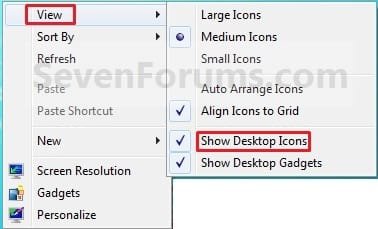
A) Click/tap on Show Desktop Icons to check it. (See screenshot below step 3)
3. To Hide All Desktop Icons
A) Click/tap on Show Desktop Icons to uncheck it. (See screenshot below)
Icons.jpg
B) Save your current theme in Windows 7 or Windows 8 to help prevent these settings from being reset after you log off and on, or restart the computer.


OPTION TWO

Hide or Show Desktop Icons using a BAT File Download


1. To Show All Desktop Icons
NOTE: This is the default setting.
A) Click/tap on the download button below to download the file below, and go to step 3 below.
Show_Desktop_Icons.bat


Download


2. To Hide All Desktop Icons
A) Click/tap on the download button below to download the file below, and go to step 3 below.
Hide_Desktop_Icons.bat

Download


3. Save the .bat file to another location other than your desktop, and run it.
NOTE: It would be hard to see the .bat file on your desktop if already set to hide.

4. If prompted, click/tap on Run.
NOTE: If you like, you can stop getting the Run prompt by unblocking the downloaded .bat file.

5. You will now notice a command prompt quickly open and close, and your screen flash while applying the changes to your registry and restarting explorer.

6. When finished, you can delete the downloaded .bat file(s) if you like.
That's it,
Shawn


Attachments

Last edited:
L0w33ji,

It appears to be a bug on some systems for these settings not being remembered that we have not been able to find a cause yet. :(
 

My Computer My Computer

Computer type
PC/Desktop
Computer Manufacturer/Model Number
Self built custom
OS
64-bit Windows 11 Pro for Workstations
CPU
Intel i7-8700K OC'd to 5 GHz
Motherboard
ASUS ROG Maximus XI Formula Z390
Memory
64 GB (4x16GB) G.SKILL TridentZ RGB DDR4 3600 MHz
Graphics Card(s)
ASUS ROG-STRIX-GTX1080TI-O11G-GAMING
Sound Card
Integrated
Monitor(s) Displays
2 x Samsung Odyssey G7 27"
Screen Resolution
2560x1440
Hard Drives
1TB Samsung 990 PRO M.2,
4TB Samsung 990 PRO PRO M.2,
TerraMaster F8 SSD Plus NAS
PSU
Seasonic Prime Titanium 850W
Case
Thermaltake Core P3
Cooling
Corsair Hydro H115i
Keyboard
Logitech wireless K800
Mouse
Logitech MX Master 4
Internet Speed
2 Gb/s Download and 100 Mb/s Upload
Antivirus
Malwarebyte Anti-Malware Premium
Browser
Google Chrome
Other Info
Logitech Z625 speaker system,
Logitech BRIO 4K Pro webcam,
HP Color LaserJet Pro MFP M477fdn,
APC SMART-UPS RT 1000 XL - SURT1000XLI,
Galaxy S23 Plus phone
Open and Close Gadgets

I tried your way to do this, but when I use the manually created icon it only opens the gadgets. It doesn't close them. One of the reasons I was looking for this kind of thing was so I could turn off the gadgets if I had maximized windows and couldn't see them. That way they're not taking up memory. So I wrote a visual basic script that opens and closes the sidebar process.

This was done with a couple hours of fiddling and I'm not a software expert. I just wanted to pin something to the taskbar instead of doing the right click and hide gadgets thing. Since I made it though, I figured I would share.

All I've done is attached the script, so if you'd like a pretty icon just make a shortcut to the script.

This is the first time I've posted here, so let me know what you think.

EDIT: Determined so quickly that VBS don't pin to the taskbar very well.
 

Attachments

Last edited:

My Computer My Computer

OS
Windows 7 Professional
I may be doing something wrong. If I just click the VS then it does make gadgets appear/dissappear buy if I drag it or create a shortcut to the vbs to the task bar and simply click it I get a a window titled "Windows Script Host Settings" with a checkbox for Stop script after number of second and one for display logo when executed. If I R-Click the task bar icon then Gadgets.vbs is listed and I select that and script works as advertised. Is there a way to make it so I can simply click the TB icon and have it do what I want or is this as close as I can get?
 

My Computer My Computer

OS
Vista
I've just got the problem (sorry I'm late). I've sacrificed the context menu and go ahead with the reg editing. Guess I'll just have to get used to it. Anyway, I think it makes my laptop boot faster. Weired....

Thanks!


P.S. Oh, I think maybe I have a clue on why it's not remembering the setting. Maybe it's because I replace all files in this (current) laptop with my former one. Maybe it's something with the .ini files? Or it's something with SP1? (I'm using Windows 7 Ultimate x64 -- It's only the x64 that's having the problem, or I think too much?)

P.S. (2) Aaand, I've just found out that, right clicking in 'desktop' folder inside Windows Explorer yield the same result as directly right-clicking the desktop. This is fine by me.
---------
Now the gadget is not showing on desktop, but it's running. -*- Oh, the 'desktop context' replacement thing doesn't have 'show gadget' too.. Oh, wait, the gadget just came up. -*- (So slow!! I've got a damn i7! --which I just bought 2 days ago)
 
Last edited:

My Computer My Computer

Computer Manufacturer/Model Number
ASUS N55SF-S1070V
OS
Windows 7 Ult x64; Windows 7 HP x64
CPU
Q9400, 2630QM
Motherboard
P5Q Deluxe
Memory
1GBx2(asymm)@800, 2GBx1@800; 4GBx2 ddr3-1333
Graphics Card(s)
HD4670; GT555M
Monitor(s) Displays
BENQ XL2410T
Screen Resolution
15.6in 1920 x 1080; 23.6in 1920x1080
Hard Drives
SEAGATE Barracuda 7200.11 1.5TB (OS); SEAGATE Momentus 750GB (OS); WD My Book Essential 3.0TB (USB3.0); WD My Book Elite 1.5TB; WD Caviar 2.0TB
Keyboard
Pleomax PKB7000X
Mouse
Buffalo BSMLB04 bluetooth laser mouse
Internet Speed
>80Mbps (Fiber optic)
Hello Aptx,

I'm sorry, but I just don't understand what you are talking about in relation to this tutorial. Could you explain your issue a bit better with more details? :huh:
 

My Computer My Computer

Computer type
PC/Desktop
Computer Manufacturer/Model Number
Self built custom
OS
64-bit Windows 11 Pro for Workstations
CPU
Intel i7-8700K OC'd to 5 GHz
Motherboard
ASUS ROG Maximus XI Formula Z390
Memory
64 GB (4x16GB) G.SKILL TridentZ RGB DDR4 3600 MHz
Graphics Card(s)
ASUS ROG-STRIX-GTX1080TI-O11G-GAMING
Sound Card
Integrated
Monitor(s) Displays
2 x Samsung Odyssey G7 27"
Screen Resolution
2560x1440
Hard Drives
1TB Samsung 990 PRO M.2,
4TB Samsung 990 PRO PRO M.2,
TerraMaster F8 SSD Plus NAS
PSU
Seasonic Prime Titanium 850W
Case
Thermaltake Core P3
Cooling
Corsair Hydro H115i
Keyboard
Logitech wireless K800
Mouse
Logitech MX Master 4
Internet Speed
2 Gb/s Download and 100 Mb/s Upload
Antivirus
Malwarebyte Anti-Malware Premium
Browser
Google Chrome
Other Info
Logitech Z625 speaker system,
Logitech BRIO 4K Pro webcam,
HP Color LaserJet Pro MFP M477fdn,
APC SMART-UPS RT 1000 XL - SURT1000XLI,
Galaxy S23 Plus phone
Umm, I mean, I applied the reg tweak:

Windows Registry Editor Version 5.00

[HKEY_CURRENT_USER\Software\Microsoft\Windows\CurrentVersion\Explorer\Advanced]
"HideIcons"=dword:00000001
Unhide:
Code:

Windows Registry Editor Version 5.00

[HKEY_CURRENT_USER\Software\Microsoft\Windows\CurrentVersion\Explorer\Advanced]
"HideIcons"=dword:00000000

Aaaand, as mentioned from the author, right-clicking on desktop is now disabled. But, that's fine by me as I can still right click within Windows Explorer, but the 'show/hide gadget' is not listed, that's all.

I've sacrificed the right clicking on desktop already. But the gadget doesn't seem to display after applying the reg edit and a reboot. So, I tried restarting the gadget.exe (using procexp) and maybe 'show running gadget' and 'choose gadget to display' too. Never mind the gadget.


Oh, about the file replacing, I mean I copied files from my former laptop OS to my current laptop OS, and that includes desktop.ini and such, before I reinstall my laptop OS, replacing its pre-installed Windows (I upgraded its OS from Windows 7 HP to Ult). Before an OS upgrade, the OS remembered the hide desktop icon setting and now that I've upgraded it to Ultimate, it didn't remember the hide desktop icon setting. ;( What I was trying to say is that, the reason why it doesn't remember the setting to hide desktop icon might came from me replacing files. But, again, that might be irrelevant. I just wanna share some ideas, that's all. Thanks for the reply! XD

Wait, I'm being confused here. In fact, it's my older laptop, which I've copied the files from, that remembered the hide desktop settings. Now that I've finished reinstalling (upgrading) my new laptop, which I just bought it 3 days ago, my new laptop doesn't remember the hide desktop icons setting. I've tried the tweak with several reboots and log offs until I gave up at 3AM and went to bed. I just woke up at 1430 and just saw your reply, thanks a trillion! I really appreciate that! XD
 
Last edited:

My Computer My Computer

Computer Manufacturer/Model Number
ASUS N55SF-S1070V
OS
Windows 7 Ult x64; Windows 7 HP x64
CPU
Q9400, 2630QM
Motherboard
P5Q Deluxe
Memory
1GBx2(asymm)@800, 2GBx1@800; 4GBx2 ddr3-1333
Graphics Card(s)
HD4670; GT555M
Monitor(s) Displays
BENQ XL2410T
Screen Resolution
15.6in 1920 x 1080; 23.6in 1920x1080
Hard Drives
SEAGATE Barracuda 7200.11 1.5TB (OS); SEAGATE Momentus 750GB (OS); WD My Book Essential 3.0TB (USB3.0); WD My Book Elite 1.5TB; WD Caviar 2.0TB
Keyboard
Pleomax PKB7000X
Mouse
Buffalo BSMLB04 bluetooth laser mouse
Internet Speed
>80Mbps (Fiber optic)
aptx,

Immediately after doing a clean install, and before doing anything else to the computer, do you have the Show Desktop Icons option to click on to check or uncheck when you right click on the desktop?

Did you merge the REG file, or manually do it yourself in the registry? What you had posted above left out this part of the REG file below:

Code:
[HKEY_LOCAL_MACHINE\SOFTWARE\Microsoft\Windows\CurrentVersion\Explorer\Advanced]
"HideIcons"=-
 

My Computer My Computer

Computer type
PC/Desktop
Computer Manufacturer/Model Number
Self built custom
OS
64-bit Windows 11 Pro for Workstations
CPU
Intel i7-8700K OC'd to 5 GHz
Motherboard
ASUS ROG Maximus XI Formula Z390
Memory
64 GB (4x16GB) G.SKILL TridentZ RGB DDR4 3600 MHz
Graphics Card(s)
ASUS ROG-STRIX-GTX1080TI-O11G-GAMING
Sound Card
Integrated
Monitor(s) Displays
2 x Samsung Odyssey G7 27"
Screen Resolution
2560x1440
Hard Drives
1TB Samsung 990 PRO M.2,
4TB Samsung 990 PRO PRO M.2,
TerraMaster F8 SSD Plus NAS
PSU
Seasonic Prime Titanium 850W
Case
Thermaltake Core P3
Cooling
Corsair Hydro H115i
Keyboard
Logitech wireless K800
Mouse
Logitech MX Master 4
Internet Speed
2 Gb/s Download and 100 Mb/s Upload
Antivirus
Malwarebyte Anti-Malware Premium
Browser
Google Chrome
Other Info
Logitech Z625 speaker system,
Logitech BRIO 4K Pro webcam,
HP Color LaserJet Pro MFP M477fdn,
APC SMART-UPS RT 1000 XL - SURT1000XLI,
Galaxy S23 Plus phone
Gah.... I can't recall if I have it. (gomenasai > <!! ) :< Maybe I'll try doing a clean install on this laptop that's having the problem.... later, after I've created a system image. It took me days to set up everything in place... I'll get back as soon as I do that. Thanks!

For the reg thing, I pasted the code in notepad and save it as .reg then merge it. I tried adding/deleting it manually too. - -
 

My Computer My Computer

Computer Manufacturer/Model Number
ASUS N55SF-S1070V
OS
Windows 7 Ult x64; Windows 7 HP x64
CPU
Q9400, 2630QM
Motherboard
P5Q Deluxe
Memory
1GBx2(asymm)@800, 2GBx1@800; 4GBx2 ddr3-1333
Graphics Card(s)
HD4670; GT555M
Monitor(s) Displays
BENQ XL2410T
Screen Resolution
15.6in 1920 x 1080; 23.6in 1920x1080
Hard Drives
SEAGATE Barracuda 7200.11 1.5TB (OS); SEAGATE Momentus 750GB (OS); WD My Book Essential 3.0TB (USB3.0); WD My Book Elite 1.5TB; WD Caviar 2.0TB
Keyboard
Pleomax PKB7000X
Mouse
Buffalo BSMLB04 bluetooth laser mouse
Internet Speed
>80Mbps (Fiber optic)
You're welcome. Please let us know how it went. :)
 

My Computer My Computer

Computer type
PC/Desktop
Computer Manufacturer/Model Number
Self built custom
OS
64-bit Windows 11 Pro for Workstations
CPU
Intel i7-8700K OC'd to 5 GHz
Motherboard
ASUS ROG Maximus XI Formula Z390
Memory
64 GB (4x16GB) G.SKILL TridentZ RGB DDR4 3600 MHz
Graphics Card(s)
ASUS ROG-STRIX-GTX1080TI-O11G-GAMING
Sound Card
Integrated
Monitor(s) Displays
2 x Samsung Odyssey G7 27"
Screen Resolution
2560x1440
Hard Drives
1TB Samsung 990 PRO M.2,
4TB Samsung 990 PRO PRO M.2,
TerraMaster F8 SSD Plus NAS
PSU
Seasonic Prime Titanium 850W
Case
Thermaltake Core P3
Cooling
Corsair Hydro H115i
Keyboard
Logitech wireless K800
Mouse
Logitech MX Master 4
Internet Speed
2 Gb/s Download and 100 Mb/s Upload
Antivirus
Malwarebyte Anti-Malware Premium
Browser
Google Chrome
Other Info
Logitech Z625 speaker system,
Logitech BRIO 4K Pro webcam,
HP Color LaserJet Pro MFP M477fdn,
APC SMART-UPS RT 1000 XL - SURT1000XLI,
Galaxy S23 Plus phone
Well, well, well.. I've just reinstalled Windows 7 Ult. x64, and as you asked, Brink, immediately after the installation, the icons hide perfectly fine....

BUT!!!! I believe I know what's the darn problem causing the OS to not remembering the setting, it's called a Power4Gear Hybrid (from ASUS), which interferes with the advanced power plan settings in Control Panel. I noticed this when I started installing the drivers, and immediately after switching to 'High Performance Mode' the icons came back!!

...and I have to untick show desktop icons twice for them to hide, but they came back after a reboot anyway. :mad:

I almost give up with the icons as the Power4Gear thing is handy to me as it controls the CPU clock and stuff so I don't have to DIM (do it myself<--DIY lol).

I just figured this out accidentally on my other Asus laptop. So, a try for looking at the advanced power plan settings in Control Panel might be worthwhile.

For l0w33ji, this might solve the problem caused when connecting/disconnecting the power cable, as Power4Gear automatically disable/enable certain features to conserve energy; including battery saving desktop, hide gadget and certainly desktop icons...

I agree with Zardoc, "Laptops, full of useless toys", implicitly.
 

My Computer My Computer

Computer Manufacturer/Model Number
ASUS N55SF-S1070V
OS
Windows 7 Ult x64; Windows 7 HP x64
CPU
Q9400, 2630QM
Motherboard
P5Q Deluxe
Memory
1GBx2(asymm)@800, 2GBx1@800; 4GBx2 ddr3-1333
Graphics Card(s)
HD4670; GT555M
Monitor(s) Displays
BENQ XL2410T
Screen Resolution
15.6in 1920 x 1080; 23.6in 1920x1080
Hard Drives
SEAGATE Barracuda 7200.11 1.5TB (OS); SEAGATE Momentus 750GB (OS); WD My Book Essential 3.0TB (USB3.0); WD My Book Elite 1.5TB; WD Caviar 2.0TB
Keyboard
Pleomax PKB7000X
Mouse
Buffalo BSMLB04 bluetooth laser mouse
Internet Speed
>80Mbps (Fiber optic)
inactivated Desktop hidden icons

:(Hi,

I am using the desktop hidden icons feature. On the toolbar I can click on the double "More than sign" and see the listing of the icons. However,when I click on one, the only thing that happens is the list disappears. This just started happening today.

Any suggestions?

K2N
 

My Computer My Computer

OS
Windows 7
Well, well, well.. I've just reinstalled Windows 7 Ult. x64, and as you asked, Brink, immediately after the installation, the icons hide perfectly fine....

BUT!!!! I believe I know what's the darn problem causing the OS to not remembering the setting, it's called a Power4Gear Hybrid (from ASUS), which interferes with the advanced power plan settings in Control Panel. I noticed this when I started installing the drivers, and immediately after switching to 'High Performance Mode' the icons came back!!

...and I have to untick show desktop icons twice for them to hide, but they came back after a reboot anyway. :mad:

I almost give up with the icons as the Power4Gear thing is handy to me as it controls the CPU clock and stuff so I don't have to DIM (do it myself<--DIY lol).

I just figured this out accidentally on my other Asus laptop. So, a try for looking at the advanced power plan settings in Control Panel might be worthwhile.

For l0w33ji, this might solve the problem caused when connecting/disconnecting the power cable, as Power4Gear automatically disable/enable certain features to conserve energy; including battery saving desktop, hide gadget and certainly desktop icons...

I agree with Zardoc, "Laptops, full of useless toys", implicitly.

Aptx,

Thank you for posting back with your findings and results. :)
 

My Computer My Computer

Computer type
PC/Desktop
Computer Manufacturer/Model Number
Self built custom
OS
64-bit Windows 11 Pro for Workstations
CPU
Intel i7-8700K OC'd to 5 GHz
Motherboard
ASUS ROG Maximus XI Formula Z390
Memory
64 GB (4x16GB) G.SKILL TridentZ RGB DDR4 3600 MHz
Graphics Card(s)
ASUS ROG-STRIX-GTX1080TI-O11G-GAMING
Sound Card
Integrated
Monitor(s) Displays
2 x Samsung Odyssey G7 27"
Screen Resolution
2560x1440
Hard Drives
1TB Samsung 990 PRO M.2,
4TB Samsung 990 PRO PRO M.2,
TerraMaster F8 SSD Plus NAS
PSU
Seasonic Prime Titanium 850W
Case
Thermaltake Core P3
Cooling
Corsair Hydro H115i
Keyboard
Logitech wireless K800
Mouse
Logitech MX Master 4
Internet Speed
2 Gb/s Download and 100 Mb/s Upload
Antivirus
Malwarebyte Anti-Malware Premium
Browser
Google Chrome
Other Info
Logitech Z625 speaker system,
Logitech BRIO 4K Pro webcam,
HP Color LaserJet Pro MFP M477fdn,
APC SMART-UPS RT 1000 XL - SURT1000XLI,
Galaxy S23 Plus phone
:(Hi,

I am using the desktop hidden icons feature. On the toolbar I can click on the double "More than sign" and see the listing of the icons. However,when I click on one, the only thing that happens is the list disappears. This just started happening today.

Any suggestions?

K2N

Hello K2N,

Which option did you use to set the icons to be hidden on the desktop?

Is this happening in the "Desktop" toolbar?

For now, see if restarting the computer may help.
 

My Computer My Computer

Computer type
PC/Desktop
Computer Manufacturer/Model Number
Self built custom
OS
64-bit Windows 11 Pro for Workstations
CPU
Intel i7-8700K OC'd to 5 GHz
Motherboard
ASUS ROG Maximus XI Formula Z390
Memory
64 GB (4x16GB) G.SKILL TridentZ RGB DDR4 3600 MHz
Graphics Card(s)
ASUS ROG-STRIX-GTX1080TI-O11G-GAMING
Sound Card
Integrated
Monitor(s) Displays
2 x Samsung Odyssey G7 27"
Screen Resolution
2560x1440
Hard Drives
1TB Samsung 990 PRO M.2,
4TB Samsung 990 PRO PRO M.2,
TerraMaster F8 SSD Plus NAS
PSU
Seasonic Prime Titanium 850W
Case
Thermaltake Core P3
Cooling
Corsair Hydro H115i
Keyboard
Logitech wireless K800
Mouse
Logitech MX Master 4
Internet Speed
2 Gb/s Download and 100 Mb/s Upload
Antivirus
Malwarebyte Anti-Malware Premium
Browser
Google Chrome
Other Info
Logitech Z625 speaker system,
Logitech BRIO 4K Pro webcam,
HP Color LaserJet Pro MFP M477fdn,
APC SMART-UPS RT 1000 XL - SURT1000XLI,
Galaxy S23 Plus phone
:DIt works fine now after the computer was off for several hours. Go figure. The toolbar did work before. Now, as far as I know, all is well.

Thanks Brink. Enjoy the World Series!

RNT
 

My Computer My Computer

OS
Windows 7
That's great news K2N. I'm happy to hear that it sorted itself for you. :)

I just hope Texas wins it. ;)
 

My Computer My Computer

Computer type
PC/Desktop
Computer Manufacturer/Model Number
Self built custom
OS
64-bit Windows 11 Pro for Workstations
CPU
Intel i7-8700K OC'd to 5 GHz
Motherboard
ASUS ROG Maximus XI Formula Z390
Memory
64 GB (4x16GB) G.SKILL TridentZ RGB DDR4 3600 MHz
Graphics Card(s)
ASUS ROG-STRIX-GTX1080TI-O11G-GAMING
Sound Card
Integrated
Monitor(s) Displays
2 x Samsung Odyssey G7 27"
Screen Resolution
2560x1440
Hard Drives
1TB Samsung 990 PRO M.2,
4TB Samsung 990 PRO PRO M.2,
TerraMaster F8 SSD Plus NAS
PSU
Seasonic Prime Titanium 850W
Case
Thermaltake Core P3
Cooling
Corsair Hydro H115i
Keyboard
Logitech wireless K800
Mouse
Logitech MX Master 4
Internet Speed
2 Gb/s Download and 100 Mb/s Upload
Antivirus
Malwarebyte Anti-Malware Premium
Browser
Google Chrome
Other Info
Logitech Z625 speaker system,
Logitech BRIO 4K Pro webcam,
HP Color LaserJet Pro MFP M477fdn,
APC SMART-UPS RT 1000 XL - SURT1000XLI,
Galaxy S23 Plus phone
i tried the reg file icon hiding..................what did it do and how do i use it?
dont want to go thru a bunch of steps to hide and show icons
thanks
 

My Computer My Computer

OS
windows 7 home premium 64 bit
Hello Firefly,

The hide .reg file in OPTION TWO are basically just another way of doing the same thing in OPTION ONE to hide all icons on your desktop. Using the .reg files require you to either log off and on, or restart the computer to be fully applied.

Personally OPTION ONE is the easiest way to do set to hide or show icons on your desktop, but some folks like to have or need an alternative method to use.

I would also advise you to never merge reg files on your computer unless you know what it does before doing so. You could easily have something done that you may not want done. Luckily all my tutorials have an easy undo option in them. ;)

Hope this helps, :)
Shawn
 

My Computer My Computer

Computer type
PC/Desktop
Computer Manufacturer/Model Number
Self built custom
OS
64-bit Windows 11 Pro for Workstations
CPU
Intel i7-8700K OC'd to 5 GHz
Motherboard
ASUS ROG Maximus XI Formula Z390
Memory
64 GB (4x16GB) G.SKILL TridentZ RGB DDR4 3600 MHz
Graphics Card(s)
ASUS ROG-STRIX-GTX1080TI-O11G-GAMING
Sound Card
Integrated
Monitor(s) Displays
2 x Samsung Odyssey G7 27"
Screen Resolution
2560x1440
Hard Drives
1TB Samsung 990 PRO M.2,
4TB Samsung 990 PRO PRO M.2,
TerraMaster F8 SSD Plus NAS
PSU
Seasonic Prime Titanium 850W
Case
Thermaltake Core P3
Cooling
Corsair Hydro H115i
Keyboard
Logitech wireless K800
Mouse
Logitech MX Master 4
Internet Speed
2 Gb/s Download and 100 Mb/s Upload
Antivirus
Malwarebyte Anti-Malware Premium
Browser
Google Chrome
Other Info
Logitech Z625 speaker system,
Logitech BRIO 4K Pro webcam,
HP Color LaserJet Pro MFP M477fdn,
APC SMART-UPS RT 1000 XL - SURT1000XLI,
Galaxy S23 Plus phone
Oops! already did it...........did a restore tho.....
 
Last edited by a moderator:

My Computer My Computer

OS
windows 7 home premium 64 bit
Hey Guys,

I tried to use your batch file to show/hide desktop icons, but the icons won't come back after using Show_Desktop_Icons.bat

I changed some inside:

reg query HKEY_CURRENT_USER\Software\Microsoft\Windows\CurrentVersion\Explorer\Advanced /V HideIcons
if %ERRORLEVEL% EQU 0 goto delreg

if %ERRORLEVEL% EQU 1 goto addreg


:addreg
REG ADD "HKEY_CURRENT_USER\Software\Microsoft\Windows\CurrentVersion\Explorer\Advanced" /V HideIcons /T REG_DWORD /D 1 /F

taskkill /f /im explorer.exe
start explorer.exe
goto end

:delreg
REG Delete "HKEY_CURRENT_USER\Software\Microsoft\Windows\CurrentVersion\Explorer\Advanced" /V HideIcons /F

taskkill /f /im explorer.exe
start explorer.exe
goto end


:end


But after using this, the icons won't come back.

This is my first time with batch files, and doing things in CMD.

Does anyone have a solution for my problem?
Help is appreciated!

Thanks,

Ixbitz
 

My Computer My Computer

Computer type
Laptop
Computer Manufacturer/Model Number
Custom build
OS
Windows 7 Professional x64
CPU
Intel(R) Core(TM) i7-2630QM CPU @ 2.00Ghz 2.00 Ghz
Motherboard
Unknown
Memory
8GB
Graphics Card(s)
Nvidia GeForce GT 540M
Hard Drives
Harde schijf ST9500420AS (465 GB, IDE)
Antivirus
None
Browser
Google Chrome
Hello Ixbitx, and welcome to Seven Forums.

In Windows 7, OPTION TWO still works just fine for me.

For some reason with OPTION TWO in Windows 8, it appears that after restarting explorer, the HideIcons DWORD is just being set back to 1 after restarting explorer no matter if HideIcons was successfully deleted or set to 0 prior. I will do some more testing with this to see if I can find what the issue may be, and post back.

For now, OPTION ONE will still work in all Windows of course.
 
Last edited:

My Computer My Computer

Computer type
PC/Desktop
Computer Manufacturer/Model Number
Self built custom
OS
64-bit Windows 11 Pro for Workstations
CPU
Intel i7-8700K OC'd to 5 GHz
Motherboard
ASUS ROG Maximus XI Formula Z390
Memory
64 GB (4x16GB) G.SKILL TridentZ RGB DDR4 3600 MHz
Graphics Card(s)
ASUS ROG-STRIX-GTX1080TI-O11G-GAMING
Sound Card
Integrated
Monitor(s) Displays
2 x Samsung Odyssey G7 27"
Screen Resolution
2560x1440
Hard Drives
1TB Samsung 990 PRO M.2,
4TB Samsung 990 PRO PRO M.2,
TerraMaster F8 SSD Plus NAS
PSU
Seasonic Prime Titanium 850W
Case
Thermaltake Core P3
Cooling
Corsair Hydro H115i
Keyboard
Logitech wireless K800
Mouse
Logitech MX Master 4
Internet Speed
2 Gb/s Download and 100 Mb/s Upload
Antivirus
Malwarebyte Anti-Malware Premium
Browser
Google Chrome
Other Info
Logitech Z625 speaker system,
Logitech BRIO 4K Pro webcam,
HP Color LaserJet Pro MFP M477fdn,
APC SMART-UPS RT 1000 XL - SURT1000XLI,
Galaxy S23 Plus phone
Back
Top