Drive letter disappear after reboot

owen0729

New member
Local time
7:58 AM
Messages
15
recently built a computer. after install the windows 7, i notice my drive letter keep disappear after every reboot. i have to assign a new letter each time after a reboot for it to appear under my computer. and all of the application in the hard drive is readable but can't not access because the path is undefined. what is going on, can someone help me fix this?
 

My Computer My Computer

OS
Windows 7
CPU
inte core i5-2500k 3.3Ghz
Motherboard
asus p8z68-V gen 3
Memory
kingston 8g ddr3
Graphics Card(s)
gtx 560ti 448core
Monitor(s) Displays
samsung 23inch
Hard Drives
curcial M4 ssd
western digital caviar blue 7200rpm with 16mb cache
PSU
corsair gold ax650
Case
corsair 400R
Are you describing a situation concerning a removable external USB drive's letter?

Or a second or other partition on your internal hard drive(s)?

Or you C-drive?? (that would seem to be impossible)

Can you please clarify. Also, if you could post a screenshot from DISKMGMT.MSC (full-screen maximized first, columns spread wider so that we can see the contents of each cell in the upper part of the presentation) when things are "normal", and then tell us which drive letter disappears at boot, it would be very helpful.

Also, you haven't filled in your System Specs so we don't know what your hardware looks like. Please complete that, or at least describe your machine in text.
 

My Computer My Computer

Computer type
PC/Desktop
Computer Manufacturer/Model Number
Home-built, two systems (1) and (2)
OS
Windows 7 Pro x64 (1), Win7 Pro X64 (2)
CPU
i5-3350p 3.1Ghz/6MB-cache (1); E8400 3.0Ghz/6MB-cache (2)
Motherboard
ASUS P8Z77-V Pro (1); ASUS P5Q3 (2)
Memory
8GB PC3-12800 DDR3 (1); 4GB PC3-10600 DDR3 (2)
Graphics Card(s)
ATI HD7750 (1), (see TV cards); ATI R7 250 (2)
Sound Card
Realtek ALC892 HD Audio (1); Realtek ALC1200 HD Audio (2)
Monitor(s) Displays
Eizo HD2441W LCD, Eizo S2433W (1); Eizo 24" S2433W (2)
Screen Resolution
1920x1200, 1920x1200 (1); 1920x1200 (2)
Hard Drives
(1) 1TB SATA-II (7200RPM), 2x2TB SATA-III (7200RPM), 250GB SATA-III (10000RPM) for OS; 2x2TB external USB 3.0

(2) 320GB SATA-II (7200RPM), 750GB SATA-II (7200RPM), 150GB SATA-II (10000RPM) for OS; 2TB external USB 3.0
PSU
Nesteq ECS-6001 600W (1); Nesteq ECS-5001 500W (2)
Case
Acousti-Case 360 (1) and (2)
Cooling
Noctua NH-U12P SE2 for CPU, 2x120mm case fans (1) and (2)
Keyboard
IBM PS/2 (1) and (2)
Mouse
Logitech MX Revolution wireless (1); Microsoft wired (2)
Internet Speed
100mbps down / 10mbps up
Antivirus
Microsoft Security Essentials; Malwarebyte Anti-Malware Pro
Browser
Firefox
Other Info
Ceton InfiniTV 4-tuner cablecard-enabled TV card as well as Hauppauge HVR-2250 OTA/ATSC 2-tuner TV card in (1), running under Win7 WMC
Are you describing a situation concerning a removable external USB drive's letter?

Or a second or other partition on your internal hard drive(s)?

Or you C-drive?? (that would seem to be impossible)

Can you please clarify. Also, if you could post a screenshot from DISKMGMT.MSC (full-screen maximized first, columns spread wider so that we can see the contents of each cell in the upper part of the presentation) when things are "normal", and then tell us which drive letter disappears at boot, it would be very helpful.

Also, you haven't filled in your System Specs so we don't know what your hardware looks like. Please complete that, or at least describe your machine in text.

i have two hard drives, one is a ssd and one is a western digital normal hard drive. the ssd is fine but the WD hard drive's drive letter keep disappearing after each reboot.
 

My Computer My Computer

OS
Windows 7
CPU
inte core i5-2500k 3.3Ghz
Motherboard
asus p8z68-V gen 3
Memory
kingston 8g ddr3
Graphics Card(s)
gtx 560ti 448core
Monitor(s) Displays
samsung 23inch
Hard Drives
curcial M4 ssd
western digital caviar blue 7200rpm with 16mb cache
PSU
corsair gold ax650
Case
corsair 400R
i have two hard drives, one is a ssd and one is a western digital normal hard drive.
Both internal? SATA or IDE on the WD? Or is the WD drive an external/USB drive?


the ssd is fine but the WD hard drive's drive letter keep disappearing after each reboot.
Again, can you please post a screenshot from DISKMGMT.MSC.

Also, details on your machine constructions would be extremely helpful... certainly at least your motherboard and CPU and memory and video card, as well as any external USB removable devices. If it's a commercial manufacturer desktop or laptop, the manufacturer and model and any options would be important.
 

My Computer My Computer

Computer type
PC/Desktop
Computer Manufacturer/Model Number
Home-built, two systems (1) and (2)
OS
Windows 7 Pro x64 (1), Win7 Pro X64 (2)
CPU
i5-3350p 3.1Ghz/6MB-cache (1); E8400 3.0Ghz/6MB-cache (2)
Motherboard
ASUS P8Z77-V Pro (1); ASUS P5Q3 (2)
Memory
8GB PC3-12800 DDR3 (1); 4GB PC3-10600 DDR3 (2)
Graphics Card(s)
ATI HD7750 (1), (see TV cards); ATI R7 250 (2)
Sound Card
Realtek ALC892 HD Audio (1); Realtek ALC1200 HD Audio (2)
Monitor(s) Displays
Eizo HD2441W LCD, Eizo S2433W (1); Eizo 24" S2433W (2)
Screen Resolution
1920x1200, 1920x1200 (1); 1920x1200 (2)
Hard Drives
(1) 1TB SATA-II (7200RPM), 2x2TB SATA-III (7200RPM), 250GB SATA-III (10000RPM) for OS; 2x2TB external USB 3.0

(2) 320GB SATA-II (7200RPM), 750GB SATA-II (7200RPM), 150GB SATA-II (10000RPM) for OS; 2TB external USB 3.0
PSU
Nesteq ECS-6001 600W (1); Nesteq ECS-5001 500W (2)
Case
Acousti-Case 360 (1) and (2)
Cooling
Noctua NH-U12P SE2 for CPU, 2x120mm case fans (1) and (2)
Keyboard
IBM PS/2 (1) and (2)
Mouse
Logitech MX Revolution wireless (1); Microsoft wired (2)
Internet Speed
100mbps down / 10mbps up
Antivirus
Microsoft Security Essentials; Malwarebyte Anti-Malware Pro
Browser
Firefox
Other Info
Ceton InfiniTV 4-tuner cablecard-enabled TV card as well as Hauppauge HVR-2250 OTA/ATSC 2-tuner TV card in (1), running under Win7 WMC
i have two hard drives, one is a ssd and one is a western digital normal hard drive.
Both internal?


the ssd is fine but the WD hard drive's drive letter keep disappearing after each reboot.
Again, can you please post a screenshot from DISKMGMT.MSC.

Also, details on your machine constructions would be extremely helpful... certainly at least your motherboard and CPU and memory and video card, as well as any external USB removable devices. If it's a commercial manufacturer desktop or laptop, the manufacturer and model and any options would be important.

it's a corsair 400r case with a asus p8z68-v gen3 motherboard. intel core i5 2500k 6mb,kingston 8gb ddr3-1600 mhz, gtx 560ti 448 core, western digital 500gb caviar blue 7200rpm(the one with the drive letter missing after each reboot), crucial m4 64gb ssd, corsair hydro h60 cpu cooler, corsair 650ax 650w PSU. both drive is internal, i do not have any external drives and i attached a screenshot of the disk management.
 

Attachments

  • Untitled.png
    Untitled.png
    23.7 KB · Views: 157

My Computer My Computer

OS
Windows 7
CPU
inte core i5-2500k 3.3Ghz
Motherboard
asus p8z68-V gen 3
Memory
kingston 8g ddr3
Graphics Card(s)
gtx 560ti 448core
Monitor(s) Displays
samsung 23inch
Hard Drives
curcial M4 ssd
western digital caviar blue 7200rpm with 16mb cache
PSU
corsair gold ax650
Case
corsair 400R
Hi Owen ,

Is it just the drive letter?

I assume you can see it fine in diskmgmt and assign a letter after each restart?
 

My Computers My Computers

System One System Two

  • Computer type
    PC/Desktop
    OS
    7 X64
    CPU
    i5 8400
    Motherboard
    gigabyte b365m ds3h
    Memory
    2x8gb 3200mhz
    Hard Drives
    various
    PSU
    pure power 11 400w cm
    Case
    Coolermaster
    Cooling
    cryorig m9i
  • Computer type
    PC/Desktop
    OS
    7x64
    CPU
    g5400
    Motherboard
    ga b365m ds3h
    Memory
    8gb ddr4 2400
    PSU
    xfx pro 450w
Hi Owen ,

Is it just the drive letter?

I assume you can see it fine in diskmgmt and assign a letter after each restart?

yes, i can see the drive and open in through the manager but i have to do it each time after reboot. is something wrong with my motherboard or hard drives? or it's something wrong with the settings
 

My Computer My Computer

OS
Windows 7
CPU
inte core i5-2500k 3.3Ghz
Motherboard
asus p8z68-V gen 3
Memory
kingston 8g ddr3
Graphics Card(s)
gtx 560ti 448core
Monitor(s) Displays
samsung 23inch
Hard Drives
curcial M4 ssd
western digital caviar blue 7200rpm with 16mb cache
PSU
corsair gold ax650
Case
corsair 400R
So let's make sure your story is clear...

You reboot, and the E drive letter is not assigned. You look in Diskmgmt and you see the drive there, but with no drive letter. But both hard drives are shown as ONLINE. The WD drive is not shown as OFFLINE, is it?

The D drive (CD/DVD) is still assigned.

But the WD drive itself is still there, and shows all the same information about primary partition, NTFS, etc., as we see in the screenshot, but it shows no drive letter assigned.

So you right-click on that drive and select "change drive letter and paths..." and then assign E again. And then E remains in effect until the next boot when it again disappears and must be re-assigned once again.

Interesting.

You can also use DISKMGMT to change drive letters for your CD/DVD drive, which is currently D. Just for an experiment, how about re-assigning its letter to say F just for the moment, then change your WD drive letter to D. You can either leave your CD/DVD drive at F, or you can now rename it to E if you want. Anyway, I just want you to try D as the new WD drive letter, with the CD/DVD drive following it somewhere.

Then you can reboot and see what happens. Does D for the WD drive now get retained across boot? And does the E or F drive letter get retained for the CD/DVD drive?
 

My Computer My Computer

Computer type
PC/Desktop
Computer Manufacturer/Model Number
Home-built, two systems (1) and (2)
OS
Windows 7 Pro x64 (1), Win7 Pro X64 (2)
CPU
i5-3350p 3.1Ghz/6MB-cache (1); E8400 3.0Ghz/6MB-cache (2)
Motherboard
ASUS P8Z77-V Pro (1); ASUS P5Q3 (2)
Memory
8GB PC3-12800 DDR3 (1); 4GB PC3-10600 DDR3 (2)
Graphics Card(s)
ATI HD7750 (1), (see TV cards); ATI R7 250 (2)
Sound Card
Realtek ALC892 HD Audio (1); Realtek ALC1200 HD Audio (2)
Monitor(s) Displays
Eizo HD2441W LCD, Eizo S2433W (1); Eizo 24" S2433W (2)
Screen Resolution
1920x1200, 1920x1200 (1); 1920x1200 (2)
Hard Drives
(1) 1TB SATA-II (7200RPM), 2x2TB SATA-III (7200RPM), 250GB SATA-III (10000RPM) for OS; 2x2TB external USB 3.0

(2) 320GB SATA-II (7200RPM), 750GB SATA-II (7200RPM), 150GB SATA-II (10000RPM) for OS; 2TB external USB 3.0
PSU
Nesteq ECS-6001 600W (1); Nesteq ECS-5001 500W (2)
Case
Acousti-Case 360 (1) and (2)
Cooling
Noctua NH-U12P SE2 for CPU, 2x120mm case fans (1) and (2)
Keyboard
IBM PS/2 (1) and (2)
Mouse
Logitech MX Revolution wireless (1); Microsoft wired (2)
Internet Speed
100mbps down / 10mbps up
Antivirus
Microsoft Security Essentials; Malwarebyte Anti-Malware Pro
Browser
Firefox
Other Info
Ceton InfiniTV 4-tuner cablecard-enabled TV card as well as Hauppauge HVR-2250 OTA/ATSC 2-tuner TV card in (1), running under Win7 WMC
I'm curious about how you got both of these drives into your system. Did you always have two drives, or did you have one drive (the WD) originally and then installed the SSD drive and somehow "cloned" your C-partition from the WD drive onto the SSD drive, thus freeing up the WD drive for re-purposed use as your "Games" drive?

In my experience, the loss of drive letters like this comes from a "collision" of disk signatures where two drives appear to Windows to be exactly the same physical drive (i.e. signature). Then one will show up as ONLINE and the other is shown as OFFLINE. You need to use the DISKPART and LIST DISK commands, and then SELECT DISK n and ONLINE DISK and EXIT commands, in order to reassign a new and unique disk signature to the problem disk (i.e. the one that is shown as OFFLINE) and then get a drive letter permanently assigned to it.

And this "collision" can really only normally come when you "clone" one hard drive into another, rather than building each one from scratch.

You haven't mentioned anything about ONLINE vs. OFFLINE, but that's certainly one "giant clue" about why that second drive's letter would disappear, and the steps you would normally use to permanently resolve the problem.
 

My Computer My Computer

Computer type
PC/Desktop
Computer Manufacturer/Model Number
Home-built, two systems (1) and (2)
OS
Windows 7 Pro x64 (1), Win7 Pro X64 (2)
CPU
i5-3350p 3.1Ghz/6MB-cache (1); E8400 3.0Ghz/6MB-cache (2)
Motherboard
ASUS P8Z77-V Pro (1); ASUS P5Q3 (2)
Memory
8GB PC3-12800 DDR3 (1); 4GB PC3-10600 DDR3 (2)
Graphics Card(s)
ATI HD7750 (1), (see TV cards); ATI R7 250 (2)
Sound Card
Realtek ALC892 HD Audio (1); Realtek ALC1200 HD Audio (2)
Monitor(s) Displays
Eizo HD2441W LCD, Eizo S2433W (1); Eizo 24" S2433W (2)
Screen Resolution
1920x1200, 1920x1200 (1); 1920x1200 (2)
Hard Drives
(1) 1TB SATA-II (7200RPM), 2x2TB SATA-III (7200RPM), 250GB SATA-III (10000RPM) for OS; 2x2TB external USB 3.0

(2) 320GB SATA-II (7200RPM), 750GB SATA-II (7200RPM), 150GB SATA-II (10000RPM) for OS; 2TB external USB 3.0
PSU
Nesteq ECS-6001 600W (1); Nesteq ECS-5001 500W (2)
Case
Acousti-Case 360 (1) and (2)
Cooling
Noctua NH-U12P SE2 for CPU, 2x120mm case fans (1) and (2)
Keyboard
IBM PS/2 (1) and (2)
Mouse
Logitech MX Revolution wireless (1); Microsoft wired (2)
Internet Speed
100mbps down / 10mbps up
Antivirus
Microsoft Security Essentials; Malwarebyte Anti-Malware Pro
Browser
Firefox
Other Info
Ceton InfiniTV 4-tuner cablecard-enabled TV card as well as Hauppauge HVR-2250 OTA/ATSC 2-tuner TV card in (1), running under Win7 WMC
I'm curious about how you got both of these drives into your system. Did you always have two drives, or did you have one drive (the WD) originally and then installed the SSD drive and somehow "cloned" your C-partition from the WD drive onto the SSD drive, thus freeing up the WD drive for re-purposed use as your "Games" drive?

In my experience, the loss of drive letters like this comes from a "collision" of disk signatures where two drives appear to Windows to be exactly the same physical drive (i.e. signature). Then one will show up as ONLINE and the other is shown as OFFLINE. You need to use the DISKPART and LIST DISK commands, and then SELECT DISK n and ONLINE DISK and EXIT commands, in order to reassign a new and unique disk signature to the problem disk (i.e. the one that is shown as OFFLINE) and then get a drive letter permanently assigned to it.

And this "collision" can really only normally come when you "clone" one hard drive into another, rather than building each one from scratch.

You haven't mentioned anything about ONLINE vs. OFFLINE, but that's certainly one "giant clue" about why that second drive's letter would disappear, and the steps you would normally use to permanently resolve the problem.

i think what you said could be correct about the signatures. how can i reassign a new and unique disk signature . since both drives shows in the manager is online. and i also tried to change the drive letter other than E, that didn't work
 

My Computer My Computer

OS
Windows 7
CPU
inte core i5-2500k 3.3Ghz
Motherboard
asus p8z68-V gen 3
Memory
kingston 8g ddr3
Graphics Card(s)
gtx 560ti 448core
Monitor(s) Displays
samsung 23inch
Hard Drives
curcial M4 ssd
western digital caviar blue 7200rpm with 16mb cache
PSU
corsair gold ax650
Case
corsair 400R
i think what you said could be correct about the signatures. how can i reassign a new and unique disk signature . since both drives shows in the manager is online.
Well then I don't think there is a disk signature collision, else one of them would show as OFFLINE I believe.


and i also tried to change the drive letter other than E, that didn't work
Well that's very very curious, and interesting, and promising as to adding new information to this mystery.

What exact steps did you go through when you tried to change the drive letter? Once you enter that dialog, you have to you have to push the CHANGE button, and then select a new drive letter using the dropdown list box choices, and then push OK. So what did you do, and what responses if any did you get convincing you that "it didn't work"?


As far as determining if you actually do have a disk signature issue (which again to me now seems less likely since both disks are shown as ONLINE), get into a DOS command prompt window and perform the following. Note that this is simply to inquire as to the disk signatures of both your drives, not to actually change one or the other. This will tell us if you actually do have a signature collision problem.

(1) Open a command prompt as administrator. To do this in Windows 7, click the Windows start menu (the round Windows icon on the left bottom corner), type "cmd" (without the quotes), right click the "cmd.exe" item that appears at the top of your menu, and click the line "Run as administrator".

(2) Type "diskpart" (without the quotes) into the window. (Note: for this and the other commands described here, you'll have to hit the ENTER key after you finish typing your commands for them to take effect.)

Microsoft DiskPart will start. When it is ready, it will issue a "DISKPART>" prompt, allowing you to enter your commands.

(3) Type "list disk" (without the quotes). This will list all the disks that are currently mounted (connected to the system). The disk will not have the usual names and labels that you're accustomed to from the Windows Explorer interface, so you will have to recognize them by their sizes.

Note that "list disk" actually lists the physical disks, and not the partitions that you may have assigned drive letters. This means that if you have 2 physical disks, with 3 partitions on each, so that you have drives C:, D:, E:, F:, G: and H:, "list disk" will only show "Disk 0" and "Disk 1".

(4) To view the signature of a disk, you must first select it. To select a disk, type "select disk x" (without the quotes) where x is the number of the disk from your "list disk" display. When you type (say) "select disk 1", DiskPart will respond by telling you "Disk 1 is now the selected disk".

(5) Now type "uniqueid disk" (again, without the quotes). DiskPart will respond with the disk's signature, a series of hexadecimal digits.

You can repeat the "select disk x" and "uniqueid disk" commands for the other disk, to see what its signature is.

(6) To quit DiskPart, type "exit". Incidentally, in case you get lost while running DiskPart, when you are at the "DISKPART>" prompt, you can type "help" to get a list of commands. Typing "help" followed by the command typically gives you more info about that command.

(7) Once you've quit DiskPart, type "exit" again to quit the Administrator Command Prompt.

 

My Computer My Computer

Computer type
PC/Desktop
Computer Manufacturer/Model Number
Home-built, two systems (1) and (2)
OS
Windows 7 Pro x64 (1), Win7 Pro X64 (2)
CPU
i5-3350p 3.1Ghz/6MB-cache (1); E8400 3.0Ghz/6MB-cache (2)
Motherboard
ASUS P8Z77-V Pro (1); ASUS P5Q3 (2)
Memory
8GB PC3-12800 DDR3 (1); 4GB PC3-10600 DDR3 (2)
Graphics Card(s)
ATI HD7750 (1), (see TV cards); ATI R7 250 (2)
Sound Card
Realtek ALC892 HD Audio (1); Realtek ALC1200 HD Audio (2)
Monitor(s) Displays
Eizo HD2441W LCD, Eizo S2433W (1); Eizo 24" S2433W (2)
Screen Resolution
1920x1200, 1920x1200 (1); 1920x1200 (2)
Hard Drives
(1) 1TB SATA-II (7200RPM), 2x2TB SATA-III (7200RPM), 250GB SATA-III (10000RPM) for OS; 2x2TB external USB 3.0

(2) 320GB SATA-II (7200RPM), 750GB SATA-II (7200RPM), 150GB SATA-II (10000RPM) for OS; 2TB external USB 3.0
PSU
Nesteq ECS-6001 600W (1); Nesteq ECS-5001 500W (2)
Case
Acousti-Case 360 (1) and (2)
Cooling
Noctua NH-U12P SE2 for CPU, 2x120mm case fans (1) and (2)
Keyboard
IBM PS/2 (1) and (2)
Mouse
Logitech MX Revolution wireless (1); Microsoft wired (2)
Internet Speed
100mbps down / 10mbps up
Antivirus
Microsoft Security Essentials; Malwarebyte Anti-Malware Pro
Browser
Firefox
Other Info
Ceton InfiniTV 4-tuner cablecard-enabled TV card as well as Hauppauge HVR-2250 OTA/ATSC 2-tuner TV card in (1), running under Win7 WMC
i think what you said could be correct about the signatures. how can i reassign a new and unique disk signature . since both drives shows in the manager is online.
Well then I don't think there is a disk signature collision, else one of them would show as OFFLINE I believe.


and i also tried to change the drive letter other than E, that didn't work
Well that's very very curious, and interesting, and promising as to adding new information to this mystery.

What exact steps did you go through when you tried to change the drive letter? Once you enter that dialog, you have to you have to push the CHANGE button, and then select a new drive letter using the dropdown list box choices, and then push OK. So what did you do, and what responses if any did you get convincing you that "it didn't work"?


As far as determining if you actually do have a disk signature issue (which again to me now seems less likely since both disks are shown as ONLINE), get into a DOS command prompt window and perform the following. Note that this is simply to inquire as to the disk signatures of both your drives, not to actually change one or the other. This will tell us if you actually do have a signature collision problem.

(1) Open a command prompt as administrator. To do this in Windows 7, click the Windows start menu (the round Windows icon on the left bottom corner), type "cmd" (without the quotes), right click the "cmd.exe" item that appears at the top of your menu, and click the line "Run as administrator".

(2) Type "diskpart" (without the quotes) into the window. (Note: for this and the other commands described here, you'll have to hit the ENTER key after you finish typing your commands for them to take effect.)

Microsoft DiskPart will start. When it is ready, it will issue a "DISKPART>" prompt, allowing you to enter your commands.

(3) Type "list disk" (without the quotes). This will list all the disks that are currently mounted (connected to the system). The disk will not have the usual names and labels that you're accustomed to from the Windows Explorer interface, so you will have to recognize them by their sizes.

Note that "list disk" actually lists the physical disks, and not the partitions that you may have assigned drive letters. This means that if you have 2 physical disks, with 3 partitions on each, so that you have drives C:, D:, E:, F:, G: and H:, "list disk" will only show "Disk 0" and "Disk 1".

(4) To view the signature of a disk, you must first select it. To select a disk, type "select disk x" (without the quotes) where x is the number of the disk from your "list disk" display. When you type (say) "select disk 1", DiskPart will respond by telling you "Disk 1 is now the selected disk".

(5) Now type "uniqueid disk" (again, without the quotes). DiskPart will respond with the disk's signature, a series of hexadecimal digits.

You can repeat the "select disk x" and "uniqueid disk" commands for the other disk, to see what its signature is.

(6) To quit DiskPart, type "exit". Incidentally, in case you get lost while running DiskPart, when you are at the "DISKPART>" prompt, you can type "help" to get a list of commands. Typing "help" followed by the command typically gives you more info about that command.

(7) Once you've quit DiskPart, type "exit" again to quit the Administrator Command Prompt.
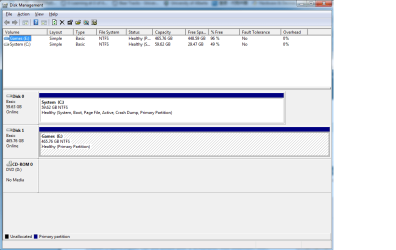
ok i tried that, each id is different. what should i do now?
 

My Computer My Computer

OS
Windows 7
CPU
inte core i5-2500k 3.3Ghz
Motherboard
asus p8z68-V gen 3
Memory
kingston 8g ddr3
Graphics Card(s)
gtx 560ti 448core
Monitor(s) Displays
samsung 23inch
Hard Drives
curcial M4 ssd
western digital caviar blue 7200rpm with 16mb cache
PSU
corsair gold ax650
Case
corsair 400R
ok i tried that, each id is different. what should i do now?
Well, I didn't actually think this was going to reveal a duplicate disk signature since in response to my earlier question you did say that both drives showed ONLINE. Had there been a signature collision then one of the drives would have shown OFFLINE.

So that's out, as a possible explanation.

You didn't answer my other question as to why you said you could not change the drive letter on the "Games" E-drive. What steps did you go through, and what messages or error responses did you see? What drive letter did you try and change it to, and how (i.e. what method, steps, actions, etc.)?

Were you able to change the drive letter on D, your CD/DVD drive (you can always put it back to D if you want) to something else (which would confirm you were using a proper method to accomplish a drive letter change), but just when you repeated the same steps for E? What stopped you from completing this successfully?
 

My Computer My Computer

Computer type
PC/Desktop
Computer Manufacturer/Model Number
Home-built, two systems (1) and (2)
OS
Windows 7 Pro x64 (1), Win7 Pro X64 (2)
CPU
i5-3350p 3.1Ghz/6MB-cache (1); E8400 3.0Ghz/6MB-cache (2)
Motherboard
ASUS P8Z77-V Pro (1); ASUS P5Q3 (2)
Memory
8GB PC3-12800 DDR3 (1); 4GB PC3-10600 DDR3 (2)
Graphics Card(s)
ATI HD7750 (1), (see TV cards); ATI R7 250 (2)
Sound Card
Realtek ALC892 HD Audio (1); Realtek ALC1200 HD Audio (2)
Monitor(s) Displays
Eizo HD2441W LCD, Eizo S2433W (1); Eizo 24" S2433W (2)
Screen Resolution
1920x1200, 1920x1200 (1); 1920x1200 (2)
Hard Drives
(1) 1TB SATA-II (7200RPM), 2x2TB SATA-III (7200RPM), 250GB SATA-III (10000RPM) for OS; 2x2TB external USB 3.0

(2) 320GB SATA-II (7200RPM), 750GB SATA-II (7200RPM), 150GB SATA-II (10000RPM) for OS; 2TB external USB 3.0
PSU
Nesteq ECS-6001 600W (1); Nesteq ECS-5001 500W (2)
Case
Acousti-Case 360 (1) and (2)
Cooling
Noctua NH-U12P SE2 for CPU, 2x120mm case fans (1) and (2)
Keyboard
IBM PS/2 (1) and (2)
Mouse
Logitech MX Revolution wireless (1); Microsoft wired (2)
Internet Speed
100mbps down / 10mbps up
Antivirus
Microsoft Security Essentials; Malwarebyte Anti-Malware Pro
Browser
Firefox
Other Info
Ceton InfiniTV 4-tuner cablecard-enabled TV card as well as Hauppauge HVR-2250 OTA/ATSC 2-tuner TV card in (1), running under Win7 WMC
ok i tried that, each id is different. what should i do now?
Well, I didn't actually think this was going to reveal a duplicate disk signature since in response to my earlier question you did say that both drives showed ONLINE. Had there been a signature collision then one of the drives would have shown OFFLINE.

So that's out, as a possible explanation.

You didn't answer my other question as to why you said you could not change the drive letter on the "Games" E-drive. What steps did you go through, and what messages or error responses did you see? What drive letter did you try and change it to, and how (i.e. what method, steps, actions, etc.)?

Were you able to change the drive letter on D, your CD/DVD drive (you can always put it back to D if you want) to something else (which would confirm you were using a proper method to accomplish a drive letter change), but just when you repeated the same steps for E? What stopped you from completing this successfully?

when i said i changed the drive letter that didn't work means i changed to something else and restart the drive letter disappeared again. sorry for the misleading.
 

My Computer My Computer

OS
Windows 7
CPU
inte core i5-2500k 3.3Ghz
Motherboard
asus p8z68-V gen 3
Memory
kingston 8g ddr3
Graphics Card(s)
gtx 560ti 448core
Monitor(s) Displays
samsung 23inch
Hard Drives
curcial M4 ssd
western digital caviar blue 7200rpm with 16mb cache
PSU
corsair gold ax650
Case
corsair 400R
when i said i changed the drive letter that didn't work means i changed to something else and restart the drive letter disappeared again. sorry for the misleading.
I see.

So no matter what letter you assign to that drive after boot, the letter remains in effect throughout that Windows session until you reboot. And after a reboot, for some still-unknown reason no matter what letter you previously assigned the drive shows up in DISKMGMT with no drive letter assigned.

You've provided a screenshot previously taken obviously after you've gone ahead and assigned E to that drive. Can you just provide a second screenshot DISKMGMT but immediately after re-boot, so we can see exactly what it shows without the drive letter assigned.
 

My Computer My Computer

Computer type
PC/Desktop
Computer Manufacturer/Model Number
Home-built, two systems (1) and (2)
OS
Windows 7 Pro x64 (1), Win7 Pro X64 (2)
CPU
i5-3350p 3.1Ghz/6MB-cache (1); E8400 3.0Ghz/6MB-cache (2)
Motherboard
ASUS P8Z77-V Pro (1); ASUS P5Q3 (2)
Memory
8GB PC3-12800 DDR3 (1); 4GB PC3-10600 DDR3 (2)
Graphics Card(s)
ATI HD7750 (1), (see TV cards); ATI R7 250 (2)
Sound Card
Realtek ALC892 HD Audio (1); Realtek ALC1200 HD Audio (2)
Monitor(s) Displays
Eizo HD2441W LCD, Eizo S2433W (1); Eizo 24" S2433W (2)
Screen Resolution
1920x1200, 1920x1200 (1); 1920x1200 (2)
Hard Drives
(1) 1TB SATA-II (7200RPM), 2x2TB SATA-III (7200RPM), 250GB SATA-III (10000RPM) for OS; 2x2TB external USB 3.0

(2) 320GB SATA-II (7200RPM), 750GB SATA-II (7200RPM), 150GB SATA-II (10000RPM) for OS; 2TB external USB 3.0
PSU
Nesteq ECS-6001 600W (1); Nesteq ECS-5001 500W (2)
Case
Acousti-Case 360 (1) and (2)
Cooling
Noctua NH-U12P SE2 for CPU, 2x120mm case fans (1) and (2)
Keyboard
IBM PS/2 (1) and (2)
Mouse
Logitech MX Revolution wireless (1); Microsoft wired (2)
Internet Speed
100mbps down / 10mbps up
Antivirus
Microsoft Security Essentials; Malwarebyte Anti-Malware Pro
Browser
Firefox
Other Info
Ceton InfiniTV 4-tuner cablecard-enabled TV card as well as Hauppauge HVR-2250 OTA/ATSC 2-tuner TV card in (1), running under Win7 WMC
One more thought... perhaps the second drive is "dropping out" at machine boot time because of a flaky power cable going to your PSU? You've got a 650W PSU so it's certainly not a power overload situation, but are you sure all of your cables going to the drives/PSU are connected securely at both ends (especially the end going into the drive)?

Just for grins, you might try unplugging and re-seating your power cables (at both ends, and also at junctions if you've got connectors/adapters involved) as well as your data cables (at both the drive end and also at the SATA connector end on the motherboard).

And you might try connecting the WD drive to a different SATA connector on the motherboard, just to give all options a try.
 

My Computer My Computer

Computer type
PC/Desktop
Computer Manufacturer/Model Number
Home-built, two systems (1) and (2)
OS
Windows 7 Pro x64 (1), Win7 Pro X64 (2)
CPU
i5-3350p 3.1Ghz/6MB-cache (1); E8400 3.0Ghz/6MB-cache (2)
Motherboard
ASUS P8Z77-V Pro (1); ASUS P5Q3 (2)
Memory
8GB PC3-12800 DDR3 (1); 4GB PC3-10600 DDR3 (2)
Graphics Card(s)
ATI HD7750 (1), (see TV cards); ATI R7 250 (2)
Sound Card
Realtek ALC892 HD Audio (1); Realtek ALC1200 HD Audio (2)
Monitor(s) Displays
Eizo HD2441W LCD, Eizo S2433W (1); Eizo 24" S2433W (2)
Screen Resolution
1920x1200, 1920x1200 (1); 1920x1200 (2)
Hard Drives
(1) 1TB SATA-II (7200RPM), 2x2TB SATA-III (7200RPM), 250GB SATA-III (10000RPM) for OS; 2x2TB external USB 3.0

(2) 320GB SATA-II (7200RPM), 750GB SATA-II (7200RPM), 150GB SATA-II (10000RPM) for OS; 2TB external USB 3.0
PSU
Nesteq ECS-6001 600W (1); Nesteq ECS-5001 500W (2)
Case
Acousti-Case 360 (1) and (2)
Cooling
Noctua NH-U12P SE2 for CPU, 2x120mm case fans (1) and (2)
Keyboard
IBM PS/2 (1) and (2)
Mouse
Logitech MX Revolution wireless (1); Microsoft wired (2)
Internet Speed
100mbps down / 10mbps up
Antivirus
Microsoft Security Essentials; Malwarebyte Anti-Malware Pro
Browser
Firefox
Other Info
Ceton InfiniTV 4-tuner cablecard-enabled TV card as well as Hauppauge HVR-2250 OTA/ATSC 2-tuner TV card in (1), running under Win7 WMC
One more thought... perhaps the second drive is "dropping out" at machine boot time because of a flaky power cable going to your PSU? You've got a 650W PSU so it's certainly not a power overload situation, but are you sure all of your cables going to the drives/PSU are connected securely at both ends (especially the end going into the drive)?

Just for grins, you might try unplugging and re-seating your power cables (at both ends, and also at junctions if you've got connectors/adapters involved) as well as your data cables (at both the drive end and also at the SATA connector end on the motherboard).

And you might try connecting the WD drive to a different SATA connector on the motherboard, just to give all options a try.

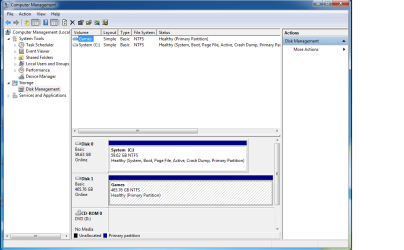
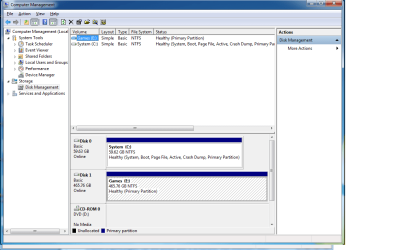
i have attached two picture, the one with untitiled is before the restart with the drive letter. one is right after the restart with the drive letter missing
 

Attachments

  • after.png
    after.png
    31.8 KB · Views: 75
  • Untitled.png
    Untitled.png
    32.7 KB · Views: 70

My Computer My Computer

OS
Windows 7
CPU
inte core i5-2500k 3.3Ghz
Motherboard
asus p8z68-V gen 3
Memory
kingston 8g ddr3
Graphics Card(s)
gtx 560ti 448core
Monitor(s) Displays
samsung 23inch
Hard Drives
curcial M4 ssd
western digital caviar blue 7200rpm with 16mb cache
PSU
corsair gold ax650
Case
corsair 400R
One more thought... perhaps the second drive is "dropping out" at machine boot time because of a flaky power cable going to your PSU? You've got a 650W PSU so it's certainly not a power overload situation, but are you sure all of your cables going to the drives/PSU are connected securely at both ends (especially the end going into the drive)?

Just for grins, you might try unplugging and re-seating your power cables (at both ends, and also at junctions if you've got connectors/adapters involved) as well as your data cables (at both the drive end and also at the SATA connector end on the motherboard).

And you might try connecting the WD drive to a different SATA connector on the motherboard, just to give all options a try.

i tried that as well, didn't work.
 

My Computer My Computer

OS
Windows 7
CPU
inte core i5-2500k 3.3Ghz
Motherboard
asus p8z68-V gen 3
Memory
kingston 8g ddr3
Graphics Card(s)
gtx 560ti 448core
Monitor(s) Displays
samsung 23inch
Hard Drives
curcial M4 ssd
western digital caviar blue 7200rpm with 16mb cache
PSU
corsair gold ax650
Case
corsair 400R
Here's an off-the-wall "wacky" solution to the IDENTICAL problem you're having on another thread. But this one involved a new 2TB drive from WD:

Re: New Hard Drive Letter Dissapears After Every Reboot!
I SOLVED IT GUYS!!

there must have been something going on at the beginning or end of the drive. I ran the WD Zero Fill utility and wrote zeros to the first and last million bits of the drive and walla.. it started working correctly all of the sudden​
Personally, I never heard of the "WD Zero Fill Utility". Actually, I think it's probably a "wipe" utility normally meant as a low-level format of a complete drive, to erase it for security reasons.

For sure, it sounds like a rather extreme action, and I suspect you have data on that drive you might not want to lose. But he says it can be run selectively on just part of the extreme front and back of the drive, and "voila!! started working correctly". I don't know how that could be controlled, really, to not lose crucial data that might also be there.

So... I would take this other post with a grain of salt. If you have nothing to lose by low-level formatting that WD drive (or, you have backup/restore capability for it so that you'd lose nothing except a few hours maybe to even try this idea out), I guess it can't hurt. Then you can recreate the E partition on that drive and see if this time "it sticks" across boot.

Found this page which provides links to the various hard drive manufacturer utility pages, including the Western Digital utilities.

In particular, here is the likely software utility from WD for your Caviar Blue drive that he was referring to. It's called "Data Lifeguard Diagnostics for Windows", and it does possess the "zero fill" option as one of its other diagnostic capabilities.

NOTE #1: the zero-fill function of this utility DOES absolutely warn:
WRITE ZEROS - writes zeros to the drive with options of Full Erase and Quick Erase. File system and data will be lost.
So for absolute sure the contents of the drive WILL BE LOST. I can't understand how this other poster claims he just wrote to the very beginning and end of the drive. That's clearly ridiculous (unless he was using a different program or different version of this program). So... if I were to use this utility to low-level format the drive I would (a) first need to be sure that there was nothing of value on the drive right now, or (b) have a 100% reliable backup/recovery plan for the data on the drive that I'm about to lose with the low-level format.

NOTE #2: I AM NOT VOUCHING FOR ANY OF THIS. Obviously, use at your own risk, and for absolute sure don't do anything without a proper backup first (that you know how to restore from successfully) so that you won't lose anything irreplaceable in trying to get to the bottom of this. And of course, there is no guarantee that this low-level format will actually solve the "losing drive letter" problem for your drive, although this guy does claim it fixed his exact same problem. Personally, I would guess that there's a bit more to the story than we've heard.
 

My Computer My Computer

Computer type
PC/Desktop
Computer Manufacturer/Model Number
Home-built, two systems (1) and (2)
OS
Windows 7 Pro x64 (1), Win7 Pro X64 (2)
CPU
i5-3350p 3.1Ghz/6MB-cache (1); E8400 3.0Ghz/6MB-cache (2)
Motherboard
ASUS P8Z77-V Pro (1); ASUS P5Q3 (2)
Memory
8GB PC3-12800 DDR3 (1); 4GB PC3-10600 DDR3 (2)
Graphics Card(s)
ATI HD7750 (1), (see TV cards); ATI R7 250 (2)
Sound Card
Realtek ALC892 HD Audio (1); Realtek ALC1200 HD Audio (2)
Monitor(s) Displays
Eizo HD2441W LCD, Eizo S2433W (1); Eizo 24" S2433W (2)
Screen Resolution
1920x1200, 1920x1200 (1); 1920x1200 (2)
Hard Drives
(1) 1TB SATA-II (7200RPM), 2x2TB SATA-III (7200RPM), 250GB SATA-III (10000RPM) for OS; 2x2TB external USB 3.0

(2) 320GB SATA-II (7200RPM), 750GB SATA-II (7200RPM), 150GB SATA-II (10000RPM) for OS; 2TB external USB 3.0
PSU
Nesteq ECS-6001 600W (1); Nesteq ECS-5001 500W (2)
Case
Acousti-Case 360 (1) and (2)
Cooling
Noctua NH-U12P SE2 for CPU, 2x120mm case fans (1) and (2)
Keyboard
IBM PS/2 (1) and (2)
Mouse
Logitech MX Revolution wireless (1); Microsoft wired (2)
Internet Speed
100mbps down / 10mbps up
Antivirus
Microsoft Security Essentials; Malwarebyte Anti-Malware Pro
Browser
Firefox
Other Info
Ceton InfiniTV 4-tuner cablecard-enabled TV card as well as Hauppauge HVR-2250 OTA/ATSC 2-tuner TV card in (1), running under Win7 WMC
Here's an off-the-wall "wacky" solution to the IDENTICAL problem you're having on another thread. But this one involved a new 2TB drive from WD:

Re: New Hard Drive Letter Dissapears After Every Reboot!
I SOLVED IT GUYS!!

there must have been something going on at the beginning or end of the drive. I ran the WD Zero Fill utility and wrote zeros to the first and last million bits of the drive and walla.. it started working correctly all of the sudden​
Personally, I never heard of the "WD Zero Fill Utility". Actually, I think it's probably a "wipe" utility normally meant as a low-level format of a complete drive, to erase it for security reasons.

For sure, it sounds like a rather extreme action, and I suspect you have data on that drive you might not want to lose. But he says it can be run selectively on just part of the extreme front and back of the drive, and "voila!! started working correctly". I don't know how that could be controlled, really, to not lose crucial data that might also be there.

So... I would take this other post with a grain of salt. If you have nothing to lose by low-level formatting that WD drive (or, you have backup/restore capability for it so that you'd lose nothing except a few hours maybe to even try this idea out), I guess it can't hurt. Then you can recreate the E partition on that drive and see if this time "it sticks" across boot.

Found this page which provides links to the various hard drive manufacturer utility pages, including the Western Digital utilities.

In particular, here is the likely software utility from WD for your Caviar Blue drive that he was referring to. It's called "Data Lifeguard Diagnostics for Windows", and it does possess the "zero fill" option as one of its other diagnostic capabilities.

NOTE #1: the zero-fill function of this utility DOES absolutely warn:
WRITE ZEROS - writes zeros to the drive with options of Full Erase and Quick Erase. File system and data will be lost.
So for absolute sure the contents of the drive WILL BE LOST. I can't understand how this other poster claims he just wrote to the very beginning and end of the drive. That's clearly ridiculous (unless he was using a different program or different version of this program). So... if I were to use this utility to low-level format the drive I would (a) first need to be sure that there was nothing of value on the drive right now, or (b) have a 100% reliable backup/recovery plan for the data on the drive that I'm about to lose with the low-level format.

NOTE #2: I AM NOT VOUCHING FOR ANY OF THIS. Obviously, use at your own risk, and for absolute sure don't do anything without a proper backup first (that you know how to restore from successfully) so that you won't lose anything irreplaceable in trying to get to the bottom of this. And of course, there is no guarantee that this low-level format will actually solve the "losing drive letter" problem for your drive, although this guy does claim it fixed his exact same problem. Personally, I would guess that there's a bit more to the story than we've heard.

i don't get what he meant by wrote the zero in the first and the last bits of the drive. what does it mean and how would i do it?
 

My Computer My Computer

OS
Windows 7
CPU
inte core i5-2500k 3.3Ghz
Motherboard
asus p8z68-V gen 3
Memory
kingston 8g ddr3
Graphics Card(s)
gtx 560ti 448core
Monitor(s) Displays
samsung 23inch
Hard Drives
curcial M4 ssd
western digital caviar blue 7200rpm with 16mb cache
PSU
corsair gold ax650
Case
corsair 400R
Back
Top