Accessing machines from the network tree,

Jamal NUMAN

New member
Member
VIP
Local time
7:33 PM
Messages
144
Accessing machines from the network tree,


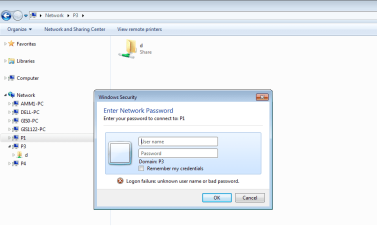
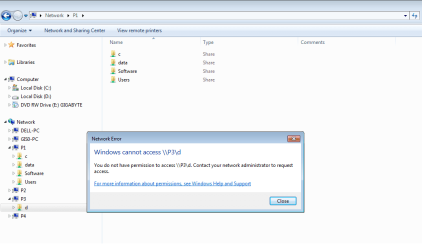
Two different messages might be obtained when trying to accesses machines from the network tree as shown in the attached screenshots


Which settings provided screenshot 1 (attached)?

Which settings provided screenshot 2 (attached)?

Thank you for the help,

Best

Jamal
 

Attachments
  • Clip_24.jpg
    Clip_24.jpg
    47.3 KB · Views: 12
  • 22.png
    22.png
    17.4 KB · Views: 11

My Computer My Computer

OS
Windows 7 Ultimate x64
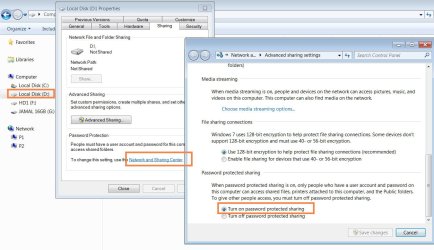
Either you have password protected sharing turned on or the folder you are trying to access doesn't have sharing enabled. You can turn off password protected sharing in the Network and Sharing Center.

To allow access to all folders in the Users folder, It's best to go into the properties of the C:>Users folder and click on the sharing tab then Advanced sharing button, then click on Permissions, then set to read or write "Everyone" access level and apply.
 

My Computer My Computer

Computer type
PC/Desktop
Computer Manufacturer/Model Number
Home built
OS
Windows 7 Ult, Windows 8.1 Pro,
CPU
Q9650-4.275GHz, E8600 4.5GHz, E6750-3.8GHz
Motherboard
Evga 780i FTW
Memory
G.Skill PC2 9600 1200Mhz 5 5 5 15 2T
Graphics Card(s)
GTX480
Sound Card
Asus Xonar D2
Monitor(s) Displays
HannsG
Screen Resolution
1680X1050
Hard Drives
GSkill Phoenix Pro 120GB SSD
PSU
ThermalTake Toughpower 1000Watt modular
Case
ThermalTake XaserV
Cooling
Xigmatek S1283
Keyboard
Logitech G15
Mouse
Logitech G9
Internet Speed
T1
Either you have password protected sharing turned on or the folder you are trying to access doesn't have sharing enabled. You can turn off password protected sharing in the Network and Sharing Center.

To allow access to all folders in the Users folder, It's best to go into the properties of the C:>Users folder and click on the sharing tab then Advanced sharing button, then click on Permissions, then set to read or write "Everyone" access level and apply.

Many thanks chev65 for the help,

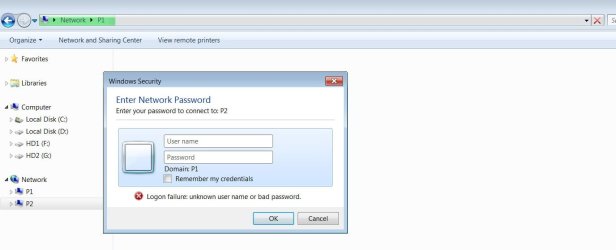
My issue here is that I need to adjust my settings such that I obtain the message shown in the first screenshot but not the second or the third (attached).

Which settings do I need to adjust to achieve this?

Best

Jamal
 

Attachments

  • 3.png
    3.png
    17.8 KB · Views: 3
  • 2.png
    2.png
    15.3 KB · Views: 4
  • 1.png
    1.png
    17.9 KB · Views: 4

My Computer My Computer

OS
Windows 7 Ultimate x64
You will get the password prompt if you enable password protected sharing in the Network and Sharing Center.

The password prompt will sometimes show up if the files aren't shared, to enable sharing for all files residing in the C:Users folder you will need to right click the C:Users folder, and choose properties, then advanced sharing, add the check mark to share the Users folder, click on permissions button>put check marks for access as required and hit apply OK etc.
 

My Computer My Computer

Computer type
PC/Desktop
Computer Manufacturer/Model Number
Home built
OS
Windows 7 Ult, Windows 8.1 Pro,
CPU
Q9650-4.275GHz, E8600 4.5GHz, E6750-3.8GHz
Motherboard
Evga 780i FTW
Memory
G.Skill PC2 9600 1200Mhz 5 5 5 15 2T
Graphics Card(s)
GTX480
Sound Card
Asus Xonar D2
Monitor(s) Displays
HannsG
Screen Resolution
1680X1050
Hard Drives
GSkill Phoenix Pro 120GB SSD
PSU
ThermalTake Toughpower 1000Watt modular
Case
ThermalTake XaserV
Cooling
Xigmatek S1283
Keyboard
Logitech G15
Mouse
Logitech G9
Internet Speed
T1
You will get the password prompt if you enable password protected sharing in the Network and Sharing Center.

The password prompt will sometimes show up if the files aren't shared, to enable sharing for all files residing in the C:Users folder you will need to right click the C:Users folder, and choose properties, then advanced sharing, add the check mark to share the Users folder, click on permissions button>put check marks for access as required and hit apply OK etc.

Many thanks for the prompt answer,

Despite the fact that this option is set enable, this message doesn’t come up! Instead screenshot 2 and 3 are displayed (attached in the previous post).

What other options do I need to set?

Best

Jamal
 

Attachments

  • Clip_42.jpg
    Clip_42.jpg
    121.9 KB · Views: 6

My Computer My Computer

OS
Windows 7 Ultimate x64
You will get the password prompt if you enable password protected sharing in the Network and Sharing Center.

The password prompt will sometimes show up if the files aren't shared, to enable sharing for all files residing in the C:Users folder you will need to right click the C:Users folder, and choose properties, then advanced sharing, add the check mark to share the Users folder, click on permissions button>put check marks for access as required and hit apply OK etc.

Many thanks for the prompt answer,

Despite the fact that this option is set enable, this message doesn’t come up! Instead screenshot 2 and 3 are displayed (attached in the previous post).

What other options do I need to set?


Best

Jamal

That is the problem with password protected sharing, once you type in the credentials Windows tends to remember them so the prompt doesn't come up the next time.

There may be a way to override this behavior by using the group policy editor.
 

My Computer My Computer

Computer type
PC/Desktop
Computer Manufacturer/Model Number
Home built
OS
Windows 7 Ult, Windows 8.1 Pro,
CPU
Q9650-4.275GHz, E8600 4.5GHz, E6750-3.8GHz
Motherboard
Evga 780i FTW
Memory
G.Skill PC2 9600 1200Mhz 5 5 5 15 2T
Graphics Card(s)
GTX480
Sound Card
Asus Xonar D2
Monitor(s) Displays
HannsG
Screen Resolution
1680X1050
Hard Drives
GSkill Phoenix Pro 120GB SSD
PSU
ThermalTake Toughpower 1000Watt modular
Case
ThermalTake XaserV
Cooling
Xigmatek S1283
Keyboard
Logitech G15
Mouse
Logitech G9
Internet Speed
T1
You will get the password prompt if you enable password protected sharing in the Network and Sharing Center.

The password prompt will sometimes show up if the files aren't shared, to enable sharing for all files residing in the C:Users folder you will need to right click the C:Users folder, and choose properties, then advanced sharing, add the check mark to share the Users folder, click on permissions button>put check marks for access as required and hit apply OK etc.

Many thanks for the prompt answer,

Despite the fact that this option is set enable, this message doesn’t come up! Instead screenshot 2 and 3 are displayed (attached in the previous post).

What other options do I need to set?


Best

Jamal

That is the problem with password protected sharing, once you type in the credentials Windows tends to remember them so the prompt doesn't come up the next time.

There may be a way to override this behavior by using the group policy editor.

thank you

could you please elaborate abit more regarding the "group policy editor"? and how to force the system to display the "enter network password"?

best

Jamal
 

My Computer My Computer

OS
Windows 7 Ultimate x64
Back
Top