Solved Installation for Advanced Format Hard Drives?

My Computer My Computer

Computer type
PC/Desktop
Computer Manufacturer/Model Number
Golden Mk. I.4
OS
Windows 10 Pro x64 ; Xubuntu x64
CPU
Intel i7 860 @ 2.80 GHz O/C'ed to 4.0GHz
Motherboard
Gigabyte P55A-UD3R Rev.1. Award BIOS F13
Memory
16GB Corsair Vengance DDR3 @ 661 MHz Dual Channel (9-9-9-24)
Graphics Card(s)
EVGA NVidia GTX 560 1024MB
Sound Card
Realtek Integrated
Monitor(s) Displays
Dual Samsung SyncMaster 2494HS
Screen Resolution
1920*1080 and 1920*1080
Hard Drives
1*Samsung 840 EVO 120GB SSD;
1*OCZ Vertex 2 60GB SSD;
2*Samsung F3 SpinPoint 1TB in RAID0;
1*Samsung F1 SpinPoint 1TB;
2*Western Digital 1TB External USB 3.0
1*Western Digital 500GB External USB 3.0
1*Seagate 500GB External USB 2.0
PSU
Thermaltake ToughPower QFan 750W
Case
Thermaltake Element S VK60001W2Z
Cooling
Corsair H60 Water Cooling, 2*230mm and 2*80mm case fans
Keyboard
Logitech G110
Mouse
Logitech MX518
I see there are fans of the 100MB partition - and the advantages you pointed out are well understood. If you use Bitlocker in Ultimate or if you multi-boot, the 100MB partition serves a purpose.

But for e.g. imaging, it can complicate matters. If you transfer your OS from a HDD to a SSD with an image, the 100MB partition is in the way. And since I do that with every system, I always first copy the bootmgr to C and transfer only the C partition. I have done that since years and never noticed any shortcomings.

I have only Home Premiums, so no Bitlocker, and I never multi-boot. I prefer the virtual solutions. The 100MB partition could of course be dealt with in the imaging scenario. but why bother.
 

My Computer My Computer

Computer Manufacturer/Model Number
HP, Dell, Gateway, Toshiba - 4 laptops and 2 desktops
OS
Vista, Windows7, Mint Mate, Zorin, Windows 8
CPU
from 1.6GHz Duo to i7
Monitor(s) Displays
2x HP w2207
Hard Drives
5x HDD, 7x SSD, 12x Externals
Keyboard
with trackball - no mices
Mouse
Trackball mice
Internet Speed
DSL 6000
The 100mb SysReserved partition presents no extra problems in terms of repair, however imaging specialists complain about it (see Wolfgang's simultaneous post above), and indeed it can be a challenge to understand how an app like Acronis wants it handled.

WinRE isn't actually on that partition as it's too large (250mb or so) and is on C. If you don't have System Recovery Options on F8 Advanced Boot Options then you can try writing it's link there by running Startup Repair - Run up to 3 Separate Times with the intended boot partition marked Active.
 
Last edited:

My Computer My Computer

Computer type
PC/Desktop
Computer Manufacturer/Model Number
n/a
OS
W7 Ultimate SP1, LM19.2 MATE, W10 Home 1703, W10 Pro 1703 VM, #All 64 bit
CPU
AMD Phenom II x6 1100T, 3.3 GHz
Motherboard
ASUS M4A88T-M/USB3 (AM3)
Memory
12GB DDR3 1333 G-Skill (4GB x 2), G-Skill (2GB x 2)
Graphics Card(s)
NVIDIA GeForce GTX 660
Sound Card
Realtek?
Monitor(s) Displays
Samsung S23B350
Screen Resolution
1920x1080
Hard Drives
WD Green 2TB (SATA), WD Green 3TB (SATA), WD Blue 4TB (SATA), WD Blue 6TB (SATA)
PSU
Cooler Master
Case
Antec GX300 Tower
Cooling
3x Antec TRICOOL 120mm Fans
Mouse
Wired Optical
Internet Speed
DSL
Antivirus
Avast
Browser
Pale Moon (64 bit)
Other Info
2018-12-27 Upgraded HDDs
2015-12-10 Upgraded case, graphics card, storage
2015-08-15 Upgraded motherboard & RAM
2015-07-15 Upgraded LM17.1 to LM17.2
I see there are fans of the 100MB partition - and the advantages you pointed out are well understood. If you use Bitlocker in Ultimate or if you multi-boot, the 100MB partition serves a purpose.

But for e.g. imaging, it can complicate matters. If you transfer your OS from a HDD to a SSD with an image, the 100MB partition is in the way. And since I do that with every system, I always first copy the bootmgr to C and transfer only the C partition. I have done that since years and never noticed any shortcomings.

I have only Home Premiums, so no Bitlocker, and I never multi-boot. I prefer the virtual solutions. The 100MB partition could of course be dealt with in the imaging scenario. but why bother.

Ok, I'm confused (doesn't take much). When transfering the OS from a HDD to another drive, such as an SSD, why can't you just image both the C:/ partition and the 100MB partition together and "restore" them to the new drive (or even clone them)?
 

My Computer My Computer

Computer type
PC/Desktop
Computer Manufacturer/Model Number
Custom Build
OS
Win 7 Ultimate 64 bit
CPU
Intel i7-3930K
Motherboard
ASUS P9X79 WS
Memory
Kingston HyperX Genesis 32GB Kit (8x4GB Modules) 1600MHz DDR
Graphics Card(s)
MSI R7850 Twin Frozr 2GD5/OC Radeon HD 7850 2GB 256-bit GDDR
Sound Card
Asus Xonar Essence STX
Monitor(s) Displays
3x Asus VG248QE 24", Vizio 32" TV
Screen Resolution
1920 x 1080, ?
Hard Drives
Samsung 128GB 840 Pro SSD (1),
Samsung 4TB 850 EVO SSDs (4)
Samsung 4TB 850 EVO SSDs (16) external backup drives used in 2.5" hot swap bays in the computer.
PSU
Corsair HX750w
Case
Antec Two Hundred v2 (modified)
Cooling
Cooler Master GeminII S524 120mm (fan replaced with a 140mm)
Keyboard
Logitech G510s
Mouse
Logitech M525 (two in use)
Internet Speed
=< 32Mbps down, 8Mbps up
Antivirus
AVAST!, MBAM, SAS, Spybot S&D (all but MBAM free) Glary Util
Browser
IE11
Other Info
LSI 9211-8i HBA card (8 SATA III ports), 2.5" & 3.5" Hot Swap Bays, HooToo HT-CR001 PCI-E to USB 3.0 Internal Hub + 6 Slot Card Reader, and LG Model CH12LS28 BD-ROM Optical Drive. Also, ScanSnap S1500 ADF duplexing scanner, Canon 9000F flat bed scanner, Corsair SP2500 2.1 speakers, Samsung CLP 415nw laser color printer, Cyberpower PP2200SW UPS
I see there are fans of the 100MB partition - and the advantages you pointed out are well understood. If you use Bitlocker in Ultimate or if you multi-boot, the 100MB partition serves a purpose.

But for e.g. imaging, it can complicate matters. If you transfer your OS from a HDD to a SSD with an image, the 100MB partition is in the way. And since I do that with every system, I always first copy the bootmgr to C and transfer only the C partition. I have done that since years and never noticed any shortcomings.

I have only Home Premiums, so no Bitlocker, and I never multi-boot. I prefer the virtual solutions. The 100MB partition could of course be dealt with in the imaging scenario. but why bother.

Ok, I'm confused (doesn't take much). When transfering the OS from a HDD to another drive, such as an SSD, why can't you just image both the C:/ partition and the 100MB partition together and "restore" them to the new drive (or even clone them)?
You can, but you have to create 2 seperate aligned partitions on the SSD with Diskpart. That is, of course, possible, but a bit finagle because of the alignment requirement. I prefer to do things the simple, straight forward way.
 

My Computer My Computer

Computer Manufacturer/Model Number
HP, Dell, Gateway, Toshiba - 4 laptops and 2 desktops
OS
Vista, Windows7, Mint Mate, Zorin, Windows 8
CPU
from 1.6GHz Duo to i7
Monitor(s) Displays
2x HP w2207
Hard Drives
5x HDD, 7x SSD, 12x Externals
Keyboard
with trackball - no mices
Mouse
Trackball mice
Internet Speed
DSL 6000
I see there are fans of the 100MB partition - and the advantages you pointed out are well understood. If you use Bitlocker in Ultimate or if you multi-boot, the 100MB partition serves a purpose.

But for e.g. imaging, it can complicate matters. If you transfer your OS from a HDD to a SSD with an image, the 100MB partition is in the way. And since I do that with every system, I always first copy the bootmgr to C and transfer only the C partition. I have done that since years and never noticed any shortcomings.

I have only Home Premiums, so no Bitlocker, and I never multi-boot. I prefer the virtual solutions. The 100MB partition could of course be dealt with in the imaging scenario. but why bother.

Ok, I'm confused (doesn't take much). When transfering the OS from a HDD to another drive, such as an SSD, why can't you just image both the C:/ partition and the 100MB partition together and "restore" them to the new drive (or even clone them)?
You can, but you have to create 2 seperate aligned partitions on the SSD with Diskpart. That is, of course, possible, but a bit finagle because of the alignment requirement. I prefer to do things the simple, straight forward way.

Now I'm even more confused.
 

My Computer My Computer

Computer type
PC/Desktop
Computer Manufacturer/Model Number
Custom Build
OS
Win 7 Ultimate 64 bit
CPU
Intel i7-3930K
Motherboard
ASUS P9X79 WS
Memory
Kingston HyperX Genesis 32GB Kit (8x4GB Modules) 1600MHz DDR
Graphics Card(s)
MSI R7850 Twin Frozr 2GD5/OC Radeon HD 7850 2GB 256-bit GDDR
Sound Card
Asus Xonar Essence STX
Monitor(s) Displays
3x Asus VG248QE 24", Vizio 32" TV
Screen Resolution
1920 x 1080, ?
Hard Drives
Samsung 128GB 840 Pro SSD (1),
Samsung 4TB 850 EVO SSDs (4)
Samsung 4TB 850 EVO SSDs (16) external backup drives used in 2.5" hot swap bays in the computer.
PSU
Corsair HX750w
Case
Antec Two Hundred v2 (modified)
Cooling
Cooler Master GeminII S524 120mm (fan replaced with a 140mm)
Keyboard
Logitech G510s
Mouse
Logitech M525 (two in use)
Internet Speed
=< 32Mbps down, 8Mbps up
Antivirus
AVAST!, MBAM, SAS, Spybot S&D (all but MBAM free) Glary Util
Browser
IE11
Other Info
LSI 9211-8i HBA card (8 SATA III ports), 2.5" & 3.5" Hot Swap Bays, HooToo HT-CR001 PCI-E to USB 3.0 Internal Hub + 6 Slot Card Reader, and LG Model CH12LS28 BD-ROM Optical Drive. Also, ScanSnap S1500 ADF duplexing scanner, Canon 9000F flat bed scanner, Corsair SP2500 2.1 speakers, Samsung CLP 415nw laser color printer, Cyberpower PP2200SW UPS
I'm not aware of how you reimage to partitions, as most imaging apps like Acronis require unallocated space or want to delete any partitions first.

The advice I've seen given here is to reimage as per normal and then if performance requires it take the steps for SSD Alignment - Windows 7 Forums

Since you wrote the tutorial, Wolfgang, perhaps you can clarify.
 
You can, of course, align a SSD in 20/20 hindsight. But that may not be easy for a layman to do. The method I describe in my tutorial is only one way to do it. There is also a quick and dirty way using Partition Wizard. The best, however, is to start with an aligned partition.

When you make a fresh install with e.g. a Windows 7 installation disc, the installer will do the alignment for you.

If, however, you move the OS (and the 100MB partition) from a HDD to a SSD, you have to take care of the SSD alignment first. The recovery disc of the imaging program will not do the alignment for you. With Macrium, there is a way to keep the original alignment of the source. But if the source was a HDD, you never know what that was (unless you checked that beforehand - and then it may still not be right).
 

My Computer My Computer

Computer Manufacturer/Model Number
HP, Dell, Gateway, Toshiba - 4 laptops and 2 desktops
OS
Vista, Windows7, Mint Mate, Zorin, Windows 8
CPU
from 1.6GHz Duo to i7
Monitor(s) Displays
2x HP w2207
Hard Drives
5x HDD, 7x SSD, 12x Externals
Keyboard
with trackball - no mices
Mouse
Trackball mice
Internet Speed
DSL 6000
Sorry to seem difficult but I'm still confused. so confused, I don't know what questions to ask.
 

My Computer My Computer

Computer type
PC/Desktop
Computer Manufacturer/Model Number
Custom Build
OS
Win 7 Ultimate 64 bit
CPU
Intel i7-3930K
Motherboard
ASUS P9X79 WS
Memory
Kingston HyperX Genesis 32GB Kit (8x4GB Modules) 1600MHz DDR
Graphics Card(s)
MSI R7850 Twin Frozr 2GD5/OC Radeon HD 7850 2GB 256-bit GDDR
Sound Card
Asus Xonar Essence STX
Monitor(s) Displays
3x Asus VG248QE 24", Vizio 32" TV
Screen Resolution
1920 x 1080, ?
Hard Drives
Samsung 128GB 840 Pro SSD (1),
Samsung 4TB 850 EVO SSDs (4)
Samsung 4TB 850 EVO SSDs (16) external backup drives used in 2.5" hot swap bays in the computer.
PSU
Corsair HX750w
Case
Antec Two Hundred v2 (modified)
Cooling
Cooler Master GeminII S524 120mm (fan replaced with a 140mm)
Keyboard
Logitech G510s
Mouse
Logitech M525 (two in use)
Internet Speed
=< 32Mbps down, 8Mbps up
Antivirus
AVAST!, MBAM, SAS, Spybot S&D (all but MBAM free) Glary Util
Browser
IE11
Other Info
LSI 9211-8i HBA card (8 SATA III ports), 2.5" & 3.5" Hot Swap Bays, HooToo HT-CR001 PCI-E to USB 3.0 Internal Hub + 6 Slot Card Reader, and LG Model CH12LS28 BD-ROM Optical Drive. Also, ScanSnap S1500 ADF duplexing scanner, Canon 9000F flat bed scanner, Corsair SP2500 2.1 speakers, Samsung CLP 415nw laser color printer, Cyberpower PP2200SW UPS
Sorry to seem difficult but I'm still confused. so confused, I don't know what questions to ask.
I guess then you have to stay confused, LOL.

Maybe if you try to align a disk with 2 partitions using command prompt, then the questions will occur to you.
 

My Computer My Computer

Computer Manufacturer/Model Number
HP, Dell, Gateway, Toshiba - 4 laptops and 2 desktops
OS
Vista, Windows7, Mint Mate, Zorin, Windows 8
CPU
from 1.6GHz Duo to i7
Monitor(s) Displays
2x HP w2207
Hard Drives
5x HDD, 7x SSD, 12x Externals
Keyboard
with trackball - no mices
Mouse
Trackball mice
Internet Speed
DSL 6000
What exactly are you confused about ?
 

My Computer My Computer

Computer type
PC/Desktop
Computer Manufacturer/Model Number
Skylake Special #666
OS
Windows 10 Pro x64
CPU
Intel Core i7 6700K
Motherboard
Asus Sabertooth Z170 Mark 1
Memory
GSkill TridentZ RGB 16GB 3600 16-16-16-36
Graphics Card(s)
EVGA GTX 980 Ti SC x2
Sound Card
Realtek High Definition
Monitor(s) Displays
AOC G2460PG
Screen Resolution
1920 x 1080 144Hz
Hard Drives
Samsung 860 Pro 256GB, Seagate Barracuda 4TB x2
PSU
EVGA 1000 P2, EVGA White Custom Braided Cables
Case
Corsair Vengeance C70 Gunmetal Black
Cooling
Corsair H100i v2, Corsair ML120 x2, Thermal Grizzly Kryonaut
Keyboard
Logitech G910 Orion Spectrum
Mouse
Logitech G700s
Internet Speed
Verizon Fios Quantum Gateway 75/75
Antivirus
Windows Defender, Malwarebytes Free 3.8.3
Browser
Chrome
Other Info
Corsair SP120 x4, LG Blu-ray Drive, Durabrand HT-395 100 Watt Dolby Digital Amp, Corsair H2100 Wireless 7.1 Headset
What exactly are you confused about ?

Starting here:

"You can, but you have to create 2 seperate aligned partitions on the SSD with Diskpart. That is, of course, possible, but a bit finagle because of the alignment requirement. I prefer to do things the simple, straight forward way."

Something just isn't clicking and from there on it is jibberish to me.
 

My Computer My Computer

Computer type
PC/Desktop
Computer Manufacturer/Model Number
Custom Build
OS
Win 7 Ultimate 64 bit
CPU
Intel i7-3930K
Motherboard
ASUS P9X79 WS
Memory
Kingston HyperX Genesis 32GB Kit (8x4GB Modules) 1600MHz DDR
Graphics Card(s)
MSI R7850 Twin Frozr 2GD5/OC Radeon HD 7850 2GB 256-bit GDDR
Sound Card
Asus Xonar Essence STX
Monitor(s) Displays
3x Asus VG248QE 24", Vizio 32" TV
Screen Resolution
1920 x 1080, ?
Hard Drives
Samsung 128GB 840 Pro SSD (1),
Samsung 4TB 850 EVO SSDs (4)
Samsung 4TB 850 EVO SSDs (16) external backup drives used in 2.5" hot swap bays in the computer.
PSU
Corsair HX750w
Case
Antec Two Hundred v2 (modified)
Cooling
Cooler Master GeminII S524 120mm (fan replaced with a 140mm)
Keyboard
Logitech G510s
Mouse
Logitech M525 (two in use)
Internet Speed
=< 32Mbps down, 8Mbps up
Antivirus
AVAST!, MBAM, SAS, Spybot S&D (all but MBAM free) Glary Util
Browser
IE11
Other Info
LSI 9211-8i HBA card (8 SATA III ports), 2.5" & 3.5" Hot Swap Bays, HooToo HT-CR001 PCI-E to USB 3.0 Internal Hub + 6 Slot Card Reader, and LG Model CH12LS28 BD-ROM Optical Drive. Also, ScanSnap S1500 ADF duplexing scanner, Canon 9000F flat bed scanner, Corsair SP2500 2.1 speakers, Samsung CLP 415nw laser color printer, Cyberpower PP2200SW UPS
I've not found an imaging app myself that allows one to reimage to defined partitions, but instead it wants empty space or to delete the existing partitions for you. What am I missing here?
 
I've not found an imaging app myself that allows one to reimage to defined partitions, but instead it wants empty space or to delete the existing partitions for you. What am I missing here?
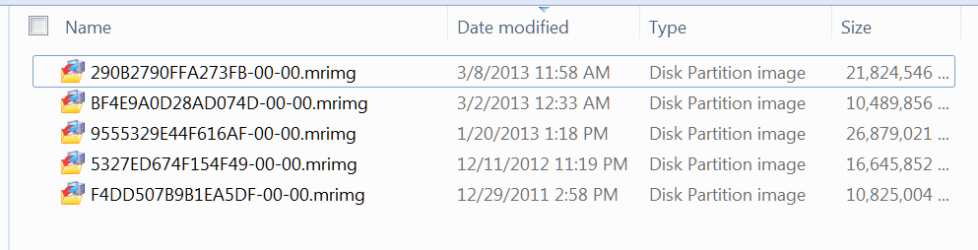
Hmm, That's strange. With free Macrium you can make as many images of a partition as you like and it does not touch the older images. You just get an additional file.

Here is an example of just one of my image folders. I weed it out from time to time but I have more images of that same system on 2 other disks.
 

Attachments

  • 2013-04-20_1236.png
    2013-04-20_1236.png
    9.5 KB · Views: 11

My Computer My Computer

Computer Manufacturer/Model Number
HP, Dell, Gateway, Toshiba - 4 laptops and 2 desktops
OS
Vista, Windows7, Mint Mate, Zorin, Windows 8
CPU
from 1.6GHz Duo to i7
Monitor(s) Displays
2x HP w2207
Hard Drives
5x HDD, 7x SSD, 12x Externals
Keyboard
with trackball - no mices
Mouse
Trackball mice
Internet Speed
DSL 6000
I don't use Macrium, but the issue is will an imaging app allow you to reimage to a predefined (aligned) partition or does it require unallocated or free space?
 
I don't use Macrium, but the issue is will an imaging app allow you to reimage to a predefined (aligned) partition or does it require unallocated or free space?
Of course it will let you restore the image to a predefined partition. In the case of an SSD, it is even a must unless the image is coming from an aligned SSD.

If you dump the image into an unallocated space, you (can) get the alignment of the source. If that source was a HDD, the alignment is probably not right for the SSD. It could be even worse if you force the alignment in the freespace. If the C partition was e.g. only the second partition on the HDD, the space of the first partition will be kept free and you lose a lot of space on the SSD. Then you are aligned but have a bum deal.
 

My Computer My Computer

Computer Manufacturer/Model Number
HP, Dell, Gateway, Toshiba - 4 laptops and 2 desktops
OS
Vista, Windows7, Mint Mate, Zorin, Windows 8
CPU
from 1.6GHz Duo to i7
Monitor(s) Displays
2x HP w2207
Hard Drives
5x HDD, 7x SSD, 12x Externals
Keyboard
with trackball - no mices
Mouse
Trackball mice
Internet Speed
DSL 6000
Pretty easy to understand.:)
 

My Computer My Computer

Computer type
PC/Desktop
Computer Manufacturer/Model Number
Skylake Special #666
OS
Windows 10 Pro x64
CPU
Intel Core i7 6700K
Motherboard
Asus Sabertooth Z170 Mark 1
Memory
GSkill TridentZ RGB 16GB 3600 16-16-16-36
Graphics Card(s)
EVGA GTX 980 Ti SC x2
Sound Card
Realtek High Definition
Monitor(s) Displays
AOC G2460PG
Screen Resolution
1920 x 1080 144Hz
Hard Drives
Samsung 860 Pro 256GB, Seagate Barracuda 4TB x2
PSU
EVGA 1000 P2, EVGA White Custom Braided Cables
Case
Corsair Vengeance C70 Gunmetal Black
Cooling
Corsair H100i v2, Corsair ML120 x2, Thermal Grizzly Kryonaut
Keyboard
Logitech G910 Orion Spectrum
Mouse
Logitech G700s
Internet Speed
Verizon Fios Quantum Gateway 75/75
Antivirus
Windows Defender, Malwarebytes Free 3.8.3
Browser
Chrome
Other Info
Corsair SP120 x4, LG Blu-ray Drive, Durabrand HT-395 100 Watt Dolby Digital Amp, Corsair H2100 Wireless 7.1 Headset
Agreed

Something just isn't clicking and from there on it is jibberish to me.

I'm with Lady Fitzgerald on this one. :confused:

The articles I've read about "Advanced Format" have just been useless "technobabble".
All I need/want to know about it, is how do I install ANY OS (XP, Vista, W7, Linux distros) so that the format is maintained?

I would have assumed that a HDD image will retain its format (Old or Advanced) just like it retains the UUID.

How can you tell what your alignment currently is?
How do you know if you have successfully transferred an image (or installed an OS) to the new system (Advanced Format)?

Presumably if you are dual booting XP, you are screwed. :(
 

My Computer My Computer

Computer type
PC/Desktop
Computer Manufacturer/Model Number
n/a
OS
W7 Ultimate SP1, LM19.2 MATE, W10 Home 1703, W10 Pro 1703 VM, #All 64 bit
CPU
AMD Phenom II x6 1100T, 3.3 GHz
Motherboard
ASUS M4A88T-M/USB3 (AM3)
Memory
12GB DDR3 1333 G-Skill (4GB x 2), G-Skill (2GB x 2)
Graphics Card(s)
NVIDIA GeForce GTX 660
Sound Card
Realtek?
Monitor(s) Displays
Samsung S23B350
Screen Resolution
1920x1080
Hard Drives
WD Green 2TB (SATA), WD Green 3TB (SATA), WD Blue 4TB (SATA), WD Blue 6TB (SATA)
PSU
Cooler Master
Case
Antec GX300 Tower
Cooling
3x Antec TRICOOL 120mm Fans
Mouse
Wired Optical
Internet Speed
DSL
Antivirus
Avast
Browser
Pale Moon (64 bit)
Other Info
2018-12-27 Upgraded HDDs
2015-12-10 Upgraded case, graphics card, storage
2015-08-15 Upgraded motherboard & RAM
2015-07-15 Upgraded LM17.1 to LM17.2

My Computer My Computer

Computer Manufacturer/Model Number
HP, Dell, Gateway, Toshiba - 4 laptops and 2 desktops
OS
Vista, Windows7, Mint Mate, Zorin, Windows 8
CPU
from 1.6GHz Duo to i7
Monitor(s) Displays
2x HP w2207
Hard Drives
5x HDD, 7x SSD, 12x Externals
Keyboard
with trackball - no mices
Mouse
Trackball mice
Internet Speed
DSL 6000
Back
Top