Install guide to avoid Windows 7 install freezes at "starting windows"

Netnissen

New member
Local time
11:29 PM
Messages
2
Install guide to avoid Windows 7 install freezes at "starting windows"

Hi Friends of the internet


I have been reading several forums regarding the issue of installing windows 7 (64 bit) to a computer that have had windows 8 installed previously or just a GPT formatted disk. I found some kind of solution, hope it can help you.


My Case:
Windows version installed: Windows 7 Professional N with Service Pack 1 (x64) or Windows 7 Professional (x64)
Computer to install windows 7 on: Samsung laptop
Model Code: NP53U4C-A02SE
See the specks here:
14" 5-serien NP535U4C - SPECIFIKATIONER | SAMSUNG


Create a USB install disk that not freezes at ”starting windows” screen:


First I followed this great guide (Thanks Daniel), See copy below:
Creating a UEFI/BIOS Windows 7 USB and installing to GPT partitions ? Hodgin.ca
STOP Daniels Guide after step 13!


1. Open a command line in administrator mode
2. run DISKPART
3. type LIST DISK
4. Look for the disk number that represents your USB drive
5. type SELECT DISK # where # represents the number of your USB drive. Get this right or you will wipe a different drive out.
6. type CLEAN
7. type CREATE PARTITION PRIMARY
8. type SELECT PARTITION 1
9. type ACTIVE
10. type FORMAT fs=fat32 quick
11. type assign
11a. type EXIT
11b. type EXIT
12. The drive should now be formatted and marked as active and fat32. Do not format the drive as NTFS or you will only be able to boot into the installer in BIOS mode.
13. Now you will need to copy the contents of the windows 7 install dvd to the USB with a regular copy paste from windows explorer.

Here comes a very weird hack... I do not know why it works, but I think it is all about flash drive data structure. I did these steps on a win 7 prof. computer.

( Let’s assume the USB is assigned drive E: )

1) Make a copy of your e:\efi\microsoft folder to e.g. your desktop.
2) Delete the e:\efi folder
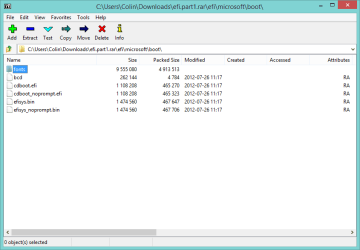
3) Copy the \efi folder from a windows 8 installation disk (I used Windows 8 (x64) Professional) to the e:\efi folder. See attached RAR.
4) Here comes the weird part. Then delete e:\efi\microsoft you just copied from the win 8 installation disk.
5) Copy the \microsoft folder form the desktop to e:\efi\microsoft

Resume the guide from step 18.:
Creating a UEFI/BIOS Windows 7 USB and installing to GPT partitions ? Hodgin.ca

18. Insert the USB in the machine and turn it on and boot into the UEFI/BIOS loader and check for boot options. On the ASUS Zenbook it detected two boot options on the USB drive. One was UEFI and one was regular BIOS. I made the UEFI option the first choice and restarted the machine.

· My bios setup was:


  • Secure Boot = Disable
  • OS Mode Selection = CSM and UEFI OS
  • Boot Device Priority = I made the UEFI option the first choice and restarted the machine.
The installation should start normal.


E.g. See this guide:
http://www.sevenforums.com/tutorial...e-firmware-interface-install-windows-7-a.html


What I did was:


  1. Select custom installation (Advanced).
  2. Click Drive options (Advanced).
  3. Delete all partitions (this might not be needed). When I did not delete all partitions I was asked every time after the install, during start up by the windows boot manager to select ether win 8 or win 7.
  4. Click new (DO NOT make Changes in the size of the disk), apply, see NOTE!
  5. Edit the Primary partition as you want it e.g. divide it to more partitions.
  6. Select the one you will install windows on and do a normal install.
  7. I did not make changes in the Bios after install. The Boot priority is automatic set to “Windows boot manager”. If I change the boot mode back to OS Mode Selection = UEFI OS, the computer will freeze at the “starting windows” screen again.

All this worked for me, good luck. There might be more to it, but this is a start.
By the way, the start up time for a MBR install was 37 s. And for the GPT it was 49 s.


Remember if we stand on each other’s shoulders we will reach higher :-).


NOTE:

Here the installation program should create three partitions automatically!
- Partition 1 - System - The EFI System partition that contains the NTLDR, HAL, Boot.txt, and other files that are needed to boot the system, such as drivers.
- Partition 2 - MSR - The Microsoft Reserved (MSR) partition that reserves space on each disk drive for subsequent use by operating system software.
- Partition 3 - Primary - Where Windows is to be installed to.


If this isn’t the cast you are not installing in UEIF mode. To check for this (thanks again Daniel):


If you need to find out if you have booted into BIOS mode or UEFI mode when the installer starts you can press SHIFT+F10 when the welcome installer shows up to open a cmd prompt. from here you will likely be at X:\Sources. Type cd .. to go back a dir and move into \Windows\Panther\


Then type notepad setupact.log


Within this file do a ctrl+f and search for
Callback_BootEnvironmentDetect: Detected boot environment:
It should either say BIOS or UEFI.

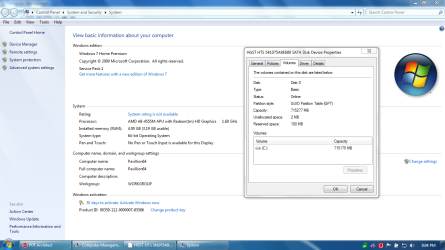
To check if your disk is in the GPT format.
Open the command prompt.
Type: DISKPART
Type: List Disk
See for the star (*) in the GPT column
 

My Computer My Computer

At a glance

Windows 7 Pro N 64 bit
Computer type
PC/Desktop
OS
Windows 7 Pro N 64 bit
Hi Friends of the internet


I have been reading several forums regarding the issue of installing windows 7 (64 bit) to a computer that have had windows 8 installed previously or just a GPT formatted disk. I found some kind of solution, hope it can help you.


My Case:
Windows version installed: Windows 7 Professional N with Service Pack 1 (x64) or Windows 7 Professional (x64)
Computer to install windows 7 on: Samsung laptop
Model Code: NP53U4C-A02SE
See the specks here:
14" 5-serien NP535U4C - SPECIFIKATIONER | SAMSUNG


Create a USB install disk that not freezes at ”starting windows” screen:


First I followed this great guide (Thanks Daniel), See copy below:
Creating a UEFI/BIOS Windows 7 USB and installing to GPT partitions ? Hodgin.ca
STOP Daniels Guide after step 13!


1. Open a command line in administrator mode
2. run DISKPART
3. type LIST DISK
4. Look for the disk number that represents your USB drive
5. type SELECT DISK # where # represents the number of your USB drive. Get this right or you will wipe a different drive out.
6. type CLEAN
7. type CREATE PARTITION PRIMARY
8. type SELECT PARTITION 1
9. type ACTIVE
10. type FORMAT fs=fat32 quick
11. type assign
11a. type EXIT
11b. type EXIT
12. The drive should now be formatted and marked as active and fat32. Do not format the drive as NTFS or you will only be able to boot into the installer in BIOS mode.
13. Now you will need to copy the contents of the windows 7 install dvd to the USB with a regular copy paste from windows explorer.

Here comes a very weird hack... I do not know why it works, but I think it is all about flash drive data structure. I did these steps on a win 7 prof. computer.

( Let’s assume the USB is assigned drive E: )

1) Make a copy of your e:\efi\microsoft folder to e.g. your desktop.
2) Delete the e:\efi folder
3) Copy the \efi folder from a windows 8 installation disk (I used Windows 8 (x64) Professional) to the e:\efi folder. See attached RAR.
4) Here comes the weird part. Then delete e:\efi\microsoft you just copied from the win 8 installation disk.
5) Copy the \microsoft folder form the desktop to e:\efi\microsoft

Resume the guide from step 18.:
Creating a UEFI/BIOS Windows 7 USB and installing to GPT partitions ? Hodgin.ca

18. Insert the USB in the machine and turn it on and boot into the UEFI/BIOS loader and check for boot options. On the ASUS Zenbook it detected two boot options on the USB drive. One was UEFI and one was regular BIOS. I made the UEFI option the first choice and restarted the machine.

· My bios setup was:


  • Secure Boot = Disable
  • OS Mode Selection = CSM and UEFI OS
  • Boot Device Priority = I made the UEFI option the first choice and restarted the machine.
The installation should start normal.


E.g. See this guide:
http://www.sevenforums.com/tutorial...e-firmware-interface-install-windows-7-a.html


What I did was:


  1. Select custom installation (Advanced).
  2. Click Drive options (Advanced).
  3. Delete all partitions (this might not be needed). When I did not delete all partitions I was asked every time after the install, during start up by the windows boot manager to select ether win 8 or win 7.
  4. Click new (DO NOT make Changes in the size of the disk), apply, see NOTE!
  5. Edit the Primary partition as you want it e.g. divide it to more partitions.
  6. Select the one you will install windows on and do a normal install.
  7. I did not make changes in the Bios after install. The Boot priority is automatic set to “Windows boot manager”. If I change the boot mode back to OS Mode Selection = UEFI OS, the computer will freeze at the “starting windows” screen again.

All this worked for me, good luck. There might be more to it, but this is a start.
By the way, the start up time for a MBR install was 37 s. And for the GPT it was 49 s.


Remember if we stand on each other’s shoulders we will reach higher :-).


NOTE:

Here the installation program should create three partitions automatically!
- Partition 1 - System - The EFI System partition that contains the NTLDR, HAL, Boot.txt, and other files that are needed to boot the system, such as drivers.
- Partition 2 - MSR - The Microsoft Reserved (MSR) partition that reserves space on each disk drive for subsequent use by operating system software.
- Partition 3 - Primary - Where Windows is to be installed to.


If this isn’t the cast you are not installing in UEIF mode. To check for this (thanks again Daniel):


If you need to find out if you have booted into BIOS mode or UEFI mode when the installer starts you can press SHIFT+F10 when the welcome installer shows up to open a cmd prompt. from here you will likely be at X:\Sources. Type cd .. to go back a dir and move into \Windows\Panther\


Then type notepad setupact.log


Within this file do a ctrl+f and search for
Callback_BootEnvironmentDetect: Detected boot environment:
It should either say BIOS or UEFI.

To check if your disk is in the GPT format.
Open the command prompt.
Type: DISKPART
Type: List Disk
See for the star (*) in the GPT column

Just a fyi for ya; those 2 files you posted cant be opened as it says they are password protected.
 

My Computer My Computer

At a glance

Windows 7 ultimate 64-bitIntel I7 2600K 3.4ghzCorsair 16gb ddr3 1600mhzNvidia Geforce gt 430
Computer type
PC/Desktop
Computer Manufacturer/Model Number
custom built
OS
Windows 7 ultimate 64-bit
CPU
Intel I7 2600K 3.4ghz
Motherboard
Asus Evo P8P67
Memory
Corsair 16gb ddr3 1600mhz
Graphics Card(s)
Nvidia Geforce gt 430
Sound Card
Sound Blaster Titanium x-fi pci express
Monitor(s) Displays
Dell E198WFP
Hard Drives
1 western digital 2TB drive.
PSU
Antec 1200 watt
Case
Inwin Dragon Rider
Cooling
6 case supplied cooling fans
Keyboard
logitech mk700
Mouse
logitech m705
Internet Speed
25-50mbps download; 10mbps upload(i think)
Antivirus
avg free 2014
Browser
mozilla firefox
Other Info
Also have a pretty bad speaker setup which is a klipsch promedia 5.1 surround speaker setup with huge subwoofer and lg blu ray player/writer. Also a hp officejet pro 8600 plus wireless all in one and a logitech s7500 webcam.
Just a fyi for ya; those 2 files you posted cant be opened as it says they are password protected.
No they aren't....they are fine.

1.png
 

My Computer My Computer

At a glance

Windows 10 Pro x64 ; Xubuntu x64Intel i7 860 @ 2.80 GHz O/C'ed to 4.0GHz16GB Corsair Vengance DDR3 @ 661 MHz Dual Cha...EVGA NVidia GTX 560 1024MB
Computer type
PC/Desktop
Computer Manufacturer/Model Number
Golden Mk. I.4
OS
Windows 10 Pro x64 ; Xubuntu x64
CPU
Intel i7 860 @ 2.80 GHz O/C'ed to 4.0GHz
Motherboard
Gigabyte P55A-UD3R Rev.1. Award BIOS F13
Memory
16GB Corsair Vengance DDR3 @ 661 MHz Dual Channel (9-9-9-24)
Graphics Card(s)
EVGA NVidia GTX 560 1024MB
Sound Card
Realtek Integrated
Monitor(s) Displays
Dual Samsung SyncMaster 2494HS
Screen Resolution
1920*1080 and 1920*1080
Hard Drives
1*Samsung 840 EVO 120GB SSD;
1*OCZ Vertex 2 60GB SSD;
2*Samsung F3 SpinPoint 1TB in RAID0;
1*Samsung F1 SpinPoint 1TB;
2*Western Digital 1TB External USB 3.0
1*Western Digital 500GB External USB 3.0
1*Seagate 500GB External USB 2.0
PSU
Thermaltake ToughPower QFan 750W
Case
Thermaltake Element S VK60001W2Z
Cooling
Corsair H60 Water Cooling, 2*230mm and 2*80mm case fans
Keyboard
Logitech G110
Mouse
Logitech MX518
This is the message i keep getting when trying to open the file:

"Enter the password to open the file".
 

My Computer My Computer

At a glance

Windows 7 ultimate 64-bitIntel I7 2600K 3.4ghzCorsair 16gb ddr3 1600mhzNvidia Geforce gt 430
Computer type
PC/Desktop
Computer Manufacturer/Model Number
custom built
OS
Windows 7 ultimate 64-bit
CPU
Intel I7 2600K 3.4ghz
Motherboard
Asus Evo P8P67
Memory
Corsair 16gb ddr3 1600mhz
Graphics Card(s)
Nvidia Geforce gt 430
Sound Card
Sound Blaster Titanium x-fi pci express
Monitor(s) Displays
Dell E198WFP
Hard Drives
1 western digital 2TB drive.
PSU
Antec 1200 watt
Case
Inwin Dragon Rider
Cooling
6 case supplied cooling fans
Keyboard
logitech mk700
Mouse
logitech m705
Internet Speed
25-50mbps download; 10mbps upload(i think)
Antivirus
avg free 2014
Browser
mozilla firefox
Other Info
Also have a pretty bad speaker setup which is a klipsch promedia 5.1 surround speaker setup with huge subwoofer and lg blu ray player/writer. Also a hp officejet pro 8600 plus wireless all in one and a logitech s7500 webcam.
They open fine for me. What unzipping tool are you using?
 

My Computer My Computer

At a glance

Windows 10 Pro x64 ; Xubuntu x64Intel i7 860 @ 2.80 GHz O/C'ed to 4.0GHz16GB Corsair Vengance DDR3 @ 661 MHz Dual Cha...EVGA NVidia GTX 560 1024MB
Computer type
PC/Desktop
Computer Manufacturer/Model Number
Golden Mk. I.4
OS
Windows 10 Pro x64 ; Xubuntu x64
CPU
Intel i7 860 @ 2.80 GHz O/C'ed to 4.0GHz
Motherboard
Gigabyte P55A-UD3R Rev.1. Award BIOS F13
Memory
16GB Corsair Vengance DDR3 @ 661 MHz Dual Channel (9-9-9-24)
Graphics Card(s)
EVGA NVidia GTX 560 1024MB
Sound Card
Realtek Integrated
Monitor(s) Displays
Dual Samsung SyncMaster 2494HS
Screen Resolution
1920*1080 and 1920*1080
Hard Drives
1*Samsung 840 EVO 120GB SSD;
1*OCZ Vertex 2 60GB SSD;
2*Samsung F3 SpinPoint 1TB in RAID0;
1*Samsung F1 SpinPoint 1TB;
2*Western Digital 1TB External USB 3.0
1*Western Digital 500GB External USB 3.0
1*Seagate 500GB External USB 2.0
PSU
Thermaltake ToughPower QFan 750W
Case
Thermaltake Element S VK60001W2Z
Cooling
Corsair H60 Water Cooling, 2*230mm and 2*80mm case fans
Keyboard
Logitech G110
Mouse
Logitech MX518
Netnissen:

Thanks for your sharing! I've searched all over the net for numerous Win7 UEFI USB boot install guides, but all those steps & tricks result in Starting Windows splash animation freeze problem for me. Yours is the only one I get to that describes how to work around the problem. Unfortunately, this still doesn't work for me.

My HW is Acer E1-572G laptop preloaded with Win8. I'd like to preserve the original GPT partitioned disk esp. those system & recovery partitions so I want to install a fresh Win7 via UEFI USB boot. No luck!

Any further advise or pointer to anything that might solve this issue. I swear I've read & tried like 10 different step-by-step guides around the net but still get Start Windows splash freezes.
 

My Computer My Computer

At a glance

Windows 7 Home Premium 64-bit
Computer type
PC/Desktop
OS
Windows 7 Home Premium 64-bit
Netnissen:

Thanks for your sharing! I've searched all over the net for numerous Win7 UEFI USB boot install guides, but all those steps & tricks result in Starting Windows splash animation freeze problem for me. Yours is the only one I get to that describes how to work around the problem. Unfortunately, this still doesn't work for me.

My HW is Acer E1-572G laptop preloaded with Win8. I'd like to preserve the original GPT partitioned disk esp. those system & recovery partitions so I want to install a fresh Win7 via UEFI USB boot. No luck!

Any further advise or pointer to anything that might solve this issue. I swear I've read & tried like 10 different step-by-step guides around the net but still get Start Windows splash freezes.

Hi Pat7
Sorry I cant help you further. But I can say that I also had to try different guides. I do not know why, but it might be because of different BIOS configurations/versions/types?
Good luck.
 

My Computer My Computer

At a glance

Windows 7 Pro N 64 bit
Computer type
PC/Desktop
OS
Windows 7 Pro N 64 bit
Yes, I know this post is kind of old. In any case, inside the E:\efi\microsoft\boot folder on the Windows 8.1 install media, there resides another folder called resources, ie; E:\efi\microsoft\boot\resources and in that folder, there is bootres.dll
I checked and it is both on my installed system of Windows 7 X64 and within the install.wim on the install media for Windows 7 X64. The E:\efi\boot should only contain bootx64.efi and nothing else. I am about to recreate my install media on my HP USB drive with the new changes made and will report back once I have and definative answer as to the functionality of my media.

Please give me at least one to two hours.

EDIT: OK, still fails. There has to be something in the Windows 8.1 install media that is missing in the Windows 7 media. Maybe there is some type of key signing verification that is missing and freezes the install. Will have to fine tooth comb through the media and find the diff.
 
Last edited:

My Computer My Computer

At a glance

Window 7 Home Premium / Ultimate X64AMD Quad-Core A8-4555M APU4GB DDR3L SDRAMAMD Radeon HD 7600G Discrete-Class
Computer type
Laptop
Computer Manufacturer/Model Number
HP Pavillion 15-N211DX
OS
Window 7 Home Premium / Ultimate X64
CPU
AMD Quad-Core A8-4555M APU
Motherboard
HP
Memory
4GB DDR3L SDRAM
Graphics Card(s)
AMD Radeon HD 7600G Discrete-Class
Hard Drives
SATA 750GB 5400RPM
Antivirus
COMODO
Browser
Cyberfox X64 for AMD
Ha, I independently came up with the Windows 8.x *.efi solution a couple days ago.

Though I don't use CSM boot at all, except after the installation to install proper graphics drivers.

You can do the installation in pure UEFI without CSM if you use the boot.wim from Windows 8.x.

On my machine however I still have no video in Safe Mode. I would be impressed if you solve this.
 

My Computer My Computer

At a glance

Windows 7 Home Premium 64-biti3-4005U6GB DDR3Intel integrated
Computer type
Laptop
Computer Manufacturer/Model Number
Toshiba L70-BST2NX1
OS
Windows 7 Home Premium 64-bit
CPU
i3-4005U
Memory
6GB DDR3
Graphics Card(s)
Intel integrated
Hard Drives
Toshiba 750GB SATA
Yes, I know this post is kind of old. In any case, inside the E:\efi\microsoft\boot folder on the Windows 8.1 install media, there resides another folder called resources, ie; E:\efi\microsoft\boot\resources and in that folder, there is bootres.dll
I checked and it is both on my installed system of Windows 7 X64 and within the install.wim on the install media for Windows 7 X64. The E:\efi\boot should only contain bootx64.efi and nothing else. I am about to recreate my install media on my HP USB drive with the new changes made and will report back once I have and definative answer as to the functionality of my media.

Please give me at least one to two hours.

EDIT: OK, still fails. There has to be something in the Windows 8.1 install media that is missing in the Windows 7 media. Maybe there is some type of key signing verification that is missing and freezes the install. Will have to fine tooth comb through the media and find the diff.

Perhaps you don't actually understand the cause. From what I observed the system is actually not frozen, just fails to update the screen (though is semi-functional in the background).

Try booting the setup in Safe Mode and see if you notice a black bar across the top appear over the text after it's finished loading files.

If you look in my other thread, I got around this problem.
 

My Computer My Computer

At a glance

Windows 7 Home Premium 64-biti3-4005U6GB DDR3Intel integrated
Computer type
Laptop
Computer Manufacturer/Model Number
Toshiba L70-BST2NX1
OS
Windows 7 Home Premium 64-bit
CPU
i3-4005U
Memory
6GB DDR3
Graphics Card(s)
Intel integrated
Hard Drives
Toshiba 750GB SATA
I was able to get a proper UEFI Install for Windows 7 Home Premium. I used the BOOTX64.EFI from Windows Automated Installation Kit Supplement for Windows 7 SP1 iso. Immediately booted into UEFI install. There is the lack of USB 3 support. There is no secure boot either. Admittedly, while installing drivers, I got the BSOD and was unable to recover. However, I am reading up on some partitioning scripting to create all of the proper and recommended partitions, including WinRE and recovery. Also, I need to add my drivers and such into my install.wim. Any recommendations as far as free wim editors?
 

My Computer My Computer

At a glance

Window 7 Home Premium / Ultimate X64AMD Quad-Core A8-4555M APU4GB DDR3L SDRAMAMD Radeon HD 7600G Discrete-Class
Computer type
Laptop
Computer Manufacturer/Model Number
HP Pavillion 15-N211DX
OS
Window 7 Home Premium / Ultimate X64
CPU
AMD Quad-Core A8-4555M APU
Motherboard
HP
Memory
4GB DDR3L SDRAM
Graphics Card(s)
AMD Radeon HD 7600G Discrete-Class
Hard Drives
SATA 750GB 5400RPM
Antivirus
COMODO
Browser
Cyberfox X64 for AMD
Standard 7 Home Premium 64-bit ISO (Media Refresh), burned to DVD, went into my UEFI setup. Using HP Pavillion 15 N-211DX Laptop. Disabled secure boot, enabled USB compat, removed all my signing keys, saved config and shutdown. Upon boot, I did F9 to select what to boot from. My UEFI config gave me the option to boot from UEFI HD, UEFI DVDrom or Standard hard drive, Standard DVDrom. I chose UEFI DVDrom, let it load and went into the partitioning section. Did Shift;F10 to get command terminal. Ran notepad and opened my log to be sure I was in UEFI and was. Ran the install and am now fairly up to date with most drivers, except 1 that HP does not provide for Windows 7.
6112569448151638194
 

Attachments

  • Windows 7 Home Premium UEFI-GPT.PNG
    Windows 7 Home Premium UEFI-GPT.PNG
    79.9 KB · Views: 2
Last edited:

My Computer My Computer

At a glance

Window 7 Home Premium / Ultimate X64AMD Quad-Core A8-4555M APU4GB DDR3L SDRAMAMD Radeon HD 7600G Discrete-Class
Computer type
Laptop
Computer Manufacturer/Model Number
HP Pavillion 15-N211DX
OS
Window 7 Home Premium / Ultimate X64
CPU
AMD Quad-Core A8-4555M APU
Motherboard
HP
Memory
4GB DDR3L SDRAM
Graphics Card(s)
AMD Radeon HD 7600G Discrete-Class
Hard Drives
SATA 750GB 5400RPM
Antivirus
COMODO
Browser
Cyberfox X64 for AMD
Thanks for the heads up. I got it.
 

My Computer My Computer

At a glance

Window 7 Home Premium / Ultimate X64AMD Quad-Core A8-4555M APU4GB DDR3L SDRAMAMD Radeon HD 7600G Discrete-Class
Computer type
Laptop
Computer Manufacturer/Model Number
HP Pavillion 15-N211DX
OS
Window 7 Home Premium / Ultimate X64
CPU
AMD Quad-Core A8-4555M APU
Motherboard
HP
Memory
4GB DDR3L SDRAM
Graphics Card(s)
AMD Radeon HD 7600G Discrete-Class
Hard Drives
SATA 750GB 5400RPM
Antivirus
COMODO
Browser
Cyberfox X64 for AMD
Hi Friends of the internet


I have been reading several forums regarding the issue of installing windows 7 (64 bit) to a computer that have had windows 8 installed previously or just a GPT formatted disk. I found some kind of solution, hope it can help you.


My Case:
Windows version installed: Windows 7 Professional N with Service Pack 1 (x64) or Windows 7 Professional (x64)
Computer to install windows 7 on: Samsung laptop
Model Code: NP53U4C-A02SE
See the specks here:
14" 5-serien NP535U4C - SPECIFIKATIONER | SAMSUNG


Create a USB install disk that not freezes at ”starting windows” screen:


First I followed this great guide (Thanks Daniel), See copy below:
Creating a UEFI/BIOS Windows 7 USB and installing to GPT partitions ? Hodgin.ca
STOP Daniels Guide after step 13!


1. Open a command line in administrator mode
2. run DISKPART
3. type LIST DISK
4. Look for the disk number that represents your USB drive
5. type SELECT DISK # where # represents the number of your USB drive. Get this right or you will wipe a different drive out.
6. type CLEAN
7. type CREATE PARTITION PRIMARY
8. type SELECT PARTITION 1
9. type ACTIVE
10. type FORMAT fs=fat32 quick
11. type assign
11a. type EXIT
11b. type EXIT
12. The drive should now be formatted and marked as active and fat32. Do not format the drive as NTFS or you will only be able to boot into the installer in BIOS mode.
13. Now you will need to copy the contents of the windows 7 install dvd to the USB with a regular copy paste from windows explorer.

Here comes a very weird hack... I do not know why it works, but I think it is all about flash drive data structure. I did these steps on a win 7 prof. computer.

( Let’s assume the USB is assigned drive E: )

1) Make a copy of your e:\efi\microsoft folder to e.g. your desktop.
2) Delete the e:\efi folder
3) Copy the \efi folder from a windows 8 installation disk (I used Windows 8 (x64) Professional) to the e:\efi folder. See attached RAR.
4) Here comes the weird part. Then delete e:\efi\microsoft you just copied from the win 8 installation disk.
5) Copy the \microsoft folder form the desktop to e:\efi\microsoft

Resume the guide from step 18.:
Creating a UEFI/BIOS Windows 7 USB and installing to GPT partitions ? Hodgin.ca

18. Insert the USB in the machine and turn it on and boot into the UEFI/BIOS loader and check for boot options. On the ASUS Zenbook it detected two boot options on the USB drive. One was UEFI and one was regular BIOS. I made the UEFI option the first choice and restarted the machine.

· My bios setup was:


  • Secure Boot = Disable
  • OS Mode Selection = CSM and UEFI OS
  • Boot Device Priority = I made the UEFI option the first choice and restarted the machine.
The installation should start normal.


E.g. See this guide:
http://www.sevenforums.com/tutorial...e-firmware-interface-install-windows-7-a.html


What I did was:


  1. Select custom installation (Advanced).
  2. Click Drive options (Advanced).
  3. Delete all partitions (this might not be needed). When I did not delete all partitions I was asked every time after the install, during start up by the windows boot manager to select ether win 8 or win 7.
  4. Click new (DO NOT make Changes in the size of the disk), apply, see NOTE!
  5. Edit the Primary partition as you want it e.g. divide it to more partitions.
  6. Select the one you will install windows on and do a normal install.
  7. I did not make changes in the Bios after install. The Boot priority is automatic set to “Windows boot manager”. If I change the boot mode back to OS Mode Selection = UEFI OS, the computer will freeze at the “starting windows” screen again.

All this worked for me, good luck. There might be more to it, but this is a start.
By the way, the start up time for a MBR install was 37 s. And for the GPT it was 49 s.


Remember if we stand on each other’s shoulders we will reach higher :-).


NOTE:

Here the installation program should create three partitions automatically!
- Partition 1 - System - The EFI System partition that contains the NTLDR, HAL, Boot.txt, and other files that are needed to boot the system, such as drivers.
- Partition 2 - MSR - The Microsoft Reserved (MSR) partition that reserves space on each disk drive for subsequent use by operating system software.
- Partition 3 - Primary - Where Windows is to be installed to.


If this isn’t the cast you are not installing in UEIF mode. To check for this (thanks again Daniel):


If you need to find out if you have booted into BIOS mode or UEFI mode when the installer starts you can press SHIFT+F10 when the welcome installer shows up to open a cmd prompt. from here you will likely be at X:\Sources. Type cd .. to go back a dir and move into \Windows\Panther\


Then type notepad setupact.log


Within this file do a ctrl+f and search for
Callback_BootEnvironmentDetect: Detected boot environment:
It should either say BIOS or UEFI.

To check if your disk is in the GPT format.
Open the command prompt.
Type: DISKPART
Type: List Disk
See for the star (*) in the GPT column

I did make an account on this forum just to to this.

Thanks for the awesome tutorial! ^_^
I did try serval other things and tutorials, but this is the only tutorial that did work!
 

My Computer My Computer

At a glance

Win7, Win8.1, UbuntuAMD A8 (PC), Intel i5 (laptop)8GB DDR3
Computer type
PC/Desktop
OS
Win7, Win8.1, Ubuntu
CPU
AMD A8 (PC), Intel i5 (laptop)
Memory
8GB DDR3
Screen Resolution
1920×1080 (PC) & 1366×768 (laptop)
Antivirus
MS Security Essentials/Windows Defender
Browser
Chrome
Hi Friends of the internet


I have been reading several forums regarding the issue of installing windows 7 (64 bit) to a computer that have had windows 8 installed previously or just a GPT formatted disk. I found some kind of solution, hope it can help you.


My Case:
Windows version installed: Windows 7 Professional N with Service Pack 1 (x64) or Windows 7 Professional (x64)
Computer to install windows 7 on: Samsung laptop
Model Code: NP53U4C-A02SE
See the specks here:
14" 5-serien NP535U4C - SPECIFIKATIONER | SAMSUNG


Create a USB install disk that not freezes at ”starting windows” screen:


First I followed this great guide (Thanks Daniel), See copy below:
Creating a UEFI/BIOS Windows 7 USB and installing to GPT partitions ? Hodgin.ca
STOP Daniels Guide after step 13!


1. Open a command line in administrator mode
2. run DISKPART
3. type LIST DISK
4. Look for the disk number that represents your USB drive
5. type SELECT DISK # where # represents the number of your USB drive. Get this right or you will wipe a different drive out.
6. type CLEAN
7. type CREATE PARTITION PRIMARY
8. type SELECT PARTITION 1
9. type ACTIVE
10. type FORMAT fs=fat32 quick
11. type assign
11a. type EXIT
11b. type EXIT
12. The drive should now be formatted and marked as active and fat32. Do not format the drive as NTFS or you will only be able to boot into the installer in BIOS mode.
13. Now you will need to copy the contents of the windows 7 install dvd to the USB with a regular copy paste from windows explorer.

Here comes a very weird hack... I do not know why it works, but I think it is all about flash drive data structure. I did these steps on a win 7 prof. computer.

( Let’s assume the USB is assigned drive E: )

1) Make a copy of your e:\efi\microsoft folder to e.g. your desktop.
2) Delete the e:\efi folder
3) Copy the \efi folder from a windows 8 installation disk (I used Windows 8 (x64) Professional) to the e:\efi folder. See attached RAR.
4) Here comes the weird part. Then delete e:\efi\microsoft you just copied from the win 8 installation disk.
5) Copy the \microsoft folder form the desktop to e:\efi\microsoft

Resume the guide from step 18.:
Creating a UEFI/BIOS Windows 7 USB and installing to GPT partitions ? Hodgin.ca

18. Insert the USB in the machine and turn it on and boot into the UEFI/BIOS loader and check for boot options. On the ASUS Zenbook it detected two boot options on the USB drive. One was UEFI and one was regular BIOS. I made the UEFI option the first choice and restarted the machine.

· My bios setup was:


  • Secure Boot = Disable
  • OS Mode Selection = CSM and UEFI OS
  • Boot Device Priority = I made the UEFI option the first choice and restarted the machine.
The installation should start normal.


E.g. See this guide:
http://www.sevenforums.com/tutorial...e-firmware-interface-install-windows-7-a.html


What I did was:


  1. Select custom installation (Advanced).
  2. Click Drive options (Advanced).
  3. Delete all partitions (this might not be needed). When I did not delete all partitions I was asked every time after the install, during start up by the windows boot manager to select ether win 8 or win 7.
  4. Click new (DO NOT make Changes in the size of the disk), apply, see NOTE!
  5. Edit the Primary partition as you want it e.g. divide it to more partitions.
  6. Select the one you will install windows on and do a normal install.
  7. I did not make changes in the Bios after install. The Boot priority is automatic set to “Windows boot manager”. If I change the boot mode back to OS Mode Selection = UEFI OS, the computer will freeze at the “starting windows” screen again.

All this worked for me, good luck. There might be more to it, but this is a start.
By the way, the start up time for a MBR install was 37 s. And for the GPT it was 49 s.


Remember if we stand on each other’s shoulders we will reach higher :-).


NOTE:

Here the installation program should create three partitions automatically!
- Partition 1 - System - The EFI System partition that contains the NTLDR, HAL, Boot.txt, and other files that are needed to boot the system, such as drivers.
- Partition 2 - MSR - The Microsoft Reserved (MSR) partition that reserves space on each disk drive for subsequent use by operating system software.
- Partition 3 - Primary - Where Windows is to be installed to.


If this isn’t the cast you are not installing in UEIF mode. To check for this (thanks again Daniel):


If you need to find out if you have booted into BIOS mode or UEFI mode when the installer starts you can press SHIFT+F10 when the welcome installer shows up to open a cmd prompt. from here you will likely be at X:\Sources. Type cd .. to go back a dir and move into \Windows\Panther\


Then type notepad setupact.log


Within this file do a ctrl+f and search for
Callback_BootEnvironmentDetect: Detected boot environment:
It should either say BIOS or UEFI.

To check if your disk is in the GPT format.
Open the command prompt.
Type: DISKPART
Type: List Disk
See for the star (*) in the GPT column
Hello Netnissan. Could you list all steps clearly? I can not access the link refered to Daniel's guide.
 

My Computer My Computer

At a glance

windows 7 ultimate x64
Computer type
Laptop
Computer Manufacturer/Model Number
sony vaio
OS
windows 7 ultimate x64
Back
Top