Solved Installing Windows 7 from a USB device to HDD.

wincwxguy

New member
Local time
10:34 AM
Messages
18
Hello,

I am trying to upgrade my HP Envy 1414 from the OEM Windows 8 installation to Windows 7. I purchased an iso file and spend a week trying to install from the CD/DVD drive with no success. Finally, I have downloaded the Windows 7 USB/DVD Download tool and burned the iso to a USB drive.

When booting up my computer, I press the escape key to get to the boot menu and boot from said USB. It boots into the Windows 7 Setup screen and everything looks good. I get further than I did with the CD/DVD so I thought this nightmare might finally be over.

I get to the screen when it asks where do you want to install windows? It shows me the Partitions, etc, but for the USB drive and *NOT* the HDD. I want to install Windows to my computer and not the USB stick. How do I fix this? What am I doing wrong??

Thank you for your help.
 

My Computer My Computer

Computer type
PC/Desktop
Computer Manufacturer/Model Number
HP
OS
Windows 8 64-bit
UEFI Flash Drive

I think my Flash Drive issue is because of a UEFI issue. I created the bootable iso on a SanDisk USB Cruzer Fit Flash Drive using the Windows7 USB DVD tool. I see now that this is a no-no and am downloading Rufus to correct.

I still don't understand why the DVD didn't work. I tried to install driver from the Windows 7 setup screen and got a message saying that it could not install because it wasn't digitally signed. I have seen threads that there is a way to turn off the digitally signed requirement, but I would not find it anywhere.

I am burning a new DVD and a UEFI bootable USB Flash Driver today, will update.

Question: Is any USB able to create a UEFI bootable iso? I have a 16GB SanDisk USB Cruzer Fit Flash Drive that I am using.

Thank you so much for your reply.
 

My Computer My Computer

Computer type
PC/Desktop
Computer Manufacturer/Model Number
HP
OS
Windows 8 64-bit
Prompt for drivers almost always means bad installer. Start w fresh ISO and use tools specified only.

SanDisk should work. Format first.
 
Format first?

I have a fresh ISO, but I thought "Rufus" is formatted the drive?

I did nothing to the USB but run "Rufus" and it work. These are the settings is used:

Device: NO_LABEL (L:) [16GB]
Partition scheme and target system type: GPT partition scheme for UEFI computer
File system FAT32 (Default)
Cluster size: 4096 bytes
New volume label: GSP 1RMCPRXFRER_EN_DVD

However, I did notice that when I selected the iso file it changed the Partition scheme and target system type to MBR partition scheme for UEFI computer, the file system to NTFS, and the Cluster size to 8192 bytes. I am not sure if that means anything but I changed it back to the above per using the link:

UEFI Bootable USB Flash Drive - Create in Windows

I can burn the USB iso if I need to format it first. To do that you just right click and select "Format" I presume you need to do this with the same Allocation unit size bytes you used (or will use) for the Cluster size in Rufus. Also the same File System.

I did run msinfo32 to confirm that my BIOS Mode is UEFI, so I am sure that is the issue I am having.

Unfortunately, I am doing this remotely and will not be able to try setup again until this evening Eastern Time.

I really wish I understood this hardware stuff. I can write programs for myself but I can't figure out hardware... too many acronyms and pieces! I am learning with this exercise though. :picnic:

Thanks so much for your help, it is appreciated.
 

My Computer My Computer

Computer type
PC/Desktop
Computer Manufacturer/Model Number
HP
OS
Windows 8 64-bit
This is what fixed it: Partition scheme and target system type: GPT partition scheme for UEFI computer
 

My Computer My Computer

Computer type
PC/Desktop
Computer Manufacturer/Model Number
Lenovo IdeaCenter 450
OS
Windows 10 Pro X64
CPU
Intel Quad Core i7-4770 @ 3.4Ghz
Memory
16.0GB PC3-12800 DDR3 SDRAM 1600 MHz
Graphics Card(s)
Intel Integrated HD Graphics
Sound Card
Realtek HD Audio
Monitor(s) Displays
HP 22" LCD
Screen Resolution
1680 x 1050
Hard Drives
250GB Samsung EVO SATA-3 SSD
2TB Seagate ST2000DM001 SATA-2
1.5TB Seagate ST3150041AS SATA
Keyboard
Dell USB
Mouse
Lenovo USB
Internet Speed
Cable via Road Runner 3MB Upload, 30MB Download
Antivirus
Windows Defender, MBAM Pro, MBAE
Browser
Seamonkey
Other Info
UEFI/GPT
PLDS DVD-RW DH16AERSH
This is what fixed it: Partition scheme and target system type: GPT partition scheme for UEFI computer

You are correct, I had the flash drive partitioned as MBR. However, changing this to GPT just got me further along. Now I am getting an error: error reading bcd file 0xc000000d,

Secure boot is disabled. Has anyone encountered this? What did I do wrong? Both are GPT, and the file is there... I did a copy/paste to get it there, is that sufficient?
 

My Computer My Computer

Computer type
PC/Desktop
Computer Manufacturer/Model Number
HP
OS
Windows 8 64-bit
I tried Rufus and it hung and said I still had an MBR on the USB. This was early on and I've learned a lot since then so I will try on a different PC again.

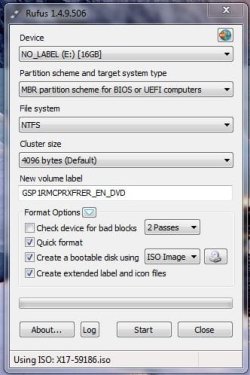
Here is a screen shot of my settings and I added the ISO image from X17-59186.iso which I ordered from AtomNik. I will try this again this evening.

Is there a link that is available that explains the what a partition, volume, disk, disk mount, and the boot process all is?? I'm a VB.Net/C# programmer, but I'm somewhat clueless on the stuff the OS does that somebody else setup for me. I'm trying to learn.

Thanks for you help.

PS -- I just realized (again) that when I attach the iso file, Rufus changes the Partition scheme to MBR and the file system to NTFS. Which one will work? I don't necessarily care about UEFI anymore. Too much hassle. Windows 8 annoys me more than anything.
 

Attachments

  • rufus.JPG
    rufus.JPG
    36.8 KB · Views: 35

My Computer My Computer

Computer type
PC/Desktop
Computer Manufacturer/Model Number
HP
OS
Windows 8 64-bit
Right, my only point is that I went from top to bottom, set the Partition scheme and target system type to GPT partition scheme for UEFI computer, the File System to FAT32 (Default), Cluster size to 4096, and New Volume label to "Win7 Install"

***AFTER DOING THAT*** I selected the iso and RUFUS change the settings back to the screen shot, **NOT ME***,,which I noticed before when I first started down this path. In the spirit of "programmers code things to protect users from themselves", I thought perhaps it meant that I had to use MBT and that's why the software changed the combo-boxes.

Either way, one last try and then I'm abandoning UEFI and using MBR is this one last try doesn't work. Way too much hassle.

I will let you know what happens.
 

My Computer My Computer

Computer type
PC/Desktop
Computer Manufacturer/Model Number
HP
OS
Windows 8 64-bit
I had done that also. Window 8 gave me a "permission denied" even when running as administrator. However, it appeared to clean the disk.

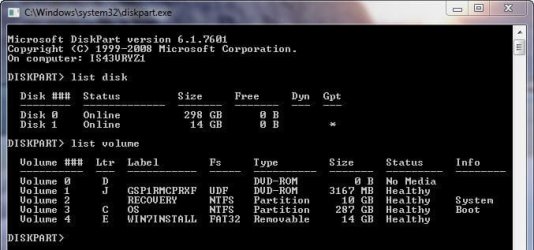
Rufus ran successfully using all the settings provided and this is what my disk part looks like. It does show as a GPT, which I think may have been my problem the first time.
 

My Computer My Computer

Computer type
PC/Desktop
Computer Manufacturer/Model Number
HP
OS
Windows 8 64-bit
here is the screenshot
 

Attachments

  • diskpart.jpg
    diskpart.jpg
    33.1 KB · Views: 17

My Computer My Computer

Computer type
PC/Desktop
Computer Manufacturer/Model Number
HP
OS
Windows 8 64-bit
furthermore

It looks like RUFUS made the bootx64 in the correct directory so I believe this may have a chance to work. Other documentation had users manually move and rename a file after doing OPTION #2 in this forum (not using RUFUS(. I did that, but I might have fouled something else up along the way.
 

Attachments

  • bootx64.jpg
    bootx64.jpg
    21.2 KB · Views: 0

My Computer My Computer

Computer type
PC/Desktop
Computer Manufacturer/Model Number
HP
OS
Windows 8 64-bit
Nothing is needed besides the steps in Option One which does it all. I already told you what to do if stick causes problems.
 
Right, my only point is that I went from top to bottom, set the Partition scheme and target system type to GPT partition scheme for UEFI computer, the File System to FAT32 (Default), Cluster size to 4096, and New Volume label to "Win7 Install"

***AFTER DOING THAT*** I selected the iso and RUFUS change the settings back to the screen shot, **NOT ME***,,which I noticed before when I first started down this path. In the spirit of "programmers code things to protect users from themselves", I thought perhaps it meant that I had to use MBT and that's why the software changed the combo-boxes.

That's the way Rufus works unfortunately. I ran into the same problem. Set everything up, top to bottom but when I browsed to select the iso file it changed from UEFI/GPT back to MBR so I had to change that again after selecting the iso file.
 

My Computer My Computer

Computer type
PC/Desktop
Computer Manufacturer/Model Number
Lenovo IdeaCenter 450
OS
Windows 10 Pro X64
CPU
Intel Quad Core i7-4770 @ 3.4Ghz
Memory
16.0GB PC3-12800 DDR3 SDRAM 1600 MHz
Graphics Card(s)
Intel Integrated HD Graphics
Sound Card
Realtek HD Audio
Monitor(s) Displays
HP 22" LCD
Screen Resolution
1680 x 1050
Hard Drives
250GB Samsung EVO SATA-3 SSD
2TB Seagate ST2000DM001 SATA-2
1.5TB Seagate ST3150041AS SATA
Keyboard
Dell USB
Mouse
Lenovo USB
Internet Speed
Cable via Road Runner 3MB Upload, 30MB Download
Antivirus
Windows Defender, MBAM Pro, MBAE
Browser
Seamonkey
Other Info
UEFI/GPT
PLDS DVD-RW DH16AERSH
I think it worked :-).

Now my problem is that when I get to the screen that asks where do you want to install Windows, no drives show up. I can browse... do I select the C: drive? It looks like there is boot stuff in there. Do I need to set up partitions? Is there a tutorial on how to do this? All of my previous installations (which are few), I just picked a drive that was there and it seemed to put it on my HDD.
 

My Computer My Computer

Computer type
PC/Desktop
Computer Manufacturer/Model Number
HP
OS
Windows 8 64-bit
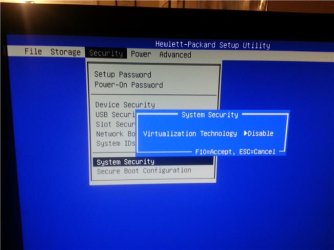
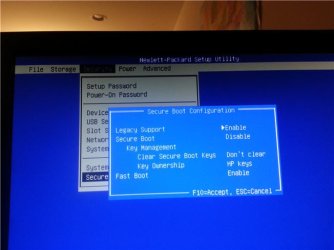
You may need some level of CSM or Legacy enabled in BIOS setup to see the drive.

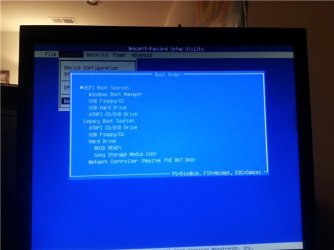
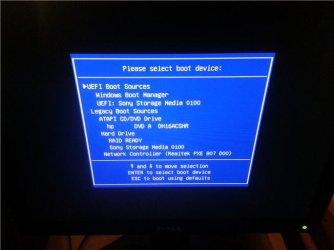
If you'll post back camera shots of the settings choices for Secure Boot, CSM, UEFI, Legacy and BIOS Boot Priority we can help you find the correct ones.

Also under Reset to Defaults section, is there an alternative reset for "Other OS's?"

Try booting in first to wipe the hard drive with Diskpart Clean Command followed by the command "Convert GPT" to see if that also helps.
 
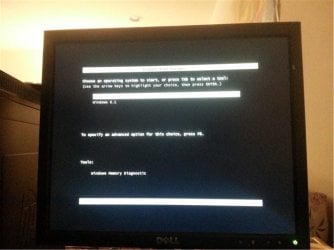
I probably have something fouled up because I don't fully understand this process. Right now, I have Window 8.1 on what I assume is a UEFI, gpt, NFS Partition on my hard drive. I attempted first to install Windows 7 x64 from a DVD and I got an error that a required driver could not be installed. No other information. That created a new partition so when the Windows Boot Manager loads I have a choice (Screenshot A) the setup version or Windows 8.1.

I have what I believe is now a bootable USB with Windows 7 x64.

I have been reluctant to touch the HDD because a while back, on a laptop, I lost everything learning about dual boots, swap space, and Ubuntu.

Back on the current PC, I noticed now that the Hitachi Hard Drive does not show up in the Boot Sources, where as it did before. The DISKPART command also hangs on this PC. Something must be fouled up.

Since I basically consider Windows 8.1 useless, and I have recovery disks on hand, I will try to reformat the Hard Drive and get the driver, if I need it, next. I'll take a look at disk clean, but I'm not sure how to use it at this point.

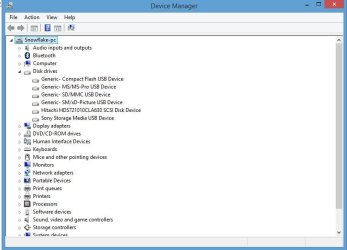
I've attached several screenshots. The BIOS utility from HP seems to have limited options compared to others I've seen. Again, I really appreciate your help. Maybe I'll come out of this exercise as a hardware guy, but I doubt it. :o
 

Attachments

  • hardware.jpg
    hardware.jpg
    45.6 KB · Views: 0
  • IMG_20140807_060429.jpg
    IMG_20140807_060429.jpg
    27.1 KB · Views: 14
  • IMG_20140807_060008.jpg
    IMG_20140807_060008.jpg
    30.3 KB · Views: 14
  • IMG_20140807_060352.jpg
    IMG_20140807_060352.jpg
    29.6 KB · Views: 14
  • IMG_20140807_060308.jpg
    IMG_20140807_060308.jpg
    30.4 KB · Views: 14
  • IMG_20140807_060659.jpg
    IMG_20140807_060659.jpg
    32 KB · Views: 14
  • IMG_20140802_072041.jpg
    IMG_20140802_072041.jpg
    24.4 KB · Views: 14

My Computer My Computer

Computer type
PC/Desktop
Computer Manufacturer/Model Number
HP
OS
Windows 8 64-bit
Back
Top