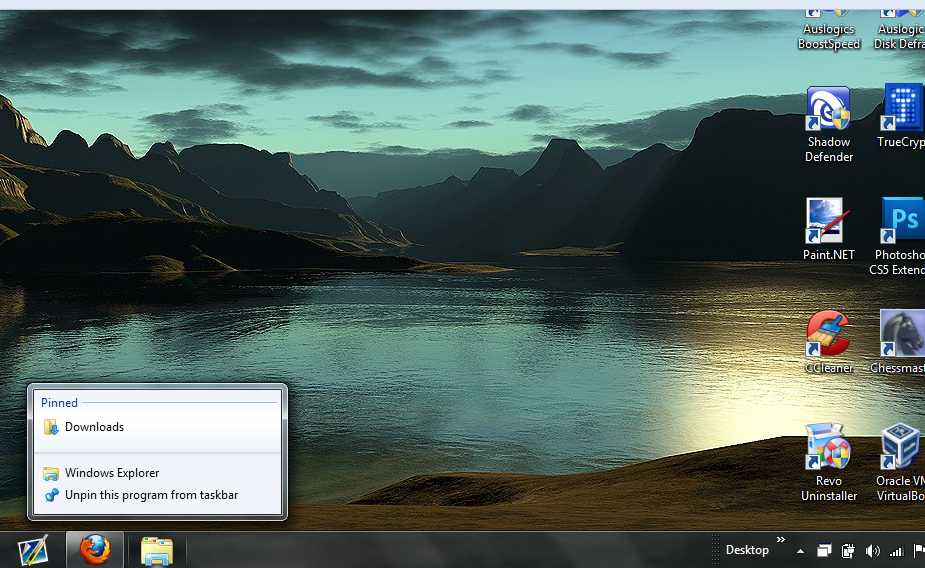
Taskbar - Pin or Unpin a Folder

How to Pin or Unpin a Folder to Taskbar in Windows 7 and Windows 8


   Information
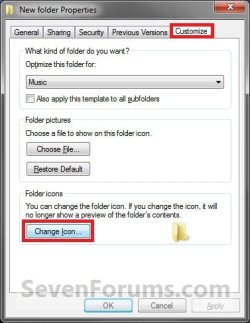
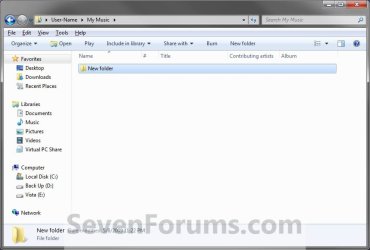
This will show you how to pin a folder to the taskbar directly or as a toolbar with a small or large custom icon, and with or without a text name in Windows 7 and Windows 8.

   Note
The pinned taskbar items are located in this hidden systen folder:

C:\Users\(User-Name)\AppData\Roaming\Microsoft\Internet Explorer\Quick Launch\User Pinned\TaskBar

   Tip
You can use this tutorial to pin either one of these hidden folders below to simulate the Classic Start Menu.
NOTE: Leave the arrows to expand the folder by.

Start Menu Used By Current User Account Only:
C:\Users\User-Name\AppData\Roaming\Microsoft\Windows\Start Menu\Programs

Start Menu Used By All User Accounts:
C:\ProgramData\Microsoft\Windows\Start Menu\Programs


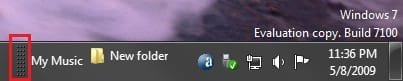
EXAMPLE: Folder Pinned on the Right Side of the Taskbar
NOTE: This with using OPTION TWO and the folder having a large icon with and without a text name.
Right_Side_Example.jpg

Right_Side_Text_Example.jpg
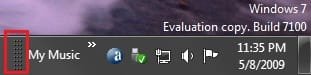
EXAMPLE: Folder Pinned on the Left Side of the Taskbar
NOTE: This with using OPTION TWO and the folder having a large icon with and without a text name.

Left_Side_Example.jpg

Left_Side_Text_Example.jpg


OPTION ONE

To Pin a Folder Directly to Taskbar


   Note
This option will show you a workaround to pin a folder directly to the taskbar that behaves the same as any other pinned program to the taskbar.


1. In Windows Explorer (Windows 7) or File Explorer (Windows 8), navigate to the folder that you want to pin to the taskbar.

2. Right click or swipe down on the folder, click/tap on Send to and Desktop (create shortcut), and close Explorer.

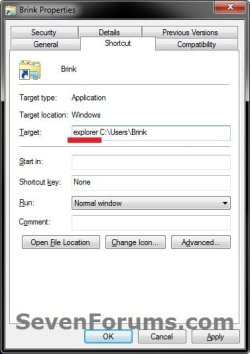
3. On your desktop, right click or swipe down on the folder shortcut, click/tap on Properties, Shortcut tab, type explorer in front of the Target path of the folder leaving a space inbetween them, and click/tap on Apply. (see example screenshots below)
target1.jpgtarget-2.jpg
4. In the same Shortcut tab, click/tap on the Change Icon button. (see screenshots above)

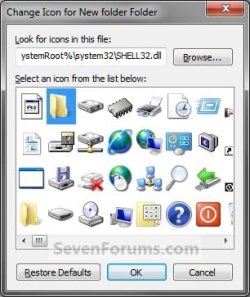
5. In the Change Icon window, type imageres.dll in the "look for" field and press Enter, then select the folder icon and click/tap on OK. (see screenshot below)
NOTE: You can use any icon that you would like to have displayed on the taskbar for this folder though.
icon.jpg
6. Click/tap on OK. (see screenshots below step 3)

7. Right click or swipe down on the folder shortcut on your desktop, and click/tap on Pin to Taskbar. You could also drag and drop the pinned folder icon to where you like within the other pinned icons on the taskbar.

8. When finished, you can delete the folder shortcut on your desktop if you like. It will not affect the pinned folder icon.


OPTION TWO

To Pin or Unpin a Folder as a Toolbar to Taskbar


   Note
You cannot pin a root folder directly to the taskbar using this option. Instead, you can only pin a subfolder in that root folder instead. You just need to make sure that there is only one subfolder in the root folder though. If not, then the other subfolders in the root folder will show up on the taskbar as well. For example, if you selected your C:\Users\(User-name) folder instead to pin the My Music in the example in step one below, then you would have all of the (User-Name) subfolders pinned to the taskbar as well since they are all subfolders in the C:\Users\(User-name) root folder.


1. Unlock the taskbar.

2. Right click or swipe down on an empty space on the taskbar, and click/tap on Toolbars and New toolbar. (see screenshot below)
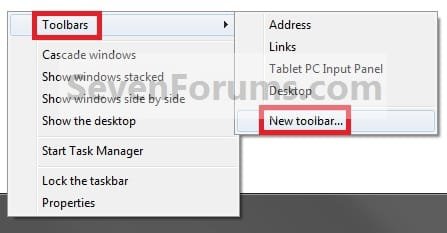
Step2.jpg
3. Navigate to the folder (ex: C:\Users\(user-name)\My Music) and select it, then click/tap on the Select Folder button. (see screenshot below)
Step3.jpg
4. Right click or swipe down on the dotted lines, then uncheck Show Title by clicking on it. (see screenshot below)
NOTE: If you leave Show Title checked, then the icon of the selected folder (step 3) will not show, and only the folder name would.
Step5.jpg
5. To Select a Small or Large Folder Icons
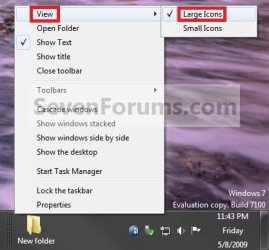
A) Right click or swipe down on the dotted separator line, then click/tap on View and select either Large Icons or Small Icons for the folder on the taskbar. (See screenshots below)
Step6A.jpgStep6B.jpg
6. To Keep or Remove Folder Text Name
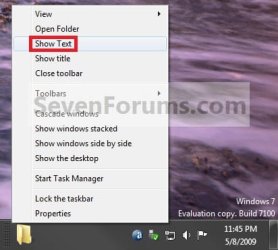
A) Right click or swipe down on the dotted separator line, then click/tap on View and click on Show Text to check (keep) or uncheck (remove) the folder name. (See screenshots below)
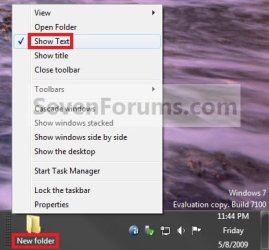
Step7A.jpgStep7B.jpg
7. To Keep the Folder on Right Side of Taskbar
A) Click/tap on the dotted separator line and hold, then drag it to the left and right to make any adjustments to how you want the folder positioned on the right side of the taskbar. (see screenshot below)

Step8.jpg
B) Release the left click when done.

C) Go to step 9.
8. To Have the Folder on Left Side of Taskbar
A) Click/tap on the dotted separator line of the pinned taskbar programs on the far left side and hold, then drag it to the right past the folder and release. (see screenshot below)

Step9A.jpg
B) Click/tap on the dotted separator line of the pinned taskbar programs on the now right side and hold, then drag it to the left next to the folder and release. (see screenshot below)

Step9B.jpg
9. Lock the taskbar.

10. You now have a pinned folder on the taskbar. (See example screenshots at the top of the tutorial)

11. You can now open the pinned folder and put whatever other files, folder, or shortcuts you want in this folder as you would any other folder for easy access to them from the taskbar.

12. To Unpin a Folder from the Taskbar
A) Right click or swipe down on an empty space on the taskbar, click/tap on Toolbars, and click/tap on the pinned folder (step 3) to uncheck and remove it from the taskbar. (see screenshot below)
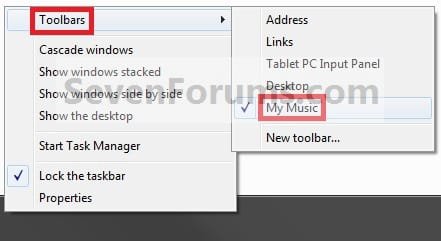
Step10.jpg
That's it,
Shawn


Attachments

  • Step1C.jpg
    Step1C.jpg
    24.2 KB · Views: 724
  • Step1B.jpg
    Step1B.jpg
    28 KB · Views: 866
  • Step1A.jpg
    Step1A.jpg
    39.7 KB · Views: 4,480
  • Step4B.jpg
    Step4B.jpg
    6.5 KB · Views: 454
  • Step4A.jpg
    Step4A.jpg
    5.3 KB · Views: 531
Last edited:
Is there, by any chance, that I could pin my "downloads" link to the taskbar. I don't want to create a new taskbar; I want to pin them onto it so it actually opens the folder instead of displaying the contents in a list.

I can not currently do this because whenever I try to pin my "downloads" to the taskbar, it will just pin to another program that I already have pinned.

47fe29c807792bed041ac5dc1a391ea0.png


You can see from the picture that I already have my desktop linked as a new task bar. I don't want that; I want to replace the windows "explorer pin" with a "downloads pin". I'd appreciate it you could help me! Thanks!

Great tutorial btw, I never knew about creating another taskbar =). I am sure my downloads taskbar will come in handy!
 
Last edited by a moderator:

My Computer

Computer Manufacturer/Model Number
Dell Studio 1558 Laptop
OS
Windows 7 Ultimate x64
CPU
Intel Core i3 330M @ 2.13GHz
Motherboard
Dell Inc. 0G939P (U2E1)
Memory
4.00 GB Dual-Channel DDR3 @ 532MHz
Graphics Card(s)
Intel(R) HD Graphics
Sound Card
IDT High Definition Audio CODEC
Monitor(s) Displays
Generic PnP Monitor
Screen Resolution
1280x720@60Hz
Hard Drives
488GB Seagate ST9500420AS ATA Device (SATA)
Keyboard
Standard PS/2 Keyboard
Mouse
Dell Touchpad

My Computer

Computer type
PC/Desktop
Computer Manufacturer/Model Number
Self built custom
OS
64-bit Windows 11 Pro for Workstations
CPU
Intel i7-8700K OC'd to 5 GHz
Motherboard
ASUS ROG Maximus XI Formula Z390
Memory
64 GB (4x16GB) G.SKILL TridentZ RGB DDR4 3600 MHz
Graphics Card(s)
ASUS ROG-STRIX-GTX1080TI-O11G-GAMING
Sound Card
Integrated
Monitor(s) Displays
2 x Samsung Odyssey G7 27"
Screen Resolution
2560x1440
Hard Drives
1TB Samsung 990 PRO M.2,
4TB Samsung 990 PRO PRO M.2,
TerraMaster F8 SSD Plus NAS
PSU
Seasonic Prime Titanium 850W
Case
Thermaltake Core P3
Cooling
Corsair Hydro H115i
Keyboard
Logitech wireless K800
Mouse
Logitech MX Master 4
Internet Speed
2 Gb/s Download and 100 Mb/s Upload
Antivirus
Malwarebyte Anti-Malware Premium
Browser
Google Chrome
Other Info
Logitech Z625 speaker system,
Logitech BRIO 4K Pro webcam,
HP Color LaserJet Pro MFP M477fdn,
APC SMART-UPS RT 1000 XL - SURT1000XLI,
Galaxy S23 Plus phone
Yes, that is exactly what I was looking for. Thanks!!:D
 

My Computer

Computer Manufacturer/Model Number
Dell Studio 1558 Laptop
OS
Windows 7 Ultimate x64
CPU
Intel Core i3 330M @ 2.13GHz
Motherboard
Dell Inc. 0G939P (U2E1)
Memory
4.00 GB Dual-Channel DDR3 @ 532MHz
Graphics Card(s)
Intel(R) HD Graphics
Sound Card
IDT High Definition Audio CODEC
Monitor(s) Displays
Generic PnP Monitor
Screen Resolution
1280x720@60Hz
Hard Drives
488GB Seagate ST9500420AS ATA Device (SATA)
Keyboard
Standard PS/2 Keyboard
Mouse
Dell Touchpad
You're most welcome Froob. :)
 

My Computer

Computer type
PC/Desktop
Computer Manufacturer/Model Number
Self built custom
OS
64-bit Windows 11 Pro for Workstations
CPU
Intel i7-8700K OC'd to 5 GHz
Motherboard
ASUS ROG Maximus XI Formula Z390
Memory
64 GB (4x16GB) G.SKILL TridentZ RGB DDR4 3600 MHz
Graphics Card(s)
ASUS ROG-STRIX-GTX1080TI-O11G-GAMING
Sound Card
Integrated
Monitor(s) Displays
2 x Samsung Odyssey G7 27"
Screen Resolution
2560x1440
Hard Drives
1TB Samsung 990 PRO M.2,
4TB Samsung 990 PRO PRO M.2,
TerraMaster F8 SSD Plus NAS
PSU
Seasonic Prime Titanium 850W
Case
Thermaltake Core P3
Cooling
Corsair Hydro H115i
Keyboard
Logitech wireless K800
Mouse
Logitech MX Master 4
Internet Speed
2 Gb/s Download and 100 Mb/s Upload
Antivirus
Malwarebyte Anti-Malware Premium
Browser
Google Chrome
Other Info
Logitech Z625 speaker system,
Logitech BRIO 4K Pro webcam,
HP Color LaserJet Pro MFP M477fdn,
APC SMART-UPS RT 1000 XL - SURT1000XLI,
Galaxy S23 Plus phone
how come it starts another explorer.exe process. does the same with cmd, too...
 

My Computer

OS
Windows 7 Home Premium 64bit
Hello Rubrbndball,

Which option did you use?

If you have another Windows Explorer icon pinned to the left of this one, then it's normal for it to open a new Windows Explorer window each time you click on the pinned folder icon. Any open Windows Explorer windows will be grouped in the farthest left (taskbar on bottom) or top (taskbar on side) pinned Windows Explorer icon.
 

My Computer

Computer type
PC/Desktop
Computer Manufacturer/Model Number
Self built custom
OS
64-bit Windows 11 Pro for Workstations
CPU
Intel i7-8700K OC'd to 5 GHz
Motherboard
ASUS ROG Maximus XI Formula Z390
Memory
64 GB (4x16GB) G.SKILL TridentZ RGB DDR4 3600 MHz
Graphics Card(s)
ASUS ROG-STRIX-GTX1080TI-O11G-GAMING
Sound Card
Integrated
Monitor(s) Displays
2 x Samsung Odyssey G7 27"
Screen Resolution
2560x1440
Hard Drives
1TB Samsung 990 PRO M.2,
4TB Samsung 990 PRO PRO M.2,
TerraMaster F8 SSD Plus NAS
PSU
Seasonic Prime Titanium 850W
Case
Thermaltake Core P3
Cooling
Corsair Hydro H115i
Keyboard
Logitech wireless K800
Mouse
Logitech MX Master 4
Internet Speed
2 Gb/s Download and 100 Mb/s Upload
Antivirus
Malwarebyte Anti-Malware Premium
Browser
Google Chrome
Other Info
Logitech Z625 speaker system,
Logitech BRIO 4K Pro webcam,
HP Color LaserJet Pro MFP M477fdn,
APC SMART-UPS RT 1000 XL - SURT1000XLI,
Galaxy S23 Plus phone
First option is simple and works like a charm. Thanks for the information. :cool:
 

My Computer

Computer Manufacturer/Model Number
Dell L502X
OS
MS Windows 7 Home Premium 64-bit SP1
CPU
Intel Core i5
Motherboard
DELL
Memory
6.00 GB
Graphics Card(s)
NVIDIA GeForce GT 525M
Sound Card
Realtek High Definition Audio
Monitor(s) Displays
1366x768 pixels
Hard Drives
488GB Seagate (SATA)
You're most welcome Raja, and welcome to Seven Forums. :)
 

My Computer

Computer type
PC/Desktop
Computer Manufacturer/Model Number
Self built custom
OS
64-bit Windows 11 Pro for Workstations
CPU
Intel i7-8700K OC'd to 5 GHz
Motherboard
ASUS ROG Maximus XI Formula Z390
Memory
64 GB (4x16GB) G.SKILL TridentZ RGB DDR4 3600 MHz
Graphics Card(s)
ASUS ROG-STRIX-GTX1080TI-O11G-GAMING
Sound Card
Integrated
Monitor(s) Displays
2 x Samsung Odyssey G7 27"
Screen Resolution
2560x1440
Hard Drives
1TB Samsung 990 PRO M.2,
4TB Samsung 990 PRO PRO M.2,
TerraMaster F8 SSD Plus NAS
PSU
Seasonic Prime Titanium 850W
Case
Thermaltake Core P3
Cooling
Corsair Hydro H115i
Keyboard
Logitech wireless K800
Mouse
Logitech MX Master 4
Internet Speed
2 Gb/s Download and 100 Mb/s Upload
Antivirus
Malwarebyte Anti-Malware Premium
Browser
Google Chrome
Other Info
Logitech Z625 speaker system,
Logitech BRIO 4K Pro webcam,
HP Color LaserJet Pro MFP M477fdn,
APC SMART-UPS RT 1000 XL - SURT1000XLI,
Galaxy S23 Plus phone
Thanks Brink! Been searching how to do this... the default taskbar pinned explorer button only opens one instance, that is you have to right-click to open another, as the icon turns into the launched icon...absolutely hated this.

Now, with this, it will open explorer, and the original unlaunched pinned icon remains, so I can open another easily!

Thanks again.
 

My Computer

OS
7 Ult x64 sp1
CPU
intel i
Motherboard
z68
Memory
ddr3 2GB+
Graphics Card(s)
nvidia pcie
Monitor(s) Displays
lcd
Hard Drives
sata2
PSU
600W
Cooling
fans
You're most welcome nevesswodniw. :)
 

My Computer

Computer type
PC/Desktop
Computer Manufacturer/Model Number
Self built custom
OS
64-bit Windows 11 Pro for Workstations
CPU
Intel i7-8700K OC'd to 5 GHz
Motherboard
ASUS ROG Maximus XI Formula Z390
Memory
64 GB (4x16GB) G.SKILL TridentZ RGB DDR4 3600 MHz
Graphics Card(s)
ASUS ROG-STRIX-GTX1080TI-O11G-GAMING
Sound Card
Integrated
Monitor(s) Displays
2 x Samsung Odyssey G7 27"
Screen Resolution
2560x1440
Hard Drives
1TB Samsung 990 PRO M.2,
4TB Samsung 990 PRO PRO M.2,
TerraMaster F8 SSD Plus NAS
PSU
Seasonic Prime Titanium 850W
Case
Thermaltake Core P3
Cooling
Corsair Hydro H115i
Keyboard
Logitech wireless K800
Mouse
Logitech MX Master 4
Internet Speed
2 Gb/s Download and 100 Mb/s Upload
Antivirus
Malwarebyte Anti-Malware Premium
Browser
Google Chrome
Other Info
Logitech Z625 speaker system,
Logitech BRIO 4K Pro webcam,
HP Color LaserJet Pro MFP M477fdn,
APC SMART-UPS RT 1000 XL - SURT1000XLI,
Galaxy S23 Plus phone
Ok, it seems that if I want it to work like I want in my previous post, then you must keep the original windows explorer pinned to taskbar. If I unpin windows explorer, and have only "my computer" pinned, then the unlaunched icon turns into the launched icon.
But if I have both "windows explorer" and "my computer" pinned, then after clicking on the "my computer" icon, and new window ( and taskbar icon) is opened and the unlaunched "my computer" icon remains.

It would be better to have only the "my computer" icon, but if its the only way to get it working like that, then its fine...
 

My Computer

OS
7 Ult x64 sp1
CPU
intel i
Motherboard
z68
Memory
ddr3 2GB+
Graphics Card(s)
nvidia pcie
Monitor(s) Displays
lcd
Hard Drives
sata2
PSU
600W
Cooling
fans
Yeah, the pinned Computer shortcut will also need to remain to the right of the default My Computer (libraries) one for it to continue doing that as well. A strange quirk, but it does work. :)
 

My Computer

Computer type
PC/Desktop
Computer Manufacturer/Model Number
Self built custom
OS
64-bit Windows 11 Pro for Workstations
CPU
Intel i7-8700K OC'd to 5 GHz
Motherboard
ASUS ROG Maximus XI Formula Z390
Memory
64 GB (4x16GB) G.SKILL TridentZ RGB DDR4 3600 MHz
Graphics Card(s)
ASUS ROG-STRIX-GTX1080TI-O11G-GAMING
Sound Card
Integrated
Monitor(s) Displays
2 x Samsung Odyssey G7 27"
Screen Resolution
2560x1440
Hard Drives
1TB Samsung 990 PRO M.2,
4TB Samsung 990 PRO PRO M.2,
TerraMaster F8 SSD Plus NAS
PSU
Seasonic Prime Titanium 850W
Case
Thermaltake Core P3
Cooling
Corsair Hydro H115i
Keyboard
Logitech wireless K800
Mouse
Logitech MX Master 4
Internet Speed
2 Gb/s Download and 100 Mb/s Upload
Antivirus
Malwarebyte Anti-Malware Premium
Browser
Google Chrome
Other Info
Logitech Z625 speaker system,
Logitech BRIO 4K Pro webcam,
HP Color LaserJet Pro MFP M477fdn,
APC SMART-UPS RT 1000 XL - SURT1000XLI,
Galaxy S23 Plus phone
Re: Windows 7 - Taskbar - Pin or Unpin a Folder sevenforums tip

Hi,

I cannot get this tip to work for me. What's extra frustrating is I have had difficulties with this before but have, somehow, got it to work. Not this time though.

As can be seen in the pic the title (Tools) shows but not the icon and the title is not clickable. Otherwise everything's just fine.

Please help, this is so frustrating:/
Thanks.
 
Last edited by a moderator:

My Computer

OS
Windows 7
Hello Goran,

Which option did you use in the tutorial on the first page?

If Option Two, then it looks like you need to pick up at step 4.
 

My Computer

Computer type
PC/Desktop
Computer Manufacturer/Model Number
Self built custom
OS
64-bit Windows 11 Pro for Workstations
CPU
Intel i7-8700K OC'd to 5 GHz
Motherboard
ASUS ROG Maximus XI Formula Z390
Memory
64 GB (4x16GB) G.SKILL TridentZ RGB DDR4 3600 MHz
Graphics Card(s)
ASUS ROG-STRIX-GTX1080TI-O11G-GAMING
Sound Card
Integrated
Monitor(s) Displays
2 x Samsung Odyssey G7 27"
Screen Resolution
2560x1440
Hard Drives
1TB Samsung 990 PRO M.2,
4TB Samsung 990 PRO PRO M.2,
TerraMaster F8 SSD Plus NAS
PSU
Seasonic Prime Titanium 850W
Case
Thermaltake Core P3
Cooling
Corsair Hydro H115i
Keyboard
Logitech wireless K800
Mouse
Logitech MX Master 4
Internet Speed
2 Gb/s Download and 100 Mb/s Upload
Antivirus
Malwarebyte Anti-Malware Premium
Browser
Google Chrome
Other Info
Logitech Z625 speaker system,
Logitech BRIO 4K Pro webcam,
HP Color LaserJet Pro MFP M477fdn,
APC SMART-UPS RT 1000 XL - SURT1000XLI,
Galaxy S23 Plus phone
Thanks m8!!!! Your guide worked like a charm!!!!!
 

My Computer

Computer Manufacturer/Model Number
ASuS
OS
Windows 7 Ultimate Service Pack 1
CPU
Intel Core I7 Extreme 980X
Motherboard
Asus Rampage III Extreme
Memory
OCZ 12GB DDR3 Triple Channel
Graphics Card(s)
ATI Radeon HD 5970 PCI-E
Sound Card
on board
Monitor(s) Displays
Dell 3007QDP
Screen Resolution
2560x1600
Hard Drives
Too many to post.
PSU
Corsair 1000w
Case
Mountain Mod
Cooling
All Water cooled
You're most welcome JW. Glad it could help. :)
 

My Computer

Computer type
PC/Desktop
Computer Manufacturer/Model Number
Self built custom
OS
64-bit Windows 11 Pro for Workstations
CPU
Intel i7-8700K OC'd to 5 GHz
Motherboard
ASUS ROG Maximus XI Formula Z390
Memory
64 GB (4x16GB) G.SKILL TridentZ RGB DDR4 3600 MHz
Graphics Card(s)
ASUS ROG-STRIX-GTX1080TI-O11G-GAMING
Sound Card
Integrated
Monitor(s) Displays
2 x Samsung Odyssey G7 27"
Screen Resolution
2560x1440
Hard Drives
1TB Samsung 990 PRO M.2,
4TB Samsung 990 PRO PRO M.2,
TerraMaster F8 SSD Plus NAS
PSU
Seasonic Prime Titanium 850W
Case
Thermaltake Core P3
Cooling
Corsair Hydro H115i
Keyboard
Logitech wireless K800
Mouse
Logitech MX Master 4
Internet Speed
2 Gb/s Download and 100 Mb/s Upload
Antivirus
Malwarebyte Anti-Malware Premium
Browser
Google Chrome
Other Info
Logitech Z625 speaker system,
Logitech BRIO 4K Pro webcam,
HP Color LaserJet Pro MFP M477fdn,
APC SMART-UPS RT 1000 XL - SURT1000XLI,
Galaxy S23 Plus phone
Hiyya Shawn me again mate I saw and followed I think I was tutorial in here on how to pin a specific document (that I use very frequently) onto the taskbar. I did this with one and cannot find the tutorial again. Could I bother you to point me in the right direction as it is driving me nuts having to open Word and search for this document I also want as a taskbar icon.
 

Attachments

  • ICON.PNG
    ICON.PNG
    23.9 KB · Views: 235

My Computer

Computer type
PC/Desktop
Computer Manufacturer/Model Number
Own build (new) Desk1 / Asus ROG Win 7 / Desk2 1st build
OS
Desk1 7 Home Prem / Desk2 10 Pro / Main lap Asus ROG 10 Pro 2 laptop Toshiba 7 Pro Asus P2520 7 & 10
CPU
Desk1 i5 3750K / Laptop i7 GTX 860M / Desk2 i5 2500
Motherboard
Desk1 Asus P877-V / Desk2 Gigabyte H67 UD3H / Laptop ?
Memory
Desk1 8GB (1866) / Desk2 16GB (1333) / Laptop 8Gb DDR3
Graphics Card(s)
Desk 1& 2NVidia GTX 650 & Laptops on board Intel
Sound Card
Desk 1 & 2 -XONAR DG Realtek High Def audio Laptop
Monitor(s) Displays
Desk 1 Benq HD 2450 / Desk2 Philips 24" / Laptop 17.5"
Screen Resolution
1920x1080 D1 & D2 & Laptop 1
Hard Drives
Desk1 Samsung 120GB 830 SSD
Asus ROG 256GB 850 Pro SSD
Desk2 Samsung 840 256 SSD
Toshiba 120GB EVO
PSU
Desk 1 Corsair HX 1050/ Laptop ? / Desk 2 Corsair HX 650
Case
Desk 1 Cooler HAF XM ? Toshiba laptop / Desk2 Coolermaster
Cooling
Fans on all Desk1 -2 Desk2 - all Coolermasters 5 Laptop ?
Keyboard
Desk 1 MS Sidewinder X6 Desk 2 MS Sidewinder X 4
Mouse
Desk 1&2 - Gigabyte MS 900 gamer - laptop - Logitec wireless
Internet Speed
ADSL2+
Other Info
One other Desktop (tester) and spare Toshba laptop both with SSD's
Running Kaspersky 2016 ISS on all machines config'd identically
Logitec audio stereo systems on each machine (x3)
Canon MG5250MFC
Router/modem TP-Link running WPA2SK
Good morning, Brink - me again, I am afraid. Weird result with method 2: "Downloads" icon successfully placed at right-hand of toolbar, using method 2; but when icon clicked, instead of opening a Downloads window on Desktop, icon moves left and spreads icons for all the files in Downloads to its right. (This sounds as if it might be what ElQuia was asking for back in 2009, though I cannot remember now what actually happened in Vista.) Icons not much use as would not know what most of them were, so have scrappend that approach, and just pinned Downloads to the left of the Taskbar along with other pinned programs - that works.
 

My Computer

OS
7 ultimate
CPU
AMD Phenom II x4 810 processor
Motherboard
Asus M4N78-AM
Memory
4096MB
Graphics Card(s)
NVIDIA GeForce 8200
Monitor(s) Displays
iiyama prolite B2409 HDS
Hard Drives
Asus 300gb x2
Hello ADJ,

It sounds like Option One may work better for you instead.

In Option Two, once you move the toolbar to the left, you would need to move the border of a pinned item to the right of the toolbar over to the left far enough to compress all the items in the Downloads toolbar until you only see the Downloads folder and the expand arrow above it to the right a bit.
 

My Computer

Computer type
PC/Desktop
Computer Manufacturer/Model Number
Self built custom
OS
64-bit Windows 11 Pro for Workstations
CPU
Intel i7-8700K OC'd to 5 GHz
Motherboard
ASUS ROG Maximus XI Formula Z390
Memory
64 GB (4x16GB) G.SKILL TridentZ RGB DDR4 3600 MHz
Graphics Card(s)
ASUS ROG-STRIX-GTX1080TI-O11G-GAMING
Sound Card
Integrated
Monitor(s) Displays
2 x Samsung Odyssey G7 27"
Screen Resolution
2560x1440
Hard Drives
1TB Samsung 990 PRO M.2,
4TB Samsung 990 PRO PRO M.2,
TerraMaster F8 SSD Plus NAS
PSU
Seasonic Prime Titanium 850W
Case
Thermaltake Core P3
Cooling
Corsair Hydro H115i
Keyboard
Logitech wireless K800
Mouse
Logitech MX Master 4
Internet Speed
2 Gb/s Download and 100 Mb/s Upload
Antivirus
Malwarebyte Anti-Malware Premium
Browser
Google Chrome
Other Info
Logitech Z625 speaker system,
Logitech BRIO 4K Pro webcam,
HP Color LaserJet Pro MFP M477fdn,
APC SMART-UPS RT 1000 XL - SURT1000XLI,
Galaxy S23 Plus phone
Now I have found an option to the taskbar and it is to pin the Document to the start menu.

The pic I posted was on my Ivy 7 machine so as I couldn't find any way of doing the same on the 8.1 laptop and in fact I find it easier to use and doesn't clutter the taskbar:party::party:
 

My Computer

Computer type
PC/Desktop
Computer Manufacturer/Model Number
Own build (new) Desk1 / Asus ROG Win 7 / Desk2 1st build
OS
Desk1 7 Home Prem / Desk2 10 Pro / Main lap Asus ROG 10 Pro 2 laptop Toshiba 7 Pro Asus P2520 7 & 10
CPU
Desk1 i5 3750K / Laptop i7 GTX 860M / Desk2 i5 2500
Motherboard
Desk1 Asus P877-V / Desk2 Gigabyte H67 UD3H / Laptop ?
Memory
Desk1 8GB (1866) / Desk2 16GB (1333) / Laptop 8Gb DDR3
Graphics Card(s)
Desk 1& 2NVidia GTX 650 & Laptops on board Intel
Sound Card
Desk 1 & 2 -XONAR DG Realtek High Def audio Laptop
Monitor(s) Displays
Desk 1 Benq HD 2450 / Desk2 Philips 24" / Laptop 17.5"
Screen Resolution
1920x1080 D1 & D2 & Laptop 1
Hard Drives
Desk1 Samsung 120GB 830 SSD
Asus ROG 256GB 850 Pro SSD
Desk2 Samsung 840 256 SSD
Toshiba 120GB EVO
PSU
Desk 1 Corsair HX 1050/ Laptop ? / Desk 2 Corsair HX 650
Case
Desk 1 Cooler HAF XM ? Toshiba laptop / Desk2 Coolermaster
Cooling
Fans on all Desk1 -2 Desk2 - all Coolermasters 5 Laptop ?
Keyboard
Desk 1 MS Sidewinder X6 Desk 2 MS Sidewinder X 4
Mouse
Desk 1&2 - Gigabyte MS 900 gamer - laptop - Logitec wireless
Internet Speed
ADSL2+
Other Info
One other Desktop (tester) and spare Toshba laptop both with SSD's
Running Kaspersky 2016 ISS on all machines config'd identically
Logitec audio stereo systems on each machine (x3)
Canon MG5250MFC
Router/modem TP-Link running WPA2SK
Back
Top