Taskbar - Pin or Unpin a Folder

How to Pin or Unpin a Folder to Taskbar in Windows 7 and Windows 8


   Information
This will show you how to pin a folder to the taskbar directly or as a toolbar with a small or large custom icon, and with or without a text name in Windows 7 and Windows 8.

   Note
The pinned taskbar items are located in this hidden systen folder:

C:\Users\(User-Name)\AppData\Roaming\Microsoft\Internet Explorer\Quick Launch\User Pinned\TaskBar

   Tip
You can use this tutorial to pin either one of these hidden folders below to simulate the Classic Start Menu.
NOTE: Leave the arrows to expand the folder by.

Start Menu Used By Current User Account Only:
C:\Users\User-Name\AppData\Roaming\Microsoft\Windows\Start Menu\Programs

Start Menu Used By All User Accounts:
C:\ProgramData\Microsoft\Windows\Start Menu\Programs


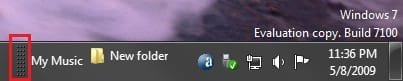
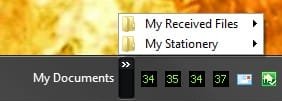
EXAMPLE: Folder Pinned on the Right Side of the Taskbar
NOTE: This with using OPTION TWO and the folder having a large icon with and without a text name.
Right_Side_Example.jpg

Right_Side_Text_Example.jpg
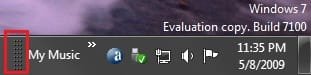
EXAMPLE: Folder Pinned on the Left Side of the Taskbar
NOTE: This with using OPTION TWO and the folder having a large icon with and without a text name.

Left_Side_Example.jpg

Left_Side_Text_Example.jpg


OPTION ONE

To Pin a Folder Directly to Taskbar


   Note
This option will show you a workaround to pin a folder directly to the taskbar that behaves the same as any other pinned program to the taskbar.


1. In Windows Explorer (Windows 7) or File Explorer (Windows 8), navigate to the folder that you want to pin to the taskbar.

2. Right click or swipe down on the folder, click/tap on Send to and Desktop (create shortcut), and close Explorer.

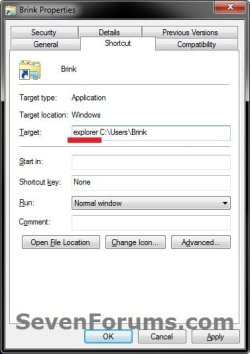
3. On your desktop, right click or swipe down on the folder shortcut, click/tap on Properties, Shortcut tab, type explorer in front of the Target path of the folder leaving a space inbetween them, and click/tap on Apply. (see example screenshots below)
target1.jpgtarget-2.jpg
4. In the same Shortcut tab, click/tap on the Change Icon button. (see screenshots above)

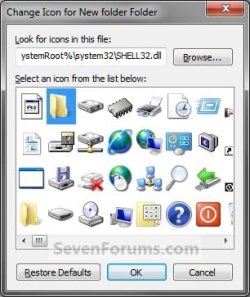
5. In the Change Icon window, type imageres.dll in the "look for" field and press Enter, then select the folder icon and click/tap on OK. (see screenshot below)
NOTE: You can use any icon that you would like to have displayed on the taskbar for this folder though.
icon.jpg
6. Click/tap on OK. (see screenshots below step 3)

7. Right click or swipe down on the folder shortcut on your desktop, and click/tap on Pin to Taskbar. You could also drag and drop the pinned folder icon to where you like within the other pinned icons on the taskbar.

8. When finished, you can delete the folder shortcut on your desktop if you like. It will not affect the pinned folder icon.


OPTION TWO

To Pin or Unpin a Folder as a Toolbar to Taskbar


   Note
You cannot pin a root folder directly to the taskbar using this option. Instead, you can only pin a subfolder in that root folder instead. You just need to make sure that there is only one subfolder in the root folder though. If not, then the other subfolders in the root folder will show up on the taskbar as well. For example, if you selected your C:\Users\(User-name) folder instead to pin the My Music in the example in step one below, then you would have all of the (User-Name) subfolders pinned to the taskbar as well since they are all subfolders in the C:\Users\(User-name) root folder.


1. Unlock the taskbar.

2. Right click or swipe down on an empty space on the taskbar, and click/tap on Toolbars and New toolbar. (see screenshot below)
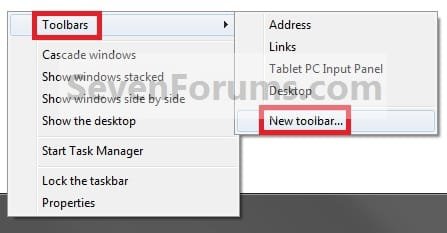
Step2.jpg
3. Navigate to the folder (ex: C:\Users\(user-name)\My Music) and select it, then click/tap on the Select Folder button. (see screenshot below)
Step3.jpg
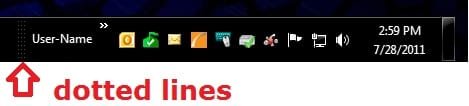
4. Right click or swipe down on the dotted lines, then uncheck Show Title by clicking on it. (see screenshot below)
NOTE: If you leave Show Title checked, then the icon of the selected folder (step 3) will not show, and only the folder name would.
Step5.jpg
5. To Select a Small or Large Folder Icons
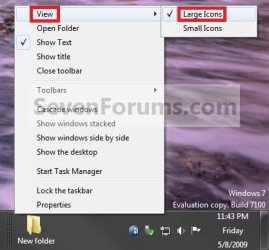
A) Right click or swipe down on the dotted separator line, then click/tap on View and select either Large Icons or Small Icons for the folder on the taskbar. (See screenshots below)
Step6A.jpgStep6B.jpg
6. To Keep or Remove Folder Text Name
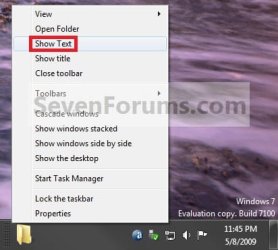
A) Right click or swipe down on the dotted separator line, then click/tap on View and click on Show Text to check (keep) or uncheck (remove) the folder name. (See screenshots below)
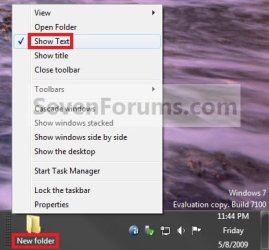
Step7A.jpgStep7B.jpg
7. To Keep the Folder on Right Side of Taskbar
A) Click/tap on the dotted separator line and hold, then drag it to the left and right to make any adjustments to how you want the folder positioned on the right side of the taskbar. (see screenshot below)

Step8.jpg
B) Release the left click when done.

C) Go to step 9.
8. To Have the Folder on Left Side of Taskbar
A) Click/tap on the dotted separator line of the pinned taskbar programs on the far left side and hold, then drag it to the right past the folder and release. (see screenshot below)

Step9A.jpg
B) Click/tap on the dotted separator line of the pinned taskbar programs on the now right side and hold, then drag it to the left next to the folder and release. (see screenshot below)

Step9B.jpg
9. Lock the taskbar.

10. You now have a pinned folder on the taskbar. (See example screenshots at the top of the tutorial)

11. You can now open the pinned folder and put whatever other files, folder, or shortcuts you want in this folder as you would any other folder for easy access to them from the taskbar.

12. To Unpin a Folder from the Taskbar
A) Right click or swipe down on an empty space on the taskbar, click/tap on Toolbars, and click/tap on the pinned folder (step 3) to uncheck and remove it from the taskbar. (see screenshot below)
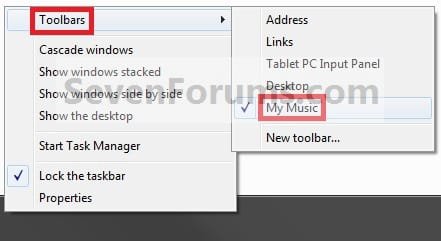
Step10.jpg
That's it,
Shawn


Attachments

  • Step1C.jpg
    Step1C.jpg
    24.2 KB · Views: 724
  • Step1B.jpg
    Step1B.jpg
    28 KB · Views: 866
  • Step1A.jpg
    Step1A.jpg
    39.7 KB · Views: 4,480
  • Step4B.jpg
    Step4B.jpg
    6.5 KB · Views: 454
  • Step4A.jpg
    Step4A.jpg
    5.3 KB · Views: 531
Last edited:
No problem.

You cannot create another Windows 7 taskbar, but you could use a free program like Fences, RocketDock, or Nexus to add one to use as well. :)
 

My Computer

Computer type
PC/Desktop
Computer Manufacturer/Model Number
Self built custom
OS
64-bit Windows 11 Pro for Workstations
CPU
Intel i7-8700K OC'd to 5 GHz
Motherboard
ASUS ROG Maximus XI Formula Z390
Memory
64 GB (4x16GB) G.SKILL TridentZ RGB DDR4 3600 MHz
Graphics Card(s)
ASUS ROG-STRIX-GTX1080TI-O11G-GAMING
Sound Card
Integrated
Monitor(s) Displays
2 x Samsung Odyssey G7 27"
Screen Resolution
2560x1440
Hard Drives
1TB Samsung 990 PRO M.2,
4TB Samsung 990 PRO PRO M.2,
TerraMaster F8 SSD Plus NAS
PSU
Seasonic Prime Titanium 850W
Case
Thermaltake Core P3
Cooling
Corsair Hydro H115i
Keyboard
Logitech wireless K800
Mouse
Logitech MX Master 4
Internet Speed
2 Gb/s Download and 100 Mb/s Upload
Antivirus
Malwarebyte Anti-Malware Premium
Browser
Google Chrome
Other Info
Logitech Z625 speaker system,
Logitech BRIO 4K Pro webcam,
HP Color LaserJet Pro MFP M477fdn,
APC SMART-UPS RT 1000 XL - SURT1000XLI,
Galaxy S23 Plus phone
can u talk more about personal preferences ? on my old xp system i had some time dealing with objectdock but found it kinda messing with my desktop taskbar and always freezing folders , not until i deleted the program that i found out about it. should i go with rockerdock ?
 

My Computer

OS
W7
Bababouyaw,

Either one of them will work fine in Windows 7. You might just install one, try it out to see how you like, then uninstall it and try the next one. This way you can get a true feeling of them to see which one you like best. You can still use pin items to the Windows 7 taskbar as well when using either one of these programs.:)
 

My Computer

Computer type
PC/Desktop
Computer Manufacturer/Model Number
Self built custom
OS
64-bit Windows 11 Pro for Workstations
CPU
Intel i7-8700K OC'd to 5 GHz
Motherboard
ASUS ROG Maximus XI Formula Z390
Memory
64 GB (4x16GB) G.SKILL TridentZ RGB DDR4 3600 MHz
Graphics Card(s)
ASUS ROG-STRIX-GTX1080TI-O11G-GAMING
Sound Card
Integrated
Monitor(s) Displays
2 x Samsung Odyssey G7 27"
Screen Resolution
2560x1440
Hard Drives
1TB Samsung 990 PRO M.2,
4TB Samsung 990 PRO PRO M.2,
TerraMaster F8 SSD Plus NAS
PSU
Seasonic Prime Titanium 850W
Case
Thermaltake Core P3
Cooling
Corsair Hydro H115i
Keyboard
Logitech wireless K800
Mouse
Logitech MX Master 4
Internet Speed
2 Gb/s Download and 100 Mb/s Upload
Antivirus
Malwarebyte Anti-Malware Premium
Browser
Google Chrome
Other Info
Logitech Z625 speaker system,
Logitech BRIO 4K Pro webcam,
HP Color LaserJet Pro MFP M477fdn,
APC SMART-UPS RT 1000 XL - SURT1000XLI,
Galaxy S23 Plus phone
thanks brink , i downloaded rocketdock and its something amazing to always have hanging around my desktop but i have to ask u something else , i wanna pin an icon to my toolbar more precisely an up arrow for personal use , is it possible to pin a picture ?
 

Attachments

  • up-arrow.gif
    up-arrow.gif
    1.9 KB · Views: 63,769

My Computer

OS
W7
Bababouyaw,

Sorry, but no you cannot pin any file other than a program's application file or it's shortcut to the taskbar. You can pin a folder to the taskbar and place the icon in it instead. This way you can click on the arrows to expand the folder on the taskbar to see the icon to open if you like.
 

My Computer

Computer type
PC/Desktop
Computer Manufacturer/Model Number
Self built custom
OS
64-bit Windows 11 Pro for Workstations
CPU
Intel i7-8700K OC'd to 5 GHz
Motherboard
ASUS ROG Maximus XI Formula Z390
Memory
64 GB (4x16GB) G.SKILL TridentZ RGB DDR4 3600 MHz
Graphics Card(s)
ASUS ROG-STRIX-GTX1080TI-O11G-GAMING
Sound Card
Integrated
Monitor(s) Displays
2 x Samsung Odyssey G7 27"
Screen Resolution
2560x1440
Hard Drives
1TB Samsung 990 PRO M.2,
4TB Samsung 990 PRO PRO M.2,
TerraMaster F8 SSD Plus NAS
PSU
Seasonic Prime Titanium 850W
Case
Thermaltake Core P3
Cooling
Corsair Hydro H115i
Keyboard
Logitech wireless K800
Mouse
Logitech MX Master 4
Internet Speed
2 Gb/s Download and 100 Mb/s Upload
Antivirus
Malwarebyte Anti-Malware Premium
Browser
Google Chrome
Other Info
Logitech Z625 speaker system,
Logitech BRIO 4K Pro webcam,
HP Color LaserJet Pro MFP M477fdn,
APC SMART-UPS RT 1000 XL - SURT1000XLI,
Galaxy S23 Plus phone
What am I missing

I simply want to pin "My Documents" to the taskbar. When I go through the tutorial I end up with a toolbar on my taskbar that includes every folder in My Documents. One of the folders in the toolbar is the "New Folder" I created in My Documents.
 

My Computer

OS
Windows 7 (x64)
Hello Dlogan, and welcome to Seven Forums.

When you get to step 7, you can leave the expansion arrow instead so that all you see is "My Documents" or it's folder icon. This way you will not see the content of "My Documents" until you click on the expansion arrows.

Title.jpg

Hope this helps,
Shawn
 

My Computer

Computer type
PC/Desktop
Computer Manufacturer/Model Number
Self built custom
OS
64-bit Windows 11 Pro for Workstations
CPU
Intel i7-8700K OC'd to 5 GHz
Motherboard
ASUS ROG Maximus XI Formula Z390
Memory
64 GB (4x16GB) G.SKILL TridentZ RGB DDR4 3600 MHz
Graphics Card(s)
ASUS ROG-STRIX-GTX1080TI-O11G-GAMING
Sound Card
Integrated
Monitor(s) Displays
2 x Samsung Odyssey G7 27"
Screen Resolution
2560x1440
Hard Drives
1TB Samsung 990 PRO M.2,
4TB Samsung 990 PRO PRO M.2,
TerraMaster F8 SSD Plus NAS
PSU
Seasonic Prime Titanium 850W
Case
Thermaltake Core P3
Cooling
Corsair Hydro H115i
Keyboard
Logitech wireless K800
Mouse
Logitech MX Master 4
Internet Speed
2 Gb/s Download and 100 Mb/s Upload
Antivirus
Malwarebyte Anti-Malware Premium
Browser
Google Chrome
Other Info
Logitech Z625 speaker system,
Logitech BRIO 4K Pro webcam,
HP Color LaserJet Pro MFP M477fdn,
APC SMART-UPS RT 1000 XL - SURT1000XLI,
Galaxy S23 Plus phone
Little Gap below TaskBar

Hey, thanks for the nifty tutorial, it worked wonders. Just a niggling annoyance though, when i pin the folder to the taskbar, there is this GAP under my tabs in the taskbar, that is caused by the icon of the folder. I think it's because the folder icon is larger than the size of the tabs, so it heightened the taskbar causing the other tabs in it to float above instead of "touching the ground". I hope you understand what i mean.

Anyway, the problem is that whenever i want to open a tab in the taskbar, i usually go right to the bottom and click on it. In this case, since the tabs are floating and not touching the base of the taskbar, i often miss clicking the tab and instead click on a dead area in the taskbar. Is there any way to make the tabs TOUCH the base of the taskbar again as before, other than reducing the folder icon to the "Small Icon" setting? Because Windows7's taskbar's small icons are REALLY small.

Thanks for any help!
 

My Computer

OS
Windows 7
CPU
[email protected]
Motherboard
Intel DP55Wg
Memory
4GB
Graphics Card(s)
ATI Radeon HD5770
Monitor(s) Displays
LG W4323T
Hard Drives
SATA 500GB WD
PSU
ToughPower 750W
Case
Cooler Master
Hello Vincent, and welcome to Seven Forums.

Unfortunately the only way that I know of is to use small icons, or have the taskbar on the side instead. :(
 

My Computer

Computer type
PC/Desktop
Computer Manufacturer/Model Number
Self built custom
OS
64-bit Windows 11 Pro for Workstations
CPU
Intel i7-8700K OC'd to 5 GHz
Motherboard
ASUS ROG Maximus XI Formula Z390
Memory
64 GB (4x16GB) G.SKILL TridentZ RGB DDR4 3600 MHz
Graphics Card(s)
ASUS ROG-STRIX-GTX1080TI-O11G-GAMING
Sound Card
Integrated
Monitor(s) Displays
2 x Samsung Odyssey G7 27"
Screen Resolution
2560x1440
Hard Drives
1TB Samsung 990 PRO M.2,
4TB Samsung 990 PRO PRO M.2,
TerraMaster F8 SSD Plus NAS
PSU
Seasonic Prime Titanium 850W
Case
Thermaltake Core P3
Cooling
Corsair Hydro H115i
Keyboard
Logitech wireless K800
Mouse
Logitech MX Master 4
Internet Speed
2 Gb/s Download and 100 Mb/s Upload
Antivirus
Malwarebyte Anti-Malware Premium
Browser
Google Chrome
Other Info
Logitech Z625 speaker system,
Logitech BRIO 4K Pro webcam,
HP Color LaserJet Pro MFP M477fdn,
APC SMART-UPS RT 1000 XL - SURT1000XLI,
Galaxy S23 Plus phone
Updated with Step 1 and Step 2 options. :)
 

My Computer

Computer type
PC/Desktop
Computer Manufacturer/Model Number
Self built custom
OS
64-bit Windows 11 Pro for Workstations
CPU
Intel i7-8700K OC'd to 5 GHz
Motherboard
ASUS ROG Maximus XI Formula Z390
Memory
64 GB (4x16GB) G.SKILL TridentZ RGB DDR4 3600 MHz
Graphics Card(s)
ASUS ROG-STRIX-GTX1080TI-O11G-GAMING
Sound Card
Integrated
Monitor(s) Displays
2 x Samsung Odyssey G7 27"
Screen Resolution
2560x1440
Hard Drives
1TB Samsung 990 PRO M.2,
4TB Samsung 990 PRO PRO M.2,
TerraMaster F8 SSD Plus NAS
PSU
Seasonic Prime Titanium 850W
Case
Thermaltake Core P3
Cooling
Corsair Hydro H115i
Keyboard
Logitech wireless K800
Mouse
Logitech MX Master 4
Internet Speed
2 Gb/s Download and 100 Mb/s Upload
Antivirus
Malwarebyte Anti-Malware Premium
Browser
Google Chrome
Other Info
Logitech Z625 speaker system,
Logitech BRIO 4K Pro webcam,
HP Color LaserJet Pro MFP M477fdn,
APC SMART-UPS RT 1000 XL - SURT1000XLI,
Galaxy S23 Plus phone
Is there a way to mix a folder(s) between the two taskbars ? It looks out of the flow when the folder is either flush right or flush left ?

How come there is this extra folder lurking on my desktop ? The link works if I remove this extra folder the link doesn't work no longer ?
 

My Computer

Computer type
PC/Desktop
Computer Manufacturer/Model Number
Custom Built
OS
Windows 10 Pro
CPU
Core2Quad (2.6 Ghz)
Motherboard
nVidia 775
Memory
8 Gigs DDR2
Graphics Card(s)
Geforce Titan Black
Sound Card
Motherboard Audio
Monitor(s) Displays
25" Asus LCD
Screen Resolution
1680x1050
Hard Drives
120 Gig SSD
60 Gig SSD
750 Gig HDD
PSU
850 Watts
Case
Mid-Size
Keyboard
Logitech
Mouse
Logitech - I love logitech mouses
Internet Speed
DSL 25Mbps - Although extremely expensive
Antivirus
Microsoft Anti-Virus
Browser
FireFox 36.x

My Computer

Computer type
PC/Desktop
Computer Manufacturer/Model Number
Self built custom
OS
64-bit Windows 11 Pro for Workstations
CPU
Intel i7-8700K OC'd to 5 GHz
Motherboard
ASUS ROG Maximus XI Formula Z390
Memory
64 GB (4x16GB) G.SKILL TridentZ RGB DDR4 3600 MHz
Graphics Card(s)
ASUS ROG-STRIX-GTX1080TI-O11G-GAMING
Sound Card
Integrated
Monitor(s) Displays
2 x Samsung Odyssey G7 27"
Screen Resolution
2560x1440
Hard Drives
1TB Samsung 990 PRO M.2,
4TB Samsung 990 PRO PRO M.2,
TerraMaster F8 SSD Plus NAS
PSU
Seasonic Prime Titanium 850W
Case
Thermaltake Core P3
Cooling
Corsair Hydro H115i
Keyboard
Logitech wireless K800
Mouse
Logitech MX Master 4
Internet Speed
2 Gb/s Download and 100 Mb/s Upload
Antivirus
Malwarebyte Anti-Malware Premium
Browser
Google Chrome
Other Info
Logitech Z625 speaker system,
Logitech BRIO 4K Pro webcam,
HP Color LaserJet Pro MFP M477fdn,
APC SMART-UPS RT 1000 XL - SURT1000XLI,
Galaxy S23 Plus phone
Guys, would appreciate it if someone can point me to the "dotted lines". I sure don't see them on my windows 7?
 

My Computer

OS
Windows 7 Ultimate x64
CPU
i7
Motherboard
Asus P7P55
Memory
1333MHz 4 GB
Graphics Card(s)
nVidia G250
Sound Card
Onboard
Monitor(s) Displays
22'' HD
Hard Drives
2 of 30GB SSD drives (Raid 0)
PSU
850W Antec
Case
Coolmaster
Cooling
2 of 120mm Fans
Hello Woutie,

If you're not seeing the dotted separator lines, then it sounds like you may have missed step 1 to Unlock the taskbar (click on link) first. :)

Hope this helps,
Shawn
 

My Computer

Computer type
PC/Desktop
Computer Manufacturer/Model Number
Self built custom
OS
64-bit Windows 11 Pro for Workstations
CPU
Intel i7-8700K OC'd to 5 GHz
Motherboard
ASUS ROG Maximus XI Formula Z390
Memory
64 GB (4x16GB) G.SKILL TridentZ RGB DDR4 3600 MHz
Graphics Card(s)
ASUS ROG-STRIX-GTX1080TI-O11G-GAMING
Sound Card
Integrated
Monitor(s) Displays
2 x Samsung Odyssey G7 27"
Screen Resolution
2560x1440
Hard Drives
1TB Samsung 990 PRO M.2,
4TB Samsung 990 PRO PRO M.2,
TerraMaster F8 SSD Plus NAS
PSU
Seasonic Prime Titanium 850W
Case
Thermaltake Core P3
Cooling
Corsair Hydro H115i
Keyboard
Logitech wireless K800
Mouse
Logitech MX Master 4
Internet Speed
2 Gb/s Download and 100 Mb/s Upload
Antivirus
Malwarebyte Anti-Malware Premium
Browser
Google Chrome
Other Info
Logitech Z625 speaker system,
Logitech BRIO 4K Pro webcam,
HP Color LaserJet Pro MFP M477fdn,
APC SMART-UPS RT 1000 XL - SURT1000XLI,
Galaxy S23 Plus phone
Yes Brink, you were right mate - thanx for that!
 

My Computer

OS
Windows 7 Ultimate x64
CPU
i7
Motherboard
Asus P7P55
Memory
1333MHz 4 GB
Graphics Card(s)
nVidia G250
Sound Card
Onboard
Monitor(s) Displays
22'' HD
Hard Drives
2 of 30GB SSD drives (Raid 0)
PSU
850W Antec
Case
Coolmaster
Cooling
2 of 120mm Fans
You're most welcome mate. :)
 

My Computer

Computer type
PC/Desktop
Computer Manufacturer/Model Number
Self built custom
OS
64-bit Windows 11 Pro for Workstations
CPU
Intel i7-8700K OC'd to 5 GHz
Motherboard
ASUS ROG Maximus XI Formula Z390
Memory
64 GB (4x16GB) G.SKILL TridentZ RGB DDR4 3600 MHz
Graphics Card(s)
ASUS ROG-STRIX-GTX1080TI-O11G-GAMING
Sound Card
Integrated
Monitor(s) Displays
2 x Samsung Odyssey G7 27"
Screen Resolution
2560x1440
Hard Drives
1TB Samsung 990 PRO M.2,
4TB Samsung 990 PRO PRO M.2,
TerraMaster F8 SSD Plus NAS
PSU
Seasonic Prime Titanium 850W
Case
Thermaltake Core P3
Cooling
Corsair Hydro H115i
Keyboard
Logitech wireless K800
Mouse
Logitech MX Master 4
Internet Speed
2 Gb/s Download and 100 Mb/s Upload
Antivirus
Malwarebyte Anti-Malware Premium
Browser
Google Chrome
Other Info
Logitech Z625 speaker system,
Logitech BRIO 4K Pro webcam,
HP Color LaserJet Pro MFP M477fdn,
APC SMART-UPS RT 1000 XL - SURT1000XLI,
Galaxy S23 Plus phone
Firstly, let me say what a useful tutorial this is.

I did have Dell Dock but it became unusable following a power cut shutting down my PC and has proved impossible to reinstall. A lot of googling suggested that I would be banging my head against a brick wall attempting to reinstall it.

I wanted something similar to Dell Dock and, although I knew how to add things to jump lists in the Taskbar, I couldn't manage to add groups of programs and files to the Taskbar in the manner that you could with Dell Dock. Further googling brought me to this tutorial which I'm trying out.

A few questions if I may:

1) Would I be correct in saying that it is impossible to move a pinned folder into the middle of the icons on the Taskbar; that it must be either to the left or right of them?

2) Is it possible to change the order of the pinned folders without scrapping everything and starting from scratch? With the Taskbar unlocked moving any of the folders simply pushes the neighboring folders along. With the Taskbar locked you can move one folder past another, but all it does is create a copy of the folder.

3) if you hover the mouse over a pinned folder you get the name of the folder, which I want, but you also get the 'Date created'. Is it possible to stop the 'Date created' appearing?
 

My Computer

OS
Windows 7 64-bit
Hello Agrippa, and welcome to Seven Forums.

Answers inline. :)

1) Would I be correct in saying that it is impossible to move a pinned folder into the middle of the icons on the Taskbar; that it must be either to the left or right of them?
No, the pinned folder (toolbar) would either have to be to the left or right of the pinned program/shortcut icons. You might be able to use this tutorial below as a workaround though by having nothing but toolbars (pinned folders) to be able to arrange them how you like.

http://www.sevenforums.com/tutorials/20602-taskbar-center-icons.html
2) Is it possible to change the order of the pinned folders without scrapping everything and starting from scratch? With the Taskbar unlocked moving any of the folders simply pushes the neighboring folders along. With the Taskbar locked you can move one folder past another, but all it does is create a copy of the folder.
Yes, you will not need to recreate them to move them. You would just need to unlock the taskbar, and move the pinned folders like in steps 7 and 8 in the tutorial to where you want them on the taskbar. When finished, lock the taskbar. Step 8B shows you how to move the items to the left of the pinned folder to the right of the pinned folder.
3) if you hover the mouse over a pinned folder you get the name of the folder, which I want, but you also get the 'Date created'. Is it possible to stop the 'Date created' appearing?
No, but you could leave Show Title checked (step 4) instead, drag the dotted separator lines to the left to condense the pinned folder so that the subfolders are not showing on the taskbar like below. This way you could click on the >> arrow to expand the pinned folder.

expanded.jpg

option1.jpg
Hope this helps,
Shawn
 

My Computer

Computer type
PC/Desktop
Computer Manufacturer/Model Number
Self built custom
OS
64-bit Windows 11 Pro for Workstations
CPU
Intel i7-8700K OC'd to 5 GHz
Motherboard
ASUS ROG Maximus XI Formula Z390
Memory
64 GB (4x16GB) G.SKILL TridentZ RGB DDR4 3600 MHz
Graphics Card(s)
ASUS ROG-STRIX-GTX1080TI-O11G-GAMING
Sound Card
Integrated
Monitor(s) Displays
2 x Samsung Odyssey G7 27"
Screen Resolution
2560x1440
Hard Drives
1TB Samsung 990 PRO M.2,
4TB Samsung 990 PRO PRO M.2,
TerraMaster F8 SSD Plus NAS
PSU
Seasonic Prime Titanium 850W
Case
Thermaltake Core P3
Cooling
Corsair Hydro H115i
Keyboard
Logitech wireless K800
Mouse
Logitech MX Master 4
Internet Speed
2 Gb/s Download and 100 Mb/s Upload
Antivirus
Malwarebyte Anti-Malware Premium
Browser
Google Chrome
Other Info
Logitech Z625 speaker system,
Logitech BRIO 4K Pro webcam,
HP Color LaserJet Pro MFP M477fdn,
APC SMART-UPS RT 1000 XL - SURT1000XLI,
Galaxy S23 Plus phone
Thanks for the prompt reply. I'll now carefully read your comments.
 

My Computer

OS
Windows 7 64-bit
You're welcome. Please just let us know if you have any questions. :)
 

My Computer

Computer type
PC/Desktop
Computer Manufacturer/Model Number
Self built custom
OS
64-bit Windows 11 Pro for Workstations
CPU
Intel i7-8700K OC'd to 5 GHz
Motherboard
ASUS ROG Maximus XI Formula Z390
Memory
64 GB (4x16GB) G.SKILL TridentZ RGB DDR4 3600 MHz
Graphics Card(s)
ASUS ROG-STRIX-GTX1080TI-O11G-GAMING
Sound Card
Integrated
Monitor(s) Displays
2 x Samsung Odyssey G7 27"
Screen Resolution
2560x1440
Hard Drives
1TB Samsung 990 PRO M.2,
4TB Samsung 990 PRO PRO M.2,
TerraMaster F8 SSD Plus NAS
PSU
Seasonic Prime Titanium 850W
Case
Thermaltake Core P3
Cooling
Corsair Hydro H115i
Keyboard
Logitech wireless K800
Mouse
Logitech MX Master 4
Internet Speed
2 Gb/s Download and 100 Mb/s Upload
Antivirus
Malwarebyte Anti-Malware Premium
Browser
Google Chrome
Other Info
Logitech Z625 speaker system,
Logitech BRIO 4K Pro webcam,
HP Color LaserJet Pro MFP M477fdn,
APC SMART-UPS RT 1000 XL - SURT1000XLI,
Galaxy S23 Plus phone
Back
Top