Taskbar - Pin or Unpin a Folder

How to Pin or Unpin a Folder to Taskbar in Windows 7 and Windows 8


   Information
This will show you how to pin a folder to the taskbar directly or as a toolbar with a small or large custom icon, and with or without a text name in Windows 7 and Windows 8.

   Note
The pinned taskbar items are located in this hidden systen folder:

C:\Users\(User-Name)\AppData\Roaming\Microsoft\Internet Explorer\Quick Launch\User Pinned\TaskBar

   Tip
You can use this tutorial to pin either one of these hidden folders below to simulate the Classic Start Menu.
NOTE: Leave the arrows to expand the folder by.

Start Menu Used By Current User Account Only:
C:\Users\User-Name\AppData\Roaming\Microsoft\Windows\Start Menu\Programs

Start Menu Used By All User Accounts:
C:\ProgramData\Microsoft\Windows\Start Menu\Programs


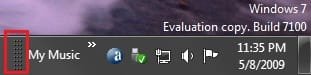
EXAMPLE: Folder Pinned on the Right Side of the Taskbar
NOTE: This with using OPTION TWO and the folder having a large icon with and without a text name.
Right_Side_Example.jpg

Right_Side_Text_Example.jpg
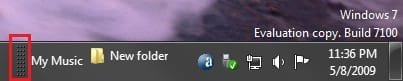
EXAMPLE: Folder Pinned on the Left Side of the Taskbar
NOTE: This with using OPTION TWO and the folder having a large icon with and without a text name.

Left_Side_Example.jpg

Left_Side_Text_Example.jpg


OPTION ONE

To Pin a Folder Directly to Taskbar


   Note
This option will show you a workaround to pin a folder directly to the taskbar that behaves the same as any other pinned program to the taskbar.


1. In Windows Explorer (Windows 7) or File Explorer (Windows 8), navigate to the folder that you want to pin to the taskbar.

2. Right click or swipe down on the folder, click/tap on Send to and Desktop (create shortcut), and close Explorer.

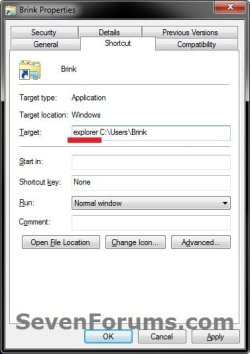
3. On your desktop, right click or swipe down on the folder shortcut, click/tap on Properties, Shortcut tab, type explorer in front of the Target path of the folder leaving a space inbetween them, and click/tap on Apply. (see example screenshots below)
target1.jpgtarget-2.jpg
4. In the same Shortcut tab, click/tap on the Change Icon button. (see screenshots above)

5. In the Change Icon window, type imageres.dll in the "look for" field and press Enter, then select the folder icon and click/tap on OK. (see screenshot below)
NOTE: You can use any icon that you would like to have displayed on the taskbar for this folder though.
icon.jpg
6. Click/tap on OK. (see screenshots below step 3)

7. Right click or swipe down on the folder shortcut on your desktop, and click/tap on Pin to Taskbar. You could also drag and drop the pinned folder icon to where you like within the other pinned icons on the taskbar.

8. When finished, you can delete the folder shortcut on your desktop if you like. It will not affect the pinned folder icon.


OPTION TWO

To Pin or Unpin a Folder as a Toolbar to Taskbar


   Note
You cannot pin a root folder directly to the taskbar using this option. Instead, you can only pin a subfolder in that root folder instead. You just need to make sure that there is only one subfolder in the root folder though. If not, then the other subfolders in the root folder will show up on the taskbar as well. For example, if you selected your C:\Users\(User-name) folder instead to pin the My Music in the example in step one below, then you would have all of the (User-Name) subfolders pinned to the taskbar as well since they are all subfolders in the C:\Users\(User-name) root folder.


1. Unlock the taskbar.

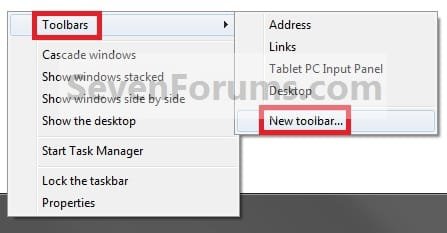
2. Right click or swipe down on an empty space on the taskbar, and click/tap on Toolbars and New toolbar. (see screenshot below)
Step2.jpg
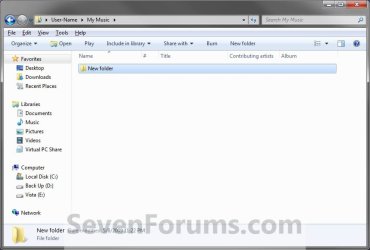
3. Navigate to the folder (ex: C:\Users\(user-name)\My Music) and select it, then click/tap on the Select Folder button. (see screenshot below)
Step3.jpg
4. Right click or swipe down on the dotted lines, then uncheck Show Title by clicking on it. (see screenshot below)
NOTE: If you leave Show Title checked, then the icon of the selected folder (step 3) will not show, and only the folder name would.
Step5.jpg
5. To Select a Small or Large Folder Icons
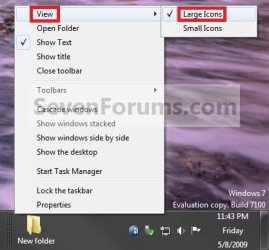
A) Right click or swipe down on the dotted separator line, then click/tap on View and select either Large Icons or Small Icons for the folder on the taskbar. (See screenshots below)
Step6A.jpgStep6B.jpg
6. To Keep or Remove Folder Text Name
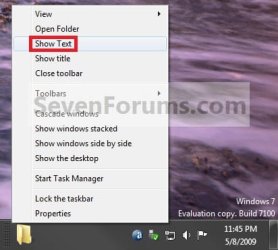
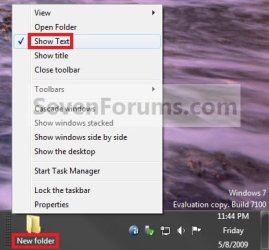
A) Right click or swipe down on the dotted separator line, then click/tap on View and click on Show Text to check (keep) or uncheck (remove) the folder name. (See screenshots below)
Step7A.jpgStep7B.jpg
7. To Keep the Folder on Right Side of Taskbar
A) Click/tap on the dotted separator line and hold, then drag it to the left and right to make any adjustments to how you want the folder positioned on the right side of the taskbar. (see screenshot below)

Step8.jpg
B) Release the left click when done.

C) Go to step 9.
8. To Have the Folder on Left Side of Taskbar
A) Click/tap on the dotted separator line of the pinned taskbar programs on the far left side and hold, then drag it to the right past the folder and release. (see screenshot below)

Step9A.jpg
B) Click/tap on the dotted separator line of the pinned taskbar programs on the now right side and hold, then drag it to the left next to the folder and release. (see screenshot below)

Step9B.jpg
9. Lock the taskbar.

10. You now have a pinned folder on the taskbar. (See example screenshots at the top of the tutorial)

11. You can now open the pinned folder and put whatever other files, folder, or shortcuts you want in this folder as you would any other folder for easy access to them from the taskbar.

12. To Unpin a Folder from the Taskbar
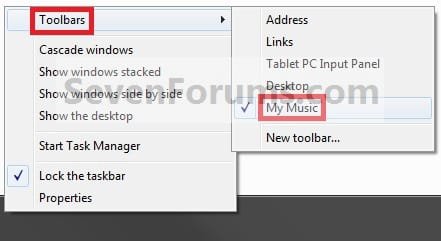
A) Right click or swipe down on an empty space on the taskbar, click/tap on Toolbars, and click/tap on the pinned folder (step 3) to uncheck and remove it from the taskbar. (see screenshot below)
Step10.jpg
That's it,
Shawn


Attachments

  • Step1A.jpg
    Step1A.jpg
    39.7 KB · Views: 4,480
  • Step1B.jpg
    Step1B.jpg
    28 KB · Views: 866
  • Step1C.jpg
    Step1C.jpg
    24.2 KB · Views: 724
  • Step4A.jpg
    Step4A.jpg
    5.3 KB · Views: 531
  • Step4B.jpg
    Step4B.jpg
    6.5 KB · Views: 454
Last edited:
Hi Shawn,

Awesome info. I am trying to do something similar: I have a folder with all my shortcuts in it. I have created a shortcut to that folder which sits on the desktop. By clicking the shortcut I immediately have all my shortcut icons in one window. I would like to place the shortcut icon to this folder permanently on the taskbar alongside the "Start" button. Can this be done?
 

My Computer

Computer type
PC/Desktop
Computer Manufacturer/Model Number
Custom
OS
Windows 7 - x64 Professional
CPU
Core i7 4770K @4.2 GHz
Motherboard
Asus Maximus Hero V1
Memory
Corsair DDR3-2400 16 GB
Graphics Card(s)
GTX 780 Ti Superclocked EVGA
Sound Card
Onboard Realtek
Monitor(s) Displays
Asus 27 inch
Screen Resolution
2560 x 1480
Hard Drives
Samsung EVO 840 500 GB SSD
Sandisk Extreme 250 GB SSD
Samsung 1.5TB HDD
PSU
Corsair 1150W
Case
A big one :-)
Cooling
Corsair H100i closed loop water cooler
Keyboard
Logitech G110 Gaming
Mouse
R.A.T 5
Internet Speed
1 GB ADSL
Antivirus
Bit Defender
Browser
I.E. 11
Hello Greg,

Yes, you can follow the tutorial step by step to add the folder's full path location (step 6), then do step 12 to have it next to the Start Menu. Afterwards, you can click on it to open that folder.

Hope this helps,
Shawn
 

My Computer

Computer type
PC/Desktop
Computer Manufacturer/Model Number
Self built custom
OS
64-bit Windows 11 Pro for Workstations
CPU
Intel i7-8700K OC'd to 5 GHz
Motherboard
ASUS ROG Maximus XI Formula Z390
Memory
64 GB (4x16GB) G.SKILL TridentZ RGB DDR4 3600 MHz
Graphics Card(s)
ASUS ROG-STRIX-GTX1080TI-O11G-GAMING
Sound Card
Integrated
Monitor(s) Displays
2 x Samsung Odyssey G7 27"
Screen Resolution
2560x1440
Hard Drives
1TB Samsung 990 PRO M.2,
4TB Samsung 990 PRO PRO M.2,
TerraMaster F8 SSD Plus NAS
PSU
Seasonic Prime Titanium 850W
Case
Thermaltake Core P3
Cooling
Corsair Hydro H115i
Keyboard
Logitech wireless K800
Mouse
Logitech MX Master 4
Internet Speed
2 Gb/s Download and 100 Mb/s Upload
Antivirus
Malwarebyte Anti-Malware Premium
Browser
Google Chrome
Other Info
Logitech Z625 speaker system,
Logitech BRIO 4K Pro webcam,
HP Color LaserJet Pro MFP M477fdn,
APC SMART-UPS RT 1000 XL - SURT1000XLI,
Galaxy S23 Plus phone
Thank you Shawn - really appreciate it! Will try this when I get home later!
Cheers,

Greg
 

My Computer

Computer type
PC/Desktop
Computer Manufacturer/Model Number
Custom
OS
Windows 7 - x64 Professional
CPU
Core i7 4770K @4.2 GHz
Motherboard
Asus Maximus Hero V1
Memory
Corsair DDR3-2400 16 GB
Graphics Card(s)
GTX 780 Ti Superclocked EVGA
Sound Card
Onboard Realtek
Monitor(s) Displays
Asus 27 inch
Screen Resolution
2560 x 1480
Hard Drives
Samsung EVO 840 500 GB SSD
Sandisk Extreme 250 GB SSD
Samsung 1.5TB HDD
PSU
Corsair 1150W
Case
A big one :-)
Cooling
Corsair H100i closed loop water cooler
Keyboard
Logitech G110 Gaming
Mouse
R.A.T 5
Internet Speed
1 GB ADSL
Antivirus
Bit Defender
Browser
I.E. 11
You're welcome Greg. Please let us know how it went. :)
 

My Computer

Computer type
PC/Desktop
Computer Manufacturer/Model Number
Self built custom
OS
64-bit Windows 11 Pro for Workstations
CPU
Intel i7-8700K OC'd to 5 GHz
Motherboard
ASUS ROG Maximus XI Formula Z390
Memory
64 GB (4x16GB) G.SKILL TridentZ RGB DDR4 3600 MHz
Graphics Card(s)
ASUS ROG-STRIX-GTX1080TI-O11G-GAMING
Sound Card
Integrated
Monitor(s) Displays
2 x Samsung Odyssey G7 27"
Screen Resolution
2560x1440
Hard Drives
1TB Samsung 990 PRO M.2,
4TB Samsung 990 PRO PRO M.2,
TerraMaster F8 SSD Plus NAS
PSU
Seasonic Prime Titanium 850W
Case
Thermaltake Core P3
Cooling
Corsair Hydro H115i
Keyboard
Logitech wireless K800
Mouse
Logitech MX Master 4
Internet Speed
2 Gb/s Download and 100 Mb/s Upload
Antivirus
Malwarebyte Anti-Malware Premium
Browser
Google Chrome
Other Info
Logitech Z625 speaker system,
Logitech BRIO 4K Pro webcam,
HP Color LaserJet Pro MFP M477fdn,
APC SMART-UPS RT 1000 XL - SURT1000XLI,
Galaxy S23 Plus phone
I think I am doing somewthing wrong:(... When I do this I end up seeing ALL the shortcuts on the taskbar (about 20 of them). I cant seem to get it right that just the folder is displayed an the taskbar (preferably with a different icon) and then when I click on that, all the icons appear in a window. Either that or I just get the text for the folder name but no icon for the folder shows up and clicking on the text does nothing. Any ideas on where I am going wrong? I went thru your instructions step by step but clearly I am missing something.
 

My Computer

Computer type
PC/Desktop
Computer Manufacturer/Model Number
Custom
OS
Windows 7 - x64 Professional
CPU
Core i7 4770K @4.2 GHz
Motherboard
Asus Maximus Hero V1
Memory
Corsair DDR3-2400 16 GB
Graphics Card(s)
GTX 780 Ti Superclocked EVGA
Sound Card
Onboard Realtek
Monitor(s) Displays
Asus 27 inch
Screen Resolution
2560 x 1480
Hard Drives
Samsung EVO 840 500 GB SSD
Sandisk Extreme 250 GB SSD
Samsung 1.5TB HDD
PSU
Corsair 1150W
Case
A big one :-)
Cooling
Corsair H100i closed loop water cooler
Keyboard
Logitech G110 Gaming
Mouse
R.A.T 5
Internet Speed
1 GB ADSL
Antivirus
Bit Defender
Browser
I.E. 11
Greg,

I think you may have missed part of Step 1. You need to place a new folder in a folder, then select the original folder to see the new folder icon on the taskbar. All files or shortcuts will need to be placed in the New Folder.
 

My Computer

Computer type
PC/Desktop
Computer Manufacturer/Model Number
Self built custom
OS
64-bit Windows 11 Pro for Workstations
CPU
Intel i7-8700K OC'd to 5 GHz
Motherboard
ASUS ROG Maximus XI Formula Z390
Memory
64 GB (4x16GB) G.SKILL TridentZ RGB DDR4 3600 MHz
Graphics Card(s)
ASUS ROG-STRIX-GTX1080TI-O11G-GAMING
Sound Card
Integrated
Monitor(s) Displays
2 x Samsung Odyssey G7 27"
Screen Resolution
2560x1440
Hard Drives
1TB Samsung 990 PRO M.2,
4TB Samsung 990 PRO PRO M.2,
TerraMaster F8 SSD Plus NAS
PSU
Seasonic Prime Titanium 850W
Case
Thermaltake Core P3
Cooling
Corsair Hydro H115i
Keyboard
Logitech wireless K800
Mouse
Logitech MX Master 4
Internet Speed
2 Gb/s Download and 100 Mb/s Upload
Antivirus
Malwarebyte Anti-Malware Premium
Browser
Google Chrome
Other Info
Logitech Z625 speaker system,
Logitech BRIO 4K Pro webcam,
HP Color LaserJet Pro MFP M477fdn,
APC SMART-UPS RT 1000 XL - SURT1000XLI,
Galaxy S23 Plus phone
Thanks Brink - I think you might be right - I created the new folder inside the main folder but then I selected this new folder and changed its icon. Will give it another shot. Thanks again.
 

My Computer

Computer type
PC/Desktop
Computer Manufacturer/Model Number
Custom
OS
Windows 7 - x64 Professional
CPU
Core i7 4770K @4.2 GHz
Motherboard
Asus Maximus Hero V1
Memory
Corsair DDR3-2400 16 GB
Graphics Card(s)
GTX 780 Ti Superclocked EVGA
Sound Card
Onboard Realtek
Monitor(s) Displays
Asus 27 inch
Screen Resolution
2560 x 1480
Hard Drives
Samsung EVO 840 500 GB SSD
Sandisk Extreme 250 GB SSD
Samsung 1.5TB HDD
PSU
Corsair 1150W
Case
A big one :-)
Cooling
Corsair H100i closed loop water cooler
Keyboard
Logitech G110 Gaming
Mouse
R.A.T 5
Internet Speed
1 GB ADSL
Antivirus
Bit Defender
Browser
I.E. 11
You're welcome Greg. Please let us know how it went. :)
 

My Computer

Computer type
PC/Desktop
Computer Manufacturer/Model Number
Self built custom
OS
64-bit Windows 11 Pro for Workstations
CPU
Intel i7-8700K OC'd to 5 GHz
Motherboard
ASUS ROG Maximus XI Formula Z390
Memory
64 GB (4x16GB) G.SKILL TridentZ RGB DDR4 3600 MHz
Graphics Card(s)
ASUS ROG-STRIX-GTX1080TI-O11G-GAMING
Sound Card
Integrated
Monitor(s) Displays
2 x Samsung Odyssey G7 27"
Screen Resolution
2560x1440
Hard Drives
1TB Samsung 990 PRO M.2,
4TB Samsung 990 PRO PRO M.2,
TerraMaster F8 SSD Plus NAS
PSU
Seasonic Prime Titanium 850W
Case
Thermaltake Core P3
Cooling
Corsair Hydro H115i
Keyboard
Logitech wireless K800
Mouse
Logitech MX Master 4
Internet Speed
2 Gb/s Download and 100 Mb/s Upload
Antivirus
Malwarebyte Anti-Malware Premium
Browser
Google Chrome
Other Info
Logitech Z625 speaker system,
Logitech BRIO 4K Pro webcam,
HP Color LaserJet Pro MFP M477fdn,
APC SMART-UPS RT 1000 XL - SURT1000XLI,
Galaxy S23 Plus phone
Uh guys, thats nice and works.

BUT:

Is there any way to make the pinned folder cascade its contents like in the classic start menu in vista?
I would Kill for that feature ... I miss it terribly...:confused:
 

My Computer

Computer Manufacturer/Model Number
ASUS M2N32-SLI Deluxe
OS
Windows 7 x64 SP1 - Ubuntu 10.10 x64 - Linux Mint 10 (dual boot + Virtual Box)
CPU
AMD Phenom II 945
Motherboard
ASUS M2N32-SLI Deluxe
Memory
Kingston DDR2 800 6GB
Graphics Card(s)
NVidia GForce 8600GT
Sound Card
OnBoard SoundMax Integrated HD
Monitor(s) Displays
LCD Samsung SyncMaster 2033
Screen Resolution
1600*900
Hard Drives
1.0 TB RAID 0 + 2 internal sata 320 GB + external e-sata 500 Gb
PSU
650
Internet Speed
cable 3mb
Hello ElQuia,

You can use this tutorial to pin either one of these hidden folders below to simulate the Classic Start Menu.
NOTE: Leave the arrows to expand the folder by.

Start Menu Used By Current User Account Only:
C:\Users\User-Name\AppData\Roaming\Microsoft\Windows\Start Menu\Programs

Start Menu Used By All User Accounts:
C:\ProgramData\Microsoft\Windows\Start Menu\Programs
 

My Computer

Computer type
PC/Desktop
Computer Manufacturer/Model Number
Self built custom
OS
64-bit Windows 11 Pro for Workstations
CPU
Intel i7-8700K OC'd to 5 GHz
Motherboard
ASUS ROG Maximus XI Formula Z390
Memory
64 GB (4x16GB) G.SKILL TridentZ RGB DDR4 3600 MHz
Graphics Card(s)
ASUS ROG-STRIX-GTX1080TI-O11G-GAMING
Sound Card
Integrated
Monitor(s) Displays
2 x Samsung Odyssey G7 27"
Screen Resolution
2560x1440
Hard Drives
1TB Samsung 990 PRO M.2,
4TB Samsung 990 PRO PRO M.2,
TerraMaster F8 SSD Plus NAS
PSU
Seasonic Prime Titanium 850W
Case
Thermaltake Core P3
Cooling
Corsair Hydro H115i
Keyboard
Logitech wireless K800
Mouse
Logitech MX Master 4
Internet Speed
2 Gb/s Download and 100 Mb/s Upload
Antivirus
Malwarebyte Anti-Malware Premium
Browser
Google Chrome
Other Info
Logitech Z625 speaker system,
Logitech BRIO 4K Pro webcam,
HP Color LaserJet Pro MFP M477fdn,
APC SMART-UPS RT 1000 XL - SURT1000XLI,
Galaxy S23 Plus phone
Hey Brink, thanks, will try :D
 

My Computer

Computer Manufacturer/Model Number
ASUS M2N32-SLI Deluxe
OS
Windows 7 x64 SP1 - Ubuntu 10.10 x64 - Linux Mint 10 (dual boot + Virtual Box)
CPU
AMD Phenom II 945
Motherboard
ASUS M2N32-SLI Deluxe
Memory
Kingston DDR2 800 6GB
Graphics Card(s)
NVidia GForce 8600GT
Sound Card
OnBoard SoundMax Integrated HD
Monitor(s) Displays
LCD Samsung SyncMaster 2033
Screen Resolution
1600*900
Hard Drives
1.0 TB RAID 0 + 2 internal sata 320 GB + external e-sata 500 Gb
PSU
650
Internet Speed
cable 3mb
You're welcome ElQuia. I also found this great little free program CSMenu that may work for this as well.
 

My Computer

Computer type
PC/Desktop
Computer Manufacturer/Model Number
Self built custom
OS
64-bit Windows 11 Pro for Workstations
CPU
Intel i7-8700K OC'd to 5 GHz
Motherboard
ASUS ROG Maximus XI Formula Z390
Memory
64 GB (4x16GB) G.SKILL TridentZ RGB DDR4 3600 MHz
Graphics Card(s)
ASUS ROG-STRIX-GTX1080TI-O11G-GAMING
Sound Card
Integrated
Monitor(s) Displays
2 x Samsung Odyssey G7 27"
Screen Resolution
2560x1440
Hard Drives
1TB Samsung 990 PRO M.2,
4TB Samsung 990 PRO PRO M.2,
TerraMaster F8 SSD Plus NAS
PSU
Seasonic Prime Titanium 850W
Case
Thermaltake Core P3
Cooling
Corsair Hydro H115i
Keyboard
Logitech wireless K800
Mouse
Logitech MX Master 4
Internet Speed
2 Gb/s Download and 100 Mb/s Upload
Antivirus
Malwarebyte Anti-Malware Premium
Browser
Google Chrome
Other Info
Logitech Z625 speaker system,
Logitech BRIO 4K Pro webcam,
HP Color LaserJet Pro MFP M477fdn,
APC SMART-UPS RT 1000 XL - SURT1000XLI,
Galaxy S23 Plus phone
For the same functionality one can create a custom toolbar. I simply create a folder under my user name (though the folder could be anywhere really). Keep the name of the folder short, like "GoTo". I add shortcuts to the programs I want quick access to inside that folder. You can also create subfolders, e.g. a subfolder with internet shortcuts to sites you access a lot or a subfolder with VNC links. Organize the structure however you want. Then right click on the taskbar and select Toolbars > New Toolbar. When asked, browse to the folder you created and select it. You'll get a toolbar that displays your folder name to the left of the system tray with a little ">>" next to it. Click on that, and and it displays your folder and all its subfolders.

Its a totally user controlled, simple and easy solution for quick access organized as you want it to be that has been in Windows for years. It even accommodates drag and drop, e.g. drop a Firefox address bar icon onto the ">>", and it will be placed in the GoTo folder. You can also open the toolbar and drag and drop icons into subfolders. Never could understand why people never made much use of this feature :>)
 
Last edited:

My Computer

OS
Windows 7
You're welcome ZeshanA. :)
 

My Computer

Computer type
PC/Desktop
Computer Manufacturer/Model Number
Self built custom
OS
64-bit Windows 11 Pro for Workstations
CPU
Intel i7-8700K OC'd to 5 GHz
Motherboard
ASUS ROG Maximus XI Formula Z390
Memory
64 GB (4x16GB) G.SKILL TridentZ RGB DDR4 3600 MHz
Graphics Card(s)
ASUS ROG-STRIX-GTX1080TI-O11G-GAMING
Sound Card
Integrated
Monitor(s) Displays
2 x Samsung Odyssey G7 27"
Screen Resolution
2560x1440
Hard Drives
1TB Samsung 990 PRO M.2,
4TB Samsung 990 PRO PRO M.2,
TerraMaster F8 SSD Plus NAS
PSU
Seasonic Prime Titanium 850W
Case
Thermaltake Core P3
Cooling
Corsair Hydro H115i
Keyboard
Logitech wireless K800
Mouse
Logitech MX Master 4
Internet Speed
2 Gb/s Download and 100 Mb/s Upload
Antivirus
Malwarebyte Anti-Malware Premium
Browser
Google Chrome
Other Info
Logitech Z625 speaker system,
Logitech BRIO 4K Pro webcam,
HP Color LaserJet Pro MFP M477fdn,
APC SMART-UPS RT 1000 XL - SURT1000XLI,
Galaxy S23 Plus phone
but i think creating a pinned folder without the expansion arrow is useless , it would be easier keeping a link on the desktop ... but unless u want to rearrange different items in different subfolders that would make it hard to flow right threw them without having to open a folder into another folder into another folder an expansion arrow wouldnt sound so bad there. is there a way to create a expansion arrow with a pinned folder in the start menu ?
 

My Computer

OS
W7
For the same functionality one can create a custom toolbar. I simply create a folder under my user name (though the folder could be anywhere really). Keep the name of the folder short, like "GoTo". I add shortcuts to the programs I want quick access to inside that folder. You can also create subfolders, e.g. a subfolder with internet shortcuts to sites you access a lot or a subfolder with VNC links. Organize the structure however you want. Then right click on the taskbar and select Toolbars > New Toolbar. When asked, browse to the folder you created and select it. You'll get a toolbar that displays your folder name to the left of the system tray with a little ">>" next to it. Click on that, and and it displays your folder and all its subfolders.

Its a totally user controlled, simple and easy solution for quick access organized as you want it to be that has been in Windows for years. It even accommodates drag and drop, e.g. drop a Firefox address bar icon onto the ">>", and it will be placed in the GoTo folder. You can also open the toolbar and drag and drop icons into subfolders. Never could understand why people never made much use of this feature :>)

This is what I ended up doing also. It works really well and once you get used to using it, you will never go back ;).

Every time I install something, simply check the box to have an icon installed to your desktop (or create it manually if that option is not presented) and then cut/paste this into your shortcuts folder (mine sits in My Doc's). It will then automatically appear in the >> button next to the taskbar icons. Click the >> and rightclick on it, select sort and everything is rearranged in alphabetical order. Works a charm and so easy to do.
 

My Computer

Computer type
PC/Desktop
Computer Manufacturer/Model Number
Custom
OS
Windows 7 - x64 Professional
CPU
Core i7 4770K @4.2 GHz
Motherboard
Asus Maximus Hero V1
Memory
Corsair DDR3-2400 16 GB
Graphics Card(s)
GTX 780 Ti Superclocked EVGA
Sound Card
Onboard Realtek
Monitor(s) Displays
Asus 27 inch
Screen Resolution
2560 x 1480
Hard Drives
Samsung EVO 840 500 GB SSD
Sandisk Extreme 250 GB SSD
Samsung 1.5TB HDD
PSU
Corsair 1150W
Case
A big one :-)
Cooling
Corsair H100i closed loop water cooler
Keyboard
Logitech G110 Gaming
Mouse
R.A.T 5
Internet Speed
1 GB ADSL
Antivirus
Bit Defender
Browser
I.E. 11
but i think creating a pinned folder without the expansion arrow is useless , it would be easier keeping a link on the desktop ... but unless u want to rearrange different items in different subfolders that would make it hard to flow right threw them without having to open a folder into another folder into another folder an expansion arrow wouldnt sound so bad there. is there a way to create a expansion arrow with a pinned folder in the start menu ?

Hello Bababouyaw, and welcome to Seven Forums.

You can leave the arrows if you like for the pinned taskbar folder. It's optional at step 7. There's no option for this in the Start Menu though.

Hope this helps,
Shawn
 

My Computer

Computer type
PC/Desktop
Computer Manufacturer/Model Number
Self built custom
OS
64-bit Windows 11 Pro for Workstations
CPU
Intel i7-8700K OC'd to 5 GHz
Motherboard
ASUS ROG Maximus XI Formula Z390
Memory
64 GB (4x16GB) G.SKILL TridentZ RGB DDR4 3600 MHz
Graphics Card(s)
ASUS ROG-STRIX-GTX1080TI-O11G-GAMING
Sound Card
Integrated
Monitor(s) Displays
2 x Samsung Odyssey G7 27"
Screen Resolution
2560x1440
Hard Drives
1TB Samsung 990 PRO M.2,
4TB Samsung 990 PRO PRO M.2,
TerraMaster F8 SSD Plus NAS
PSU
Seasonic Prime Titanium 850W
Case
Thermaltake Core P3
Cooling
Corsair Hydro H115i
Keyboard
Logitech wireless K800
Mouse
Logitech MX Master 4
Internet Speed
2 Gb/s Download and 100 Mb/s Upload
Antivirus
Malwarebyte Anti-Malware Premium
Browser
Google Chrome
Other Info
Logitech Z625 speaker system,
Logitech BRIO 4K Pro webcam,
HP Color LaserJet Pro MFP M477fdn,
APC SMART-UPS RT 1000 XL - SURT1000XLI,
Galaxy S23 Plus phone
lol i was replying without even realizing how much that tutorial helped me , having checked it and created a pinned folder its actually an even better idea then what i had in mind ... got a question tho , is it possible to have a second taskbar or let me rephrase that, can i pin my folder onto a different taskbar that is only dedicated for the contents of the folder ?
 

My Computer

OS
W7
Back
Top