Solved Sharing between Windows 7 and XP

RP McIntosh

New member
Member
VIP
Local time
9:09 AM
Messages
135
I have a Windows 7 machine, and an XP machine, and I'm trying to set up sharing of folders between the two systems. And I'm experiencing two problems.
1. Though the shared drives show up on both systems, I can access the drives on the XP system from the Windows 7 system, but cannot access the drives on the Windows 7 system from the XP system. Any quick ideas as to the cause of this?
2. There is one exception to the above. One of the drives on the XP system, though it shows up on the Windows 7 system is not accessible. When I try to access it, I get a long busy indicator, then a box that says it is not accessible. I have a hunch what the problem may be, but it is just a hunch, and if I'm right, I still don't know how to fix it. The hunch has to do with the fact that the drive on the XP system is formatted FAT16. I have one small drive on the XP system formatted FAT16 to hold a couple of old DOS games. Would that fact prevent it from being accessed, and if so, is there a fix for it (short of reformatting the drive)?
 

My Computer

Computer Manufacturer/Model Number
Dell
OS
Windows 7 Ultimate 64
CPU
Intel i7-975
Memory
12 GB
Graphics Card(s)
ATI Radeon HD 5870
Sound Card
Sound Blaster X-Fi Titanium
Monitor(s) Displays
Dell U2410
Hard Drives
3, SATA 1.5 TB each
You need to create a workgroup (not homegroup) in order to connect with XP. The FAT is not an issue.
 

My Computer

Computer type
PC/Desktop
OS
Windows 7 Pro
You need to create a workgroup (not homegroup) in order to connect with XP. The FAT is not an issue.

Doctore--

Thanks. I do have a workgroup created (and both computers are using the Workgroup name WORKGROUP). And except for the one drive on the XP system that is formatted FAT, I can access the rest of the XP drives and folders I have enabled Sharing on. But I can't access the shared folders on the Win 7 machine from the XP machine. They do show up on the XP machine under the Network in Windows Explorer, it is just that when I click on one, I get an error message that it's not accessible. I've double checked that I have sharing enabled on the Win 7 system, and that the permissions are set to FULL and Everyone. Any other ideas what could be causing these two perplexing problems?

The problem with the FAT drive isn't a serious one, since I can live without having access to it from the Win 7 system--it's just it perplexes me why the other drives are accessible, and this one is not. The problem of not being able to access the Win 7 shared drives from the XP system, however is a serious problem. Any input is welcome.

I'm a bit hampered by the fact that I have more or less identical setups (two computers, one with Win 7 and one with XP) in two separate locations. So trying to check one set that is working right against the other set that is having problems is a slow process, since I have to travel to a different location to work on it.
 

My Computer

Computer Manufacturer/Model Number
Dell
OS
Windows 7 Ultimate 64
CPU
Intel i7-975
Memory
12 GB
Graphics Card(s)
ATI Radeon HD 5870
Sound Card
Sound Blaster X-Fi Titanium
Monitor(s) Displays
Dell U2410
Hard Drives
3, SATA 1.5 TB each
You need to create a workgroup (not homegroup) in order to connect with XP. The FAT is not an issue.

Doctore--

A further input (may or may not be helpful). I spent most of the morning trying to figure out what was wrong. As I mentioned, the two computers I'm trying to get to communicate with each other are at a different location. After giving up for the time being, on my way home, it occurred to me that the problem with the XP computer not being able to access the Win 7 computer may be the Norton Firewall that is running on the Win 7 computer (since I get "not accessible" for the entire system). I'll explore that in more depth when I go back (probably tomorrow), though any additional ideas are welcome.

What is really perplexing, however is the other problem. The XP computer has 5 drives that I have tried to share (not including the C drive). One of the five is an external USB drive. The other 4 are all internal hard drives. Three of them, I can access with no problem. But the external drive, and one of the internal drives is not accessible. And it turns out that the problem I thought I had (the drive being formatted as a FAT drive) is not correct. I do have a FAT drive, but it is one of the three I can access with no problem. The external drive is formatted, as I recall, as a FAT 32 drive, and the other drive I can't access is formatted as an NTFS drive. Can you (or anyone else) think of what could be making three drives accessible, and the other two inaccessible?
 

My Computer

Computer Manufacturer/Model Number
Dell
OS
Windows 7 Ultimate 64
CPU
Intel i7-975
Memory
12 GB
Graphics Card(s)
ATI Radeon HD 5870
Sound Card
Sound Blaster X-Fi Titanium
Monitor(s) Displays
Dell U2410
Hard Drives
3, SATA 1.5 TB each
How are you connecting the computers, if they are at different locations? Do you do it over the internet?

It's best to start from scratch, follow this guide: Networking home computers running different versions of Windows - Windows Help

At the bottom of that page there is also a list of ports that you need to open with your firewalls.
It's best to have the network between the two computers working, before you deal with the 2 drives problem, which could well disappear when the computers have working workgroup.
 

My Computer

Computer type
PC/Desktop
OS
Windows 7 Pro
How are you connecting the computers, if they are at different locations? Do you do it over the internet?

It's best to start from scratch, follow this guide: Networking home computers running different versions of Windows - Windows Help

At the bottom of that page there is also a list of ports that you need to open with your firewalls.
It's best to have the network between the two computers working, before you deal with the 2 drives problem, which could well disappear when the computers have working workgroup.

Doctore--

First, thanks for your help. I do appreciate it. Also, sorry if I confused you. I'm not using the internet to connect the computers. I have two SETS of computers, (4 computers total). Two are at one location, and two are at a different location. Each set has a Win 7 computer, and an XP computer. One set, which I have had operating for some time is working normally. The only reason I mention it is that because the two sets are in different locations, I can not easily compare all the settings on the set that is working fine, with the set that is giving me problems. Bottom line, I'm only having problems with one set of computer, and they are both connected to a router by a network cable. The internet access works fine on both computers, and (except for the two drives mentioned earlier), the Win 7 computer can access the XP computer. So I don't think that there is a problem with the network adapter, or with the router.

I did print off and scanned the instructions from the link you provided. I also downloaded the file to install the LLTD feature that was referenced in the link. Once I have a chance to get back to the problem computers, I'll go over the article in detail, and check out the details of the firewall, and will get back to you with a report of what happened, whether or not it is successful. Thanks again for your help and patience.
 

My Computer

Computer Manufacturer/Model Number
Dell
OS
Windows 7 Ultimate 64
CPU
Intel i7-975
Memory
12 GB
Graphics Card(s)
ATI Radeon HD 5870
Sound Card
Sound Blaster X-Fi Titanium
Monitor(s) Displays
Dell U2410
Hard Drives
3, SATA 1.5 TB each
I think opening the ports in the firewall on your 7 system will provide the solution. I take it that the XP system has no firewall running?
 

My Computer

Computer type
PC/Desktop
Computer Manufacturer/Model Number
iBuyPower NZXT
OS
Microsoft Windows 10 Home Build 15036
CPU
Intel(R) Core(TM) i7-860 @ 2.80GHz
Motherboard
Gigabyte Technology Co., Ltd. P55-UD3L
Memory
4.00 GB
Graphics Card(s)
NVIDIA GeForce GTX 750
Sound Card
(1) Line 6 UX2 (2) Realtek High Definition Audio
Monitor(s) Displays
23" acer
Screen Resolution
1920 x 1080 x 32 bits (4294967296 colors) @ 60 Hz
Hard Drives
(1) WDC WD5000AAKS-00D2B0 ATA Device (2) Seagate FreeAgent Go 250G USB Device
Cooling
Corsair H75 liquid cooler (Very easy to install, actually)
Internet Speed
60M cable modem-->Linksys E1200-->1Gbps net card
Browser
Chrome
Other Info
This is probably the longest I've ever had a Windows machine run without having to restore it to scratch. I'm used to restoring to "factory" about every 2 yrs. I've run with Win7 since new in 2009 and only recently (Nov, '14) restored to clean up the machine from all my 'xperimenting. LOL!! I may never need another machine.

Upgraded to 10 when it was still free, then installed 2017 update.
I think opening the ports in the firewall on your 7 system will provide the solution. I take it that the XP system has no firewall running?

PeaB4YouGo,

The Windows XP system does have a firewall running, but it is the built in Windows Firewall. When I enable sharing on a folder in XP, it says at the bottom of the box, something to the effect "Your firewall is configured to allow access to this folder."

Haven't got back to the Win 7 system yet to check out the firewall settings. Will post back when I get some results

Thanks for your input. I managed to get my other Win 7/XP configuration working, but that was several years ago, and my recall of the details are, to say the very least, dim. Any and all input is welcome.
 

My Computer

Computer Manufacturer/Model Number
Dell
OS
Windows 7 Ultimate 64
CPU
Intel i7-975
Memory
12 GB
Graphics Card(s)
ATI Radeon HD 5870
Sound Card
Sound Blaster X-Fi Titanium
Monitor(s) Displays
Dell U2410
Hard Drives
3, SATA 1.5 TB each
Something to try:

On the XP machine, open "My Network Places" and on the left menu there will be a link "View Workgroup Computers". Does the Windows 7 show when you click on it? If yes, double click on the Win7 and log in with your Win7 credentials. The go back to My Network Places and see if the drives are showing.
 

My Computer

Computer type
PC/Desktop
OS
Windows 7 Pro
Something to try:

On the XP machine, open "My Network Places" and on the left menu there will be a link "View Workgroup Computers". Does the Windows 7 show when you click on it? If yes, double click on the Win7 and log in with your Win7 credentials. The go back to My Network Places and see if the drives are showing.

Doctore--


Will check that out as soon as I get back to the other location. In the meantime, I have some info to report.

1. The Norton Firewall is not the problem (or at least, is not the ONLY problem). I tried turning the firewall off completely, and still cannot access the Win 7 computer from the XP computer.

2. The message I get when I click on the Win 7 computer in Windows Explorer is "(Computer Name) is not accessible. You might not have permission to use this network resource. Contact the Administrator of the server to find out if you have access permission." Then below that, is the statement: "Logon Failure. User Account restriction. Possible reasons are blank password not allowed, logon hour restrictions, or a policy restriction has been applied."

3. I've also been comparing the set of computers with the problem with my other set that is working fine. And I notice the following. On the XP computer with the problem, if I open Windows Explorer, and click the plus next to My Network Places, it shows Entire Network. If I click that, then it shows three items, Microsoft Terminal Services, Microsoft Networks, and Web Client Networks. If I click the Microsoft Networks item, it shows Workgroup. If I click Workgroup, it shows both computer (by computer name). If I click the name of the Windows 7 computer, that's when I get the above error message. HOWEVER, on the set of the two computers that are working fine, if I open Windows Explorer, and click on the plus next to My Network Places, I get, as on the other system, Entire Network. BUT, I also get (without having to go any deeper) all the shared drives/folders on both machines. If I DO go on down to the Workgroup item, I get both computer listed, but accessible.

Does any of this ring a bell as to what the problem may be? Once again, thanks for both your help and your patience.
 

My Computer

Computer Manufacturer/Model Number
Dell
OS
Windows 7 Ultimate 64
CPU
Intel i7-975
Memory
12 GB
Graphics Card(s)
ATI Radeon HD 5870
Sound Card
Sound Blaster X-Fi Titanium
Monitor(s) Displays
Dell U2410
Hard Drives
3, SATA 1.5 TB each
First thing - do you have a password set on your Win7 computer? (A lot of people simply leave the password blank, when first installing Windows.) You must have a password on your WIn7 User Account!
 

My Computer

Computer type
PC/Desktop
OS
Windows 7 Pro
First thing - do you have a password set on your Win7 computer? (A lot of people simply leave the password blank, when first installing Windows.) You must have a password on your WIn7 User Account!

Doctore--

Well, interesting question. My first inclination is to say, no, I don't have a password. When I got the system (it's a new one), it booted up directly to Windows without any password or logon. But then, the same is true of my Windows 7 system that is working normally. Actually, the "problem" system belongs to my sister. I got it for her for Christmas so she could use the internet safely. She has the XP system, which she loves, and which has several old programs that won't run on Windows 7, so the idea is to let her keep the XP system to use those programs, and to use the Windows 7 system for all on-line activity. I even got a KVM switch so she could use one monitor, keyboard and mouse for both systems. That all works flawlessly. It is only the network access that is giving me fits. But her system boots directly to Windows, so if it has a password, neither of us knows what it is. However, as I mentioned, the Windows 7 system I am using also boots directly to Windows, and I have never created a password for it. How would I check for that (on either machine)?
 

My Computer

Computer Manufacturer/Model Number
Dell
OS
Windows 7 Ultimate 64
CPU
Intel i7-975
Memory
12 GB
Graphics Card(s)
ATI Radeon HD 5870
Sound Card
Sound Blaster X-Fi Titanium
Monitor(s) Displays
Dell U2410
Hard Drives
3, SATA 1.5 TB each
Creating a password is no big deal. You simply go to Control Panel, then click on User Accounts. On that page you will have an option to set a password for the current account.

I'm not sure how your other setup works, maybe you turned off the password protection at the advanced sharing settings? You can do the same with your sister's set-up, but it's much more complicated process than simply using a password. If you want to disable it, open Network and Sharing Center, on the left there will be a link "Change advanced Sharing settings", open it and under "Home/Work"(current profile) scroll down until you see "Password Protected Sharing", which you can turn off. Then you have to set the permissions of the folders you want to share to "Everyone".


Side Note: Your sister may also consider using Virtual Machine for the XP, using Oracle VirtualBox. I know it sounds a bit complicated, but in reality it's a very easy process and since XP is not really a resource hog - most computers would have no problem running it in a virtual machine. It would make using both 7 and XP a breeze, it would eliminate half the hardware, she can use both at the same time, etc.. Something you (or she) should really think about.
 

My Computer

Computer type
PC/Desktop
OS
Windows 7 Pro
Creating a password is no big deal. You simply go to Control Panel, then click on User Accounts. On that page you will have an option to set a password for the current account.

I'm not sure how your other setup works, maybe you turned off the password protection at the advanced sharing settings? You can do the same with your sister's set-up, but it's much more complicated process than simply using a password. If you want to disable it, open Network and Sharing Center, on the left there will be a link "Change advanced Sharing settings", open it and under "Home/Work"(current profile) scroll down until you see "Password Protected Sharing", which you can turn off. Then you have to set the permissions of the folders you want to share to "Everyone".


Side Note: Your sister may also consider using Virtual Machine for the XP, using Oracle VirtualBox. I know it sounds a bit complicated, but in reality it's a very easy process and since XP is not really a resource hog - most computers would have no problem running it in a virtual machine. It would make using both 7 and XP a breeze, it would eliminate half the hardware, she can use both at the same time, etc.. Something you (or she) should really think about.

Doctore--

I have to verify, but I'm reasonably sure that password protected sharing IS turned off on my sister's system. I know that it is off for my system that is working normally. And since there will be only one user (well, two if you count me, while trying to help her get it set up), I have no problem with the sharing being with Everyone.

I considered the virtual machine option (I did have Windows XP Mode in a virtual machine installed on the computer I got her--Windows 7 Professional). I use it on my system, but to be honest, while it works fine for extended periods of time, it is a bit squirrely, and I've had to reinstall it about 3 times in 5 years. In addition, running things in a Window, especially old DOS programs which she has a couple of) isn't very satisfactory. Then, of course, there is the issue of having to reinstall everything, even if it works perfectly. It may be something that she can migrate to in the future, but having the redundancy is handy, especially if I can get the networking to work, since each computer can serve as a sort of backup of critical files for the other. I do that with mine, and it has saved my bacon a couple of times, when I inadvertently deleted something, or lost a file due to a careless error. And, of course, it is not absolutely necessary that the network work both ways. It is working fine (except for the two drives I mentioned originally, which I will pursue in more depth if I can get the rest of it working) so it is possible to use the Win 7 computer to move files either from the Win 7 machine to the XP machine, or to move them from the XP machine to the Win 7 machine.

To be honest, part of it is simply the frustration of not being able to figure out what is preventing it from working as it should, rather than the lack of an ability to find a workaround. Stubbornness is one of my failings, I fear.
 

My Computer

Computer Manufacturer/Model Number
Dell
OS
Windows 7 Ultimate 64
CPU
Intel i7-975
Memory
12 GB
Graphics Card(s)
ATI Radeon HD 5870
Sound Card
Sound Blaster X-Fi Titanium
Monitor(s) Displays
Dell U2410
Hard Drives
3, SATA 1.5 TB each
this should help you out. i also like to use the same user name and password on each computer when their is different os on the computers. Networking home computers running different versions of Windows - Windows Help

Oscer--

Thanks. Someone else gave me a link to that article, and I THINK I have done everything it says (though, and I mentioned to Doctore, I need to verify that I have Password protection turned off. I at first was concentrating on the firewall issue (and that still may be a problem, because Norton Internet 2015 has mind numbing sea of firewall settings--and so far, I haven't found one that identifies the ports by number.) However, I tried turning the firewall off completely, just to verify that the firewall was the problem, and the problem persists with the firewall completely off. It has to be some setting on the Windows 7 system that is causing the problem, because I can access the XP system from the Win 7 system, but cannot access the Win 7 system from the XP system.

I will go through that checklist again to double check that all of the settings are correct, and let you know what I find.

I appreciate your input. The more folks we have looking at this, the more likely someone is to see something I've missed.
 

My Computer

Computer Manufacturer/Model Number
Dell
OS
Windows 7 Ultimate 64
CPU
Intel i7-975
Memory
12 GB
Graphics Card(s)
ATI Radeon HD 5870
Sound Card
Sound Blaster X-Fi Titanium
Monitor(s) Displays
Dell U2410
Hard Drives
3, SATA 1.5 TB each
Ok just set log in name and password the same on Xp system and win 7 computer the same. See if that helps
 

My Computer

Computer type
PC/Desktop
Computer Manufacturer/Model Number
dell xps 9000
OS
win 10
Doctore and Oscer,

Well, an update with good news. I've got part of the problem solved. I checked the "Turn on Password Protection" setting in Windows 7, and lo and behold it was ON. So I turned it off, then went to check to see if I could now access the drives from the XP machine. When I clicked through to the Workgroup subfolder of the My Network Places in Windows Explorer, and clicked the plus next to the Win 7 system, the drives appeared (previously, this is where I got the "not accessible" message.) Joy reigned supreme, but only temporarily. I then clicked on one of the drives, and got the "not accessible" message again. However, buoyed by a small bit of success, I went back to the Win 7 system to recheck everything. It all appeared to be as it should. But I had read in a Win 7 book that both sharing permissions AND NTFS permissions could cause a folder not to be accessible. So I checked the Security tab on the drives that I wanted to share. Sure enough, they listed the Administrator, and "Authenticated Users" (whatever that is). So I took a chance and clicked the ADD button, and typed in Everyone. Then when Everyone appeared in the list, I checked the box for Full Control. Then went back to the XP machine, and tried again. This time, SUCCESS!! So now I can access the Win 7 drives from the XP machine. I very much appreciate the help and suggestions of both of you.

Now, on to my other problem, which I mentioned in my original note, but which I put aside as we worked on the access problem for Win 7. And that is, that on the XP machine, I have set up 5 drives to be shared. Windows 7 accesses three of them with no problem, but I get an error when I try to access either of the other two. One is an NTFS internal drive, and the other is a FAT32 external (USB) drive. When I try to access either of them, I get a fairly long (30 seconds or so) delay while the little colored circle "busy" cursor appears, then a message that the drive is not accessible. The odd thing is that below the error message (but in the same box) is a line that says "There is not enough memory to process this request," (or words to that effect). If it will help, I can get the exact wording of the error message. Any idea what could be causing this? I assume it is a setting on the XP machine, since that is where the inaccessible drive are located. I thought I would take a look at the Security tab on the drives (since that was where I found the fix in Window 7), but quickly discovered that the drives in XP don't have a Security tab. In doing some searching, I found something that said the security tab is only available if the system is in a domain, rather than in a workgroup. You can make the Security tab appear by going to the Folder options, Advanced Settings, and selecting that the computer is in a domain, but while that gets you a Security tab, of course, it is not true, since the computer is in a Workgroup rather than a domain. You have been helpful so far. Any ideas on this issue?
 

My Computer

Computer Manufacturer/Model Number
Dell
OS
Windows 7 Ultimate 64
CPU
Intel i7-975
Memory
12 GB
Graphics Card(s)
ATI Radeon HD 5870
Sound Card
Sound Blaster X-Fi Titanium
Monitor(s) Displays
Dell U2410
Hard Drives
3, SATA 1.5 TB each
Great! I knew we'd get it going...eventually :)

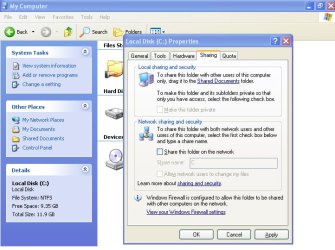
XP doesn't have security tab, it's called Sharing. Right-click on the drive and select "Sharing and Security..."
Screenshot:
 

Attachments

  • xp.jpg
    xp.jpg
    249.3 KB · Views: 2

My Computer

Computer type
PC/Desktop
OS
Windows 7 Pro
yeah good news on the progress so far
 

My Computer

Computer type
PC/Desktop
Computer Manufacturer/Model Number
dell xps 9000
OS
win 10
Back
Top