Solved Boot Parttion Corruption - Almost fixed just need a little more help

SteveSFL

New member
Local time
5:47 AM
Messages
10
Hello, here is my story any help is appreciated,


Windows 7 Pro (300GB HDD primary drive) 64 Bit and Windows 10 (150GB Raptor HDD) on a Dual boot system.

I had an issue with windows 7 update which was fixed by Brian @ Sysnative (he repaired my software registry hive), and I was able to do the updates, prior to this I could not do updates or an in-place repair, I also had other issues with the SFC not fixing some other issues.

I decided at this point to go ahead and try the in-place repair since the update issue was fixed, this went well, I did have issues with Windows update not working but with a little research I was able to solve the issue myself, everything was working great all patches updated, manual restore point created, all tests passed and was very happy with my system until I booted into Windows 10 and it decided it was going to do an update, so I went ahead and allowed windows to complete.

On reboot I had 3 options:

Windows 10 setup
Windows 7
Windows 10

Normally Windows continues the installation process and I do not have to select nothing, since it did not move I decided to selected setup, all this does is reboot, selecting Windows 10 did the same reboots..
On Windows 7 it says: Starting Windows but does nothing else.

This leads me to believe that the boot files got corrupt, how can I recover?

I have tried these steps:

Boot Repair no help. Utility I downloaded from I think Ubuntu
Ran SFC off of the DVD, cannot repair
Ran CHKDSK /f /r no issues
tried restoring, this was successful but Windows 7 would not boot - Starting Windows - then nothing, no animation

UPDATE

Sort of Fixed I still could use some help please:

OK so after trying several things like this:

How to Fix Windows 7 When It Fails to Boot

MBR FIX & Active Partition fixes only.

This did not work at all, when I booted into Win 10 setup or Win 10 (boot selection) it would just reboot, when I choose Windows 7 it would display Starting Windows and hang, not even the windows logo would show. This led me to believe that my BOOT section on my primary D: drive was fried on the Win7 drive.

So after 3 days of thinking about this issue I came up with the following:

Unplug the Win7 drive put the Win10 drive as primary ON THE MOBO (SATA port 0) boot off of the win7 DVD and install Win 7 on the 150gb drive. After this completes, shut down the PC plug in the 300gb drive into the SATA port 1 NOT 0, boot the PC and edit your boot partition and add win 7 from the 300gb drive, reboot and choose the down drive. My system came up......

Now the help, my next step is to copy the boot partition from the 150 drive to the 300 drive, What is the best way to do this? I know I have to boot off of a DVD like Unbuntu or even the Win 7 DVD , I need to run the attrib command to be able to get all data (files) from the drive, what would you recommend? Which attribs do I use? should I know anything before I do this?

Any help is appreciated.... TY again..


ETA:
When I booted into the recovered drive windows stated that the: system restore completed successfully from 6/3/15.... one of the things that I had tried....


My Computer My Computer

At a glance

Win 7 Pro RT 64 bit
Computer type
PC/Desktop
OS
Win 7 Pro RT 64 bit
It appears the Update failed but to be sure you can boot the latest Windows 10 installation media to run Automatic repair same as shown here for Windows 8 Automatic Repair. If WIndows 10 starts then you can install EasyBCD to add Windows 7, replacing any old listing.

If it won't repair or just based on the failed Setup listing you may want to delete the Windows 10 partition during a booted reinstall of 10 using the latest ISO from Download Windows 10 Insider Preview ISO - Microsoft Windows. This should also configure a Dual Boot menu with Windows 7.

Otherwise to rescue 7 Mark 100mb System Reserved (preferred) or Win7 Partition Active,
then run Startup Repair - Run 3 Separate Times until Win7 starts.

You can then install EasyBCD (click Download - no Name or Email required) to add Windows 10 to a Boot Menu to see if it will start, using the Windows 8 type OS choice.
 
ETA @ Bottom

Thanks for the reply,

There is no Windows 10: gone, and will never be installed again, I only used Win 10 as a name so that you would not get confused: WIN 7 WIN 7 ......?
Both partitions have Windows 7, I have tried all of this, I used easybcf rebuild/copy to no avail, it says it completes but when I go and look at the files the dates they do not change " last access/ last changed.

To be sure, I shutdown the PC unplugged the smaller drive Win10 or 150 gb drive, and powered it up it does what I said above "Starting Windows" NO logo and hangs....

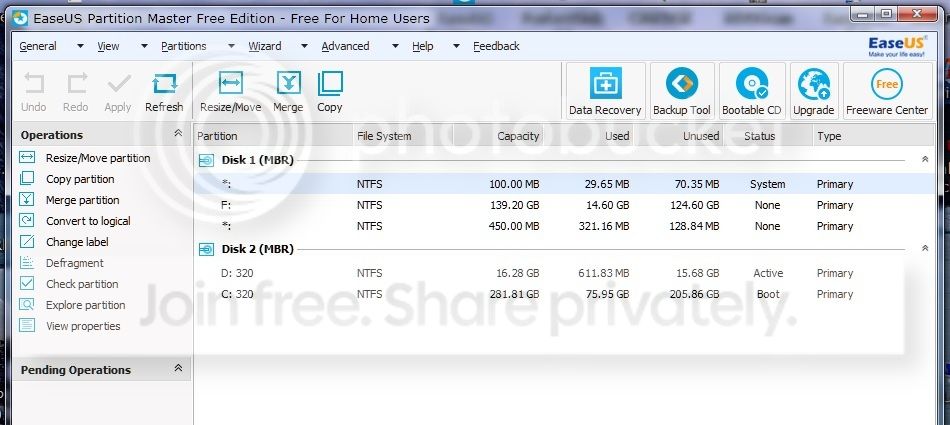
New%20Bitmap%20Image.jpg


So I am looking into this, I may have made a mistake I set my active partition to the D: drive (300gb drive) Post @ top..

Your quoted post tells me to make the C: partition the Boot Partition, when MS states to keep them separate, ie. installing Windows creates 2 partitions not one.

I just want to be absolutely positive that I should do as instructed in the link I posted my current config, thank you for your help... Steve

... ETA again,

After comparing the 2 instructions, the one I posted states to make the D: partition as active not the C: windows partition. I really do not want the boot partition on the same drive as the windows files and my D partition is set to active.

Any more suggestions?

TY Steve

..
 
Last edited:

My Computer My Computer

At a glance

Win 7 Pro RT 64 bit
Computer type
PC/Desktop
OS
Win 7 Pro RT 64 bit
So the problem is nothing at all like you described it in the first post. You don't even have Windows 10, and I was supposed to guess that the partition you repeatedly labeled Windows 10 was really Windows 7, and you called this Windows 10 when it was really Windows 7 so I wouldn't get confused? :confused: Let's start over.

Do you want to keep both Windows 7 installations?

Boot into the one you most use and want to keep and post back a screenshot of Disk Management - Post a Screen Capture Image.

With separate hard drives the best way to proceed if you want both OS's is to make each independently bootable via the BIOS. Once this is done if you don't like booting into your choice via the BIOS you can add the other one using EasyBCD but they still both remain independently bootable which they are not now.

However I need to confirm the configuration with DIsk Mgmt before advising you further.
 
So the problem is nothing at all like you described it in the first post. You don't even have Windows 10, and I was supposed to guess that the partition you repeatedly labeled Windows 10 was really Windows 7, and you called this Windows 10 when it was really Windows 7 so I wouldn't get confused? :confused: Let's start over.

Do you want to keep both Windows 7 installations?

Boot into the one you most use and want to keep and post back a screenshot of Disk Management - Post a Screen Capture Image.

With separate hard drives the best way to proceed if you want both OS's is to make each independently bootable via the BIOS. Once this is done if you don't like booting into your choice via the BIOS you can add the other one using EasyBCD but they still both remain independently bootable which they are not now.

However I need to confirm the configuration with DIsk Mgmt before advising you further.


from my first post at the top: and was very happy with my system until I booted into Windows 10 and it decided it was going to do an update, so I went ahead and allowed windows to complete.

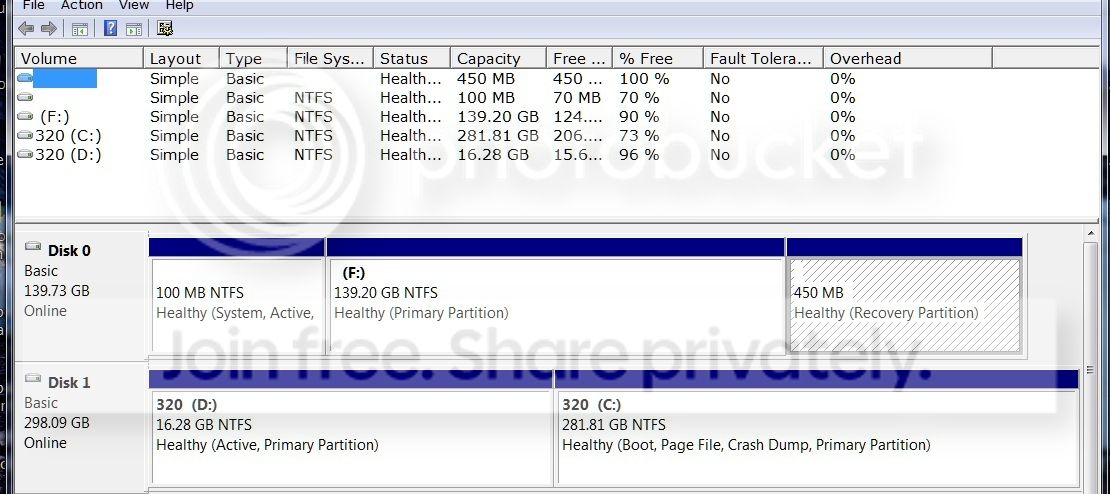
Here is the Disk config:

New%20Bitmap%20Image_1.jpg


TY
 
Last edited:

My Computer My Computer

At a glance

Win 7 Pro RT 64 bit
Computer type
PC/Desktop
OS
Win 7 Pro RT 64 bit
Greg, just read my first post from UPDATE and below, I state that there is no Win10......

Win7 = HDD 300gb Boot Partition toast will not boot
Win10 or now Win7 = 150gb HDD Boot partition OK no issues

Thanks
 

My Computer My Computer

At a glance

Win 7 Pro RT 64 bit
Computer type
PC/Desktop
OS
Win 7 Pro RT 64 bit
I asked if you wanted to keep both Windows 7 installs. Why do you need two? And own licenses for both?

You said that the 300 GB Windows 7 will not boot however the disk management shot shows that it is the one presently booted, As signified by the Boot label. It is also being booted by the other hard drive as signified by the System label.

So is it F that is the other Windows 7 which will not boot? Or is it D which is incorrectly marked active? Only the system partition should be marked Active.
 
I asked if you wanted to keep both Windows 7 installs. Why do you need two? And own licenses for both? The f: (150gb HDD) is the new install so that I could bring up my 300gb HD which 1 has all of my info and HAS A BAD Boot sector which I need to repair and cannot.

You said that the 300 GB Windows 7 will not boot however the disk management shot shows that it is the one presently booted, As signified by the Boot label. It is also being booted by the other hard drive as signified by the System label.

So is it F that is the other Windows 7 which will not boot? NO Or is it D which is incorrectly marked active? D is the Boot partition that I am trying to fix, Only the system partition should be marked Active.

With so many fixes I have tried it is hard to say if this was MS install did it or not
, so let's forget the 150GB HDD and concentrate on the 300GB HDD, I need to fix the boot partition on the D drive the 1st partition on the 300gb HDD.

Thanks

ETA:

These are the instructions I followed as far as to the Active partition:

How to Fix Windows 7 When It Fails to Boot

Look at Active Partition Fix


...
 

My Computer My Computer

At a glance

Win 7 Pro RT 64 bit
Computer type
PC/Desktop
OS
Win 7 Pro RT 64 bit
If D is the boot partition you are trying to save and make bootable, then mark D Active in Disk mgmt, power down to unplug the other hard drive, boot into the Windows 7 disc to run start up repair up to 3 separate times until D boots as C and wears the System label in Disk Mgmt.

If you've tried this then it likely failed due to the other drive being plugged in and interfering with it's system partition coming first in order. This is why it must be unplugged for the repair to be successful.

If too corrupted to repair then everything else possible is in http://www.sevenforums.com/tutorials/219533-troubleshooting-windows-7-failure-boot.html.
 
Last edited:
OK Thanks I'll give it a shot tomorrow going blind from all the reading. Just so I have it straight, unplug the 150GB HDD that is good and leave the 300GB Hdd bad, plug it into controller 0, boot off of the DVD, run System repair 3 times, do I boot after each run? Or just run it consecutively 3 times? Then after the 3rd time try to boot normally?

Thanks again..
 

My Computer My Computer

At a glance

Win 7 Pro RT 64 bit
Computer type
PC/Desktop
OS
Win 7 Pro RT 64 bit
Never mind:

On a Legacy install to MBR disk, confirm the Partition Marked Active is the 100mb System Reserved (preferred if you have it) or Windows 7 partition (if you don't), run Startup Repair repeatedly up to 3 separate times with reboots in between each - no matter what it reports. If both the System Active and Win7 partitions are on the same hard drive then unplug all other drives to do these repairs.

On some PC's the Recovery partition or an earlier installed OS used in a Dual Boot will hold the Active flag. If another partition than System Reserved or C holds the Active flag and you know this is how it was set up, then go ahead with the repairs. If not skip to Step 9 to get more help since Win7 will not repair unless the correct partition is Set Active. Only the System partition booting the OS should be marked Active.
 

My Computer My Computer

At a glance

Win 7 Pro RT 64 bit
Computer type
PC/Desktop
OS
Win 7 Pro RT 64 bit
Yes, you've got it. Plugging it into DISK0 is even better since then it will be in a position where no repair can derail the System boot again.
 
OK I did as asked, as soon as I selected Country "US" it searches for Windows install(s), stated had errors, repair/start (this is because the second HDD 150 no longer found, I did as asked. I ran repair 3 times with reboots after each run as directed.

This did not work comes up with "Starting Windows" no logo and hangs...

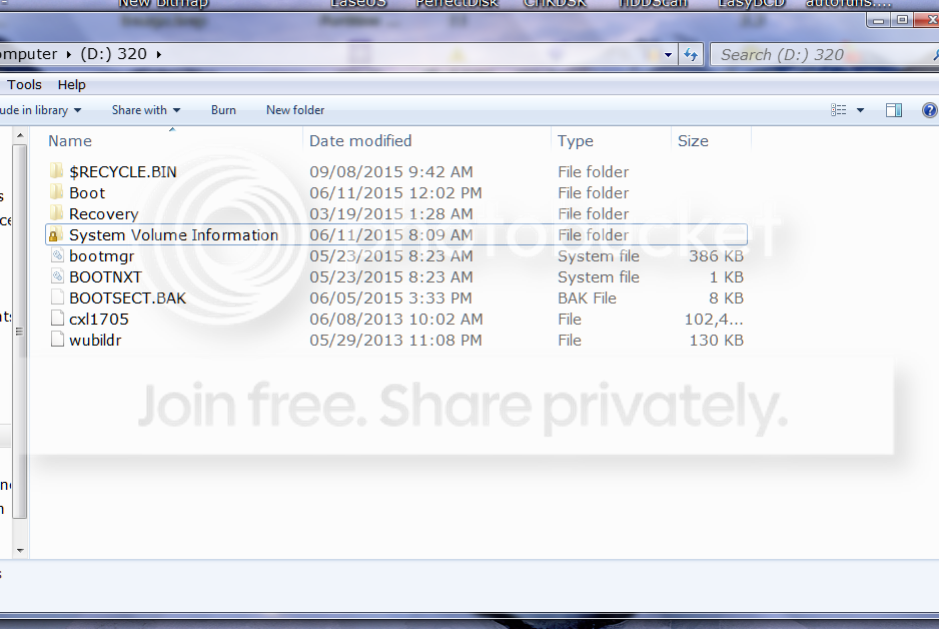
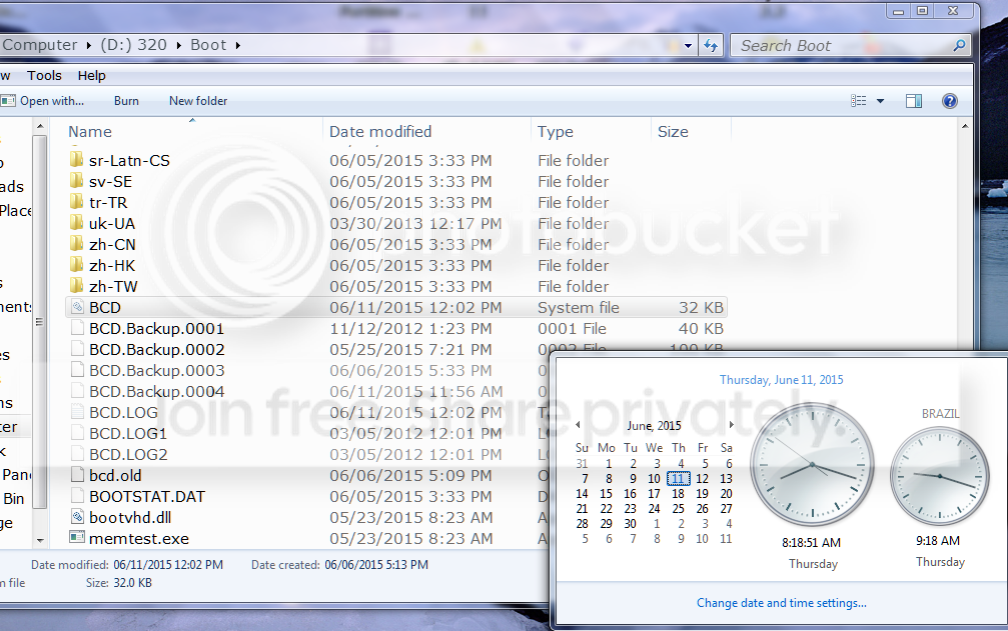
Check out the snap shots I took, pay close attention to the date and TIMES of the boot files, in most cases it does not change either date/time, and 1 is really funky, it is the snapshot with the clock visible.

Enjoy:

8ce51e59-31d6-4b23-88b1-56393e890a71.png


b67a45a9-41ee-48d1-b7ea-e6f2a30ff635.png


So I am screwed, I have no viruses no adware because these are the firsts steps to check using several utilities.

2 questions please, as we know the partition was and still is Active, should I have run diskpart and deactivated the drive before I did the repair? and what if I where to boot off the DVD and copied the GOOD boot partition to the BAD? Would that work? Of course I would copy all file & folder (on the BAD part) into a new delete folder then run xcopy cmd.

After which I would immediately run the repair again and hope that it would take care of the Attribs and any hiding of files.

If this does not work or I am told I cannot do it, my next step is to try an in-place repair (again) the only problem is that I am going to have to have the 150 drive plugged in and booted into the 300gb, will this fix the bad part? who knows!!!

Please let me know what you think, Thanks Steve

..
 

My Computer My Computer

At a glance

Win 7 Pro RT 64 bit
Computer type
PC/Desktop
OS
Win 7 Pro RT 64 bit
Back
Top