Quad-Boot Windows 7 Ultimate and Windows 8.1 question

damien76

New member
Power User
Local time
9:17 PM
Messages
180
Hello,

I have a quad-boot(I do not know if the term is correct here) Win 7 Ultimate (each partition has it's own setup with the programs I use --say, one partition for CAD etc / one partition for Engineering SPC etc and so forth). There are 4 partitions in a Western Digital 500gb drive. Let's say that it's:

Partition C
Partition D
Partition E
Partition F

I plan to install Windows 8.1 on Partition F and the remaining partitions will still be Windows 7 Ultimate. This is only a trial to test if my programs especially CAD and Engineering SPC applications will work properly in Windows 8.1. If all goes well I will push through with Windows 8.1 in 3 partitions and just retain 1 partiton with Windows 7 Ultimate.

For easy booting I use EASYBCD/iReboot so when I wanna boot to say Partition F in the windows environment it will be easy and not wait to restart and select it from the boot menu.

Please kindly guide me in this endeavor as I am not a techy person. What shall i do first for a smooth Win 8.1 installation and then onwards to be able to boot to either Win7 and Win 8.1?

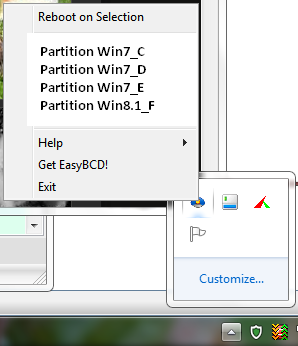
Is it possible using EasyBCD/iReboot, that there will still be a boot menu via the tray icon of iReboot like below..?

MjlagBg.png


How is the System Reserve now? The existing Win 7 System Reserve is with Partition C at the moment.

Again thank you and please do guide me.

:)
 

My Computer My Computer

Computer type
PC/Desktop
Computer Manufacturer/Model Number
Custom Build
OS
Win7 Ultimate 64bit
CPU
AMD A8 5600K APU
Motherboard
Gigabyte F2A75MD3H
Memory
16gb DDR3
Graphics Card(s)
Radeon 7560
Sound Card
onboard
Monitor(s) Displays
kingston lcd 23inch wide
Hard Drives
WD 500gb (2)
WD 1TB
Antivirus
EAM + Online Armor Premium -- desktop

My Computer My Computer

Computer type
PC/Desktop
Computer Manufacturer/Model Number
Custom Build
OS
Windows 7 Ultimate x64 SP1
CPU
AMD Phenom 2 1090T
Motherboard
Gigabyte GA-890FXA-UD5
Memory
2x8GB Kingston HyperX Fury Black 1600Mhz Unganged
Graphics Card(s)
MSI GTX 970 Gaming 4G
Sound Card
Realtek On-Board HD 7.1 Audio / Logitech G35
Monitor(s) Displays
3xAcer GD245HQ
Screen Resolution
1920x1080
Hard Drives
Samsung 850 Pro 512GB SSD - OS /
WD Caviar Black SATA 3 - 1 TBx2 - Dynamic RAID 0 /
WD Caviar Green SATA 2 - 640GBx2 - Dynamic RAID 0 /
WD Caviar Green SATA 2 - 640GB - Internal Backup /
Seagate Barracude SATA 3 - 3TB - External Backup/ Sync
PSU
HighPower 1000W
Case
Cooler Master HAF 932
Cooling
Noctua NH-D14
Keyboard
Logitech G19
Mouse
Logitech G500
Internet Speed
100/4 Mbit Cable (100GB quota)
Antivirus
ZoneAlarm Extreme Security / MBAM Pro / MBAE Free / SAS Free
Browser
IE 11 - Firefox - Chrome
Other Info
Logitech F710/ G27/ G940/ Z5500 // TrackIR 5 // Nvidia 3D Surround Vision
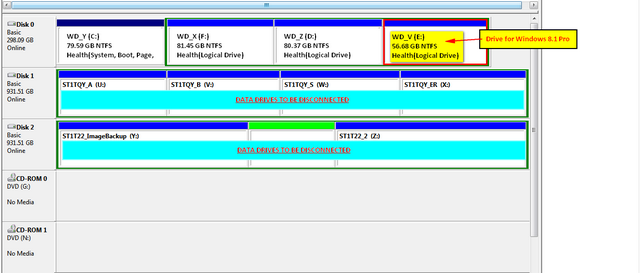
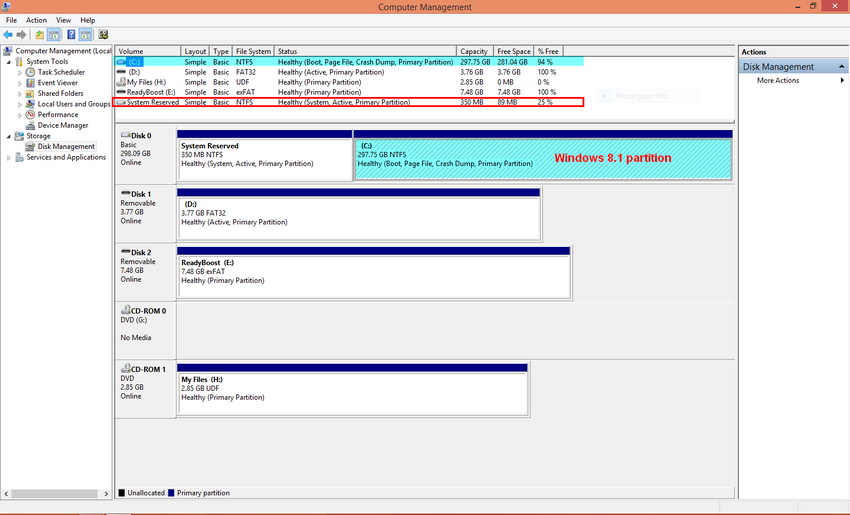
In addition to the question above and to help you gurus visualize the setup I have attached an image of the Computer Management below. Also I have read some of the posts here. re: "How to Do a Dual Boot Installation with Windows 8 and Windows 7 or Vista" Published by Brink 15 Sept 2011 http://www.sevenforums.com/tutorials/5166-dual-boot-installation-windows-7-vista.html and do allow a couple of more questions please:

1. There1. There it is stated that if there are any drives without an OS that I have to disconnect it all for the period of the Win 8.1 installation, correct?

2. Kindly see the computer management of the pc that I will install Win 8.1. Previously I have stated that I want to install Windows 8.1 on the last partition of a 500gb drive. I have decided to not use that 500gb and unplug it so it will remain untouched. I ahve recovered a system image of that 500gb drive onto a reserved 320gb drive.

G73jCxB.png


The image shows the same exact 4 partitions that I use with WD_V [E:] partition as the intended Windows 8.1 Pro partition.
Shown also are the 2 data drives to be disconnected [both 1TB drives].
Now the Primary drive is WD_Y [C:] and the System Reserve is there with that drive. It is also mentioned in the above post.

3. Can that setup be okay for the Windows 8.1 installation on the last partition which is WD_V [E:]..? [I have currently quick-formatted that partition for the Win 8.1 installation].

4. I plan to mount the Windows 8.1 ISO onto a drive via PowerISO, go to the "sources" folder run that setup.exe from there.

or

I should extract the ISO onto the WD_Y[C:] desktop and go to the "sources" folder run that setup there..? Which is better...?

5. The System Reserve for the setup is in WD_Y[C:], if I proceed with the Windows 8.1 installation how will the System Reserve be for Windows 8.1 for now....? Will it merge with the System Rerserve of WD_Y[C:] or create a new one inside WD_V[E:] or create one outside all 4 partitions?

WD_Y[C:] -- Win 7 -- System Reserve is currently HERE.
WD_X[F:] -- Win 7
WD_Z[D:] -- Win 7
WD_V[E:] -- Win 8.1

If the System Reserve for Win 8.1 wll merge with Win7 System Reserve whihc is at WD_Y[C:], can I image WD_V[E:] --which is by now Win 8.1 with Acronis True Image 2010 and recover that same image atop say, WD_Z[D:]...?

6. Can I still use EasyBCD / iReboot to be able to boot the partition / OS I want to or will the new Windows Boot Manager of Windows 8 takeover..?

7. I understand from the posts here about dualbooting Win 7 and Win 8 that the Win 8 will be the default OS. And once it is restarted, it will show the new Windows Boot Manager of Win8, is there any chance that I can set the default partition to be always WD_Y[C:] and always boot to it..? If so how can I do that?

Then when I am confident that I can do a 3 partiton Win8 and 1 partition Win7, how can I set it up to boot to a WD_Y[C:] with Windows 8.1..? Will I reformat the WD_Y[C:] to a Windows 8.1 or

8. In relation to question 5,

When all this trial with "1 partition Win8.1 and 3 parititon with Win 7" is finished, I plan to triple boot to 3 partition Windows 8.1 and 1 partition Windows 7

from:

WD_Y[C:] -- Win 7
WD_X[F:] -- Win 7
WD_Z[D:] -- Win 7
WD_V[E:] -- Win 8.1

to:

WD_Y[C:] -- Win 8.1
WD_X[F:] -- Win8.1
WD_Z[D:] -- Win8.1
WD_V[E:] -- Win 7
[theoretically but I prefer Win 7 to be WD_X[D:] because I need the Engineering SPC programs there like that in the office pc which is using Win 7 Ultimate].

What may be the best way to achieve it?

When I started to 3 boot Win7 I started with WD_Y[C:], paritioned the remaining to 2 drives. Installed Windows 7 on one drive. Imaged that with Acronis. Recoverd that system image to the remaining partition.

Thank you for your insights again and will wait for your replies.


:)

PS: So sorry for the very late follow-up as we had an unexpected death in the family. We are in fact still hurting and are slowly healing but I guess healing do takes sometime for people. Again pardon for the late reply and I will wait for any help as to the follow-up questions. Pardon again as because of the loss I may not be as attentive enough to grasp ideas you guys will teach me. Please be patient with me because of that. Thanks all!
 

My Computer My Computer

Computer type
PC/Desktop
Computer Manufacturer/Model Number
Custom Build
OS
Win7 Ultimate 64bit
CPU
AMD A8 5600K APU
Motherboard
Gigabyte F2A75MD3H
Memory
16gb DDR3
Graphics Card(s)
Radeon 7560
Sound Card
onboard
Monitor(s) Displays
kingston lcd 23inch wide
Hard Drives
WD 500gb (2)
WD 1TB
Antivirus
EAM + Online Armor Premium -- desktop

My Computer My Computer

Computer type
PC/Desktop
Computer Manufacturer/Model Number
Custom Build
OS
Win7 Ultimate 64bit
CPU
AMD A8 5600K APU
Motherboard
Gigabyte F2A75MD3H
Memory
16gb DDR3
Graphics Card(s)
Radeon 7560
Sound Card
onboard
Monitor(s) Displays
kingston lcd 23inch wide
Hard Drives
WD 500gb (2)
WD 1TB
Antivirus
EAM + Online Armor Premium -- desktop
1. True
2. System reserved is some other partition (you don't have one, not a problem, I don't too) Bootmgr is on C.
3. Yes, you can install Win8 on E.
4. I don't think it will work like that (possibly will upgrade your OS on C). Make a DVD or bootable USB (with Rufus for example).
5. As stated before you don't have a System Reserved, bootmgr will be modified and an extra option for Win8 will be added.
6. Win8 will probably change the bootmgr to make itself the default OS, you can run msconfig later and re-adjust it.
7. See answer 6
8. Should be doable, new ones should be added automatically and you can delete removed OS from the boot tab of msconfig. If not, EasyBCD should help.

- I would (after recovering backing up any data if there is) format the partition and install clean Win8 (or don't format and upgrade if you wish) and see if bootmgr is correct. I don't think any other action is required.

Hopefully, more experienced members will comment too.
 
Last edited:

My Computer My Computer

Computer type
PC/Desktop
Computer Manufacturer/Model Number
Custom Build
OS
Windows 7 Ultimate x64 SP1
CPU
AMD Phenom 2 1090T
Motherboard
Gigabyte GA-890FXA-UD5
Memory
2x8GB Kingston HyperX Fury Black 1600Mhz Unganged
Graphics Card(s)
MSI GTX 970 Gaming 4G
Sound Card
Realtek On-Board HD 7.1 Audio / Logitech G35
Monitor(s) Displays
3xAcer GD245HQ
Screen Resolution
1920x1080
Hard Drives
Samsung 850 Pro 512GB SSD - OS /
WD Caviar Black SATA 3 - 1 TBx2 - Dynamic RAID 0 /
WD Caviar Green SATA 2 - 640GBx2 - Dynamic RAID 0 /
WD Caviar Green SATA 2 - 640GB - Internal Backup /
Seagate Barracude SATA 3 - 3TB - External Backup/ Sync
PSU
HighPower 1000W
Case
Cooler Master HAF 932
Cooling
Noctua NH-D14
Keyboard
Logitech G19
Mouse
Logitech G500
Internet Speed
100/4 Mbit Cable (100GB quota)
Antivirus
ZoneAlarm Extreme Security / MBAM Pro / MBAE Free / SAS Free
Browser
IE 11 - Firefox - Chrome
Other Info
Logitech F710/ G27/ G940/ Z5500 // TrackIR 5 // Nvidia 3D Surround Vision
1. True
2. System reserved is some other partition (you don't have one, not a problem, I don't too) Bootmgr is on C.
3. Yes, you can install Win8 on E.
4. I don't think it will work like that (possibly will upgrade your OS on C). Make a DVD or bootable USB (with Rufus for example).
5. As stated before you don't have a System Reserved, bootmgr will be modified and an extra option for Win8 will be added.
6. Win8 will probably change the bootmgr to make itself the default OS, you can run msconfig later and re-adjust it.
7. See answer 6
8. Should be doable, new ones should be added automatically and you can delete removed OS from the boot tab of msconfig. If not, EasyBCD should help.

- I would (after recovering any data if there is) format the partition and install clean Win8 (or don't format and upgrade if you wish) and see if bootmgr is correct. I don't think any other action is required.

Hopefully, more experienced members will comment too.

Hi,

Thanks for the prompt reply there. I will take yours into consideration. I'd like to wait for some other contributions/replies so I ca have more tips/tricks. Maybe you can prod some of the guru's to reply here. I know it may seem very elementary and off because it's rather late for me but it is in asking that I learn more :) Thanks to you guys for supporting the not so techy people who come here for help :)
 

My Computer My Computer

Computer type
PC/Desktop
Computer Manufacturer/Model Number
Custom Build
OS
Win7 Ultimate 64bit
CPU
AMD A8 5600K APU
Motherboard
Gigabyte F2A75MD3H
Memory
16gb DDR3
Graphics Card(s)
Radeon 7560
Sound Card
onboard
Monitor(s) Displays
kingston lcd 23inch wide
Hard Drives
WD 500gb (2)
WD 1TB
Antivirus
EAM + Online Armor Premium -- desktop
That's a thousand bucks worth of Windows 7 licenses. I'm assuming you have legit product keys for each of them?

The way you describe your setup smacks of Rube Goldberg, nothing that I have every seen done or would want to do. You only need one perfect Win7 install for the licensed OS. Programs should all be installed on the OS partition since they integrate themselves by writing registry keys and need to remain with the OS until uninstalled.

The best thing you can do for yourself is to simplify the OS on an SSD which is faster than a new high-end rig without one. Programs need to fit onto the OS partition along with paging and Hibernate file so plan accordingly. Then when you run out of space move the User folders to a storage hard drive. User Folders - Change Default Location
 
That's a thousand bucks worth of Windows 7 licenses. I'm assuming you have legit product keys for each of them?

The way you describe your setup smacks of Rube Goldberg, nothing that I have every seen done or would want to do. You only need one perfect Win7 install for the licensed OS. Programs should all be installed on the OS partition since they integrate themselves by writing registry keys and need to remain with the OS until uninstalled.

The best thing you can do for yourself is to simplify the OS on an SSD which is faster than a new high-end rig without one. Programs need to fit onto the OS partition along with paging and Hibernate file so plan accordingly. Then when you run out of space move the User folders to a storage hard drive. User Folders - Change Default Location

@gregrocker

:) :) :) Well, this desktop came from the office and it is they who have paid for the licensing. The Autocad 2013 alone is worth more than a thousand plus and then there's JMP 7 and Minitab 15 Statistical software. I just isolated the office partition so when I do work at home (which almost always when I get home) that partition is the same as that of what I use in the office. Made 3 partitions for my use -- gaming, normal home use(for the wife), sometimes my kid --dedicated partition when he needs to use my desktop). The office is starting to use SSD now but my name is still on the second phase so I'll have to wait. The Windows 8.1 will also come from the office.
 

My Computer My Computer

Computer type
PC/Desktop
Computer Manufacturer/Model Number
Custom Build
OS
Win7 Ultimate 64bit
CPU
AMD A8 5600K APU
Motherboard
Gigabyte F2A75MD3H
Memory
16gb DDR3
Graphics Card(s)
Radeon 7560
Sound Card
onboard
Monitor(s) Displays
kingston lcd 23inch wide
Hard Drives
WD 500gb (2)
WD 1TB
Antivirus
EAM + Online Armor Premium -- desktop
Yes you can use Easy BCD ireboot to control OS booting choices. I use that exactly. I used to have 3 versions of 7 Enterprise on the same machine for various tasks. You can control the windows 8 bootloader which I do using this tool Boot UI Tuner
and all I ever see is the Windows 7 boot menu which is the way I like it.
 

My Computer My Computer

Computer type
PC/Desktop
Computer Manufacturer/Model Number
Bluethunder II
OS
Windows 7 x64 Ultimate and numerous virtual machines
CPU
AMD FX-8350 Vishera 32nm Technology @ 4.2 GHz default
Motherboard
ASUSTeK COMPUTER INC. SABERTOOTH 990FX R2.0 (Socket 942)
Memory
G Skill 32.0GB Dual-Channel DDR3 @ 1204MHz (11-13-13-31)
Graphics Card(s)
EVGA GeForce GTX 960 4GB Super SC ACX 2.0+ with Back Plate
Sound Card
Creative X-Fi Titanium HD Audiophile PCIe
Monitor(s) Displays
LG L227WTG x 3
Screen Resolution
1680 x 1050 16:10
Hard Drives
238GB Samsung850 PRO SATA Disk Device (SSD)
1863GB Seagate ST2000DM 001-1CH164 (SATA)
1397GB Seagate ST1500DL 003-9VT16L(SATA)
466GB Western Digital WDC WD50 03AZEX-00K1GA0 (SATA) x 2
932GB Seagate ST310005 28AS SATA Disk Device (SATA)
PSU
Enermax Revolution87+ 1000 Watts Gold Certified Power Supply
Case
Rocketfish Full Tower
Cooling
Cooler Master Hyper 212 EVO Push Pull 120mm Fans
Keyboard
Logitech K740
Mouse
Logitech G100S Laser LED + Logitech Gamepad F310
Internet Speed
500 mbs down and 30mbs up
Antivirus
Malwarebytes Pro & Avast and MSE on certain Virtual Machines
Browser
Firefox (Main) Chrome, Internet Explorer (Back Up)
Other Info
Logitech X 230 2.1 Stereo System and 5.1 Yamaha RX V2090
B&W DM6 Monitor Speakers + Center and Surround Speakers
Using Mouse Without Borders (Google it)
If you install multiple OS's on the same drive the last installed one should configure a Boot menu with the others. If not install EasyBCD (click Download - no Name or Email required) to add the others which won't boot. If already shown on a menu, delete their listings first.

Always unplug all other hard drives during install so that they are booted via the BIOS by setting to boot first, or using the BIOS Boot menu. If this isn't to your liking you can later add any OS to the Windows Boot Menu using EasyBCD and the hard drive will still remain independently bootable because you didn't let the boot manager be placed on another hard drive.

Keep in mind that everything changes the end of this month when the worthy successor OS to Win7 is released for free Upgrade of 7 and 8. I would not touch 8 or 8.1 with a stick, but maybe Windows 10 would work in place of those by doing the free Upgrade.

Now what exactly would you like to do simplifying things as much as possible?
 
VMs

I have a quad-boot(I do not know if the term is correct here) Win 7 Ultimate (each partition has it's own setup with the programs I use --say, one partition for CAD etc / one partition for Engineering SPC etc and so forth).
I use (VMware) VMs to do what you appear to be doing.

For example:

  • W7 VM with XAMP
  • W7 VM with Visual Studio & IIS
  • W7 VM with Chrome, Firefox, IE10, Maxthon & Opera
 

My Computer My Computer

Computer type
PC/Desktop
Computer Manufacturer/Model Number
n/a
OS
W7 Ultimate SP1, LM19.2 MATE, W10 Home 1703, W10 Pro 1703 VM, #All 64 bit
CPU
AMD Phenom II x6 1100T, 3.3 GHz
Motherboard
ASUS M4A88T-M/USB3 (AM3)
Memory
12GB DDR3 1333 G-Skill (4GB x 2), G-Skill (2GB x 2)
Graphics Card(s)
NVIDIA GeForce GTX 660
Sound Card
Realtek?
Monitor(s) Displays
Samsung S23B350
Screen Resolution
1920x1080
Hard Drives
WD Green 2TB (SATA), WD Green 3TB (SATA), WD Blue 4TB (SATA), WD Blue 6TB (SATA)
PSU
Cooler Master
Case
Antec GX300 Tower
Cooling
3x Antec TRICOOL 120mm Fans
Mouse
Wired Optical
Internet Speed
DSL
Antivirus
Avast
Browser
Pale Moon (64 bit)
Other Info
2018-12-27 Upgraded HDDs
2015-12-10 Upgraded case, graphics card, storage
2015-08-15 Upgraded motherboard & RAM
2015-07-15 Upgraded LM17.1 to LM17.2
Thanks guys for the reply.

@Indianatone,

Thanks I will check it out :)

@gregrocker

I plan to install the Windows 8.1 on the last partition with 3 existing Windows 7 partitions. The 3 existing Windows 7 partitions has EasyBCD installed already. Is it correct to say that I have to install EasyBCD after the Windows 8.1 installation?


Always unplug all other hard drives during install so that they are booted via the BIOS by setting to boot first, or using the BIOS Boot menu. If this isn't to your liking you can later add any OS to the Windows Boot Menu using EasyBCD and the hard drive will still remain independently bootable because you didn't let the boot manager be placed on another hard drive

-- Yes thank you for the advise. I do plan to use EasyBCD as booting via the BIOS boot is not to my liking and takes longer on my experience.


Keep in mind that everything changes the end of this month when the worthy successor OS to Win7 is released for free Upgrade of 7 and 8. I would not touch 8 or 8.1 with a stick, but maybe Windows 10 would work in place of those by doing the free Upgrade.

--- I will wait for the office to upgrade to Windows 10. This is a part of the office(extension) and the licenses belong to them really and assigned to me for usage. So I will stick to Windows 8.1 in the meantime I have it up and running.


Now what exactly would you like to do simplifying things as much as possible?

--- Well I think just the booting issue for this time. I am just weary that when I install Windows 8.1 I won't be able to boot to the "other" partitions that I use especially the work partition with AutoCAD 2013 and the Statistical software I use with the efficiency that I have had with EasyBCD. I was in fact afraid of Windows 8.1 taking over the boot menu and bork my system that I may have to revert back to Windows 7 in order to make/do engineering work at home and give up using Windows 8.1(disband attempting to use it again). I really would like to use Windows 8.1 and make it work for me especially on the work partition with AutoCAD / Minitab and JMP 7 statistical software. At the office only a handfull of my mates have in fact upgraded to Windows 8.1 for use in work (home work). The reason is that they do not have the time to tweak stuff etc and the "if it ain't broke don't fix it" thing is king :)
 

My Computer My Computer

Computer type
PC/Desktop
Computer Manufacturer/Model Number
Custom Build
OS
Win7 Ultimate 64bit
CPU
AMD A8 5600K APU
Motherboard
Gigabyte F2A75MD3H
Memory
16gb DDR3
Graphics Card(s)
Radeon 7560
Sound Card
onboard
Monitor(s) Displays
kingston lcd 23inch wide
Hard Drives
WD 500gb (2)
WD 1TB
Antivirus
EAM + Online Armor Premium -- desktop
Boot the 8.1 Installation media as a non-UEFI Device (if choices) select the partition where you want it, Delete the partition, format a new one there, click Next.

You must have missed my explanation that during installation 8.1 should configure a multi-boot with the other OS's. If not you can add them using EasyBCD from 8.1. If any other OS's show up on the EasyBCD boot menu but they will not boot or do not offer a Boot Menu, then delete them first before adding again. This is how you reset listings on EasyBCD, simply delete ones not working and add them again.
 
Back here to report some issues I have encountered. I started to format Windows 8.1 on the last partition the other day but encountered an issue where I accidentally corrupted the main partition where the System Reserved boot files are located. I tried to recover via Acronis but sadly ATI Home 2012 gave an error. "Recovery failed". Actually all my system images when I used it for recovery gave the same error. I do not know what exactly happened but it was taking so long that I was forced to do a clean install of Windows 7 x64 to have the System Reserved partition back.

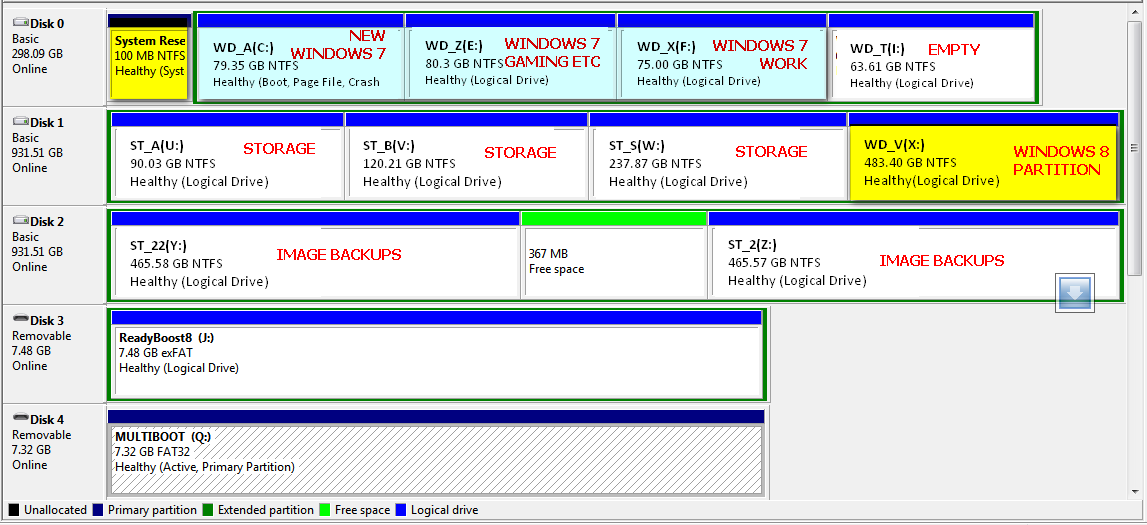
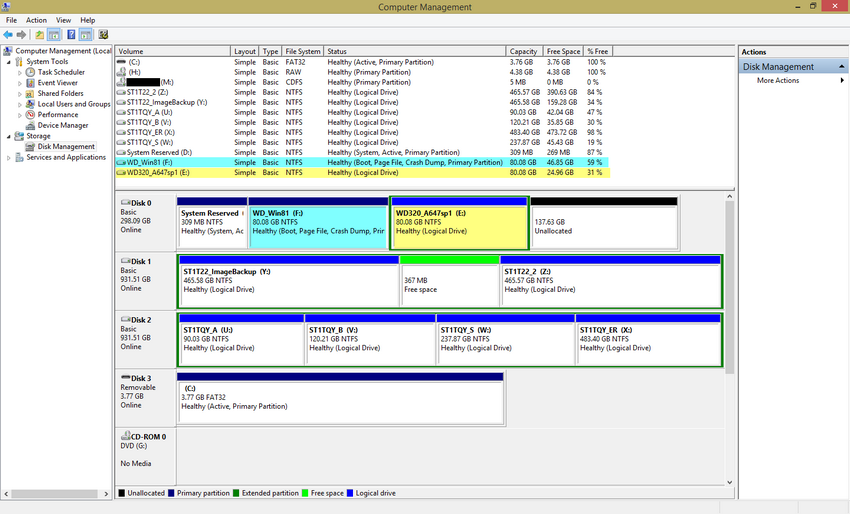
So I did a clean install and then recovered the remaining 2 of the 3 partitions that I use with Windows 7 (--one where I do the officework etc and the partition for gaming etc). See the image of the Computer Management below.

I reformatted the WD_V partition with Windows 8.1. The location is not where I was supposed to format it. This is a new location where it is the only partition with OS on that particular hdd. See image below. The Windows 8.1 partition is marked and in yellow.

GHXRMnk.png


My question for now is will I leave it at that or do something else with it like merge it with the main partition which is now WD_A...? What should be the best way for this? Leave it at that or what?

I have not yet tried to backup just that particular partition(System Reserved) yet but I believe that Acronis can do that. If I do that --back it up, can it be restored like that of a system image..? Have not tried that yet.

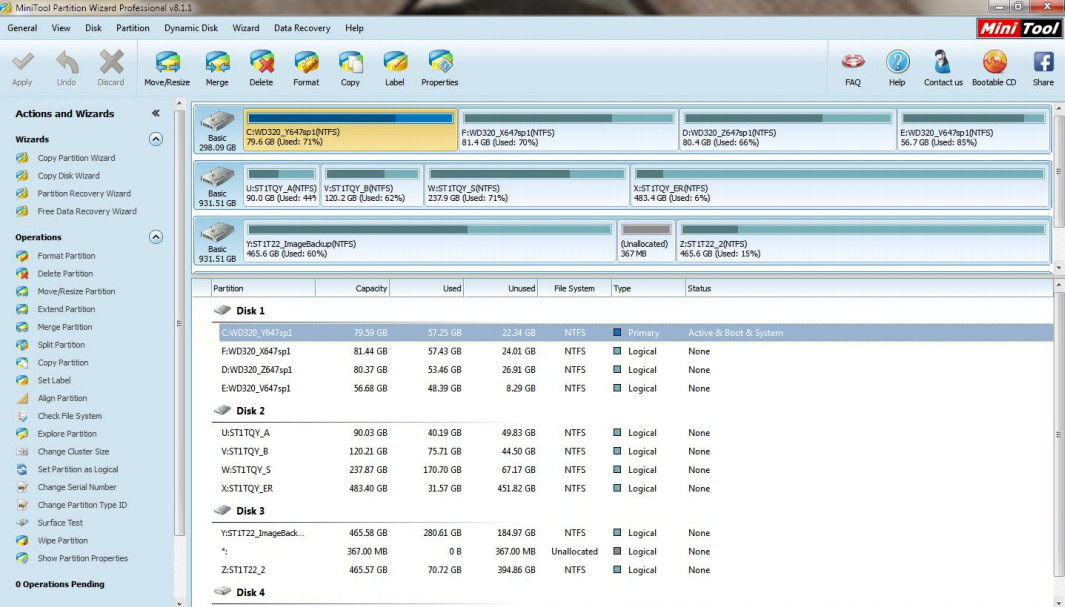
Kindly see image of Minitool Partition Wizard where the D: System Reserved is marked Primary / Active Boot
while the supposed new main partition WD_A is marked as Logical / System.

4HprBjM.png


I have not yet checked what is indicated when I use the boot cd of Minitool Partition Wizard...but I guess that it'll be the same.

Can you guys assist me on this please.

On the Windows 8.1 partition. I seem to have noticed that the boot time is loooooong at 4 minutes! Well it seem to may not sit well in a multiboot setup because I read somewhere that Fast Boot is achieved because Windows 8 actually hibernates itself for the next boot.

Is there a way I can make the boot time be faster please..? As of the moment there is only iReboot and Classic Shell that is indicated at the logon tab of Sysinternals Autoruns. Currently there aren't any much programs installed yet....Can you help with this please..?

Thanks for your patience :)
 

My Computer My Computer

Computer type
PC/Desktop
Computer Manufacturer/Model Number
Custom Build
OS
Win7 Ultimate 64bit
CPU
AMD A8 5600K APU
Motherboard
Gigabyte F2A75MD3H
Memory
16gb DDR3
Graphics Card(s)
Radeon 7560
Sound Card
onboard
Monitor(s) Displays
kingston lcd 23inch wide
Hard Drives
WD 500gb (2)
WD 1TB
Antivirus
EAM + Online Armor Premium -- desktop
You do t follow any advice so I don't know why I bother.

Why are all your OS partitions Logical.

Why were the other hard drives not unplugged during install as you were told?

You appear to have deliberately put 8 OS behind every data partition on the slowest end of the drive.

Use Partition Wizard to convert 8 partition to Primary then unplug the other drives to run Automatic RepAir from 8 disk until it starts and is independently bootable via the BIOS.

Links are all in previous posts ignored.
 
You do t follow any advice so I don't know why I bother.

Why are all your OS partitions Logical.

Why were the other hard drives not unplugged during install as you were told?

You appear to have deliberately put 8 OS behind every data partition on the slowest end of the drive.

Use Partition Wizard to convert 8 partition to Primary then unplug the other drives to run Automatic RepAir from 8 disk until it starts and is independently bootable via the BIOS.

Links are all in previous posts ignored.

Thank you for the reply. Kindly see below :( As mentioned I am not a techy and again am asking for patience from you guys.

Why were the other hard drives not unplugged during install as you were told?
-- Pardon sir but I did unplugged the other hard drives during the install. The system has 3 hard drives. The ones starting with "ST" (--which is Disk 1 and Disk 2) are Seagate drives. I did unplugged them when I installed the Windows 8.1 the first time.

I just plugged them back after I formatted the partition intended with Windows 8.1.

The Windows 8.1 format I did was done with only Disk 0 plugged in with the ReadyBoost / Multiboot USB with the DVDROM drives. Nothing else was plugged.

The Windows 8.1 format was "raw format" I call it (for the Windows 8.1 install). That raw format I backed-up via Acronis (--via multiboot usb) so if there are any issues I'll just have to recover that raw image and not re-format if warranted. That was just an idea so I 'll save time perhaps.

Is that good? Or if I have issues I just need to format again and again?

During the format I did not have any issues. Actually it went great. A bit slow but booted fine (--though it was very slow).

The first location intended was the last partition which was WD_T in Disk 0 (formerly WD_V). I did format Windows 8.1 there but since I experienced a very very slow boot that I think may be attributed to a small space. I deleted that and transferred it to the new location WD_V in Disk 1. I do not know if it is one of the reasons why I have this slow boot or not but the bigger size I wish have helped. But I think if there was any improvement to the boot time it was not significant.

Why are all your OS partitions Logical.
-- Pardon again for that. As I mentioned I am not an expert. Kindly see the image of Minitool prior doing this endeavor. This was how I got this desktop from the office. I had the tech set it up so I can use it at home and not be bothered or have some issues if and ever someone at home uses the desktop. As mentioned each partition has its own purpose there. There is shows that all are "Logical".

RDst8FT.jpg


Now if that is bad please have patience with me for this setup. My work is mechanical in nature (semiconductor manufacturing) my forte is not geared towards pc systems but in manufacturing -- assembly/testing of IC and semiconductors. I try to learn here and have learned some but not all have the learning curve as a computer experts. Asking techs at work isn't worthwhile also because they only try to do something for you and make it work just to not have you bother them again. Here at this forum there is true learning here. I just ask for more patience for the help you and the guys are giving.

Please tell me what should I do and again am asking for pardon and patience.

I think I can correct these with Minitool. I just may have missed that part in the links given.


You appear to have deliberately put 8 OS behind every data partition on the slowest end of the drive.
-- I mentioned that in the first post. I intended to place it there thinking that it may affect the Win 7 partitions that I use especially the ones I use for work.

If I have missed that I should have placed it at the very first partition then pardon me again.

One thing I have to mention is that formerly the first partition(main partition) has the System Reserved inside it. You will see in the former image of the setup there is no System Reserved seen there in the Computer Management image. That was the reluctance before. If I format it there I may loose the System Reserved there because I need to delete that and create a new one for Windows 8.1. I may have boot issues. Or that the other partitions in Disk 0 may not boot either especially the work partition I use. But I may be wrong there also. If I was please pardon me again for that.

See image below of Computer Management prior the endeavor.

G73jCxB.png


The new setup image of Computer Management is below after I encountered issues and have to format a new Windows 7 partition just to have the System Reserved back.

GHXRMnk.png


The second format (see image above again) I did because I did have issues(or accidentally did something wrong and was not able to even recover the former setup with the Acronis image backup--even when it was validated good) now shows a System Reserved there.

Use Partition Wizard to convert 8 partition to Primary then unplug the other drives to run Automatic RepAir from 8 disk until it starts and is independently bootable via the BIOS.
-- Will do that and be back here.

You must have missed my explanation that during installation 8.1 should configure a multi-boot with the other OS's. If not you can add them using EasyBCD from 8.1. If any other OS's show up on the EasyBCD boot menu but they will not boot or do not offer a Boot Menu, then delete them first before adding again. This is how you reset listings on EasyBCD, simply delete ones not working and add them again.
-- If I erase and delete all partitions in Disk 0 and format Windows 8.1 there, can I partition it (add 2 more partitions) and recover via Acronis my Win 7 partitions after the format..? So I'l have:

Partition 1: Windows 8.1 Partition
Partition 2: Windows 7 partition -- work
Partition 3: Windows 7 partition -- casual use

Scenario is sound but am no expert here and again may have missed/misunderstood something. Will there be boot issues with the Win 7 recovered partitions?

You mentioned that 8.1 "should configure a multi-boot with the other OS's".
Will it be more easier to leave the Win 7 partitions alone and just delete the first partition (which is now WD_A) format Windows 8.1 there?

Or a clean HDD Disk 0 is better then afterwards recover the Win 7 partitions I desire via Acronis?
Which do you think is better?

Also since Windows 8.1 boots slower than Win 7 I plan to use Win 7 as the main partition. Set it in EasyBCD as the boot partition, second is the Windows 8.1 and so on and so forth.


I really appreciate the help that you guys give here. There were delays in doing this endeavor (as mentioned we also had a death in the family --my Dad, work absences and work delays). But I try to cope up and am really decided in doing this endeavor and making it work. I just do not have the technical capability to do it.

Now is the time to use a new OS. Late but that is why I try to endeavor this. The tech's at work do not help so I try to look for other options. It this was work (semiconductor manufacturing) that will be a piece of cake for me but this is not work and that is why I come here to learn and seek help from you guys. I hope you and the guys understand and may you have more patience with me.

 
Last edited:

My Computer My Computer

Computer type
PC/Desktop
Computer Manufacturer/Model Number
Custom Build
OS
Win7 Ultimate 64bit
CPU
AMD A8 5600K APU
Motherboard
Gigabyte F2A75MD3H
Memory
16gb DDR3
Graphics Card(s)
Radeon 7560
Sound Card
onboard
Monitor(s) Displays
kingston lcd 23inch wide
Hard Drives
WD 500gb (2)
WD 1TB
Antivirus
EAM + Online Armor Premium -- desktop
You could not have unplugged the other drives to install Windows 8 because all partitions on that drive are Logical so there is no place the installer could write the System boot files. They were likely placed on the existing System partition since it is the only Primary partition that can receive boot files.

So post back a screenshot of 8 Disk Mgmt to confirm this or just go ahead with the repairs I specified in my last post. The speed difference is not worth bothering moving 8.

The boot time should be resolved by 8 having its own boot files onboard. You can then boot it's hard drive via the BIOS Boot menu key after again (as now) setting the Win7 drive first to boot in BIOS setup. If you don't like that arrangement install Easy BCD to the Win7 hard drive set first to boot to add Windows 8 to a Windows boot menu.

Yes you can achieve the same Boot Menu by installing 8 with the other hard drives plugged in however it becomes dependent upon the System drive on Disk0 and will not boot without it. By disconnecting it gives 8 it's own boot files and remains independently bootable via the BIOS even if you then decide to add it to a Windows Boot menu using EasyBCD. Is this clear now? I realize it's a bit complicated and shouldn't assume it's easily absorbed.

So Ask back any questions to make it clearer, get this done or for anything else needed.
 
Last edited:
OP seems to be confused here... :(
 

My Computer My Computer

Computer type
PC/Desktop
OS
Windows 7 Ultimate x32
Hard Drives
WD 320gb/500gb/1TB
Seagate 500gb/1TB
@gregrocker,

I realize it's a bit complicated and shouldn't assume it's easily absorbed.
-- Thank you. It really is for someone like me.

@m256997683119,
-- Yes I really was confused. Thanks.

So sorry for the very late reply. We have been busy at the office and attended to family issues of my late father. I appreciate the open help that you guys have extended still to me. Kindly see the image below. I just formatted Disk 0 with only Windows 8.1. The boot was not an issue at all and it booted fine and acceptable. The boot that was way low was when I installed Comodo firewall. Came to the desktop after about 5-7 minutes. But that was just that. second to it was a boot that lasted around 3minutes but that was a reboot after installing programs.

Mzm5kQj.png


Now after installing programs(some) and tweaking the Windows 8.1 partition. I shrink-ed the Windows 8.1 into 80gb and from the unallocated disk (237gb) I recovered an Acronis image of a Windows 7 sp1 partition. I also attached the Disk 1 and Disk 2. Both are data storage disks (all my files are there). See image below.

rcadqmP.png


Please bear with me again for more questions.

(1) Boot files are with the System Reserved partition right? So is there a way where I can make the partitions in Disk 0 (Windows 8.1 and Windows 7 sp1) boot independently? What may be the best way to do it?

(2) I plan to recover the 1 more Windows 7 sp1 partitions onto Disk 0 (the work partition I use which has AutoCAD/Mnitab etc). Will I be able to make it boot independently also?

(3) I did not install EasyBCD and iReboot in the Windows 8.1 partition. When it boots I get the blue screen where I am to select Windows 8.1 or the Windows 7 partition and also of changing options. Is it okay if I leave it at that because the Windows 7 sp1 partition has EasyBCD and iReboot installed already. I added Windows 8.1 in the boot menu of EasyBCD in the Windows 7 sp1 partition and I was able to boot to Windows 8.1 fine(though a bit slower than when I boot from cold start directly to Windows 8.1).

Is it okay if I do not install EasyBCD and iReboot in the Windows 8.1 partition? I seem to like having the blue-bootscreen selection there intact.

Or is there a better way?

(4) Is there a way I can include a Windows Recovery Environment in the boot menu of EasyBCD / iReboot..? I ask this because that blue-bootscreen has that option to have or avail of Refreshing Windows / System Restore etc. That is also the reason why I do not install EasyBCD/iReboot on Win8.1.

(5) Is there way I can get to the blue-bootscreen when I have issues booting to Windows 8.1 other than plugging-in/using the Windows 8.1 installation disk/usb..?

(6) In one instance when was trying to use System Restore from the blue-bootscreen, I could not use it because it told me to "unmount" (or something like that) and there wasn't any option other than to "cancel". That was also the same when I planned to use Refresh PC.

How can I unmount that?

(7) I see also a cmd.exe prompt in the "advanced options". Can I do an sfc /scannow there? I did able to run sfc /scannow but it was in Windows 8.1 (Administrator cmd.exe no issues with file integrities whatsoever).
 

My Computer My Computer

Computer type
PC/Desktop
Computer Manufacturer/Model Number
Custom Build
OS
Win7 Ultimate 64bit
CPU
AMD A8 5600K APU
Motherboard
Gigabyte F2A75MD3H
Memory
16gb DDR3
Graphics Card(s)
Radeon 7560
Sound Card
onboard
Monitor(s) Displays
kingston lcd 23inch wide
Hard Drives
WD 500gb (2)
WD 1TB
Antivirus
EAM + Online Armor Premium -- desktop
1- No, you can't boot them independently because they are on the same physical hard disk. If they were different hard disks, you could select the one to boot from during POST (Power On Self Test), with the quick boot menu of your BIOS.

2- Same as (1).

3- If you have boot menu with both Win8.1 and Win7 and can select fine at the moment, you can select which one is the default, I don't have EasyBCD installed though, but you can manage it with msconfig. You can also specify how long it waits for an input until it auto-selects the default. For example, I have Win7 default with another Win10 install, and only waits 5 seconds. It will be slower than a single OS if you are booting to the other OS than the default always as it will have to re-start.

You don't need EasyBCD installed anywhere, you won't need it after you set the boot menu. Can be un-installed later. If you can boot to Win7, you definitely don't need it on Win8.1.

4- I was once told you need to somehow install Recovery Environment while installing the OS, however, you can just use a spare USB flash drive to make the repair disk. You can even get a large USB stick and put both recovery disks on a single one with a multiboot program like Easy2Boot.

5- Hmm, not sure about this one, you shouldn't have issues though. And if you do, repair disk is good enough for fixing. Also, image your hard disks so you can just recall in a matter of minutes instead.

6- No idea what this is. Properly imaging your OS partitions negates the use of System Restore.

7- This is the tutorial for running sfc in command line at boot - http://www.sevenforums.com/tutorials/139810-sfc-scannow-run-command-prompt-boot.html
 

My Computer My Computer

Computer type
PC/Desktop
Computer Manufacturer/Model Number
Custom Build
OS
Windows 7 Ultimate x64 SP1
CPU
AMD Phenom 2 1090T
Motherboard
Gigabyte GA-890FXA-UD5
Memory
2x8GB Kingston HyperX Fury Black 1600Mhz Unganged
Graphics Card(s)
MSI GTX 970 Gaming 4G
Sound Card
Realtek On-Board HD 7.1 Audio / Logitech G35
Monitor(s) Displays
3xAcer GD245HQ
Screen Resolution
1920x1080
Hard Drives
Samsung 850 Pro 512GB SSD - OS /
WD Caviar Black SATA 3 - 1 TBx2 - Dynamic RAID 0 /
WD Caviar Green SATA 2 - 640GBx2 - Dynamic RAID 0 /
WD Caviar Green SATA 2 - 640GB - Internal Backup /
Seagate Barracude SATA 3 - 3TB - External Backup/ Sync
PSU
HighPower 1000W
Case
Cooler Master HAF 932
Cooling
Noctua NH-D14
Keyboard
Logitech G19
Mouse
Logitech G500
Internet Speed
100/4 Mbit Cable (100GB quota)
Antivirus
ZoneAlarm Extreme Security / MBAM Pro / MBAE Free / SAS Free
Browser
IE 11 - Firefox - Chrome
Other Info
Logitech F710/ G27/ G940/ Z5500 // TrackIR 5 // Nvidia 3D Surround Vision
Back
Top