external harddrive roconnized but not working

I understand your concern. Sector 0 of the drive is corrupted. This leads to Partition Recovery Wizard identifying a non-existing partition starting at sector 0. This is not correct. Any partition will only start at sector 63 or sector 2048. That is why I asked you to select the second one.So strictly speaking we can ignore the message and go ahead.Partition Recovery Wizard only makes changes to Sector 0 by writing the partition Table found by it. Any changes made in sector 0 will in no way affect the data that only resides after sector 63 or 2048 as the case may be.

In any case we shall proceed cautiously even if/as it means it is going to take a little more time and we may have to go an extra mile. I would also like to see what exactly is there in sector 0. No need to worry. Slow and steady wins the race :). Take your time and do it at your own pace. That is the advice I always give to OPs when dealing with data recovery.

1. As I said in my last post, select only the second partition starting at LBA 2048 by putting a tick mark, and post a screenshot. I would like to see how the preview map at the bottom looks like when you do that. ( You can also double click on the ticked partition and check whether you can see all the files.) After the screenshot, cancel and quit PW.

2. Since you have Windows 64bit version download BOOTICEx64 v1.332 from 【BOOTICE v1.3.3.2: 功能强大的启动维护工具】-å*é€¸è½© ( Don't worry if it is all Chinese. THe program runs in English :)) or Bootice Download .It will be a .rar file. Extract it to a folder named Booticex64 anywhere on your system drive. It will be a single BOOTICEx64.exe which you will run.At this point read through this post to familiarise yourself with using bootice Lost partitions!

Now make sure you have selected the right drive, click on Sector Edit and post a screenshot of sector 0. Close bootice.
 
Last edited:

My Computer My Computer

OS
Windows 7 Home Premium 32 bit
I understand your concern. Sector 0 of the drive is corrupted. This leads to Partition Recovery Wizard identifying a non-existing partition starting at sector 0. This is not correct. Any partition will only start at sector 63 or sector 2048. That is why I asked you to select the second one.So strictly speaking we can ignore the message and go ahead.Partition Recovery Wizard only makes changes to Sector 0 by writing the partition Table found by it. Any changes made in sector 0 will in no way affect the data that only resides after sector 63 or 2048 as the case may be.

In any case we shall proceed cautiously even if/as it means it is going to take a little more time and we may have to go an extra mile. I would also like to see what exactly is there in sector 0. No need to worry. Slow and steady wins the race :). Take your time and do it at your own pace. That is the advice I always give to OPs when dealing with data recovery.

1. As I said in my last post, select only the second partition starting at LBA 2048 by putting a tick mark, and post a screenshot. I would like to see how the preview map at the bottom looks like when you do that. ( You can also double click on the ticked partition and check whether you can see all the files.) After the screenshot, cancel and quit PW.

2. Since you have Windows 64bit version download BOOTICEx64 v1.332 from 【BOOTICE v1.3.3.2: 功能强大的启动维护工具】-å*é€¸è½© ( Don't worry if it is all Chinese. THe program runs in English :)) or Bootice Download .It will be a .rar file. Extract it to a folder named Booticex64 anywhere on your system drive. It will be a single BOOTICEx64.exe which you will run.At this point read through this post to familiarise yourself with using bootice Lost partitions!

Now make sure you have selected the right drive, click on Sector Edit and post a screenshot of sector 0. Close bootice.

Ok I did #1 but couldnt give it a Letter because right clicking didnt do anything and when I click Partition at the top, everything is greyed out.
I will try get bootice and try #2 and screen shot it for you
 

My Computer My Computer

Computer Manufacturer/Model Number
HP DV7-2185dx
OS
Microsoft Windows 7 Ultimate 64-bit 7600 Multiprocessor Free
CPU
Intel(R) Core(TM)2 Quad CPU Q9000 @ 2.00GHz
Motherboard
Quanta 3624
Memory
DDR-2 2.00 GB/ DDR-2 4.00 GB
Graphics Card(s)
ATI Mobility Radeon HD 4650
Sound Card
(1) AMD High Definition Audio Device (2) High Definition A
Hard Drives
FUJITSU MJA2500BH G2 ATA Device 465.76 GB
Ok so I got this and wasnt able to sector edit

Screenshot 2016-02-16 18.33.17.png
 

My Computer My Computer

Computer Manufacturer/Model Number
HP DV7-2185dx
OS
Microsoft Windows 7 Ultimate 64-bit 7600 Multiprocessor Free
CPU
Intel(R) Core(TM)2 Quad CPU Q9000 @ 2.00GHz
Motherboard
Quanta 3624
Memory
DDR-2 2.00 GB/ DDR-2 4.00 GB
Graphics Card(s)
ATI Mobility Radeon HD 4650
Sound Card
(1) AMD High Definition Audio Device (2) High Definition A
Hard Drives
FUJITSU MJA2500BH G2 ATA Device 465.76 GB
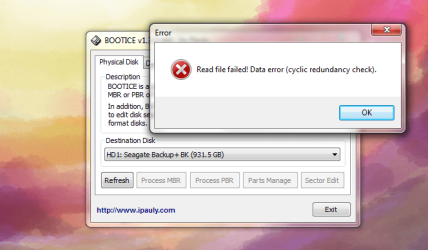
OK, Bootice failed to read your drive because Sector 0 is corrupted.All the action buttons like Process MBR, Process P Clic on cancel and quit PWBR, Parts Manage, Sector Edit are greyed out. A very bad situation indeed.

You forgot to carry out my instruction 1 in my last post.

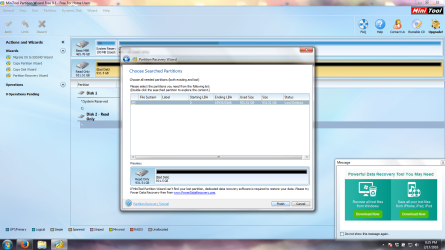
Run Partition Recovery Wizard Quick scan again, put a tick mark in the square against the second partition shown which says "NTFS Seagate Backup Starting LBA 2048 Ending LBA 1953525162 Used size 400.06GB Size 931.51GB Lost/Deleted" (by clicking on the square). That is the lost partition. The preview map at the bottom should show your drive as it was before. Post a screenshot after putting the tick mark in the square. Also double click on that partition line and check whether it shows all your files.Post a screenshot of the Partition explorer Window showing the files. If instead you get any error message post a screenshot of it..
 

My Computer My Computer

OS
Windows 7 Home Premium 32 bit
OK, Bootice failed to read your drive because Sector 0 is corrupted.All the action buttons like Process MBR, Process P Clic on cancel and quit PWBR, Parts Manage, Sector Edit are greyed out. A very bad situation indeed.

You forgot to carry out my instruction 1 in my last post.

Run Partition Recovery Wizard Quick scan again, put a tick mark in the square against the second partition shown which says "NTFS Seagate Backup Starting LBA 2048 Ending LBA 1953525162 Used size 400.06GB Size 931.51GB Lost/Deleted" (by clicking on the square). That is the lost partition. The preview map at the bottom should show your drive as it was before. Post a screenshot after putting the tick mark in the square. Also double click on that partition line and check whether it shows all your files.Post a screenshot of the Partition explorer Window showing the files. If instead you get any error message post a screenshot of it..

Sorry forgot to post the screen shot
It says bad disk..

Screenshot 2016-02-17 20.35.50.png
 

My Computer My Computer

Computer Manufacturer/Model Number
HP DV7-2185dx
OS
Microsoft Windows 7 Ultimate 64-bit 7600 Multiprocessor Free
CPU
Intel(R) Core(TM)2 Quad CPU Q9000 @ 2.00GHz
Motherboard
Quanta 3624
Memory
DDR-2 2.00 GB/ DDR-2 4.00 GB
Graphics Card(s)
ATI Mobility Radeon HD 4650
Sound Card
(1) AMD High Definition Audio Device (2) High Definition A
Hard Drives
FUJITSU MJA2500BH G2 ATA Device 465.76 GB
Your second screenshot at post #18 did show a partition starting @ LBA 2048. It is that partition I wanted you to put the tick mark and check. But now it is not showing that. That means your HDD has gone from bad to worse.

Since it is a Seagate drive download Seatool for Windows and check the drive SeaTools | Seagate. Also read the SeaTool for Windows guide in that page. If the drive is recognised run the Short Generic and Long Generic tests. If bad sectors are reported ( Sure it will) read section "4. Bad Sector Found" in the guide.
"You should carefully consider the importance of your data. While the sector is currently unreadable, if the
file or folder is important to you then you may need professional recovery services to possibly reclaim the
data. In this case, select NONE to scan without trying to repair sectors on the drive."

If you choose not to repair and try data recovery , then run PhotoRec and see whether it can recover the files. http://www.sevenforums.com/software/193467-guide-using-photorec-recovery-software.html Do only what is stated under the topic Recovery in it.

Note: If SeaTools for Windows and/or PhotoRec does not recognise your drive, then only option is Professional Data recovery . There isn't anything the user can do.

In another thread running concurrently, Sector 0 has been found good. Bootice could see it.So he has been advised to run TestDisk to try and recover whatever could be recovered. http://www.sevenforums.com/hardware...re-tried-repair-only-found-one-partition.html
 
Last edited:

My Computer My Computer

OS
Windows 7 Home Premium 32 bit
Your second screenshot at post #18 did show a partition starting @ LBA 2048. It is that partition I wanted you to put the tick mark and check. But now it is not showing that. That means your HDD has gone from bad to worse.

Since it is a Seagate drive download Seatool for Windows and check the drive SeaTools | Seagate. Also read the SeaTool for Windows guide in that page. If the drive is recognised run the Short Generic and Long Generic tests. If bad sectors are reported ( Sure it will) read section "4. Bad Sector Found" in the guide.
"You should carefully consider the importance of your data. While the sector is currently unreadable, if the
file or folder is important to you then you may need professional recovery services to possibly reclaim the
data. In this case, select NONE to scan without trying to repair sectors on the drive."

If you choose not to repair and try data recovery , then run PhotoRec and see whether it can recover the files. http://www.sevenforums.com/software/193467-guide-using-photorec-recovery-software.html Do only what is stated under the topic Recovery in it.

Note: If SeaTools for Windows and/or PhotoRec does not recognise your drive, then only option is Professional Data recovery . There isn't anything the user can do.

In another thread running concurrently, Sector 0 has been found good. Bootice could see it.So he has been advised to run TestDisk to try and recover whatever could be recovered. http://www.sevenforums.com/hardware...re-tried-repair-only-found-one-partition.html

Ahh yes could it be because I already put a tick next to it once before? I put at tick next to it and hit "finishes" a few posts back and said one partition will be deleted and I accepted. after that I wasnt able to give it a Letter drive.

But ill try to do the above and let you know. Thanks for the help so far!
 

My Computer My Computer

Computer Manufacturer/Model Number
HP DV7-2185dx
OS
Microsoft Windows 7 Ultimate 64-bit 7600 Multiprocessor Free
CPU
Intel(R) Core(TM)2 Quad CPU Q9000 @ 2.00GHz
Motherboard
Quanta 3624
Memory
DDR-2 2.00 GB/ DDR-2 4.00 GB
Graphics Card(s)
ATI Mobility Radeon HD 4650
Sound Card
(1) AMD High Definition Audio Device (2) High Definition A
Hard Drives
FUJITSU MJA2500BH G2 ATA Device 465.76 GB
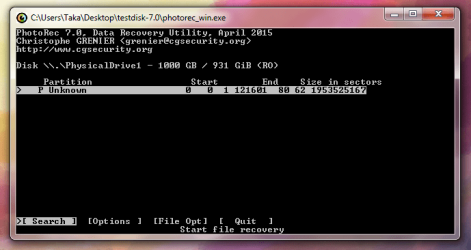
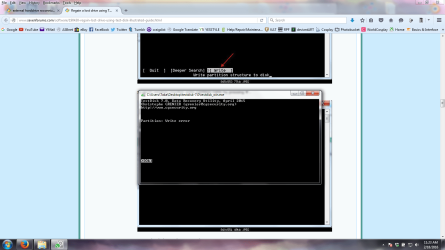
Ok so Seatool failed on the Short and Long Generic so Im trying Photorec now and got this screen after the first step of selecting the HDD

Screenshot 2016-02-18 11.02.54.png


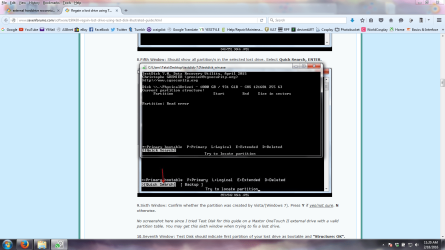
So I also did the TestDisk and came up with this

1.png

I proceeded and ended with this

Screenshot 2016-02-18 11.23.29.png

If there's no way to recover the fiels. Would there be a way to double check what is on this before final decision to fix or scrap?
 
Last edited:

My Computer My Computer

Computer Manufacturer/Model Number
HP DV7-2185dx
OS
Microsoft Windows 7 Ultimate 64-bit 7600 Multiprocessor Free
CPU
Intel(R) Core(TM)2 Quad CPU Q9000 @ 2.00GHz
Motherboard
Quanta 3624
Memory
DDR-2 2.00 GB/ DDR-2 4.00 GB
Graphics Card(s)
ATI Mobility Radeon HD 4650
Sound Card
(1) AMD High Definition Audio Device (2) High Definition A
Hard Drives
FUJITSU MJA2500BH G2 ATA Device 465.76 GB
In your case TestDisk will not work since Sector0 is damaged. It could neither be read nor written into. That is why I recommended data recovery with PhotoRec.

So persist with PhotoRec and try to recover the data - if possible. For more details on using PhotoRec PhotoRec Step By Step - CGSecurity

In the first Screenshot of your last post you can [Search] Enter to straightaway start file recovery ( You must have another external drive with sufficient space connected and you must be able to see that destination drive to copy when you run Photorec )

or you may choose various [Options] Enter and choose any of the options as needed

or [File Opt] Enter to select only files of desired extensions (formats).

In my thread, I had chosen [File Options] Enter and proceeded to select only a few file formats in that trial.

I would suggest you highlight [File Opt] and press enter and select the file formats you want to recover and proceed.
 
Last edited:

My Computer My Computer

OS
Windows 7 Home Premium 32 bit
Back
Top