
System Image - Recover a Broken Windows 7 System Image

How to Restore your System with a Broken Windows 7 System Image


   Information
There were many reports where people did rely on Windows 7 images. But, when their system became inoperable and they wanted to recover with their Windows7 image, it did not work. The reasons are not always very clear and it really does not matter. The fact that one cannot recover the system is a dramatic event.

This tutorial will explain a procedure how one may still be able to use this broken image for recovery if the following conditions are given:


  • The Windows 7 image is on an external drive or the drive can be externalized
  • You have another working system (Win7, Vista, or XP) to which you can attach the external drive
  • The VHD of the Windows7 image does still exist. The approach is to reimage the Windows7 VHD and restore from that image.
We will use free Macrium for that operation. You will find a tutorial on how to operate free Macrium on this tutorial page.

For the recovery you need to burn the WinPE DVD which is explained in the Macrium tutorial. The recovery steps using the WinPE DVD are explained in this tutorial by Kado, which you find at this YouTube site. Note that this tutorial has text but no narrative.

In addition, we will use the Windows Disk Management. If you type Disk Management into the Start/Search box and hit Enter, it should show up.


Step 1 - Check the Windows7 VHD

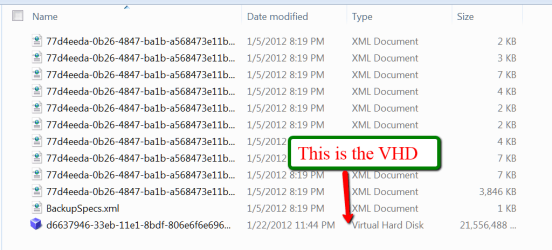
Attach the external disk on which the Windows7 image resides. The Windows7 image is in the root of that drive and the folder is called WindowsImageBackup. Open that folder (you may be asked for authorization) and the subsequent folders until you see a page like this:
2012-01-23_1634.png

If you can see the VHD, as in the picture, then you are most likely in good shape.


Step 2 - Attach the Windows 7 VHD

Go to Disk Management. In the top left next to the File button click on the Action button and then click on Attach VHD. Then navigate to the Windows7 VHD as in Step 1, double click on the VHD, and click on OK.

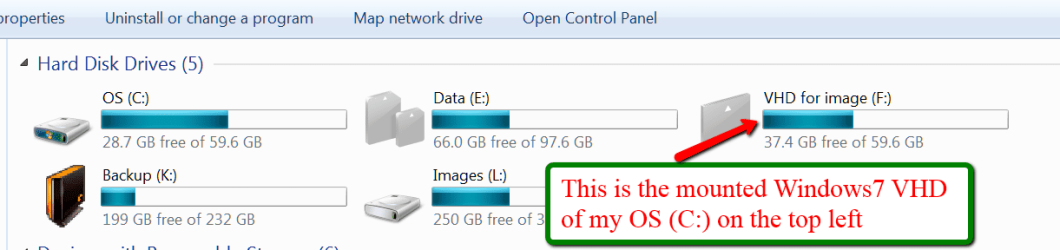
Now the VHD is attached (also called Mounted). If you roll down in Disk Management, you should see it as one of your volumes. You can also see it in Computer where it should show like this:
2012-01-23_1812.png

Make sure you write down the drive letter (which is 'F' in my example) because you will need that letter later.


Step 3 - Image the attached VHD

As a first step here, create a new folder on the same external disk where the Windows 7 image is. Call this folder Macrium Image. If you have a second external drive attached to that system, you can create the Macrium Image folder there. That will make the imaging step a bit faster.

Imaging an attached VHD is no different than imaging any other volume (partition or drive). Start Macrium and follow the steps explained in the Macrium imaging tutorial that is linked above. Just make sure you select the right volume (the letter you wrote down in Step 2) and that you select the Macrium Image folder you just created.

Then click Finish and OK and the image will be taken. That can take 30 minutes or more depending on the size of the data in your VHD.


Step 4 - Recover your system with the Macrium image

Attach the external disk to the system from where the Windows7 Image originally came. Boot that system from the DVD reader with the Macrium WinPE DVD. Follow the steps explained in Kados YouTube video which is linked above.

All you really need to do is to navigate to the Macrium image and drag it into the C: partition. The restoration of your system should be done in 30 minutes. After you close the WinPE window (after it told you that it was done), your system should reboot to the time when the Windows7 Image was taken.


Final Words

I am pretty sure that this procedure can also be applied to VHDs of other imaging programs that do not cooperate during the recovery step. But up to now, I have only seen people having those problems with Windoes7 imaging - on this and other forums.


Last edited:
I am attempting to use MACRIUM now to recover some broken images, but I have some confusion on your tutorial. You state:

"Imaging an attached VHD is no different than imaging any other volume (partition or drive). Start Macrium and follow the steps explained in the Macrium imaging tutorial that is linked above."

There are 2 choices for imaging:
1) Image drives on this computer
2) Create an image of partitions to backup & restore WINDOWS.

Choosing #2 seems to be logical, but it only displayed drives with the current OS & no vhd's. #1 allowed me to select the vhd's, but is this simply cloning the vhd's or will these be functional OS's when they are restored?

Moreover, is it necessary to include the RESERVE partition? I am assuming the restore procedure in the WIN PE environment will handle the MBR & appropriate partitioning. Am I correct? If so I would think the RESERVE is unnecessary.
 

My Computer My Computer

At a glance

Windows 7 Home Prem 32 bit
Computer type
PC/Desktop
OS
Windows 7 Home Prem 32 bit
The reserve partition contains the bootmgr. So if you want to boot, you better have that.
 

My Computer My Computer

At a glance

Vista, Windows7, Mint Mate, Zorin, Windows 8from 1.6GHz Duo to i7
Computer Manufacturer/Model Number
HP, Dell, Gateway, Toshiba - 4 laptops and 2 desktops
OS
Vista, Windows7, Mint Mate, Zorin, Windows 8
CPU
from 1.6GHz Duo to i7
Monitor(s) Displays
2x HP w2207
Hard Drives
5x HDD, 7x SSD, 12x Externals
Keyboard
with trackball - no mices
Mouse
Trackball mice
Internet Speed
DSL 6000
The reserve partition contains the bootmgr. So if you want to boot, you better have that.
So MACRIUM does not create a new one? If not, do I include the RESERVE in the same image with the other vhd's or in a separate image alone with itself?
 
Last edited:

My Computer My Computer

At a glance

Windows 7 Home Prem 32 bit
Computer type
PC/Desktop
OS
Windows 7 Home Prem 32 bit
Either way is OK.
 

My Computer My Computer

At a glance

Vista, Windows7, Mint Mate, Zorin, Windows 8from 1.6GHz Duo to i7
Computer Manufacturer/Model Number
HP, Dell, Gateway, Toshiba - 4 laptops and 2 desktops
OS
Vista, Windows7, Mint Mate, Zorin, Windows 8
CPU
from 1.6GHz Duo to i7
Monitor(s) Displays
2x HP w2207
Hard Drives
5x HDD, 7x SSD, 12x Externals
Keyboard
with trackball - no mices
Mouse
Trackball mice
Internet Speed
DSL 6000
Another ?:
My system is a triple boot system so along with the reserve I am imaging 4 partitions. Will MACRIUM follow the allotted partitions for the mounted .vhd's or do I have to construct partitions manually?
 

My Computer My Computer

At a glance

Windows 7 Home Prem 32 bit
Computer type
PC/Desktop
OS
Windows 7 Home Prem 32 bit
The sizing should be OK without any special arrangements.
 

My Computer My Computer

At a glance

Vista, Windows7, Mint Mate, Zorin, Windows 8from 1.6GHz Duo to i7
Computer Manufacturer/Model Number
HP, Dell, Gateway, Toshiba - 4 laptops and 2 desktops
OS
Vista, Windows7, Mint Mate, Zorin, Windows 8
CPU
from 1.6GHz Duo to i7
Monitor(s) Displays
2x HP w2207
Hard Drives
5x HDD, 7x SSD, 12x Externals
Keyboard
with trackball - no mices
Mouse
Trackball mice
Internet Speed
DSL 6000
I am thoroughly confused. Can you designate all 4 partitions to be restored or does it have to be 1 at a time? I placed all 4 partitions inside 1 image file, but could only manage to restore each partition 1 at a time. Moreover, at the end of the process I could not boot. I got the message that there was no boot file or record even though I restored the RESERVE partition.

I think I need more clear cut directions on this procedure.

The problem I think is that the .vhd's are mounted & seen by MACRIUM as 4 independent disks or drives instead of 4 system partitions that reside on 1 drive; hence, I can only restore 1 at a time? Furthermore, the restored partitions take on the drive letters of the mounted .vhd's & not the drive letter of the system partition when it was imaged. I am not really sure. I need more guidance.
 
Last edited:

My Computer My Computer

At a glance

Windows 7 Home Prem 32 bit
Computer type
PC/Desktop
OS
Windows 7 Home Prem 32 bit
The reserve partition contains the bootmgr. So if you want to boot, you better have that.
Based on what has transpired imaging the RESERVE partition is useless when attempting to restore from .vhd's. The restored partitions take on the drive letters of the mounted .vhd's & not the drive letter of the system partition when it was imaged.

So it is necessary to reconstruct the MBR via bcdedit or possibley the EASYBCD tool if you boot from a WIN RE or WIN PE CD/DVD.

I still cannot figure out how to restore the restore the .vhd images in a single operation. I could use some input on that.
 

My Computer My Computer

At a glance

Windows 7 Home Prem 32 bit
Computer type
PC/Desktop
OS
Windows 7 Home Prem 32 bit
Why don't you do it your way since you seem to know how to go about it.
 

My Computer My Computer

At a glance

Vista, Windows7, Mint Mate, Zorin, Windows 8from 1.6GHz Duo to i7
Computer Manufacturer/Model Number
HP, Dell, Gateway, Toshiba - 4 laptops and 2 desktops
OS
Vista, Windows7, Mint Mate, Zorin, Windows 8
CPU
from 1.6GHz Duo to i7
Monitor(s) Displays
2x HP w2207
Hard Drives
5x HDD, 7x SSD, 12x Externals
Keyboard
with trackball - no mices
Mouse
Trackball mice
Internet Speed
DSL 6000
Why don't you do it your way since you seem to know how to go about it.
Currently my way only restores the partitions 1 by 1. I have been asking for help to do them all in a single operation. Can this be done or not? If so HOW?
 

My Computer My Computer

At a glance

Windows 7 Home Prem 32 bit
Computer type
PC/Desktop
OS
Windows 7 Home Prem 32 bit
Why don't you do it your way since you seem to know how to go about it.
Currently my way only restores the partitions 1 by 1. I have been asking for help to do them all in a single operation. Can this be done or not? If so HOW?
I am returning to see if there is an answer to my question that has not been addressed. I have created a single .mrimg file that originated from multiple .vhd files. Each .vhd file represents a partition from a WindowsImageBackup. Currently, I can restore each partition one at a time. For example, if I have a reserve, OS, & data partitions I have to perform 3 operations individually. How can I get MACRIUM to automatically perform the 3 operations without my interaction between the restoration of each of the 3 partitions?

I see this can be done if the .mrimg file is created from a physical disk since it recognizes the separate partitions. However, MACRIUM does not recognize .vhd files as partitions that should go onto a single disk. Therefore, I have to instruct MACRIUM between individual partition restorations.
 

My Computer My Computer

At a glance

Windows 7 Home Prem 32 bit
Computer type
PC/Desktop
OS
Windows 7 Home Prem 32 bit
author i have problem with my sony vaio laptop i cant recover my built in O.S i didnt reformat my O.S when i press F10 to recover my O.S the system cant recognize my OEM restore factory state..
 

My Computer My Computer

At a glance

win 7 64bitcore i54gb1gb ati display driver
Computer type
PC/Desktop
Computer Manufacturer/Model Number
sony vaio
OS
win 7 64bit
CPU
core i5
Motherboard
gigabyte motherboard
Memory
4gb
Graphics Card(s)
1gb ati display driver
Hard Drives
500gb
Antivirus
none
Browser
chrome
Broken image.

I have tried the above and the image recover to the new hard drive as it should but the system isn't booting. Anyone got any hints?
/Anders
 

My Computer My Computer

At a glance

Windows 7 Home Premium 64bit.I3
Computer type
Laptop
Computer Manufacturer/Model Number
Lenovo
OS
Windows 7 Home Premium 64bit.
CPU
I3
Hard Drives
Toshiba H200 SSHD Intern hårddisk 2,5” 500 GB
Back
Top