Clean Install Windows 7

How to Do a Clean Installation with Windows 7

   Information
This will show you how to do a clean installation with a retail Windows 7. A OEM Windows 7 may have a few different screens than below, but basically the same.

Yes, you can do a clean install from a upgrade Windows 7 version. :)
NOTE: See this tutorial for how: Clean Install with a Upgrade Windows 7 Version

   Note
Do a Clean Installation if:
  • Your computer has no operating system installed, or it’s running a version of Windows prior to Windows Vista with Service Pack 1 (including Windows XP).
  • You do NOT want to preserve your data, programs, or system drivers.
  • You want to delete your current operating system and replace it with Windows 7.
  • You want to create a multiboot system by installing Windows 7 on a separate hard disk partition.
   Tip

  • Sometimes you may have a problem with installing Windows 7 with more than 2 GB of RAM installed on some older motherboards. If you have this problem, then you should install Windows 7 with a maximum of 2GB of RAM installed and add the rest of the RAM after Windows 7 is fully installed. You may need to flash your motherboard BIOS with the latest version to support more RAM like this. (WARNING - DO NOT FLASH THE BIOS if you do not know what you are doing. Please ask for help instead. One mistake can kill your motherboard permanently.)
  • Before doing this clean install, you should download and save all of your device drivers to a USB flash drive, DVD, another HDD, or some other media to have them handy to make setting Windows 7 up easier when finished installing Windows 7. For example, having the network driver available in case you cannot connect to the internet until it's installed.
   Warning
Windows 7 Minimum Hardware Requirements:

NOTE: For more information on this, see: Windows 7 system requirements
  • 1 GHz 32-bit or 64-bit processor
  • 1 GB RAM for 32-bit Windows 7 OR 2 GB RAM for 64-bit Windows 7
  • 16 GB available hard disk space for 32-bit Windows 7 OR 20 GB for 64-bit Windows 7
  • Graphics card or chip that supports DirectX 9 with 128 MB memory (to have Aero theme enabled)
  • DVD-R/W drive, or bootable USB 2.0 port with Windows 7 USB flash drive
  • Internet or phone access to activate Windows 7.


Here's How:1. Boot the computer from your Windows 7 installation DVD/USB.
NOTE: Make sure that the CD/DVD drive is selected first and your HDD second in the boot priority order in your BIOS settings. Usually it is by default.

   Warning
If you want to install Windows 7 using UEFI instead of BIOS, then see this below first.

How to Install Windows 7 Using "Unified Extensible Firmware Interface" (UEFI)

   Note
If you do not have a Windows 7 with SP1 installation DVD/USB, then you can download the latest official Windows 7 with SP1 ISO file at the links below.

:ar: Microsoft Software Recovery

:ar: Microsoft: Windows 7 Direct Download Links

You can use Windows 7 USB-DVD Download Tool to create a bootable DVD or USB flash drive with the ISO to do the clean install with.


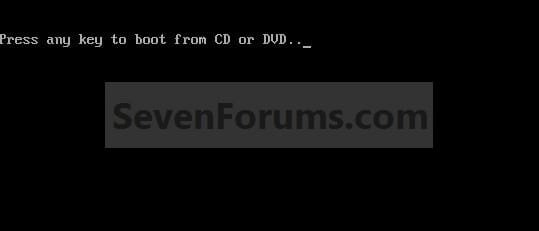
2. If using a DVD, then when prompted, press any key to boot from the installation DVD. (See screenshot below)
NOTE: You will only have about 8 seconds to press this key. If you miss it, you will have to restart the computer.Step1.jpg
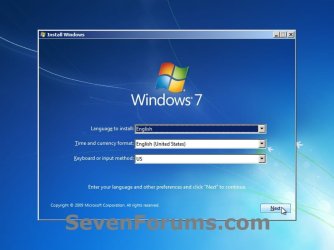
3. Set up your language preferences, and click on the Next button. (See screeshot below).step3.jpg
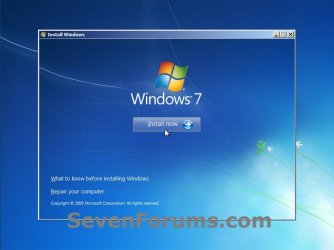
4. Click on the Install Now button to start the installation. (See screenshot below)step4.jpg
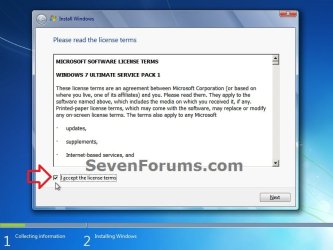
5. Check the I accept the license terms box, and click on Next. (See screenshot below)step5.jpg
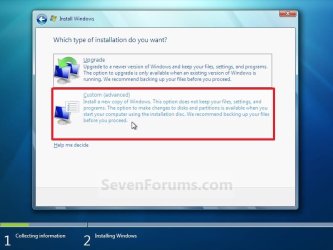
6. Click on the Custom (advanced) option. (See screenshot below)Step6.jpg
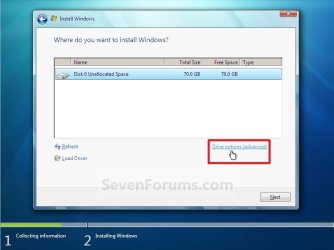
7. Select the hard drive or partition that you want to install Windows 7 on, and click on the Drive Options (advanced) link. (See screenshot below)
NOTE: If the hard drive or partition that you have selected is unallocated, then you can just click on the Next button instead and go to step 9 since it is already empty.
WARNING: You may not have the Drive options (advanced) option unless the installation is done at boot, and not running the installation from within your current OS.Step7.jpg
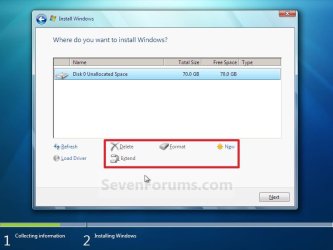
8. Select a hard drive or partition that you want to do a clean install of Windows 7 on, do what Drive options (advanced) you want if any, and click on the Next button when finished. (See screenshot below)
NOTE: If you have your hard drives in a RAID setup, then connect your USB key with the RAID drivers on it, click on Load Driver, select the folder on the USB key that contains the RAID drivers to install them. Afterwards, your RAID drives will be available to select from to install Windows 7 on.

   Tip
Drive options (advanced)
  • If you have more than one partition for a disk # (hard drive) and want to get rid of them to make that disk # one partition drive again, then select a partition with that disk # and click on the Delete option for each partition with the same disk # until there is only one "unallocated space" with that disk # left as in the screenshot below.
  • To shrink an existing partition to create another partition to install Windows 7 on instead, select the partition you want shrink and click on the Extend option. Type in how much in MB (1 GB = 1024 MB) that you want to shrink it by. Now select the new extended partition.
   Note
The 100 MB System Reserved partition is used for the Boot Manager code, BCD (Boot Configuration Database), System Recovery Options (Windows RE), and start up files for BitLocker (if turned on).
  • If you want to have the 100 MB System Reserved partition in addition to the Windows 7 C: partition on a HDD or SSD after installation, then you would need to make sure that all partitions on the drive have been deleted until it is only unallocated space. Next, select the unallocated drive to install Windows 7 on. If there are no partitions on the disk, you will get the 100 MB System Reserved.
  • If you do not want to have the 100 MB System Reserved partition and only the Windows 7 C: partition on a HDD or SSD after installation, then select a formatted partition or drive to install Windows 7 on. If there are any partitions on the disk, you won't get the 100 MB System Reserved.
Step8.jpg
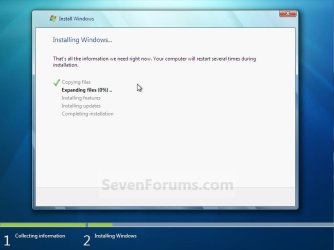
9. The installation of Windows 7 will now begin. (See screenshot below)
NOTE: During the installation process, your screen may flash and computer will restart a few times.Step9.jpg
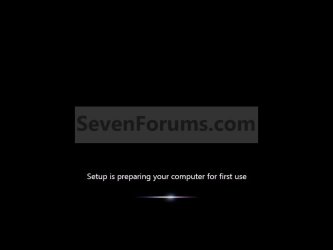
10. After the final restart, you will see this screen for a moment. (See screenshot below)step10.jpg
11. Type in any user name that you want for your default administrator account and any computer name, then click on the Next button. (See screenshot below)Step11.jpg
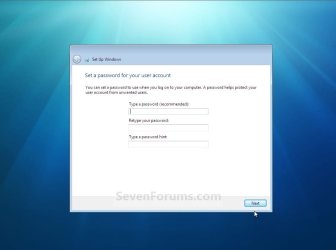
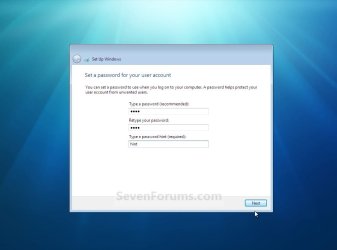
12. Type in a password you want for your default administrator account. Type it in again to confirm it, then type in a hint for your password. Click on the Next button. (See screenshots below)
WARNING: The password will be case sensitive. The hint will be seen by all users on the computer, so do not type your password as the hint.
NOTE: If you do not want your your user account password protected at this time or do not want to have to type in a hint, then leave this blank and click on the Next button. You can create a password later for your user account in the Control Panel User Accounts after installing Windows 7 without having to type in a hint.Step12A.jpg

Step12B.jpg
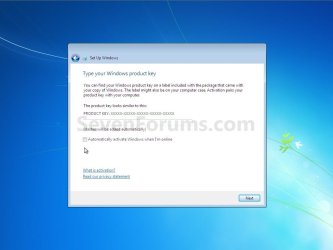
13. Type in your Windows 7 product key number. (See screenshot below step 14)

14. Uncheck the Automatically activate Windows when I'm online box, then click on the Next button. (See screenshot below)
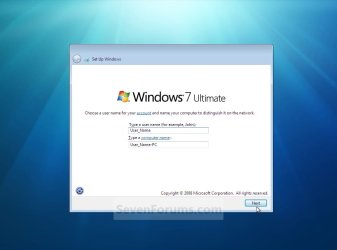
NOTE: You can activate Windows 7 later after you make sure it is running properly. (See step 21 below)
If you chose to automatically activate Windows 7 online when you set up your computer, automatic activation begins trying to activate your copy of Windows three days after you log on for the first time.Step13.jpg
15. Click on Use recommended settings to allow automatic Windows Updates and proper security settings. (See screenshot below)
NOTE: For more information about these recommended settings, click on the Learn more about each option link in this window.Step14.jpg
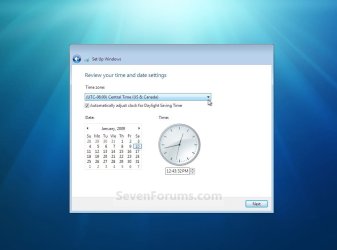
16. Select your time zone and set your time and date settings, then click on the Next button. (See screenshot below)Step15.jpg
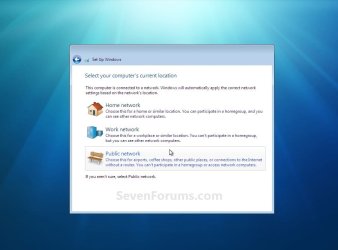
17. Click on your computer's correct network location type location to select it and have the settings for that location automatically applied. (See screenshot below)Step16.jpg
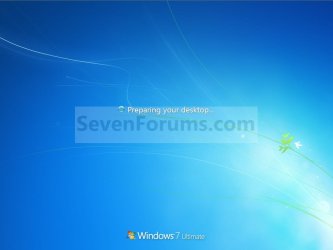
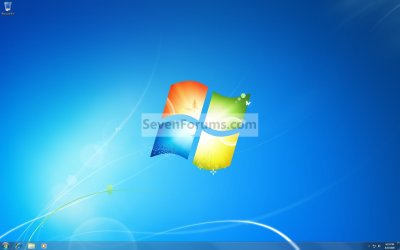
18. Windows 7 will now prepare your desktop to startup. (See screenshots below)Step17.jpg

Desktop.jpg
19. When it's finished and you are at your desktop, you can now remove or disconnect your installation DVD/USB from step 1 above.

20. Install all of your device drivers, then Windows Updates.

21. Refresh your Windows Experience Index (WEI) score.

22. When finished, all you will need to do is to activate Windows 7. (See screenshot below)
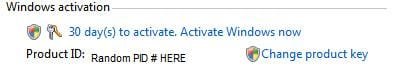
Activate.jpg
   Tip
If you are dual booting with another OS (ex: Vista), then that OS partition may not show up in Computer with a driver letter in Windows 7. You will need to add a drive letter to the OS (ex: Vista) partition in Windows 7 Disk Management for it to show up in Computer with a driver letter.


That's it,
Shawn


Related Tutorials

 
Last edited:
Thank you!

Brink!

This tutorial is great, and I apreciate it very much!

I printed it, and will use it as a reference when installing Windows 7 home premium x86.

I hope you will continue writing tutorials!

Have a nice day!

zx81
 

My Computer

Computer Manufacturer/Model Number
Dell Inpspiron 1720
OS
Windows 7 Home Premium x64
CPU
Intel 1720 Core 2 Duo 2.00GHz,800,2M
Memory
4GB 667MHz DDR2 SDRAM (2x2048)
Graphics Card(s)
NVIDIA Geforce Go 8600M GT 256MB DDR2
Sound Card
SigmaTel
Monitor(s) Displays
17.0" Widescreen WXGA+ (1440x900) TFT with TrueLife
Screen Resolution
1440x900
Hard Drives
2x160GB 5400RPM Serial ATA
Mouse
Logitech
There are thigns in the c directory as well that seemed to migrate from vista, also i know i had malware, and i can only assuem that made he jump along and has already dispersed itself aroudn the computer. i have a self built i7 and want it to run like it should.
 

My Computer

OS
Windows 7
Matt,

Could you post a screenshot of the C: directory to see what these files are please?
 

My Computer

Computer type
PC/Desktop
Computer Manufacturer/Model Number
Self built custom
OS
64-bit Windows 11 Pro for Workstations
CPU
Intel i7-8700K OC'd to 5 GHz
Motherboard
ASUS ROG Maximus XI Formula Z390
Memory
64 GB (4x16GB) G.SKILL TridentZ RGB DDR4 3600 MHz
Graphics Card(s)
ASUS ROG-STRIX-GTX1080TI-O11G-GAMING
Sound Card
Integrated
Monitor(s) Displays
2 x Samsung Odyssey G7 27"
Screen Resolution
2560x1440
Hard Drives
1TB Samsung 990 PRO M.2,
4TB Samsung 990 PRO PRO M.2,
TerraMaster F8 SSD Plus NAS
PSU
Seasonic Prime Titanium 850W
Case
Thermaltake Core P3
Cooling
Corsair Hydro H115i
Keyboard
Logitech wireless K800
Mouse
Logitech MX Master 4
Internet Speed
2 Gb/s Download and 100 Mb/s Upload
Antivirus
Malwarebyte Anti-Malware Premium
Browser
Google Chrome
Other Info
Logitech Z625 speaker system,
Logitech BRIO 4K Pro webcam,
HP Color LaserJet Pro MFP M477fdn,
APC SMART-UPS RT 1000 XL - SURT1000XLI,
Galaxy S23 Plus phone
Brink!

This tutorial is great, and I apreciate it very much!

I printed it, and will use it as a reference when installing Windows 7 home premium x86.

I hope you will continue writing tutorials!

Have a nice day!

zx81

You're most welcome zx81, and welcome to Seven Forums. :)
 

My Computer

Computer type
PC/Desktop
Computer Manufacturer/Model Number
Self built custom
OS
64-bit Windows 11 Pro for Workstations
CPU
Intel i7-8700K OC'd to 5 GHz
Motherboard
ASUS ROG Maximus XI Formula Z390
Memory
64 GB (4x16GB) G.SKILL TridentZ RGB DDR4 3600 MHz
Graphics Card(s)
ASUS ROG-STRIX-GTX1080TI-O11G-GAMING
Sound Card
Integrated
Monitor(s) Displays
2 x Samsung Odyssey G7 27"
Screen Resolution
2560x1440
Hard Drives
1TB Samsung 990 PRO M.2,
4TB Samsung 990 PRO PRO M.2,
TerraMaster F8 SSD Plus NAS
PSU
Seasonic Prime Titanium 850W
Case
Thermaltake Core P3
Cooling
Corsair Hydro H115i
Keyboard
Logitech wireless K800
Mouse
Logitech MX Master 4
Internet Speed
2 Gb/s Download and 100 Mb/s Upload
Antivirus
Malwarebyte Anti-Malware Premium
Browser
Google Chrome
Other Info
Logitech Z625 speaker system,
Logitech BRIO 4K Pro webcam,
HP Color LaserJet Pro MFP M477fdn,
APC SMART-UPS RT 1000 XL - SURT1000XLI,
Galaxy S23 Plus phone
I can if you really want but i think youl get it just from an example, i have the dev-cpp folder in c:/ and after i installed 7 over vista, it stayed there. seems that it did not sort things that were in the root directory into the windows.old folder.
 

My Computer

OS
Windows 7
Oh, I thought that you had done a custom install instead of a upgrade install. A upgrade install keeps pretty much everything that was in Vista into Windows 7.


If you do not have a Windows 7 installation disc, then how or what did you install Windows 7 with?
 

My Computer

Computer type
PC/Desktop
Computer Manufacturer/Model Number
Self built custom
OS
64-bit Windows 11 Pro for Workstations
CPU
Intel i7-8700K OC'd to 5 GHz
Motherboard
ASUS ROG Maximus XI Formula Z390
Memory
64 GB (4x16GB) G.SKILL TridentZ RGB DDR4 3600 MHz
Graphics Card(s)
ASUS ROG-STRIX-GTX1080TI-O11G-GAMING
Sound Card
Integrated
Monitor(s) Displays
2 x Samsung Odyssey G7 27"
Screen Resolution
2560x1440
Hard Drives
1TB Samsung 990 PRO M.2,
4TB Samsung 990 PRO PRO M.2,
TerraMaster F8 SSD Plus NAS
PSU
Seasonic Prime Titanium 850W
Case
Thermaltake Core P3
Cooling
Corsair Hydro H115i
Keyboard
Logitech wireless K800
Mouse
Logitech MX Master 4
Internet Speed
2 Gb/s Download and 100 Mb/s Upload
Antivirus
Malwarebyte Anti-Malware Premium
Browser
Google Chrome
Other Info
Logitech Z625 speaker system,
Logitech BRIO 4K Pro webcam,
HP Color LaserJet Pro MFP M477fdn,
APC SMART-UPS RT 1000 XL - SURT1000XLI,
Galaxy S23 Plus phone
I got the student downloda from digitalriver, and i did do a custom install, there just was never an option to completly erase the HD which I though was odd. I just put everything that on my old drive into windows.old, unless as i said it was in the root directory.
 

My Computer

OS
Windows 7

My Computer

Computer type
PC/Desktop
Computer Manufacturer/Model Number
Self built custom
OS
64-bit Windows 11 Pro for Workstations
CPU
Intel i7-8700K OC'd to 5 GHz
Motherboard
ASUS ROG Maximus XI Formula Z390
Memory
64 GB (4x16GB) G.SKILL TridentZ RGB DDR4 3600 MHz
Graphics Card(s)
ASUS ROG-STRIX-GTX1080TI-O11G-GAMING
Sound Card
Integrated
Monitor(s) Displays
2 x Samsung Odyssey G7 27"
Screen Resolution
2560x1440
Hard Drives
1TB Samsung 990 PRO M.2,
4TB Samsung 990 PRO PRO M.2,
TerraMaster F8 SSD Plus NAS
PSU
Seasonic Prime Titanium 850W
Case
Thermaltake Core P3
Cooling
Corsair Hydro H115i
Keyboard
Logitech wireless K800
Mouse
Logitech MX Master 4
Internet Speed
2 Gb/s Download and 100 Mb/s Upload
Antivirus
Malwarebyte Anti-Malware Premium
Browser
Google Chrome
Other Info
Logitech Z625 speaker system,
Logitech BRIO 4K Pro webcam,
HP Color LaserJet Pro MFP M477fdn,
APC SMART-UPS RT 1000 XL - SURT1000XLI,
Galaxy S23 Plus phone
ive been posting in that one too :d was hoping 2 ppl might have different ideas. Problem there is that tutorial is for making the boot cd (which will let you do a clean install so it is possible with the dl copy) before you install windows 7. Not sure how it could be doen after. I could reinstalled vista and start ALL over again...but I would really like not to for clear reasons.
 

My Computer

OS
Windows 7
You would still only be able to do a upgrade install with the disc created.

Since you already have it upgraded to Windows 7 with a Custom Install, I would not worry about it unless you cannot activate with your key number since your did a custom install instead of a upgrade install.
 

My Computer

Computer type
PC/Desktop
Computer Manufacturer/Model Number
Self built custom
OS
64-bit Windows 11 Pro for Workstations
CPU
Intel i7-8700K OC'd to 5 GHz
Motherboard
ASUS ROG Maximus XI Formula Z390
Memory
64 GB (4x16GB) G.SKILL TridentZ RGB DDR4 3600 MHz
Graphics Card(s)
ASUS ROG-STRIX-GTX1080TI-O11G-GAMING
Sound Card
Integrated
Monitor(s) Displays
2 x Samsung Odyssey G7 27"
Screen Resolution
2560x1440
Hard Drives
1TB Samsung 990 PRO M.2,
4TB Samsung 990 PRO PRO M.2,
TerraMaster F8 SSD Plus NAS
PSU
Seasonic Prime Titanium 850W
Case
Thermaltake Core P3
Cooling
Corsair Hydro H115i
Keyboard
Logitech wireless K800
Mouse
Logitech MX Master 4
Internet Speed
2 Gb/s Download and 100 Mb/s Upload
Antivirus
Malwarebyte Anti-Malware Premium
Browser
Google Chrome
Other Info
Logitech Z625 speaker system,
Logitech BRIO 4K Pro webcam,
HP Color LaserJet Pro MFP M477fdn,
APC SMART-UPS RT 1000 XL - SURT1000XLI,
Galaxy S23 Plus phone
I might just end up deleting the stuff as your originally said, ill se if the other topic turns up anything more, thanks a lot for your help.
 

My Computer

OS
Windows 7
I still have not installed my copy, but in the booklet it came with said to back up what you need to an external hard drive. I don't think it'd be a problem, but is it okay to back up to an extra internal hard drive? I think it'd be fine, I just want to be sure that stuff won't get erased. Thanks in advance.
 

My Computer

OS
vista 32-bit home premium
You're welcome Matt.


Jimmy,

Yes, you could also use a separate internal hard drive than you are installing on for backups as well. Just be sure not to select it during installation. :)
 

My Computer

Computer type
PC/Desktop
Computer Manufacturer/Model Number
Self built custom
OS
64-bit Windows 11 Pro for Workstations
CPU
Intel i7-8700K OC'd to 5 GHz
Motherboard
ASUS ROG Maximus XI Formula Z390
Memory
64 GB (4x16GB) G.SKILL TridentZ RGB DDR4 3600 MHz
Graphics Card(s)
ASUS ROG-STRIX-GTX1080TI-O11G-GAMING
Sound Card
Integrated
Monitor(s) Displays
2 x Samsung Odyssey G7 27"
Screen Resolution
2560x1440
Hard Drives
1TB Samsung 990 PRO M.2,
4TB Samsung 990 PRO PRO M.2,
TerraMaster F8 SSD Plus NAS
PSU
Seasonic Prime Titanium 850W
Case
Thermaltake Core P3
Cooling
Corsair Hydro H115i
Keyboard
Logitech wireless K800
Mouse
Logitech MX Master 4
Internet Speed
2 Gb/s Download and 100 Mb/s Upload
Antivirus
Malwarebyte Anti-Malware Premium
Browser
Google Chrome
Other Info
Logitech Z625 speaker system,
Logitech BRIO 4K Pro webcam,
HP Color LaserJet Pro MFP M477fdn,
APC SMART-UPS RT 1000 XL - SURT1000XLI,
Galaxy S23 Plus phone
After movign the downloaded peices out of the windows.old folder and into the corresponding locations in windows 7, the instruction on the first page of "makign a boot cd from the student d/l" thread (using the syntax edits on the second page) allowed me to make a boot cd adn do a clean install, thanks for all the effort!

knew it was possible brink :D
 

My Computer

OS
Windows 7
After movign the downloaded peices out of the windows.old folder and into the corresponding locations in windows 7, the instruction on the first page of "makign a boot cd from the student d/l" thread (using the syntax edits on the second page) allowed me to make a boot cd adn do a clean install, thanks for all the effort!

knew it was possible brink :D

That's great to know that you can do a clean install as well from that. Thank you for posting back with your results. :)
 

My Computer

Computer type
PC/Desktop
Computer Manufacturer/Model Number
Self built custom
OS
64-bit Windows 11 Pro for Workstations
CPU
Intel i7-8700K OC'd to 5 GHz
Motherboard
ASUS ROG Maximus XI Formula Z390
Memory
64 GB (4x16GB) G.SKILL TridentZ RGB DDR4 3600 MHz
Graphics Card(s)
ASUS ROG-STRIX-GTX1080TI-O11G-GAMING
Sound Card
Integrated
Monitor(s) Displays
2 x Samsung Odyssey G7 27"
Screen Resolution
2560x1440
Hard Drives
1TB Samsung 990 PRO M.2,
4TB Samsung 990 PRO PRO M.2,
TerraMaster F8 SSD Plus NAS
PSU
Seasonic Prime Titanium 850W
Case
Thermaltake Core P3
Cooling
Corsair Hydro H115i
Keyboard
Logitech wireless K800
Mouse
Logitech MX Master 4
Internet Speed
2 Gb/s Download and 100 Mb/s Upload
Antivirus
Malwarebyte Anti-Malware Premium
Browser
Google Chrome
Other Info
Logitech Z625 speaker system,
Logitech BRIO 4K Pro webcam,
HP Color LaserJet Pro MFP M477fdn,
APC SMART-UPS RT 1000 XL - SURT1000XLI,
Galaxy S23 Plus phone
Hello to everyone! I would like to make a question related to the HDD space needed from Windows Seven to run smoothly: I have 2 Disks a 320GB and a 80GB. I am running Windows XP in the 80GB for years now and had no problem but is it enough for the Windows Seven too, or I will have trouble?:cry:

All replies are welcome!!!

P.S Sorry If I went off-topic but i am a newbie here and this is my first post so... a little sympathy would be good!!!:p
 

My Computer

OS
Windows XP
CPU
Intel Pentium 4 CPU 3.06GHz
Motherboard
ASUS P5N-D
Memory
CRUCIAL BL2KIT25664AL80A BALLISTIX TRACER 4GB (2X2GB) PC6400
Graphics Card(s)
Nvidia GeForce 9600GT
Sound Card
CREATIVE SOUND BLASTER X-FI SURROUND 5.1 USB
Monitor(s) Displays
Acer AL1717
Hard Drives
ST3320310CS 80GB
W DC WD800JD-00MSA1 320GB
SEAGATE BARRACUDA LP ST31500541AS 1.5TB SATA2
ST332082 0AS USB Device Lacie 320GB
PSU
THERMALTAKE W0306 EVO BLUE 550W
Case
THERMALTAKE VG40031N2Z XPRESSAR RCS100 BLACK
Cooling
THERMALTAKE CLP0537 ISGC-100
Click on the tutorials. There a couple links showing what 7 needs to run. You should be fine putting it on the 320G drive. It took right around 30G on my bare 500G drive.
 

My Computer

Computer Manufacturer/Model Number
HP pavillion dv7 1285dx Notebook
OS
Dual boot to Vista and Windows 7 Home Premium
CPU
P8600
Motherboard
HP
Memory
6G
Graphics Card(s)
nvidia
Monitor(s) Displays
laptop
Screen Resolution
Whatever I want.
Hard Drives
2X 500G WD Scorpio Blue
Mouse
Logitech Notebook
Internet Speed
+25 on a good day
Click on the tutorials. There a couple links showing what 7 needs to run. You should be fine putting it on the 320G drive. It took right around 30G on my bare 500G drive.

OK then 320 it is!!! Thank you for the tip, oh and i will check out the tutorials for further info! Thanks a million!!!
 

My Computer

OS
Windows XP
CPU
Intel Pentium 4 CPU 3.06GHz
Motherboard
ASUS P5N-D
Memory
CRUCIAL BL2KIT25664AL80A BALLISTIX TRACER 4GB (2X2GB) PC6400
Graphics Card(s)
Nvidia GeForce 9600GT
Sound Card
CREATIVE SOUND BLASTER X-FI SURROUND 5.1 USB
Monitor(s) Displays
Acer AL1717
Hard Drives
ST3320310CS 80GB
W DC WD800JD-00MSA1 320GB
SEAGATE BARRACUDA LP ST31500541AS 1.5TB SATA2
ST332082 0AS USB Device Lacie 320GB
PSU
THERMALTAKE W0306 EVO BLUE 550W
Case
THERMALTAKE VG40031N2Z XPRESSAR RCS100 BLACK
Cooling
THERMALTAKE CLP0537 ISGC-100
Greg,

I can confrm 100% that you can do a clean install with a upgrade Windows 7 version and activate without a problem. I went out this morning and got a copy to test and confirm it. :)

Settled. ;)
Brink,
You're absolutely correct. I was away over the weekend and just completed the clean install tonight. Very painless.

Thanks!
Greg
 

My Computer

Computer Manufacturer/Model Number
Alienware Aurora
OS
Windows 7 Professional (64bit)
CPU
Core i7 Extreme 975 @ 3.33GHz overclocked to 3.6 GHz
Motherboard
Alienware 0H869M
Memory
12 GB DDR3 1333MHz
Graphics Card(s)
NVIDIA GeForce GTX 295 1.8 GB RAM
Sound Card
Creative SB X-Fi Titanium
Monitor(s) Displays
Dell 2407WFP
Screen Resolution
1920 x 1200
Hard Drives
OCZ Vertex 2 100GB SSD - Primary Drive, Western Digital 300GB SATA-II 3GB/X, 10,000 RPM, 16MB Cache - Secondary Drive
PSU
875 Watt
Case
Cosmic Black
Cooling
Alienware High-Performance Liquid Cooling
Keyboard
Logitech
Mouse
Logitech
Internet Speed
60/3MB Service
Other Info
Logitech Z-5500 THX-Certified 505-Watt 5.1 Digital Surround Sound Speaker System
You're welcome Greg. Thank you for confirming as well. :)
 

My Computer

Computer type
PC/Desktop
Computer Manufacturer/Model Number
Self built custom
OS
64-bit Windows 11 Pro for Workstations
CPU
Intel i7-8700K OC'd to 5 GHz
Motherboard
ASUS ROG Maximus XI Formula Z390
Memory
64 GB (4x16GB) G.SKILL TridentZ RGB DDR4 3600 MHz
Graphics Card(s)
ASUS ROG-STRIX-GTX1080TI-O11G-GAMING
Sound Card
Integrated
Monitor(s) Displays
2 x Samsung Odyssey G7 27"
Screen Resolution
2560x1440
Hard Drives
1TB Samsung 990 PRO M.2,
4TB Samsung 990 PRO PRO M.2,
TerraMaster F8 SSD Plus NAS
PSU
Seasonic Prime Titanium 850W
Case
Thermaltake Core P3
Cooling
Corsair Hydro H115i
Keyboard
Logitech wireless K800
Mouse
Logitech MX Master 4
Internet Speed
2 Gb/s Download and 100 Mb/s Upload
Antivirus
Malwarebyte Anti-Malware Premium
Browser
Google Chrome
Other Info
Logitech Z625 speaker system,
Logitech BRIO 4K Pro webcam,
HP Color LaserJet Pro MFP M477fdn,
APC SMART-UPS RT 1000 XL - SURT1000XLI,
Galaxy S23 Plus phone
Back
Top