Dual Boot Installation with Windows 7 and XP

How to Setup a Dual Boot Installation with Windows 7 and XP


   Information
This will show you how to install Windows 7 and XP to dual boot with when you already have either Windows 7 or XP installed first.
   Note
With a dual boot installaton, you will have two operating systems (OS) installed. When you start the computer, you will have the choice to choose which OS you would like to start up to. This method is the easiest way of doing a dual boot with these two operating systems.
   Tip
When dual booting with another OS (ex: Vista or XP), you may not always have that OS partition show up in Computer with a driver letter in Windows 7. If this happens, then you will just need to add a drive letter to the OS (ex: Vista or XP) partition in Windows 7 Disk Management for it to show up in Computer with a driver letter.
   Warning
To stop XP from deleting your Windows 7 System Restore Points everytime XP is started, then see System Restore Points - Stop XP Dual Boot Delete to hide Windows 7 from XP.

Windows 7 Minimum Hardware Requirements


NOTE: For more information on this, see: Windows 7 system requirements
  • 1 GHz 32-bit or 64-bit processor
  • 1 GB RAM for 32-bit Windows 7 OR 2 GB RAM for 64-bit Windows 7
  • 16 GB available disk space 32-bit Windows 7 OR 20 GB for 64-bit Windows 7
  • Support for DirectX 9 graphics with 128 MB memory (in order to enable Aero theme)
  • DVD-R/W Drive
  • Internet or phone access to activate Windows 7.
Windows XP Minimum Hardware Requirements

NOTE: For more information on this, see: System requirements for Windows XP operating systems
  • PC with 300 megahertz (MHz) or higher processor clock speed recommended; 233-MHz minimum required;* Intel Pentium/Celeron family, AMD K6/Athlon/Duron family, or compatible processor recommended
  • 128 megabytes (MB) of RAM or higher recommended (64 MB minimum supported; may limit performance and some features)
  • 1.5 gigabyte (GB) of available hard disk space.*
  • Super VGA (800 × 600) or higher resolution video adapter and monitor
  • CD-ROM or DVD drive
  • Keyboard and Microsoft Mouse or compatible pointing device
EXAMPLE: Windows Boot Manager
NOTE: This is the boot screen where you select what operating system that you would like to start. By default, you have 30 seconds to choose another operating system before the default operating system will start automatically.
Example.jpg


OPTION ONE

When XP is Installed First


NOTE: If you have a RAID setup, you will need to have the Windows 7 RAID drivers on a USB flash drive available to select and load while installing Windows 7.
1. Do step 2 or 3 below for where you wanted to install Windows 7 at.

2. To Create a New Partition from the XP Hard Disk Drive
A) With your Windows 7 installation disc boot into the Command Prompt from the System Recovery Options screen.
NOTE: Make sure that the CD/DVD drive is selected first in the boot order in the BIOS.

B) In the command prompt, select and shrink the XP volume by how many MB (1024 MB = 1 GB) you want to have for this Windows 7 partition. (See screenshot below)
NOTE: You would do steps 2 to 9 in METHOD TWO at that link. Windows 7 will need a minimum of 16 GB (16384 MB).

XP-W7_1.jpg
C) Click on the X at the top right corner to close the command prompt. (See screenshot above)

D) Click on the X at the top right corner to close System Recovery Options. (See screenshot below)
XP-W7_2.jpg
E) Go to step 4.
3. To Use a Separate Hard Disk Drive than the XP Drive
A) Boot from your Windows 7 installation disc.
NOTE: Make sure that the CD/DVD drive is selected first in the boot order in the BIOS.
4. Click on the Install now button. (See screenshot below)

XP-W7_3.jpg
5. When you get to this point, select the partition (step 2) or hard drive to install Windows 7 on. (See screenshot below)

XP-W7_4.jpg
6. Finish installing Windows 7.
NOTE: You would start at step 9 in that link to finish installing Windows 7.

7. When finished, restart the computer to have the option to boot from XP (Earlier Verision of Windows) or Windows 7. (See screenshot below)

   Note
If you are only booting into Windows 7 and do not have XP listed in the Windows Boot Manager, then you can install only EasyBCD (step 8 Option Two below) to add XP (or Windows 7) while started in Windows 7 the same way to the boot list.

Example.jpg


OPTION TWO

When Windows 7 is Installed First


   Warning

1. To Create a New Partition from the Windows 7 Hard Disk Drive
NOTE: If you want to install XP on a separate internal hard drive instead, then skip this step and go to step 2.
A) In Windows 7, select and shrink the Windows 7 volume in Disk Management by how many MB (1024 MB = 1 GB) you want to have for this XP partition. (See screenshots below)
NOTE: You would do all of Method One at that link.

W7-XP-1.jpg

W7-XP-2.jpg

W7-XP-3.jpg
2. Insert your XP installation disc, then restart the computer and press any key to boot from it when prompted. (See screenshot below)
NOTE: Make sure that the CD/DVD drive is selected first in the boot order in the BIOS.

Step1.jpg
3. From XP Setup, Press Enter. (See screenshot below)


   Warning

W7-XP-4.jpg
4. Press F8. (See screenshot below)
NOTE: On some multimedia keyboards, you may need to press the F-Lock or Function key before pressing F8.
W7-XP-5.jpg
5. Select the partition (step 1) or hard drive that you want to install XP on using the arrow keys and press Enter.

W7-XP-6.jpg
6. Finish installing XP.


   Tip
If you get Error loading Operating System after XP restarts:
  • Using your Windows 7 installation disc, boot to the command prompt at startup.
  • Type in these comands below, and press enter after each one.
    • bootrec /FixMbr
    • bootrec /FixBoot
    • bootrec /RebuildBcd
  • Exit the command prompt and restart the computer.
  • At this point, Windows 7 should boot up the same way before trying to install XP.
  • Continue to step 8 below and run EasyBCD from Windows 7 instead.

7. In XP, download and install .Net Framework 2.0 (32-bit) version or .Net Framework 2.0 (64-bit) version first, and EasyBCD (free version) for your 32-bit (x86) or 64-bit (x86) XP.
NOTE: In XP, Net Framework is required to be installed to run EasyBCD. After you click on Register (at bottom of link) for the free EasyBCD, registration is not required to download it.

8. Run EasyBCD (free version).
NOTE: This is required to repair the Windows 7 boot file and add XP to the Windows Boot Manager list.

9. On the left side of EasyBCD, click on the Add New Entry button. (See screenshot below)
A) In the top section under Operating Systems, click on the Windows tab. (See screenshot below)
B) To the right of Type, select Windows NT/2k/XP/2k3 from the drop down menu. (See screenshot below)
:warn:WARNING: Be sure to leave the Automatically detect correct drive box checked.

C) To the right of Name, you can leave the default Microsoft Windows XP as the name to be displayed in the Windows Boot Manager, or you can type whatever name you would like to have instead. (See screenshot below)
D) Click on the Add Entry button. (See screenshot below)
W7-XP-7.jpg
10. On the left side of EasyBCD, click on the BCD Deployment button, select (dot) the Install the Windows Vista/7 bootloader to the MBR option, and click on the Write MBR button. (See screenshot below)

W7-XP-9.jpg
11. Close EasyBCD.

12. Restart the computer to have the option to boot from Microsoft Windows XP or Windows 7. (See screenshot below)

Example2.jpg
   Tip
If Windows 7 will not start up when selected, then use your Windows 7 installation DVD to do a Startup Repair.

That's it,
Shawn


Last edited:
I just wanted to clarify that I cannot post a screenshot of anything aside from a black screen or the initial install screens of either XP or 7. Additionally, when I try to reistall XP it still only recognizes 131072 MB free on my hard drive. I had allocated 500 GB prior to this debacle and the drive itself is 1 TB. I am really unsure what to do here. Thanks in advance.
 

My Computer

Computer Manufacturer/Model Number
other
OS
windows 7
Also...

I tried reinstalling XP and it just keeps trying to reinstall itself over and over. I have now tried to reinstall Windows 7 and, after I choose the custom (advanced) option it reports an unexpected error and asks that I try again after I verify that all of the installation sources are accessible...error code 0xE0000100. :mad:
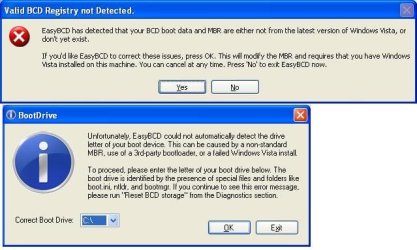
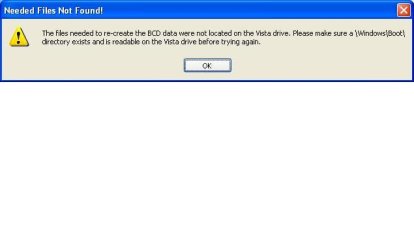
Ok...I have XP installed now (hard drive reads 127 GB capacity out of 1 TB) with SP2 and have downloaded .NET framework 3.5 (tried with 2.0 also) and EasyBCD. When I run BCD an error message pops up: ss.JPG these are the errors that come up in order top to bottom. There is only the C:/ drive available from the drop down menu of the second image and when I select it I receive this message: ss1.JPG
Not sure where to go from here.
 
Last edited:

My Computer

Computer Manufacturer/Model Number
other
OS
windows 7
It finally worked for me the brutal way: I erased all windows versions completely by killing the partitions, then tried again but this time with installation of xp first. Success. For some reason my systemjust didn't want me to install xp after seven.
 

My Computer

OS
Windows 7
Motherboard
MSI K8N Neo 7030
Memory
2 GB
success

Thanks to whoever wrote the guide, i installed 7 and than xp without a hitch, i did have initial problems installing xp though (bsod error), i did some study time and found that i needed sata drivers to install it, and i had to slipstream it using nlite. now im having to hunt down drivers, kind of difficult.i cant find the ricoh 1394 driver, i need it for firewire audio
 

My Computer

OS
windows7
You're welcome Ultraman. Thank you for posting back with your results. :)
 

My Computer

Computer type
PC/Desktop
Computer Manufacturer/Model Number
Self built custom
OS
64-bit Windows 11 Pro for Workstations
CPU
Intel i7-8700K OC'd to 5 GHz
Motherboard
ASUS ROG Maximus XI Formula Z390
Memory
64 GB (4x16GB) G.SKILL TridentZ RGB DDR4 3600 MHz
Graphics Card(s)
ASUS ROG-STRIX-GTX1080TI-O11G-GAMING
Sound Card
Integrated
Monitor(s) Displays
2 x Samsung Odyssey G7 27"
Screen Resolution
2560x1440
Hard Drives
1TB Samsung 990 PRO M.2,
4TB Samsung 990 PRO PRO M.2,
TerraMaster F8 SSD Plus NAS
PSU
Seasonic Prime Titanium 850W
Case
Thermaltake Core P3
Cooling
Corsair Hydro H115i
Keyboard
Logitech wireless K800
Mouse
Logitech MX Master 4
Internet Speed
2 Gb/s Download and 100 Mb/s Upload
Antivirus
Malwarebyte Anti-Malware Premium
Browser
Google Chrome
Other Info
Logitech Z625 speaker system,
Logitech BRIO 4K Pro webcam,
HP Color LaserJet Pro MFP M477fdn,
APC SMART-UPS RT 1000 XL - SURT1000XLI,
Galaxy S23 Plus phone
Thanks to whoever wrote the guide, i installed 7 and than xp without a hitch, i did have initial problems installing xp though (bsod error), i did some study time and found that i needed sata drivers to install it, and i had to slipstream it using nlite. now im having to hunt down drivers, kind of difficult.i cant find the ricoh 1394 driver, i need it for firewire audio


Is this what you're looking for?


Download RICOH OHCI Compliant IEEE 1394 Host Controller 6.0.4051.0 - RICOH OHCI Compliant IEEE 1394 Host Controller. OS installed driver. For information only.
 

My Computer

Computer Manufacturer/Model Number
* BFK Customs *
OS
W 7 64-bit Ultimate
CPU
Intel Q9550 Yorkfield
Motherboard
ASUS P5Q Pro
Memory
8GB Dominator 8500C5D
Graphics Card(s)
ATI : XFX 5870
Sound Card
Realtek HD Audio 7-1
Monitor(s) Displays
1x 47" LCD HDMI & 3x 26" LCD HDMI
Screen Resolution
1920x1080P & 1920x1200
Hard Drives
1x 80GB Intel X25-M G2 SSD : 1x 500GB & 1x 640GB WD Caviar Black(s)
PSU
Corsair 620HX
Case
Cooler Master RC-690
Cooling
Tuniq Tower 120, 2x 140mm and 3x 120mm case fans
Keyboard
Microsoft 500
Mouse
Razer Diamondback 3G
Internet Speed
14 Mb/s
Other Info
1x Koutech 3Gb/s SATA HDD Hot Swap Rack
I have a brand new computer that came loaded with Windows 7. I have followed the instructions to add XP, but after the installation CD restarts my computer, I get "Disc Read Error. Press Ctrl + Alt + Del to Restart" Now no matter what I do, I get this error and cannot boot into Windows at all. I tried deleting the XP partition I created from the recovery console, but I still get the error. I also tried fixboot. Chkdsk says the drive is fine. My computer came with a partition for system recovery, but when I press F11 as the computer is starting to access system recovery, nothing happens! It acts as I never pressed anything and proceeds to the error message. I haven't run fixmbr yet because I've read that it will wipe out the recovery partition.

At this point I just want a working computer again! Please help! If I order the system recovery disks from HP and completely wipe everything to the factory state, that will fix this problem, right? I wish they shipped these things with recovery disks!
 
Last edited:

My Computer

OS
Windows 7
Thanks to whoever wrote the guide, i installed 7 and than xp without a hitch, i did have initial problems installing xp though (bsod error), i did some study time and found that i needed sata drivers to install it, and i had to slipstream it using nlite. now im having to hunt down drivers, kind of difficult.i cant find the ricoh 1394 driver, i need it for firewire audio


Is this what you're looking for?


Download RICOH OHCI Compliant IEEE 1394 Host Controller 6.0.4051.0 - RICOH OHCI Compliant IEEE 1394 Host Controller. OS installed driver. For information only.


when i click the download link it takes me to microsoft update, microsoft doesnt have it, ive been searching for a whole day now,
 

My Computer

OS
windows7
Current Procedure

Brink, this is by far the easiest and best explanation I have found on setting up dual boot when Windows 7 is the original OS. Since the post was made in April and the 7 has become available in the most current build I want to be certain that the procedure for adding XP Pro to an existing Windows 7 Home Premium, 64 bit has not changed since this April post. I am about to attempt the installation and want to be certain I am using the most recent process. Thanks
 

My Computer

OS
Windows 7 Home Premium, 64
Hello MS7165, and welcome to Seven Forums.

Yep, this is the current information in the tutorial for the latest Windows 7. I'm constantly keeping the tutorials up to date for any changes that have been made or reported in Windows 7. :)
 

My Computer

Computer type
PC/Desktop
Computer Manufacturer/Model Number
Self built custom
OS
64-bit Windows 11 Pro for Workstations
CPU
Intel i7-8700K OC'd to 5 GHz
Motherboard
ASUS ROG Maximus XI Formula Z390
Memory
64 GB (4x16GB) G.SKILL TridentZ RGB DDR4 3600 MHz
Graphics Card(s)
ASUS ROG-STRIX-GTX1080TI-O11G-GAMING
Sound Card
Integrated
Monitor(s) Displays
2 x Samsung Odyssey G7 27"
Screen Resolution
2560x1440
Hard Drives
1TB Samsung 990 PRO M.2,
4TB Samsung 990 PRO PRO M.2,
TerraMaster F8 SSD Plus NAS
PSU
Seasonic Prime Titanium 850W
Case
Thermaltake Core P3
Cooling
Corsair Hydro H115i
Keyboard
Logitech wireless K800
Mouse
Logitech MX Master 4
Internet Speed
2 Gb/s Download and 100 Mb/s Upload
Antivirus
Malwarebyte Anti-Malware Premium
Browser
Google Chrome
Other Info
Logitech Z625 speaker system,
Logitech BRIO 4K Pro webcam,
HP Color LaserJet Pro MFP M477fdn,
APC SMART-UPS RT 1000 XL - SURT1000XLI,
Galaxy S23 Plus phone
Brink, this is by far the easiest and best explanation I have found on setting up dual boot when Windows 7 is the original OS. Since the post was made in April and the 7 has become available in the most current build I want to be certain that the procedure for adding XP Pro to an existing Windows 7 Home Premium, 64 bit has not changed since this April post. I am about to attempt the installation and want to be certain I am using the most recent process. Thanks


I just finished doing this for my HP (Model #: p6210y) and had a few hoops to jump through to get my XP install CD to work with my newer SATA drivers. If you have a newer PC and have SATA drives, you might have similar issues. I will look up the url's that helped me get around that hurdle unless someone here beats me to it. :o
 

My Computer

Computer Manufacturer/Model Number
HP Model #: p6210y
OS
Windows 7 Home
CPU
AMD Athalon II X4 620 (2.6gHz)
Motherboard
Violet
Memory
6GB
Graphics Card(s)
VisionTek HD4870 512mb
Sound Card
Integrated
Monitor(s) Displays
Samsung SyncMaster 2033
PSU
OCZ GamersXtreme 600w (OCZ600GXSSLI 600W RT)
Yep, I will be dealing with a SATA drive so any help will be appreciated.
 

My Computer

OS
Windows 7 Home Premium, 64
Yep, I will be dealing with a SATA drive so any help will be appreciated.

Check out this thread, it has links to some of the articles I used... LINK
 

My Computer

Computer Manufacturer/Model Number
HP Model #: p6210y
OS
Windows 7 Home
CPU
AMD Athalon II X4 620 (2.6gHz)
Motherboard
Violet
Memory
6GB
Graphics Card(s)
VisionTek HD4870 512mb
Sound Card
Integrated
Monitor(s) Displays
Samsung SyncMaster 2033
PSU
OCZ GamersXtreme 600w (OCZ600GXSSLI 600W RT)
Can you use the upgrade to create a dual boot?

Can the upgrade version of Home Premium be used for a Dual Boot installation or is the full version required (I can't seem to find a definitive answer on this). I currently have XP 32bit on C: and would like to install Win7 64bit on a separate drive. So I would use Method 1 Step 2. When I get to Step 5 it says to go to step 9 of a Clean install. Since I have an upgrade disk should I go to How to Do a Clean Install with a Upgrade Windows 7 Version?
 

My Computer

OS
xp
Hello Zippster, and welcome to Seven Forums.

If it is a retail Upgrade Windows 7 and not a student or OEM version, then yes you can use it a dual boot with XP using the same method in this tutorial on the first page. :)
 

My Computer

Computer type
PC/Desktop
Computer Manufacturer/Model Number
Self built custom
OS
64-bit Windows 11 Pro for Workstations
CPU
Intel i7-8700K OC'd to 5 GHz
Motherboard
ASUS ROG Maximus XI Formula Z390
Memory
64 GB (4x16GB) G.SKILL TridentZ RGB DDR4 3600 MHz
Graphics Card(s)
ASUS ROG-STRIX-GTX1080TI-O11G-GAMING
Sound Card
Integrated
Monitor(s) Displays
2 x Samsung Odyssey G7 27"
Screen Resolution
2560x1440
Hard Drives
1TB Samsung 990 PRO M.2,
4TB Samsung 990 PRO PRO M.2,
TerraMaster F8 SSD Plus NAS
PSU
Seasonic Prime Titanium 850W
Case
Thermaltake Core P3
Cooling
Corsair Hydro H115i
Keyboard
Logitech wireless K800
Mouse
Logitech MX Master 4
Internet Speed
2 Gb/s Download and 100 Mb/s Upload
Antivirus
Malwarebyte Anti-Malware Premium
Browser
Google Chrome
Other Info
Logitech Z625 speaker system,
Logitech BRIO 4K Pro webcam,
HP Color LaserJet Pro MFP M477fdn,
APC SMART-UPS RT 1000 XL - SURT1000XLI,
Galaxy S23 Plus phone
Thanks Brink. So I would go through the installation process without activation and then activate manually? I read somewhere that to do a clean install with an upgrade disk you have to go through the setup twice. The first time without entering the product key. Then the second time you enter the product key and activate. Is this not required?
 

My Computer

OS
xp

My Computer

Computer type
PC/Desktop
Computer Manufacturer/Model Number
Self built custom
OS
64-bit Windows 11 Pro for Workstations
CPU
Intel i7-8700K OC'd to 5 GHz
Motherboard
ASUS ROG Maximus XI Formula Z390
Memory
64 GB (4x16GB) G.SKILL TridentZ RGB DDR4 3600 MHz
Graphics Card(s)
ASUS ROG-STRIX-GTX1080TI-O11G-GAMING
Sound Card
Integrated
Monitor(s) Displays
2 x Samsung Odyssey G7 27"
Screen Resolution
2560x1440
Hard Drives
1TB Samsung 990 PRO M.2,
4TB Samsung 990 PRO PRO M.2,
TerraMaster F8 SSD Plus NAS
PSU
Seasonic Prime Titanium 850W
Case
Thermaltake Core P3
Cooling
Corsair Hydro H115i
Keyboard
Logitech wireless K800
Mouse
Logitech MX Master 4
Internet Speed
2 Gb/s Download and 100 Mb/s Upload
Antivirus
Malwarebyte Anti-Malware Premium
Browser
Google Chrome
Other Info
Logitech Z625 speaker system,
Logitech BRIO 4K Pro webcam,
HP Color LaserJet Pro MFP M477fdn,
APC SMART-UPS RT 1000 XL - SURT1000XLI,
Galaxy S23 Plus phone
Worked for me

Thanks, this worked great! I had to install XP after 7 so my daughter could run one of her games. After the install I realized I had overwritten my Windows 7 boot loader. BCDEdit got me back on track. Thanks!
 

My Computer

OS
Windows 7
You're welcome Dgusoff, and welcome to Seven Forums. :)
 

My Computer

Computer type
PC/Desktop
Computer Manufacturer/Model Number
Self built custom
OS
64-bit Windows 11 Pro for Workstations
CPU
Intel i7-8700K OC'd to 5 GHz
Motherboard
ASUS ROG Maximus XI Formula Z390
Memory
64 GB (4x16GB) G.SKILL TridentZ RGB DDR4 3600 MHz
Graphics Card(s)
ASUS ROG-STRIX-GTX1080TI-O11G-GAMING
Sound Card
Integrated
Monitor(s) Displays
2 x Samsung Odyssey G7 27"
Screen Resolution
2560x1440
Hard Drives
1TB Samsung 990 PRO M.2,
4TB Samsung 990 PRO PRO M.2,
TerraMaster F8 SSD Plus NAS
PSU
Seasonic Prime Titanium 850W
Case
Thermaltake Core P3
Cooling
Corsair Hydro H115i
Keyboard
Logitech wireless K800
Mouse
Logitech MX Master 4
Internet Speed
2 Gb/s Download and 100 Mb/s Upload
Antivirus
Malwarebyte Anti-Malware Premium
Browser
Google Chrome
Other Info
Logitech Z625 speaker system,
Logitech BRIO 4K Pro webcam,
HP Color LaserJet Pro MFP M477fdn,
APC SMART-UPS RT 1000 XL - SURT1000XLI,
Galaxy S23 Plus phone
Tutorial incomplete / corrected

Hi there,

first of all: great tutorial!!!
But method 2 does not work on my system.

System:
Win 7 installed first.
Goal to install Win XP in parallel as dual-boot

Issue:
During installation of XP (step 6), XP requires a reboot.
After reboot MBR is corrupt, does not boot either Win 7 nor Win XP

Solution:
6a) XP reboots. Failure message (MBR is corrupt)
6b) Insert Win 7 installation CD. Reboot from Win 7 CD. Use auto repair function to recover MBR.
6c) Remove CD. Reboot. Win 7 starts again.
7) In Win7. Install "EasyBCD 2.0 Beta Build 76" NOT "EasyBCD 1.7.2". You need to register before download (all free).
7a) Follow no.8) of original tutorial.
EasyBCD copies original NTLDR, NTDETECT to your Win XP drive.
In "change settings" take care to choose the correct partitions for Win 7 and Win XP.

That's how it works on my system.
:thumbsup:
 

My Computer

OS
XP / 7
Back
Top