MBR - Restore Windows 7 Master Boot Record

How to Restore the Windows 7 MBR (Master Boot Record)

   Information
If you have been dual booting with Linux, then you probably know one of the Linux boot managers like Grub or LILO has been installed in the MBR of your hard drive. What can you do when you no longer want Linux on that hard drive? This tutorial will show you how to use your 7 DVD and BOOTSECT.EXE to restore the "bootsector code" of the MBR and allow you to begin booting to Windows 7 again.
   Tip
You can use this method to update the bootsector code for Windows 7, Vista, XP, 2000 or switch between Bootmgr and NTLDR. Just check the Microsoft TechNet site for the correct command.


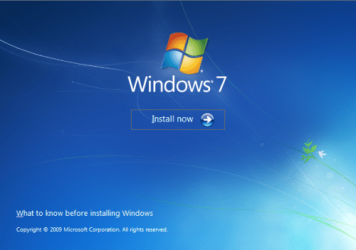
Here's How:1. Boot your computer to the Windows 7 DVD (or to a "Repair CD"). At this screen choose to install now.
25672d1251414873-mbr-restore-windows-7-master-boot-record-mbr_02.png


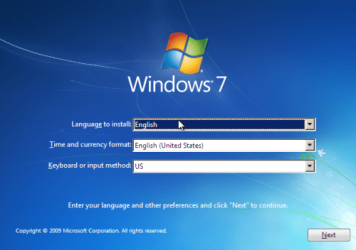
2. Select your language and click next.
25673d1251414836-mbr-restore-windows-7-master-boot-record-mbr_03.png


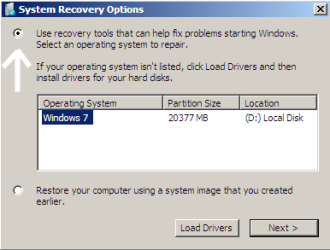
3. Click the button for "Use recovery tools".
25674d1251414836-mbr-restore-windows-7-master-boot-record-mbr_04.png


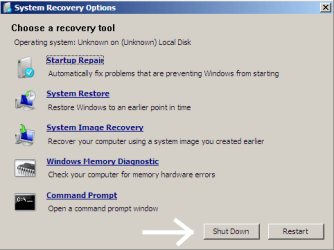
4. Then select "Command Prompt".
25675d1251414836-mbr-restore-windows-7-master-boot-record-mbr_05.png


5. When open, the command prompt will look like this:
53598d1251414836-mbr-restore-windows-7-master-boot-record-mbr_16.png


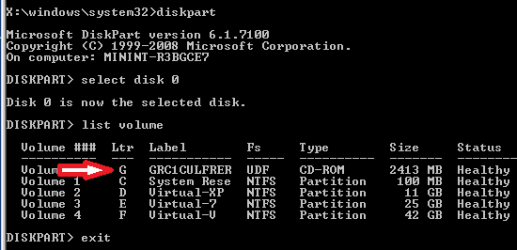
6. The command we will use, bootsect.exe, is in a folder (named boot) on the DVD.We need to know what drive letter has been assigned the DVD drive to access the folder.

Code:
Type: [B]diskpart[/B]
and press [B]Enter[/B]
 
Type: [B]select disk 0[/B] (zero)
and press [B]Enter[/B]
 
type: [B]list volume[/B]
and press [B]Enter[/B]
In this screen shot, the 7 DVD is letter: G
53599d1251414836-mbr-restore-windows-7-master-boot-record-mbr_17a.png


7. Use your DVD drive letter and

Code:
Type: [B]exit[/B]
and press [B]Enter[/B]
 
to close Diskpart
 
Type: [B]G:[/B] (use the letter of your DVD drive)
and press [B]Enter[/B]
 
Type: [B]cd boot[/B]
and press [B]Enter[/B]
 
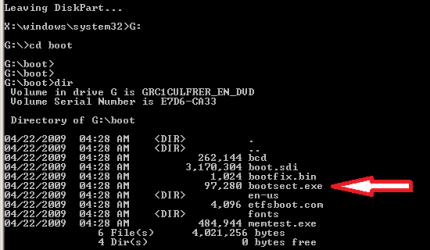
Type: [B]dir[/B]
and press [B]Enter[/B]
to verify that bootcect.exe is there (if you really need to)
53600d1251414836-mbr-restore-windows-7-master-boot-record-mbr_18a.png


8. To restore the "bootsector code":

Code:
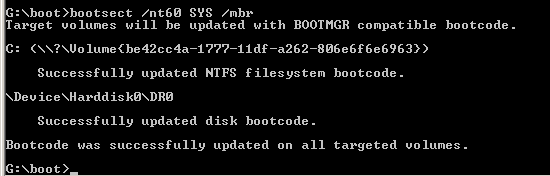
TYPE: [B]bootsect /nt60 SYS /mbr[/B]
and press [B]Enter[/B]
53601d1251414836-mbr-restore-windows-7-master-boot-record-mbr_19.png


NOTE: If this method fails to restore the MBR, you can try the bootrec command as it is also a tool for repairing the MBR.


9. When completed successfully,

Code:
Type: [B]exit[/B]
and press [B]Enter[/B]
This will close the command prompt window.

10. Now select Shut Down or Restart
25680d1251414836-mbr-restore-windows-7-master-boot-record-mbr_10.png


11. Then you can reboot your computer into Windows.
25681d1251414836-mbr-restore-windows-7-master-boot-record-mbr_12.png


Attachments

  • mbr_02.png
    mbr_02.png
    53.7 KB · Views: 1,640,316
  • mbr_03.png
    mbr_03.png
    54.3 KB · Views: 1,635,478
  • mbr_04.png
    mbr_04.png
    6.9 KB · Views: 1,633,763
  • mbr_05.png
    mbr_05.png
    10.5 KB · Views: 1,579,666
  • mbr_10.png
    mbr_10.png
    10.4 KB · Views: 1,576,678
  • mbr_12.png
    mbr_12.png
    5.3 KB · Views: 1,552,307
  • mbr_16.png
    mbr_16.png
    3.3 KB · Views: 1,554,623
  • mbr_17a.png
    mbr_17a.png
    3.8 KB · Views: 1,565,873
  • mbr_18a.png
    mbr_18a.png
    3.7 KB · Views: 1,620,585
  • mbr_19.png
    mbr_19.png
    2.4 KB · Views: 1,569,958
Last edited by a moderator:
Hello iseeuu.

Thank you for your reply. How ever, I am the impatient guy who think he can solve the problem by using google. But that usually tend to make things worst.

So I tried to fix my problems with gparted and accidentally deleted partition table. My System disk had two partitions, C and D. I set it up in such manner so that if need arise I can nuke my C drive and still keep all important stuff on D drive. Well, havent that just backfired on me? :D

Hardware problems? Well that might be the cause of 5970 or something else... Creative happened to cause that sort of problem due to bad drivers... At any rate I will attempt to rebuild my D drive, take a few file copies and nuke C drive.

Also, something noteworthy is that when I try to boot my system disk alone, he would give me an error telling me something wrong with my boot sequence. I could either go to repair (recommended) or start windows normally. Repair fail to find any solution to the problem.
While Starting Windows gives me a BSOD.

Right now using Partition Doctor and my systers hard drive (which is set in a similar matter as mine, with C and D drives), he managed to find my C drive, but takes so god damn long time to find D drive :(

Before I nuke it, I will take my system drive to my sisters PC and see if I can get it booted up.

Do you have any suggestion for what tool can be used for that? quickly and effective?
ZingFreelancer, your issues have moved well beyond a simple MBR repair / restore. Having a second computer may be exactly what you need to restore your windows. Can you add the damaged hard drive, as a second hard drive, to your sisters computer? If so, you may find this software useful: retail $69, but at this time it is being offered free of charge, EASEUS Data Recovery. You will find the link on this thread: http://www.sevenforums.com/software/71670-easeus-data-recovery-wizard-3-day-giveaway.html#post635471
I would try to install the software on a working computer, with your hard drive as a second hard drive, so the software can make repairs.

SIW2 is experienced with hard drive tools and may have some additional suggestions for you.

As for the BSOD, if you can start in Safe Mode, that indicates a driver issue (one that safe mode does not load) is the cause, and if you can get the dmp file, we can diagnose further.

Cheers!
Robert
 

My Computer My Computer

At a glance

...
OS
...
Thanks for a quick reply.

So far am quite certain the error lies in me messing with my driver sectors.
What I did was to use the very tool you want me to try to fix the problem with (EASEUS Data Recovery)
to attempt and see if I can merge the unallocated space into my C drive. I did it as a part of a test for a different task I had in mind.

The unallocated space am talking about is system partition, when I was installing windows 7 I separeted my system disk in to partitions, for that it wanted to create two of its own system partitions. Which I naturally deleted, but the space didnt want to become available.

So what I did was to tell EASUS Data Recovery wizzard to merge this to partitions, apply and it told me to reboot. I rebooted and it did its magic, surprisingly it took up to 20 min to solve 200mb issue.
After that, my problems started.

What I did so far.
Recovered D partition with TestDisk.
Taken out my system drive, inserted in different computer and booted up = blue screen right before windows logo is about to complete forming.
Inserted that disk into my PC again and booted up in safe mod, went to get a photo camera and it was already rebooting.

This is the choices I have for normal startup.


This what happens if I do nothing and let 30 sec to run out.


This is what I see before it goes BSOD trying to load windows in safe mod.


EDIT: Right now using my sisters hard drive & windows to copy some files from my Windows partition to a separated partition on the same drive. For some reason CUT -> PASTE between two partitions is very very slow.
Yet they are recognized as one single hard disk in windows partition manager.
 

My Computer My Computer

At a glance

Windows 7 Pro 64bitCore 2 Duo E34008GB DDR2XFX Radeon 5970 Black Edition
Computer Manufacturer/Model Number
Selvbuild
OS
Windows 7 Pro 64bit
CPU
Core 2 Duo E3400
Motherboard
Asus P5E-Deluxe
Memory
8GB DDR2
Graphics Card(s)
XFX Radeon 5970 Black Edition
Sound Card
Creative X-FI Soundblaster xTremeGamer
Hard Drives
4 hard drives
1 500gb OS (separeted in 2 partitions, system and personal files)
1 500gb for games
1 500gb for downloads
1 1tb for anime storage
PSU
650W
Case
Antec something
Cooling
Asus SilentKnight 2
ZingFreelancer, I have removed the "System Reserved" partition numerous times without difficulty, however I did so with the Windows 7 Disk Management utility. I have observed when looking at the hard drive map in third party utilities like GParted and Partition Wizard, that there is friequently unallocated space at the front and / or end of the hard drive. Windows knows where it wants the partition to start on the hard drive and the Windows Disk Management utility does not show the unallocated space. However, third party utilities can force the unallocated spaces to be inserted. Windows 7 cannot handle this and does not know what to do when it does not find the partition beginning where it is expected. This issue has become especially pertinent with the new SSD drives. You may be able to rescue your system by using a working computer with Windows 7 and using Disk Management to shrink the partition. Windows should then put the partition where it should be on the hard drive. No promises.

I have posted several threads where I detail the steps in working with partitions in various situations and have links at the bottom of this post. Here is another fun project I did: http://www.sevenforums.com/installation-setup/57634-dual-boot.html

Hope this helps!
Robert
 

My Computer My Computer

At a glance

...
OS
...
Thats pretty much exactly what I did, I extended it on both sides with 3rd party software.
Will proceed with clean install now.

Thanks for all the help :)
 

My Computer My Computer

At a glance

Windows 7 Pro 64bitCore 2 Duo E34008GB DDR2XFX Radeon 5970 Black Edition
Computer Manufacturer/Model Number
Selvbuild
OS
Windows 7 Pro 64bit
CPU
Core 2 Duo E3400
Motherboard
Asus P5E-Deluxe
Memory
8GB DDR2
Graphics Card(s)
XFX Radeon 5970 Black Edition
Sound Card
Creative X-FI Soundblaster xTremeGamer
Hard Drives
4 hard drives
1 500gb OS (separeted in 2 partitions, system and personal files)
1 500gb for games
1 500gb for downloads
1 1tb for anime storage
PSU
650W
Case
Antec something
Cooling
Asus SilentKnight 2

My Computer My Computer

At a glance

...
OS
...
Well, made a clean install of windows on my C partition and everything works like a charm. Even D partition is still alive and well.
 

My Computer My Computer

At a glance

Windows 7 Pro 64bitCore 2 Duo E34008GB DDR2XFX Radeon 5970 Black Edition
Computer Manufacturer/Model Number
Selvbuild
OS
Windows 7 Pro 64bit
CPU
Core 2 Duo E3400
Motherboard
Asus P5E-Deluxe
Memory
8GB DDR2
Graphics Card(s)
XFX Radeon 5970 Black Edition
Sound Card
Creative X-FI Soundblaster xTremeGamer
Hard Drives
4 hard drives
1 500gb OS (separeted in 2 partitions, system and personal files)
1 500gb for games
1 500gb for downloads
1 1tb for anime storage
PSU
650W
Case
Antec something
Cooling
Asus SilentKnight 2
Well, made a clean install of windows on my C partition and everything works like a charm. Even D partition is still alive and well.
That is good news! Thanks for letting us know.

Happy Surfing!
Robert
 

My Computer My Computer

At a glance

...
OS
...
a interesting question. yesterday i went to install 7 on my ssd. i disconnected my main os drive which has 7 on it. i did this so when 7 installed to the ssd the boot loader would be on it. i figured once 7 was on the ssd i would hook the hdd back up and be good to go. i figured during a reboot all i would have to do is press f8 and get the drive boot menu from the bios and choose either the ssd or hdd to boot from. this was not to be the case. through some trial and error i found out for some reason with this ssd drive i have to have the os hdd hooked up to be able to even install 7 from the dvd to the ssd. so now instead of each drive having a mbr i have one mbr on the os hdd governing the boot partitions. i did the math and even with everything i install i will still have room left on the sdd. what i want to do is slowly buildup the ssd to my liking and then wipe the old os hdd and just have the one copy of 7 on the ssd to boot into. what exactly will i need to do in this situation?
 

My Computer My Computer

At a glance

7 Home Premium
Computer Manufacturer/Model Number
PartnersInc.Org
OS
7 Home Premium
a interesting question. yesterday i went to install 7 on my ssd. i disconnected my main os drive which has 7 on it. i did this so when 7 installed to the ssd the boot loader would be on it. i figured once 7 was on the ssd i would hook the hdd back up and be good to go. i figured during a reboot all i would have to do is press f8 and get the drive boot menu from the bios and choose either the ssd or hdd to boot from. this was not to be the case. through some trial and error i found out for some reason with this ssd drive i have to have the os hdd hooked up to be able to even install 7 from the dvd to the ssd. so now instead of each drive having a mbr i have one mbr on the os hdd governing the boot partitions. i did the math and even with everything i install i will still have room left on the sdd. what i want to do is slowly buildup the ssd to my liking and then wipe the old os hdd and just have the one copy of 7 on the ssd to boot into. what exactly will i need to do in this situation?
PC;

I apologize as I was not able to follow all of your post ... if you don't to clarify some things?

A screen shot of your drive map would be appreciated ... I use Paint most of the time but there is also the Snipping Tool:

http://www.sevenforums.com/tutorials/51160-screenshot-upload-using-mwsnap.html

http://www.sevenforums.com/tutorials/9717-screenshot-paint.html

http://www.sevenforums.com/tutorials/9733-how-post-screenshot-seven-forums.html

If your SSD drive was the only drive connected when you installed 7 to it, it should be capable of booting independently of any other drive! So are you saying it will not boot? Are you using a separate boot partition? on either drive? both drives?

As many others here have done what you say you want to do, I am sure it is possible. We wait to hear from you.

Cheers!
Robert
 

My Computer My Computer

At a glance

...
OS
...
in a nutshell. 300 gig hdd with win 7 on two separate partitions. win 7 installed on a ssd drive yesterday. once i get 7 on the ssd the way i want it i am going to wipe the 300 gig drive. i know the mbr for all 3 os's should be on the hdd. i just want to know what procedure(s) / steps i will need to take to update and or move my mbr to the ssd.
 

My Computer My Computer

At a glance

7 Home Premium
Computer Manufacturer/Model Number
PartnersInc.Org
OS
7 Home Premium
in a nutshell. 300 gig hdd with win 7 on two separate partitions. win 7 installed on a ssd drive yesterday. once i get 7 on the ssd the way i want it i am going to wipe the 300 gig drive. i know the mbr for all 3 os's should be on the hdd. i just want to know what procedure(s) / steps i will need to take to update and or move my mbr to the ssd.
As you are installing a fresh 7 on your SSD you should NOT have to or need any procedure, because you should be able to (and should want to) have the SSD boot independently. You do that by installing 7 when the ONLY drive plugged in to the computer is the SSD.

Cheers!
 

My Computer My Computer

At a glance

...
OS
...
in a nutshell. 300 gig hdd with win 7 on two separate partitions. win 7 installed on a ssd drive yesterday. once i get 7 on the ssd the way i want it i am going to wipe the 300 gig drive. i know the mbr for all 3 os's should be on the hdd. i just want to know what procedure(s) / steps i will need to take to update and or move my mbr to the ssd.
As you are installing a fresh 7 on your SSD you should NOT have to or need any procedure, because you should be able to (and should want to) have the SSD boot independently. You do that by installing 7 when the ONLY drive plugged in to the computer is the SSD.

Cheers!

please reread my above post. i could not get to the install from dvd with the ssd only hooked up. i was forced to hook the os hdd back up. then i was able to install to the ssd.
 

My Computer My Computer

At a glance

7 Home Premium
Computer Manufacturer/Model Number
PartnersInc.Org
OS
7 Home Premium
in a nutshell. 300 gig hdd with win 7 on two separate partitions. win 7 installed on a ssd drive yesterday. once i get 7 on the ssd the way i want it i am going to wipe the 300 gig drive. i know the mbr for all 3 os's should be on the hdd. i just want to know what procedure(s) / steps i will need to take to update and or move my mbr to the ssd.
As you are installing a fresh 7 on your SSD you should NOT have to or need any procedure, because you should be able to (and should want to) have the SSD boot independently. You do that by installing 7 when the ONLY drive plugged in to the computer is the SSD.

Cheers!

please reread my above post. i could not get to the install from dvd with the ssd only hooked up. i was forced to hook the os hdd back up. then i was able to install to the ssd.
As I did not understand what you meant by "could not get to the install from dvd with the ssd only hooked up" in your first post, rereading it would not help me. Again I apologize ... could you please explain further what you mean by "could not get to the install from dvd with the ssd only hooked up"? Do you mean the DVD would not work? The DVD would not recognize the SSD? The DVD would not install to the SSD? The DVD is an upgrade and would not install where there was no previously installed OS? What error messages did you receive if any?

Cheers!
 

My Computer My Computer

At a glance

...
OS
...
not to be rude, but there really is nothing complicated about my post. the dvd is a full version of 7 ultimate. i shut down the computer, hooked up the ssd drive, unhooked the os hdd, turned the computer on, went into the bios set the boot order dvd / ssd/ disabled, saved and exited, once it got past showing the hardware the cursor just sat there blinking. at this point i hit reset and tried it again. same thing, so this time i hit reset and went into the bios to check my settings. all fine. pop'ed out the 7 dvd, pop'ed in my partition wizard cd. it found the ssd with no problem. i wiped the drive with ones and zeros. then i exited and swapped disk and restart again. again the same thing. i turn the computer off then hooked the os hdd back up. i turned the computer back on and i was then able to boot from the dvd and install 7 to the ssd.
 

My Computer My Computer

At a glance

7 Home Premium
Computer Manufacturer/Model Number
PartnersInc.Org
OS
7 Home Premium
not to be rude, but there really is nothing complicated about my post. the dvd is a full version of 7 ultimate. i shut down the computer, hooked up the ssd drive, unhooked the os hdd, turned the computer on, went into the bios set the boot order dvd / ssd/ disabled, saved and exited, once it got past showing the hardware the cursor just sat there blinking. at this point i hit reset and tried it again. same thing, so this time i hit reset and went into the bios to check my settings. all fine. pop'ed out the 7 dvd, pop'ed in my partition wizard cd. it found the ssd with no problem. i wiped the drive with ones and zeros. then i exited and swapped disk and restart again. again the same thing. i turn the computer off then hooked the os hdd back up. i turned the computer back on and i was then able to boot from the dvd and install 7 to the ssd.
Complicated or not, I do not think it to be rude to explain what happened in some detail ... especially for my benefit. Thank you very much!

I would suggest to you to read through this thread: http://www.sevenforums.com/tutorials/70822-ssd-tweaks-optimizations-windows-7-a.html as it seems others have experienced similar results and evidently chose to create a hard drive image of their Windows 7 and restore that image to their SSD.

Thank you again!
 

My Computer My Computer

At a glance

...
OS
...
nice thread. i will really have to read through it when i get the chance. however it does not address my problem. can i simply wipe the os hdd drive run the repair console and have it fix / create a mbr for the sdd on the sdd?
 

My Computer My Computer

At a glance

7 Home Premium
Computer Manufacturer/Model Number
PartnersInc.Org
OS
7 Home Premium
nice thread. i will really have to read through it when i get the chance. however it does not address my problem. can i simply wipe the os hdd drive run the repair console and have it fix / create a mbr for the sdd on the sdd?
As I do not have an SSD to test, I cannot confirm or deny the answer to your question. As you are installing a fresh 7 now, I would suggest testing now with only the SSD, before you have lots of stuff to loose. I would suggest you mark the Windows 7 partition on the SSD "Active" from the Windows Disk Management utility, shut down the computer and unplug all hard drives but the SSD, then boot to the command prompt option of the 7 DVD (or CD) and execute: bootrec /rebuildbcd

How to use the Bootrec.exe tool in the Windows Recovery Environment to troubleshoot and repair startup issues in Windows

to ensure you have the proper files on the SSD for booting.

Also, you can start a thread in the "Hardware" section where other members who have experience with SSDs can offer their suggestions / comments on setting up a SSD with Windows 7.

Cheers!
Robert
 

My Computer My Computer

At a glance

...
OS
...
alright waiting on a download to finish. once done will shut down, disconnect the os hdd and powerup and see what i get. thanks. will let you know.
 

My Computer My Computer

At a glance

7 Home Premium
Computer Manufacturer/Model Number
PartnersInc.Org
OS
7 Home Premium
just shut down the system, disconnect the os hdd, started the system, went into the bios and set the ssd as the 1st boot device, f8 to exit & save, once done listing all the hardware just sat at the cursor blinking. so yes the mbr for the drive is on the os hdd.
 

My Computer My Computer

At a glance

7 Home Premium
Computer Manufacturer/Model Number
PartnersInc.Org
OS
7 Home Premium
Hey there guys! Thank you very much for the great forum, even-though I guess I've ****ed up my Windows 7 completely.
So, I know that I seem to be quite dumb, but I am not Bill Gates :)

I had three partitions -
200 GB with my music, movies and documents (which i should not screw up)
20 GB where I have installed windows 7 32 bit
but then i decided to upgrade to 64 bit, so I installed a second wind 7 64 bit on a third partition. So far so good, until i formatted the second partition (with the win 32 bit) and my lovely machine turned me down (not surprising, duh)
I was prepared with an installation disc and went though all the steps till the 8th one (the start up repair did not work out) and got this:

The system partition was not found:
The requested system device cannot be found.

any ideas? :confused:
 

My Computer My Computer

At a glance

windows 7
OS
windows 7
Back
Top