Depends on what you're doing, if it's real-time operations Windows 7 needs plenty of tweaks. Don't know about the 10 tweaks mentioned here but I have a (required) list that I perform on machines built for professional audio recording.
So far the all-time champ for this type of work is Windows XP, low overhead and reliable.
Ap
Post your list please.
Remember, this is not for everyone as it only relates to real-time performance.
First thing is to check DPC latency using this tool
DPC Latency Checker
Download the PDF product sheet as well, it gives info on use and development.
Here's a screeshot of my current system's DPC latency.
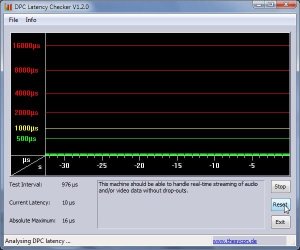
Here's how I got there.
Nothing in the startup folder
Remark out all background processes in the registry's startup <run> key.
(same as msconfig/startup tab) Most of it is junk loaded in the system tray.
Empty "Task Scheduler".
Services: Set as many services possible to manual, some do not have that option, of course they are left as is. Reboot, make note of what services are started and change them to automatic. (this remains flexible as the audio subsystems should be enabled as well any services that are needed for specific operations)
I can post a list if anyone's interested.
These services can cause performance interruptions, also... any services related to nVidia and ATI tend to add some performance overhead. (especially nVidia)
Browser Defender Update Srv ----------manual
Block Level Backup Srv-----------------manual
Disk Defragmenter Srv------------------manual
Windows Defender Srv------------------manual
Error Reporting Srv---------------------manual
Bluetooth Support---------------------manual
(Nvidia/ATI)---------------------------manual
Virus/Malware checking is done manually by PCTools "Spyware Doctor".
Backups are done manually by Macrium's "Reflect" free personal edition. (great stuff).
Set Power Options processor management to Min/Max 100%.
Under Control Panel/System/Advanced System Settings/Performance Options.
Under the visual tab, most everything off unless a client complains Windows 7 looks like Win 98. The graphics subsystem that does Aero and transparencies can use CPU cycles but I generally leave that up to the individual.
Under the Performance/Advanced tab set processor resources to "Background Services", audio drivers fall under this category, improves real-time latency.
Under System protection - Restore off on all drives.
Under Remote - Everything disabled.
Basically.. I shut everything down possible because I think :huh: I can do it better myself. (so far, so good).
The main benefit is, a -much- smoother running system that can manage to record multiple 24-bit audio while playing back dozens more.
oops.. almost forgot. Usually go to the manufacturers site for the most recent drivers for network controllers & system audio, also run the latest BIOS as MB manufacturers are still tweaking their BIOS for Win7.
and....
In device manager disable any devices not being used, 1394 (Firewire)...etc.
In BIOS disable ports not being used, usually serial & printer.
Ap



