10 Windows speed tips that DON'T work.

I usually just go into my services and features, and disable any that I will not be using. I would have to say boot up performance is definitely increased, but duration after the computer has loaded seems minimally affected.

And as far as unloading DLLs, I believe it is true that they are kept loaded even after the program closes, I'm pretty sure of it. Although I would not suspect such a thing to be a problem unless the computer had little RAM. I was actually taught in when coding to unload DLLs after use, but this was mostly used to prevent memory leaks, and often only loaded DLLs that were rarely used in operations of the program.
 

My Computer My Computer

Computer Manufacturer/Model Number
Toshiba A505-S6960
OS
Windows 7 Home Premium x64
CPU
Intel Core 2 Duo T6500 / 2.1 GHz
Memory
4.0GB Dual-Channel DDR2 @ 398MHz (6-6-6-18)
Graphics Card(s)
Onboard - Intel GMA 4500MHD 128MB
Sound Card
Onboard
I usually just go into my services and features, and disable any that I will not be using. I would have to say boot up performance is definitely increased, but duration after the computer has loaded seems minimally affected.

I experimented extensively with services and I found maybe a second's difference in boot time with some of the services disabled as opposed to their stock manual setting. I did leave a few disabled for services that I do not use and for security reasons (such as remote management). Windows 7 manages services very, very well - not at all like XP or even Vista. Win 7 loads services as it needs them and unloads them if they are not needed. That is why you didn't see a difference in performance after the initial loading of Windows.

And as far as unloading DLLs, I believe it is true that they are kept loaded even after the program closes, I'm pretty sure of it. Although I would not suspect such a thing to be a problem unless the computer had little RAM. I was actually taught in when coding to unload DLLs after use, but this was mostly used to prevent memory leaks, and often only loaded DLLs that were rarely used in operations of the program.
The old rules that we used for memory management in XP do not apply to Win 7. It is a brand new game. The Win 7 engineers got memory management right. Win 7 keeps priority items in RAM and low priority items either get removed or written to the pagefile, including dll's. There is no third party app, no tweak you can do to improve memory management in Win 7. This is not to say that some app may not come along down the road; but it is certainly not here yet. For best permance, leave Win 7 to manage memory and services on its own.
 

My Computer My Computer

Computer Manufacturer/Model Number
Home built
OS
Windows 7 Ultimate 32 bit
CPU
Intel(R) Pentium(R) 4 CPU 3.00GHz
Motherboard
ASUS P4P800-VM Motherboard Chipset: Intel 865G + ICH5
Memory
2.50 GB RAM
Graphics Card(s)
NVIDIA GeForce 7600 GS
Sound Card
SoundMax Integrated Digital Audio (Chip)
Monitor(s) Displays
ViewSonic VX 1962 wm
Screen Resolution
1680 X 1050
Hard Drives
Seagate Barracuda 7200.10 80 GB
ST380215A ATA Device 18.6 GB
Western Digital "My Book" external hard drive 750 GB
Cooling
Fan based
Keyboard
Microsoft Comfort Curve Keyboard 2000 v10 USB
Mouse
Logitec optic USB
Internet Speed
3.01 Mb/s download 0.64 Mb/s upload
In the "good old" days of expensive RAM and HDD space there were tweaks to minimize the use of both that were somewhat effective. But any performance boost even those tweaks might have offered were debatable.

Eliminating any unneeded services was often effective in conserving memory usage, so-so on CPU usage. Black Viper's Guides were a very good guide in that respect.

But with lower memory and HDD prices the benefit of the so-called performance tweak is dubious. Especially the "Always Unload DLLs". With the lower memory costs - load those DLLS and keep them loaded, IMO!

The most effective performance tweak available has always been, and remains so, is to turn off any eye-candy you can live without (IMO).

That said, with todays hardware (memory, CPU and HDD) costs the "secret" registry and service tweaks can be far more problematic than they are worth. For instance, the success of adding a software app or a new piece of hardware at some future date may depend on a registry setting or a service that was altered/disabled long ago and forgotten.

It is nice to, finally, have affordable machines that can run Windows as installed "out of the box" without fighting for every processor cycle and I/O read/write.

The "good old" days of DOS with memory expansion cards and drivers were NOT that good.... :eek:
 

My Computer My Computer

OS
XP Pro & Vista Home Premium (x86); Windows Ultimate 7600 x64 Retail
In addition - to my previous posts - the only fine-tuning I engage in is using msconfig to disable particular start-up entries -- but it's never a permanent change (i.e. easy to put back).
 

My Computer My Computer

OS
Windows XP - Now Windows 7 Home Premium (64-bit).
In the "good old" days of expensive RAM and HDD space there were tweaks to minimize the use of both that were somewhat effective. But any performance boost even those tweaks might have offered were debatable.

Eliminating any unneeded services was often effective in conserving memory usage, so-so on CPU usage. Black Viper's Guides were a very good guide in that respect.

But with lower memory and HDD prices the benefit of the so-called performance tweak is dubious. Especially the "Always Unload DLLs". With the lower memory costs - load those DLLS and keep them loaded, IMO!

The most effective performance tweak available has always been, and remains so, is to turn off any eye-candy you can live without (IMO).

That said, with todays hardware (memory, CPU and HDD) costs the "secret" registry and service tweaks can be far more problematic than they are worth. For instance, the success of adding a software app or a new piece of hardware at some future date may depend on a registry setting or a service that was altered/disabled long ago and forgotten.

It is nice to, finally, have affordable machines that can run Windows as installed "out of the box" without fighting for every processor cycle and I/O read/write.

The "good old" days of DOS with memory expansion cards and drivers were NOT that good.... :eek:

Well said. +1
 

My Computer My Computer

Computer Manufacturer/Model Number
Home built
OS
Windows 7 Ultimate 32 bit
CPU
Intel(R) Pentium(R) 4 CPU 3.00GHz
Motherboard
ASUS P4P800-VM Motherboard Chipset: Intel 865G + ICH5
Memory
2.50 GB RAM
Graphics Card(s)
NVIDIA GeForce 7600 GS
Sound Card
SoundMax Integrated Digital Audio (Chip)
Monitor(s) Displays
ViewSonic VX 1962 wm
Screen Resolution
1680 X 1050
Hard Drives
Seagate Barracuda 7200.10 80 GB
ST380215A ATA Device 18.6 GB
Western Digital "My Book" external hard drive 750 GB
Cooling
Fan based
Keyboard
Microsoft Comfort Curve Keyboard 2000 v10 USB
Mouse
Logitec optic USB
Internet Speed
3.01 Mb/s download 0.64 Mb/s upload
Well, I do agree that Windows 7 is much better and faster than previous OS versions. It is also clear that with enough memory and hard drive space one does not need most of the so-called "performance tweaks". And I would definitely agree that wholesale removal of registry entries by those so-called 'tune-up' utilities and even CCleaner is not a good idea.

Still, I find that Windows Installer can use a lot of improvement. From time to time I try a new app and more often than not end up uninstalling it. Almost never the stock uninstaller removes all traces of the app. Registry entries, folders and files in various system and/or user directories are routinely left behind. So, if you do this - install and uninstall apps - often, then you see ever growing number of such left-overs. Most likely they do not affect your PC's performance by themselves. But, any kind of scan - anti-virus, malware, defragmentation, even disk clean-up - gets slower, since there are more files to go through. Search produces more irrelevant results. Finally, for some people - such as myself - it's simply too annoying to have to keep this useless stuff.

Same can be said regarding Windows Services. Can anyone explain to me, why would the out-of-the-box Windows enable Tablet services on my desktop? Do I really need services for smart cards and bluetooth devices if I don't have any? Is it too paranoid to consider remote registry and remote desktop to be a security risk, let alone the fact that I would never use them anyways?

I would probably agree that "straightening out" the OS along these lines has nothing to do with performance. But it would be very nice if there were some app to help me out with it. Unfortunately I have yet to see such an app, and thus I have to concur with my fellow posters in this thread - most of the 'tune-up' utilities are a waste of time and money at best, some of them would even make you more trouble.
 

My Computer My Computer

Computer Manufacturer/Model Number
Dell Inspiron 530
OS
Windows 7 Ultimate (x64)
CPU
Q6600
Memory
8 GB
Graphics Card(s)
ATI Radeon HD 2600 XT
Monitor(s) Displays
Samsung Syncmaster P2450
Screen Resolution
1920x1080
Hard Drives
Samsung HD103UJ
Samsung HD501LJ
Internet Speed
25 Mb/s
Well, I do agree that Windows 7 is much better and faster than previous OS versions. It is also clear that with enough memory and hard drive space one does not need most of the so-called "performance tweaks". And I would definitely agree that wholesale removal of registry entries by those so-called 'tune-up' utilities and even CCleaner is not a good idea.

Still, I find that Windows Installer can use a lot of improvement. From time to time I try a new app and more often than not end up uninstalling it. Almost never the stock uninstaller removes all traces of the app. Registry entries, folders and files in various system and/or user directories are routinely left behind. So, if you do this - install and uninstall apps - often, then you see ever growing number of such left-overs. Most likely they do not affect your PC's performance by themselves. But, any kind of scan - anti-virus, malware, defragmentation, even disk clean-up - gets slower, since there are more files to go through. Search produces more irrelevant results. Finally, for some people - such as myself - it's simply too annoying to have to keep this useless stuff.

You can use Revo uninstaller; It does a pretty good job of getting rid of all traces of a program.

Same can be said regarding Windows Services. Can anyone explain to me, why would the out-of-the-box Windows enable Tablet services on my desktop? Do I really need services for smart cards and bluetooth devices if I don't have any? Is it too paranoid to consider remote registry and remote desktop to be a security risk, let alone the fact that I would never use them anyways?
Remember that Windows 7 OS is designed to fit users' needs worldwide. Like you you, I don't use Bluetooth, smart cards, or Tablet. However, there are a lot of folks that do. Win 7 is designed to make it easy for them to "plug and play". I, too, disabled these - not that they hurt anything.

I also disabled remote registry and remote desktop for security reasons. I do realize that Win 7 Ultimate was developed for the business world where the IT folks use these tools through their business LAN's.

The caveat to disabling services is that many are interdependent. You have have to carefully look at dependencies to make sure that disabling a particular service does not affect another service that you need.

I would probably agree that "straightening out" the OS along these lines has nothing to do with performance. But it would be very nice if there were some app to help me out with it. Unfortunately I have yet to see such an app, and thus I have to concur with my fellow posters in this thread - most of the 'tune-up' utilities are a waste of time and money at best, some of them would even make you more trouble.
We agree. :D
 

My Computer My Computer

Computer Manufacturer/Model Number
Home built
OS
Windows 7 Ultimate 32 bit
CPU
Intel(R) Pentium(R) 4 CPU 3.00GHz
Motherboard
ASUS P4P800-VM Motherboard Chipset: Intel 865G + ICH5
Memory
2.50 GB RAM
Graphics Card(s)
NVIDIA GeForce 7600 GS
Sound Card
SoundMax Integrated Digital Audio (Chip)
Monitor(s) Displays
ViewSonic VX 1962 wm
Screen Resolution
1680 X 1050
Hard Drives
Seagate Barracuda 7200.10 80 GB
ST380215A ATA Device 18.6 GB
Western Digital "My Book" external hard drive 750 GB
Cooling
Fan based
Keyboard
Microsoft Comfort Curve Keyboard 2000 v10 USB
Mouse
Logitec optic USB
Internet Speed
3.01 Mb/s download 0.64 Mb/s upload
Interesting read -- and I simply think Windows 7 needs very little tweaking, out of the box IMO . Thanks JMH.

Depends on what you're doing, if it's real-time operations Windows 7 needs plenty of tweaks. Don't know about the 10 tweaks mentioned here but I have a (required) list that I perform on machines built for professional audio recording.

So far the all-time champ for this type of work is Windows XP, low overhead and reliable.

Ap
 

My Computer My Computer

Computer Manufacturer/Model Number
Assembled in my workshop
OS
Windows 7 Home Premium
CPU
Intel Core 2 Duo @ 3.00gHz
Motherboard
Gigabyte GA-P35-S3G
Memory
4 GB
Graphics Card(s)
ATI Radeon HD 2600 XT
Sound Card
RME 24/96 Card, Realtek Internal Audio PreSonus FireStudio
Monitor(s) Displays
Acer 1917 (x2)
Screen Resolution
1280 x 1024 on both monitors
Hard Drives
Three 250GB Seagate SATA Barracuda 7200rpm
PSU
Rosewill 500-watt
Case
Rosewill mid-tower
Cooling
Noctua NH-U9B (CPU), PwrSupply fan + single large case Fan
Keyboard
Macally w/2/USB ports.
Mouse
Trackman Wheel
Other Info
Event 20/20 bas studio monitors, Yamaha sub.
Rackmount Korg/Roland/Yamaha synthesizers,
Cubase MIDI/audio recording. Sony Soundforge audio/mastering software. CD Architect Mastering. RME & Presonus audio interfaces.
Interesting read -- and I simply think Windows 7 needs very little tweaking, out of the box IMO . Thanks JMH.

Depends on what you're doing, if it's real-time operations Windows 7 needs plenty of tweaks. Don't know about the 10 tweaks mentioned here but I have a (required) list that I perform on machines built for professional audio recording.

So far the all-time champ for this type of work is Windows XP, low overhead and reliable.

Ap

Post your list please.
 

My Computer My Computer

Computer type
Laptop
Computer Manufacturer/Model Number
Apple
OS
El Capitan / Windows 10
CPU
i7-4980HQ
Memory
16GB
Graphics Card(s)
Iris 5200
Interesting read -- and I simply think Windows 7 needs very little tweaking, out of the box IMO . Thanks JMH.

Depends on what you're doing, if it's real-time operations Windows 7 needs plenty of tweaks. Don't know about the 10 tweaks mentioned here but I have a (required) list that I perform on machines built for professional audio recording.

So far the all-time champ for this type of work is Windows XP, low overhead and reliable.

Ap

Oh well, horses for courses ....:zip:
 

My Computer My Computer

OS
Windows XP - Now Windows 7 Home Premium (64-bit).
Depends on what you're doing, if it's real-time operations Windows 7 needs plenty of tweaks. Don't know about the 10 tweaks mentioned here but I have a (required) list that I perform on machines built for professional audio recording.

So far the all-time champ for this type of work is Windows XP, low overhead and reliable.

Ap

Post your list please.

Remember, this is not for everyone as it only relates to real-time performance.

First thing is to check DPC latency using this tool

DPC Latency Checker

Download the PDF product sheet as well, it gives info on use and development.

Here's a screeshot of my current system's DPC latency.
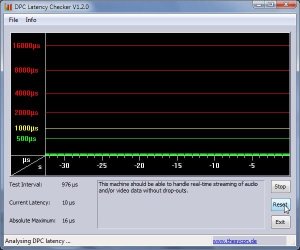
DPCLatency.jpg

Here's how I got there.

Nothing in the startup folder

Remark out all background processes in the registry's startup <run> key.
(same as msconfig/startup tab) Most of it is junk loaded in the system tray.

Empty "Task Scheduler".

Services: Set as many services possible to manual, some do not have that option, of course they are left as is. Reboot, make note of what services are started and change them to automatic. (this remains flexible as the audio subsystems should be enabled as well any services that are needed for specific operations)

I can post a list if anyone's interested.

These services can cause performance interruptions, also... any services related to nVidia and ATI tend to add some performance overhead. (especially nVidia)

Browser Defender Update Srv ----------manual
Block Level Backup Srv-----------------manual
Disk Defragmenter Srv------------------manual
Windows Defender Srv------------------manual
Error Reporting Srv---------------------manual
Bluetooth Support---------------------manual
(Nvidia/ATI)---------------------------manual

Virus/Malware checking is done manually by PCTools "Spyware Doctor".
Backups are done manually by Macrium's "Reflect" free personal edition. (great stuff).

Set Power Options processor management to Min/Max 100%.

Under Control Panel/System/Advanced System Settings/Performance Options.

Under the visual tab, most everything off unless a client complains Windows 7 looks like Win 98. The graphics subsystem that does Aero and transparencies can use CPU cycles but I generally leave that up to the individual.

Under the Performance/Advanced tab set processor resources to "Background Services", audio drivers fall under this category, improves real-time latency.

Under System protection - Restore off on all drives.
Under Remote - Everything disabled.

Basically.. I shut everything down possible because I think :huh: I can do it better myself. (so far, so good).

The main benefit is, a -much- smoother running system that can manage to record multiple 24-bit audio while playing back dozens more.

oops.. almost forgot. Usually go to the manufacturers site for the most recent drivers for network controllers & system audio, also run the latest BIOS as MB manufacturers are still tweaking their BIOS for Win7.

and....

In device manager disable any devices not being used, 1394 (Firewire)...etc.
In BIOS disable ports not being used, usually serial & printer.

Ap

 
Last edited:

My Computer My Computer

Computer Manufacturer/Model Number
Assembled in my workshop
OS
Windows 7 Home Premium
CPU
Intel Core 2 Duo @ 3.00gHz
Motherboard
Gigabyte GA-P35-S3G
Memory
4 GB
Graphics Card(s)
ATI Radeon HD 2600 XT
Sound Card
RME 24/96 Card, Realtek Internal Audio PreSonus FireStudio
Monitor(s) Displays
Acer 1917 (x2)
Screen Resolution
1280 x 1024 on both monitors
Hard Drives
Three 250GB Seagate SATA Barracuda 7200rpm
PSU
Rosewill 500-watt
Case
Rosewill mid-tower
Cooling
Noctua NH-U9B (CPU), PwrSupply fan + single large case Fan
Keyboard
Macally w/2/USB ports.
Mouse
Trackman Wheel
Other Info
Event 20/20 bas studio monitors, Yamaha sub.
Rackmount Korg/Roland/Yamaha synthesizers,
Cubase MIDI/audio recording. Sony Soundforge audio/mastering software. CD Architect Mastering. RME & Presonus audio interfaces.
Interesting read -- and I simply think Windows 7 needs very little tweaking, out of the box IMO . Thanks JMH.

Depends on what you're doing, if it's real-time operations Windows 7 needs plenty of tweaks. Don't know about the 10 tweaks mentioned here but I have a (required) list that I perform on machines built for professional audio recording.

So far the all-time champ for this type of work is Windows XP, low overhead and reliable.

Ap

Post your list please.

Ditto, please post your list..... I do some work with Sound Forge, et al. They might be handy...
 

My Computer My Computer

OS
XP Pro & Vista Home Premium (x86); Windows Ultimate 7600 x64 Retail
p.s.

The reason for disabling devices and serial/parallel ports in the BIOS is the assumption that the user will be installing a high end audio card, can't really use the onboard $2 audio device for anything too serious as the freq response is uneven and the noise floor too high.

Digital audio/MIDI systems put a lot of strain on the system, data I/O invloves real-time streaming 30, 40 or more 24-bit 44.1kHz (or higher) wave files, along with native DSP effects and multiple monitor graphics.
Every bit of the PC's resources need to be available with the least amount of interference from the OS as possible.

Ap
 

My Computer My Computer

Computer Manufacturer/Model Number
Assembled in my workshop
OS
Windows 7 Home Premium
CPU
Intel Core 2 Duo @ 3.00gHz
Motherboard
Gigabyte GA-P35-S3G
Memory
4 GB
Graphics Card(s)
ATI Radeon HD 2600 XT
Sound Card
RME 24/96 Card, Realtek Internal Audio PreSonus FireStudio
Monitor(s) Displays
Acer 1917 (x2)
Screen Resolution
1280 x 1024 on both monitors
Hard Drives
Three 250GB Seagate SATA Barracuda 7200rpm
PSU
Rosewill 500-watt
Case
Rosewill mid-tower
Cooling
Noctua NH-U9B (CPU), PwrSupply fan + single large case Fan
Keyboard
Macally w/2/USB ports.
Mouse
Trackman Wheel
Other Info
Event 20/20 bas studio monitors, Yamaha sub.
Rackmount Korg/Roland/Yamaha synthesizers,
Cubase MIDI/audio recording. Sony Soundforge audio/mastering software. CD Architect Mastering. RME & Presonus audio interfaces.
Under the visual tab, most everything off unless a client complains Windows 7 looks like Win 98. The graphics subsystem that does Aero and transparencies can use CPU cycles but I generally leave that up to the individual.

You would actually use less CPU cycles with Aero. Only Aero is off-loaded to the Graphics card on Windows 7. The others are CPU only.
 

My Computer My Computer

Computer type
PC/Desktop
Computer Manufacturer/Model Number
Alienware Aurora ALX R4
OS
Windows 10 Pro (x64)
CPU
Intel Core i7-3930K (3.2GHz - 4.5GHz)
Motherboard
Alienware Aurora-R4 x79
Memory
4x Samsung 4GB PC3-12800 DDR3 (16GB 1600MHz)
Graphics Card(s)
Nvidia Geforce GTX 690
Sound Card
SteelSeries Siberia Elite
Monitor(s) Displays
Dell UltraSharp U3011
Screen Resolution
2560x1600
Hard Drives
Samsung 850 Pro 256 GB, Seagate 1TB Desktop Hybrid HDD, 2x Western Digital 4TB Green HDD
PSU
875W Some Dell PSU <.<
Case
Alienware Aurora ALX
Cooling
Custom Liquid Cooling (EK CPU & GPU blocks) dual EK 480RAD
Keyboard
Logitech G710+ Mechanical
Mouse
Logitech G700s
Internet Speed
Verizon Fios (50 mbps average)
Other Info
Server: Intel NUC D54250WYK: i5-4250U, 16GB, 256 GB mSATA, Windows Server 2012 R2
Under the visual tab, most everything off unless a client complains Windows 7 looks like Win 98. The graphics subsystem that does Aero and transparencies can use CPU cycles but I generally leave that up to the individual.

You would actually use less CPU cycles with Aero. Only Aero is off-loaded to the Graphics card on Windows 7. The others are CPU only.

Thanks for that, graphics is least what I'm sure about.
It was simple in WinXP.

Ap
 

My Computer My Computer

Computer Manufacturer/Model Number
Assembled in my workshop
OS
Windows 7 Home Premium
CPU
Intel Core 2 Duo @ 3.00gHz
Motherboard
Gigabyte GA-P35-S3G
Memory
4 GB
Graphics Card(s)
ATI Radeon HD 2600 XT
Sound Card
RME 24/96 Card, Realtek Internal Audio PreSonus FireStudio
Monitor(s) Displays
Acer 1917 (x2)
Screen Resolution
1280 x 1024 on both monitors
Hard Drives
Three 250GB Seagate SATA Barracuda 7200rpm
PSU
Rosewill 500-watt
Case
Rosewill mid-tower
Cooling
Noctua NH-U9B (CPU), PwrSupply fan + single large case Fan
Keyboard
Macally w/2/USB ports.
Mouse
Trackman Wheel
Other Info
Event 20/20 bas studio monitors, Yamaha sub.
Rackmount Korg/Roland/Yamaha synthesizers,
Cubase MIDI/audio recording. Sony Soundforge audio/mastering software. CD Architect Mastering. RME & Presonus audio interfaces.
I understand that services being stopped or disabled doesn't do much, and I would not stop superfetch. The things I do stop, and there are 4 of them, are tasks that are started at start up. LPRemove, and some others. Registry tweaks are risky too.
 

My Computer My Computer

OS
Window 7 Home Premium Dual Boot Ubuntu Linux
CPU
Phenom x3
Memory
4 gigs
Graphics Card(s)
N260GTX OCV4
Sound Card
built in HD
Monitor(s) Displays
CRT
Case
fish aquarium
Cooling
oil cooled
@Aphelion.. Thanks for the tips that you've listed above... Boosted my realtime performance considerably.. That DPC Latency Checker came out green for me pre-optimization with several smallish spikes that i leveled after following your mini-guide.. thanks again!!! So according to the website, we should be getting all green for the best real-time PC performance, right? That software should be at the forefront of any Windows tweaking effort!
 

My Computer My Computer

Computer Manufacturer/Model Number
DELL SXPS 1640
OS
Windows 7 x64 Professional SP1
CPU
Intel C2D T9550 2.66 GHz @ 2.793 GHz (Thanks ThrottleStop!!)
Motherboard
Intel PM45
Memory
8 GB DDR3
Graphics Card(s)
ATI MOBILITY RADEON 4670
Sound Card
CREATIVE XFI AUDIO NOTEBOOK
Monitor(s) Displays
16.1 WLED
Screen Resolution
1920x1080
Hard Drives
Seagate ST9500420AS 500GB (465GiBi) 7200 RPM Drive

External Drives:-
2 TB WD Essentials x 3
1 TB WD Mybook Gen 1
1 TB WD Mybook Gen 2
1 TB Seagate
1 TB Seagate
320 GB WD Scorpio Black (enclosed)
PSU
90W Dell Power Brick
Case
Dell Chassis
Cooling
Coolermaster Cooling Pad
Keyboard
Built-in backlighted Keyboard
Mouse
Logitech Wireless Mini Mouse
Internet Speed
4/0.5
@Aphelion.. Thanks for the tips that you've listed above... Boosted my realtime performance considerably.. That DPC Latency Checker came out green for me pre-optimization with several smallish spikes that i leveled after following your mini-guide.. thanks again!!! So according to the website, we should be getting all green for the best real-time PC performance, right? That software should be at the forefront of any Windows tweaking effort!

Solarmystic,

Yes, for best realtime performance you want to see all green, all the time.
Most modern systems can easily survive a single spike or two in the red.
Windows-XP because of it's lower overhead was considerably more forgiving.
Win-7 has extra layers of OS in both graphics and audio so it's prone to "cough" sooner than XP. Several contiguous red spikes will usually cause an audio glitch, more than this will cause video to drop frames to remain in sync.

Realtime I/O need minimal OS interference or at the least, efficient OS control.

I think Win-7 drivers will come up to speed. I'm hoping Microsoft is listening as there's been a host of audio issues with Win-7.

Ap

p.s. be warned... some of the services I've disabled relate to virus/malware protection.
I'm doing this on purpose because I have third party protection that I run manually.
 

My Computer My Computer

Computer Manufacturer/Model Number
Assembled in my workshop
OS
Windows 7 Home Premium
CPU
Intel Core 2 Duo @ 3.00gHz
Motherboard
Gigabyte GA-P35-S3G
Memory
4 GB
Graphics Card(s)
ATI Radeon HD 2600 XT
Sound Card
RME 24/96 Card, Realtek Internal Audio PreSonus FireStudio
Monitor(s) Displays
Acer 1917 (x2)
Screen Resolution
1280 x 1024 on both monitors
Hard Drives
Three 250GB Seagate SATA Barracuda 7200rpm
PSU
Rosewill 500-watt
Case
Rosewill mid-tower
Cooling
Noctua NH-U9B (CPU), PwrSupply fan + single large case Fan
Keyboard
Macally w/2/USB ports.
Mouse
Trackman Wheel
Other Info
Event 20/20 bas studio monitors, Yamaha sub.
Rackmount Korg/Roland/Yamaha synthesizers,
Cubase MIDI/audio recording. Sony Soundforge audio/mastering software. CD Architect Mastering. RME & Presonus audio interfaces.
In the "good old" days of expensive RAM and HDD space there were tweaks to minimize the use of both that were somewhat effective. But any performance boost even those tweaks might have offered were debatable.

Eliminating any unneeded services was often effective in conserving memory usage, so-so on CPU usage. Black Viper's Guides were a very good guide in that respect.

But with lower memory and HDD prices the benefit of the so-called performance tweak is dubious. Especially the "Always Unload DLLs". With the lower memory costs - load those DLLS and keep them loaded, IMO!

The most effective performance tweak available has always been, and remains so, is to turn off any eye-candy you can live without (IMO).

That said, with todays hardware (memory, CPU and HDD) costs the "secret" registry and service tweaks can be far more problematic than they are worth. For instance, the success of adding a software app or a new piece of hardware at some future date may depend on a registry setting or a service that was altered/disabled long ago and forgotten.

It is nice to, finally, have affordable machines that can run Windows as installed "out of the box" without fighting for every processor cycle and I/O read/write.

The "good old" days of DOS with memory expansion cards and drivers were NOT that good.... :eek:

Great post and very well said.
 

My Computer My Computer

Computer type
PC/Desktop
Computer Manufacturer/Model Number
Custom built by me.
OS
Windows 10 Pro
CPU
Intel Core i7-4770K (3.5Ghz)
Motherboard
Gigabyte G1 Sniper 5 (F10 Bios)
Memory
32 gig Corsair Dominator Platinum (4x8Gig)
Graphics Card(s)
Sapphire Tri-X R9 Fury
Sound Card
Soundblaster ZXR
Monitor(s) Displays
NEC PA242W 24" LCD Monitor
Screen Resolution
1920 x 1200
Hard Drives
Primary - Samsung 850 Pro (512gig), Samsung 840 Pro (256gig), 2TB WD Caviar Black.
PSU
EVGA Supernova 1000 G2
Case
Cooler Master HAF X
Cooling
Corsair H100i with Corsair Air Series SP120 Quiet Fans
Keyboard
Logitech Wireless Wave
Mouse
Logitech Performance MX
Internet Speed
High Speed Cable
Antivirus
Norton Security
Browser
IE11
Other Info
Memory Timings - 1866MHz @ 9-9-9-27-1T @ 1.5 volts
Maybe windows 7 is so much better because Microsoft decided to allow manufactures to say things rather than telling manufacturers what was what...
 

My Computer My Computer

OS
Window 7 Home Premium Dual Boot Ubuntu Linux
CPU
Phenom x3
Memory
4 gigs
Graphics Card(s)
N260GTX OCV4
Sound Card
built in HD
Monitor(s) Displays
CRT
Case
fish aquarium
Cooling
oil cooled
Back
Top