Solved Access 2007:Form Design Grid not showing

Ken9251

New member
Local time
7:34 AM
Messages
26
If I open Access and double click on one of the forms I have created, and then click on Design view, the form is displayed. What I do not see is a grid of small dots behind the the form to assist in the design of the form. I know they can be summoned but I do not know how.

Ken
 

My Computer My Computer

Computer Manufacturer/Model Number
Dell Studio XPS 8100
OS
Windows 7 Home Premium 64-bit
CPU
Intel Core i7 Processor 870
Memory
8 gb
Graphics Card(s)
1GB NVIDIA GeForce GTX 460
Monitor(s) Displays
Dell ST2320L
Hard Drives
1TB ATA
Sorry. Just realised I've got it wrong. I am using Access 2010 wirth a 2007 database.

Ken
 

My Computer My Computer

Computer Manufacturer/Model Number
Dell Studio XPS 8100
OS
Windows 7 Home Premium 64-bit
CPU
Intel Core i7 Processor 870
Memory
8 gb
Graphics Card(s)
1GB NVIDIA GeForce GTX 460
Monitor(s) Displays
Dell ST2320L
Hard Drives
1TB ATA
Hi, Ken!

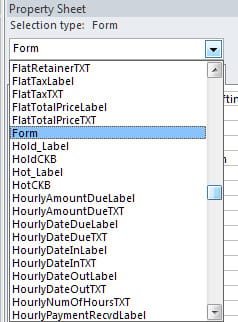
Go to the property sheet of your form (select the form, not an object within) then click "Property Sheet":

ScreenShot00515.jpg

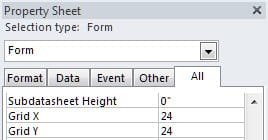
(Note: If you already have the properties sheet opened, just select "Form" from the drop down or verify it is in the box indicating it's the focus of the property sheet):

ScreenShot00516.jpg

After focusing on your Form in the properties sheet, check the settings for "Grid X" and "Grid Y":

ScreenShot00514.jpg
 

My Computer My Computer

Computer Manufacturer/Model Number
Toshiba L355D
OS
Windows 7 Ultimate x64 SP1
CPU
Core2 Duo
Motherboard
Intel
Memory
4 GB
Graphics Card(s)
GM965 on-board
Sound Card
RealTek on-board
Monitor(s) Displays
19"+17"(laptop)
Screen Resolution
1440x900 (x 2)
Hard Drives
500GB Ext. 200GB Internal
PSU
N/A
Case
N/A
Cooling
N/A
Hi Mickedl

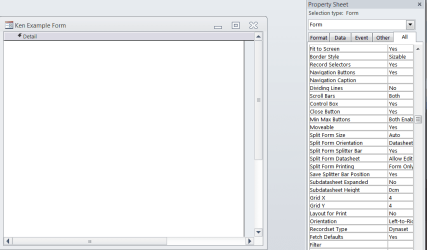
Thanks for your reply. I have used values between 4 and 24 in the Grid X and Grid Y properties and I still don't see a grid. Please see the attachment. This is what I did to get to that point:

Click on Create

Click on Form Design

It is seems so simple that I have a feeling I am missing something so obvious.

KenCapture.PNG

Th
 

My Computer My Computer

Computer Manufacturer/Model Number
Dell Studio XPS 8100
OS
Windows 7 Home Premium 64-bit
CPU
Intel Core i7 Processor 870
Memory
8 gb
Graphics Card(s)
1GB NVIDIA GeForce GTX 460
Monitor(s) Displays
Dell ST2320L
Hard Drives
1TB ATA
Try this.

On the Ribbon, click Arrange. In the Sizing & Ordering section, click the Size/Space button and click Grid.

Right-click the form and click Grid.

Also, see this execllent tutorial set on Access.

Microsoft Access 2010
 

My Computer My Computer

Computer Manufacturer/Model Number
Too many to describe...
OS
Windows 7 x64 pro/ Windows 7 x86 Pro/ XP SP3 x86
Hi Bill

That did it! I'm from the UK so the grid settings had to be 9 or less, because we work in cms. Until I realised this, I got some confusing results.

My thanks to both of you for sorting me out.

Ken
 

My Computer My Computer

Computer Manufacturer/Model Number
Dell Studio XPS 8100
OS
Windows 7 Home Premium 64-bit
CPU
Intel Core i7 Processor 870
Memory
8 gb
Graphics Card(s)
1GB NVIDIA GeForce GTX 460
Monitor(s) Displays
Dell ST2320L
Hard Drives
1TB ATA
Quick-Ref picture to show how to turn on the Grid

A picture makes life so much easier.
I just ran into this issue of where is my grid.
So, after 30 minutes of fishing... I found it, again.
This time I added a picture for the How-To.
Russ
 

Attachments

  • HOW-TO-SEE-THE-GRID-V2010-May2017.png
    HOW-TO-SEE-THE-GRID-V2010-May2017.png
    63.4 KB · Views: 1

My Computer My Computer

Computer type
PC/Desktop
Computer Manufacturer/Model Number
HP
OS
64bit
Back
Top