
How to Enable or Disable Aero Shake in Windows 7 and Windows 8
Information
This tutorial will show you how to enable or disable Aero Shake for all or specific users in Windows 7 and Windows 8.
Warning
Aero Requirements to be Enabled in Windows 7
NOTE: If Aero is not enabled, then Aero Shake will still not work even when enabled or turned on.
NOTE: If Aero is not enabled, then Aero Shake will still not work even when enabled or turned on.
- Aero is not included in Windows 7 Starter or Home Basic, so you must have Windows 7 Home Premium, Professional, Ultimate, or Enterprise installed.
- 1 GHz 32-bit or 64-bit processor
- 1 GB of system memory
- A graphics card with support for DirectX 9 graphics with at least 128 MB of memory.
- The graphics card must support Pixel Shader 2.0 and the Windows Display Driver Model (WDDM).
- The Desktop Window Manager Session Manager and Themes Services need to be set as Started and Automatic.
- You must be have True Color (32 bit) set instead of High Color (16 bit).
- Desktop composition needs to be enabled (checked) in Visual Effects.
- Refresh or update your WEI score.
OPTION ONE
To Enable or Disable "Aero Shake" using a REG File
2. To Enable Aero Shake for All Users
NOTE: This is the default setting. A) Click/tap on the Download button below to download the file below, and go to step 4 below. Enable_Aero_Shake.reg
Download
3. To Disable Aero Shake for All Users A) Click/tap on the Download button below to download the file below, and go to step 4 below. Disable_Aero_Shake.reg
Download
4. Save the .reg file to your desktop.
5. Double click/tap on the downloaded .reg file to merge it.
6. If prompted, click/tap on Run, Yes (UAC), Yes, and OK to approve the merge.
7. Log off and log on, or restart the computer to apply.
8. When done, you can delete the downloaded .reg file if you like.
OPTION TWO
To Enable or Disable "Aero Shake" in Group Policy
2. In the left pane, click/tap on to expand User Configuration, Administrative Templates, and Desktop. (See screenshot below)
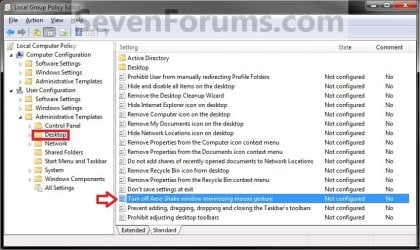
3. In the right pane of Desktop, double click/tap on Turn off Aero Shake window minimizing mouse gesture to edit it. (See screenshot above)
4. Do step 5 or 6 below for what you would like to do.
5. To Enable Aero Shake A) Select (dot) either Not Configured or Disabled, and go to step 7 below. (See screenshot below step 7)
NOTE: Not Configured is the default setting.
6. To Disable Aero Shake A) Select (dot) Enabled, and go to step 7 below. (See screenshot below step 7)
7. Click/tap on OK. (See screenshot below)
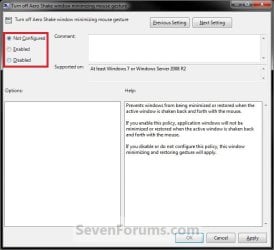
8. Close the Local Group Policy Editor window.
That's it,
Shawn
Attachments
Last edited:


