
How to Have "Always use selected program" Always Checked or Unchecked in "Open with"
Information
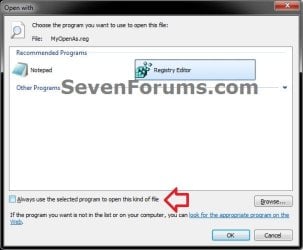
This will show you how to have the Always use the selected program to open this kind of file check box to always be checked or unchecked by default in the Open with dialog box in Windows 7 and Vista.
You must be logged in as an administrator to be able to do this tutorial.
You must be logged in as an administrator to be able to do this tutorial.
Note
This option was found and created by Daniel Martín at the source website below:
How to display the "Open With" dialog box with the "Always associate this program" checkbox unchecked by default | The Hows and Whys of Windows
How to display the "Open With" dialog box with the "Always associate this program" checkbox unchecked by default | The Hows and Whys of Windows
EXAMPLE: "Open with" with "Always use selected program" Always Unchecked by Default
OPTION ONE
To Have "Always use selected program" Check Box Always Unchecked by Default
1. Go to the site below, or click on the Download button below, to download the MyOpenAs.zip file.
How to display the "Open With" dialog box with the "Always associate this program" checkbox unchecked by default | The Hows and Whys of Windows
OR
Download
OR
(Direct download below)
Download
2. Click on Save, save the zip file to your desktop, and extract all (drag and drop) contents of the zip to your desktop. (see screenshot below)
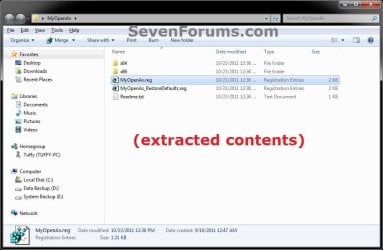
3. Do either step 4 or 5 below depending on if you have 32-bit (x86) or 64-bit(x64) Windows 7 or Vista installed.
4. If you have 32-bit (x86) Windows 7 or Vista Installed
A) Open the extracted x86 folder from step 2, and copy and paste the MyOpenAs.dll file into the C:\Windows\System32 folder.
B) If prompted, click on Continue and Yes to approve pasting it into the C:\Windows\System32 folder.
C) Go to step 6.
5. If you have 64-bit (x64) Windows 7 or Vista Installed
A) Open the extracted x64 folder from step 2, and copy and paste the MyOpenAs.dll file into the C:\Windows\System32 folder.
B) If prompted, click on Continue and Yes to approve pasting it into the C:\Windows\System32 folder.
C) Go to step 6.
6. Right click on the extracted MyOpenAs.reg file from step 2, and click on Merge.
7. If prompted, click on Run, Yes (UAC-Windows 7) or Continue (UAC-Vista), Yes, and OK.
8. Go to the site below, and follow the instructions there.
How to display the "Open With" dialog box with the ?Always associate this program? checkbox unchecked by default ? Part III | The Hows and Whys of Windows
OPTION TWO
To Have "Always use selected program" Check Box Always Checked by Default
NOTE: This is the default setting.
1. Go to the site below, or click on the Download button below, to download the MyOpenAs.zip file.
How to display the "Open With" dialog box with the "Always associate this program" checkbox unchecked by default | The Hows and Whys of Windows
OR
Download
OR
(Direct download below)
Download
2. Click on Save, save the zip file to your desktop, and extract all (drag and drop) contents of the zip to your desktop. (see screenshot below)
3. Right click on the extracted MyOpenAs_RestoreDefaults.reg file from step 2, and click on Merge.
4. If prompted, click on Run, Yes (UAC-Windows 7) or Continue (UAC-Vista), Yes, and OK.
5. Open the C:\Windows\System32 folder in Windows Explorer, and delete the MyOpenAs.dll file. (see screenshot below)
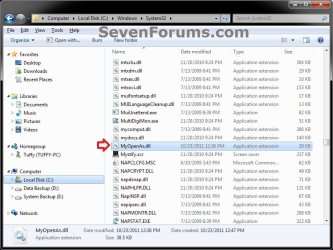
6. If prompted by UAC, then click on Yes (Windows 7) or Continue (Vista) to approve deleting it.
7. Go to the site below, and follow the instructions there.
How to display the "Open With" dialog box with the ?Always associate this program? checkbox unchecked by default ? Part III | The Hows and Whys of Windows
That's it,
Shawn
Related Tutorials
- How to Add or Remove "Always use selected program" in Open With
- How to Associate a File Type or Protocol Default Program in Window 7
- How to Set Default Associations for a Program in Windows 7
- How to Hide or Show Known File Type Extensions in Windows 7
- How to Add "Show/Hide Known File Extensions" to Context Menu in Vista and Windows 7
- How to Change the Default Program a File Type Opens with in Windows 7
- How to Remove or Restore the "Open with" Context Menu Item in Windows
- How to Clean Up and Remove Programs from the "Open with" Context Menu
- How to Add a Program to "Open with" in Windows 7
- How to Fix "Open with" Opening with Notepad or Error Message
- How to Add "Open with" to Context Menu of URL Files in Windows 7 and Vista
- How to Add "Open with" to Context Menu of BAT Files in Windows 7 and Vista
Attachments
Last edited:


