ducat1base,
You are still infected, and it changed its name. Let's see if we can nuke this from outside of Windows, but with access to the Registry.
Please do the following...
Since the computer boots, let's run the Farbar Recovery Scan Tool from the hard drive that contains your Operating System (normally C:\).
(Doing this, since you may not have another computer.)
Please print these instructions, and read them once, so you have an idea of what you are doing.
Do follow them step by step.
Here we go...
:info:
FRST64.exe was previously saved to the Desktop
Right-click
Start, and select:
Open Windows Explorer
Look for drive C:\, or the drive that contains your Operating System (OS).
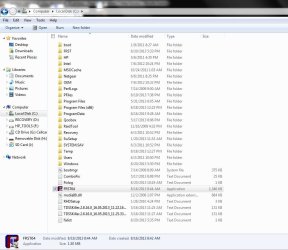
Now, go to the Desktop, right-click FRST64.exe just once and hold it, then drag FRST64 right into
C:
~~~~
Next, remove the
fixlist.txt previously on the Desktop. (To avoid confusion)
Open Notepad once again (Start > All Programs > Accessories > Notepad)
Copy the entire contents of the code box below to Notepad:
Code:
start
HKCU\...\CurrentVersion\Windows: [Load] C:\Users\Owner\LOCALS~1\Temp\msuamr.cmd <===== ATTENTION!
C:\Users\Owner\LOCALS~1\Temp\msuamr.cmd
end
Name it: fixlist.txt
Save it on
C:, which is the same place where FRST64 is at!
>>> Restart the computer.
As soon as the BIOS is loaded begin tapping the F8 key until the
Advanced Boot Options menu appears.
Use the arrow keys to select the
Repair your Computer menu item.
Select your language settings, and click: Next
Select your User account and click: OK/Next (If you did not set a password, leave blank.)
On the
System Recovery Options menu you get the following options:
Startup Repair
System Restore
Windows Complete PC Restore
Windows Memory Diagnostic Tool
Scan your computer's memory for errors.
Command Prompt
Select:
Command Prompt
~~~~
In the Command Prompt window, at the bliking cursor type:
notepad
(Note: Make sure the
NumLk key is not active. If it is, you are not able to type correctly at the Command Prompt. If NumLk is active, press the Fn key and then the NumLk to deactivate it.)
Press: Enter
In Notepad, under the File menu select: Open
Double-click: Computer (on the left side), find the drive letter that has the Operating System, and remember what letter it has.
(Note: Once in this special mode you booted into, the drive containing the Operating System (OS) may not be C:\ (or the particular drive that has your OS).
You need to examine the drives carefully, and determine which one is the correct drive.)
Click on the OS drive
In Files of Type, select: All files
Press: Open
Confirm that FRST.exe is there!
~~~~
Now, click the
Command Prompt window.
Type the following: ?:\frst64.exe, and press: Enter
(Note: Replace the ? with the drive letter that contains the OS.)
The tool starts and prepares to run. Follow the prompts.
Click Yes to the disclaimer.
~~~~
When the FRST console appears, press the
Fix button, just once, and wait.
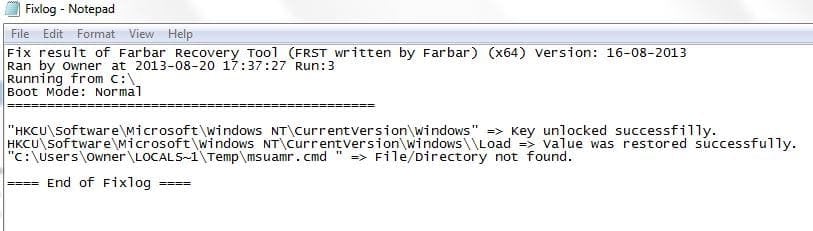
The tool creates a report called:
Fixlog.txt
~~~~
Back at
System Recovery Options, press:
Restart
~~~~
After the computer restarts, and you are back in Windows, do a search for:
Fixlog.txt
:ar: Please post the
Fixlog.txt in your reply.
:info: Double-click on the
Unhide program icon on the Desktop to run the program.
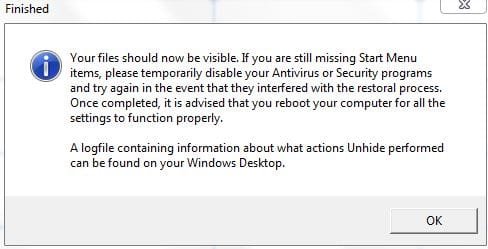
When done, the program displays an alert stating that your files are restored.
:ar: Post back on whether
Unhide gave you this alert!
Reboot your computer for the settings to go into effect.
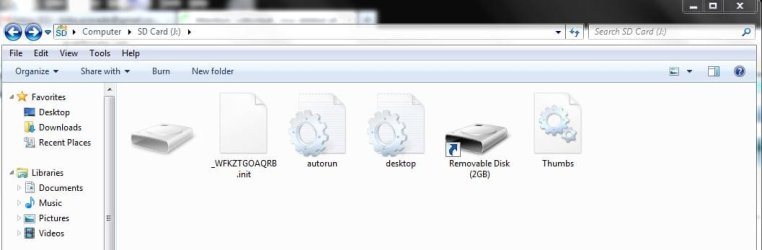
:info: Check the SD card, and see if the images show.