
Backup Complete Computer - Create an Image Backup

How to Create a System Image Backup in Windows 7

   Information
A system image is an exact copy of a drive. By default, a system image includes the drives required for Windows to run. A system image would include all NTFS formatted partitions with an operating system installed on it (ex: C ), as well as the System Reserved partition. These system partitions cannot be unselected. It also includes Windows and your system settings, programs, and files. You can use a system image to restore the contents of your computer if your hard disk or computer ever stops working. When you restore your computer from a system image, it's a complete restoration—you can't choose individual items to restore, and all of your current programs, system settings, and files are replaced with the contents of the system image.

This tutorial will show you how to create a system image (clone) backup of the entire hard drive or partition that Windows 7 is on, and any other selected drive or partition. You can use this image to be able to do a system image recovery to restore the hard drive or partition at boot back to the way it was at the time the backup image was created.

If you want to include additional drives in the system image, you can manually create a system image. If you manually create a system image, it can be saved on a USB flash drive, CDs, DVDs, or a hard drive.

If a system image was created through Windows Backup instead with the Include a System Image of Drives box checked, you can set Windows to retain as many system images as it has space for on the backup disk or to only keep the most recent system image.

   Note
Keeping different versions of system images

If you're saving your system images on an internal or external drive, or on CDs or DVDs, you can keep several versions of system images. On internal and external hard drives, older system images will be deleted when the drive runs out of space. To help conserve disk space, you can manually delete older system images.

Backup images are saved as backup periods in this format at the selected saved to location like the example below.

drive letter:\WindowsImageBackup\computer name\Backup YYYY-MM-DD HHMMSS

For example, if your computer name is Computer, your backup image location is on hard disk or partition (network or local) D: , and you backed up on 11/22/2008 at 1:00:50 PM (It uses 24 hour time), then that backup image would be located in the folder below.
D:\WindowsImageBackup\Computer\Backup 2008-11-22 130050
If you're saving your system images in a network location, you can only keep the most current system image for each computer. If you have an existing system image for a computer and are creating a new one for the same computer, the new system image will overwrite the existing one.


   Tip
If you want to keep multiple system image versions on the same drive or partition, then you can use either method below to do so.

METHOD ONE:
Change the maximum space used for system images on the drive letter you are saving the Windows Backup to by changing the maximum space used by System Protection for the same drive letter. This is the same setting.

You do not have to have System Protection turned on for the drive letter, but do need to adjust the maximum space to what you like.

The size of a system image can be quite large since it will include all system drives in the image by default plus any drives you have included. If you want to keep multiple system images, be sure to increase the max size accordingly.

METHOD TWO:

1. Navigate to the backup location above for where you saved a system image that you want to keep before creating a new system image.

2. Right click, or press and hold, on the WindowsImageBackup folder, and click/tap on Rename.

3. Rename it to something like WindowsImageBackup-Copy-1, press Enter, and click//tap on Yes if prompted by UAC.
NOTE: This way you can just easily change the 1 an the end of the name to 2, 3, 4, etc... for each new system image that you make a copy of.

4. You now have a different system image version that you can leave at this location to be able to keep multiple versions.


warnsmall.png
NOTE: When you want to restore a system image in a renamed WindowsImageBackup-Copy-1 folder in the future, then you must rename the current WindowsImageBackup folder first, then rename the WindowsImageBackup-Copy-1 folder back to WindowsImageBackup in order to be able to restore it. The WindowsImageBackup folder must be in the root directory of the drive, and not within another folder.

   Warning

  • Windows 7 can only include drives formatted with the NTFS file system in the system image.
  • Windows 7 cannot include the partition or drive that you are saving the backup image to in the image.
  • All "system" or "boot" drives/partitions are included in the system image by default, so you will not be able to save the system image to a system or boot drive/partition.
  • If you are saving the system image to a HDD or partition, then you can only save the system image on a separate hard drive (recommended) or partition than what Windows 7 is installed on. It cannot be saved to the C: drive.
  • Only the Windows 7 Professional, Ultimate, and Enterprise editions can backup to a network location.
  • You cannot restore a 64-bit Windows 7 backup image on a 32-bit system.
  • You cannot restore a 64-bit Windows 7 backup image with a 32 bit Windows 7 installation DVD or recovery partition, or the other way around. You must use the same 32-bit or 64-bit Windows 7 installation DVD or recovery partition as the backup image is.
  • A system image that was created on a computer using EFI cannot be restored on a computer using BIOS. It can only be restored on a computer using EFI.
  • When restoring a system image from a dynamic volume, the disks on your computer cannot be formatted to match the layout of the disks on the backup. To have full functionality, select a volume (partition) on a basic disk as your backup location instead.
  • I would recommend to create a system image on a separate HDD, or a separate partition on a separate HDD, for the best reliability to restore from it. CDs or DVDs are just not as reliable. A scratch one just one of them could ruin the whole image.


Here's How:
1. Open the Control Panel (icons view).

2. Click on the Backup and Restore icon.

3. Click on the Create a system image link. (See screenshot below)
Step1.jpg
4. If prompted by UAC, click on Yes.

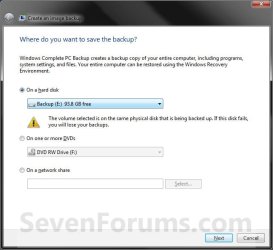
5. Select the location to where you would like to save the backup image at, and click on the Next button. (See screenshot below)
NOTE: See the Warning box at the top of the tutorial. Only the Windows 7 Professional, Ultimate, and Enterprise editions can backup to a network location.
Step2.jpg
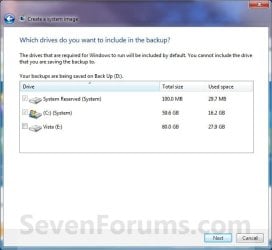
6. If available, check any additional hard drives or partitions (ex: Vista) that you would like to include in the backup image with the Windows 7 (System and C: ) partition or hard drive, and click on the Next button. (See screenshot below)
NOTE: See the WARNING box at the top of the tutorial. If you do not want to add any additional hard drives or partitions, then just leave the others unchecked. You will not see this, if you do not have any other OS installed other than Windows 7.
Step3.jpg
7. Click on the Start backup button. (See screenshot below)
Step4.jpg
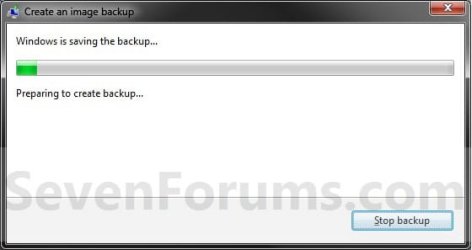
8. You will now see this window. (See screenshot below)
NOTE: If you wish to stop creating the backup image during this point, click on the Stop backup, Stop, and Close buttons.
Step5.jpg
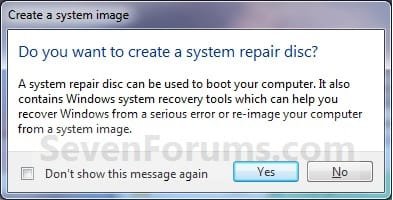
9. When it is finished you will see this create a System Repair disc pop-up window. Click on No. (See screenshot below)
NOTE: For how to always hide or show this message, see this tutorial.
Step7.jpg
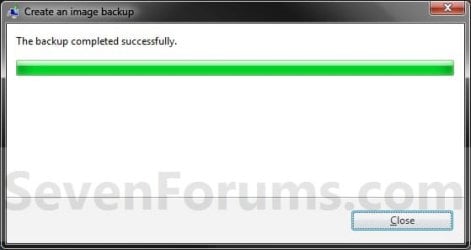
10. Click on the Close button. (See screenshot below)
Step8.jpg
11. Close the Backup and Restore window. (See screenshot below step 3)
That's it,
Shawn


Last edited:
Hello John, and welcome to Seven Forums.

It's not going to hurt anything no matter what you rename the backup folders just as long as you rename it back before trying to use it to do a system image recovery with. I'd say rename them to anything that makes it easier for you to know when and what they were for.

Unfortunately the only test to see if the images work or not is to try and do a system image recovery with them. It will either work or not. Usually if they do not work, then something has either corrupted them or they did not get moved back or rename to default before trying to restore with them. :(
 

My Computer

Computer type
PC/Desktop
Computer Manufacturer/Model Number
Self built custom
OS
64-bit Windows 11 Pro for Workstations
CPU
Intel i7-8700K OC'd to 5 GHz
Motherboard
ASUS ROG Maximus XI Formula Z390
Memory
64 GB (4x16GB) G.SKILL TridentZ RGB DDR4 3600 MHz
Graphics Card(s)
ASUS ROG-STRIX-GTX1080TI-O11G-GAMING
Sound Card
Integrated
Monitor(s) Displays
2 x Samsung Odyssey G7 27"
Screen Resolution
2560x1440
Hard Drives
1TB Samsung 990 PRO M.2,
4TB Samsung 990 PRO PRO M.2,
TerraMaster F8 SSD Plus NAS
PSU
Seasonic Prime Titanium 850W
Case
Thermaltake Core P3
Cooling
Corsair Hydro H115i
Keyboard
Logitech wireless K800
Mouse
Logitech MX Master 4
Internet Speed
2 Gb/s Download and 100 Mb/s Upload
Antivirus
Malwarebyte Anti-Malware Premium
Browser
Google Chrome
Other Info
Logitech Z625 speaker system,
Logitech BRIO 4K Pro webcam,
HP Color LaserJet Pro MFP M477fdn,
APC SMART-UPS RT 1000 XL - SURT1000XLI,
Galaxy S23 Plus phone
Naming convention for Backups

Hello John, and welcome to Seven Forums.

It's not going to hurt anything no matter what you rename the backup folders just as long as you rename it back before trying to use it to do a system image recovery with. I'd say rename them to anything that makes it easier for you to know when and what they were for.

Unfortunately the only test to see if the images work or not is to try and do a system image recovery with them. It will either work or not. Usually if they do not work, then something has either corrupted them or they did not get moved back or rename to default before trying to restore with them. :(

Hello Brink,

Thanks for the reply.
So basically when ever I do a backup using Windows 7 I will need to restore it in order to check if it's working? (which is Fine).
Some more questions (sorry)

1> If the restore fails for whatever reason will I still be able to use the existing system prior to the restore?
2> Is there a chance I will end up with nothing if the restore fails part way through for example?
3> Can I move the backup root folder to another larger HDD putting it in the root of the HDD and then restore from there?
4> Can I put a new larger HDD in my system to take the O/S, i.e. a New C: drive (formatted NTFS and pinned as Master) and restore the backup to this new HDD? from by backup HDD (seperate disk).

These questions have most definitely been asked before but am a newbie to forums (any tips on searching would be appreciated as I have not had much success so far), so please bare with me whilst I get the hang of it. :rolleyes::confused:

By the way I did a backup and within the backup root folder is a date & time named folder so should have did first and asked after, :o
apologies for an uneccessary question/s.


Without wishing to sound creepy, this is a great forum and I have read some of your posts which have been very easy to follow with a lot of detailed graphical guides, which believe me when it comes to easy to follow I definitely need, along with a lot of others I would guess.:cool:

Anyway Thanks Brink,
 

My Computer

Computer Manufacturer/Model Number
Custom Build
OS
Windows 7 Professional 64 bit
CPU
AMD Athlon II X2 240
Motherboard
GF8100 M2+ SE
Memory
DDR2 PC6400 (800MHz)
Graphics Card(s)
NVIDIA nForce 7300 GS
Monitor(s) Displays
Yuraku 1 Monitor
PSU
450 w
Case
Standard tower
You're most welcome PappaG.

Your questions are answered inline. :)

1> If the restore fails for whatever reason will I still be able to use the existing system prior to the restore?
Usually when a image recovery fails, it reverts back to the prior installation automatically.
2> Is there a chance I will end up with nothing if the restore fails part way through for example?
There's always a chance of say a power outage or somthing that may cause it to fail. If the system image is good, then you could just start the recovery over again. If the system image is not good and it didn't automatically revert to the prior installation, then you may need to do a clean reinstall.
3> Can I move the backup root folder to another larger HDD putting it in the root of the HDD and then restore from there?
I have not tried that, so I can't say for sure. If it doesn't work, then it should be able to by moving it back to the original location.
4> Can I put a new larger HDD in my system to take the O/S, i.e. a New C: drive (formatted NTFS and pinned as Master) and restore the backup to this new HDD? from by backup HDD (seperate disk).
Yes, you sure can. However, you will have unallocated space left over on the new larger drive for the size difference between what the image of the older drive was for and the new larger drive.


My Computer

Computer type
PC/Desktop
Computer Manufacturer/Model Number
Self built custom
OS
64-bit Windows 11 Pro for Workstations
CPU
Intel i7-8700K OC'd to 5 GHz
Motherboard
ASUS ROG Maximus XI Formula Z390
Memory
64 GB (4x16GB) G.SKILL TridentZ RGB DDR4 3600 MHz
Graphics Card(s)
ASUS ROG-STRIX-GTX1080TI-O11G-GAMING
Sound Card
Integrated
Monitor(s) Displays
2 x Samsung Odyssey G7 27"
Screen Resolution
2560x1440
Hard Drives
1TB Samsung 990 PRO M.2,
4TB Samsung 990 PRO PRO M.2,
TerraMaster F8 SSD Plus NAS
PSU
Seasonic Prime Titanium 850W
Case
Thermaltake Core P3
Cooling
Corsair Hydro H115i
Keyboard
Logitech wireless K800
Mouse
Logitech MX Master 4
Internet Speed
2 Gb/s Download and 100 Mb/s Upload
Antivirus
Malwarebyte Anti-Malware Premium
Browser
Google Chrome
Other Info
Logitech Z625 speaker system,
Logitech BRIO 4K Pro webcam,
HP Color LaserJet Pro MFP M477fdn,
APC SMART-UPS RT 1000 XL - SURT1000XLI,
Galaxy S23 Plus phone
PappaG, for testing my recovery disk and to evaluate the whole procedure, I always create a little 2GB test partition, copy some data into there and image that partition. Then I delete something from that test partition (usually a couple of pictures) and do a restore from the image. If the deleted pictures are back, I know the restore worked correctly. And in the process I learned the whole procedure.
That does not harm anything if there is a problem and I can repeat it as often as required without putting my system at risk.

If you want my advice, I would not use the Windows7 imaging. Even with Shawns wonderful tutorial, you will have your hands full to deal with it. Windows imaging has very poor functionality, is difficult to understand what it does and seems to be very unreliable (mostly because it is difficult to understand).

The most straight forward imaging program I have found if free Macrium. It has a lot of function, is easy to understand and works flawlessly. I have made many recoveries with it and there was never a problem or a doubt of what it was doing. If you want to have a look, here is my video tutorial for it: http://www.sevenforums.com/tutorials/73828-imaging-free-macrium.html?ltr=I
 

My Computer

Computer Manufacturer/Model Number
HP, Dell, Gateway, Toshiba - 4 laptops and 2 desktops
OS
Vista, Windows7, Mint Mate, Zorin, Windows 8
CPU
from 1.6GHz Duo to i7
Monitor(s) Displays
2x HP w2207
Hard Drives
5x HDD, 7x SSD, 12x Externals
Keyboard
with trackball - no mices
Mouse
Trackball mice
Internet Speed
DSL 6000
You're most welcome PappaG.

Your questions are answered inline. :)

3> Can I move the backup root folder to another larger HDD putting it in the root of the HDD and then restore from there?
"I have not tried that, so I can't say for sure. If it doesn't work, then it should be able to by moving it back to the original location."
4> Can I put a new larger HDD in my system to take the O/S, i.e. a New C: drive (formatted NTFS and pinned as Master) and restore the backup to this new HDD? from by backup HDD (seperate disk).
Yes, you sure can. However, you will have unallocated space left over on the new larger drive for the size difference between what the image of the older drive was for and the new larger drive.


Thanks for your help.

> I have now tried a Windows image backup.

> I then proceeded to carryout a restore earlier today (added folders and files, including deleting some also, after taking the image), being very nervious after spending a couple of days doing a fresh install of O/s and App's/programs and reactivating some of them also.
Restarted windows and went into what I can only describe as a basic driver windows (very much like when doing a fresh install of XP), the only reason I mention this is that during this operation it actually scans looking for the image/s (of which mine was on a seperate HDD) and eventually found it, also giving the option for selecting a different image. So there maybe a possibility of putting the image on another formatted HDD, I am waiting delivery of 2 new HDD's so I will try this out and let you know.
Restarted back into windows giving a message box saying success and asking if I want to restore files, but I had skipped this part so didn't need it.
Checked the created/deleted folders and files to discover they were either gone or returned.
Conclusion: Seemed very straight forward and worked well, including being quick. Whilst this lacks any additional functionality it did what I wanted it too so am very happy.
I have also installed Easeus and although not particularly user friendly seems to give me options for differentials etc, so I will use both to create an initial image of my system then use Easeus for folder/file backups.
If Easeus fails to impress I will use Macrium as suggested by WHS as this seems Ok and both are free.
I need to get myself in a position where I have a reliable backup that I can revert to with everything installed and running good and I am nearly there with my programs. Then I will focus on trying out several backup options but will probably still use Windows backup as I found this easy to use.

I have gone on way too long apologies.:sleepy::rolleyes:

Thank you for all your help and I dare say I will be popping back with other questions soon.:D

PappaG
(John)
 

My Computer

Computer Manufacturer/Model Number
Custom Build
OS
Windows 7 Professional 64 bit
CPU
AMD Athlon II X2 240
Motherboard
GF8100 M2+ SE
Memory
DDR2 PC6400 (800MHz)
Graphics Card(s)
NVIDIA nForce 7300 GS
Monitor(s) Displays
Yuraku 1 Monitor
PSU
450 w
Case
Standard tower
PappaG, for testing my recovery disk and to evaluate the whole procedure, I always create a little 2GB test partition, copy some data into there and image that partition. Then I delete something from that test partition (usually a couple of pictures) and do a restore from the image. If the deleted pictures are back, I know the restore worked correctly. And in the process I learned the whole procedure.
That does not harm anything if there is a problem and I can repeat it as often as required without putting my system at risk.

If you want my advice, I would not use the Windows7 imaging. Even with Shawns wonderful tutorial, you will have your hands full to deal with it. Windows imaging has very poor functionality, is difficult to understand what it does and seems to be very unreliable (mostly because it is difficult to understand).

The most straight forward imaging program I have found if free Macrium. It has a lot of function, is easy to understand and works flawlessly. I have made many recoveries with it and there was never a problem or a doubt of what it was doing. If you want to have a look, here is my video tutorial for it: http://www.sevenforums.com/tutorials/73828-imaging-free-macrium.html?ltr=I

WHS,

Thanks for your post and I hear what your saying and the video was great.
However I have created a successful image with windows so will be keeping that for a while at least. As for Macrium I will give it a try after testing out Easeus as I have already started playing with it (I am an average PC user) and want to see what it's pro's & con's are. I will probably be trying out several as I know what I want but finding it in one package is unlikely.:huh:

Very much appreciate your advice and I will definitely not put all my eggs in one basket as this has been a very painful lesson, I'd like a dollar for everytime I have said I must do a backup before something go's wrong, I would clearly be in a position to be able to pay Bill Gates to come around and install it personally:D:sarc:

This is a fresh install I'm doing so a golden opportunity to get it right this time.

Thanks again WHS,
 

My Computer

Computer Manufacturer/Model Number
Custom Build
OS
Windows 7 Professional 64 bit
CPU
AMD Athlon II X2 240
Motherboard
GF8100 M2+ SE
Memory
DDR2 PC6400 (800MHz)
Graphics Card(s)
NVIDIA nForce 7300 GS
Monitor(s) Displays
Yuraku 1 Monitor
PSU
450 w
Case
Standard tower
You're most welcome John. Just let us know if you have any other questions. :)
 

My Computer

Computer type
PC/Desktop
Computer Manufacturer/Model Number
Self built custom
OS
64-bit Windows 11 Pro for Workstations
CPU
Intel i7-8700K OC'd to 5 GHz
Motherboard
ASUS ROG Maximus XI Formula Z390
Memory
64 GB (4x16GB) G.SKILL TridentZ RGB DDR4 3600 MHz
Graphics Card(s)
ASUS ROG-STRIX-GTX1080TI-O11G-GAMING
Sound Card
Integrated
Monitor(s) Displays
2 x Samsung Odyssey G7 27"
Screen Resolution
2560x1440
Hard Drives
1TB Samsung 990 PRO M.2,
4TB Samsung 990 PRO PRO M.2,
TerraMaster F8 SSD Plus NAS
PSU
Seasonic Prime Titanium 850W
Case
Thermaltake Core P3
Cooling
Corsair Hydro H115i
Keyboard
Logitech wireless K800
Mouse
Logitech MX Master 4
Internet Speed
2 Gb/s Download and 100 Mb/s Upload
Antivirus
Malwarebyte Anti-Malware Premium
Browser
Google Chrome
Other Info
Logitech Z625 speaker system,
Logitech BRIO 4K Pro webcam,
HP Color LaserJet Pro MFP M477fdn,
APC SMART-UPS RT 1000 XL - SURT1000XLI,
Galaxy S23 Plus phone
Hi John, I think you are right. Trying out different options is the best way to find the solution that suits you best. I also have been on Norton Ghost (for 2 years on Vista), Paragon, Acronis, Macrium, Windows7 Imaging and a few others. It was only after that experience that I chose Macrium as the option that suited my need best.

Just one little hint. I personally think that incremental images are dangerous. Since each next one depends on the previous one, you lose everything if you lose one in the middle. That is different with differentials. That is one reason I always make full images. With the price of disk space today, that is no problem. And the full images are also easier to manage. I can e.g. delete any one without effecting the others.
 

My Computer

Computer Manufacturer/Model Number
HP, Dell, Gateway, Toshiba - 4 laptops and 2 desktops
OS
Vista, Windows7, Mint Mate, Zorin, Windows 8
CPU
from 1.6GHz Duo to i7
Monitor(s) Displays
2x HP w2207
Hard Drives
5x HDD, 7x SSD, 12x Externals
Keyboard
with trackball - no mices
Mouse
Trackball mice
Internet Speed
DSL 6000
Hi WHS,

Thank you for the alternatives, I did use Northon Ghost years ago so will definitely look at that as a pay option, as within reason I will need to way up the options between free & paid, if it does the job then I would be willing to pay.
With regard to incrementals and doing full images, you are absolutely right as managing multiple incrementals is more likely to cause problems especially if one is corrupt or missing. Also as it is only home data and not business data why should I make things more complicated than they need to be, so thanks very much for that excellent and sound advice.
This is another reason I am so glad for this forum.
I will be trying some options with swapping around new HDD's over the coming weeks and trying restoring images to and from them and will let you know how I get on.
Trying one option at a time, testing it then moving on to the next.

Thanks once again WHS,
 

My Computer

Computer Manufacturer/Model Number
Custom Build
OS
Windows 7 Professional 64 bit
CPU
AMD Athlon II X2 240
Motherboard
GF8100 M2+ SE
Memory
DDR2 PC6400 (800MHz)
Graphics Card(s)
NVIDIA nForce 7300 GS
Monitor(s) Displays
Yuraku 1 Monitor
PSU
450 w
Case
Standard tower
Hi John, you are very welcome. Norton Ghost served me well at the time. But with at least free Macrium and free Paragon around, I really do not think there is a need to pay for it.

As far as testing is concerned, I have developed this little scenario (see below) for the students in my computer club class. It is based on Macrium but can be applied to other imaging programs too. The advantage is that you need not put your system on the line and if it does not work, nothing dramatic has happened.

Imaging test

1. Shrink 2GBs from C and define a logical drive (partition) - let's call it Y
2. Move some files (any files) into Y - I always also move the sample picture folder in (you'll see why)
3. Define a test folder on your external backup disk - call it Mtest
4. Make an image of Y to Mtest - requires that you make a new definition
5. Delete a couple of pictures from the sample picture folder on Y (I always use the 2 animals)
6. Reboot and tap (ESC, F2 or whatever it is on your system) to get into the BIOS boot sequence
7. Set your boot sequence to CD/DVD reader
8. Throw in the Macrium recovery CD and let it run, then hit Enter
9. Now you are in the recovery wizard, set it to Mtest where it says "Locate Image" and to Y where it says "Choose partition to overwrite with the image data".
Note: the partition letters may not be the same as on your system. Macrium uses its own lettering. Best is to go by the size of the partitions and open it with the little + in the front.
10. Watch out when it asks whether to replace the Master Boot Record - in this case say "do not replace" because this is only a data partition. If that were your system partition, you would replace the MBR provided you do not have a separate boot partition.
11. When you get the little window saying "Your computer will now reboot", you have to hit "Cancel" (on the bottom" to get it to reboot. That's a little strange way to end the session, but that's the way it is.
12. Check whether the 2 animals in the sample picture folder are back. That shows you that the recovery worked.

When you have done these steps, you did the whole cycle and have learned

1. That your recovery disk works
2. How to recover
3. That things work

Now you can delete the little 2GB partition and add it back to it's originating partition.
If you are not familiar with the creation and deletion of partitions, watch this tutorial: http://www.sevenforums.com/tutorials/72427-data-partition.html
 

My Computer

Computer Manufacturer/Model Number
HP, Dell, Gateway, Toshiba - 4 laptops and 2 desktops
OS
Vista, Windows7, Mint Mate, Zorin, Windows 8
CPU
from 1.6GHz Duo to i7
Monitor(s) Displays
2x HP w2207
Hard Drives
5x HDD, 7x SSD, 12x Externals
Keyboard
with trackball - no mices
Mouse
Trackball mice
Internet Speed
DSL 6000
Hi WHS,

The free one's are my priority in trying them out and if they give me what I'm after then there would be no point looking any further.

I have done some of what you have suggested already but not creating partitions, so will definitely give it a go.

I will be adding 2 new HDD's that arrived today into my system over this weekend so will be doing some image backup & restores and will test out your 12 point procedure then.

I will of course update you on how I get on.

Thanks again.
 

My Computer

Computer Manufacturer/Model Number
Custom Build
OS
Windows 7 Professional 64 bit
CPU
AMD Athlon II X2 240
Motherboard
GF8100 M2+ SE
Memory
DDR2 PC6400 (800MHz)
Graphics Card(s)
NVIDIA nForce 7300 GS
Monitor(s) Displays
Yuraku 1 Monitor
PSU
450 w
Case
Standard tower
Good, keep us updated. Always good to share experiences. The 12 points procedure looks more complicated than it really is. I like things plain, simple and straight forward.
 

My Computer

Computer Manufacturer/Model Number
HP, Dell, Gateway, Toshiba - 4 laptops and 2 desktops
OS
Vista, Windows7, Mint Mate, Zorin, Windows 8
CPU
from 1.6GHz Duo to i7
Monitor(s) Displays
2x HP w2207
Hard Drives
5x HDD, 7x SSD, 12x Externals
Keyboard
with trackball - no mices
Mouse
Trackball mice
Internet Speed
DSL 6000
Good, keep us updated. Always good to share experiences. The 12 points procedure looks more complicated than it really is. I like things plain, simple and straight forward.

Will do.

I'm sure if I take my time I will be able to follow them thanks.

"I like things plain, simple and straight forward" Ditto, I would rather spend time trying to make something simple than rush in and spend even more time putting it right. Making it simpler makes it easier next time round.

Looking forward to being able to update over the weekend, like you said to share experiences has got to be good.

Thanks
 

My Computer

Computer Manufacturer/Model Number
Custom Build
OS
Windows 7 Professional 64 bit
CPU
AMD Athlon II X2 240
Motherboard
GF8100 M2+ SE
Memory
DDR2 PC6400 (800MHz)
Graphics Card(s)
NVIDIA nForce 7300 GS
Monitor(s) Displays
Yuraku 1 Monitor
PSU
450 w
Case
Standard tower
Is there a way to limit the backup just to the boot drive? for some reason it insist on including my entire game drive in the backup, it's nearly 1TB of data, leaving me incapable of creating a backup as I have no drive large enough to hold the roughly 1.35tb's of data it wants to backup.
 

My Computer

Computer Manufacturer/Model Number
Insane hobo technologies. ;-)
OS
Windows 7 x64
CPU
Intel i7 2600k
Motherboard
Asrock z68 extreme 4 gen 3
Memory
G.skill Ripjaw 16gigs @ 1866
Graphics Card(s)
Nvidia gtx580 (evga)
Sound Card
Integrated HD audio + hdmi
Monitor(s) Displays
24" ASUS widescreen + 42" insignia
Screen Resolution
1080p (1920x1080)
Hard Drives
128 Samsung 830
256 Samsung 840
3 x 1tb storage drive (various)
1 western digital 1tb (eSATA)
1 Seagate 1tb (eSATA)
PSU
1 kilowatt SLI/Crossfire rated Silverstone modular
Case
NZXT Phantom + additional 220 fan
Cooling
Zalmann
Keyboard
Microsoft wireless 3000 (v2)
Mouse
MS - wireless 5000 (bluetrack)
Internet Speed
depends on if you ask me or my provider.
Other Info
The above information is provided as is, and the author assumes no responsibility for issues it may cause with your sanity or fanboyism.

My Computer

Computer Manufacturer/Model Number
HP, Dell, Gateway, Toshiba - 4 laptops and 2 desktops
OS
Vista, Windows7, Mint Mate, Zorin, Windows 8
CPU
from 1.6GHz Duo to i7
Monitor(s) Displays
2x HP w2207
Hard Drives
5x HDD, 7x SSD, 12x Externals
Keyboard
with trackball - no mices
Mouse
Trackball mice
Internet Speed
DSL 6000
Is there a way to limit the backup just to the boot drive? for some reason it insist on including my entire game drive in the backup, it's nearly 1TB of data, leaving me incapable of creating a backup as I have no drive large enough to hold the roughly 1.35tb's of data it wants to backup.

Hello David,

Did you move your page file, any user folders, or any other system item to be stored and ran from your game drive?

If so, that would cause your game drive to be marked as a "System" drive in Disk Management and to be required to be included in the system image.
 

My Computer

Computer type
PC/Desktop
Computer Manufacturer/Model Number
Self built custom
OS
64-bit Windows 11 Pro for Workstations
CPU
Intel i7-8700K OC'd to 5 GHz
Motherboard
ASUS ROG Maximus XI Formula Z390
Memory
64 GB (4x16GB) G.SKILL TridentZ RGB DDR4 3600 MHz
Graphics Card(s)
ASUS ROG-STRIX-GTX1080TI-O11G-GAMING
Sound Card
Integrated
Monitor(s) Displays
2 x Samsung Odyssey G7 27"
Screen Resolution
2560x1440
Hard Drives
1TB Samsung 990 PRO M.2,
4TB Samsung 990 PRO PRO M.2,
TerraMaster F8 SSD Plus NAS
PSU
Seasonic Prime Titanium 850W
Case
Thermaltake Core P3
Cooling
Corsair Hydro H115i
Keyboard
Logitech wireless K800
Mouse
Logitech MX Master 4
Internet Speed
2 Gb/s Download and 100 Mb/s Upload
Antivirus
Malwarebyte Anti-Malware Premium
Browser
Google Chrome
Other Info
Logitech Z625 speaker system,
Logitech BRIO 4K Pro webcam,
HP Color LaserJet Pro MFP M477fdn,
APC SMART-UPS RT 1000 XL - SURT1000XLI,
Galaxy S23 Plus phone
I also have an additional HDD being included in the image backup but this is because I have redirected My Documents to the additional drive, so this is to support what Brink has stated.
Also when attempting to create the image it should show in brackets which is system, in my case both show as system due to my redirect of My Documents.

Also WHS has some very helpful videos to support using Macrium for the first time.

WHS,
I haven't had the chance to change around the HDD configuration but will let you know when I do.
 

My Computer

Computer Manufacturer/Model Number
Custom Build
OS
Windows 7 Professional 64 bit
CPU
AMD Athlon II X2 240
Motherboard
GF8100 M2+ SE
Memory
DDR2 PC6400 (800MHz)
Graphics Card(s)
NVIDIA nForce 7300 GS
Monitor(s) Displays
Yuraku 1 Monitor
PSU
450 w
Case
Standard tower
Hello David,

Did you move your page file, any user folders, or any other system item to be stored and ran from your game drive?

If so, that would cause your game drive to be marked as a "System" drive in Disk Management and to be required to be included in the system image.

Actually yes my pagefile is on that drive. That clears things up a bit. Hopefully changing it back temporarily will solve the problem. Will let you know if it doesn't.
 

My Computer

Computer Manufacturer/Model Number
Insane hobo technologies. ;-)
OS
Windows 7 x64
CPU
Intel i7 2600k
Motherboard
Asrock z68 extreme 4 gen 3
Memory
G.skill Ripjaw 16gigs @ 1866
Graphics Card(s)
Nvidia gtx580 (evga)
Sound Card
Integrated HD audio + hdmi
Monitor(s) Displays
24" ASUS widescreen + 42" insignia
Screen Resolution
1080p (1920x1080)
Hard Drives
128 Samsung 830
256 Samsung 840
3 x 1tb storage drive (various)
1 western digital 1tb (eSATA)
1 Seagate 1tb (eSATA)
PSU
1 kilowatt SLI/Crossfire rated Silverstone modular
Case
NZXT Phantom + additional 220 fan
Cooling
Zalmann
Keyboard
Microsoft wireless 3000 (v2)
Mouse
MS - wireless 5000 (bluetrack)
Internet Speed
depends on if you ask me or my provider.
Other Info
The above information is provided as is, and the author assumes no responsibility for issues it may cause with your sanity or fanboyism.
Hopefully that will do it. Please let us know how it went. :)
 

My Computer

Computer type
PC/Desktop
Computer Manufacturer/Model Number
Self built custom
OS
64-bit Windows 11 Pro for Workstations
CPU
Intel i7-8700K OC'd to 5 GHz
Motherboard
ASUS ROG Maximus XI Formula Z390
Memory
64 GB (4x16GB) G.SKILL TridentZ RGB DDR4 3600 MHz
Graphics Card(s)
ASUS ROG-STRIX-GTX1080TI-O11G-GAMING
Sound Card
Integrated
Monitor(s) Displays
2 x Samsung Odyssey G7 27"
Screen Resolution
2560x1440
Hard Drives
1TB Samsung 990 PRO M.2,
4TB Samsung 990 PRO PRO M.2,
TerraMaster F8 SSD Plus NAS
PSU
Seasonic Prime Titanium 850W
Case
Thermaltake Core P3
Cooling
Corsair Hydro H115i
Keyboard
Logitech wireless K800
Mouse
Logitech MX Master 4
Internet Speed
2 Gb/s Download and 100 Mb/s Upload
Antivirus
Malwarebyte Anti-Malware Premium
Browser
Google Chrome
Other Info
Logitech Z625 speaker system,
Logitech BRIO 4K Pro webcam,
HP Color LaserJet Pro MFP M477fdn,
APC SMART-UPS RT 1000 XL - SURT1000XLI,
Galaxy S23 Plus phone
It still wants to grab some files off that drive but the size is down too a much more manageable 300 gigs. Which I can deal with, I only plan on making the one backup as my system is basically in it's final state right now. I can probably pull another 100gigs off that if I choose to move my personal files before starting the backup as I have 2 independent back ups of them already.
 

My Computer

Computer Manufacturer/Model Number
Insane hobo technologies. ;-)
OS
Windows 7 x64
CPU
Intel i7 2600k
Motherboard
Asrock z68 extreme 4 gen 3
Memory
G.skill Ripjaw 16gigs @ 1866
Graphics Card(s)
Nvidia gtx580 (evga)
Sound Card
Integrated HD audio + hdmi
Monitor(s) Displays
24" ASUS widescreen + 42" insignia
Screen Resolution
1080p (1920x1080)
Hard Drives
128 Samsung 830
256 Samsung 840
3 x 1tb storage drive (various)
1 western digital 1tb (eSATA)
1 Seagate 1tb (eSATA)
PSU
1 kilowatt SLI/Crossfire rated Silverstone modular
Case
NZXT Phantom + additional 220 fan
Cooling
Zalmann
Keyboard
Microsoft wireless 3000 (v2)
Mouse
MS - wireless 5000 (bluetrack)
Internet Speed
depends on if you ask me or my provider.
Other Info
The above information is provided as is, and the author assumes no responsibility for issues it may cause with your sanity or fanboyism.
Back
Top